

Excessive data usage on Windows 11 often results from Delivery Optimization, a feature that distributes Windows updates and Microsoft Store apps by sharing downloads with other PCs on your network—or even across the internet. While this peer-to-peer approach can reduce download times for some, it frequently causes spikes in bandwidth usage, especially on limited or metered connections. Disabling Delivery Optimization prevents your system from sending or receiving update data from other PCs, ensuring updates are only pulled directly from Microsoft’s servers.
Disable Delivery Optimization Using Windows Settings
Windows + I. This shortcut quickly brings up the main system configuration window.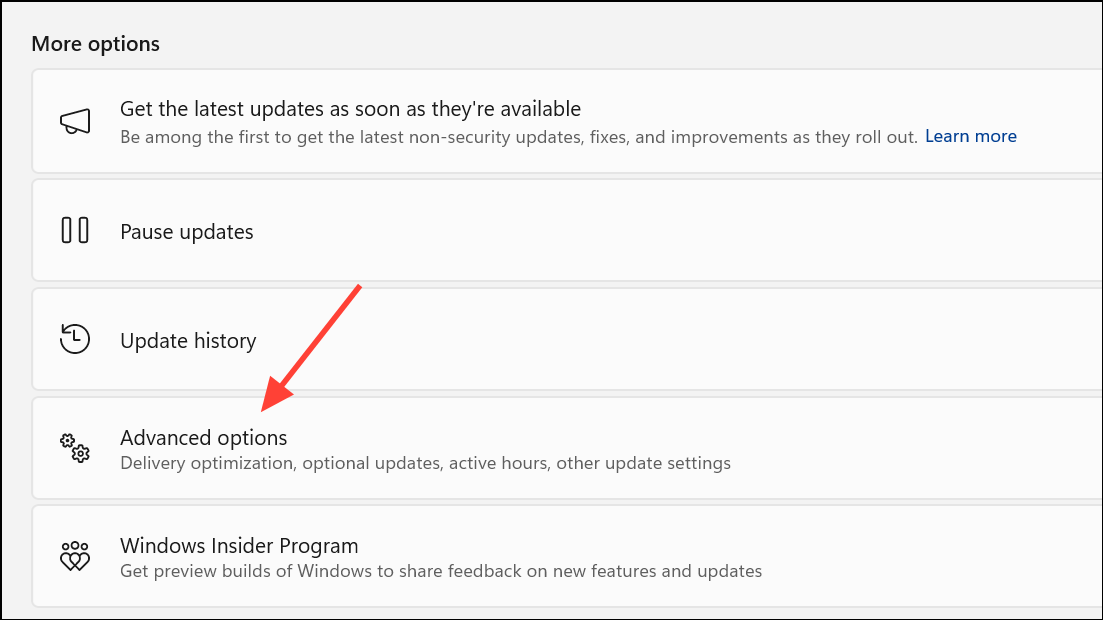
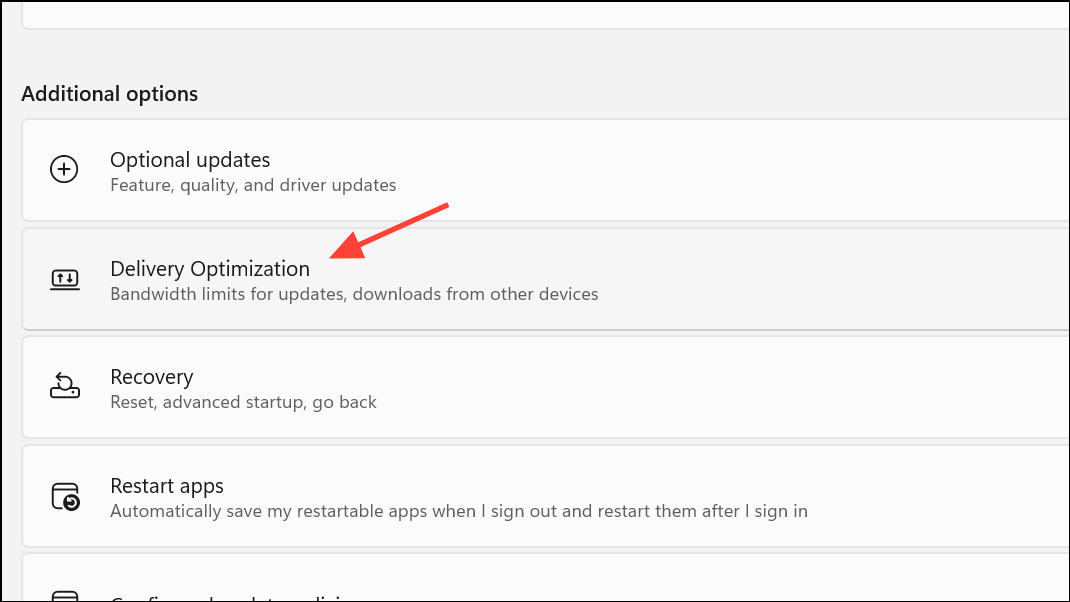
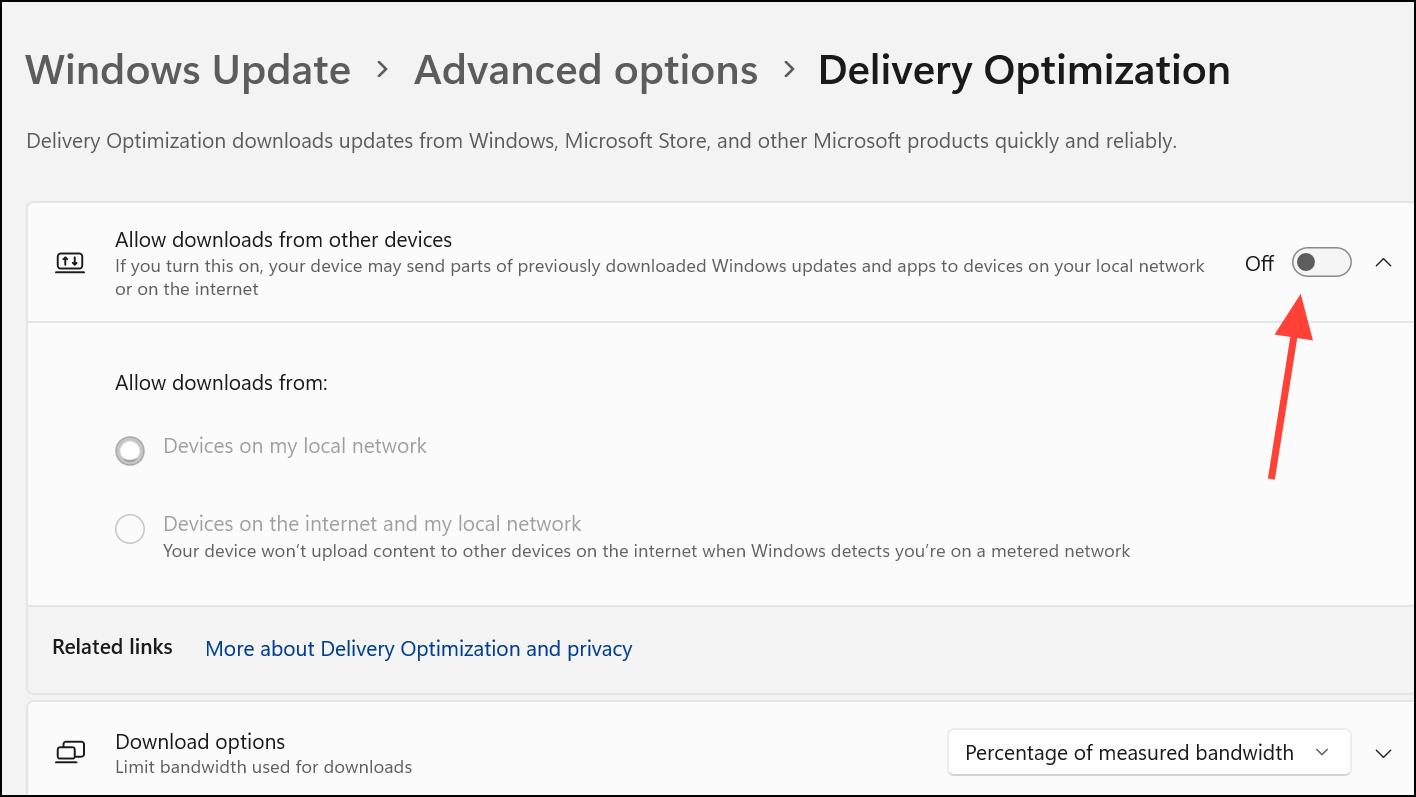
Disable Delivery Optimization via Registry Editor
For users who want to enforce the setting or if the option is greyed out in Settings, the Registry Editor provides a direct method. Modifying the registry incorrectly can cause system instability, so it’s important to create a system restore point or back up the registry before proceeding.
Windows + R to open the Run dialog, type regedit, and press Enter to launch the Registry Editor.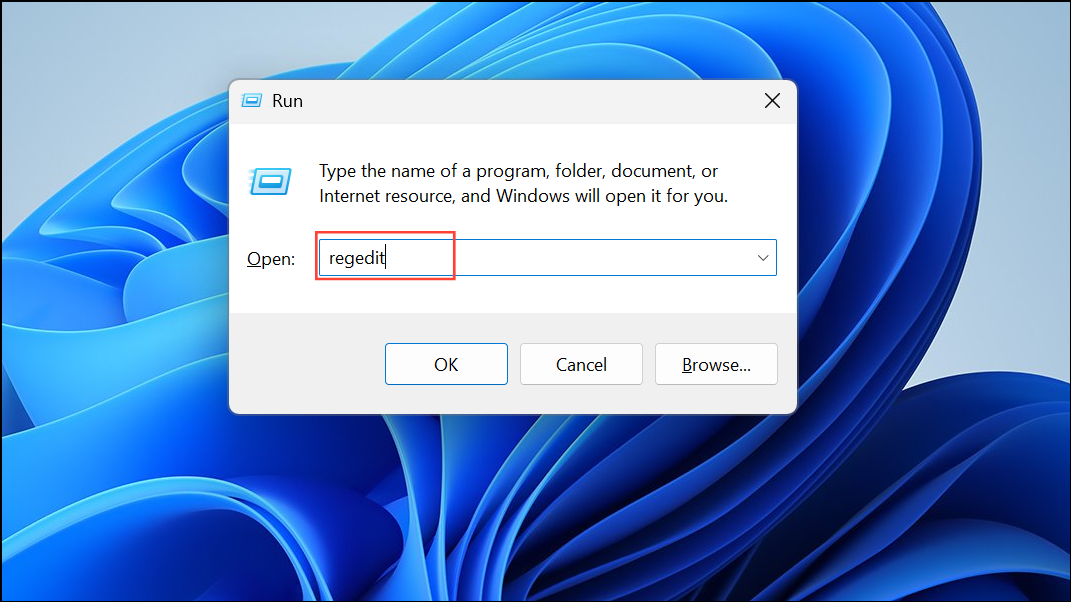
Computer\HKEY_LOCAL_MACHINE\SYSTEM\CurrentControlSet\Services\DoSvc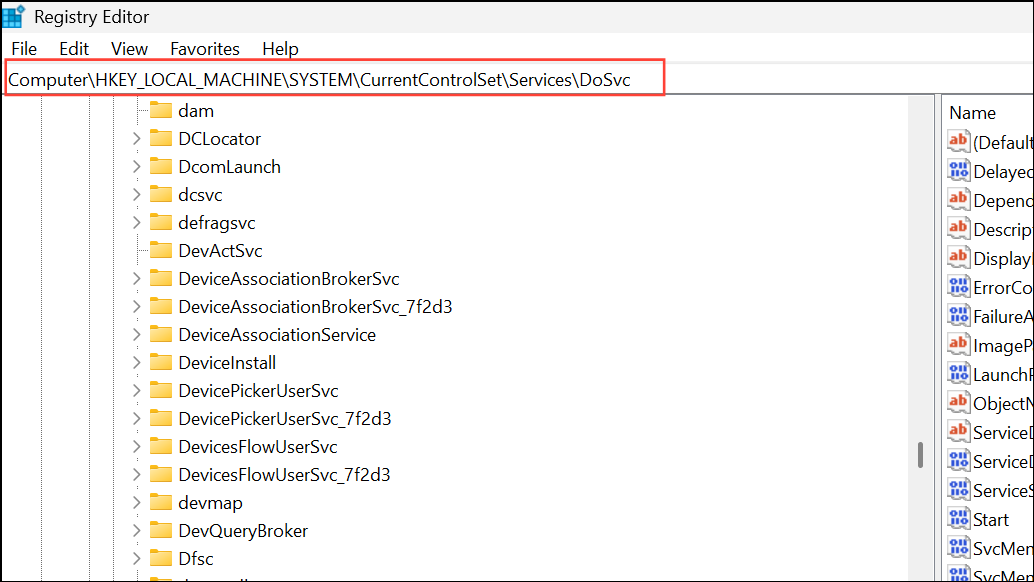
4 and click OK. This sets the Delivery Optimization service to “Disabled.”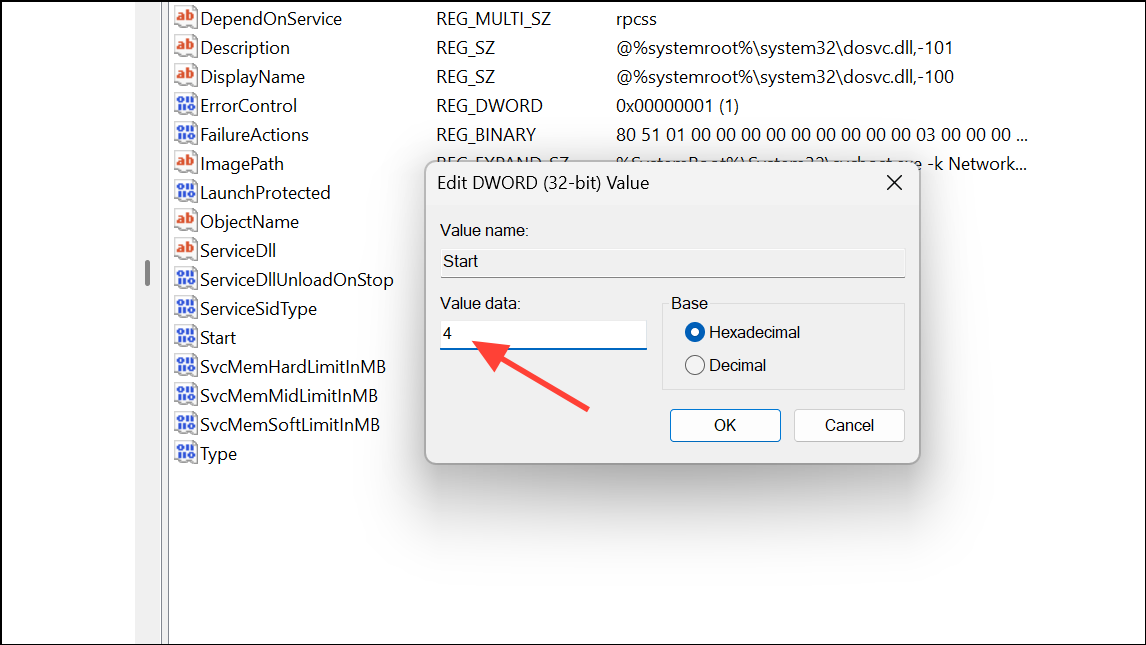
Disable Delivery Optimization Using Group Policy Editor
The Group Policy Editor is available on Windows 11 Pro, Enterprise, and Education editions. It allows administrators to manage advanced system policies, including Delivery Optimization behavior.
Windows + R, type gpedit.msc, and press Enter to launch the Local Group Policy Editor.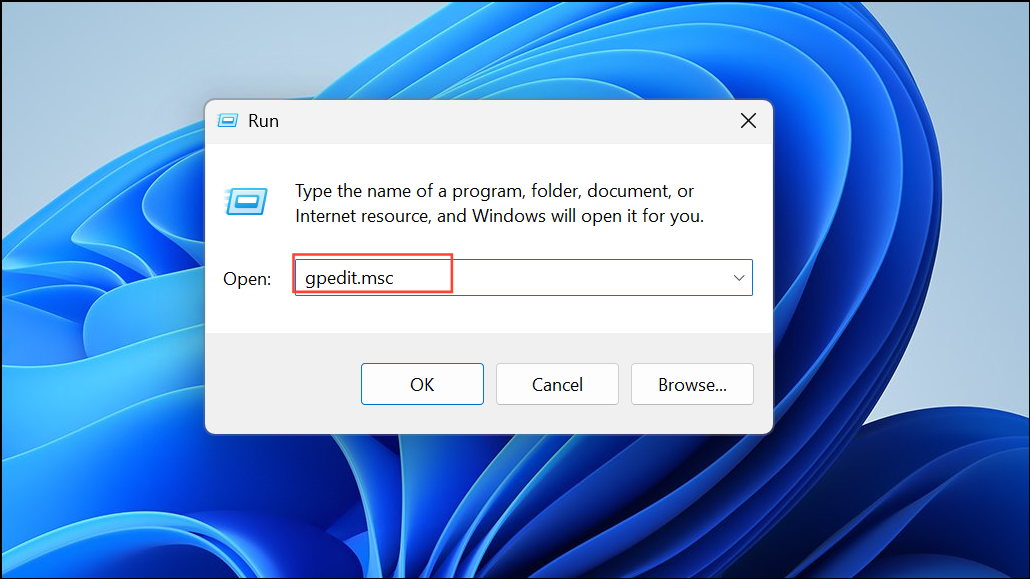
Computer Configuration > Administrative Templates > Windows Components > Delivery Optimization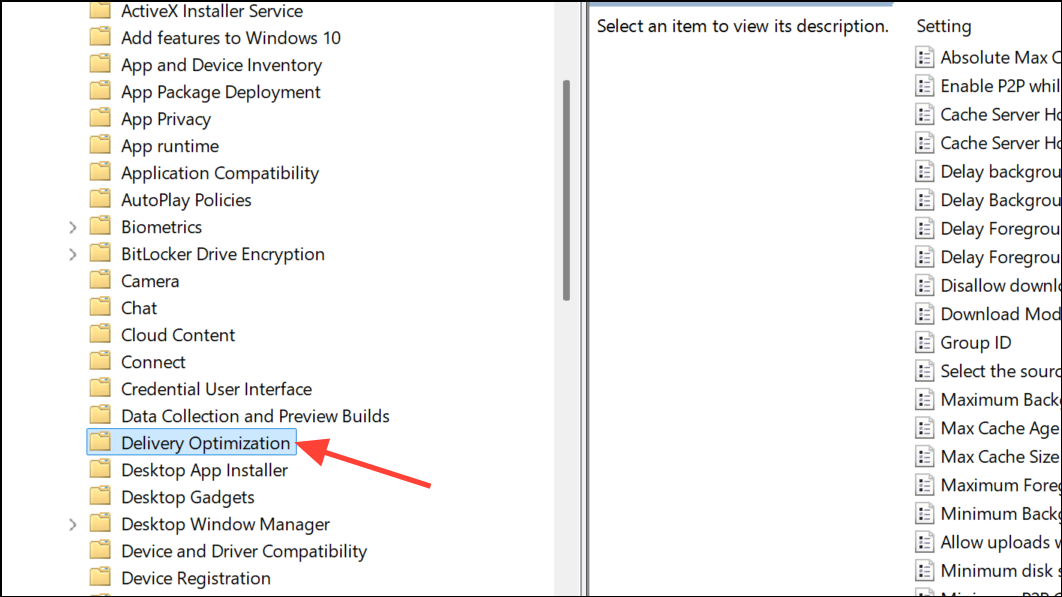
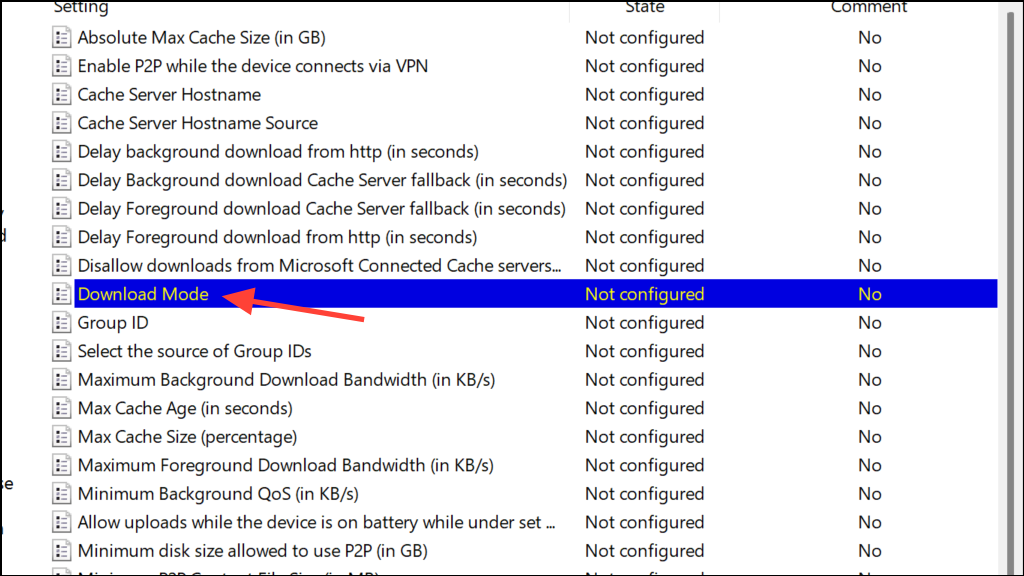
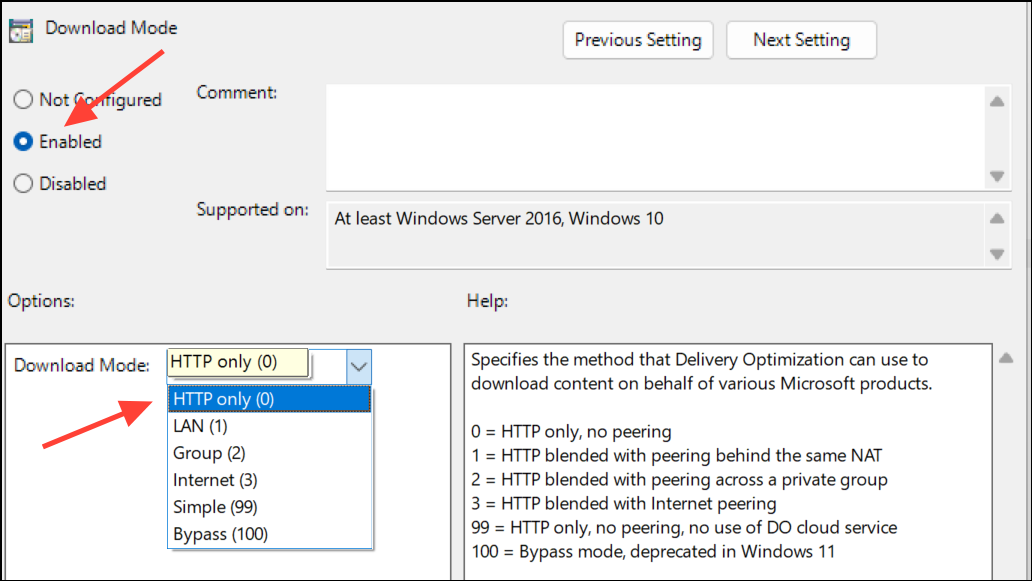
gpupdate /force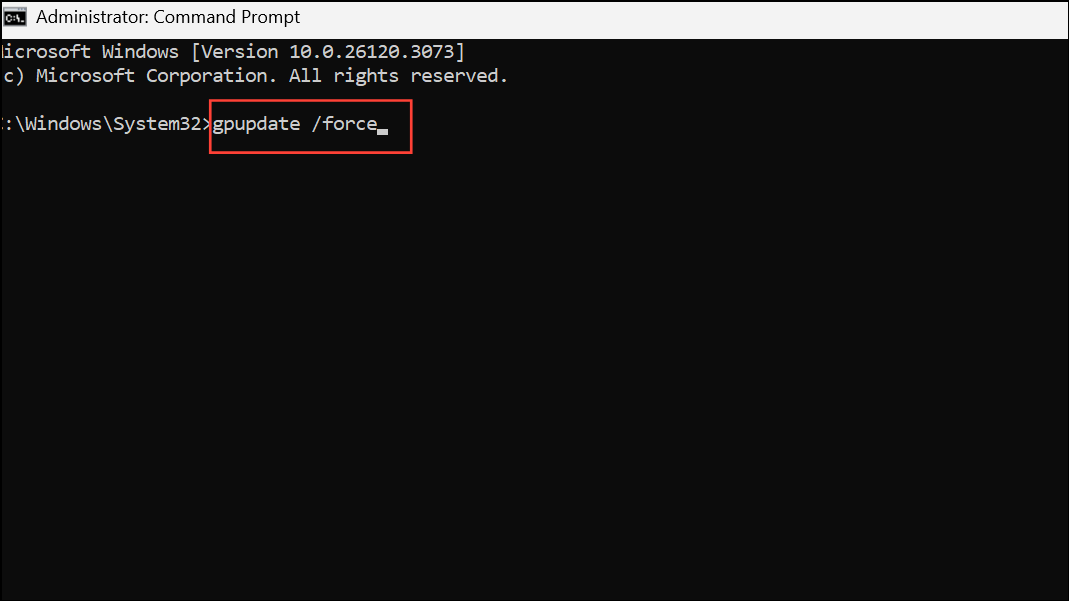
This approach ensures Delivery Optimization is disabled across all users on the device, regardless of their local settings.
Disable Delivery Optimization Through Windows Services
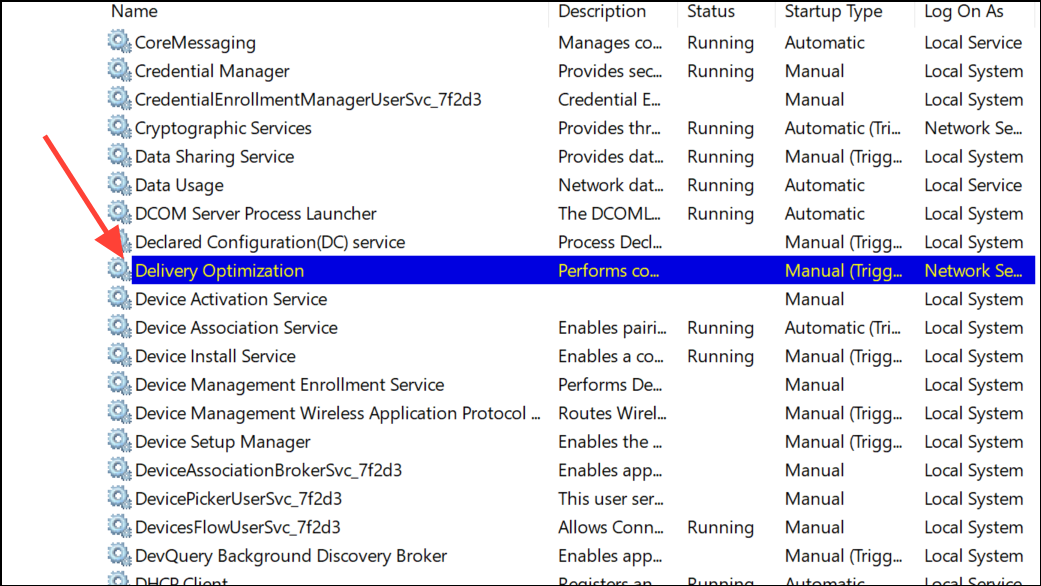
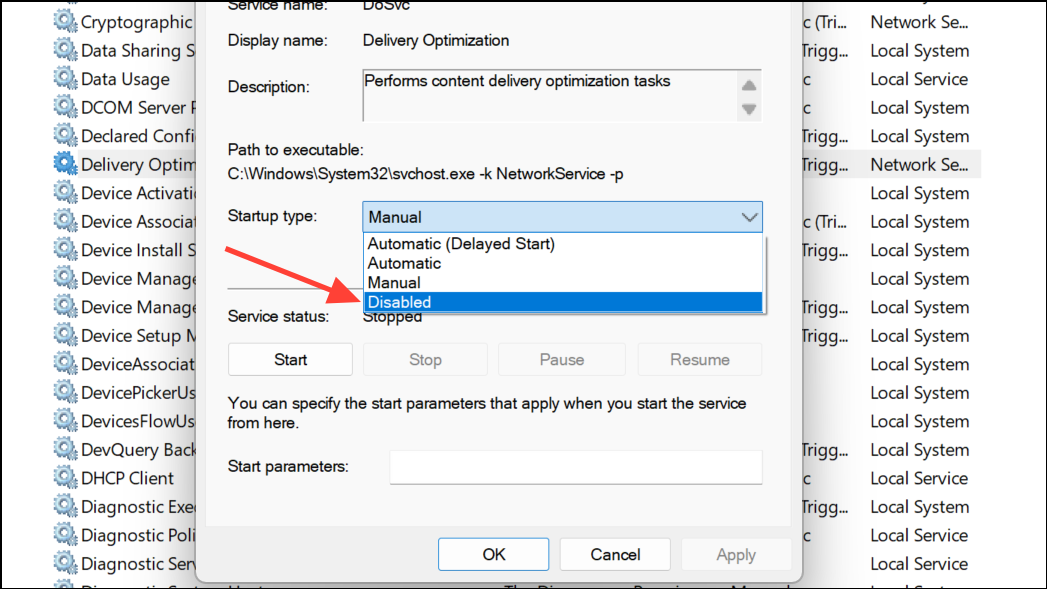
Stopping the service directly prevents Delivery Optimization from running in the background, which can be useful if other methods are unavailable or ineffective.
Windows + R, type services.msc, and press Enter to open the Services management console.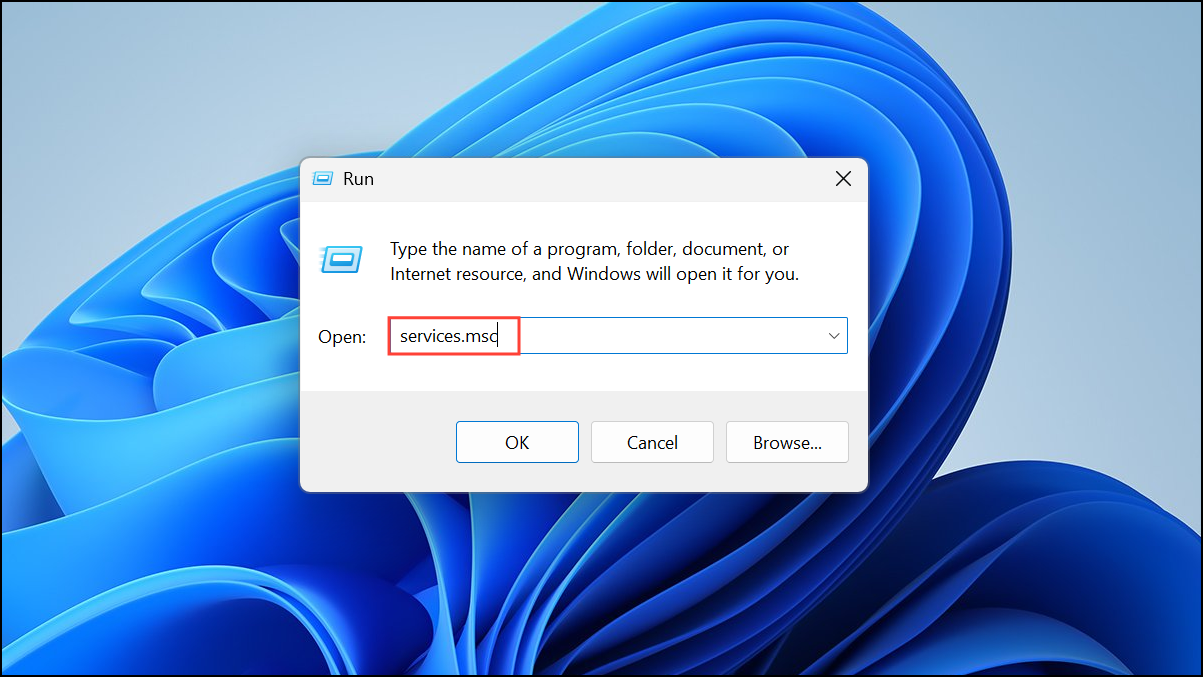
Reduce Data Usage by Enabling a Metered Connection
Switching your network to a metered connection automatically restricts Delivery Optimization, as Windows 11 is designed to minimize background data usage on such networks.
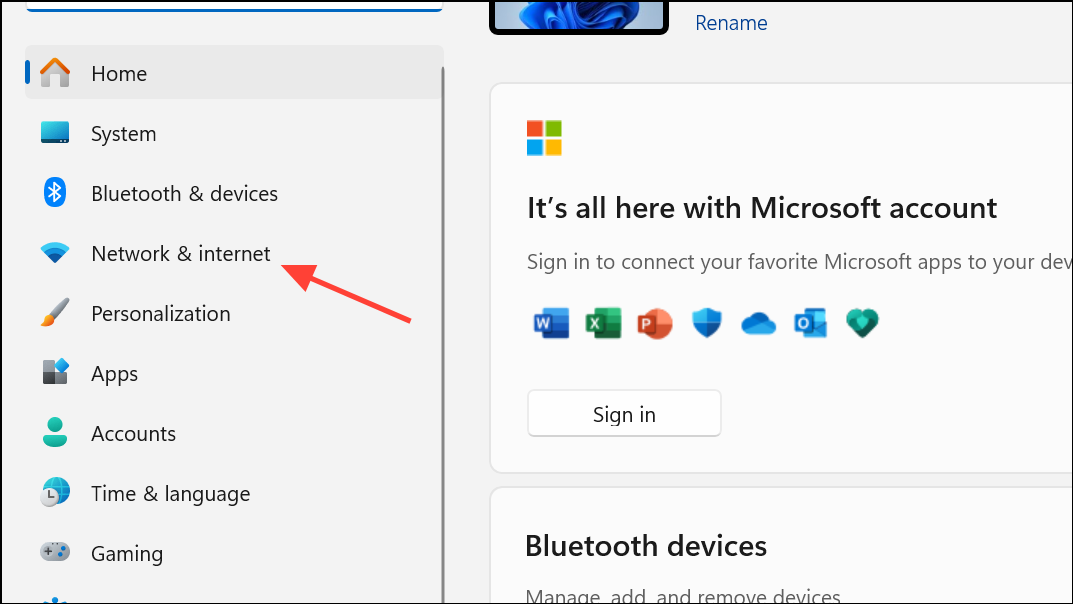
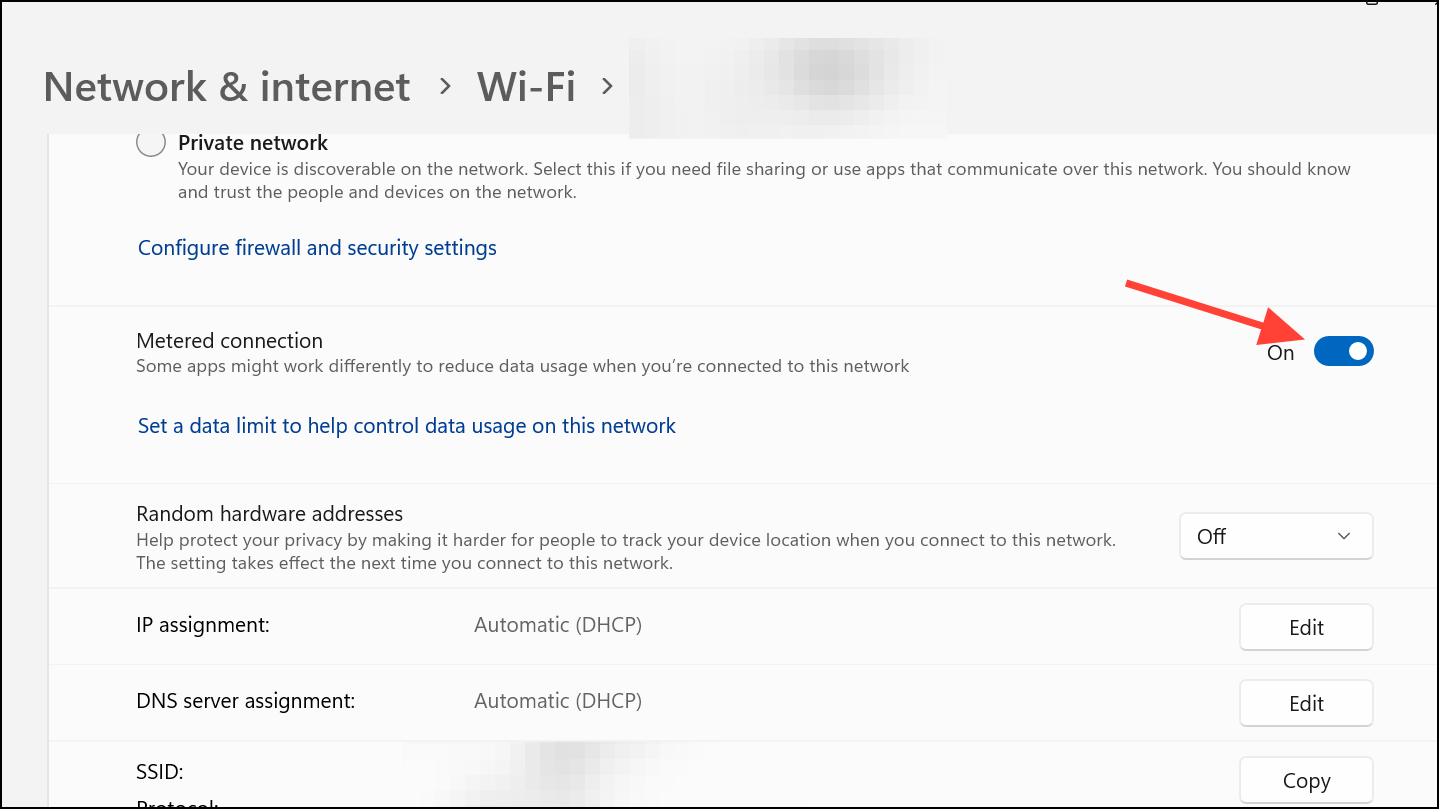
This method is especially useful on laptops or devices with mobile data plans, as it prevents unexpected spikes in data usage from update sharing.
Disabling Delivery Optimization in Windows 11 gives you direct control over your update bandwidth and prevents your PC from sharing updates with other devices. Periodically revisit these settings, as major Windows updates can sometimes revert them to default.



