Organizations are the guild system in VV: Ultimatum. They let you form a fixed group, pull in friends, pool cash, and eventually build a shared base to hang out in between fights. Update 1 rebuilt the whole feature, dropping the level gate and adding base building, member management, and decorations.
Quick answer: Reach Level 20, teleport to Fort Adams, talk to the Organization Manager NPC, pick the create option, then set a name, icon, and description and confirm. You become the leader instantly.
What you need before you start
There is really only one wall standing between you and your own group, and that is your character level. Everything else is just knowing where to go and making sure you are not already tied to someone else’s group.
| Requirement | Detail |
|---|---|
| Level | 20 (lowered from 35 in Update 1) |
| Location | Fort Adams, the tutorial area |
| NPC | Organization Manager |
| Restriction | You cannot create one while already in an Organization |
If you are already a member of another Organization, the create option will not work. Talk to the same NPC and leave your current group first, then start fresh.
Creating your Organization at Fort Adams
C to highlight nearby questgivers so you are not wandering the map hunting for the next objective.C on keyboard or D-pad Left on console to trigger Sense, which outlines nearby NPCs through walls and terrain. It saves a lot of blind running around the ruins.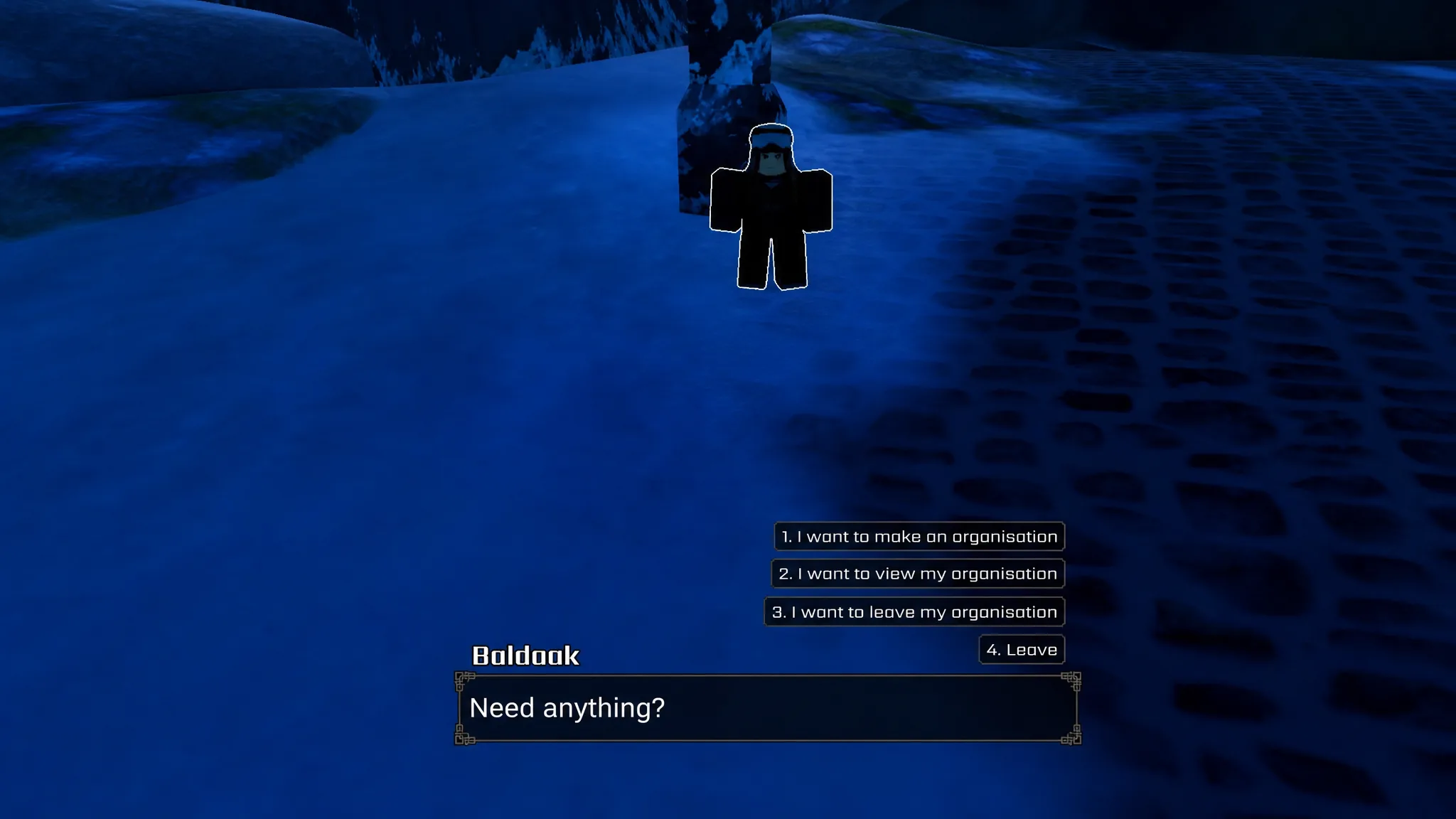
Note: A flat cash cost to finalize creation has not been confirmed, so treat the Level 20 gate as the only firm prerequisite.
Inviting members and pooling funds
With the group live, you can start recruiting from the management panel. Open the Character Menu with Tab on keyboard or D-pad Up on console, then click the Organization icon sitting just above the Shop button.
Only the leader can send invites, and a player can only accept if they are not already in another Organization. If someone you want is in a different group, they have to leave it before your invite will land.
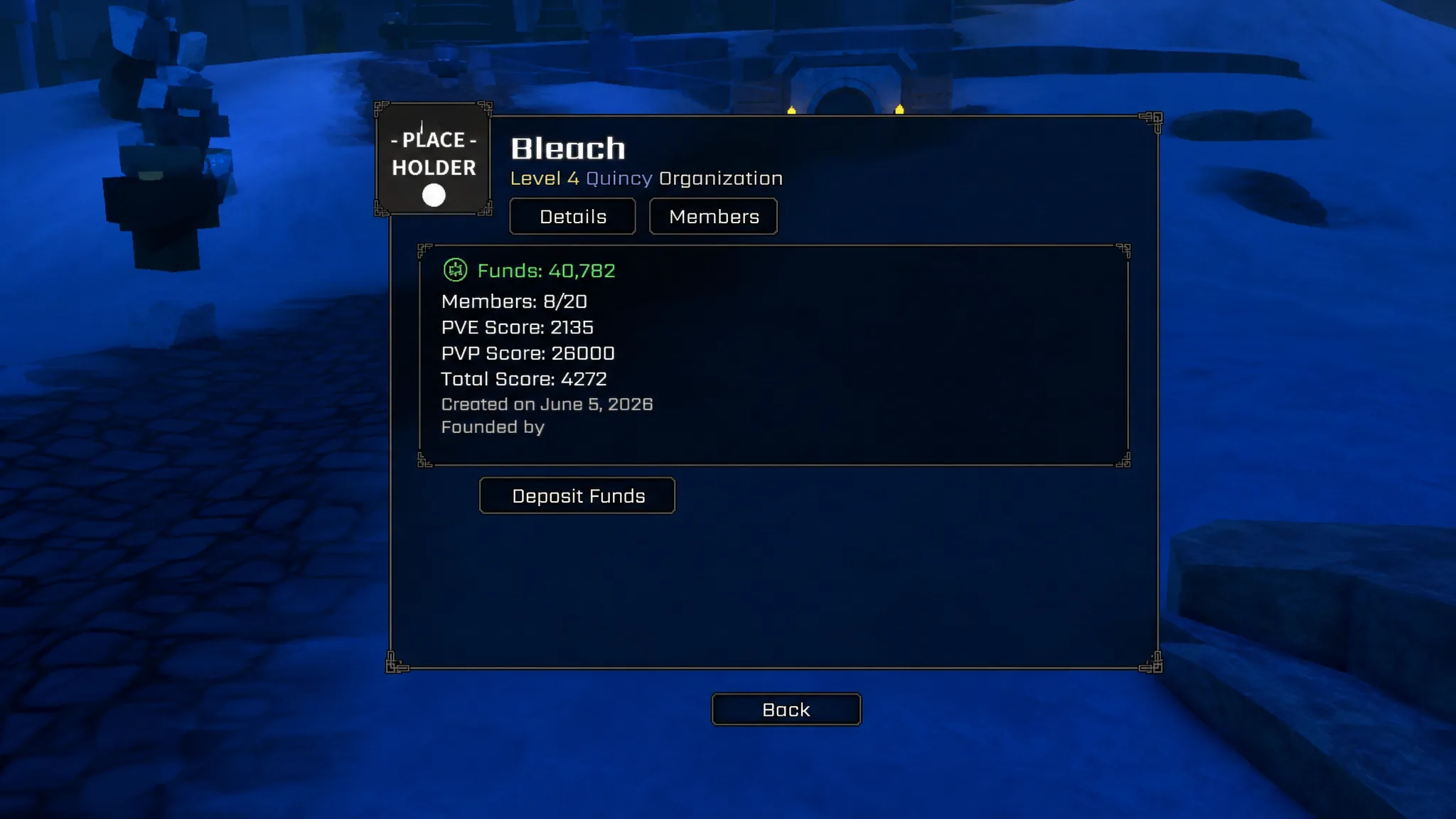
Once members are in, everyone can donate their Cash into a shared pool called Organization Funds. Those funds pay for everything else the group does, from base structures to props and decorations. A few players who donate regularly will get you further than a full roster that rarely logs in.
Unlocking and using base building
Base building is what turns the group from a chat list into an actual hub, but it is locked behind an upgrade. Head to the Upgrades screen inside the Organization menu and unlock the base building upgrade first. After that, a Build Mode button appears in the bottom-left corner of your screen.
Build Mode is leader-only, and you have to be standing in a non-hostile location to open it. Every item, whether a structure, decoration, or prop, is bought with Organization Funds. Add what you want to the basket, check the total, and buy it. Purchased items drop into your Base Inventory, ready to place.
Placement and adjustment are keyboard-only right now. Console versions do not have these controls yet.
| Action | Keyboard input |
|---|---|
| Select / place | Left mouse button |
| Deselect | C |
| Rotate | R and T |
| Extra controls | Y |
Why it fails and how to fix it
Most people get stuck on the same handful of details. Run through these before assuming something is broken.
| Problem | Reason |
|---|---|
| Create option greyed out | You are below Level 20, or still a member of another Organization |
| Cannot find the NPC | You are not using Sense. Hold C or D-pad Left at Fort Adams to see it through walls |
| Invite does not go through | The target player is already in another Organization, or you are not the leader |
| No Build Mode button | The base building upgrade has not been unlocked yet |
| Build Mode will not open | You are not the leader, or you are standing in a hostile area |
Get past Level 20, keep Sense handy at Fort Adams, and lean on your active donors, and the rest of the system falls into place quickly. From there your base grows at whatever pace your members are willing to fund it.