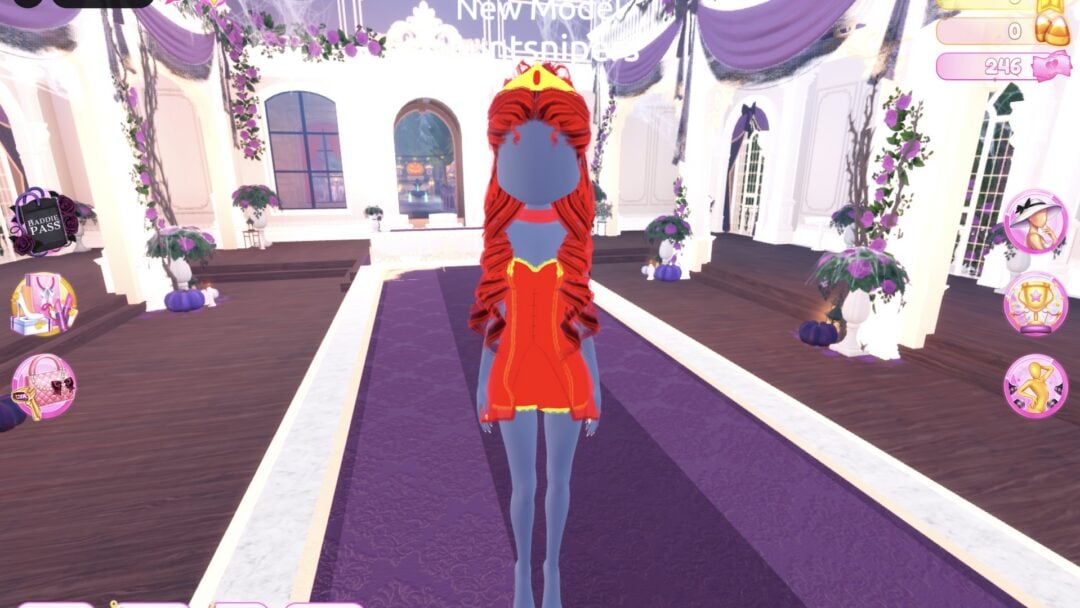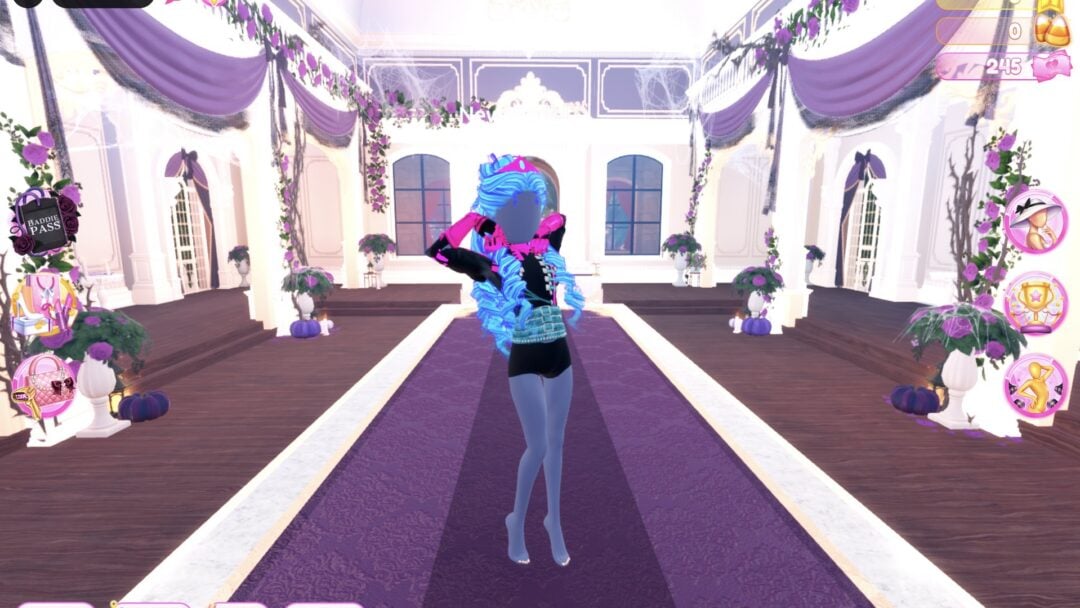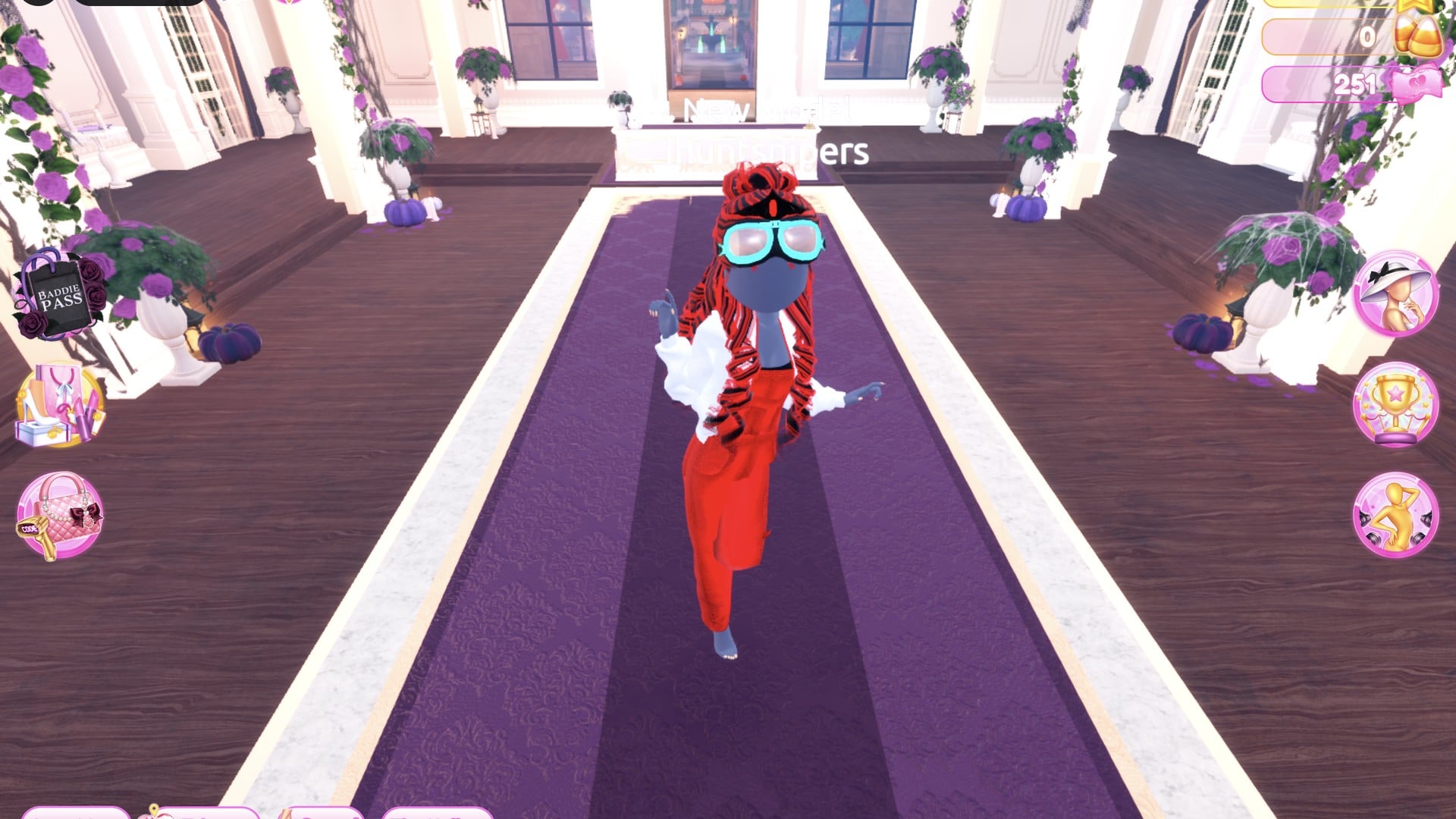
Video Game Character is one of the round themes in Dress To Impress on Roblox, and the game gives you only its name. Our reading: dress as a type of game character people recognise at a glance, by its outline and two or three loud colours. That idea is ours, not a rule the game sets. Below are two complete looks we built in Freeplay Mode, a fantasy RPG sorceress and an arcade racer, with our own picture for each step. Every piece and material used is free.
Quick answer: Pick a character type people know at a glance: a sorceress in a violet Silk robe with a gold belt, silver curls and a gold crown, or a racer in red Leather overalls, a white Leather bomber and cyan Neon goggles.
Video Game Character outfit ideas in Dress To Impress
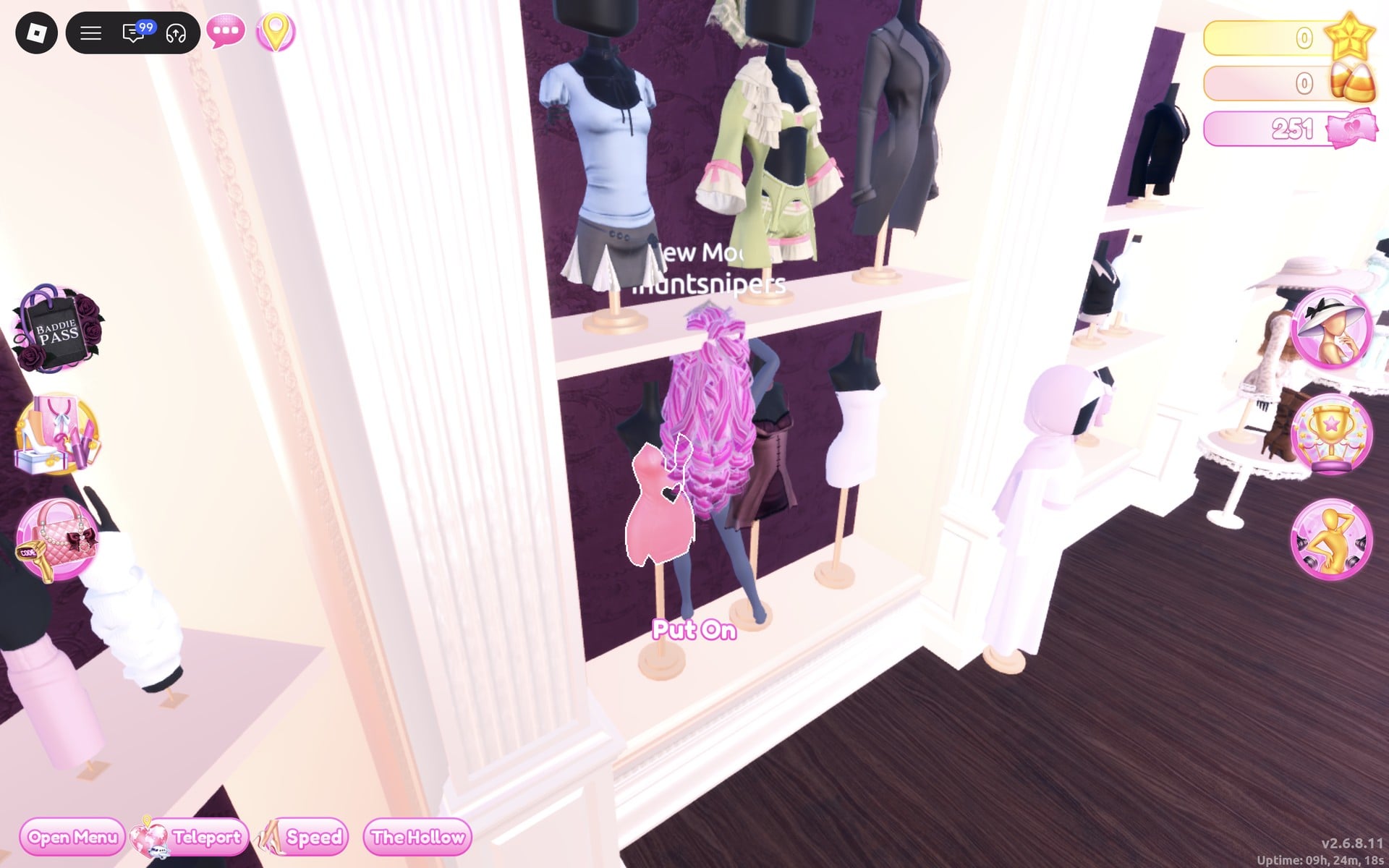
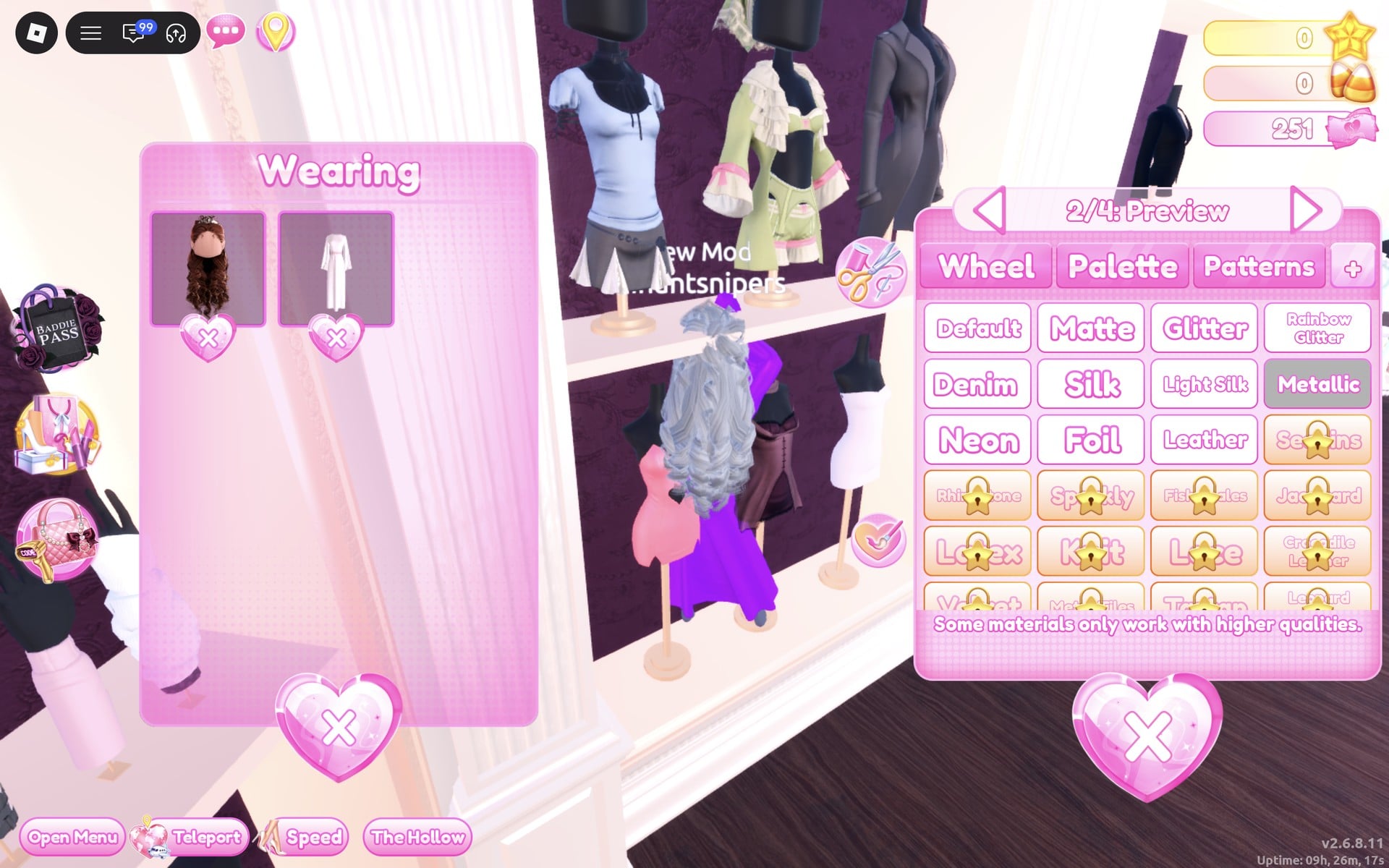
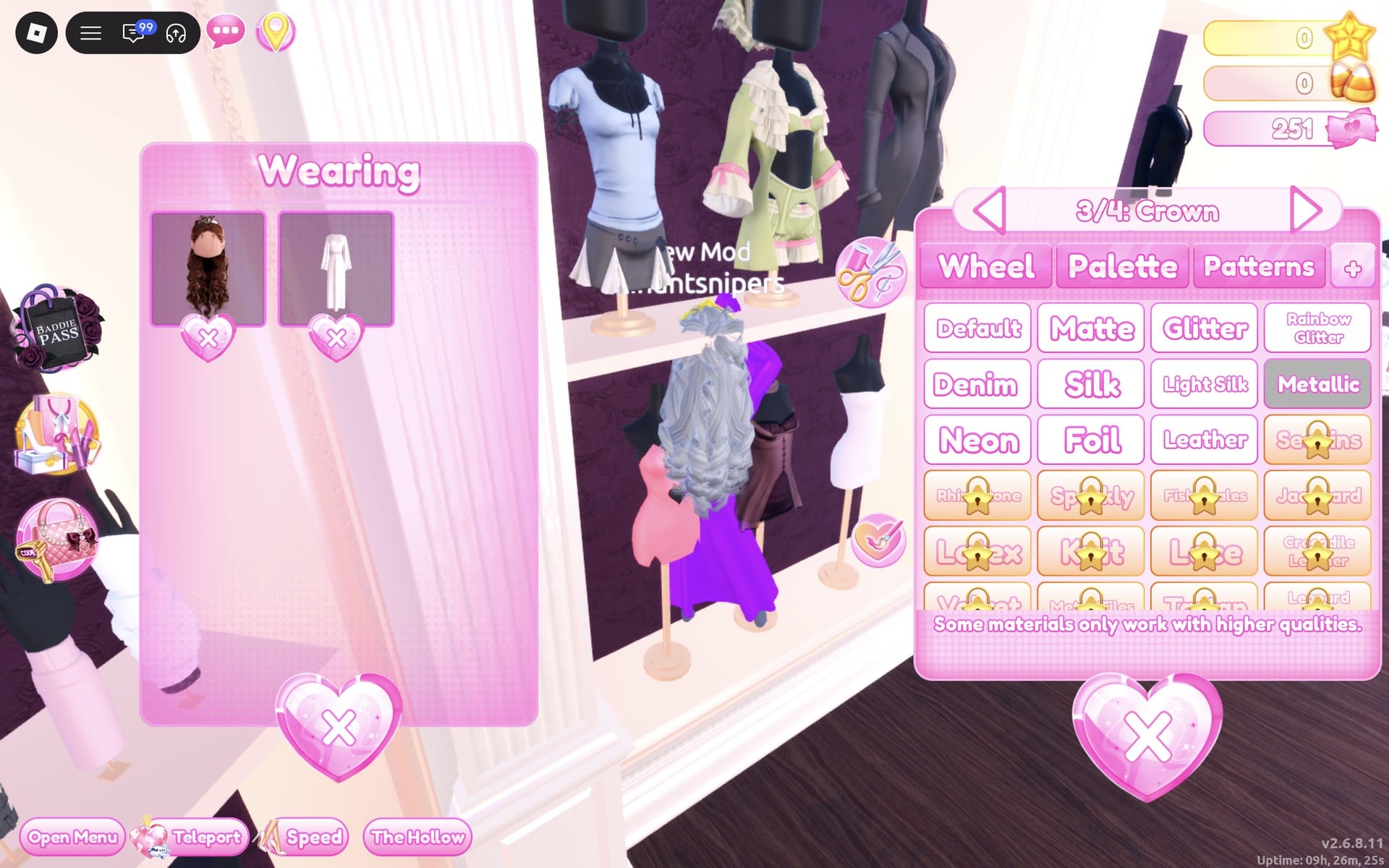
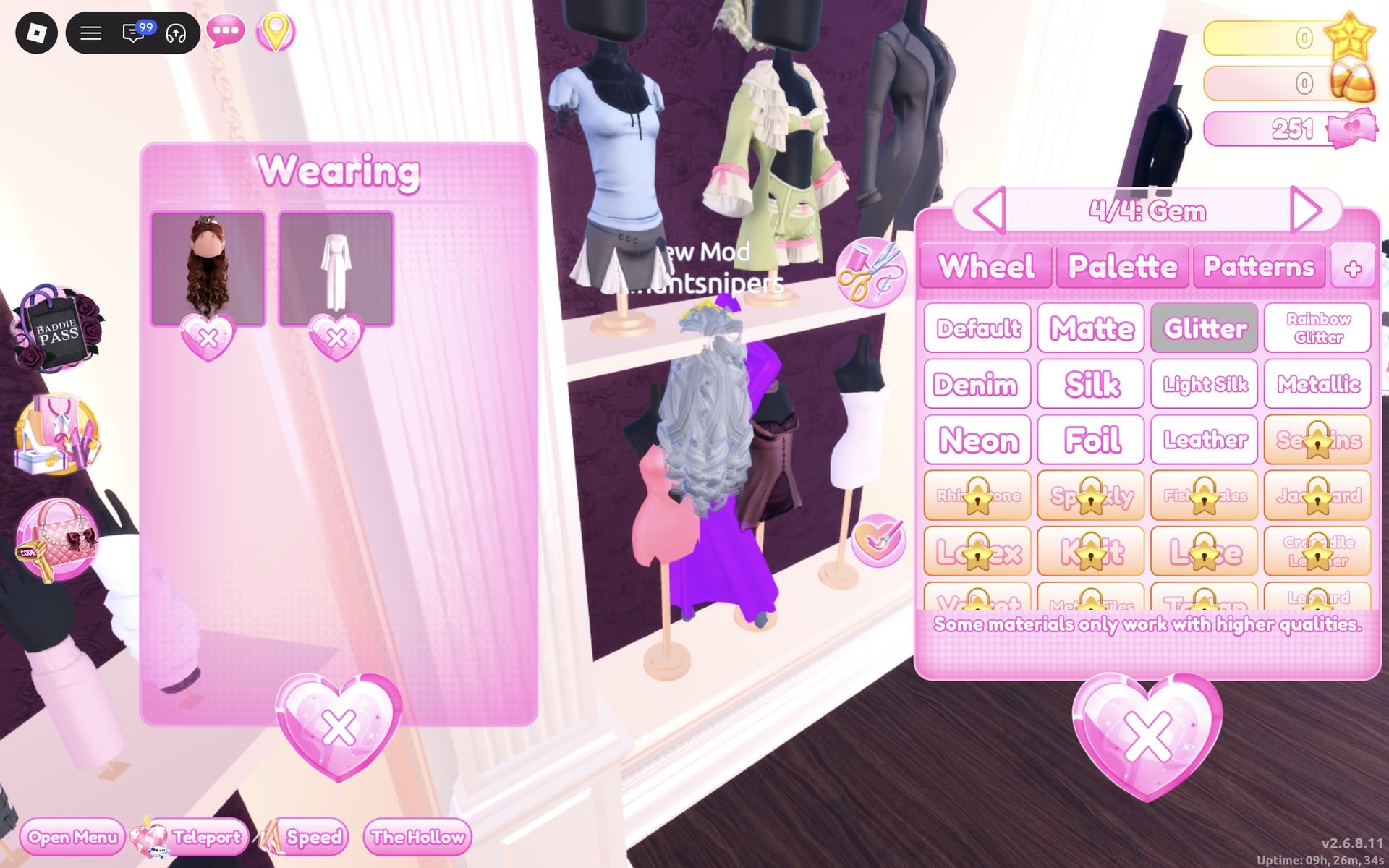
Dress To Impress shows no item names, so every piece here is described by where it sits in the Dressing Room, what it looks like and the exact palette spot we used. The hair in both looks is the long curls with a crown from Lana’s Salon, already on from an earlier build; its last two parts, “3/4: Crown” and “4/4: Gem”, are the crown and the stone in it.
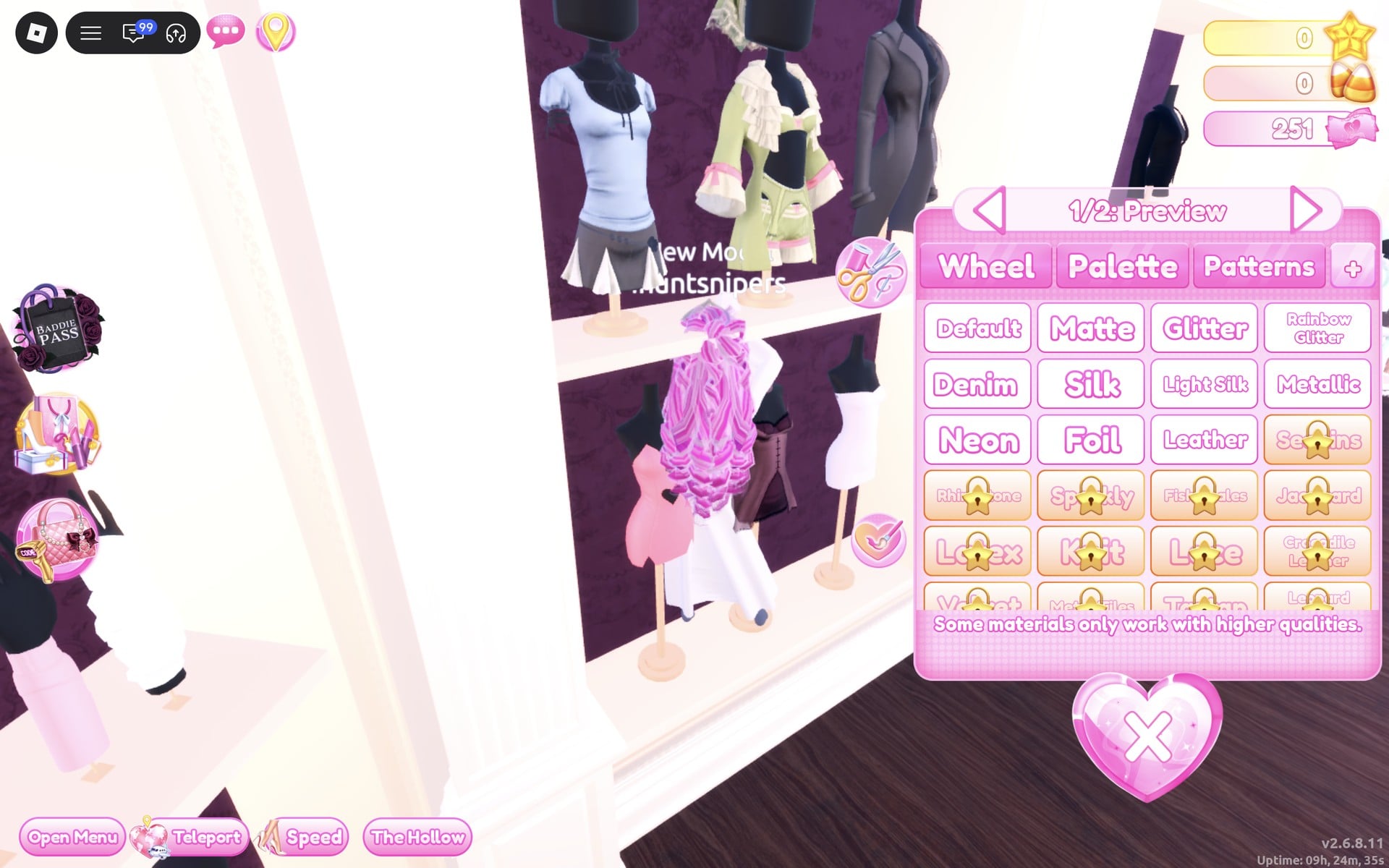
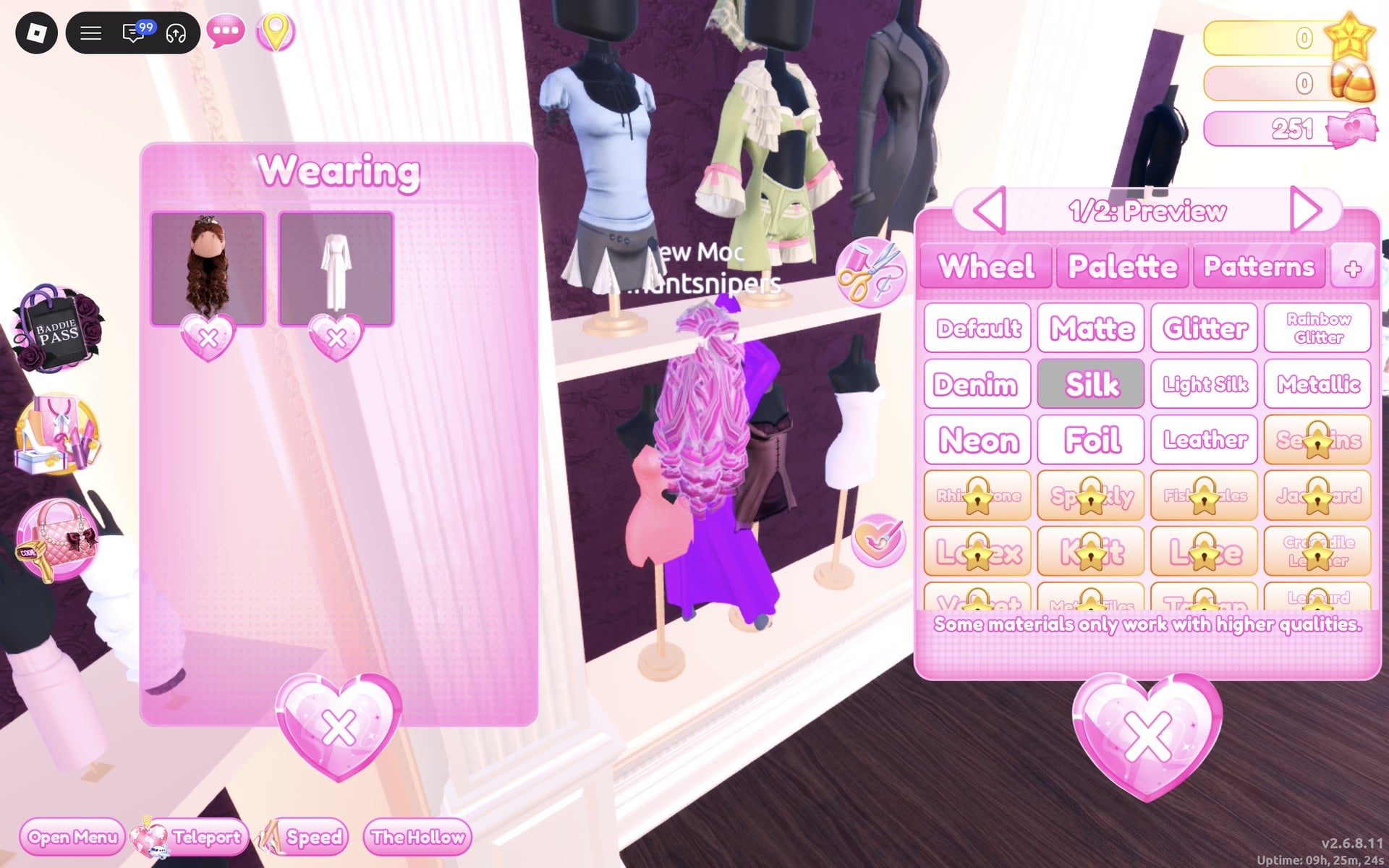
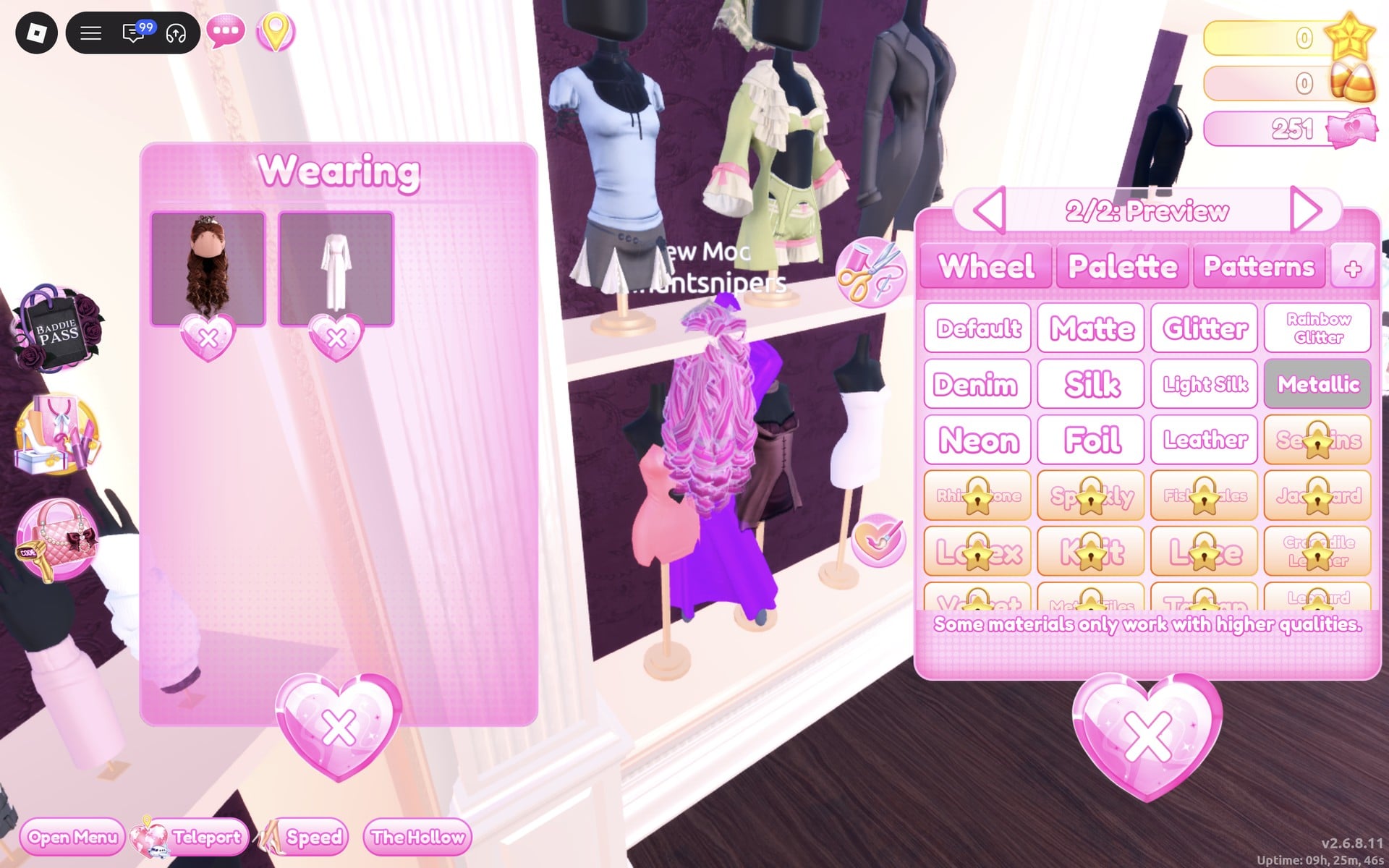
A new piece works the same way every time: click it once and it previews on your character with its colour panel open at part 1. Click the floating “Put On” label beside the piece when it shows to keep it on. A piece you already wear is recoloured from the Wearing panel: click its picture, step through its parts with the arrows beside the part name, and set a colour on Palette and a material on the “+” tab for each part.
Look 1: RPG sorceress, violet Silk robe with a gold belt
Our idea: the fantasy spell-caster from a role-playing game. A long robe to the floor, one rich colour with a soft sheen, gold for the belt and crown, and silver hair.
The black top and black shorts on the character are the base body, not a piece. They cannot be taken off, only covered, and the robe covers them fully.
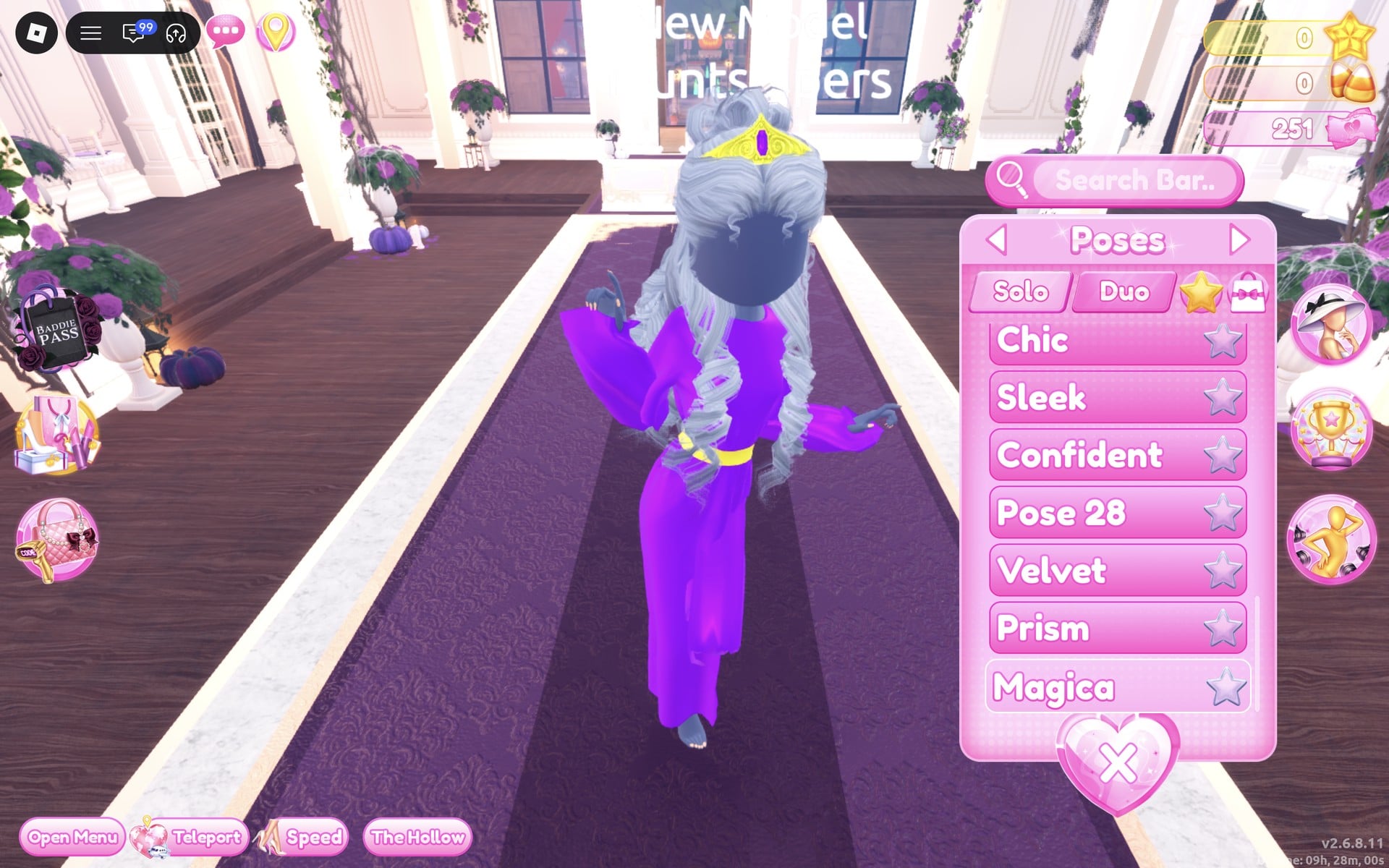
Magica holds the arms out to the sides like a spell being cast, which suits a sorceress better than a hand on the hip.
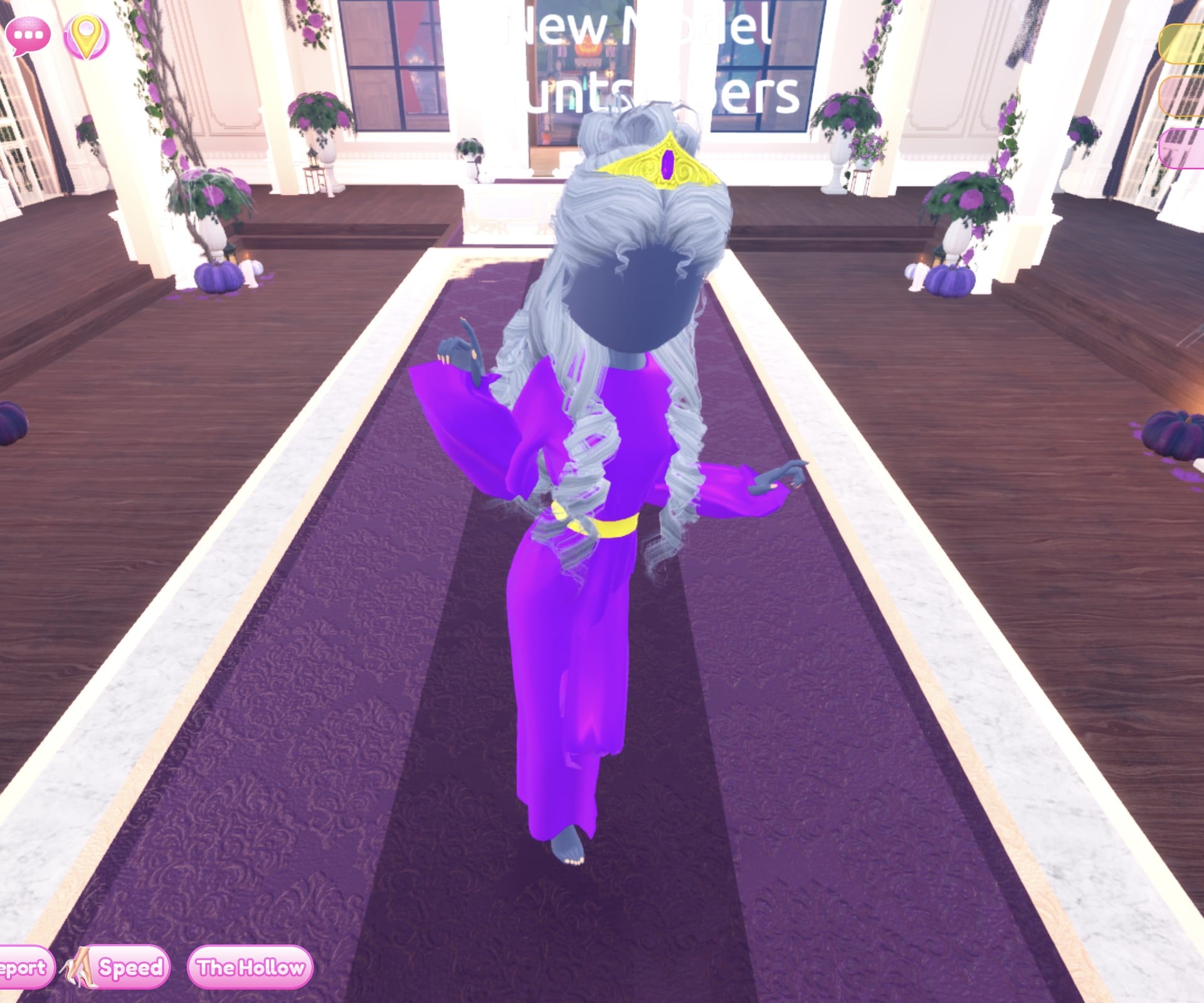
The finished look is a long violet Silk robe to the feet with wide bell sleeves and a gold band at the waist, long silver curls, and a gold crown with a purple gem at the front. It is barefoot. The robe’s hood does not show on the character in our pictures; the curls cover the back.
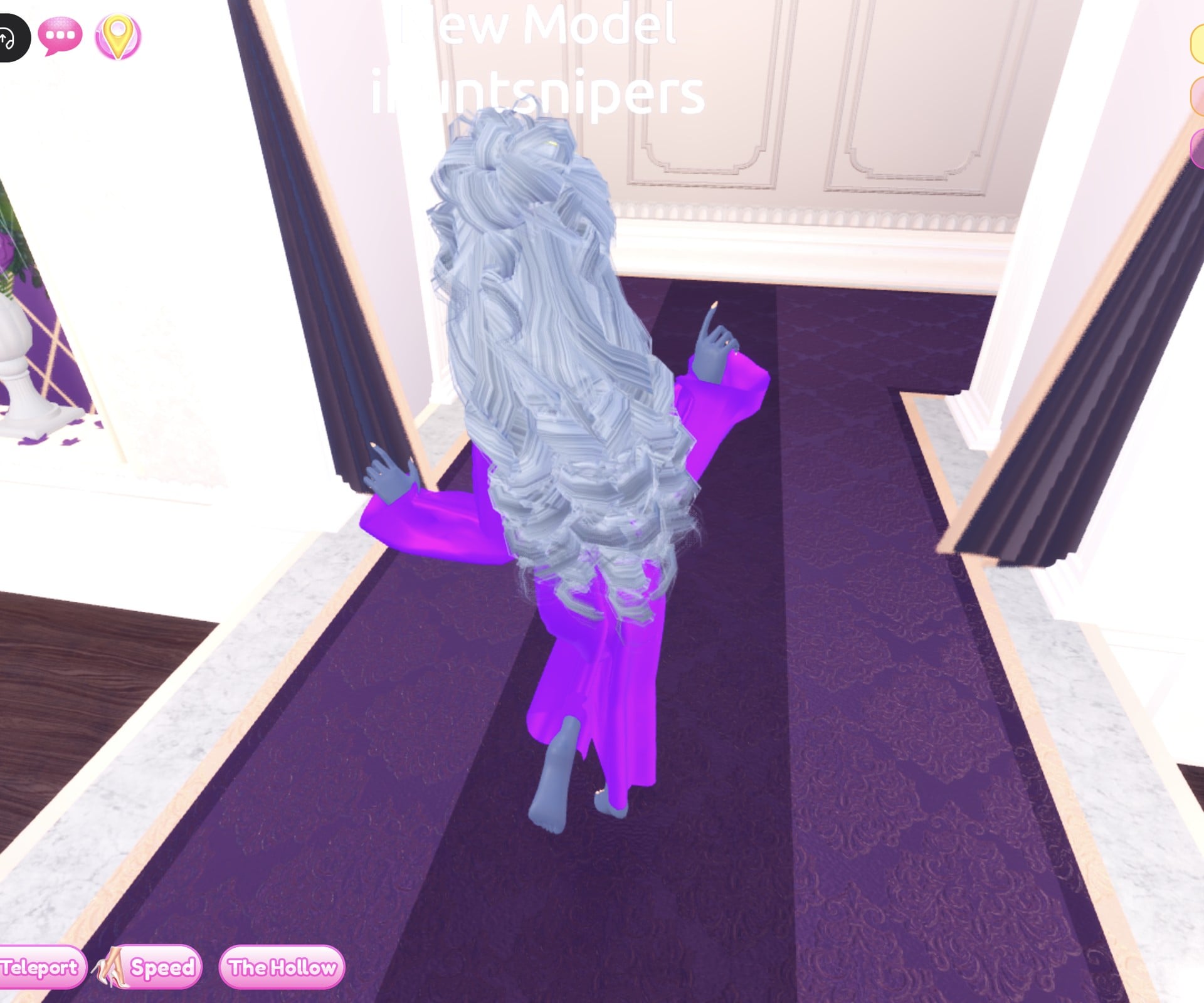
From the back, the silver curls fall over the shoulders and the violet sleeves frame them.
Look 2: Arcade racer, red Leather overalls, white bomber and Neon goggles
Our idea: a driver from a racing game. A one-piece suit in a loud colour, a short jacket, goggles, and a leather sheen everywhere. Red and white are the main colours, with cyan on the goggles.
The black base top and shorts show again here. They are part of the body, and the overalls and jacket cover them.
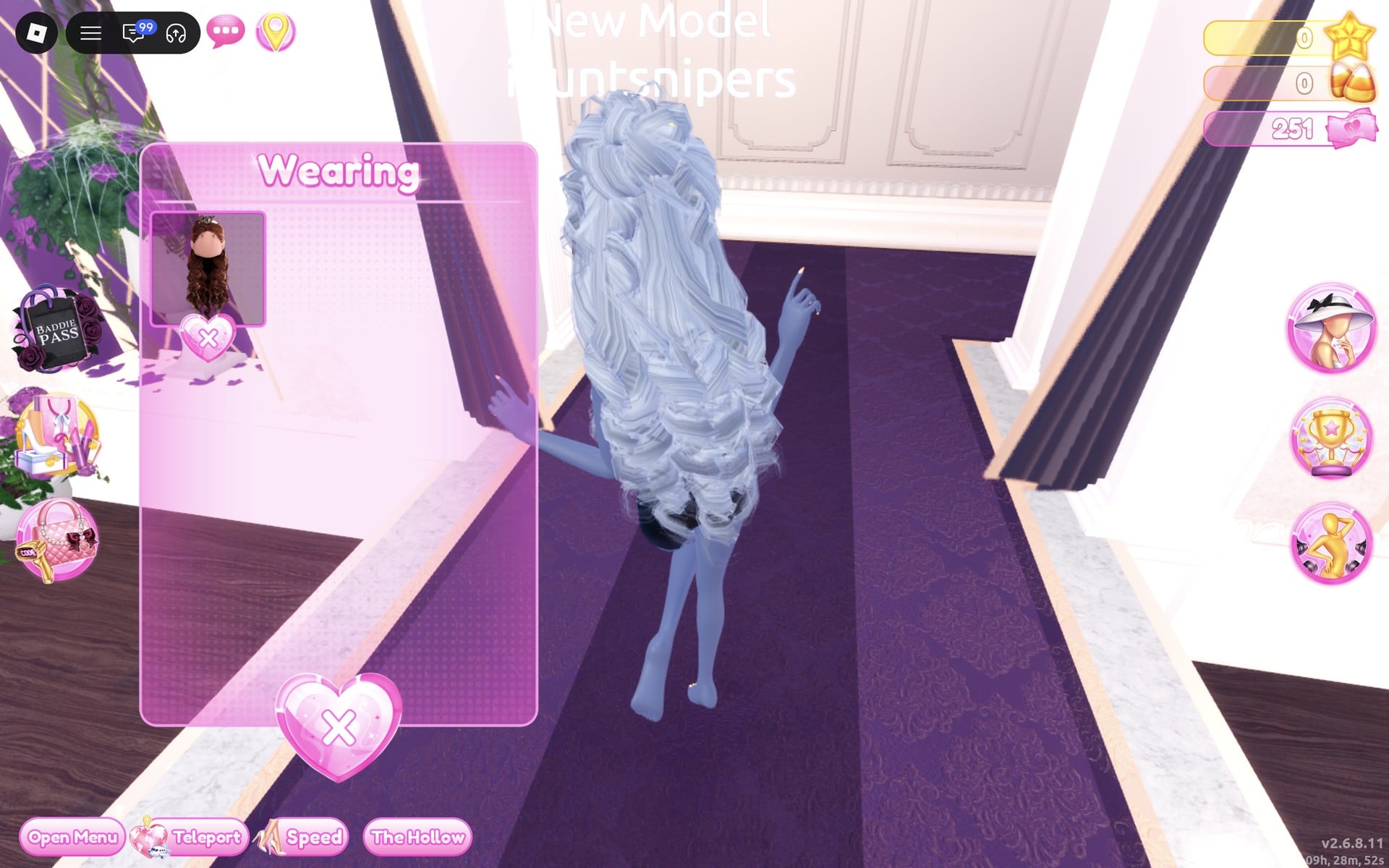
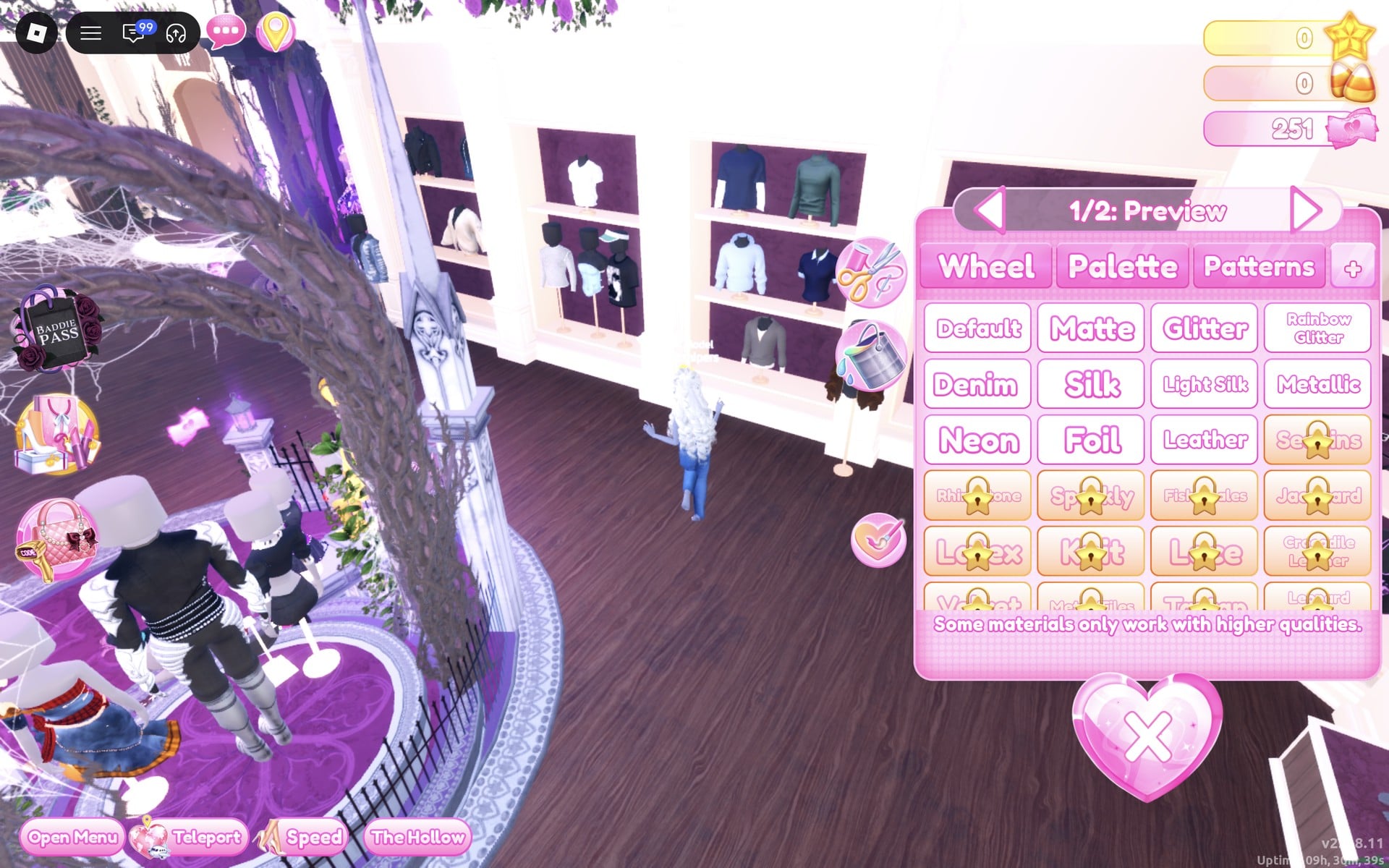
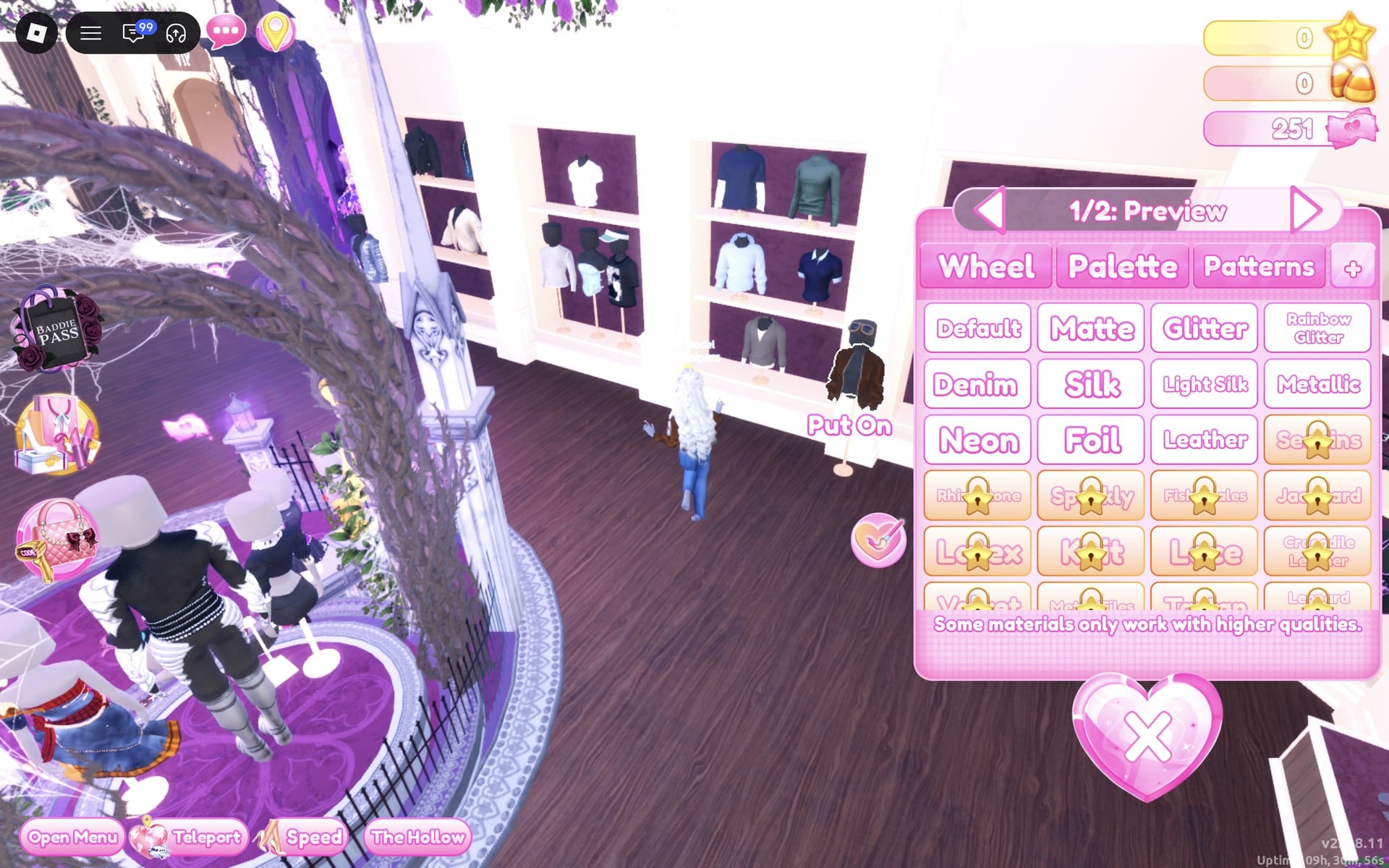
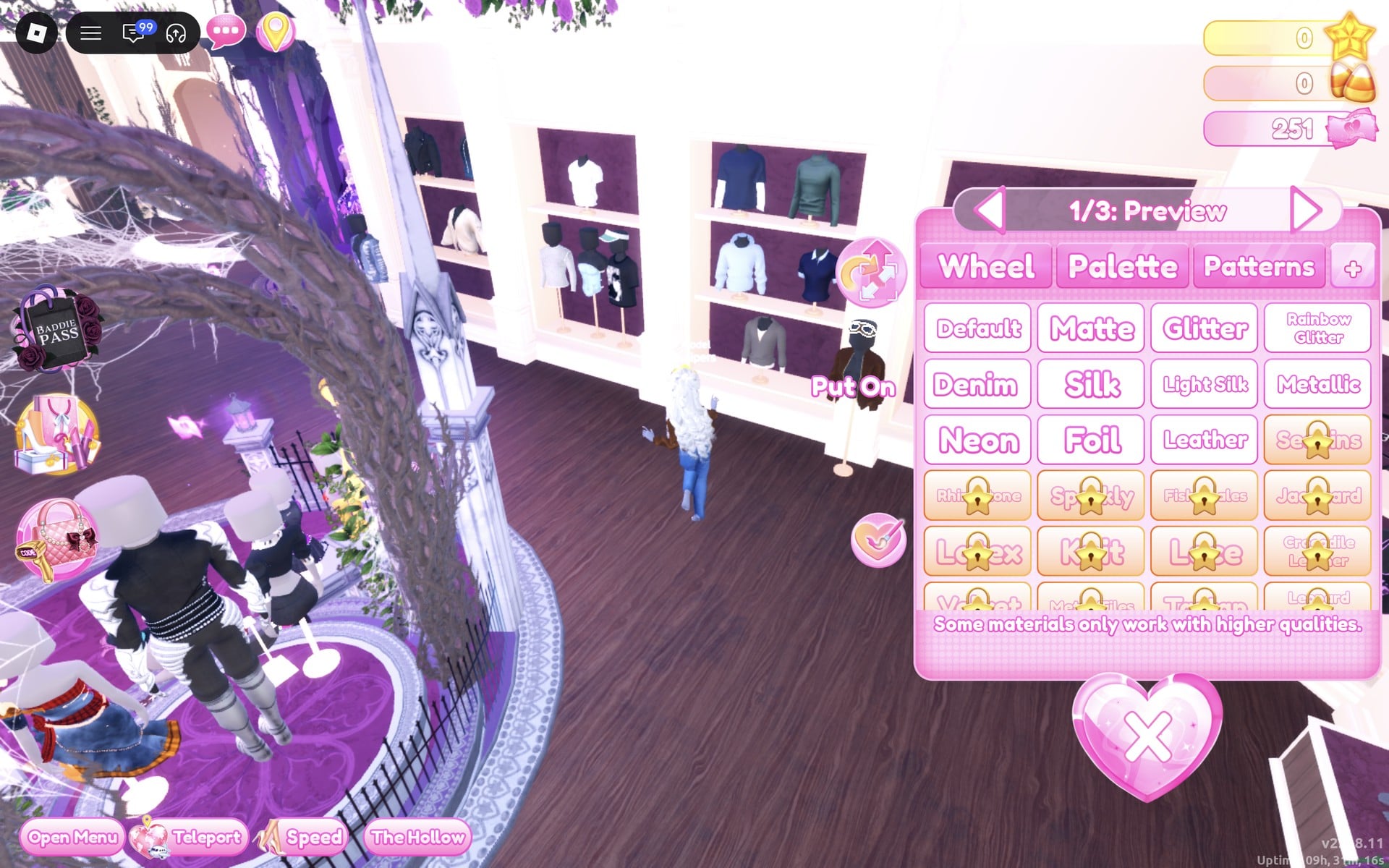
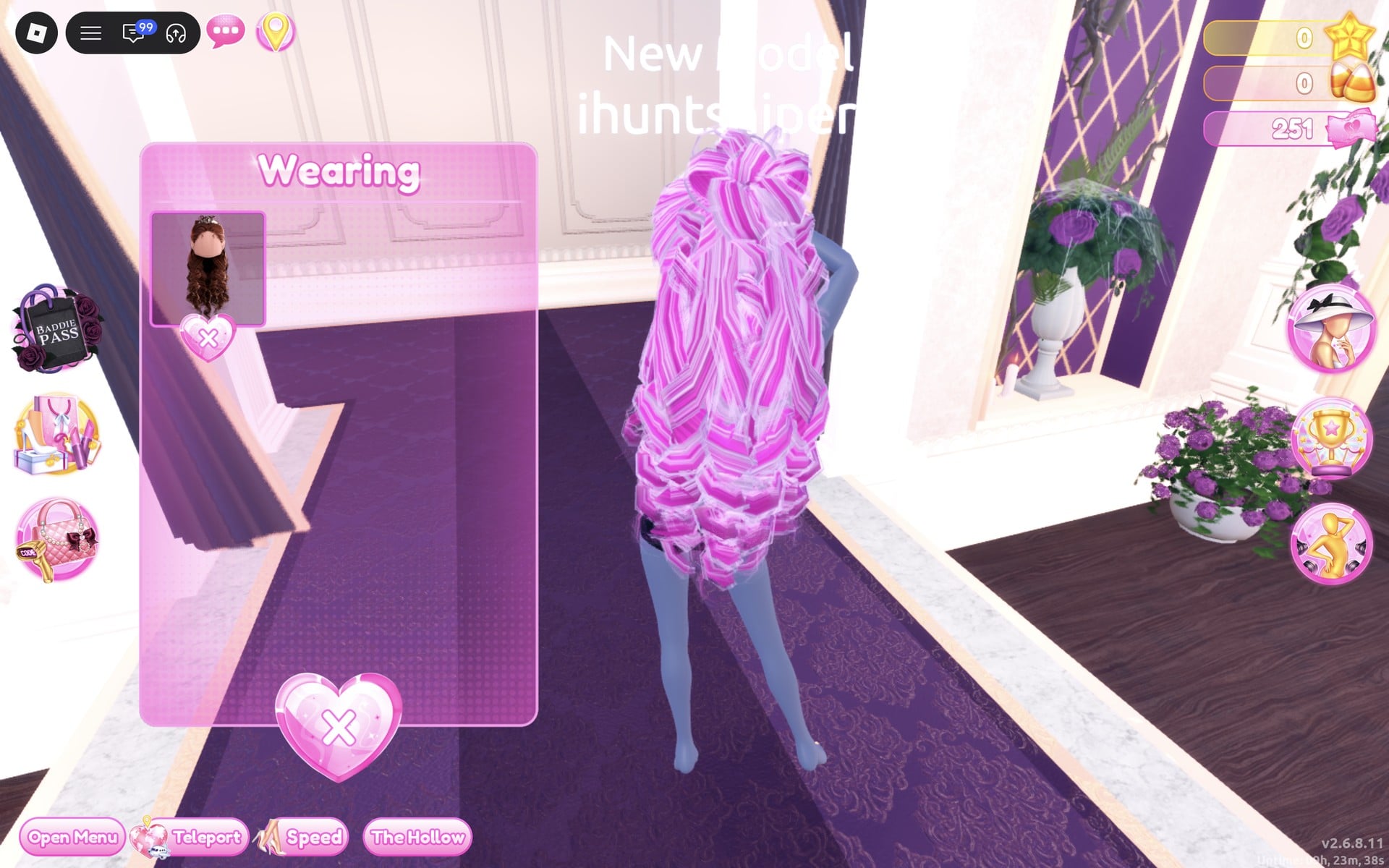
The Wearing panel now shows four pictures: the hair, the overalls, the jacket and the goggles. The small pictures keep each piece’s original colours (blue denim, brown jacket, grey goggles) even after you recolour them, so go by the character, not the panel.
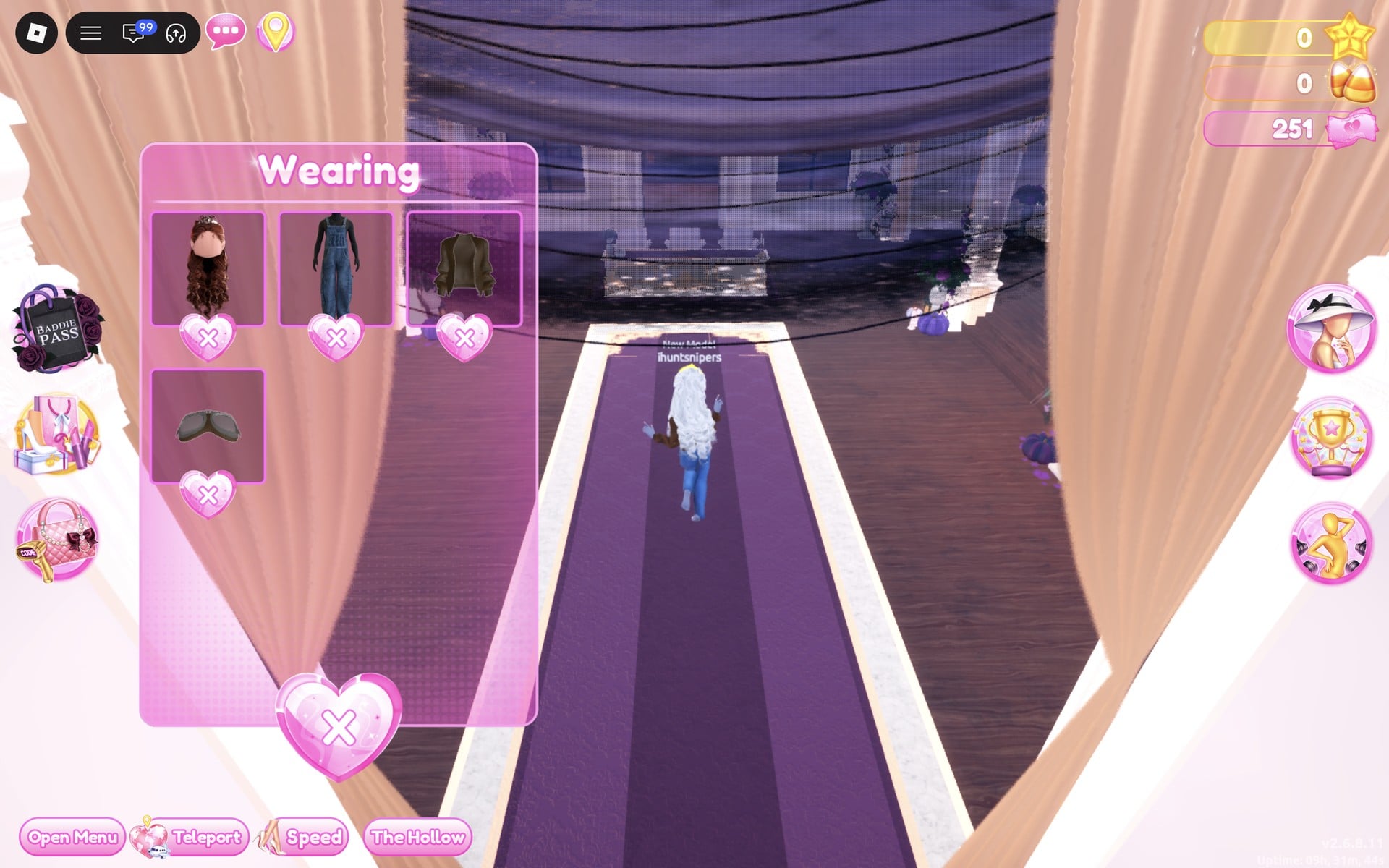
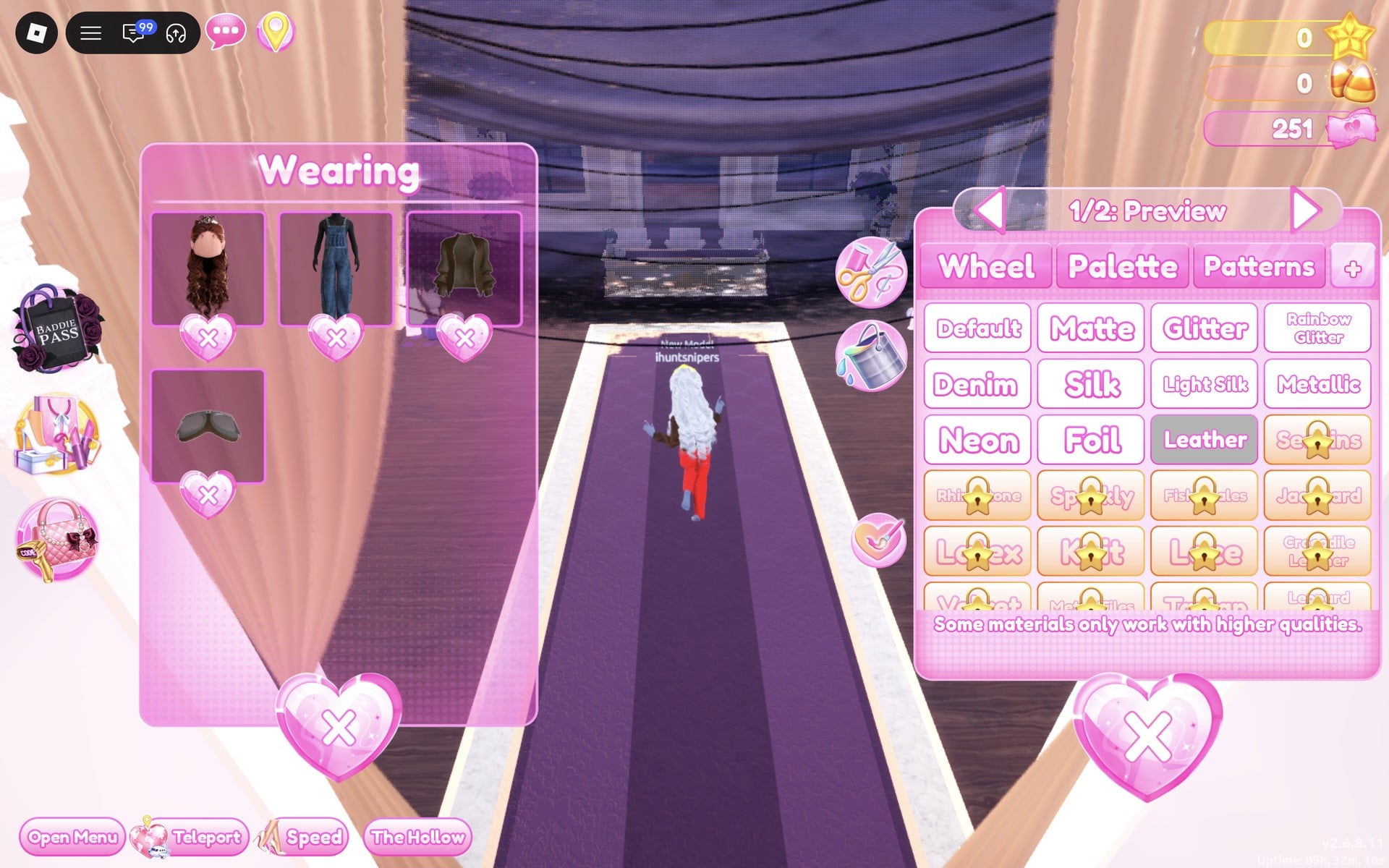
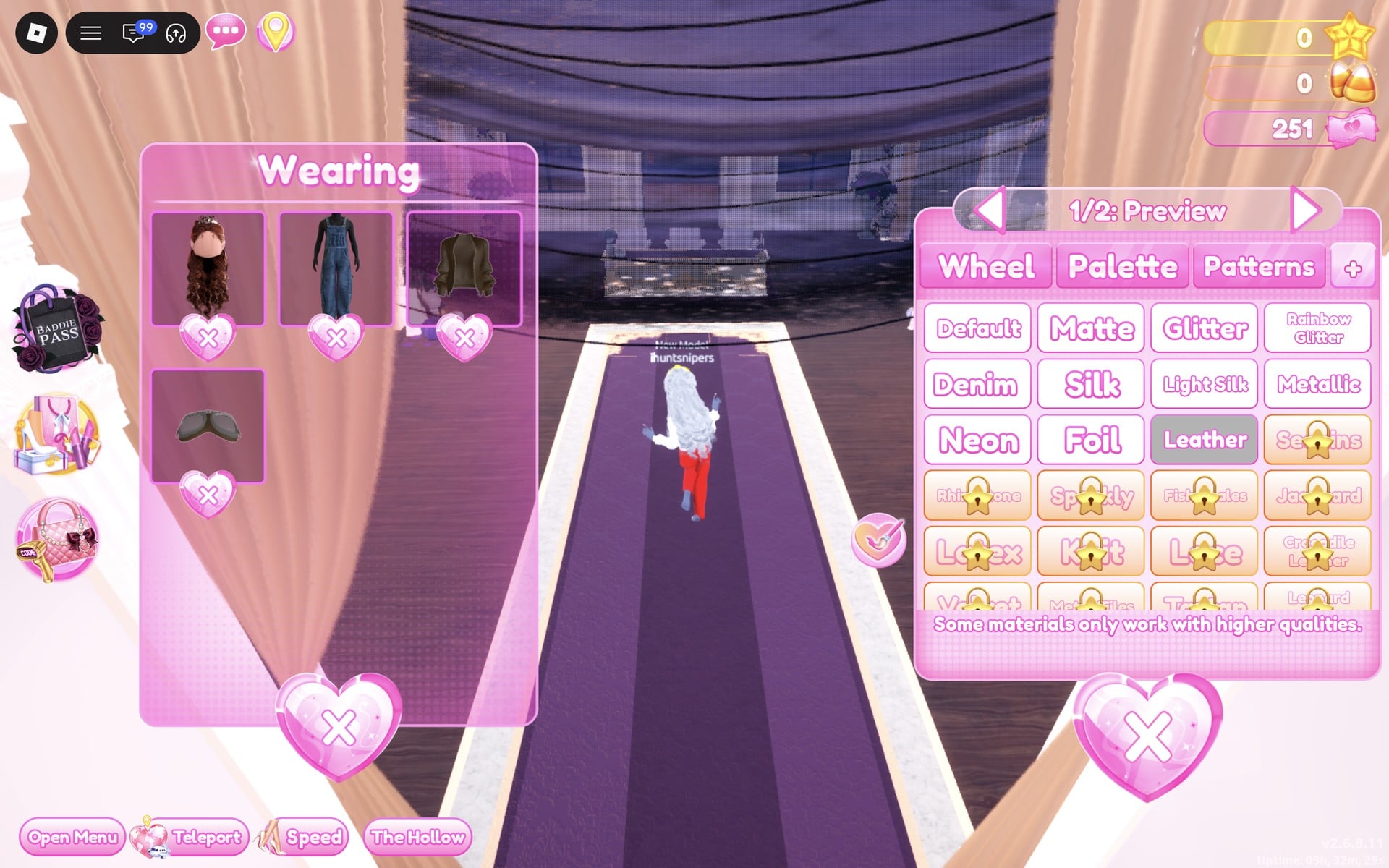
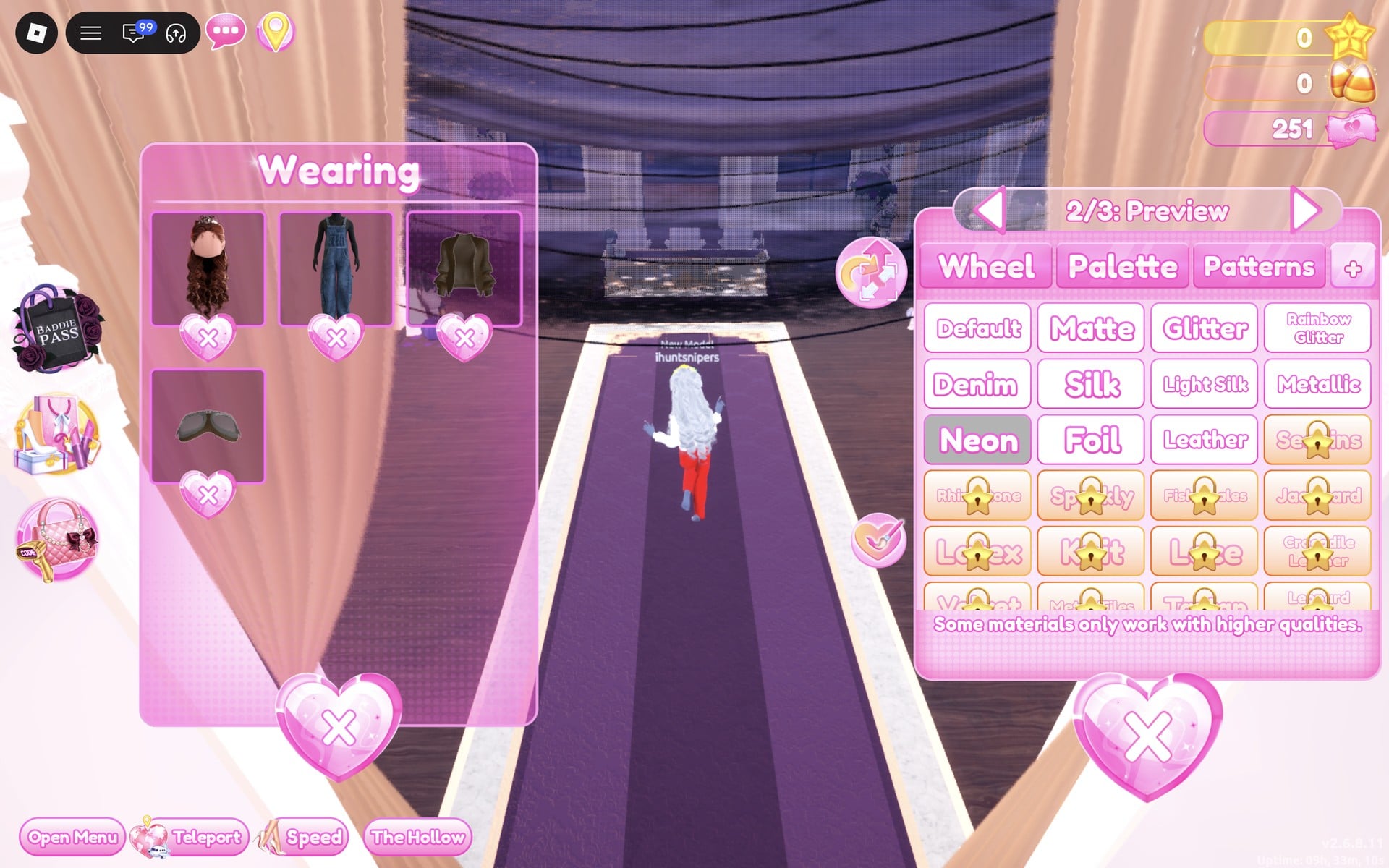
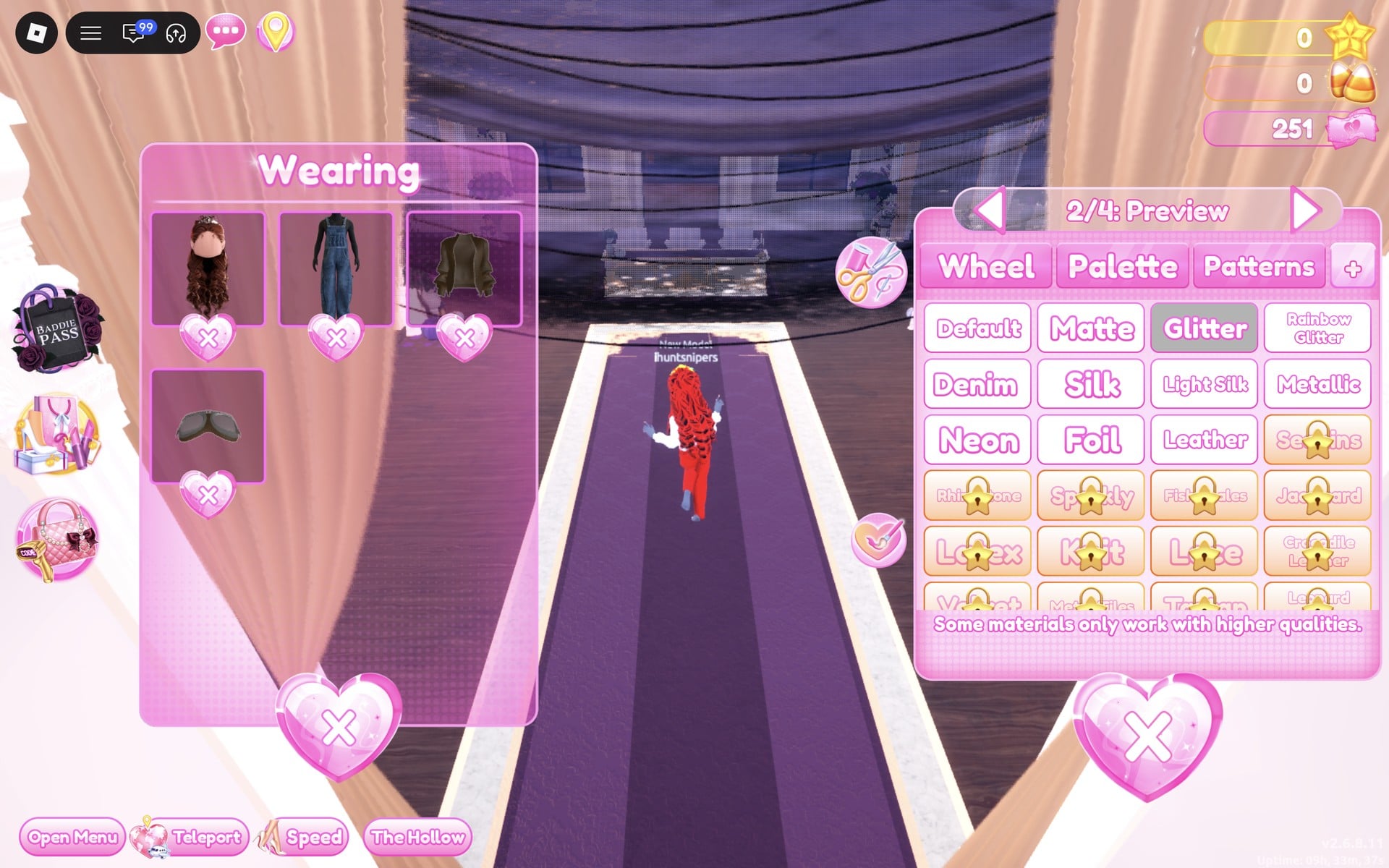
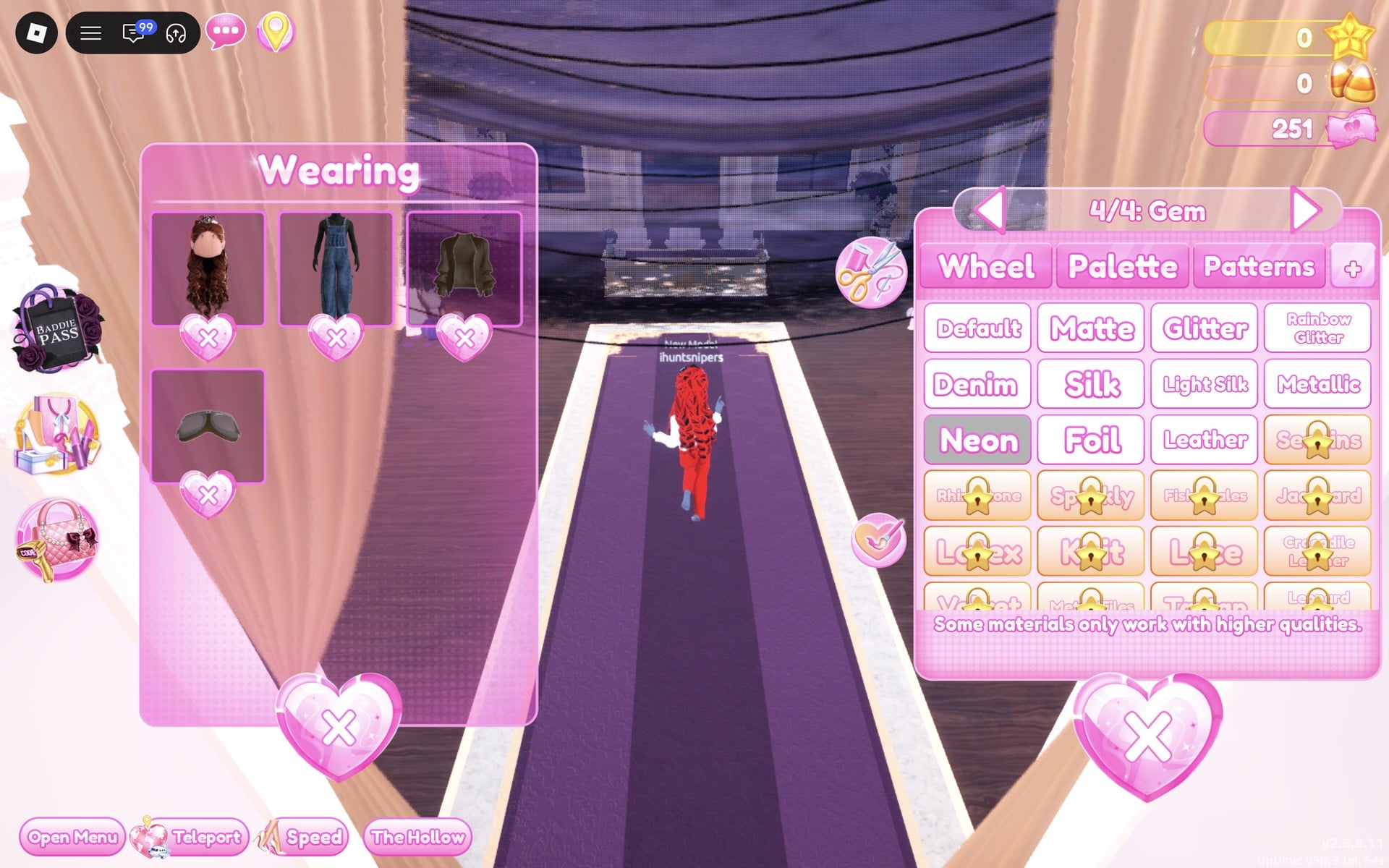
All four pieces stay in the Wearing panel with their new colours on the character.
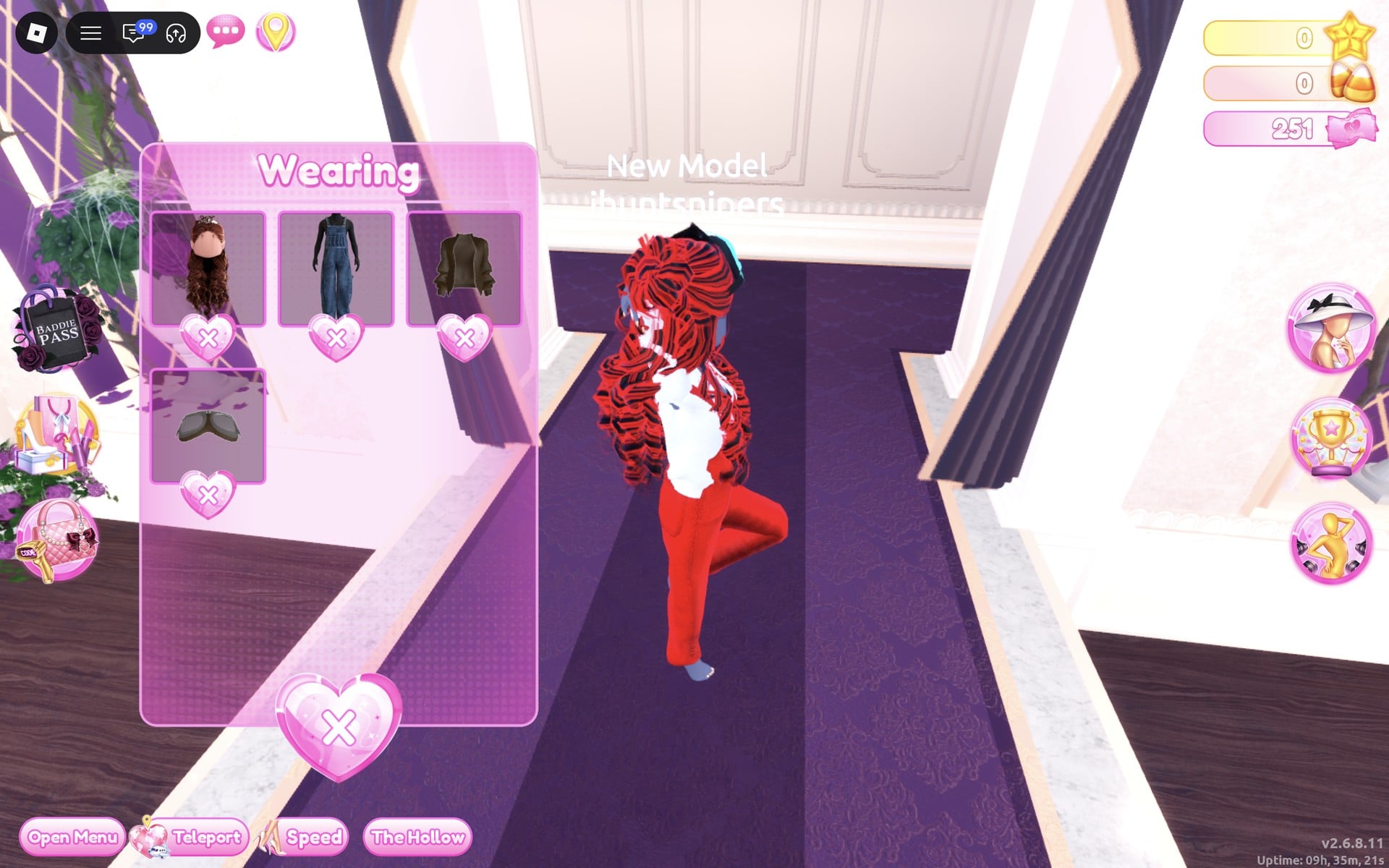
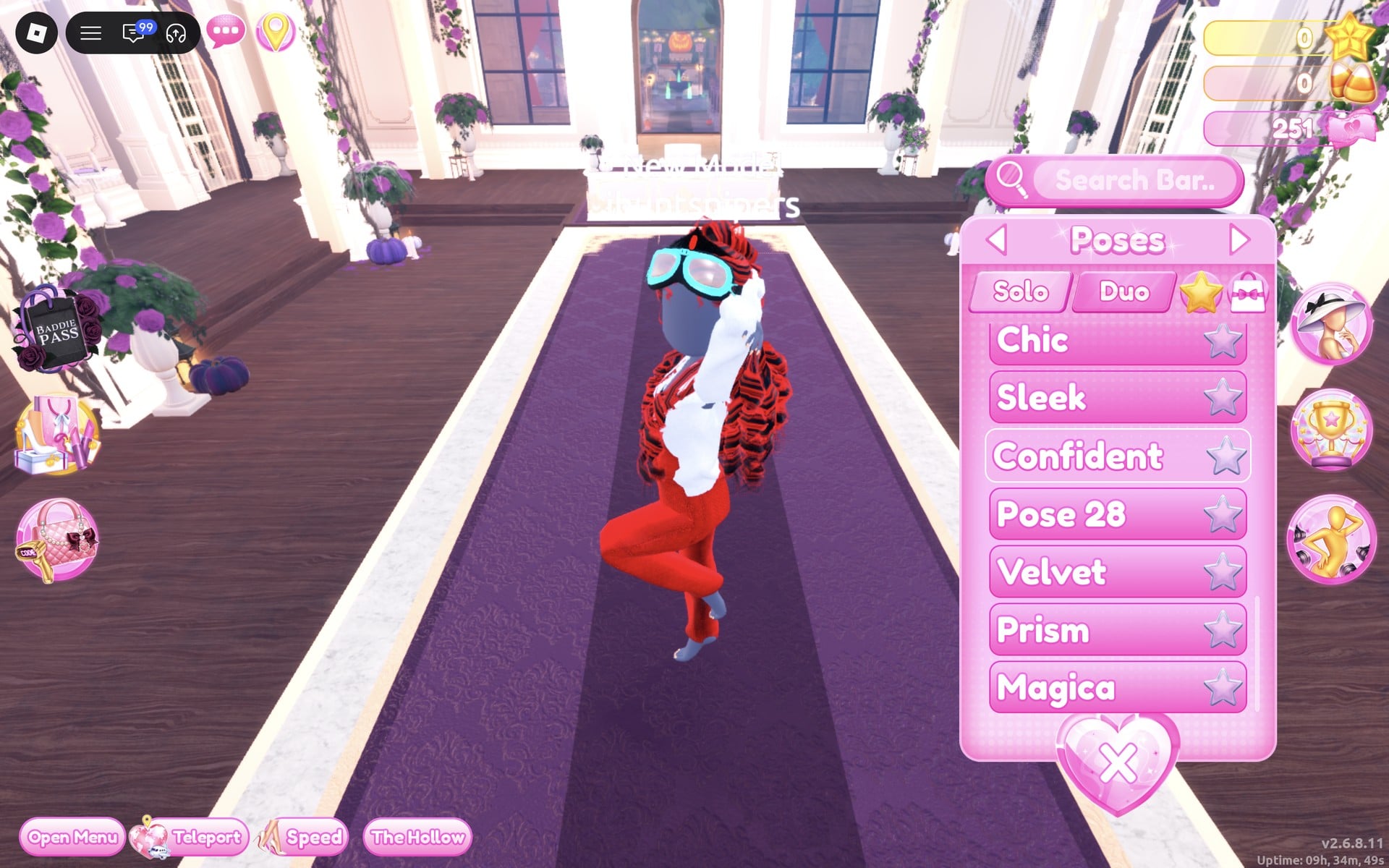
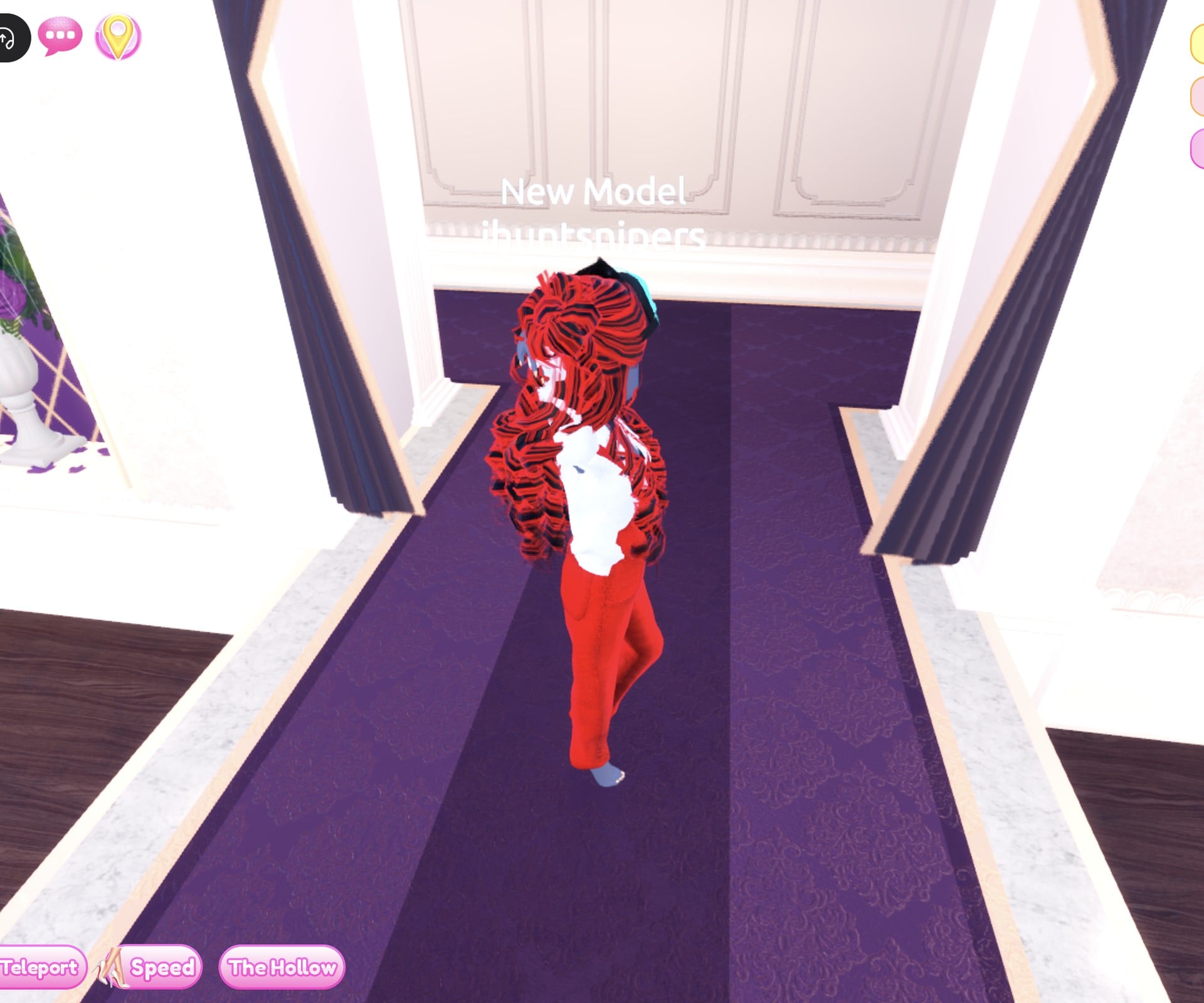
The finished look is full-length red Leather overalls, a white Leather bomber jacket worn open and slipped down off the shoulders, cyan Neon goggles with pale pink lenses over the eyes, long red curls with black streaks, and a black crown with a red gem. It is barefoot too. Confident lifts one knee high and raises one arm, which gives the look a sporty, mid-race feel.
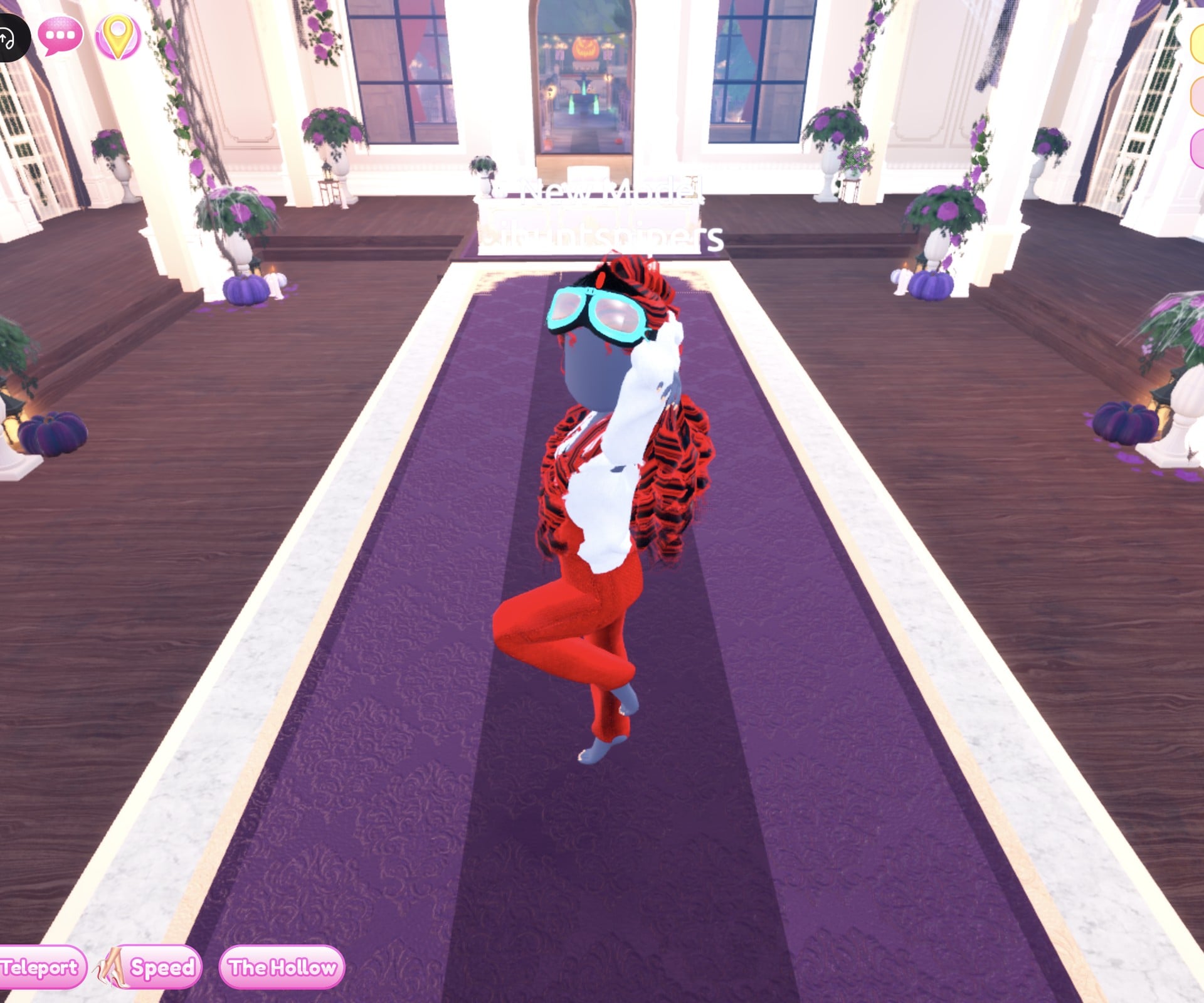
From the back, the red and black curls cover the jacket’s back, and the red overalls run down to the ankles.
Why these looks read as a video game character
A game character is recognised by its outline and a few loud colours long before anyone sees the details. So pick one character type with tell-tale pieces, such as a long robe and a crown for a spell-caster or a one-piece suit, short jacket and goggles for a racer, and keep the colours to two or three strong ones. Shiny materials help the look read from the far end of the runway: Silk and Metallic for the sorceress, Leather and Neon for the racer. This is plain styling advice; we have not seen how either look scores in a real round.
How to recolour a piece and set its material
- Click the piece on its shelf or stand, or its picture in the Wearing panel if you already wear it.
- Pick the part with the arrows beside the part name (“1/2: Preview”, “4/4: Gem” and so on).
- Choose its colour on the Palette tab (the Default palette; columns are hues, rows run light to dark, row 8 runs white to black).
- Open the “+” tab and click the material, such as Silk, Leather, Neon or Metallic.
- Repeat for every part, then click “Put On” for a new piece.
To take a piece off, click the heart X under its picture in the Wearing panel. Material tiles with a gold star are star-locked, so leave them alone if you have no stars. The material list carries the line “Some materials only work with higher qualities.”
Video Game Character colours on the Default palette
| Colour | Column | Row | Used for |
|---|---|---|---|
| Purple | 3 | 6 | Sorceress robe, crown gem |
| Gold-yellow | 8 | 4 | Sorceress waist band, crown |
| Light grey | 3 | 8 | Sorceress curls; Racer goggles part 3 |
| Red | 1 | 5 | Racer overalls, jacket part 2, curls part 2, crown gem |
| White | 1 | 8 | Racer jacket, overalls part 2 |
| Black | 9 | 8 | Racer goggle frame, curls part 1, crown |
| Cyan | 5 | 4 | Racer goggles part 2 (Neon) |
Video Game Character pieces to look for
None of these pieces has a name in the game, so look for them by place and shape. All of them are free and worked on our account with no VIP and 0 stars.
| Piece | Where in the Dressing Room | Colours and materials we used |
|---|---|---|
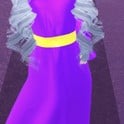 Long white hooded robe with wide sleeves (two parts) Long white hooded robe with wide sleeves (two parts) | Standing mannequin just right of the short-dress shelf | “1/2: Preview” purple (column 3, row 6) + Silk, “2/2: Preview” gold-yellow (column 8, row 4) + Metallic for the waist band (Sorceress) |
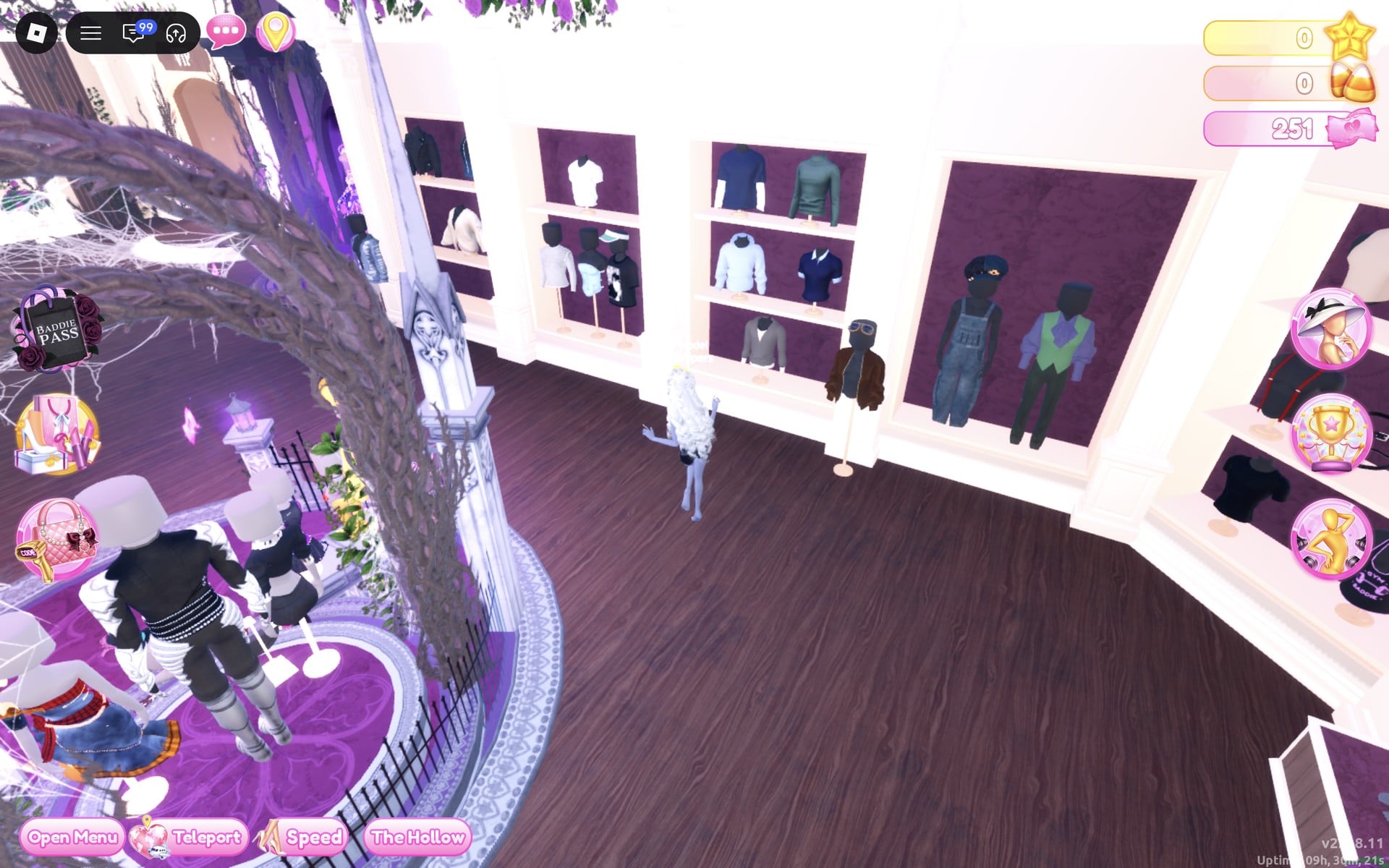
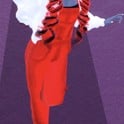 Blue denim overalls (two parts) Blue denim overalls (two parts) | Mannequin in the alcove of the men’s-wear wall beside the Halloween display circle | “1/2: Preview” red (column 1, row 5) + Leather, “2/2: Preview” white (column 1, row 8) + Leather (Racer) |
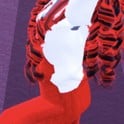 Brown bomber jacket (two parts) Brown bomber jacket (two parts) | Stand in front of the men’s-wear shelves, with the goggles on top | “1/2: Preview” white + Leather, “2/2: Preview” red + Leather (Racer) |
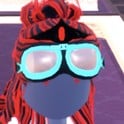 Aviator goggles (three parts) Aviator goggles (three parts) | On top of the same stand as the bomber jacket | “1/3: Preview” black (column 9, row 8) + Leather, “2/3: Preview” cyan (column 5, row 4) + Neon, “3/3: Preview” light grey (column 3, row 8) + Metallic (Racer) |
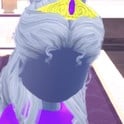 Long curls with a crown, Sorceress colours (four parts) Long curls with a crown, Sorceress colours (four parts) | Lana’s Salon | “1/4: Preview” and “2/4: Preview” light grey + Metallic, “3/4: Crown” gold-yellow + Metallic, “4/4: Gem” purple + Glitter |
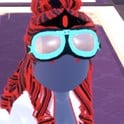 Long curls with a crown, Racer colours (four parts) Long curls with a crown, Racer colours (four parts) | Lana’s Salon | “1/4: Preview” black + Glitter, “2/4: Preview” red + Glitter, “3/4: Crown” black + Metallic, “4/4: Gem” red + Neon |
Other video game characters with the same method
The same two steps work for other character types: pick the outline first (armour and a cape for a knight, a fitted suit for a space pilot, a bright tunic for a classic adventure hero), then hold the look to two or three loud colours with a shiny material. We built only the sorceress and the racer, so we have no pictures or palette spots for any other character type.
Poses for Video Game Character
We used Magica for the sorceress and Confident for the racer, both free under Solo in the Poses menu. For the full list with a picture of each, see every free pose in Dress To Impress.
Building it in Freeplay Mode first
Freeplay Mode has no timer, so it is the place to try colours, walk the look down the Freeplay Runway and check that it reads from a distance. Once a look works, you know which shelf, which palette spots and which materials to go to when Video Game Character comes up in a real round. For more themes built the same way, see our Boho, Robot Takeover, Album Cover, Potion Maker, Monochrome Mood, Divine Beings, Drag, Sweet 16, Camouflage, Deserted Island, Summer Cruise, Favorite Show, Fairytale, Cotton Candy Couture, Cyberpunk, Birth Stones and Y2K Popstar outfit ideas.
How a theme round works
We have not had Video Game Character as a round yet; this is from ordinary server rounds on other themes (Plaid Fashion, Birds of Paradise and Patterned tights). On the main lobby, the theme shows in a banner at the top with a timer under it, and the icon at the top centre opens a hint card for the theme. After dressing, each player walks the runway in turn, about 7 seconds each, while the others vote with five stars along the bottom of the screen, with a “Voting complete!” banner between players. A “Results” card then ranks the players with the stars each earned, followed by an “Intermission” countdown of about a minute.
The “Pick Theme” button next to the intermission timer lets you choose the theme, but only with Theme Props. The panel reads “You have: 0 Theme Props” and offers a “Buy More” button priced at 75 Robux. We bought none and saw no free ones, so without Robux you wait for Video Game Character to roll.
What we have not checked
These looks have not walked a real Video Game Character round, so there is no score, star count or vote for them. We added no shoes, makeup, props or bags, and we saw no weapons, staffs or other props in the Dressing Room. The robe’s hood is visible on its mannequin but not on our character, so we cannot say whether it can be worn up. Both looks were built with 0 stars and 251 pink cash, and nothing was bought.
FAQ
What does Video Game Character mean in Dress To Impress?
The game gives only the name. We read it as dressing as a type of game character people recognise at a glance, such as a spell-caster or a racer, with its tell-tale pieces and a few loud colours.
Can I do Video Game Character without VIP?
Yes. Both looks were built on an account with no VIP and 0 stars, and every piece, colour and material used here worked on it. Silk, Metallic, Glitter, Leather and Neon are free materials; tiles with a gold star are star-locked.
Which video game characters are easy to do?
Character types with a clear outline are the easiest: a robed spell-caster and a racer in a one-piece suit with goggles, as built above, both come together from a handful of free pieces. We have not built other character types.
What pose fits a video game character?
Magica, with the arms out to the sides, suits a spell-caster. Confident, with one knee lifted and one arm up, suits a sporty character like a racer. Both are free under Solo.
Can I pick the Video Game Character theme?
Only with Theme Props, which cost Robux (the “Buy More” button shows 75). We bought none and saw no free ones, so the theme has to come up on its own.