


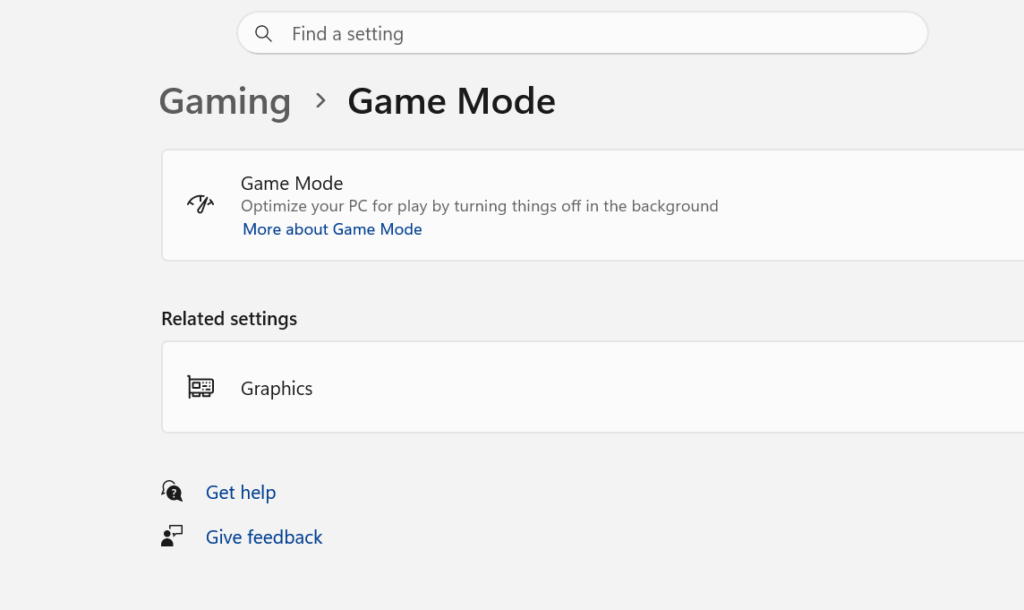
Game Mode is a built-in Windows 11 setting that shifts system resources toward the game you are currently playing. It has been part of Windows since Windows 10 and still ships in the 24H2 and 25H2 releases, where it now shares the Settings > Gaming page with Microsoft’s newer Xbox Mode.
Quick answer: Leave Game Mode on if you have 8GB of RAM or less, run background apps while gaming, or play CPU-heavy titles. Turn it off only if you use Xbox Mode instead, or if a specific game shows micro-stutters or Discord audio drops with it enabled.
What Game Mode actually changes
When Game Mode detects an active game, it makes three targeted changes to how Windows schedules work. It pauses Windows Update, so driver installs and restart prompts are held back during your session. It lowers the priority of non-essential background processes, giving them less CPU and GPU scheduler time. And it raises the priority of your foreground game in both the CPU scheduler and the GPU queue.
The effect is usually steadier frame delivery rather than a big jump in average FPS. You are most likely to see it in your 1% low readings, where the frame pacing becomes more consistent.
Game Mode does not overclock your CPU or GPU, does not disable Windows Security or your antivirus, does not change graphics driver settings, and does not conflict with Hardware-Accelerated GPU Scheduling (HAGS). On high-end, GPU-bound systems it will not guarantee higher FPS.
Turn Game Mode on or off in Windows 11
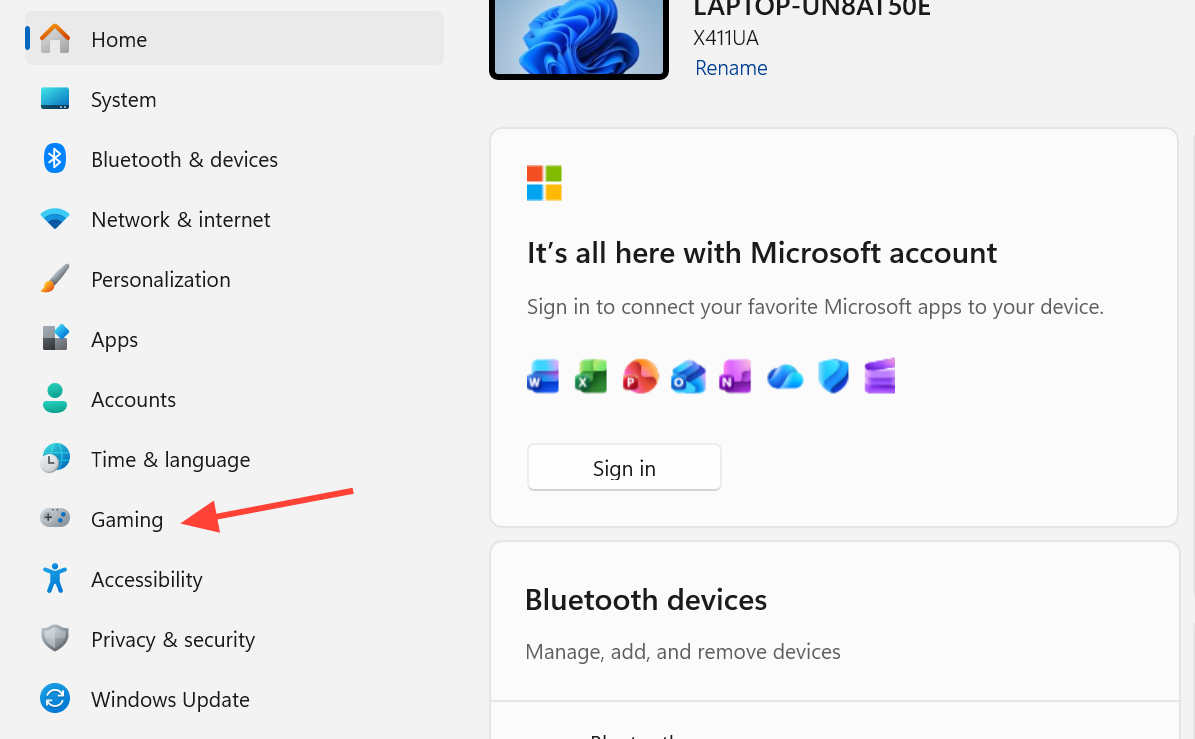
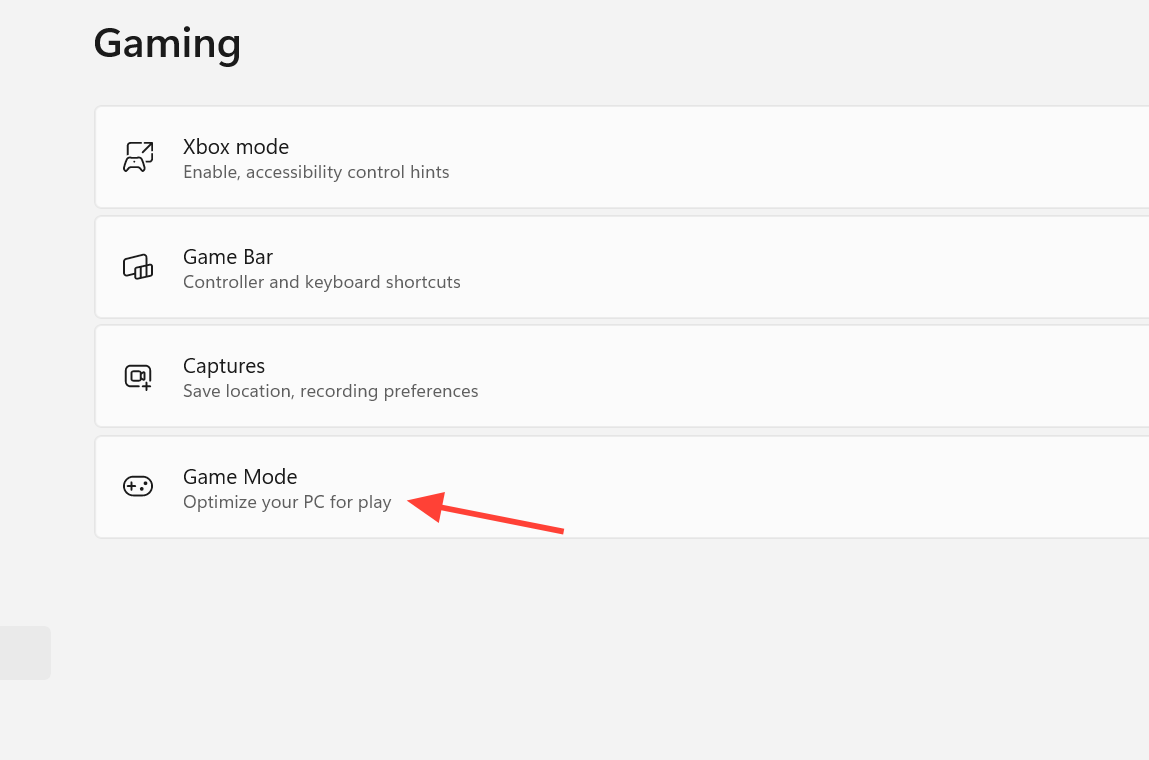
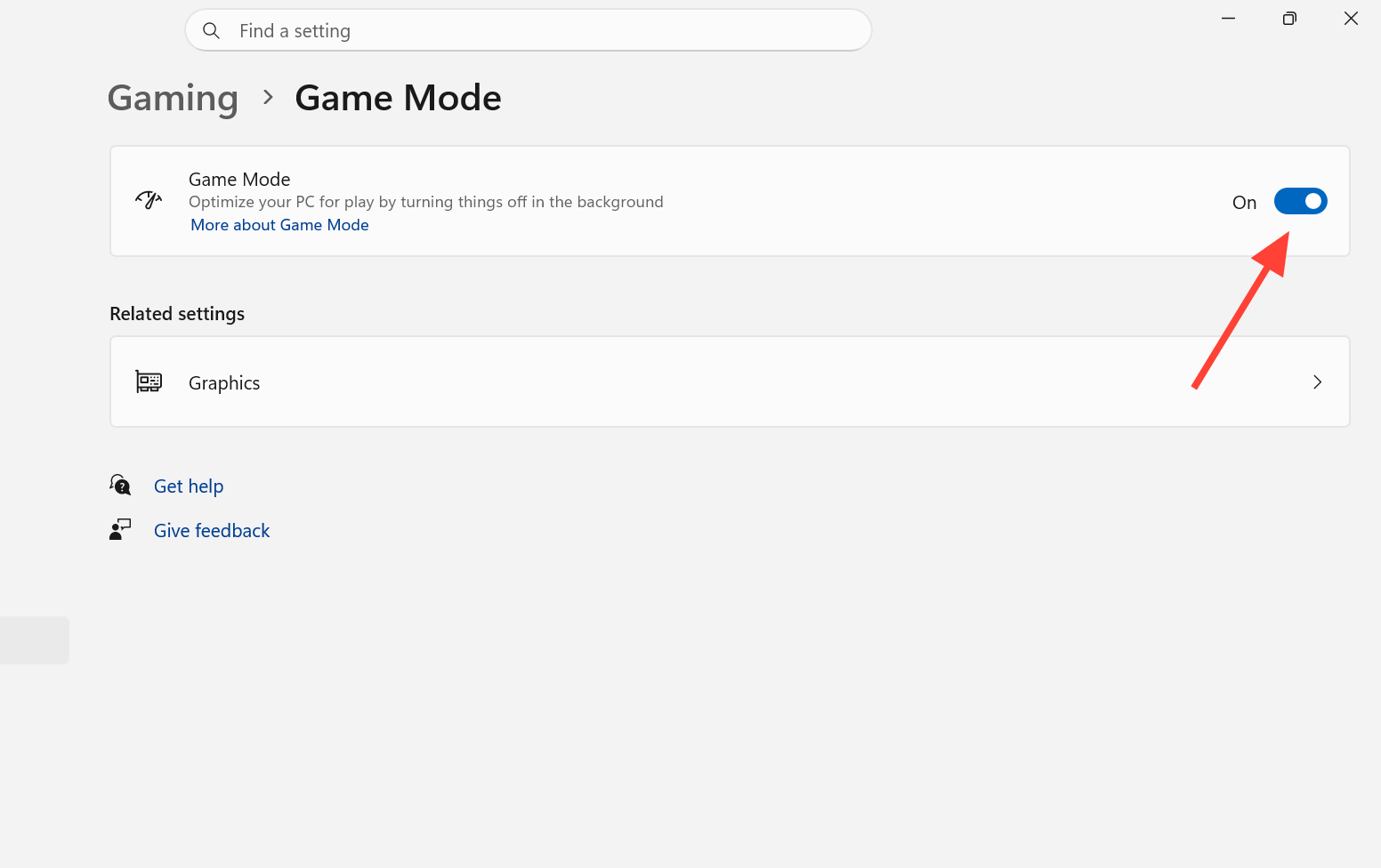
To confirm it is working during a session, press Win + G to open the Xbox Game Bar while in-game, then open the Performance widget. When Game Mode has detected your game, it shows as active in the overlay.
When to keep Game Mode on
Game Mode delivers the clearest benefit on systems that have limited overhead or a lot going on in the background. Keep it on in these situations.
- Your PC has 8GB of RAM or less and multiple background apps are open.
- You play CPU-bound titles such as Civilization, Flight Simulator, Factorio, or older strategy games.
- You use an AMD GPU, where Xbox Mode gains are smaller, and Game Mode plus HAGS is the safer combination.
- You want a zero-friction, always-on option with no controller and no interface change.
- Xbox Mode has not rolled out to your PC or region yet.
When to turn Game Mode off
Turning Game Mode off is reversible and safe to test. Consider disabling it in these cases.
- You are already using Xbox Mode, since the two serve a similar purpose and do not need to be stacked.
- A specific competitive game shows micro-stutters with it enabled (test per game).
- You use Discord or voice chat and notice audio quality drops, since Game Mode can de-prioritize audio threads.
- You installed a new GPU driver and started seeing frame drops afterward.
On higher-end systems, the difference between on and off is often small either way, so the practical rule is simple. Keep it on by default, and switch it off only for a game or app that behaves worse with it running.
Game Mode vs Xbox Mode
Xbox Mode is a separate, newer feature that appears above Game Bar in Settings > Gaming on eligible builds. Instead of only adjusting background priority, it replaces the desktop shell with the Xbox app’s full-screen, console-style interface and frees roughly 1–2 GB of RAM. It requires a controller to navigate the shell, though keyboard and mouse still work inside games.
| Feature | Game Mode | Xbox Mode |
|---|---|---|
| Available since | Windows 10 (2017) | April 30, 2026 (KB5083631) |
| What it changes | Background CPU/GPU priority | Full shell replacement, frees ~1–2 GB RAM |
| Interface change | None | Xbox console-style full screen |
| Controller needed | No | Yes, for navigation |
| Typical FPS impact | 2–5% avg, ~20% better 1% lows | Up to +23% avg, up to 2.5x 1% lows (NVIDIA, CS2) |
| Available in EEA | Yes | Not yet, rolling out |
| Rollout | All Windows 11 users | Gradual Controlled Feature Rollout |
In benchmark testing, Xbox Mode produced larger gains in RAM-limited and CPU-limited scenarios such as CS2, where it reached +14% average FPS at 1080p and +23% at 1440p on an RTX 4070 Ti Super. GPU-bound titles like Cyberpunk 2077 saw negligible change from either feature, and AMD GPUs currently see smaller gains than NVIDIA cards.
Enable Xbox Mode (if it is available to you)
Xbox Mode reached mainstream Windows 11 users through the May 12, 2026 Patch Tuesday update (KB5089549). Before you can turn it on, confirm you meet the requirements.
- Windows 11 build 26200.8328 or higher (Settings > System > About).
- The latest Xbox app installed from the Microsoft Store.
- KB5083631 (April 2026) or KB5089549 (May 2026) installed.
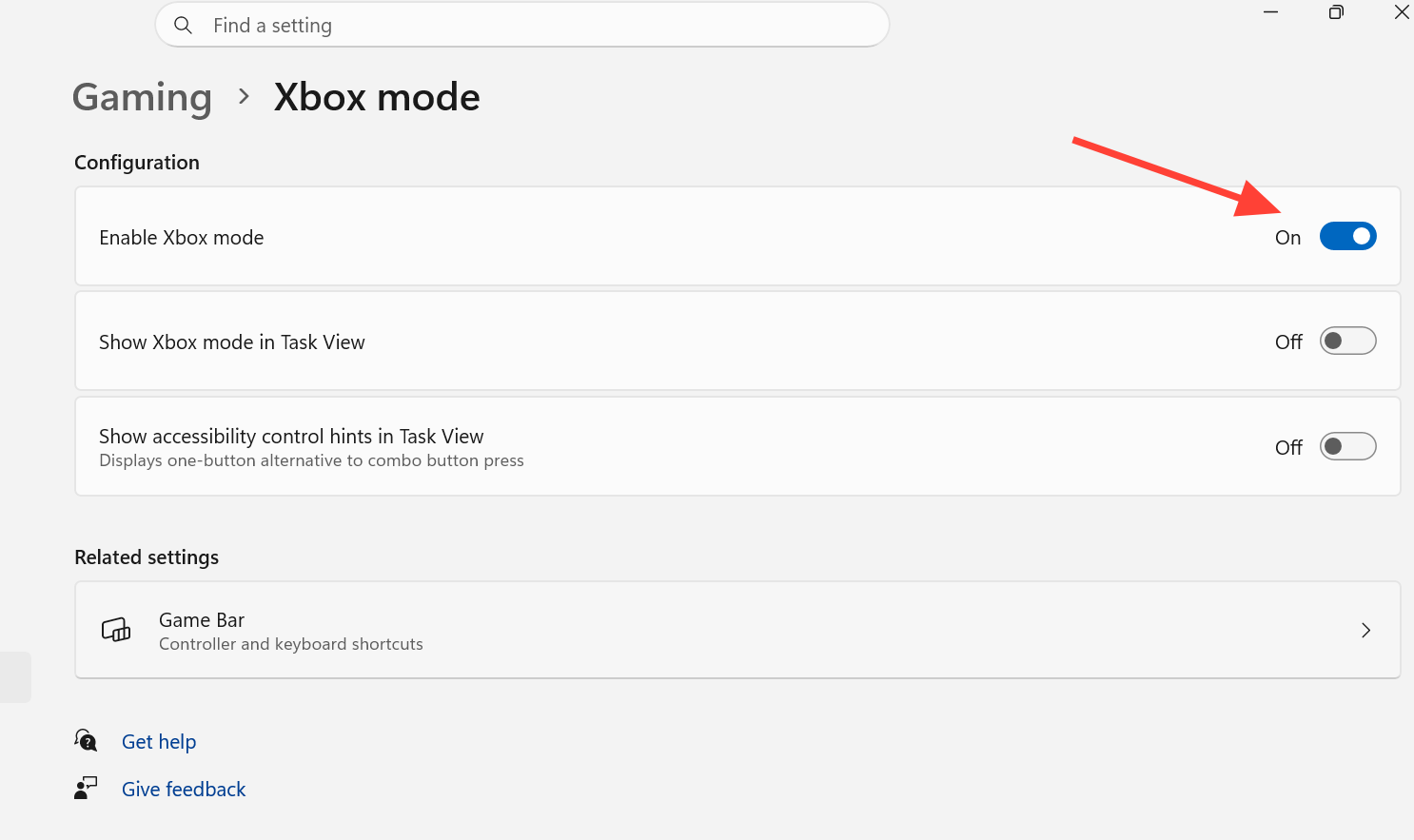
Because Microsoft is using a Controlled Feature Rollout, the toggle may not appear even after the May 2026 update installs. If it is missing, confirm your build number, update the Xbox app from the Microsoft Store, then restart and re-check Settings > Gaming. Xbox Mode is not yet available in the European Economic Area, and Microsoft has said availability will expand.
Xbox Mode is still in beta. Early testing reported controller detection issues, some interface lag, conflicts with certain PC launchers, and an install footprint of about 2 GB on top of existing Xbox services. It is not recommended for laptop or battery gaming yet.
The bottom line for choosing on or off
For most people the practical answer is to keep Game Mode on. It is free, reversible, needs no controller, and helps most on modest or busy systems. If you have access to Xbox Mode and mainly play CPU- or RAM-limited games with a controller, you can turn Game Mode off and rely on Xbox Mode instead. Either way, treat any game that behaves worse as the exception, and toggle the feature off just for that title.



