
You do not need the CurseForge desktop app to run addons on World of Warcraft Forever. The whole process is a plain file copy: download the addon as a zip from the web, then place its folder inside the game’s own AddOns directory. The example here uses RareScanner, but the same handful of steps works for any addon you pull from CurseForge.
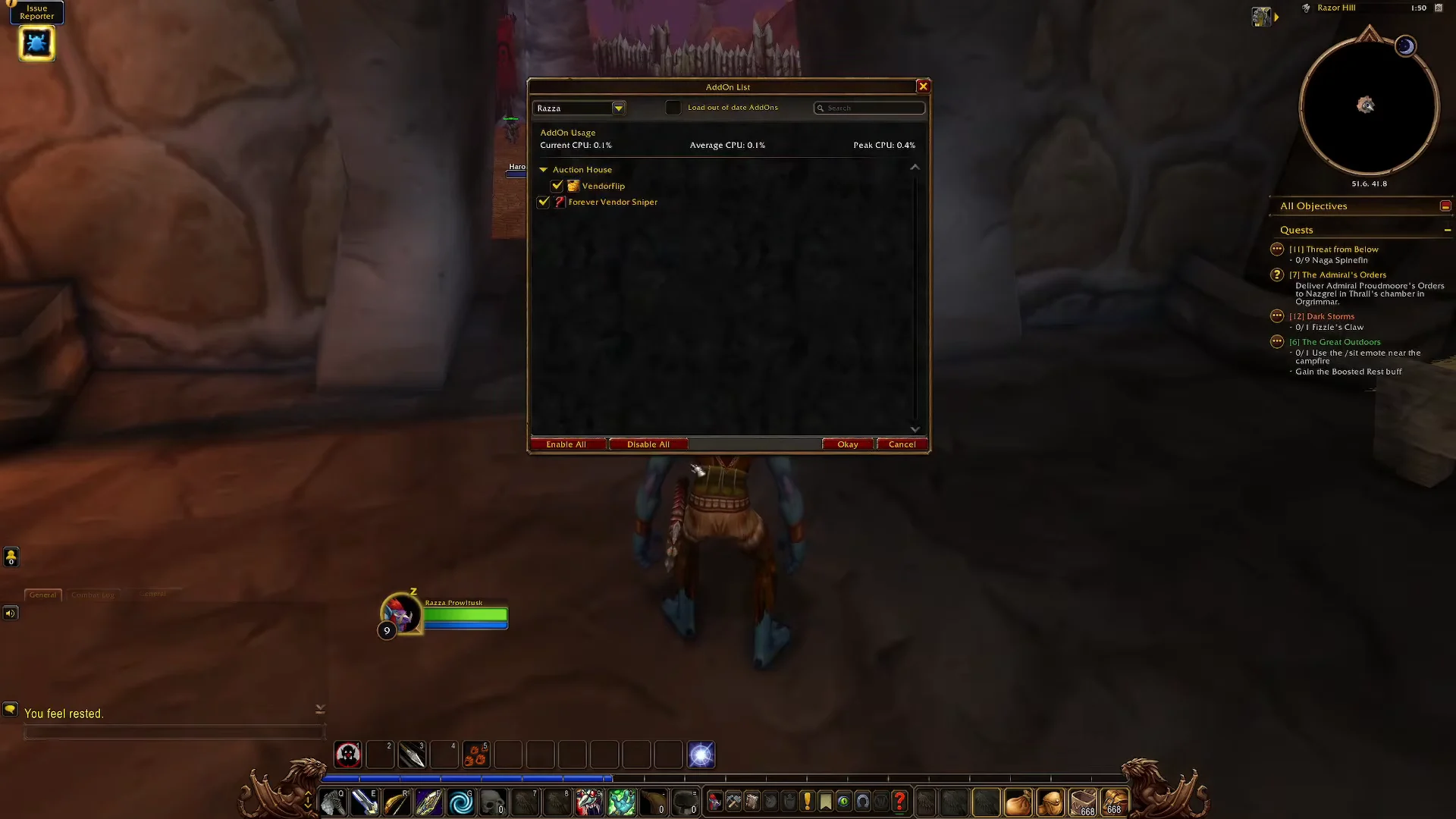
Quick answer: Download the addon zip from curseforge.com/wow, extract its folder into World of Warcraft\_classic_beta_\Interface\AddOns, then reload the UI in-game and confirm the addon is checked in the AddOn List.
What you need before you start
- A web browser to reach the CurseForge WoW addon pages.
- The Battle.net launcher, which points you to your game folder.
- Windows File Explorer to open the zip and copy files.
- The Forever client installed, so the
_classic_beta_folder exists.
All addons on CurseForge are free, so there is no purchase or account link required to grab a zip file manually.
Download the addon zip from CurseForge
curseforge.com/wow in your browser. The Browse Addons for World of Warcraft page lets you search by name and filter by category, flavor, and game version.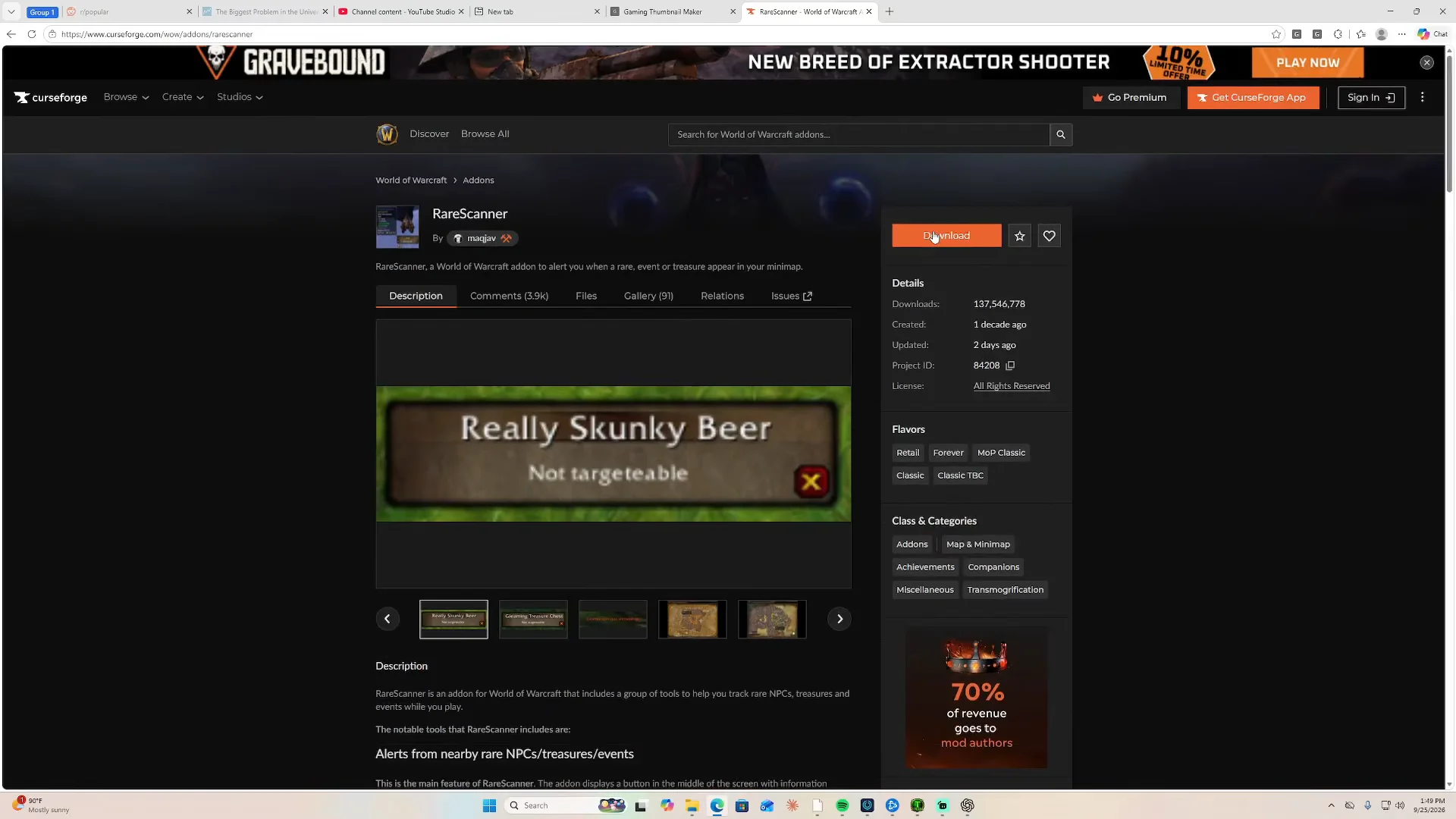
.zip archive, such as RareScanner_11.0.18.zip, to your computer.RareScanner folder. That folder is the piece you will move into the game.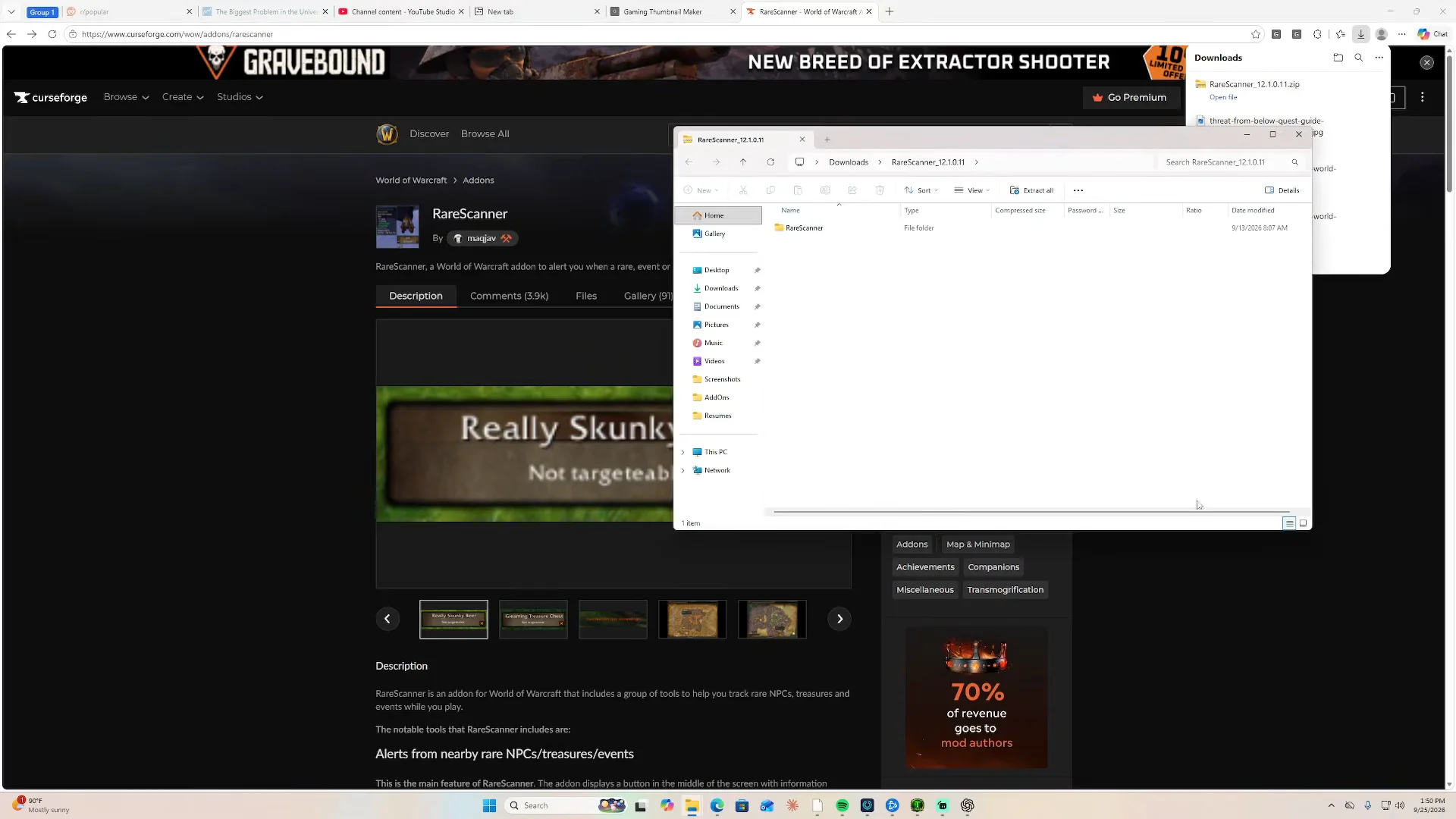
Find the AddOns folder through Battle.net
World of Warcraft in Explorer and move through _classic_beta_ > Interface > AddOns. For Forever, _classic_beta_ is the client’s version folder; use that folder rather than one belonging to another game version.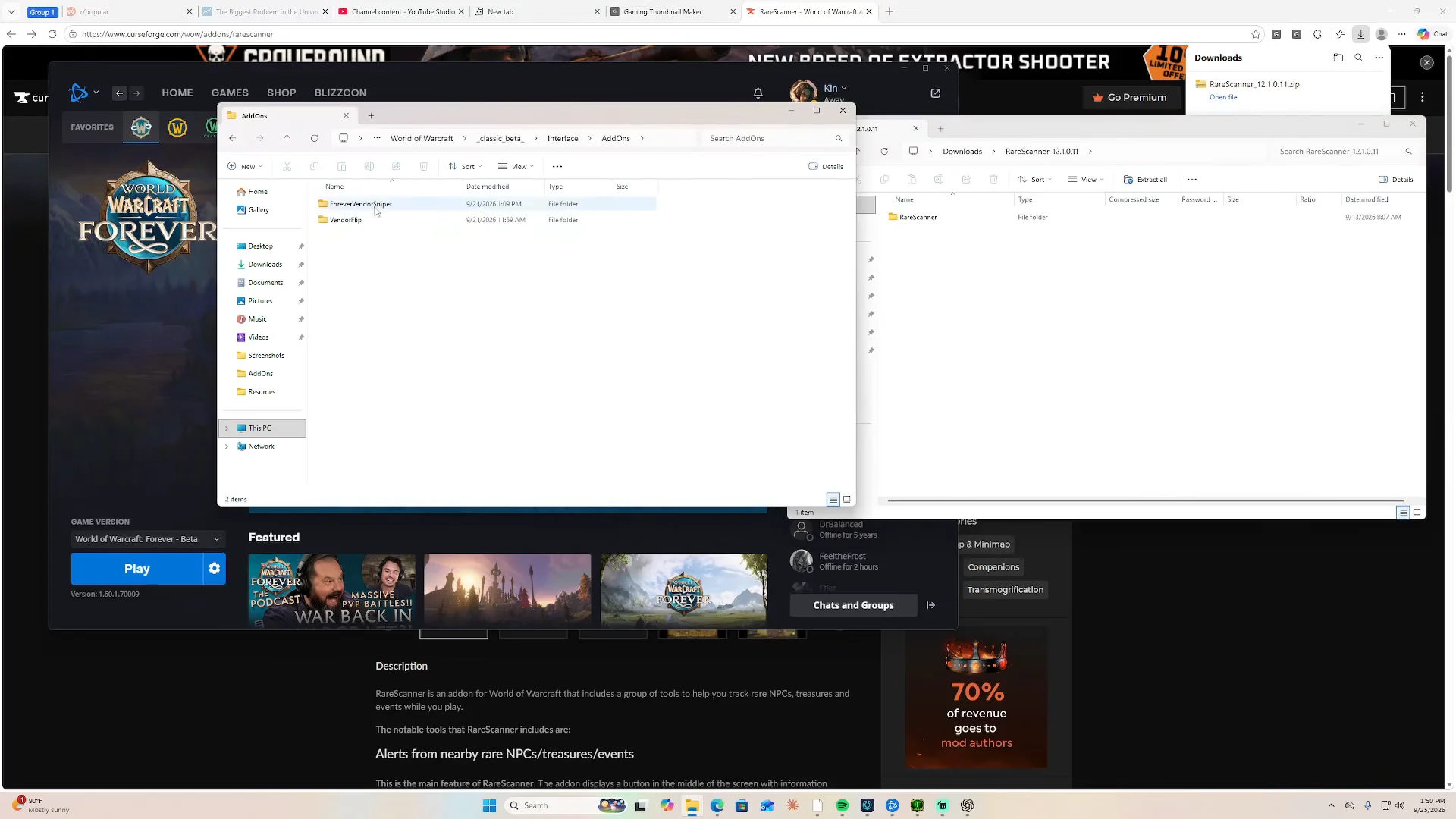
AddOns folder. Copy the folder itself, not the zip file. Each addon should end up as its own folder, for example ...\Interface\AddOns\RareScanner.A folder you unpack by hand sits in AddOns until you delete it, so you keep working addons even without the CurseForge app running in the background.
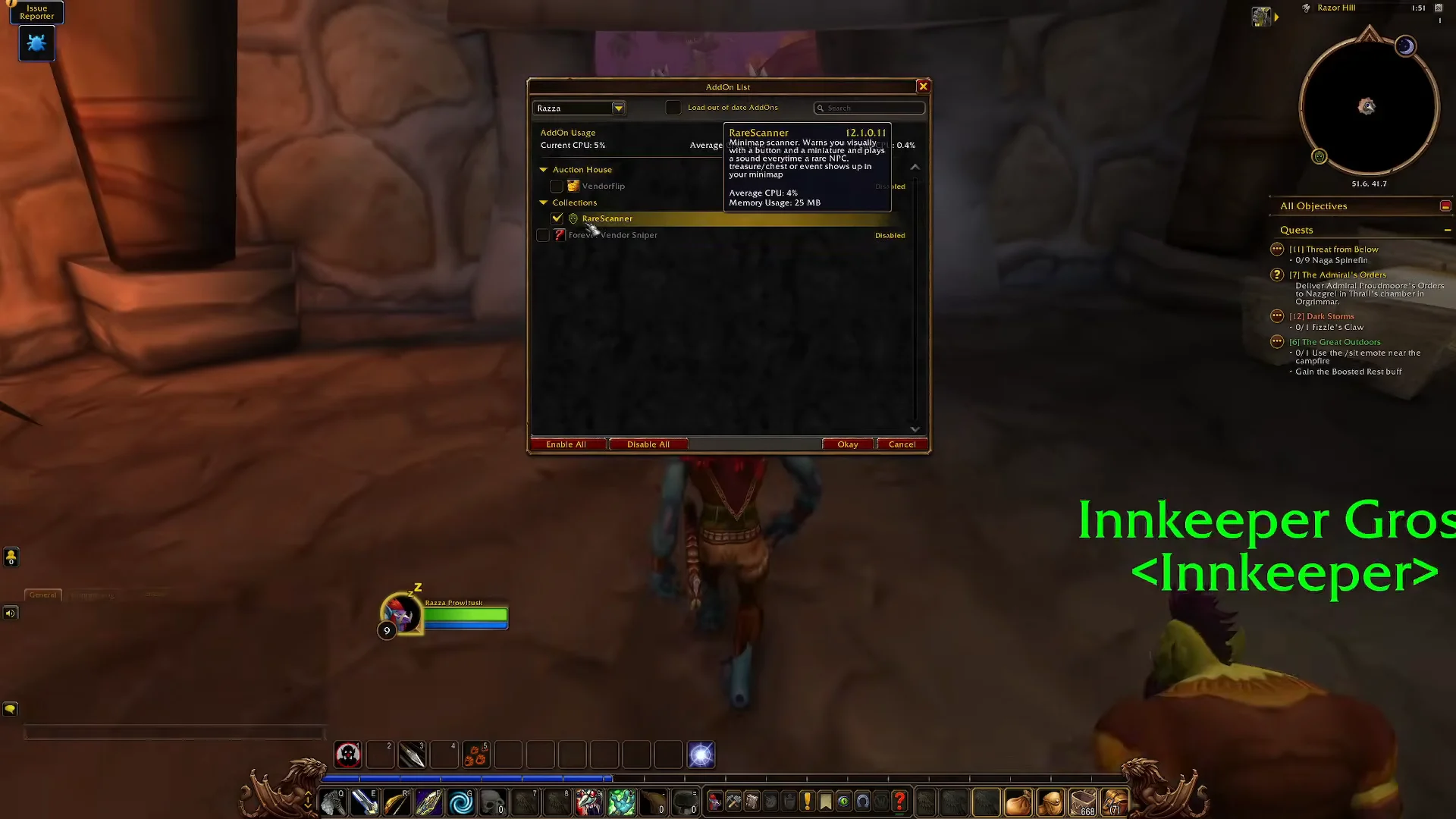
Enable the addon in-game and confirm it loaded
Which addons actually work on the Forever client
The Forever beta runs on a modern engine that hides certain numbers from addon code, described as “secret values.” That changes what an installed addon can do, so it helps to know the limits before you fill your AddOns folder.
- Works: Addons for tooltips, vendors, maps, bags, quests, and the interface are supported when they render values supplied by the game.
- Does not work: combat-log readers such as damage meters and boss timers, because those values are secret to addons.
Because the client is still in beta, its addon behavior can change before launch. Stick to addons updated for the Forever client, and if one misbehaves after an update, remove its folder from AddOns and reload to rule it out.