

Microsoft Edge’s Picture in Picture (PiP) mode enables you to watch videos in a small overlay window while navigating through other tabs or even other applications. This feature allows you to keep videos in view while multitasking, enhancing your browsing experience.
Using Picture in Picture mode on Microsoft Edge
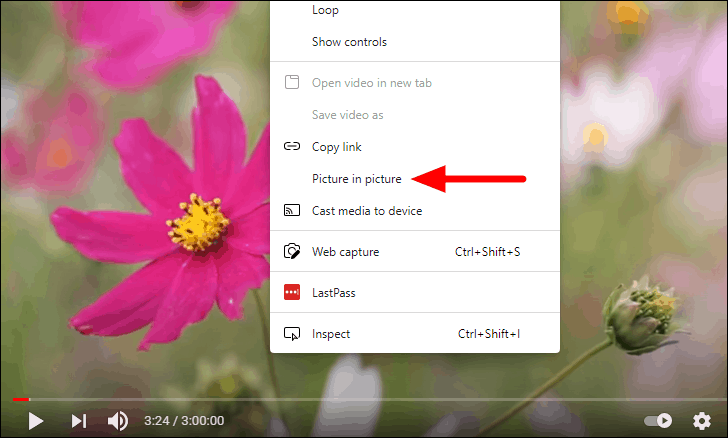
To utilize the Picture in Picture mode on Microsoft Edge, first ensure your browser is updated to the latest version. Once updated, follow these steps to play a video in PiP mode.
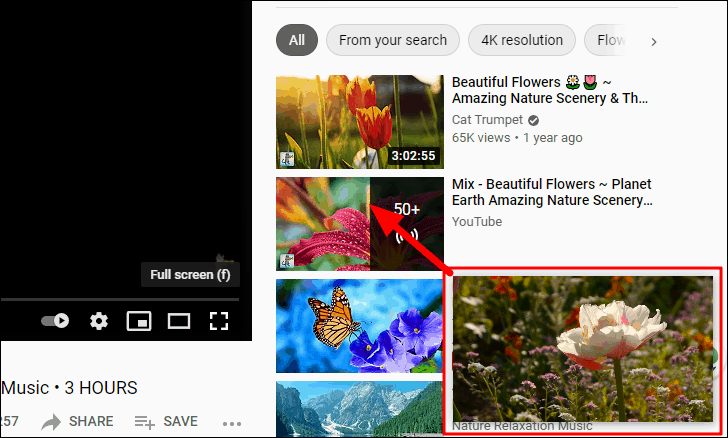

The overlay window remains visible even when you switch between tabs or open other applications, allowing you to continue watching the video without interruption. Hovering over the overlay window reveals control options such as “Pause” and “Back to tab,” which exits PiP mode and closes the overlay.
Enabling Global Media Controls on Microsoft Edge
Global Media Controls provide a convenient way to manage media playback across different tabs and windows in Microsoft Edge. By enabling this feature, you can control videos playing in PiP mode directly from the toolbar, offering additional playback options beyond the basic controls in the overlay window.
Enter:edge://flags/#global-media-controls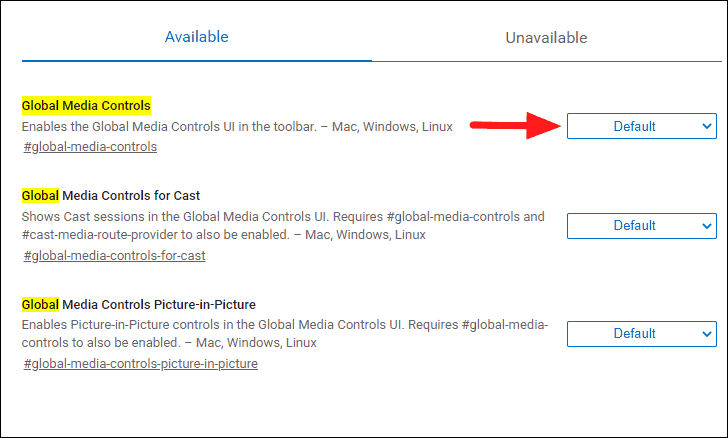
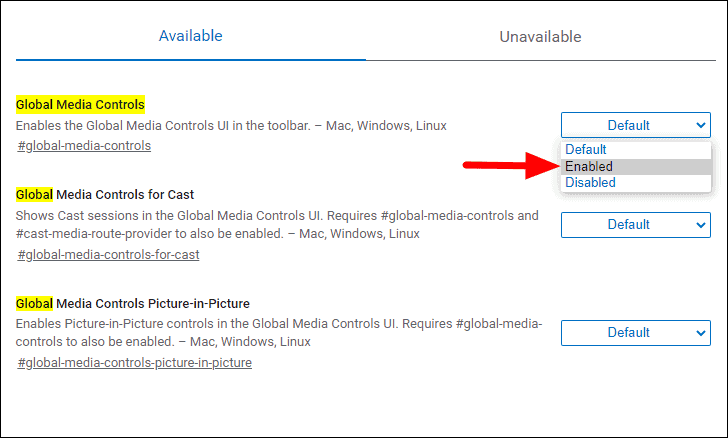
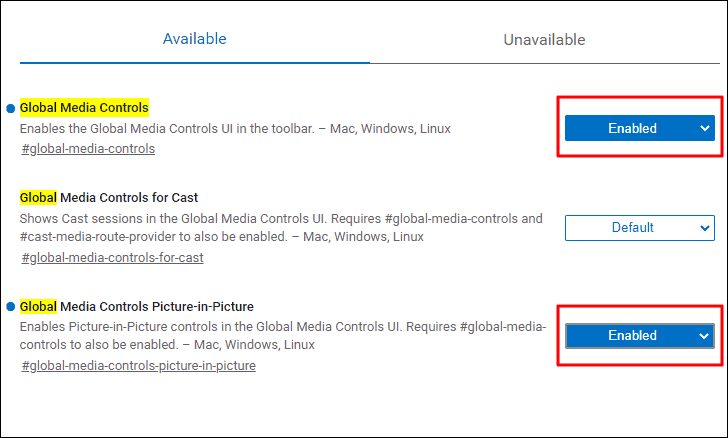
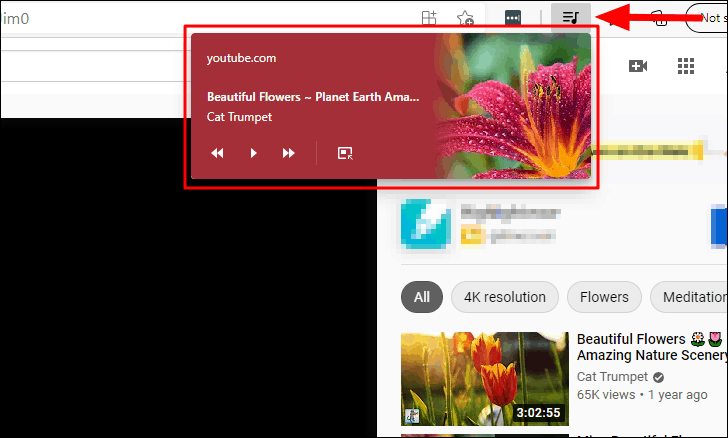
If you have multiple media playing across different tabs, each will be listed separately within the Global Media Controls, allowing you to manage them individually.
By enabling Picture in Picture mode and Global Media Controls on Microsoft Edge, you can enhance your multitasking capabilities, allowing you to watch videos seamlessly while browsing and control media playback with ease.





