Want to add a video to your Word document? Learn how to do it in easy steps within a minute.
Want to add a video to your Word document? Learn how to do it in easy steps within a minute.
by Kazim Ali Alvi
Inserting a YouTube video directly into a Microsoft Word document allows you to enhance your content by adding multimedia elements that can be viewed without leaving the document. By embedding the video, readers can watch it right within the Word file, which can be useful for presentations, educational materials, or promotional documents.
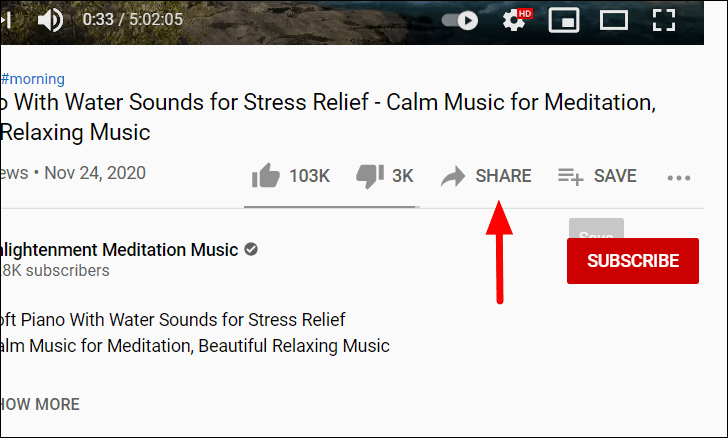
The process involves two main steps: first, copying the video’s embed code from YouTube, and then inserting the video into your Word document.
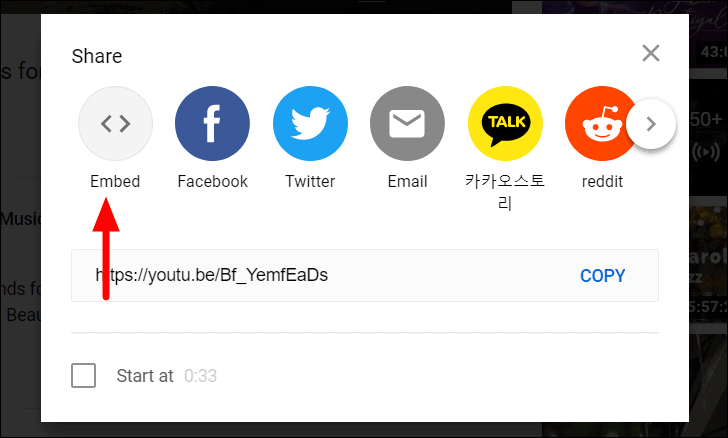
In the sharing options that appear, select the ‘Embed’ option located at the top-left corner of the sharing menu. This will display the embed code for the video.
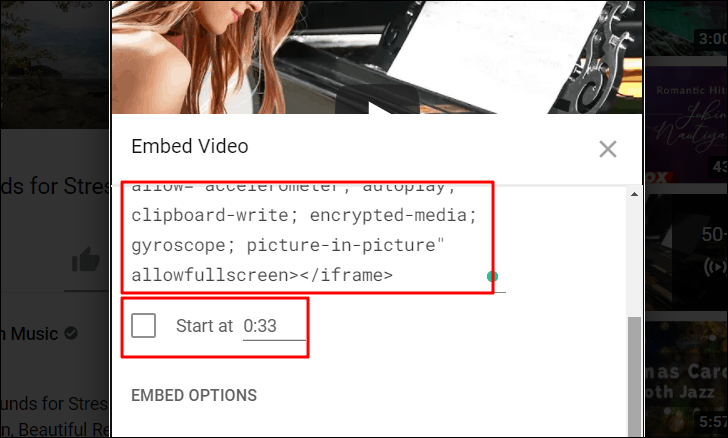
A new window will open showing the embed code. Highlight the code by clicking inside the box and pressing Ctrl + A on your keyboard. Then copy the code by pressing Ctrl + C or by right-clicking and selecting ‘Copy’. If you want the video to start at a specific time, check the box next to ‘Start at’ and enter the desired timestamp.
You now have the embed code copied to your clipboard, ready to be inserted into your Word document.
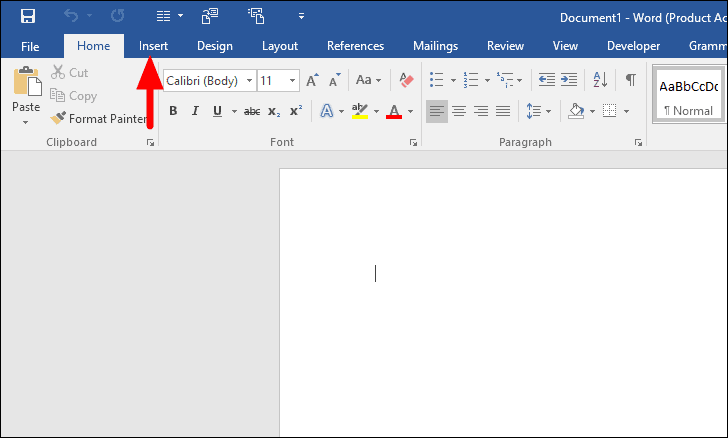
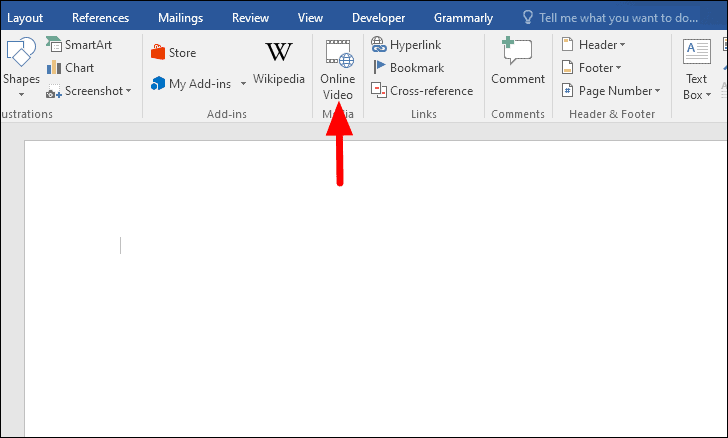
In the ‘Insert’ tab, find the ‘Media’ group and click on ‘Online Video’. This option allows you to insert videos from online sources into your document.
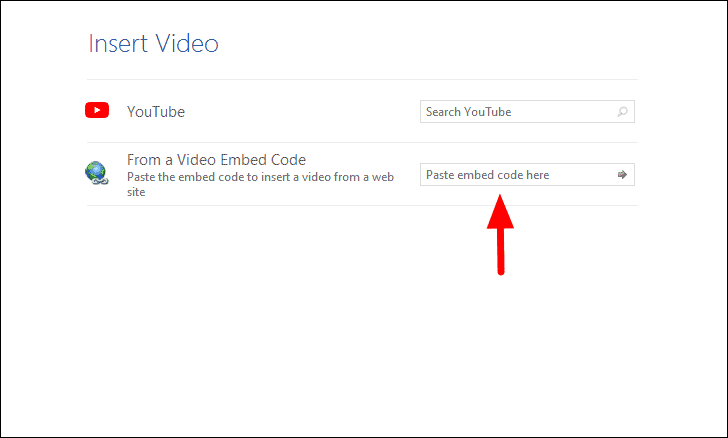
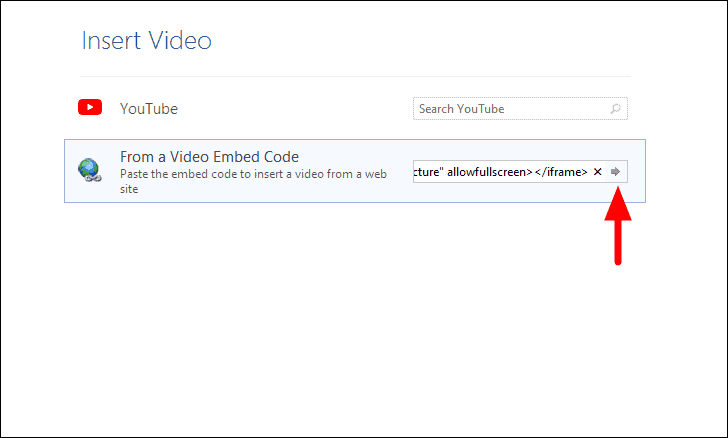
Paste the embed code you copied from YouTube into the text box. You can do this by pressing Ctrl + V or by right-clicking and selecting ‘Paste’. Once the code is pasted, click the ‘Insert’ button next to the text box.
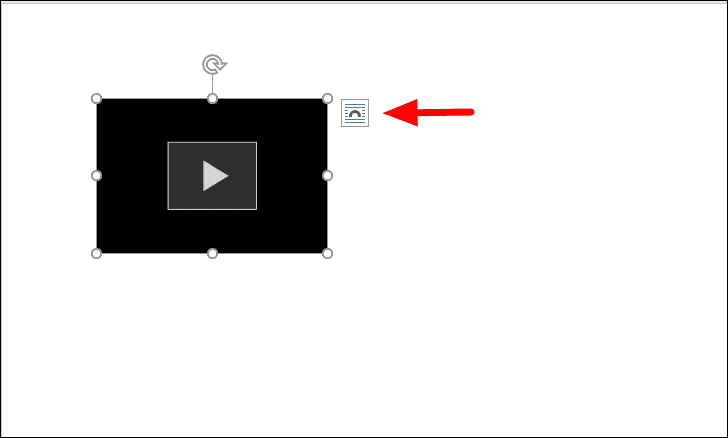
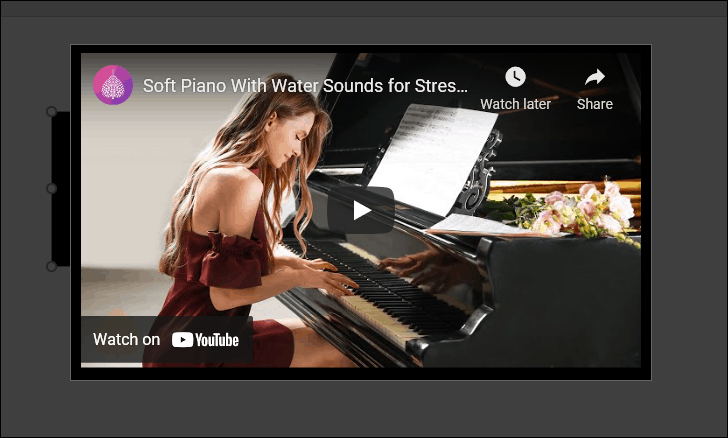
The YouTube video will now be embedded into your Word document at the location of your cursor. You can adjust the size of the video frame by clicking and dragging the corners. To modify how text wraps around the video, click on the ‘Layout Options’ button that appears when the video is selected, and choose your preferred text wrapping style.
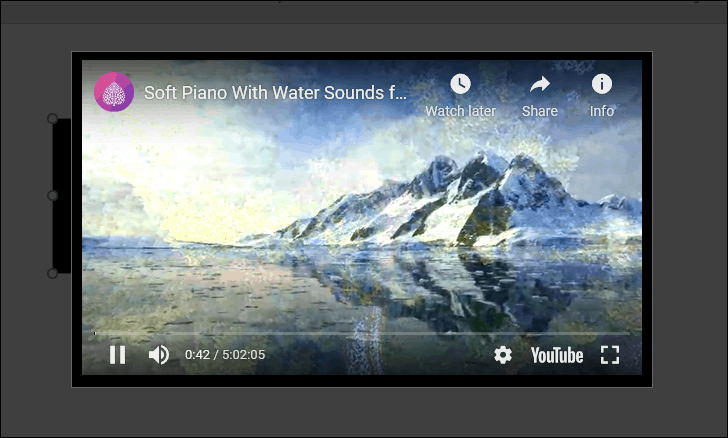
To play the embedded video, simply click on it within the document. A playback window will appear, resembling the YouTube player interface. Click the ‘Play’ button to start watching the video directly in your Word document.
You can use the familiar playback controls to pause, skip, or adjust the volume of the video. This integration allows viewers to engage with your multimedia content seamlessly.
By embedding YouTube videos into your Word documents, you can enrich your content and provide a more interactive experience for your readers, enhancing the overall impact of your work.