

Deleting pages in Microsoft Word can sometimes be tricky, especially when dealing with blank pages or pages with stubborn formatting. Whether you need to remove a page filled with content or a blank page that won’t go away, there are efficient methods to get the job done.
Deleting a Blank Page in Microsoft Word
Blank pages can appear in Word documents due to extra paragraph marks or page breaks, and they can be stubborn to remove using conventional methods. Here’s how to delete a blank page effectively.
¶ symbol in the ‘Home’ tab of the toolbar.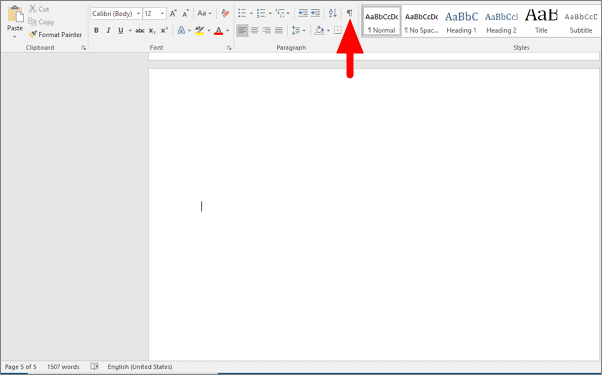
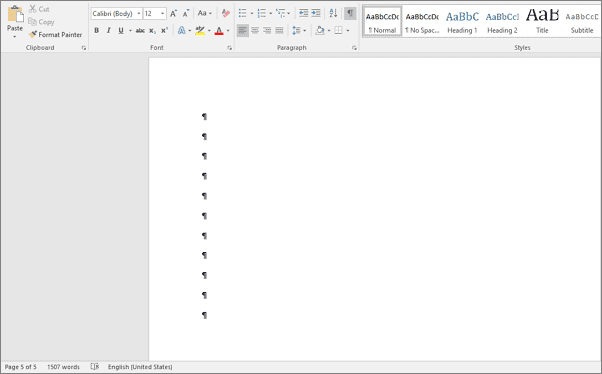
Delete key to remove the selected paragraph marks. This should eliminate the blank page from your document.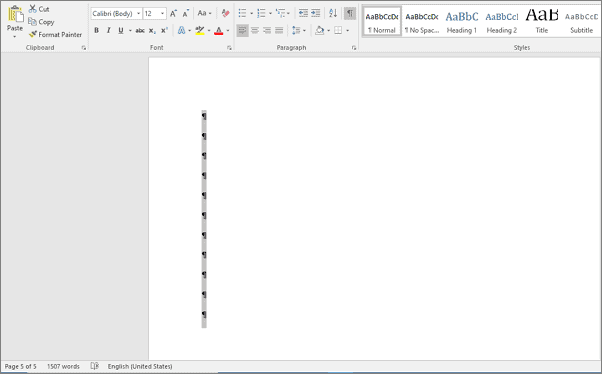
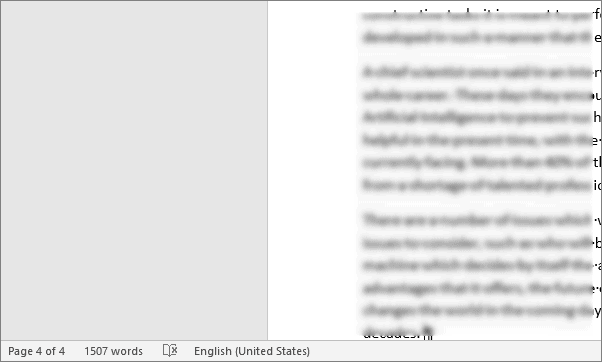
The blank page should now be deleted, and you can confirm this by checking the page count at the bottom left corner of the Word window.
Deleting a Page with Content in Microsoft Word
If you need to delete a page that contains text, images, or other content, there’s a quick method to select and remove it without manually highlighting everything.
\page and click on ‘Go To’. This action will select all the content on the current page.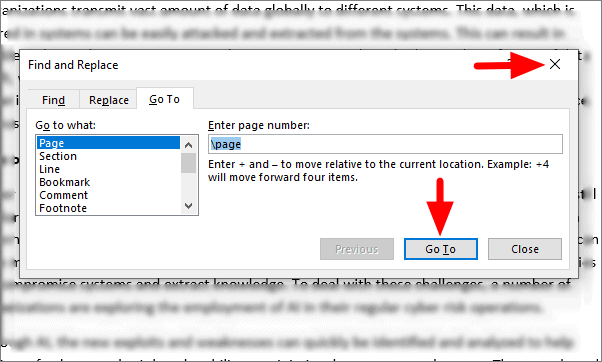
Delete key to remove all the selected content. The page will be deleted along with its contents.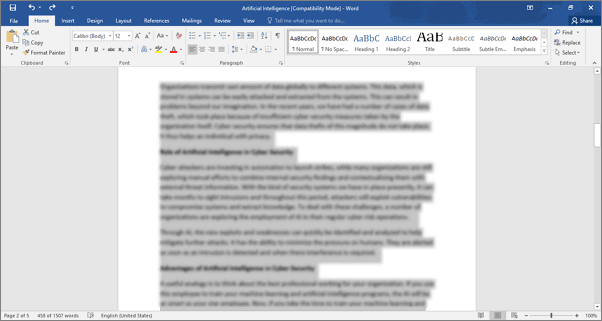
You can verify that the page has been deleted by checking the page count displayed at the bottom left of the Word window.
By following these methods, you can efficiently delete unwanted pages in Microsoft Word, whether they’re blank pages or pages filled with content.





