

To manage the pop-up blocker in Microsoft Edge, open the browser and click the three-dot menu icon in the toolbar. Select Settings, then navigate to Cookies and site permissions. Scroll down to Pop-ups and redirects and use the toggle to enable or disable the blocker. To allow pop-ups from a specific website, add it to the Allow list within the same settings page.
While pop-up windows are often disruptive, they can be necessary for certain websites to function correctly in Microsoft Edge. Controlling when and where pop-ups appear can enhance your browsing experience.
Enable or Disable the Pop-up Blocker
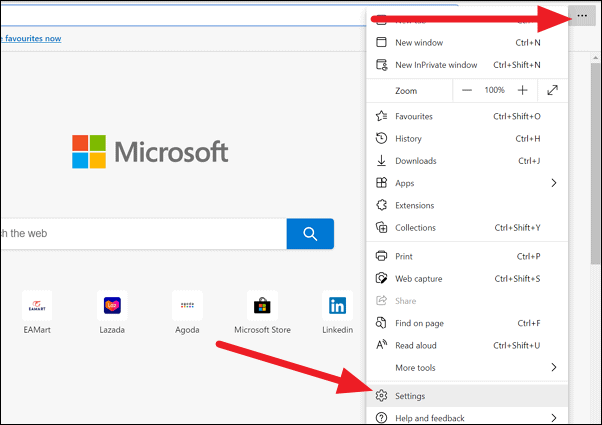
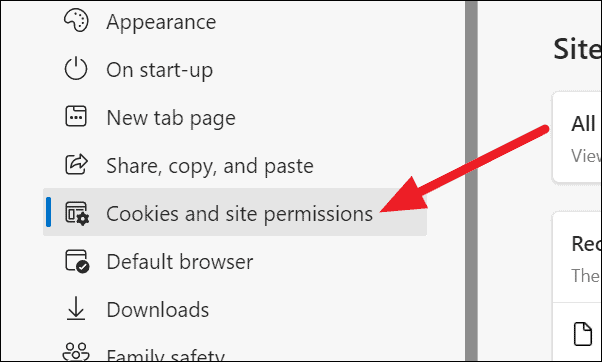
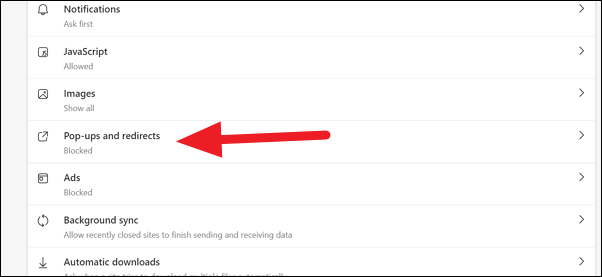
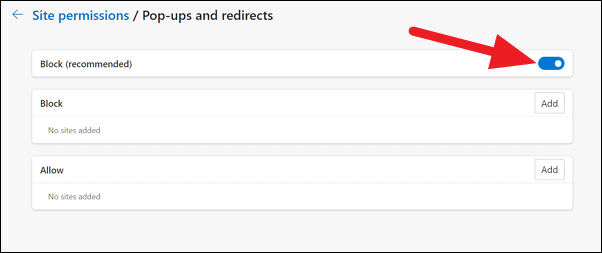
You can re-enable the pop-up blocker at any time by returning to this setting and toggling the button back on.
Allow Pop-ups for Specific Websites
If you prefer to keep the pop-up blocker enabled but want to allow pop-ups from certain websites, you can add them to the exception list.
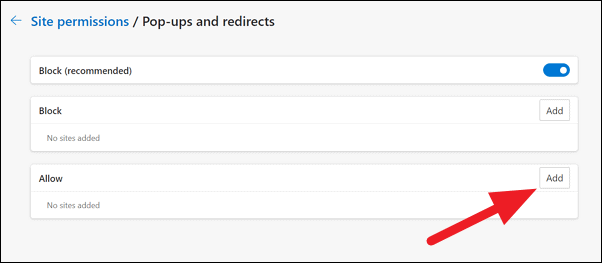
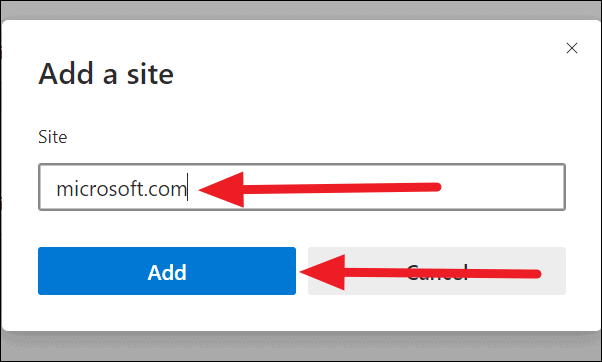
Pop-ups from the websites you add to the Allow list will now be permitted, even though the pop-up blocker remains enabled for other sites.
By customizing the pop-up settings in Microsoft Edge, you can ensure that essential pop-ups are allowed while unwanted ones remain blocked, enhancing your overall browsing experience.





