How to Set Google Search as Default in New Microsoft Edge on PC, iPhone, and Android
Microsoft Edge has come a long way, offering a browsing experience comparable to other major browsers. Despite its improvements, Edge still defaults to Bing as its search engine, which may not be everyone's preference. If you prefer using Google Search, you can easily set it as the default search engine in Microsoft Edge on your PC, iPhone, or Android device. Here's how. Setting Google Search as default in Microsoft Edge on PC Step 1: Launch Microsoft Edge on your PC. Click on the three-dot m
Microsoft Edge has come a long way, offering a browsing experience comparable to other major browsers. Despite its improvements, Edge still defaults to Bing as its search engine, which may not be everyone’s preference. If you…
by Shivam Malani
Microsoft Edge has come a long way, offering a browsing experience comparable to other major browsers. Despite its improvements, Edge still defaults to Bing as its search engine, which may not be everyone’s preference. If you prefer using Google Search, you can easily set it as the default search engine in Microsoft Edge on your PC, iPhone, or Android device. Here’s how.
Setting Google Search as default in Microsoft Edge on PC
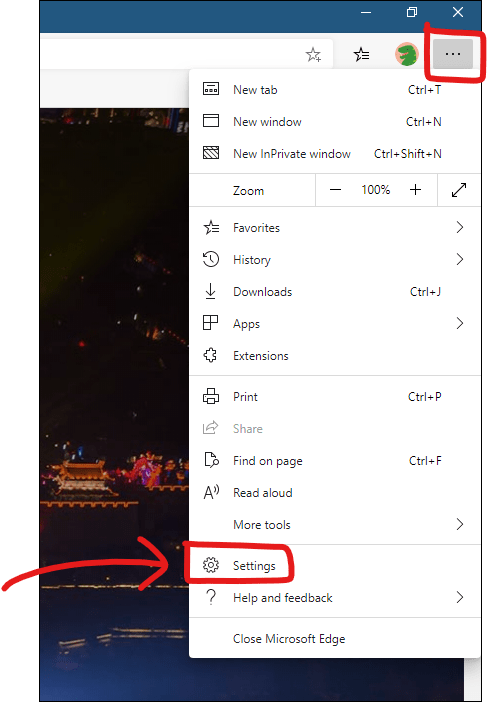
Launch Microsoft Edge on your PC. Click on the three-dot menu icon located at the top-right corner of the browser window and select Settings from the dropdown menu. Alternatively, you can type edge://settings into the address bar and press Enter to access the settings directly.
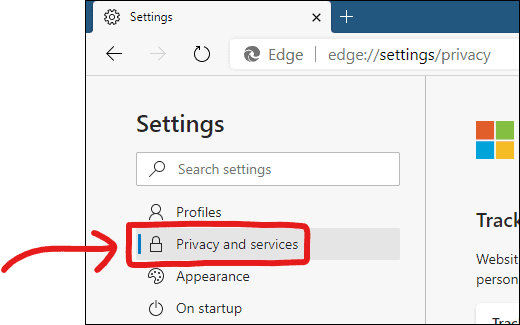
In the Settings sidebar, click on Privacy and services. This will take you to the privacy settings where you can manage various options related to your browsing experience.
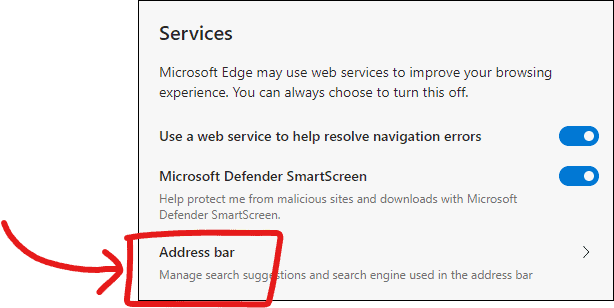
Scroll down to the bottom of the Privacy and services page. Under the Services section, click on Address bar to access the settings related to the address bar and search engine.
Select Address bar option from the Services section in Edge settings
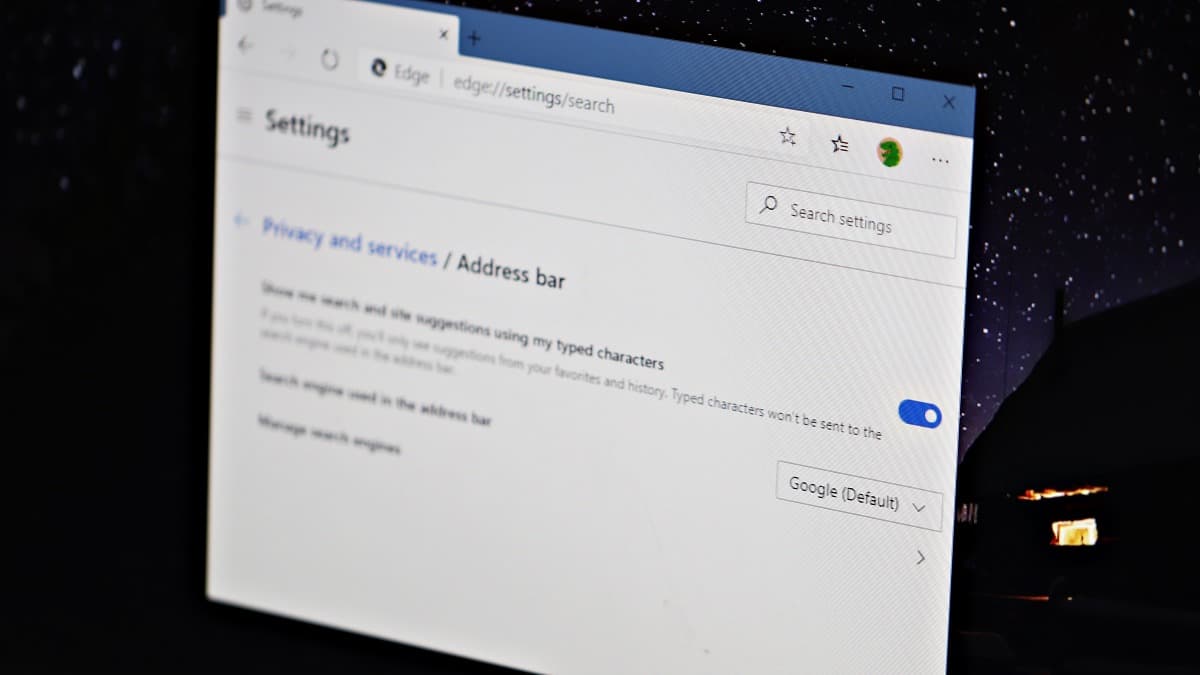
💡 Tip: You can bypass the previous steps by typing edge://settings/search directly into the address bar to open the search engine settings in Microsoft Edge.
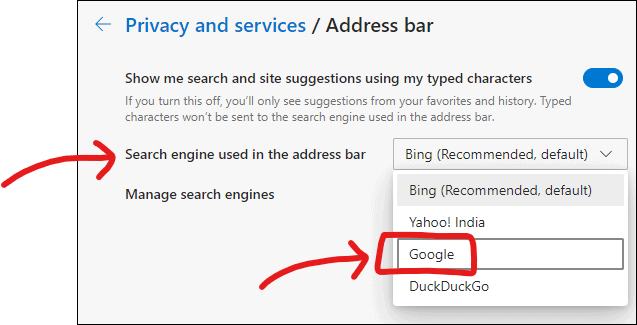
Within the Address bar settings, locate the option labeled Search engine used in the address bar. Click on the dropdown menu next to it and select Google from the list of available search engines.
Select Google as the default search engine
That’s it! Google is now set as your default search engine in Microsoft Edge on your PC.
Setting Google Search as default in Microsoft Edge on iPhone and Android
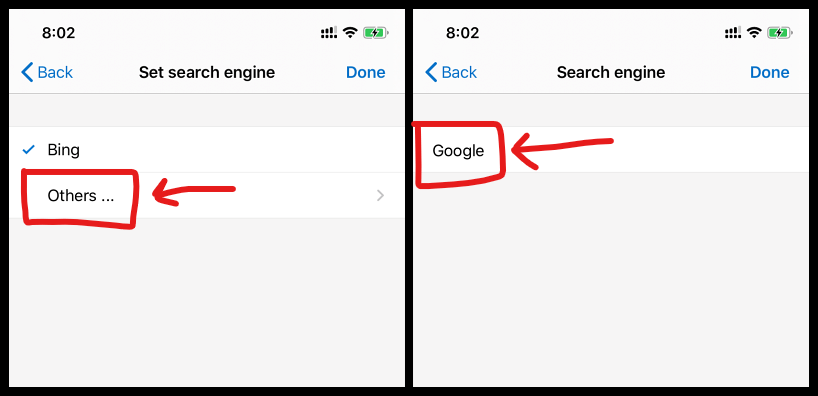
If you’re using Microsoft Edge on your mobile device but prefer Google Search over Bing, you can easily change the default search engine. Here’s how to do it on both iPhone and Android devices.
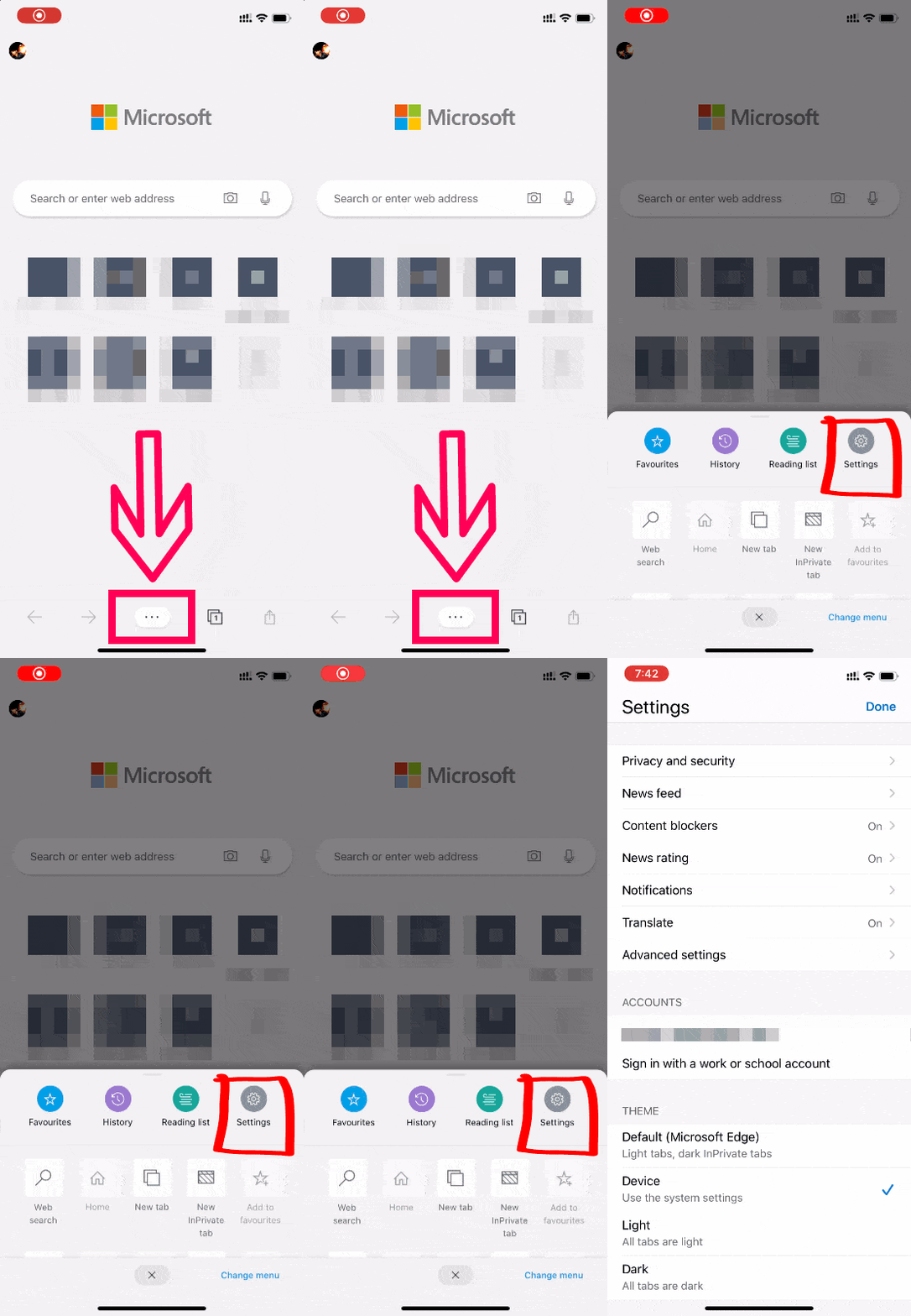
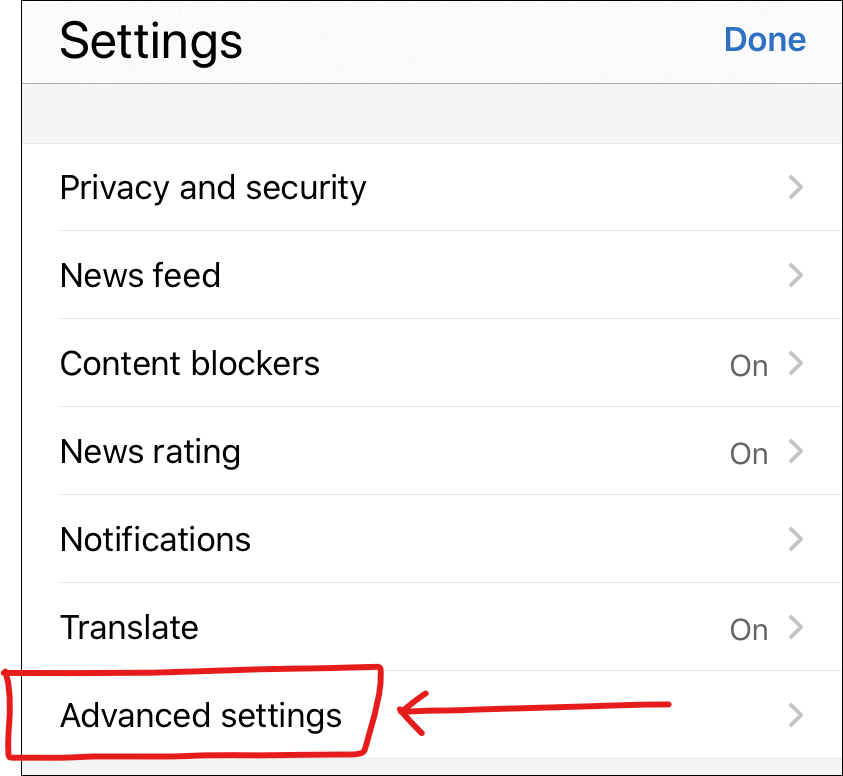
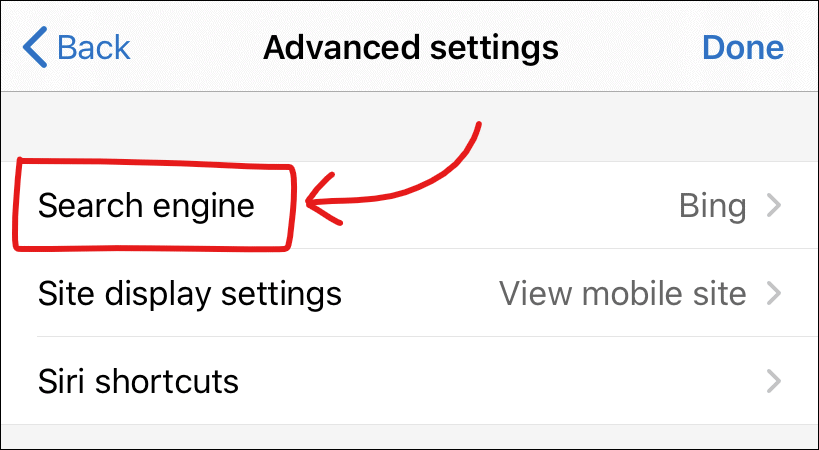
Open the Microsoft Edge app on your mobile device. Tap on the three-dot menu icon located at the bottom center of the screen, then tap the Settings icon.