Leaving a character parked in Sol’s RNG puts an AFK marker on your avatar, which is why players hunting for auras in a busy server often want it gone. The game handles that with a single checkbox tucked inside its settings window, and once it is ticked, the setting stays applied to your session.
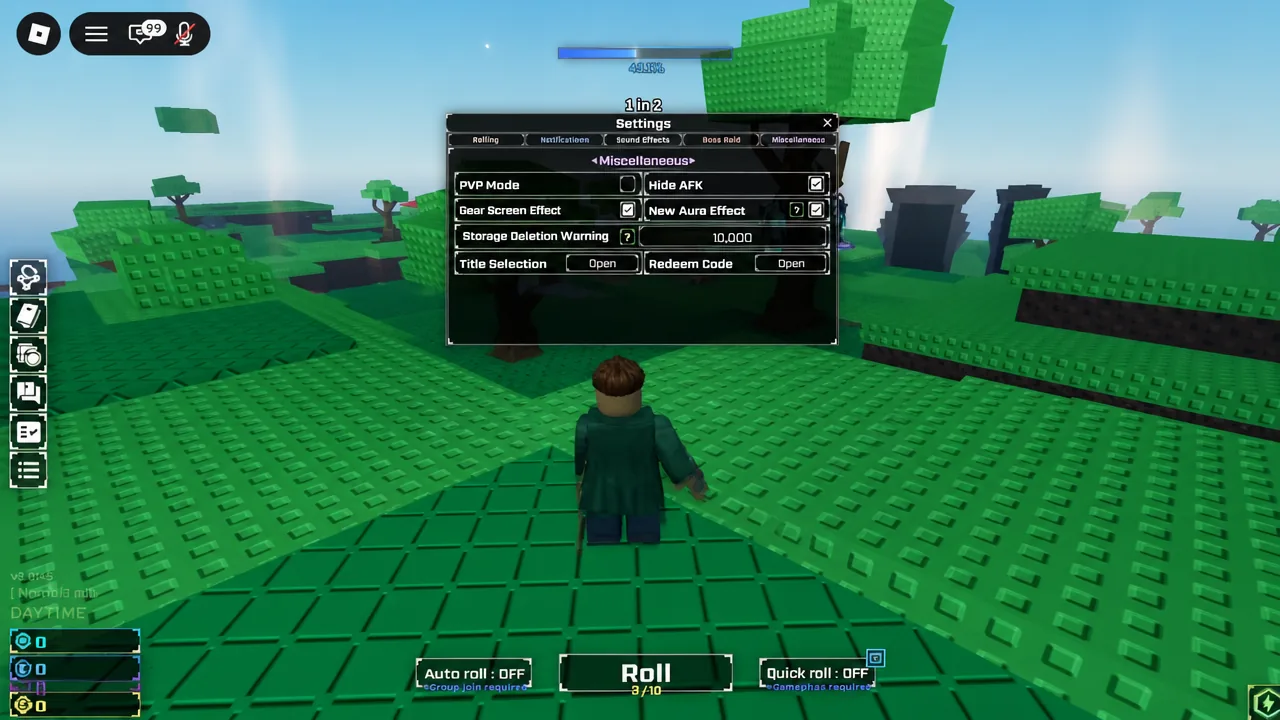
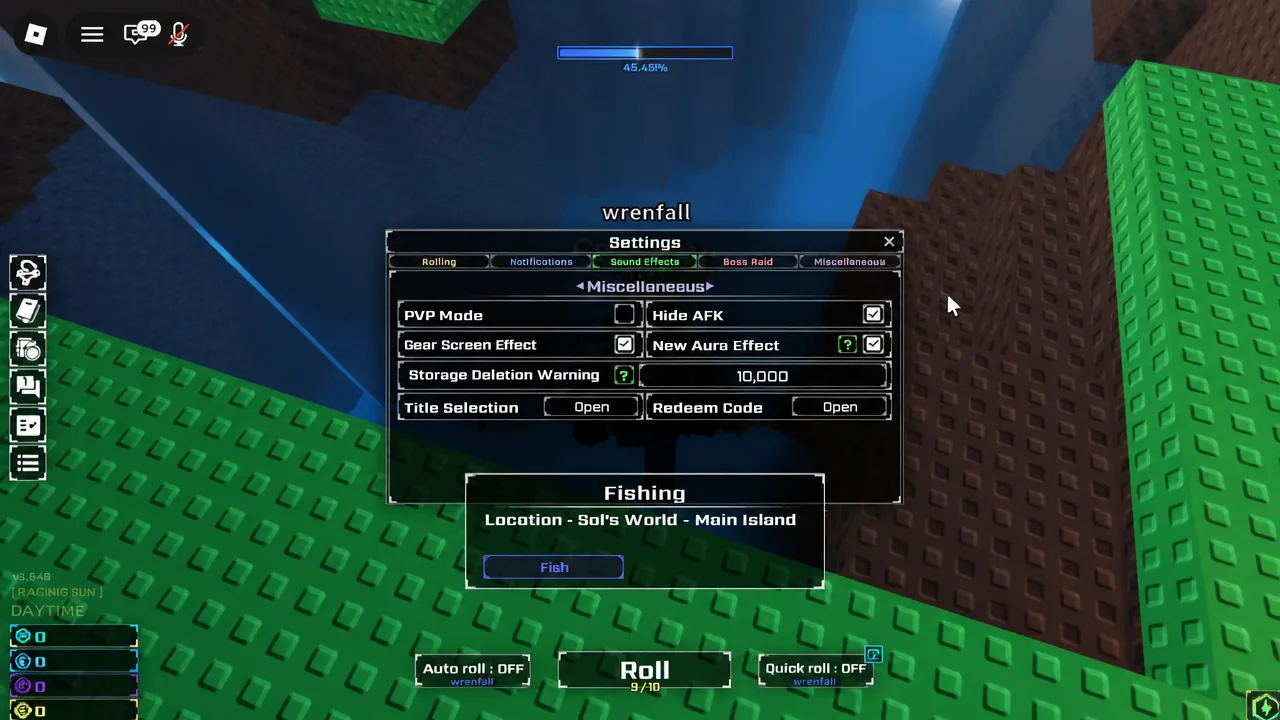
Quick answer: Open Menu on the left side of the screen, pick Settings, switch to the Miscellaneous tab, and tick the checkbox next to Hide AFK.
Where the Hide AFK toggle is located in Sol’s RNG
Hide AFK is not part of the roll interface, so you will not find it near the Roll, Quick roll, or Auto roll buttons. It lives in the in-game settings window, which you reach through the main Menu button on the left edge of the screen. That menu also holds Season Pass, Achievements, Fishing, Robux Shop, Developers, and PVP Mode, so make sure you select Settings specifically.
Inside Settings, options are split across tabs. Roll Settings and Aura Filter cover rolling behaviour and aura visibility, while everything else sits under Miscellaneous.
| Settings tab | What it covers |
|---|---|
| Roll Settings | Options tied to how rolls are performed |
| Aura Filter | Filtering which auras are shown |
| Miscellaneous | Hide AFK, Gear Screen Effect, New Aura Effect, Storage Deletion Warning, Title Selection, Redeem Code |
Turn on Hide AFK in four clicks
How to confirm Hide AFK is switched on
The checkbox itself is the confirmation. Once it shows as checked in the Miscellaneous tab, the option is active, and you can close the settings window and carry on rolling or walking around the map.
If the box appears empty when you reopen Settings, the click did not register on the checkbox. Reopen the Miscellaneous tab and click directly on the box next to the Hide AFK label rather than on the surrounding row.
What Hide AFK does not change
This is a display option. It affects the AFK status attached to your character, and nothing else about your session changes when it is enabled.
It does not stop Roblox from disconnecting an idle client. Players who leave the game running unattended still get dropped after a period of no input, and no in-game setting overrides that platform-level timer. Community anti-idle tools exist for that problem, but they sit outside the game and carry their own risks under Roblox’s rules, so treat them as separate from the Hide AFK checkbox.
Note: turning the option back off works the same way. Return to Settings, open Miscellaneous, and untick the Hide AFK box to restore the normal AFK indicator.
Because the toggle sits alongside other cosmetic and quality-of-life options in the same tab, it is worth a quick look at the rest of the Miscellaneous list while you are there. Gear Screen Effect and New Aura Effect control visual flourishes during play, and Storage Deletion Warning is the safety prompt you will want left alone if you clear inventory often.