Gifting in Forsaken is a purchase, not a trade. There is no inventory transfer, no drop system, and no way to hand over something you already own. Everything happens inside the Shop, and the person receiving the item has to be in your server at the moment you buy it.
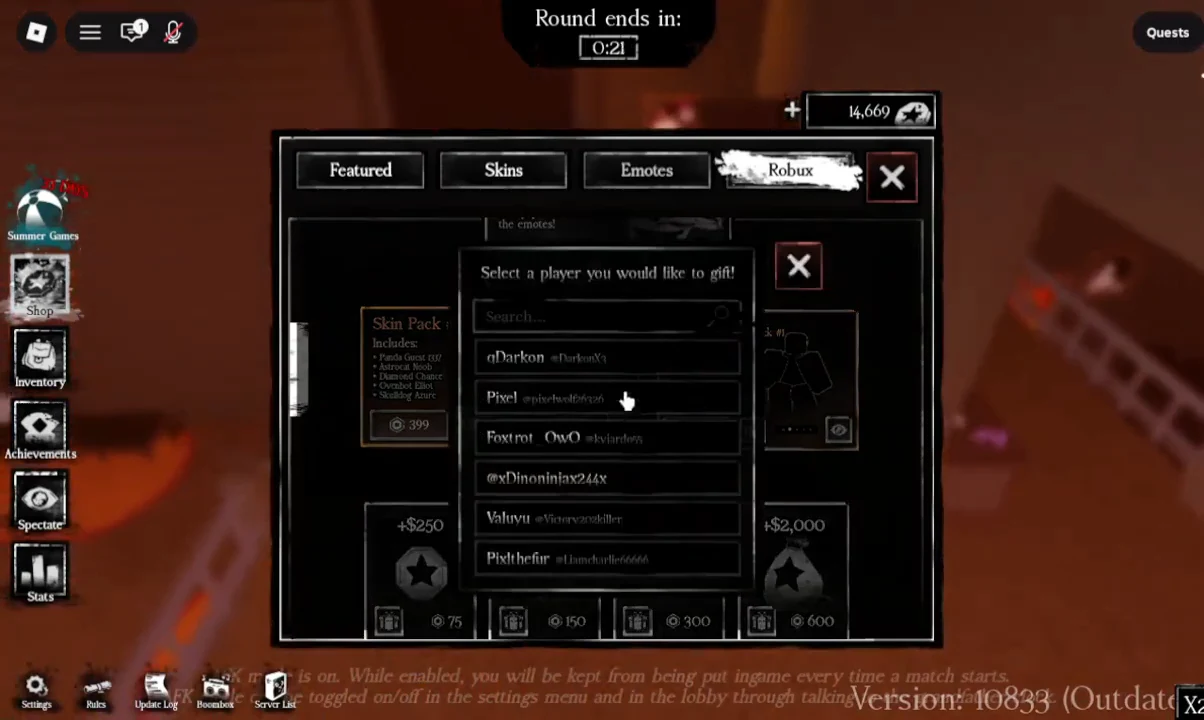
Quick answer: Open the Shop, switch to the Robux tab, click the gift box icon on the item you want to send, pick the recipient from the player list, then confirm the Roblox purchase prompt.
Requirements for gifting in Forsaken
Check these conditions before you spend anything, because the gift flow will not start if any of them are missing.
| Condition | What it means |
|---|---|
| Recipient location | They must be in the same server as you, since the picker only lists active players |
| Menu path | Shop, then the Robux tab |
| Eligible items | Only Shop entries that display a gift box icon |
| Payment | Robux, charged through the standard Roblox purchase prompt |
| Transferring your own items | Not supported. Gifting always buys a fresh copy for the other account |
That last row is the one that catches people out. Owning VIP or a skin pack yourself does nothing for a friend. The only route is paying again so the item lands on their account.
Send a gift from the Shop menu
Shop. Do this before a round pulls you into a match, since the menu is easiest to work with while you are waiting.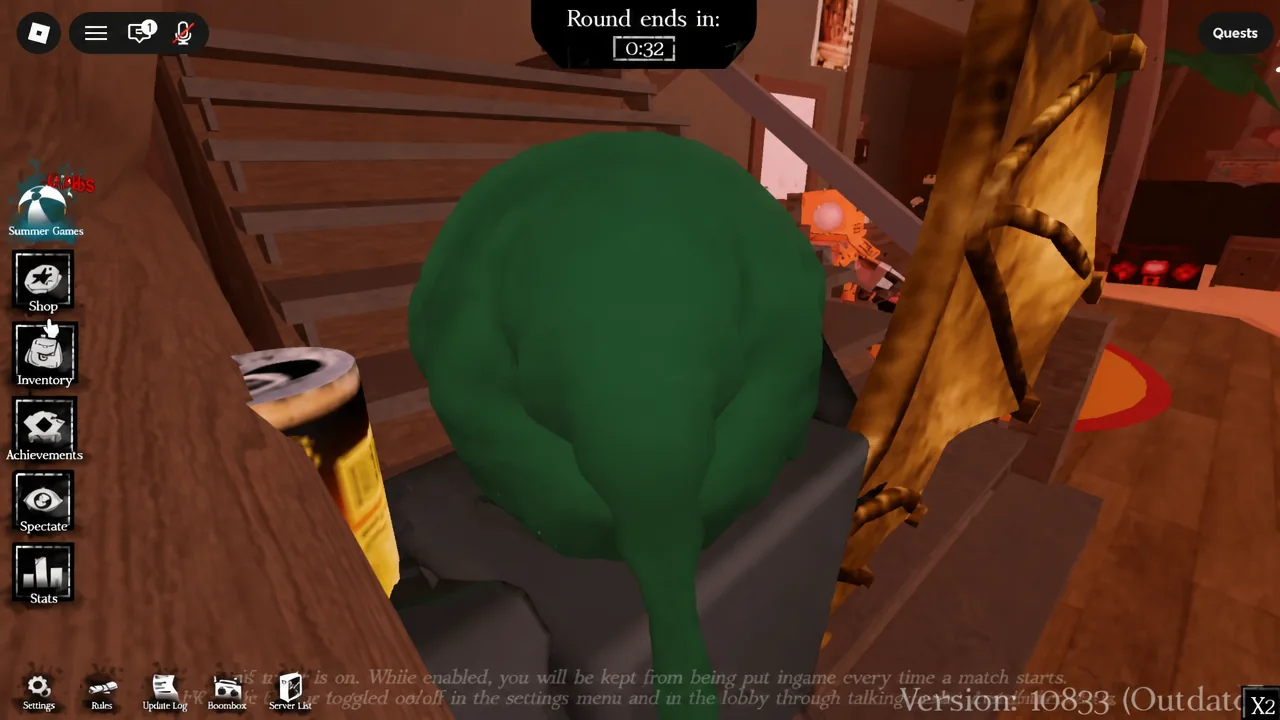
Robux tab. Giftable products live here, separate from anything you buy with in-game currency.Select a player you would like to gift!, listing everyone currently in the server by username. Click the name you want and double-check the spelling, since similar usernames are common.How to confirm the gift went to the right player
The purchase prompt is your last checkpoint, and it is worth reading rather than clicking through. A gift purchase is labelled as one, so a skin pack sent to someone else appears as [Gift] Skin Pack #3 instead of the plain product name. If the prompt shows the item without that gift label, back out and start again from the gift box icon.
Prices are shown in Robux on the Shop tile and in local currency on the prompt. Skin Pack #3 (Limited), for example, sits at 399 Robux, which the Roblox prompt converts to a regional amount such as 5,99€. Once the payment clears, the item is tied to the recipient’s account, and there is no in-game way to reverse it.
Why the gift option is missing or the player is not listed
There are only a few reasons the flow stops, and each has a clear cause.
- The name is not in the picker. The list is built from the current server. If your friend is in a different lobby, join theirs and reopen the Shop.
- No gift box icon on the tile. That product is not giftable. Only Robux tab items with the icon can be sent.
- You want to hand over something you own. Existing purchases, including VIP, stay on your account permanently and cannot be passed along.
- The recipient leaves mid-purchase. Finish the prompt while they are still in the server so the selection stays valid.
Tip: coordinate the server first and the rest takes under a minute. Get into the same lobby, agree on which item you are sending, then run through the Shop while you both sit in the pre-round menu.