Gaming Guide

Street Fighter 6 x UBG: How to Change Keybinds in Roblox

Open the settings gear, pick Set Keybinds, press a new key, and hit SAVE to confirm your layout.

Open the settings gear, pick Set Keybinds, press a new key, and hit SAVE to confirm your layout.

Street Fighter 6 x UBG lets you remap every combat action from a single menu, so you can move Block, Dash, Ultimate and your attacks onto keys that fit your hands. The controls live behind the settings gear on the main HUD, and every change needs to be saved before it takes effect.

Quick answer: Use the gear at the screen’s upper-left corner, select Set Keybinds, choose the action to remap, press its replacement key, and click SAVE.


Default keyboard keybinds

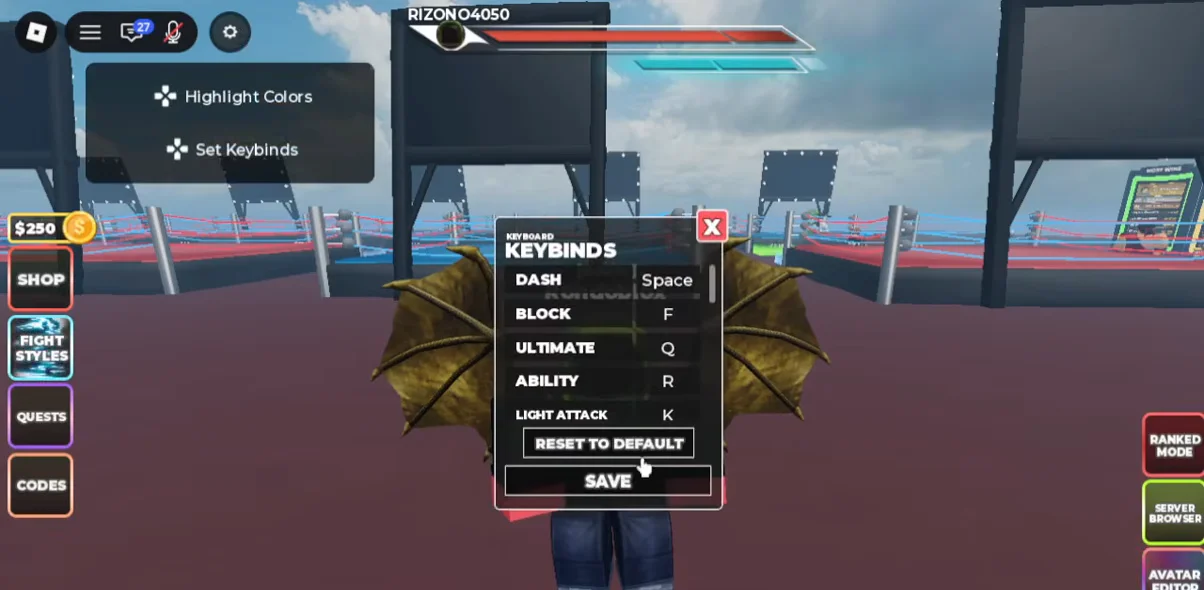
Before remapping anything, it helps to know where each action sits by default. These are the starting bindings shown in the Set Keybinds menu.

ActionDefault key
DashSpace
BlockF
UltimateQ
AbilityR
Light AttackK
Heavy AttackL
Join EmoteE

Light Attack and Heavy Attack also respond to the left and right mouse buttons during a match, so the K and L bindings act as keyboard alternatives for the same punches.


How to change a keybind
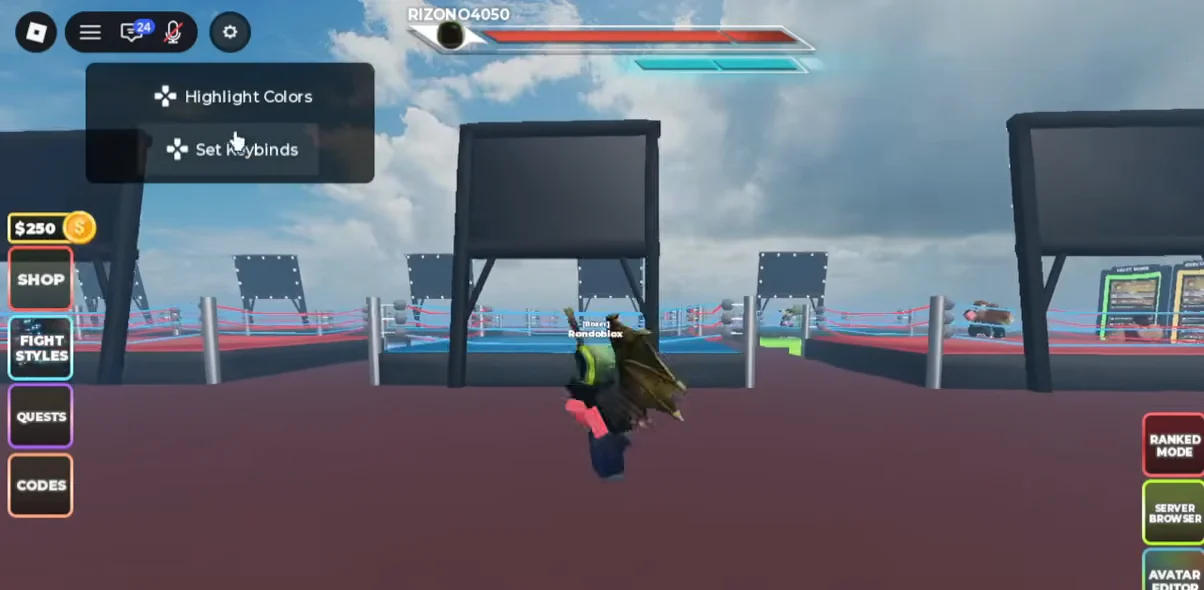
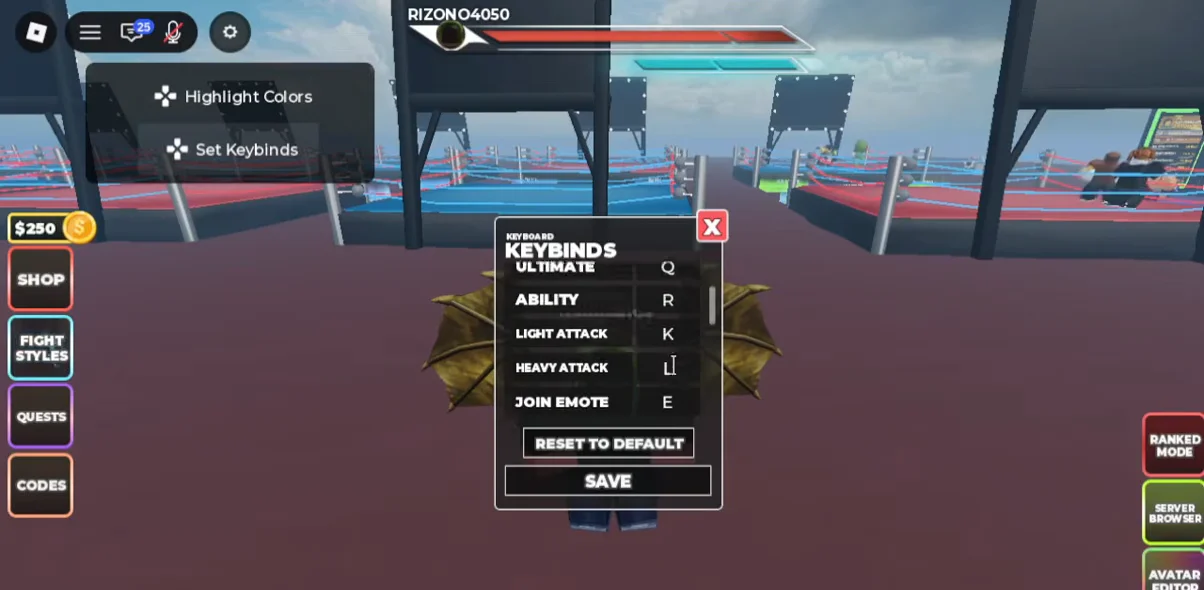
Find the gear/settings icon in the top-left corner of the HUD, sitting next to the chat and player list icons. Click it to open the settings drop-down, which lists Highlight Colors and Set Keybinds.
Accessing Settings Menu00:28Accessing Settings Menu
The settings menu that opens from the top-left gear, where Set Keybinds sits below Highlight Colors. Shown at 00:28 in VendoPlus’s video. Image: Street Fighter 6 x UBG
Select Set Keybinds to open the keyboard bindings list. You will see each action paired with its current key, from Dash and Block at the top down to Light Attack, Heavy Attack and Join Emote.
Inspecting Default Keybinds00:48Inspecting Default Keybinds
The Set Keybinds list, showing each action next to its assigned key so you can pick the one to remap. Shown at 00:48 in VendoPlus’s video. Image: Street Fighter 6 x UBG
Click the input field next to the action you want to remap. For example, selecting Block clears its field and waits for a new key.
Press the key you want to assign. Changing Block from F to G simply means clicking the Block field and tapping G, and the field updates to show the new binding.
Press SAVE at the window’s bottom, then exit the menu using the X button. The layout takes effect only after saving; otherwise, the previous keys stay in place.
Rebinding a Key and Saving01:17Rebinding a Key and Saving
The keybinds menu with the SAVE button that locks in your changes before you close with the X. Shown at 01:17 in VendoPlus’s video. Image: Street Fighter 6 x UBG

Confirm the change worked

After saving, the action’s input field shows the new key instead of the old one. Reopening Set Keybinds should still display your updated binding, confirming the change held rather than reverting when you closed the menu.

If you want to undo everything, the Set Keybinds menu has a RESET TO DEFAULT button that restores the original keys, so you can experiment freely and roll back in one click.

With the layout set, the same keys drive every fight. Block holds a combo, Space dashes out of heavy wind-ups, and Q unleashes the Ultimate once your meter is full, now mapped to whatever keys you find most comfortable.