The Trading Hub lets you post a pet and ask for something specific in return, but naming one exact pet narrows your listing to a tiny pool of traders. Leaving the request side open instead turns the listing into a “make me an offer” post, and other players can send whatever they think your pet is worth.
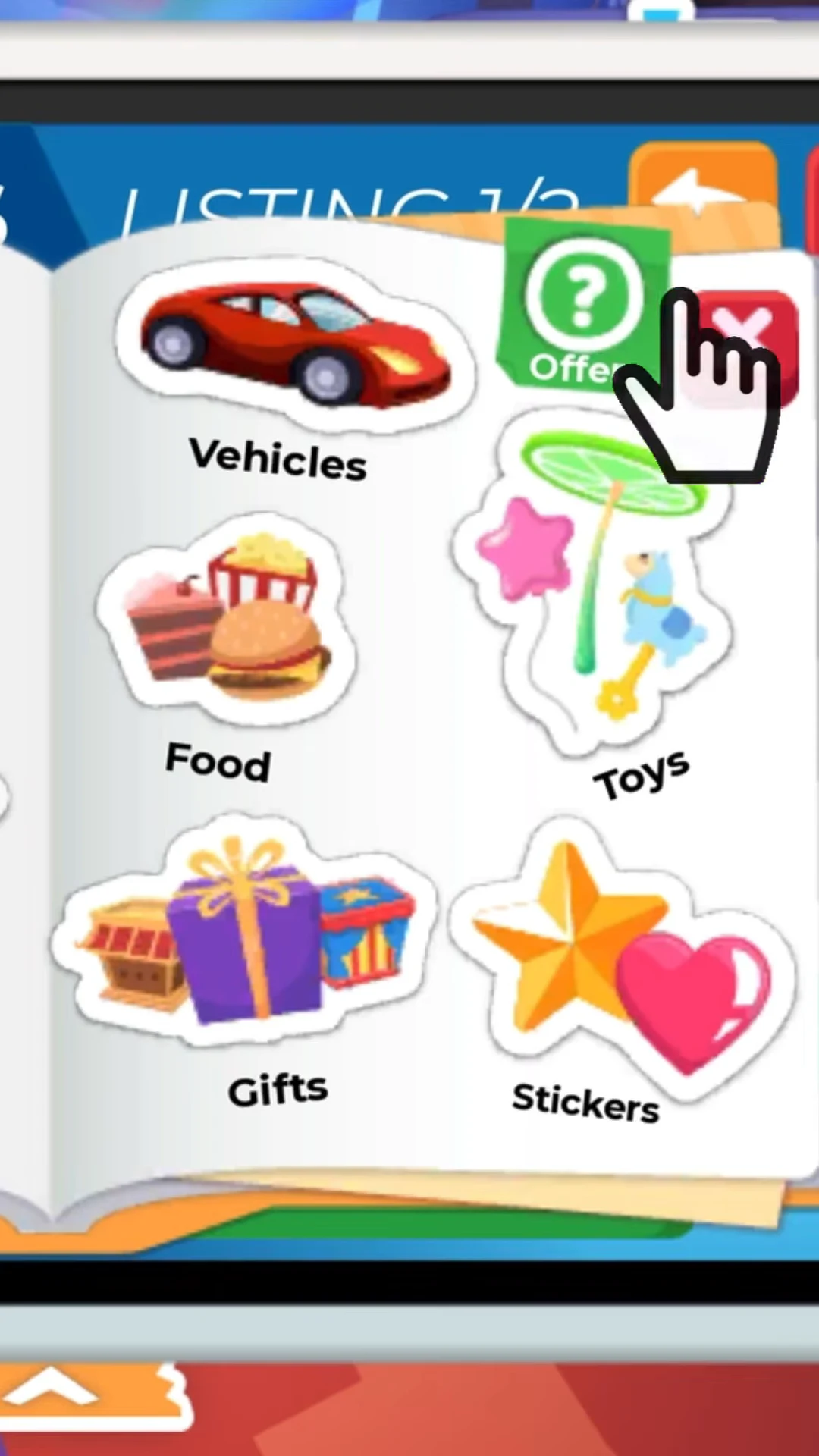
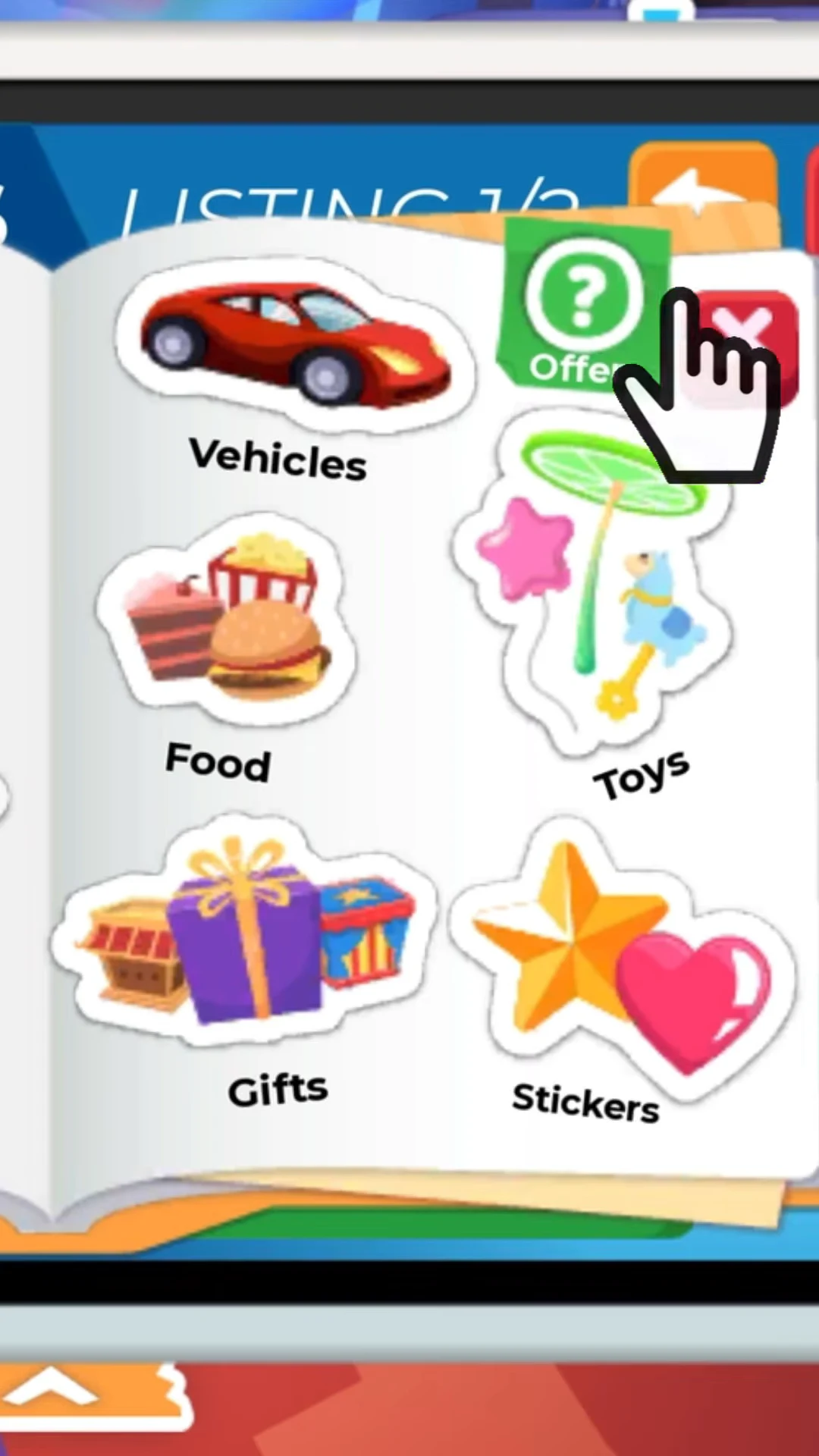
Quick answer: Put the pet you’re trading under “You”, tap the “+” under “Them”, pick the green “?” Offer icon instead of a category, then press RELIST. Incoming offers show up as a badge on the OFFERS button.
What you need before you can post a Trading Hub listing
Listings can only be created and edited inside the Trading Hub itself, and the Hub is gated behind three unlocks plus a Bucks fee. If any of these are missing, the Offer option isn’t reachable yet.
| Requirement | Details |
|---|---|
| Trading Phone | Free from the Guide after two hours of playtime. Summons the hot air balloon to the Hub. |
| Trade License | Earned by passing the quiz in the Safety Hub. It can be retaken if you fail. |
| First Neon pet | You must own at least one Neon pet on your account. |
| Listing fee | 100 Bucks each time you post a listing. |
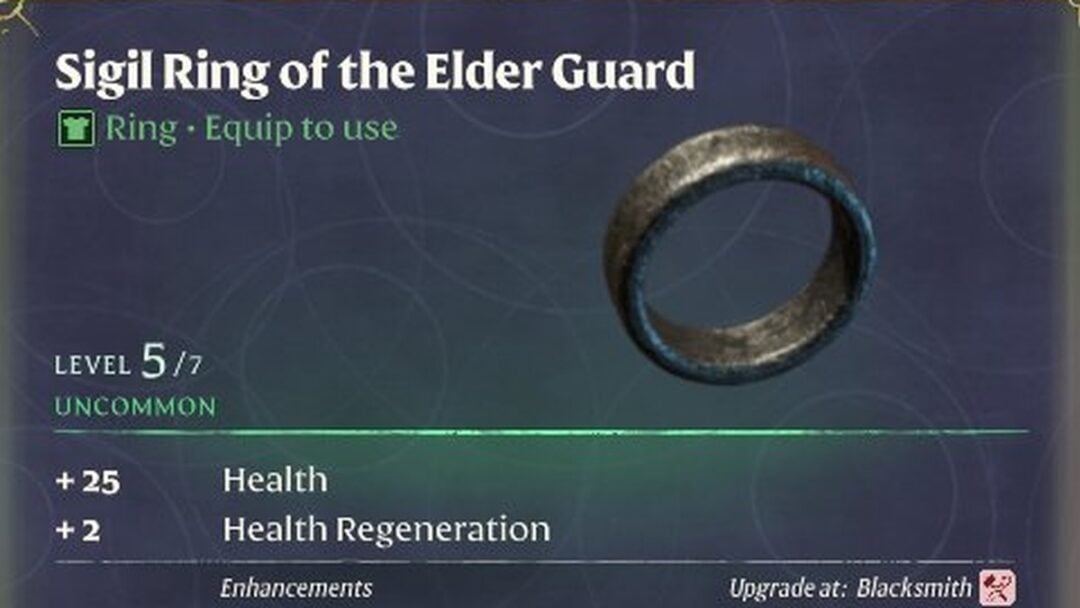
| Listing slots | Two active listings by default, shown as “LISTING 1/2”. A third slot costs 49 Robux. |
How to set a listing to open offers
Robo-Todd handles everything on the posting side. The same menus are available on the Trading Phone, but only while you are standing in the Trading Hub.
How to check offers and accept or decline them
You’ll know the listing is working when a notification badge appears on the OFFERS button. Open it to see every proposal side by side, including offers that bundle several pets together for your single listed pet.
Each offer has ACCEPT and DECLINE buttons. Accepting completes the trade and hands over the pet you listed, so read the full item names on both sides first, especially with pet wear that shares a name with a pet. Declining sends it back and leaves your listing live for the next offer.
You don’t have to stay in the Hub while offers roll in. In a normal Adopt Me server, the Trading Phone can show your active listings under MY LISTINGS, display incoming offers, and pull up your trade history. Creating a new listing or modifying an existing one still requires a trip back to the Hub.
Note: your listings only display to other players while you are in a server. If you log off, they stop appearing on the boards until you return.
What happens to a pet while it’s listed
Any pet attached to a listing or an offer is locked in your inventory. You cannot equip it, modify it, or use it in a normal trade until the listing or offer is cancelled, or until a trade involving it goes through. That lock exists so every listing on the board is one the poster can actually complete.
An August 7 change also hides pets tied to an active offer from your Backpack, with an on-screen indicator explaining why. The pet is not gone. Cancel or decline the offer and it returns. Keep that in mind before listing a pet you still want to age, ride, or use for tasks.
Why a listing gets no offers, or an offer gets blocked
Open offers attract more attention than fixed requests, but a few specific conditions still stop the flow.
| Problem | Cause and fix |
|---|---|
| Listing shows no offers | You may be offline, or the pet has low demand. Stay in a server and use Robo-Todd to modify the listing. |
| Listing or offer won’t post | The Hub blocks trades it detects as heavily imbalanced. Adjust what’s on the table. |
| Can’t create a listing | You are in a normal server, or both listing slots are already in use. |
| Offers look poor | Open offers invite lowballs. Decline freely, or switch the “Them” side to a specific request. |
Those imbalance guardrails are a spam filter, not a value chart. An offer passing the check only means the system allowed it, not that it’s fair. Demand, Neon or Mega status, and Fly or Ride status all still shape what a pet is worth, so compare a few offers with Robo-Rob’s search before you commit to the first one that lands.