Map progress in Valheim is personal. Every player carries their own fog of war, so a friend who sails halfway across the world comes home with a filled-in coastline that nobody else can see. The Cartography Table, added in the Hearth and Home update, is the one piece of furniture that moves that data between players.
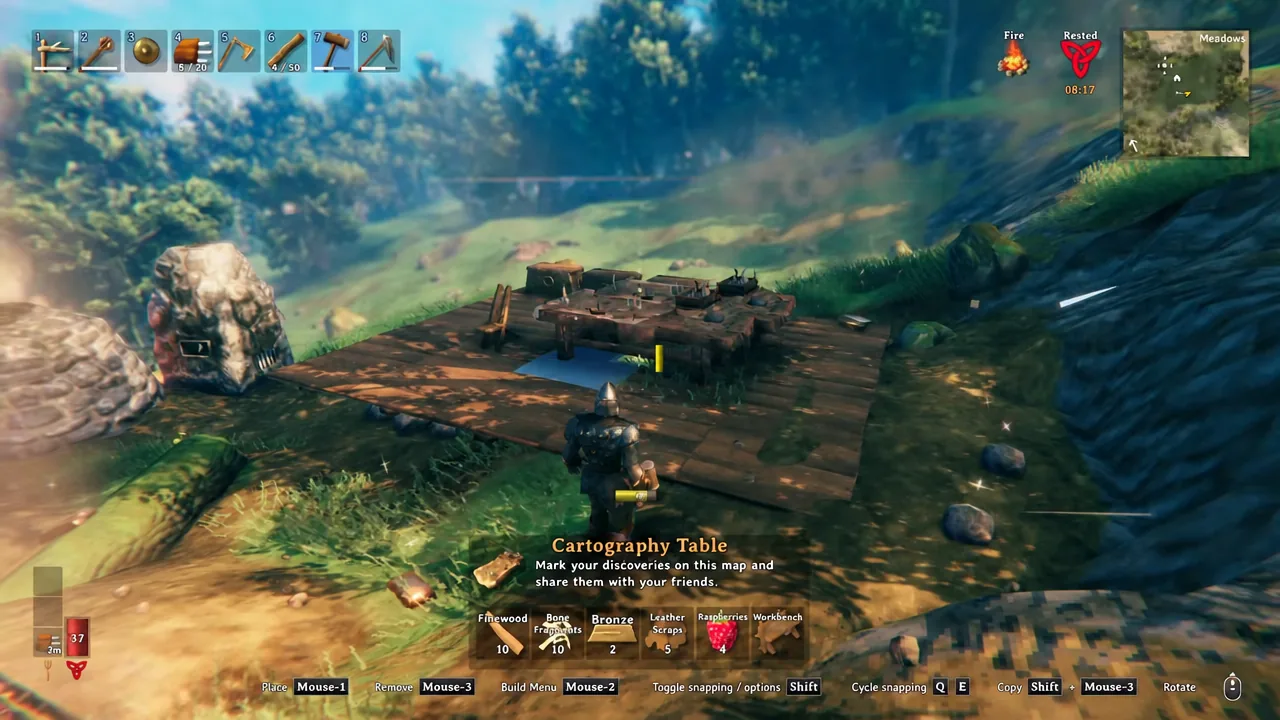
Quick answer: Build it with a Hammer near a level 1 Workbench using 10 Fine Wood, 10 Bone Fragments, 5 Leather Scraps, 4 Raspberries and 2 Bronze. Interact with the toolbox side to Record discoveries, and the map side to Read map.
Cartography Table recipe and where each material comes from
Nothing here is late-game. The gating item is Bronze, which means you need a Forge before you can finish the recipe, and a Bronze Axe before birch trees will drop Fine Wood for you.
| Material | Amount | Where to get it |
|---|---|---|
| Fine Wood | 10 | Chop birch or oak trees with a Bronze Axe or better, mostly in the Meadows |
| Bone Fragments | 10 | Kill Skeletons around Burial Chambers in the Black Forest |
| Leather Scraps | 5 | Hunt Boars in the Meadows |
| Raspberries | 4 | Pick raspberry bushes in the Meadows |
| Bronze | 2 | Combine 2 Copper and 1 Tin per bar at a Forge; the ore comes from the Black Forest and is smelted first |
Most of the shopping list overlaps with a normal early-game loop, so a single run through the Meadows and one Black Forest trip usually covers everything except the Bronze.
How to build the Cartography Table
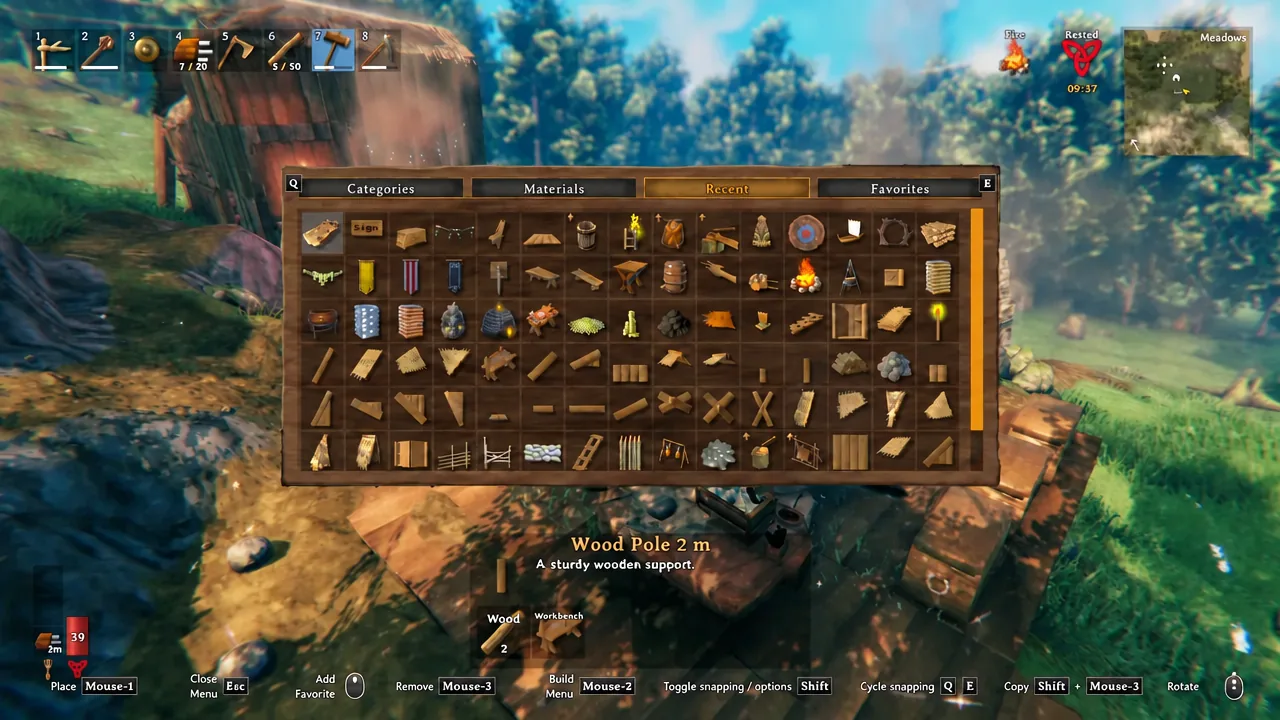
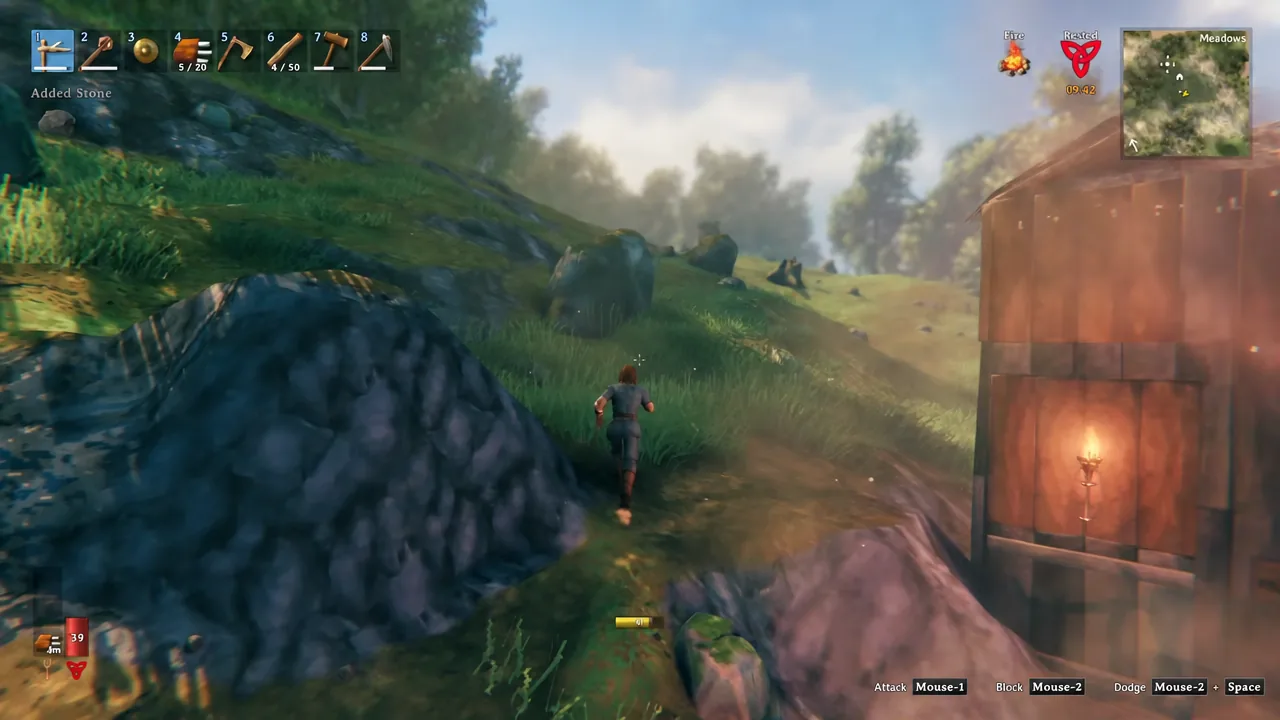
Note: put it somewhere everyone actually passes through. A table tucked in a storage shed gets updated far less often than one next to the portal hub, and the whole feature depends on people remembering to write to it.
Record discoveries and Read map: what the two interactions do
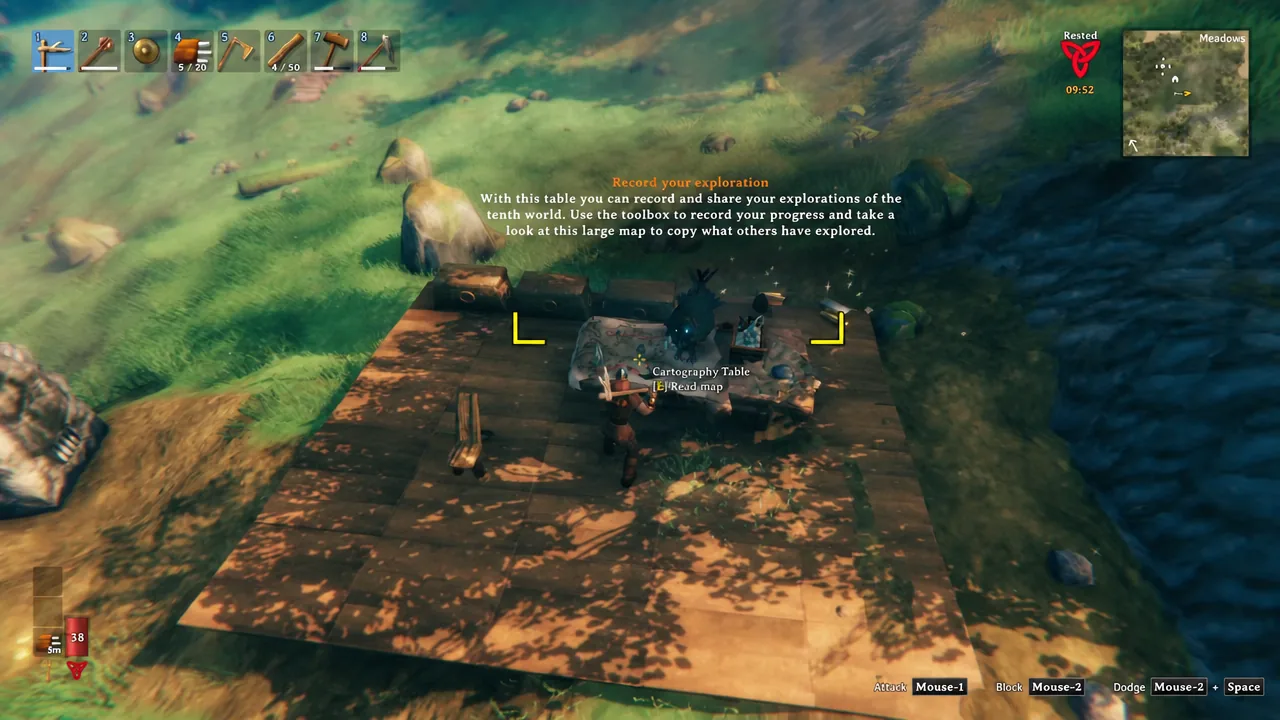
Walk up to the finished table and you get two separate prompts depending on which end you look at. The toolbox and writing tools on one side handle uploading. The large spread-out map on the other side handles downloading.
| Interaction | Side of the table | What happens |
|---|---|---|
| Record discoveries | Toolbox and writing tools | Copies your explored terrain and your placed markers onto the table for others to take |
| Read map | Large map | Copies everything currently stored on the table onto your own minimap |
Nothing happens automatically. The table is a manual drop box, not a live sync, so someone has to record before anyone else can read. Reading adds to what you already have rather than wiping it, and user-placed markers travel along with the fog of war, which makes it the cleanest way to hand over boss altar locations, merchant spots or a distant ore camp.
How to confirm the map data actually transferred
Open your map right after using Read map. Terrain that came from another player is drawn faded compared to the areas you uncovered yourself, so the borrowed coastline or mountain range is easy to pick out. You can toggle that shared layer on and off from the map screen if it clutters your view.
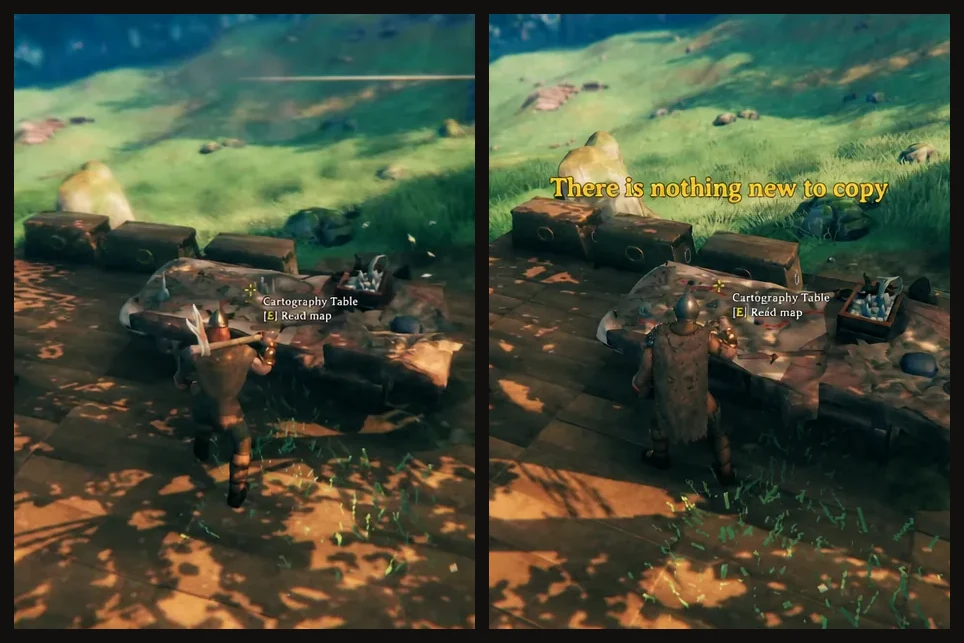
If you interact with the map end and get the message “There is nothing new to copy,” the transfer did not fail. It means the table holds no exploration data you are missing, which happens when you are the only one who has recorded to it, or when nobody has recorded anything new since your last read.
What the Cartography Table cannot do
There is no upgraded version and no customization. One table behaves exactly like every other table, and adding more of them around your base does not link them together — each one stores whatever was recorded to it.
Solo players still get something out of it, but only as a backup. Recording your discoveries stores a copy of your map on the table, which is useful if you later bring a second character or a friend into the world. With nobody else to share with, though, the sharing half of the feature sits idle.
The habit worth building is a quick Record discoveries stop every time you get back from a long trip. Two seconds at the table is what keeps a group from sailing to the same island twice, and it costs nothing once the thing is built.