Wardogs is a slow game with long sightlines, and most of your deaths come from someone seeing you a few hundred meters before you see them. The options menu gives you enough control over Field of View, aim down sight zoom and mouse scaling to fix that, but it ships with defaults that work against long-range shooting. Here are the values worth putting in, and what each one actually changes.
Quick answer: Set Field of View to 90, Aim Down Sight (FOV) to Independent, mouse sensitivity to 0.35–0.40 at 1600 DPI, ADS Multiplier to 0.90, and Monitor Matching Distance to 0%.
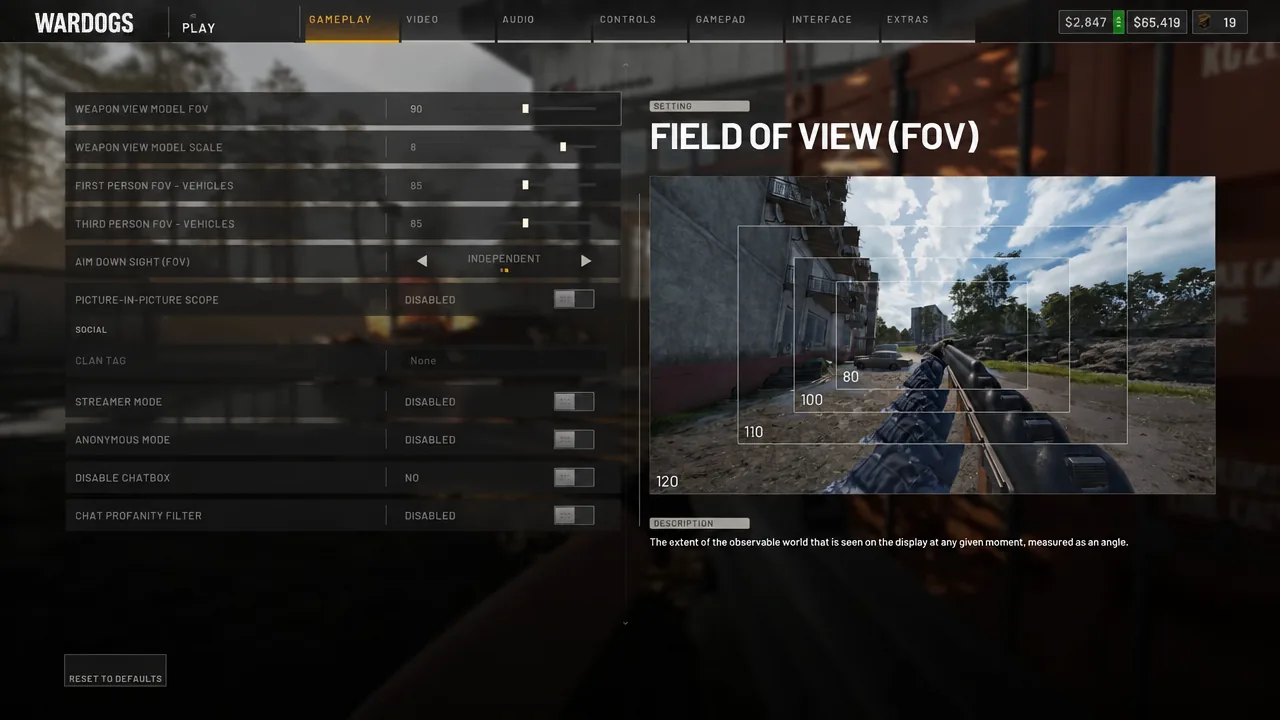
Gameplay tab: FOV, weapon model scale and ADS FOV
Everything that decides how big a distant soldier looks on your screen lives in the Gameplay tab. Open the settings menu and start there before you touch anything else.
| Setting | Value | Effect |
|---|---|---|
| Field of View (FOV) | 90 | Keeps distant players large enough to spot |
| Weapon View Model Scale | 6 | Matches the gun size to a 90 FOV |
| Aim Down Sight (FOV) | Independent | Forces a fixed zoom when you aim |
| First Person FOV – Vehicles | 90 | Consistent with infantry view |
| Third Person FOV – Vehicles | 90 | Consistent with infantry view |
| Picture-in-Picture Scope | Disabled | Removes the inset scope render |
90 is the number to beat here. It is slightly above the stock feel without shrinking targets, and it leaves enough peripheral vision for close fights. Players who come from arena shooters often land on 95 instead, which is a reasonable upper limit. Pushing to 110 or 120 makes infantry at 300 meters genuinely hard to pick out of the terrain.
Aim Down Sight (FOV): Independent vs Affected
This is the single most consequential toggle in the menu, and it has three options. The difference is whether your aim-down-sight zoom is tied to the FOV you chose for hipfire.
- Independent — ADS uses a fixed zoom regardless of your FOV slider. Even plain iron sights pull in hard enough to shoot people several hundred meters out.
- Affected — ADS zoom scales with your FOV. At 110 FOV, aiming barely magnifies anything and distant targets stay tiny.
- Relative — the third option in the dropdown, sitting between the two behaviours.
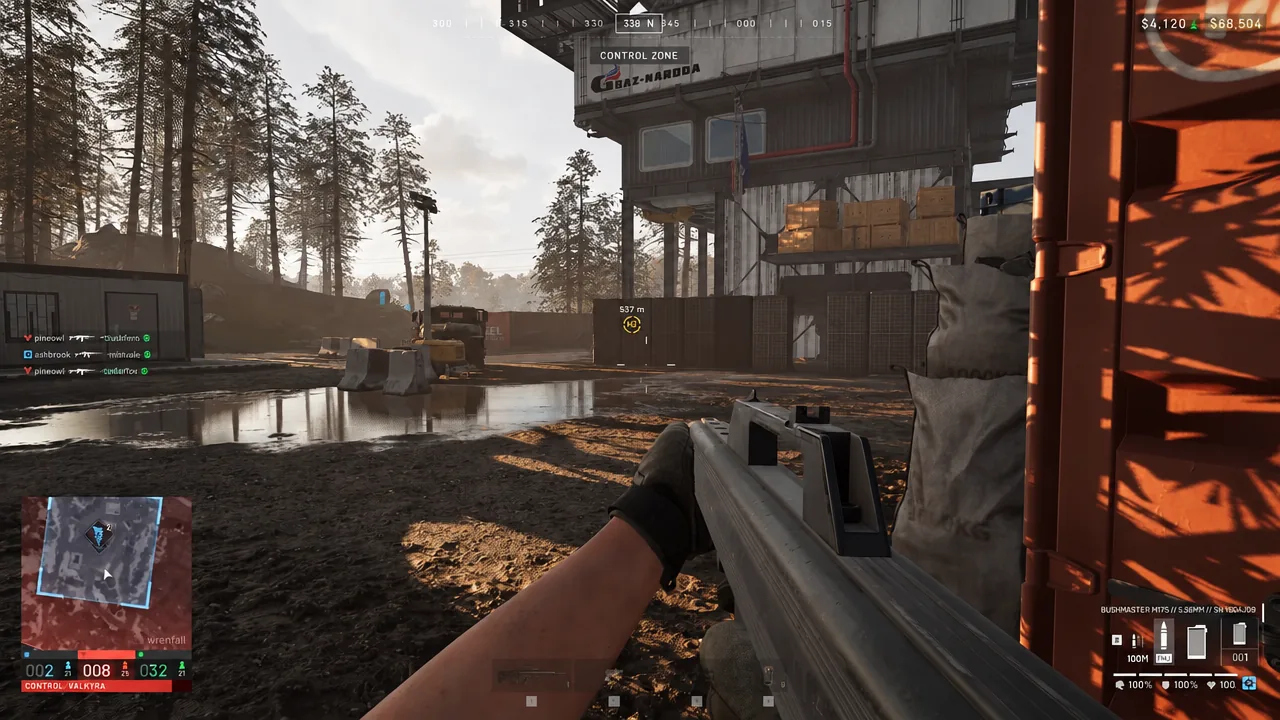
Independent is the pick if you want to fight at range without buying optics. With it on, a yellow waypoint diamond reading 337 m is a target you can realistically engage with an unmagnified rifle. Switch to Affected at a high FOV and that same target turns into a couple of pixels.
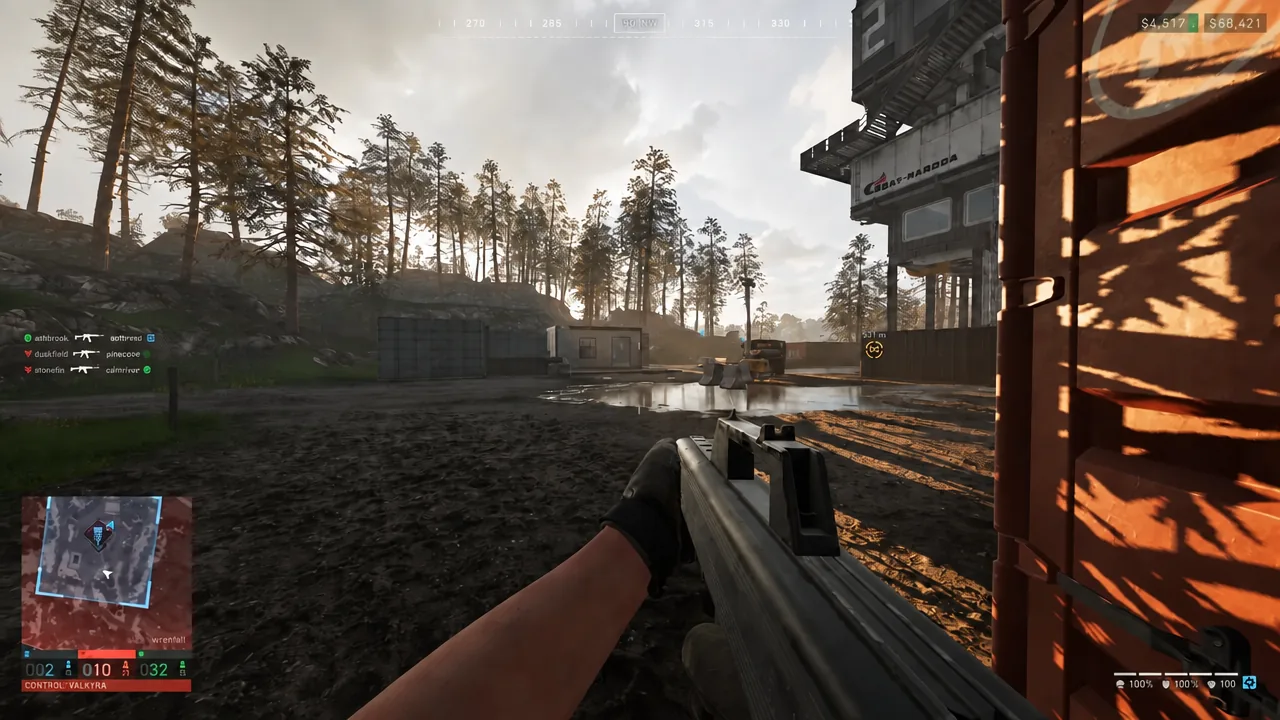
Independent still zooms in properly even if you run a high FOV like 120, so the two settings are not mutually exclusive. The lower FOV is about spotting; Independent is about hitting.
Mouse sensitivity, ADS multiplier and monitor matching distance
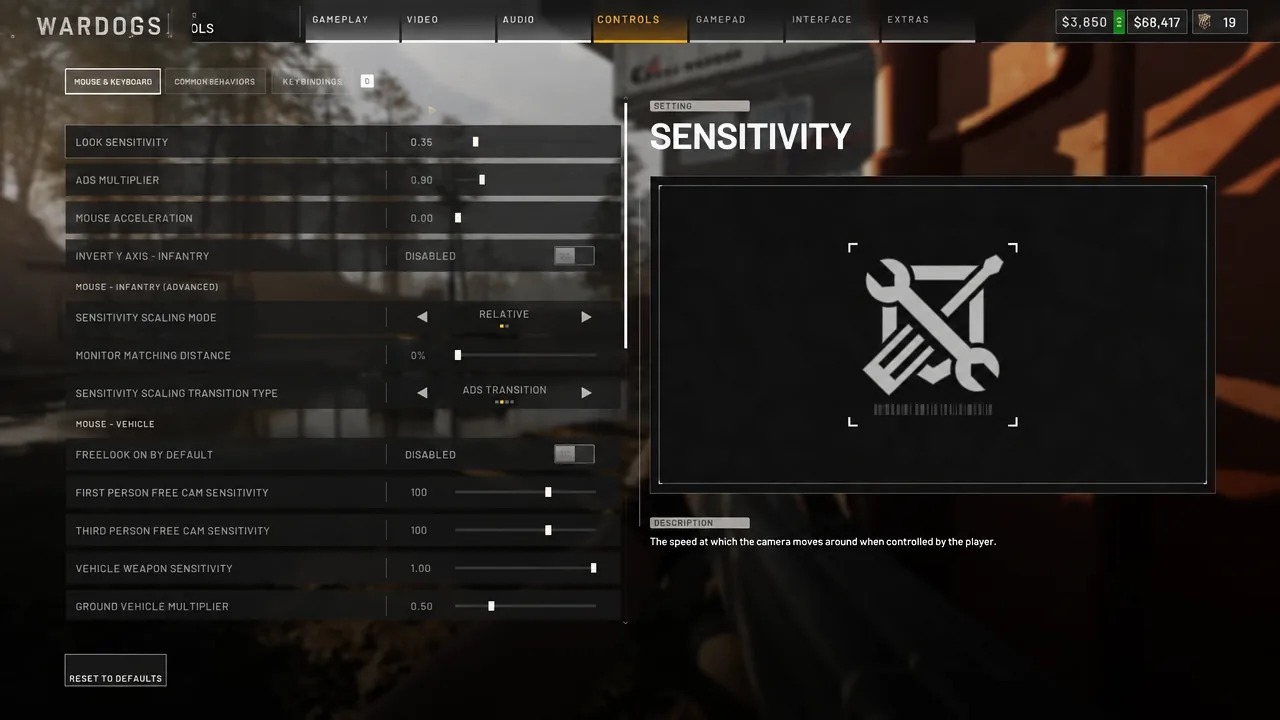
Move to the Controls tab. Sensitivity is personal, but Wardogs rewards a slower hand than a fast shooter does, because most of your shots are small corrections at range rather than 180-degree flicks.
| Setting | Value |
|---|---|
| Sensitivity (at 1600 DPI) | 0.35 – 0.40 |
| Sensitivity (at 800 DPI) | 0.70 – 0.80 |
| ADS Multiplier (90 FOV) | 0.90 |
| ADS Multiplier (110 FOV) | 1.00 |
| Mouse Acceleration | 0.00 |
| Monitor Matching Distance | 0% |
| Invert Y Axis – Infantry | Disabled |
Those two sensitivity rows are the same speed. Multiply sensitivity by DPI and 0.35 at 1600 DPI lands on the same effective figure as 0.70 at 800 DPI, so pick whichever row matches the DPI you already play at and do not convert twice.
Why the ADS multiplier drops to 0.90
A lower FOV makes aimed movement feel faster, because the same mouse travel sweeps across a narrower slice of the world. Setting ADS Multiplier to 0.90 cancels that out at 90 FOV. If you stay at 110 or higher, leave it at 1.00 — there is nothing to compensate for. Keep Mouse Acceleration at 0.00 either way so identical mouse movements always produce identical turns.
Monitor Matching Distance
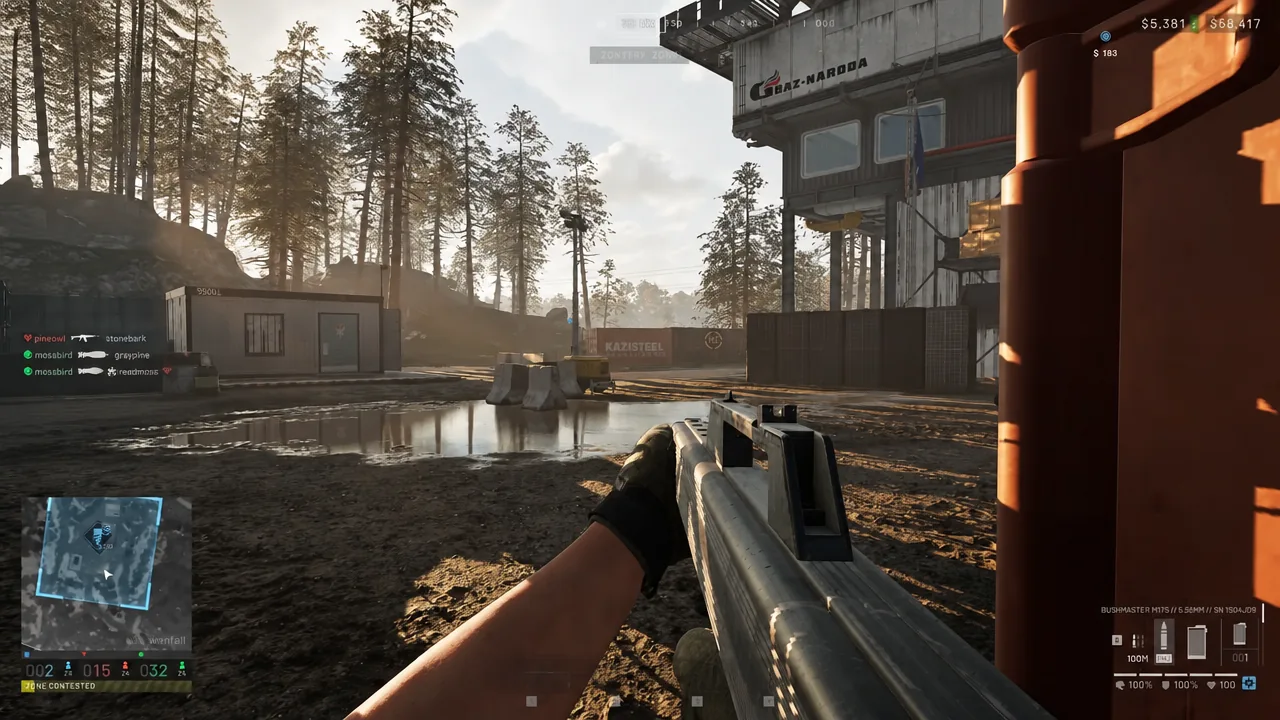
Under Mouse – Infantry (Advanced) you get Sensitivity Scaling Mode, Monitor Matching Distance and Sensitivity Scaling Transition Type. The default Monitor Matching Distance is 100%, which tends to make ADS feel far too quick once you have lowered your FOV. Dropping it to 0% slows aimed movement to something you can hold on a torso at distance. Relative scaling with an Instant transition is a sane default for the other two.
Vehicle multipliers and free cam sensitivity
Slowing your infantry aim drags vehicle control down with it, so the Mouse – Vehicle group needs pushing back up. Raise Ground Vehicle Multiplier and Air Vehicle Multiplier to at least 1.00, and go as high as 1.50 if turrets and rotors still feel sluggish.
First Person Free Can Sensitivity and Third Person Free Can Sensitivity control the free-look camera. Setting both to 150 lets you whip the camera around to check your flanks and drop it back on target quickly, which matters more than precision here — you are not shooting with it.
How magnified optics change the ADS picture
Independent ADS covers a lot of ground on its own, which is worth knowing before you spend money on glass. If you do want magnification for mid-range work, the 2.5x Combat Optic is the straightforward option.
| 2.5x Combat Optic | Value |
|---|---|
| Price | $690 |
| Weight | 0.4 kg |
| Zeroing range | 100m – 300m |
| Unlock | Wardog level 26, $10,000 fee |
It carries a moderate ADS speed penalty, so the trade is a clearer sight picture for a slower first shot. Leave Picture-in-Picture Scope disabled while you are tuning sensitivity, since it changes what the screen renders while aiming and muddies your read on whether the multiplier is right.
How to check the settings applied
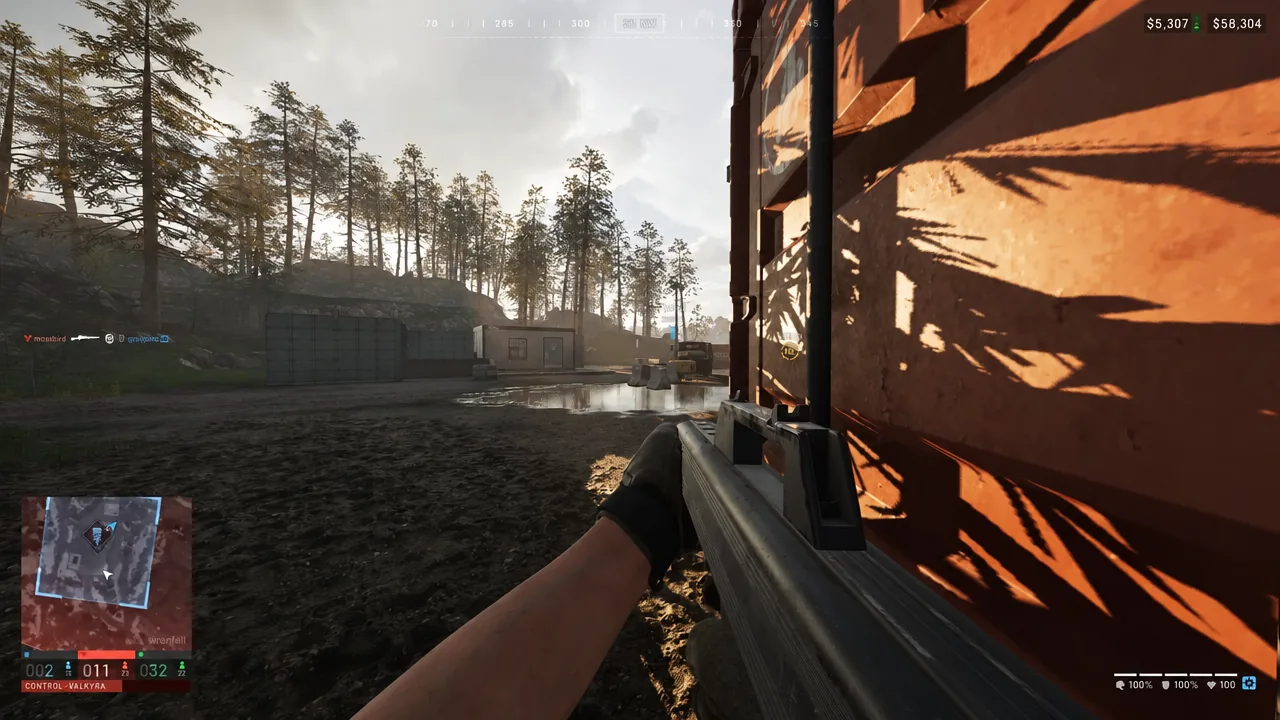
Once these are in, leave them alone. The biggest gain in a game built around long sightlines is muscle memory, and that only builds if the numbers stop moving. Adjust the sensitivity by small amounts around your own mousepad space if you need to, but treat the FOV and ADS values as fixed.