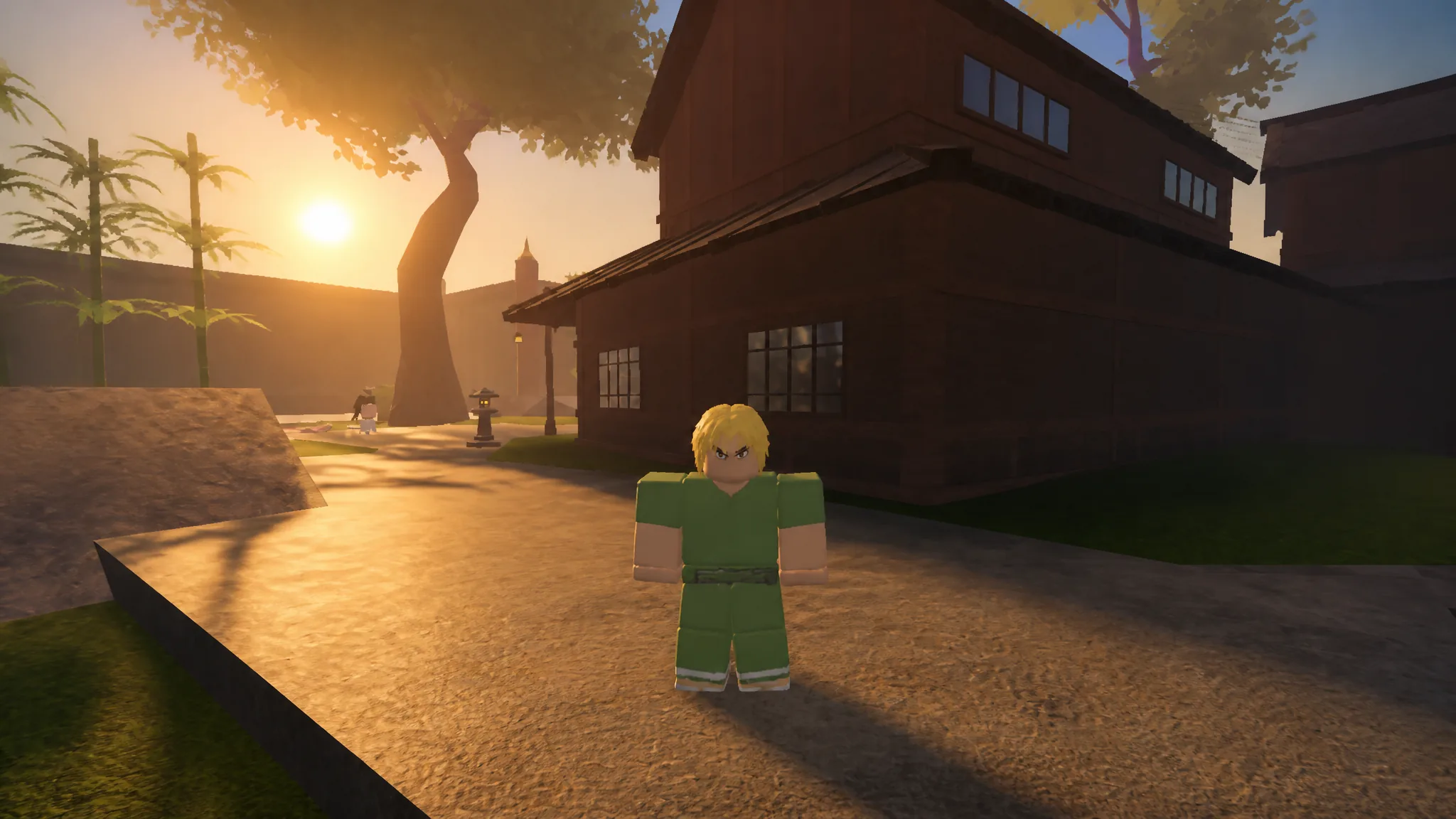
Shift lock pins your character’s facing direction to the camera, which makes strafing around a demon and keeping a boss centered on screen far easier than free-look movement. In Slayers 2, the toggle is not where most Roblox players expect it, and the standard Roblox setting will not respond at all.
Quick answer: Press Left Control in-game. The keybind lives in the side menu under Settings, then Controls, because the Roblox-level Shift Lock Switch is locked to “Set by Developer.”
Why the Roblox Shift Lock Switch does nothing in Slayers 2
Open the Roblox system menu with Escape and head to Settings, and you will find the Shift Lock Switch entry sitting on Set by Developer. That value cannot be changed from the Roblox side, so flipping it on or off is not an option and pressing Shift by itself will not lock your camera.
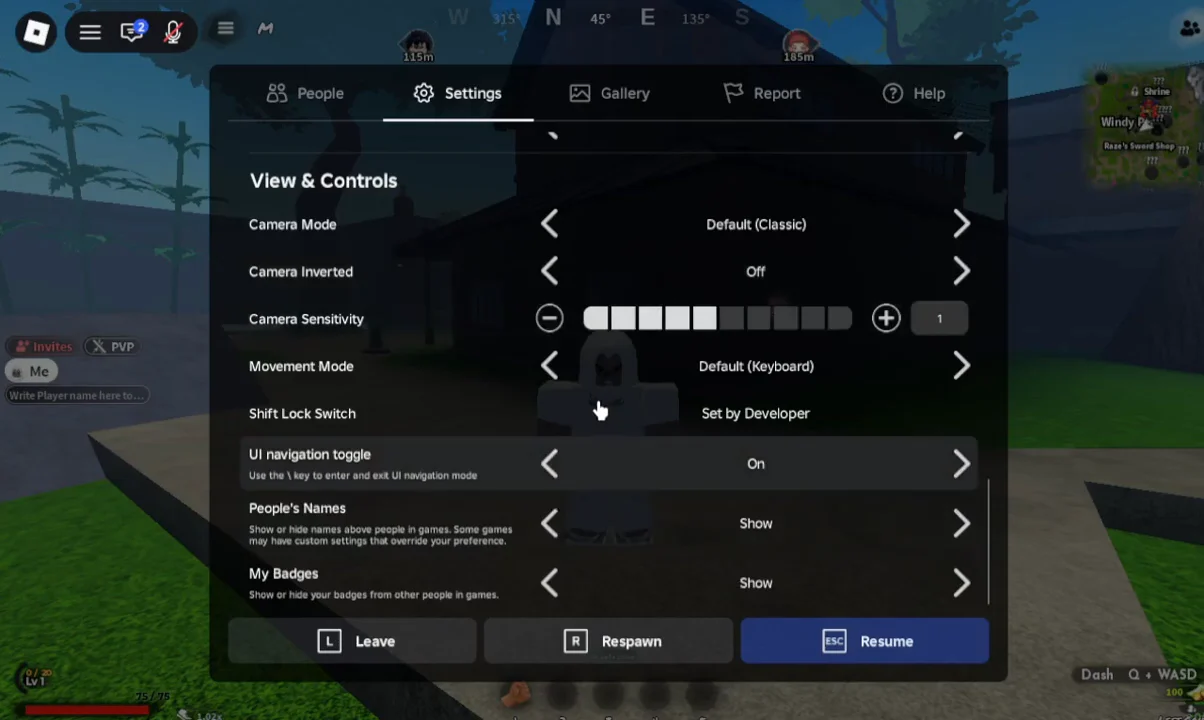
That is by design rather than a bug. Slayers 2 handles the toggle through its own control scheme, which also means the key can be viewed and confirmed inside the game instead of through Roblox’s generic options.
How to turn on shift lock in Slayers 2 on PC
Check the keybind first even if you plan to use the default. Knowing the exact key saves you from mashing Shift mid-fight and wondering why nothing happens.
How to confirm shift lock is active
The change is visible immediately. With shift lock on, your character stops rotating independently of the camera, so running sideways keeps you facing forward and basic attacks land in the direction you are looking. Swinging at an NPC while circling it is the fastest way to check that the lock is holding rather than snapping back.
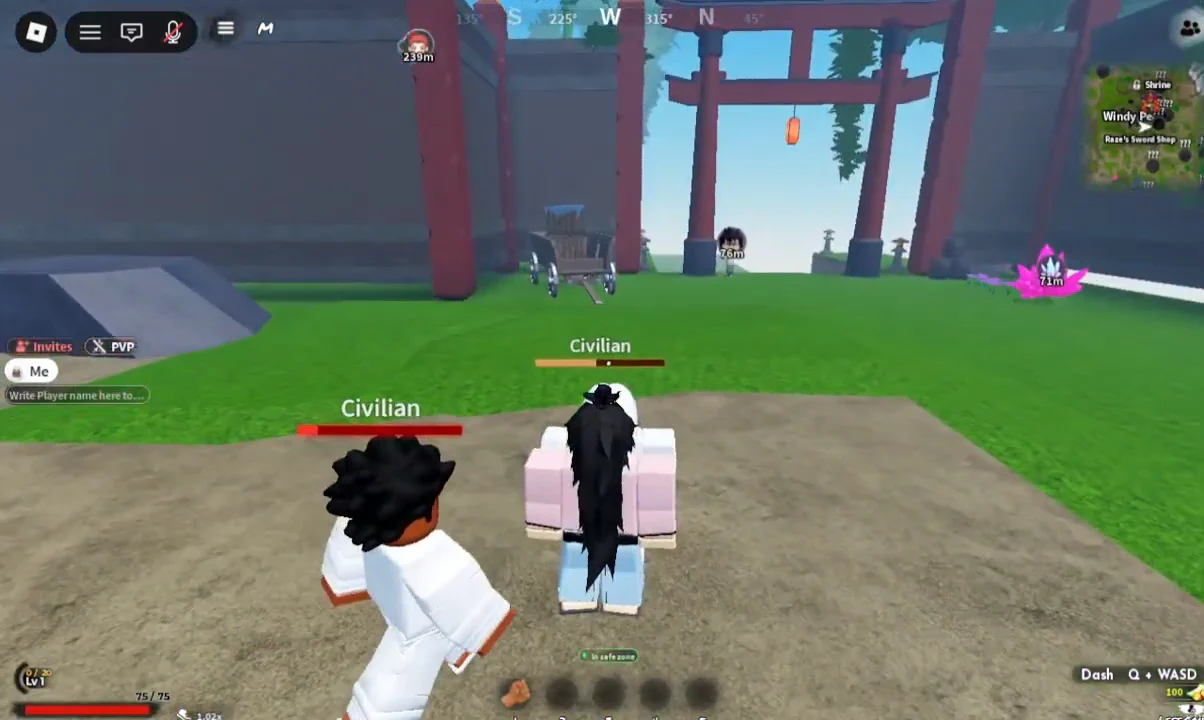
Pressing Left Control again releases the lock and returns you to free camera movement. It is a toggle, not a hold, so you can switch between the two states as often as a fight demands.
Shift lock settings on mobile
Touch players get the same feature through an on-screen toggle rather than a key. Slayers 2 lists shift lock toggling alongside aim assist sensitivity and button resizing as adjustable options for mobile, all reachable from the same settings hub.
- Shift lock toggling, for locking your facing direction to the camera
- Aim assist sensitivity, which controls how strongly attacks pull toward nearby targets
- Button resizing, for scaling the on-screen action buttons
Because touch controls rely on dragging the screen to move the camera, leaving shift lock on removes one job from your thumb during a fight and keeps the enemy in frame while you move.
When to leave shift lock on or off
| Situation | Suggested state | Reason |
|---|---|---|
| Boss fights | On | Keeps fast targets centred |
| Group encounters | On | Stable facing while strafing |
| Exploration and traversal | Off | Free camera feels less rigid |
Shift lock pairs closely with camera sensitivity, since both decide how quickly your view swings during a combo. If your attacks feel like they are drifting off target, adjust one of the two at a time so you can tell which setting is responsible before you head back into a serious fight.