Transport Fever 3 puts weather and time-of-day controls in a single window, but you won’t find it in the settings menu. Click the date at the screen’s bottom-right to open it. From there, you can go from clear skies to heavy rain, shift the lighting between noon and midnight, and adjust the calendar’s rate without leaving your map.
Quick answer: Select the date in the bottom-right corner to open the Weather and Time window, then drag the Weather slider for rain or sun and the Time of Day slider for day or night.
Open the Weather and Time window
Everything starts from the date in the corner of the screen. The three steps below open the panel you need.
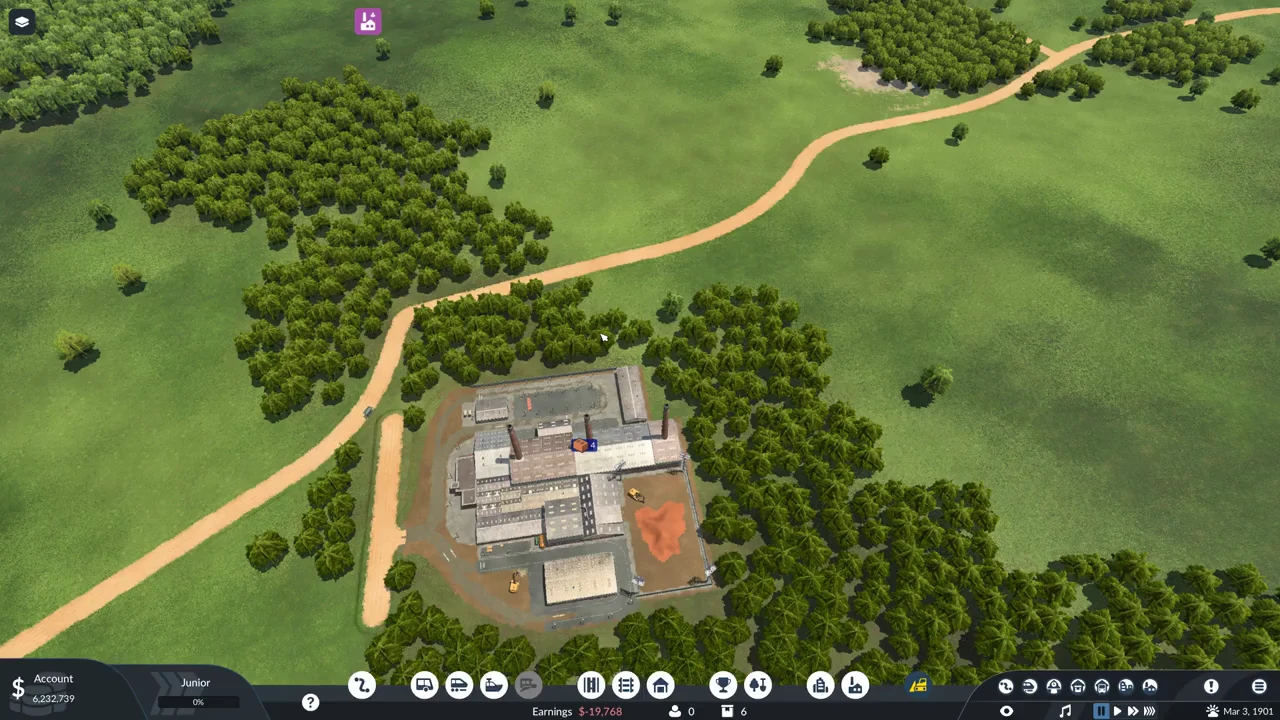
From top to bottom the window holds a Weather section, a Time of Day section and a Calendar Speed section. A change you make while paused shows the moment you make it.
Change the weather
In the Weather section, five symbols appear in this order: a sun, a sun paired with a small cloud, a sun partly hidden by a cloud, a cloud, and a rain cloud. Beneath them, the slider is named Cloud Coverage and can rest anywhere along its range instead of snapping to a symbol.
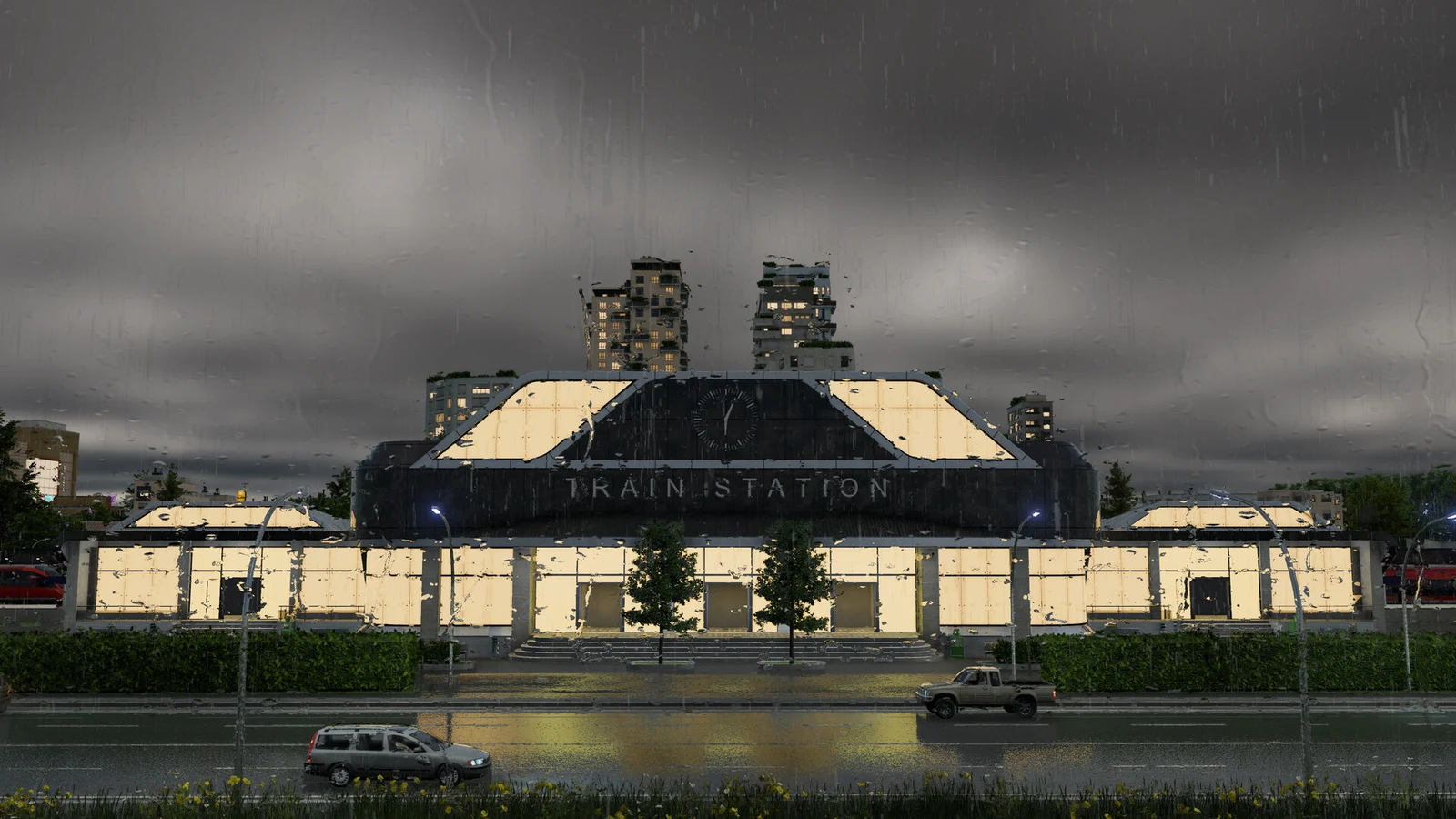
Move the slider fully left to get clear skies and sharp shadows. Around the center, clouds break up. At the far-right end, clouds cover the map and rain falls across it; the terrain darkens and building lamps turn on. The new conditions appear about two seconds after you move the slider.
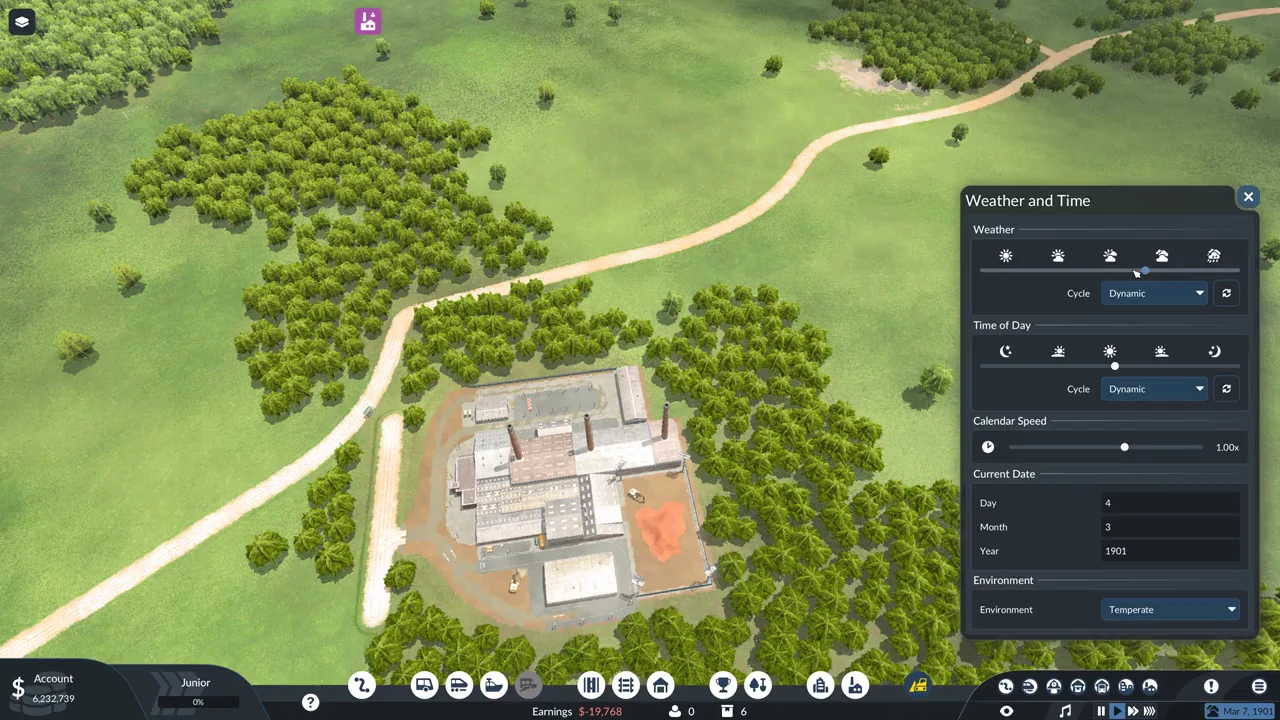
The Cycle control beneath the slider offers two modes. With Dynamic selected, weather shifts periodically on its own. You can move the slider, but that choice lasts only until the next automatic change. Choose Custom to keep the slider’s setting fixed.
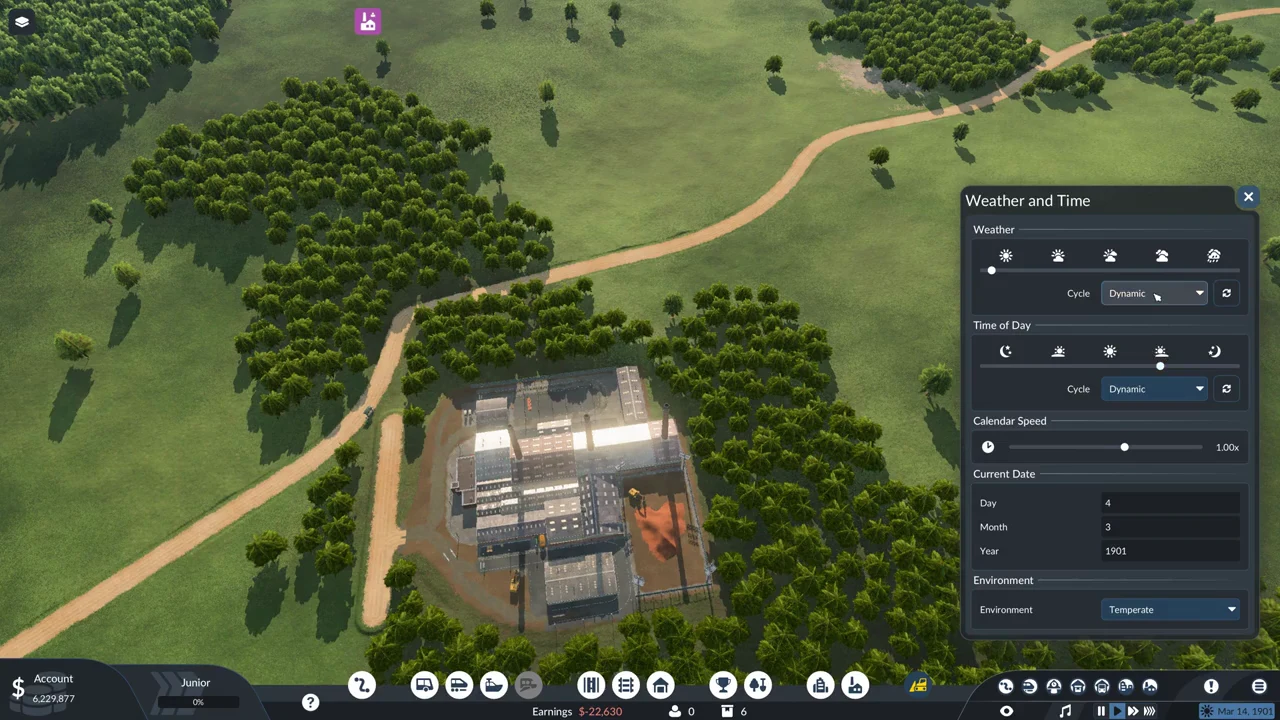
The button with circular arrows next to Cycle displays the tooltip Skip To Next Weather. It can be used in Dynamic mode only; in Custom mode, it is greyed out. This window has neither a snow option nor a temperature control.
If you want a condition to stay put for a screenshot, set the Cycle to Custom. Left on Dynamic, the weather will change again on its own later even after you drag the slider.
Change the time of day
The Time of Day section also carries five icons: moon, sunrise, sun, sunset, moon. Its slider is labelled Sun and Moon Position and spans one full day, with the left end at midnight, the middle at noon, and the right end back at midnight.
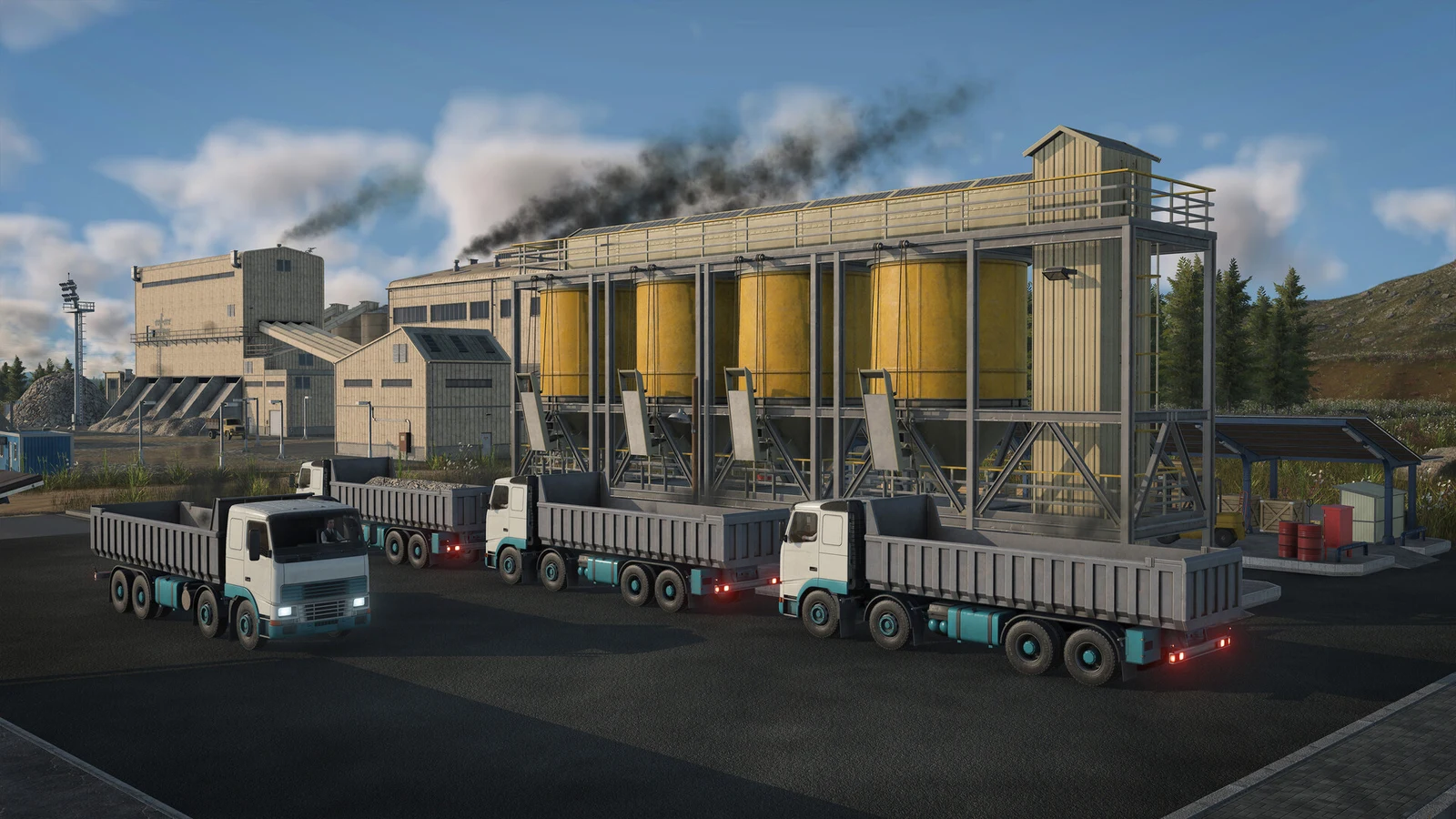
Move the slider toward the moon to darken the map, leaving factory lamps, windows, and vehicle lights as the illumination. Near the sunrise and sunset symbols, the light becomes dim and yellow, while long shadows stretch in opposite directions. Return the slider to its center for midday.
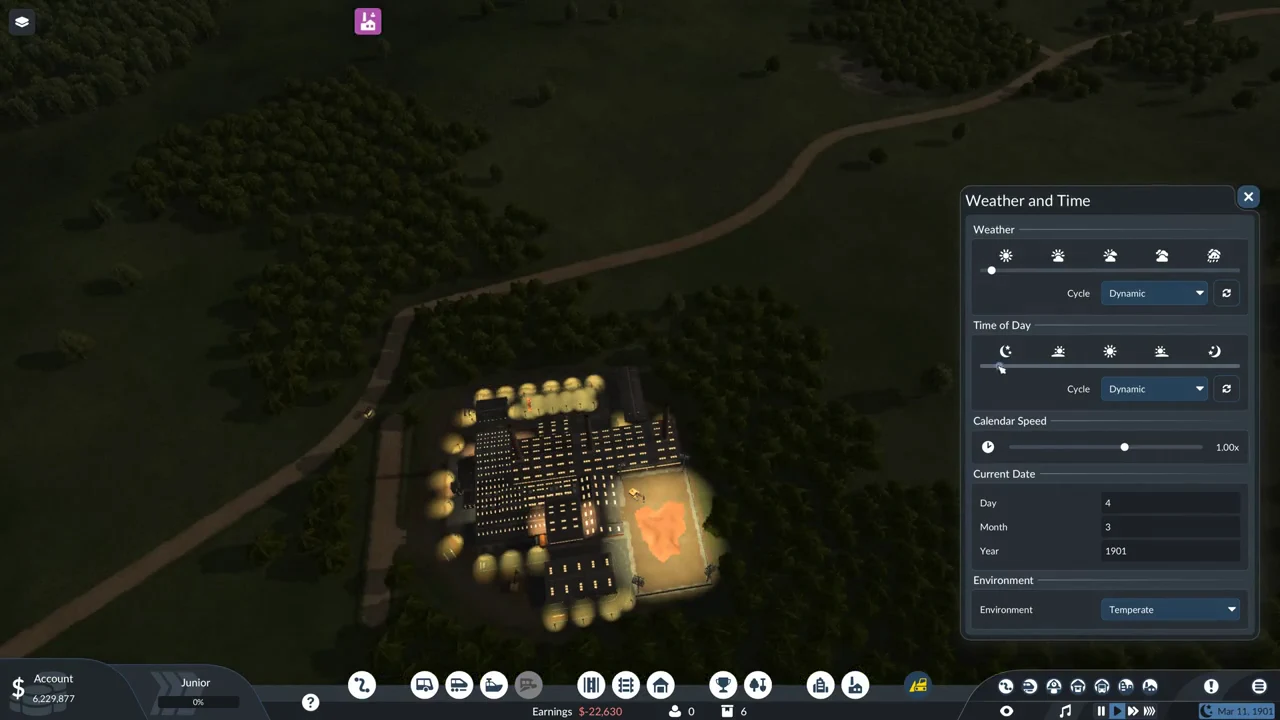
Its Cycle setting has four modes, each handling the time of day differently.
| Mode | What it does |
|---|---|
| Dynamic | Jumps between phases at intervals; the slider can still be dragged |
| Continuous | A natural day and night, the knob creeping right and restarting at the left |
| Local Time | Follows your computer’s clock; icons and slider grey out and lock |
| Custom | Locks the slider’s selected time of day in place |
A full day on Continuous takes about 23 minutes of play at normal speed. The round-arrows button beside the Cycle has the tooltip Skip to Next Time of Day; it is only active on Dynamic, and selecting it starts the change to the next phase at once, gliding the knob there over a few seconds. The time of day is separate from the calendar, so the light does not track the date.
Set the Calendar Speed
The Calendar Speed slider has six snap points: Paused, 0.25x, 0.50x, 1.00x, 2.00x and 4.00x. It starts at 1.00x. This setting affects the pace of date progression and nothing else; vehicles retain their own speed at every setting.
With Paused selected, the date stops advancing, but vehicles continue moving. At 4.00x, a day passes in roughly one second at normal game speed. At 1.00x, each calendar day lasts 4 seconds, making a month roughly two minutes. These settings are distinct from the pause, play, and fast-forward controls at the bottom-right, which adjust game speed separately.
The extra Sandbox Mode sections
Activating the Sandbox Mode mod adds two sections to the bottom of the window. In Current Date, Day, Month, and Year fields let you enter a date directly. The Environment menu changes the lighting to Temperate, Subarctic, Tropical, or Dry.
With Sandbox Mode disabled, Calendar Speed is the final option in the window. Weather, Time of Day and Calendar Speed work the same in either mode. The window has no season control or snow setting.
The Weatherman and Timekeeper achievements
Two achievements are tied to this window. Weatherman is earned by changing the weather in a free game, and Timekeeper by changing the time of day in a free game.
Both require a free game with no active mods. If any built-in mod is running, including Sandbox Mode, the load screen displays “Achievements cannot be earned.” Slider changes in that game will not unlock them. To earn both, adjust the weather and time of day during an unmodded free game.
Things that trip players up
- The controls are not in the Settings menu. They are behind the date in the corner.
- The Time of Day slider is locked while Local Time is selected; it greys out and cannot be dragged.
- Leaving the Weather cycle on Dynamic means your chosen weather will change again later. Pick Custom to hold it.
- The round-arrows skip button is grey on Custom and Continuous; it only works on Dynamic.
- To move a slider, take hold of its knob; dragging the blank space in its row moves the entire window instead.
After you release the slider, allow roughly two seconds for the scene to reflect the change. Rain will begin or cease, lamps will switch on or off, and the lighting will adjust to the selected time. These controls affect visuals only: switching to rain or night makes no difference in the vehicle or line windows.