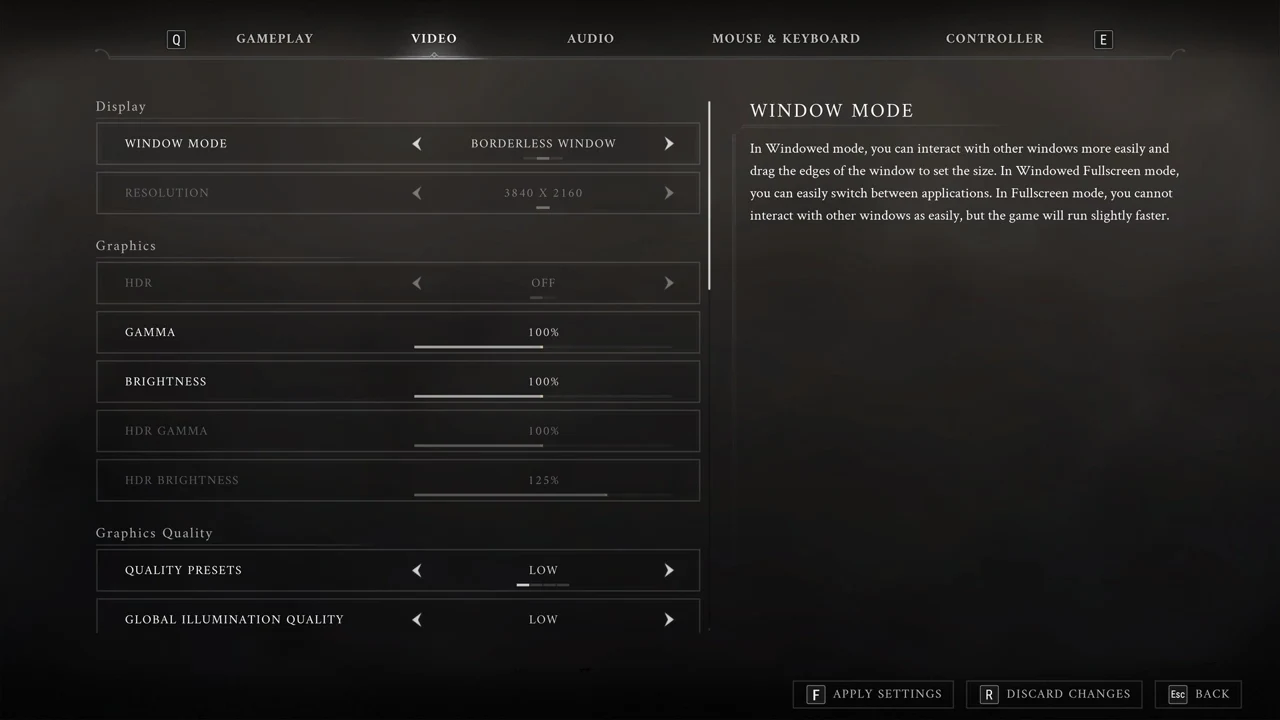
On PC, Valor Mortis starts in a window mode that keeps the Resolution row dimmed and fixed to your desktop size. The option is not broken. The mode you are in simply does not let you set a resolution, so the fix is to switch modes first.
Quick answer: In Options > VIDEO, change WINDOW MODE from BORDERLESS WINDOW to FULLSCREEN or WINDOWED. The RESOLUTION row turns active, then press F to apply. For 16:10 or ultrawide sizes, use WINDOWED.
Why the resolution is locked in Borderless Window
At launch, WINDOW MODE is BORDERLESS WINDOW. RESOLUTION is disabled in this mode, so it remains at the desktop setting: 3840 X 2160 on a 4K desktop, with no option to choose another size.
The row’s help text explains the reason: “Display Resolution determines the size of the window in Windowed mode. In Fullscreen mode, Display Resolution determines the graphics card output resolution, which can result in black bars depending on the monitor and graphics card. Display Resolution is inactive in Windowed Fullscreen mode.” A warning adds: “When the Window mode is set to Windowed Fullscreen, the resolution must match the native desktop resolution.”
BORDERLESS WINDOW in the selector is the mode the help text calls Windowed Fullscreen. That is why it ties the resolution to your desktop and leaves the row inactive.
Which resolutions each window mode offers
The list of sizes you see depends on the window mode, not on the game being limited. On a 4K desktop, Fullscreen offers only five 16:9 sizes, while Windowed opens a much longer list that includes 16:10 and ultrawide sizes.
| Mode | Resolutions offered (4K desktop) |
|---|---|
| BORDERLESS WINDOW | None to pick; always the desktop resolution (3840 X 2160) |
| FULLSCREEN | 5 entries, all 16:9: 1280 X 720, 1600 X 900, 1920 X 1080, 2560 X 1440, 3840 X 2160 |
| WINDOWED | 16 entries, including 16:10 and ultrawide sizes |
On a 4K desktop, WINDOWED offers 16 resolutions: 1280 X 720; 1280 X 800; 1360 X 768; 1366 X 768; 1440 X 900; 1600 X 900; 1680 X 1050; 1920 X 1080; 1920 X 1200; 2048 X 1152; 2560 X 1080; 2560 X 1440; 2560 X 1600; 2880 X 1620; 3200 X 1800; 3440 X 1440.
The 16:10 sizes (1280 x 800, 1440 x 900, 1680 x 1050, 1920 x 1200, 2560 x 1600) and the ultrawide sizes (2560 x 1080, 3440 x 1440) appear only in WINDOWED. If you want 1920 x 1200 or an ultrawide size, Windowed is the mode that lists it.
Set the resolution you want
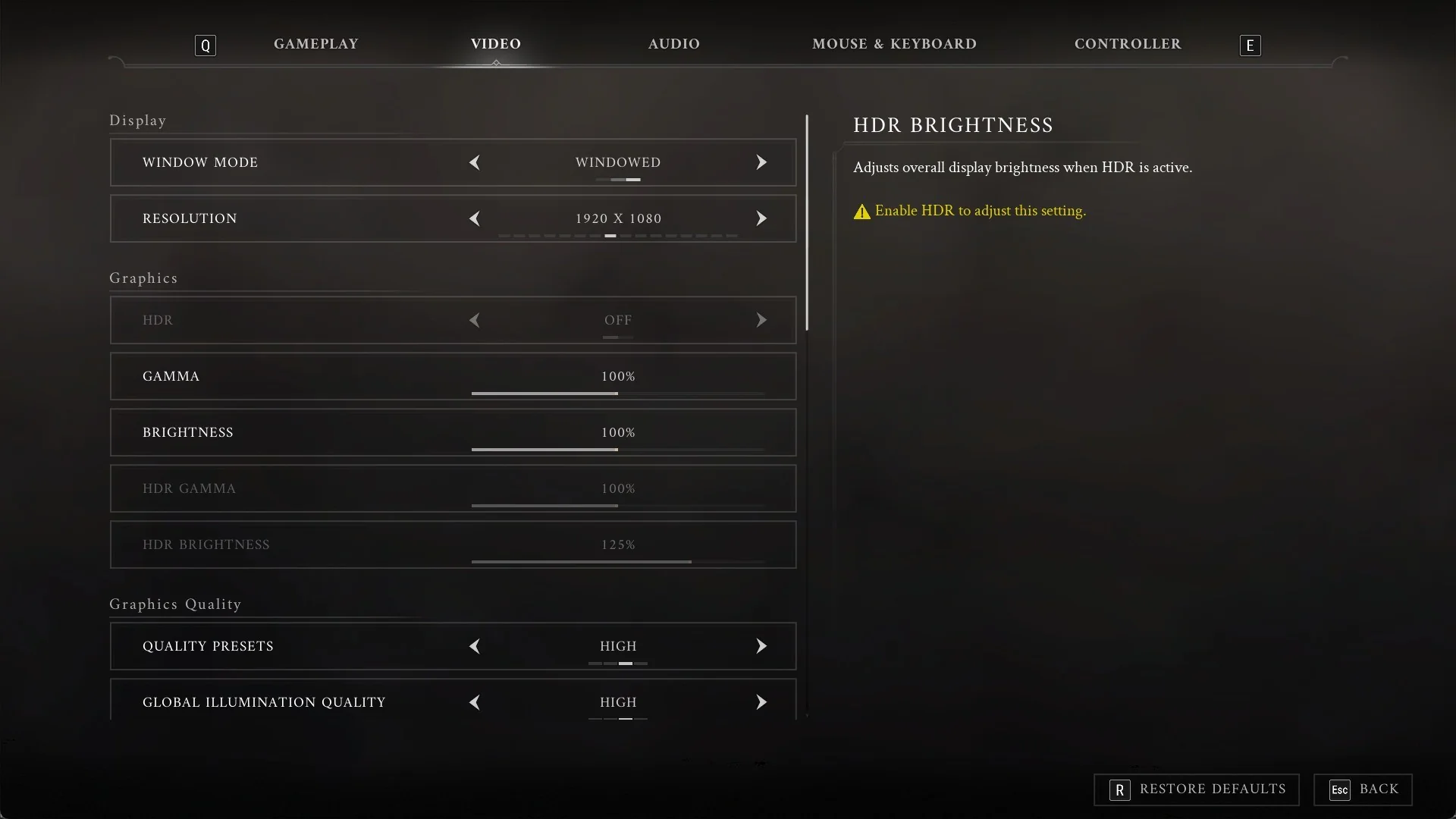
In Options, the choices move only when you click the arrows with the mouse. The keyboard arrow keys do nothing there.
The WINDOW MODE help notes that Fullscreen makes other windows harder to reach “but the game will run slightly faster”.
How to confirm it worked
Once settings are applied, the game immediately redraws using the selected dimensions. On a 4K desktop, WINDOWED with 1920 X 1080 opens the game in a 1920 x 1080 window. An instant picture resize after pressing F confirms the new resolution is active.
If you want to lower the rendering cost without shrinking the window, RESOLUTION SCALE and the upscaler (UPSCALER, DLSS MODE) in Advanced Settings set the 3D render resolution separately from the window size.
Where the window mode and size are stored
The settings file storing the window mode and dimensions is %LOCALAPPDATA%\ValorMortis\Saved\Config\Windows\GameUserSettings.ini. Its related entries are ResolutionSizeX, ResolutionSizeY, FullscreenMode, PreferredFullscreenMode, DesiredScreenWidth, and DesiredScreenHeight. With BORDERLESS WINDOW active, the file contained FullscreenMode=1.
Make changes only after closing the game, and save a copy of the original file first.