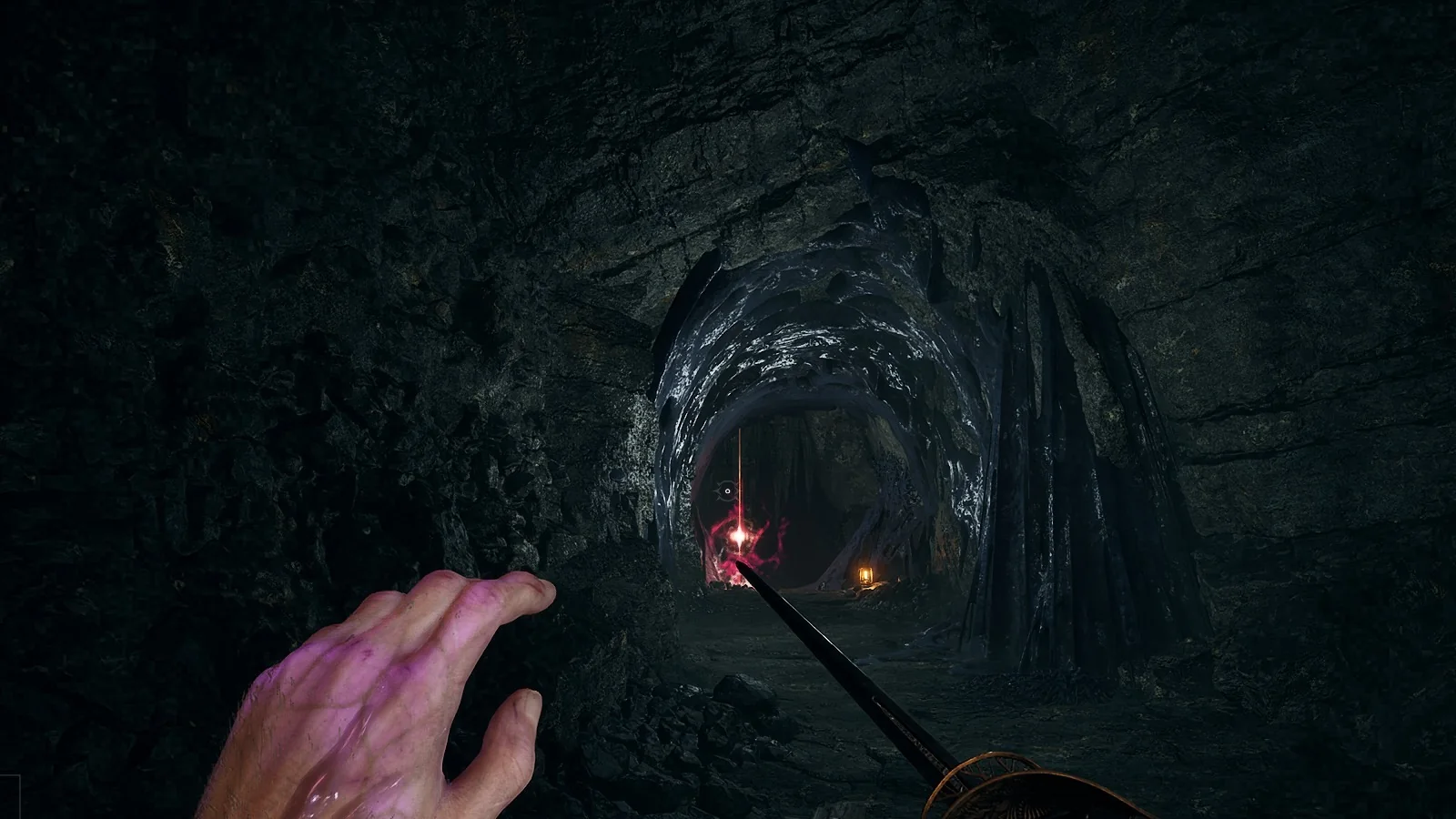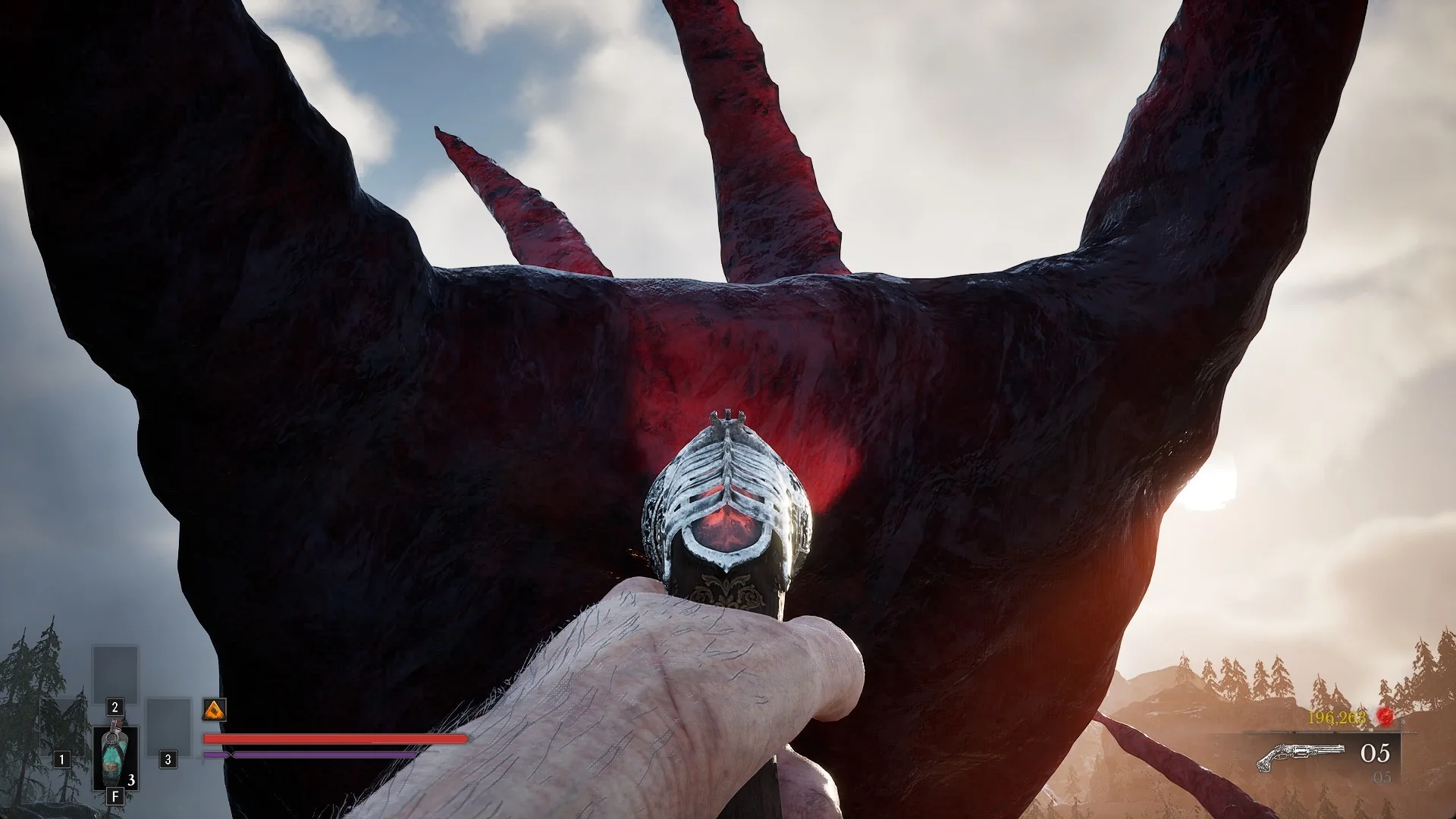
Valor Mortis is a first-person soulslike built around a melee weapon, a firearm and Transmutations, and its launch build on Steam settles four things players ask before buying: the camera, whether anyone can play alongside you, how the world is laid out, and which input devices work. Here are the direct answers for the PC version at version 1.0.
Quick answer: Valor Mortis is first-person only and single-player only, runs as a linear path through 11 chapters rather than an open world, and supports both controller and keyboard on PC.
Is Valor Mortis third person?
No. It is first-person only. The Steam store calls it “a first-person action soulslike from the creators of Ghostrunner”, and you stay behind William’s eyes the entire time you play.
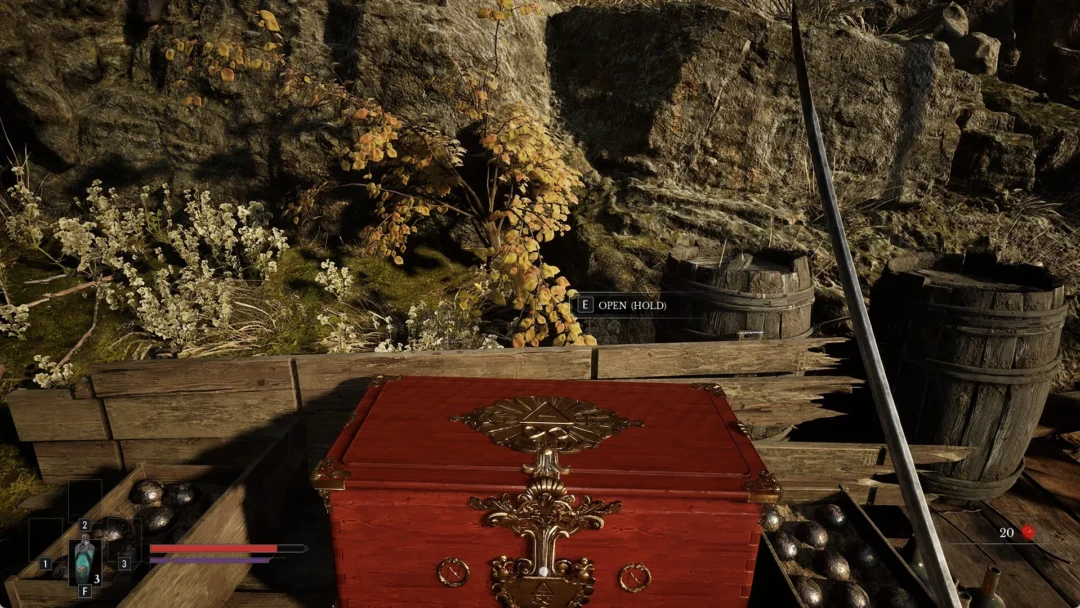
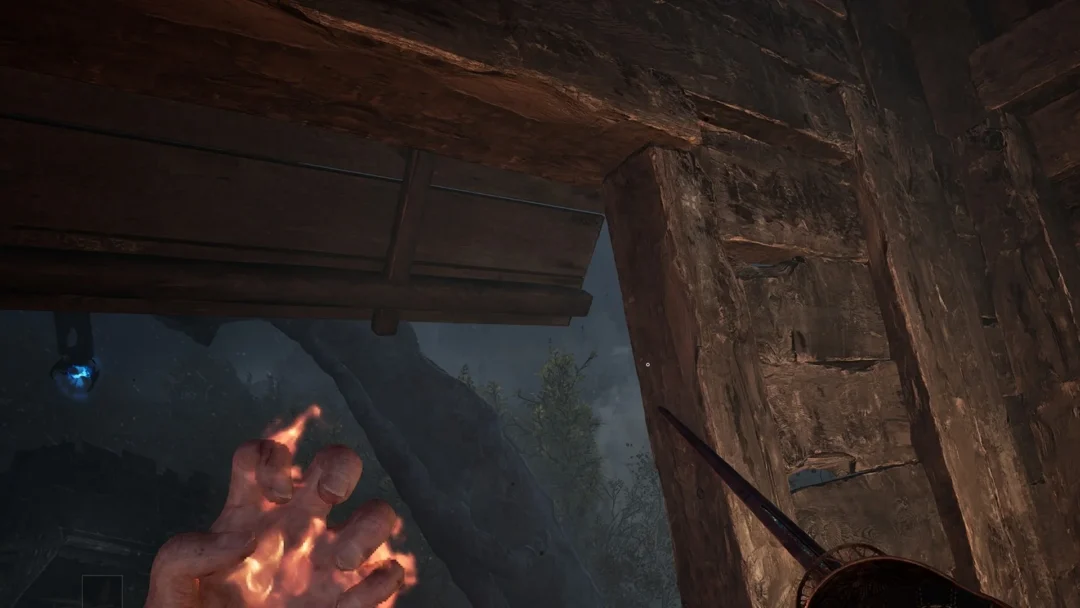
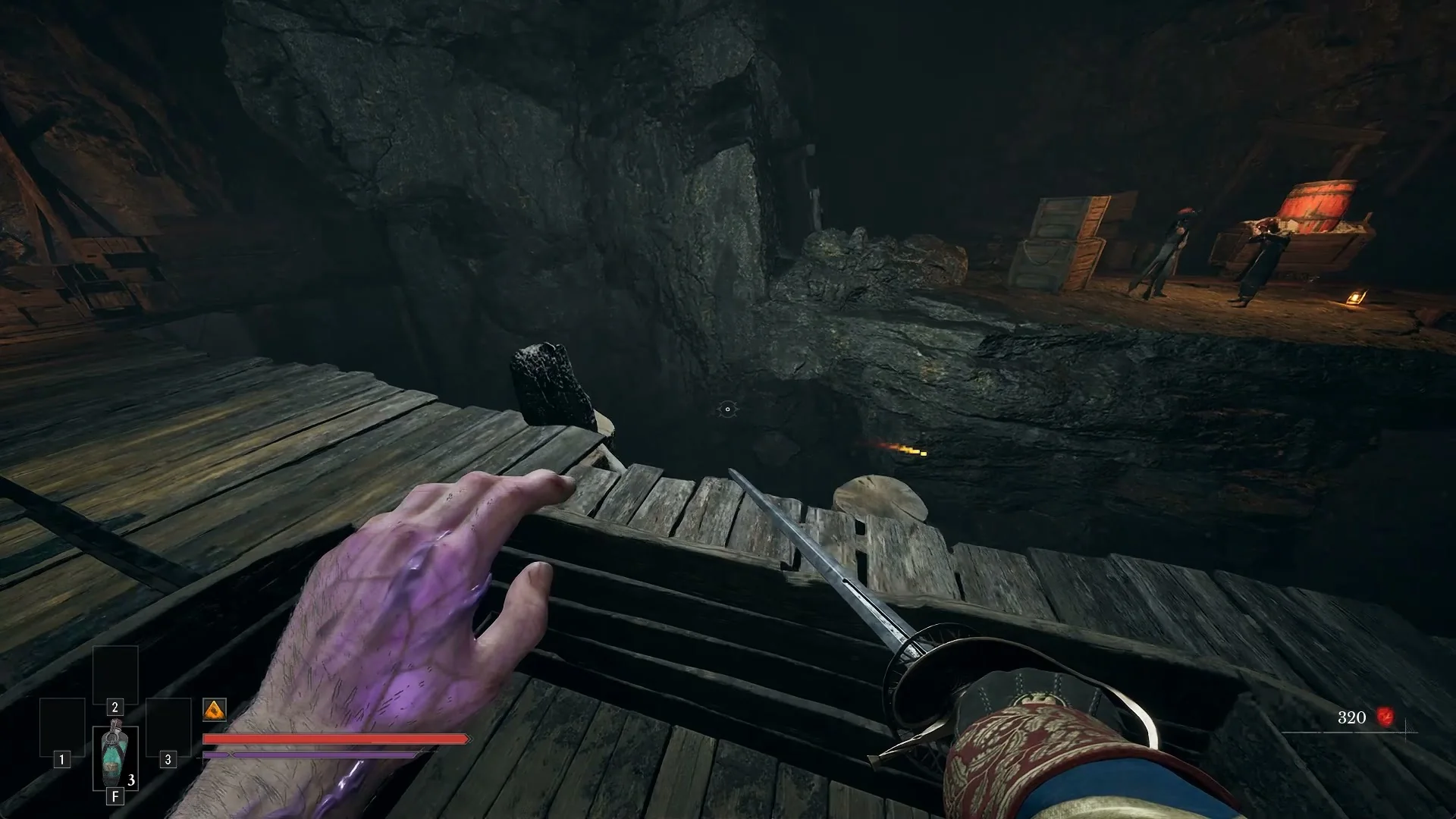
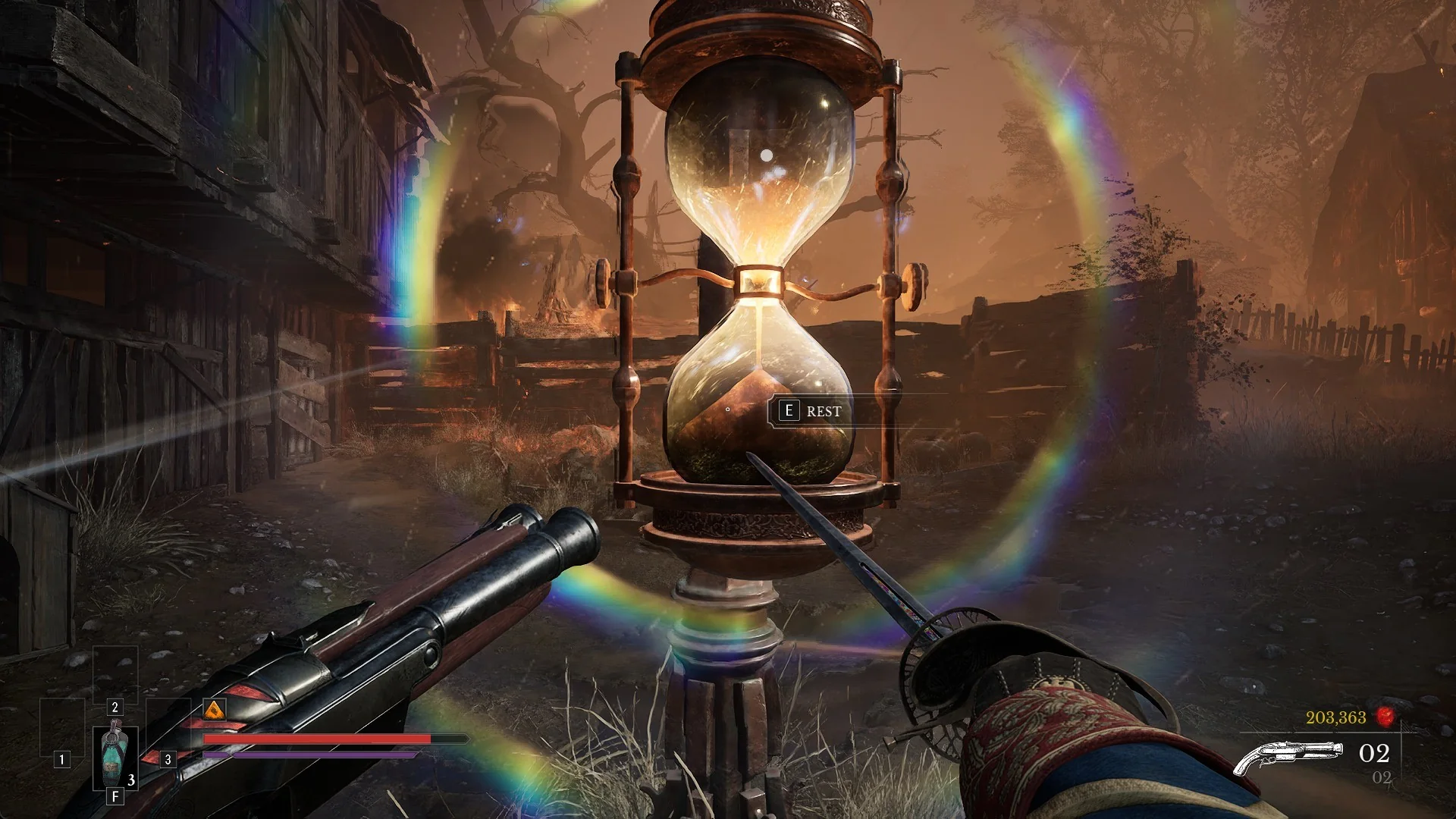
During play, the Saber or Rapier appears in your character’s right hand, while a Pistol or Blunderbuss occupies the left; Transmutations are also cast with the left hand. The Health, Nephtoglobin and Endurance meters appear at the lower left. The Catalyst total and ammunition readout are at the lower right.
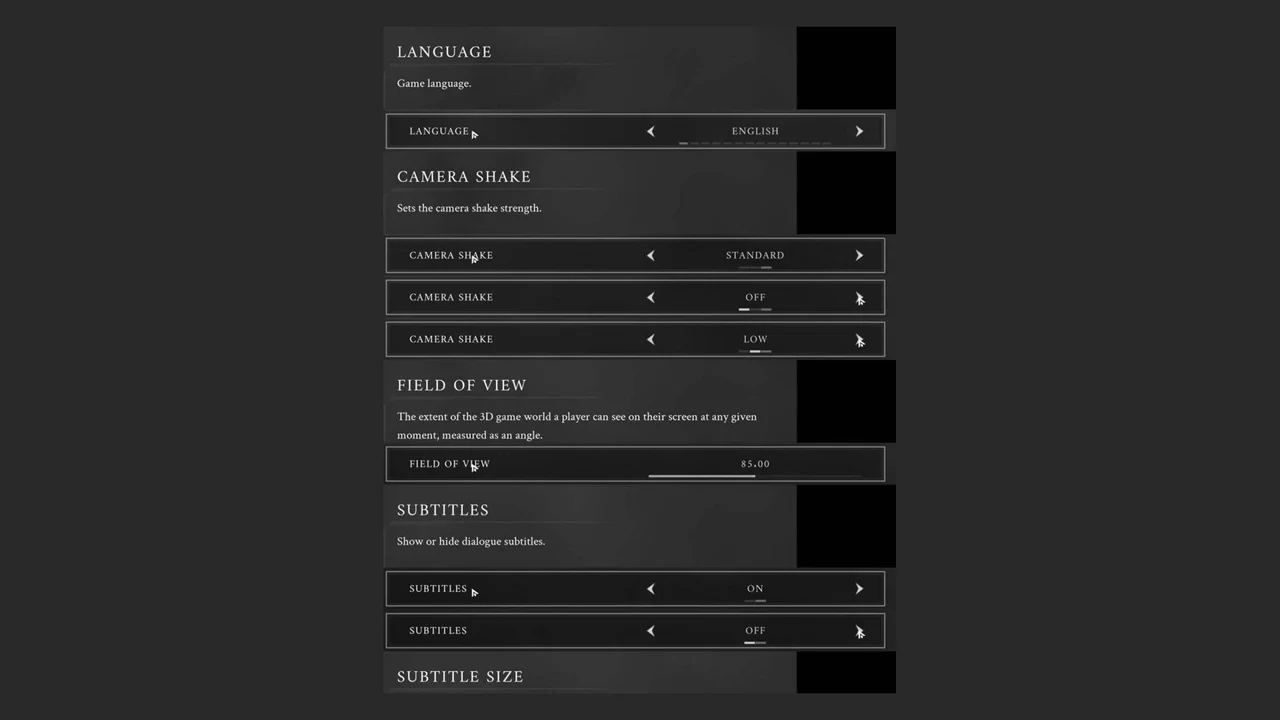
Third-person play isn’t available. In Options > GAMEPLAY, camera settings are arranged in two rows:
- CAMERA SHAKE: OFF / LOW / STANDARD, default STANDARD.
- FIELD OF VIEW: a slider from 70 to 100, default 85, described as “The extent of the 3D game world a player can see on their screen at any given moment, measured as an angle.”
For combat framing, target lock sits on the middle mouse button, and AUTO LOCK NEXT TARGET is ON by default.
If first-person fights feel tight, push FIELD OF VIEW toward 100 so more of the surrounding enemies stay in view.
Does Valor Mortis have co-op or multiplayer?
No. It is single-player only. The Steam store lists Single-player as the sole play mode, with no online co-op, no summoning, no invasions and no PvP.
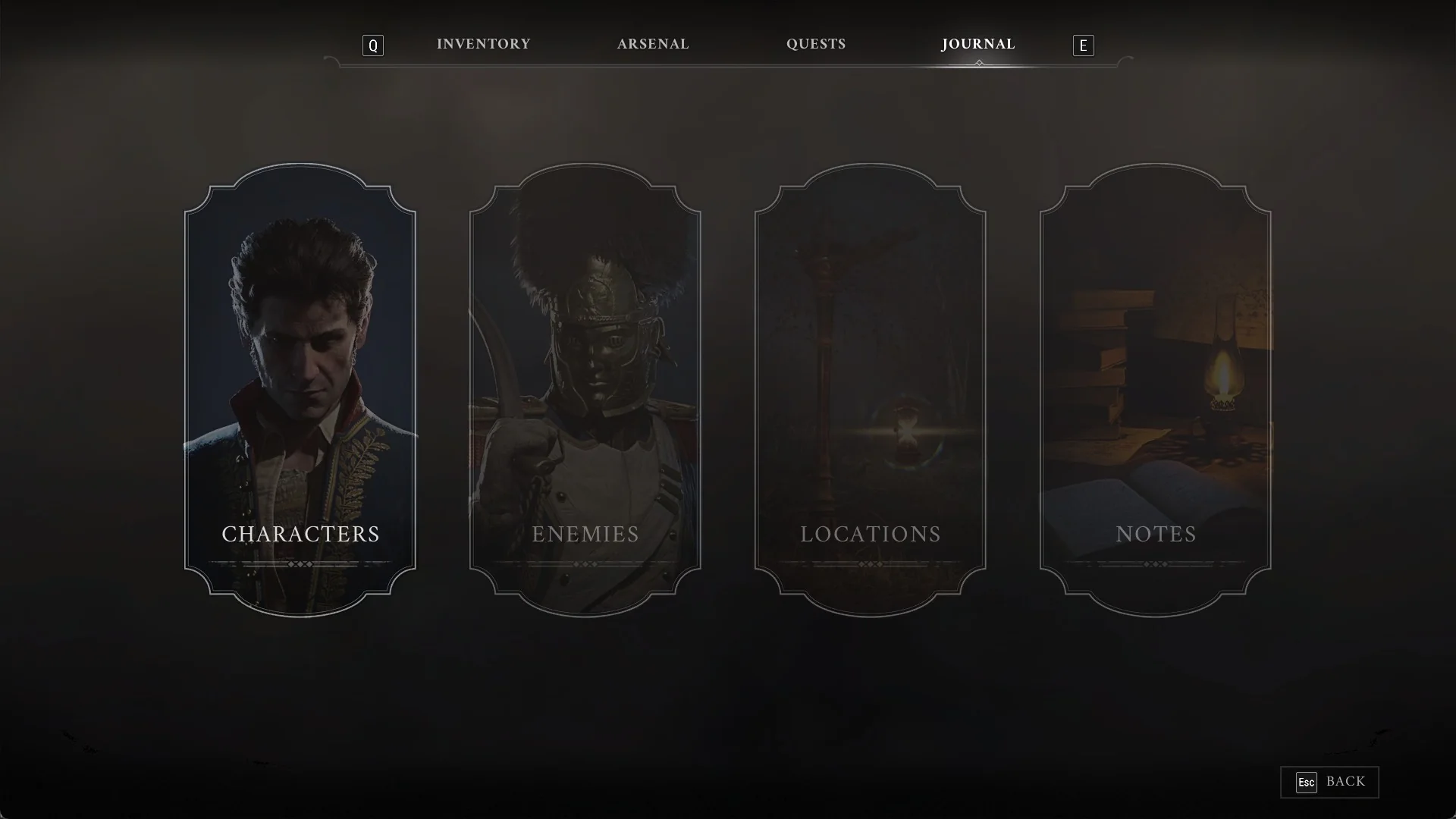
The main menu gives you NEW GAME, CREDITS, OPTIONS and EXIT TO DESKTOP, plus CONTINUE once a save exists. Options is split into five tabs, GAMEPLAY, VIDEO, AUDIO, MOUSE & KEYBOARD and CONTROLLER, and none of them holds an online or multiplayer setting.
That is the launch scope. The studio has announced New Game Plus for a later point, not multiplayer.
Is Valor Mortis open world?
No. It is a linear story that moves through linked regions with a central hub. The run passes through all 11 chapters in order, and each chapter carries its own region.
Those regions are The Battlefield, Valley of Ashes, Fallen Village, Caverns, Vale of Wrath, Cursed Hollow, The Outskirts, City of Orphans, the University, the Fortress and Napoleon’s Prison. The Abandoned Church is the hub you come back to between them, where the merchants and upgrade benches sit.
The regions are large and branching rather than linear corridors. They hold side paths, shortcuts you unbolt from the far side, chests, Ambers and 24 side quests that reward moving off the main route.
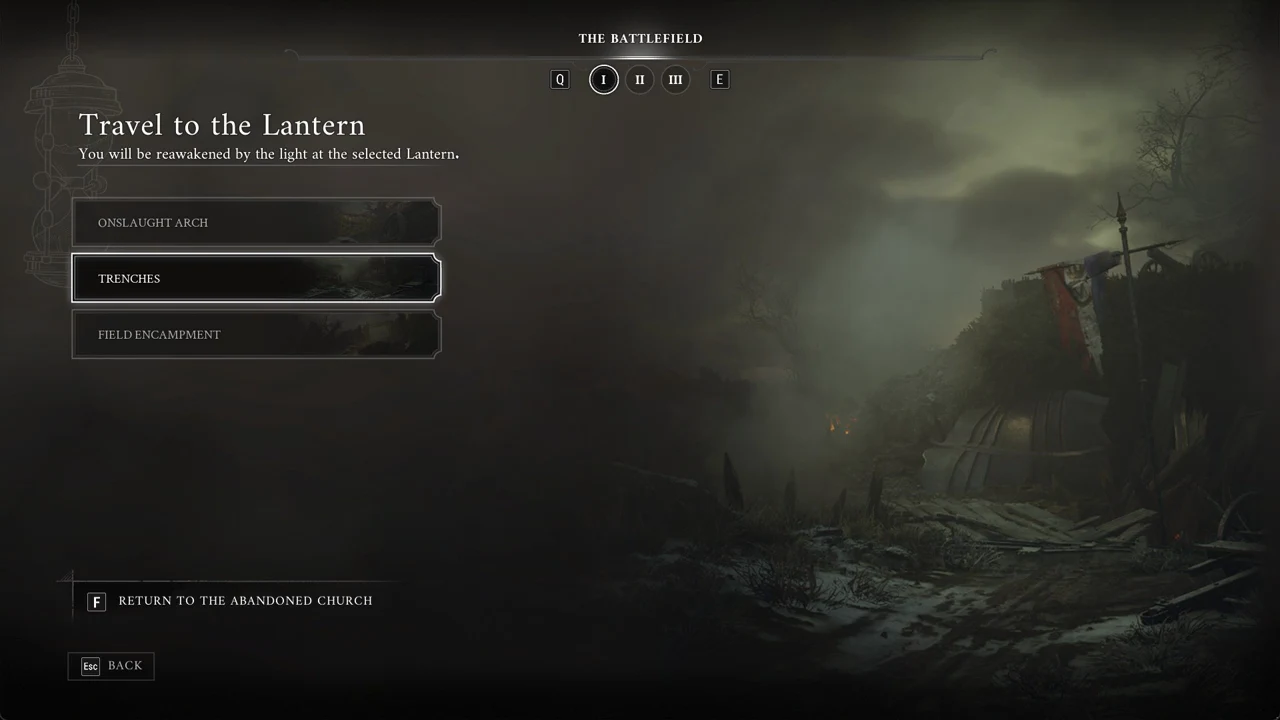
Lanterns act as the checkpoints. From Chapter III onward, a Lantern’s menu adds TRAVEL, and the screen reads “You can freely travel between any discovered Lanterns.” It groups Lanterns by region under tabs I, II, III and so on, and carries “[F] RETURN TO THE ABANDONED CHURCH” so you can head back to earlier regions for anything you missed. More on how fast travel works covers the full flow.
There is no in-game map screen, so use the interactive Valor Mortis map to track Lanterns, chests and bosses.
Can you play Valor Mortis on controller or keyboard?
Either option is supported. Steam marks the game as offering Full controller support for DualShock and DualSense pads, as well as mouse and keyboard.
Controller setup and schemes
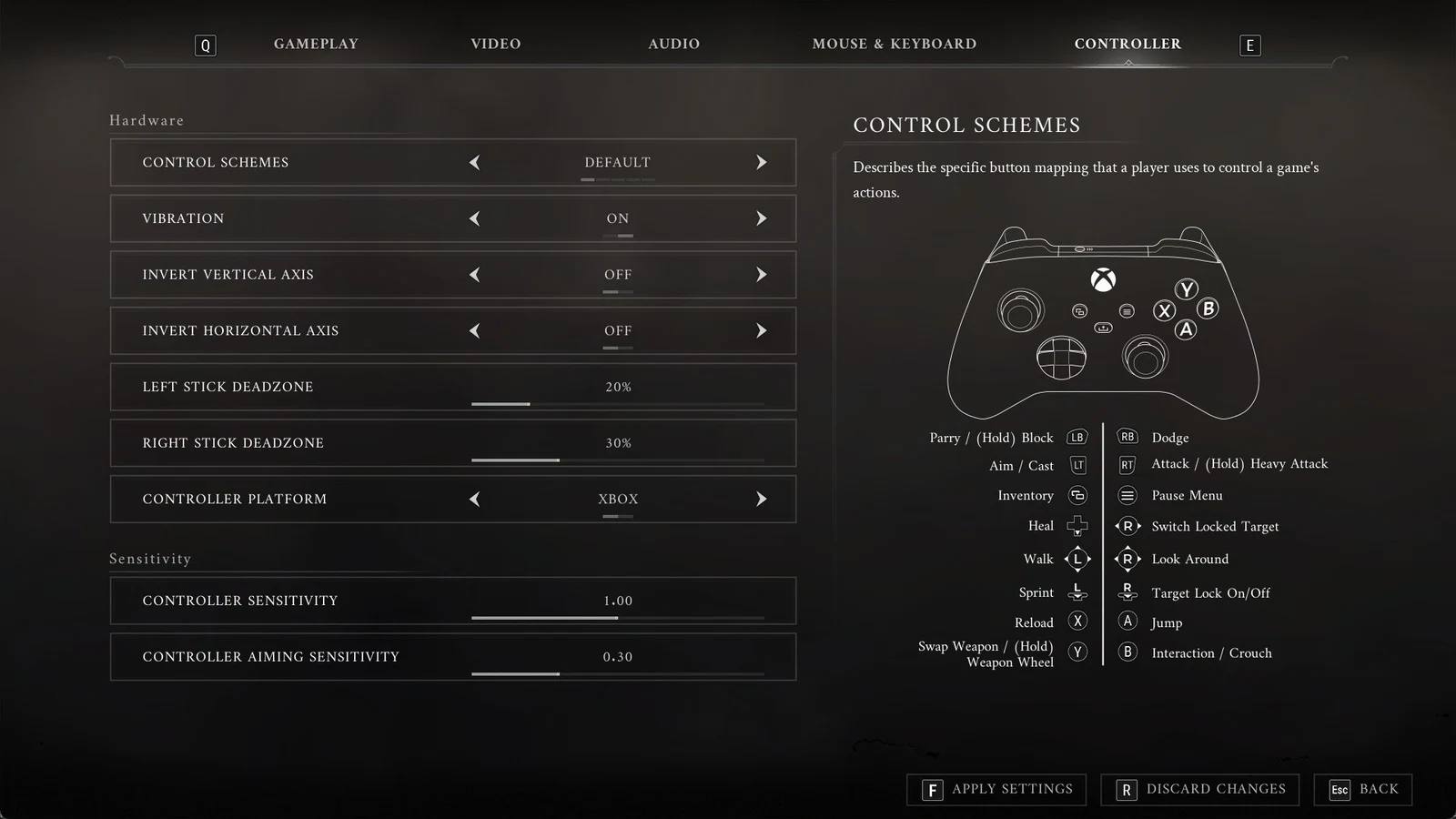
Options > CONTROLLER holds five fixed CONTROL SCHEMES: DEFAULT, CLASSIC, DODGE/BLOCK SWAP, SHOULDER JUMPER and SHOULDER JUMPER 2, each shown with a pad picture and a button legend. You cannot rebind single pad buttons here; you choose a whole scheme. The same tab carries VIBRATION (ON/OFF), INVERT VERTICAL AXIS, INVERT HORIZONTAL AXIS, LEFT STICK DEADZONE (default 20%), RIGHT STICK DEADZONE (default 30%), CONTROLLER PLATFORM (XBOX or PLAYSTATION button icons), CONTROLLER SENSITIVITY and CONTROLLER AIMING SENSITIVITY.
The DEFAULT scheme maps to Xbox names as follows:
| Button | Action |
|---|---|
| LB | Parry / (Hold) Block |
| LT | Aim / Cast |
| RT | Attack / (Hold) Heavy Attack |
| RB | Dodge |
| A | Jump |
| B | Interaction / Crouch |
| X | Reload |
| Y | Swap Weapon / (Hold) Weapon Wheel |
| D-pad down | Heal |
| L3 | Sprint |
| R3 | Target Lock On/Off |
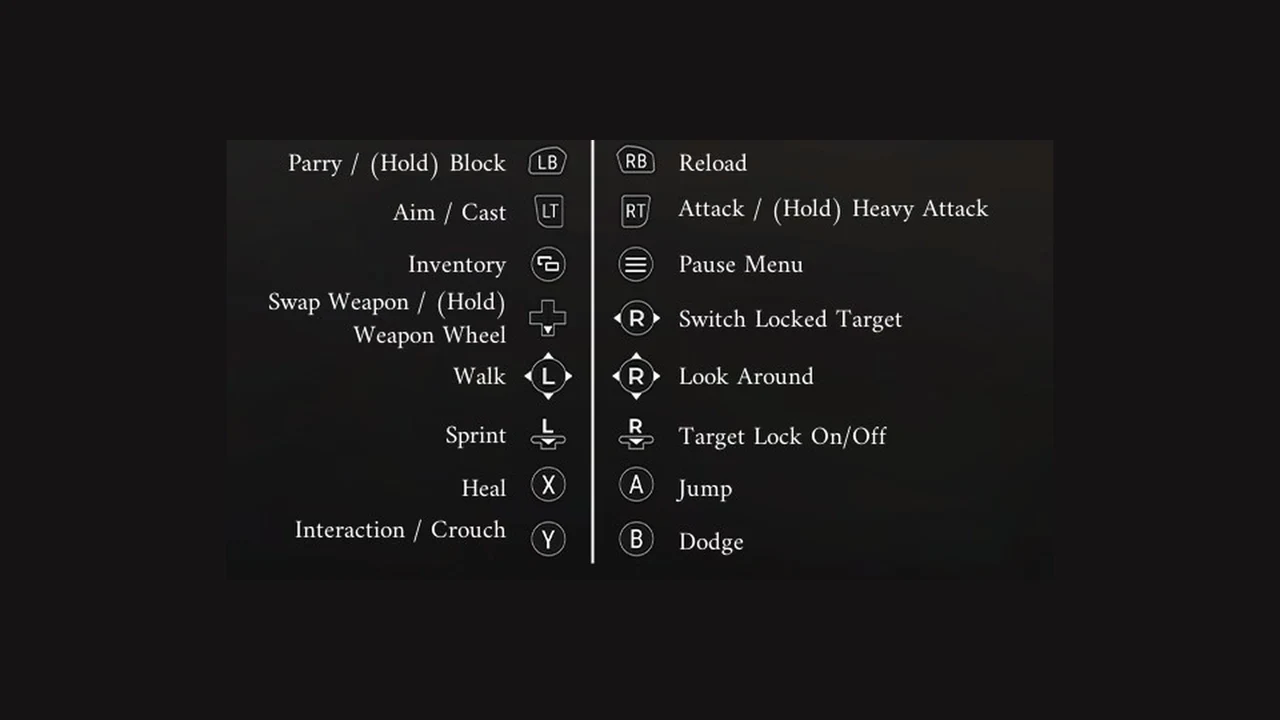
With CLASSIC selected, several controls differ: B handles Dodge, X handles Heal, RB is Reload, and Y is Interaction / Crouch.
Mouse and keyboard rebinding
Options > MOUSE & KEYBOARD lets you remap keyboard actions individually. Select a slot, press the replacement key, then choose F APPLY SETTINGS. By default, F heals, right mouse aims, and left mouse fires while aiming. The full controls guide lists every key.