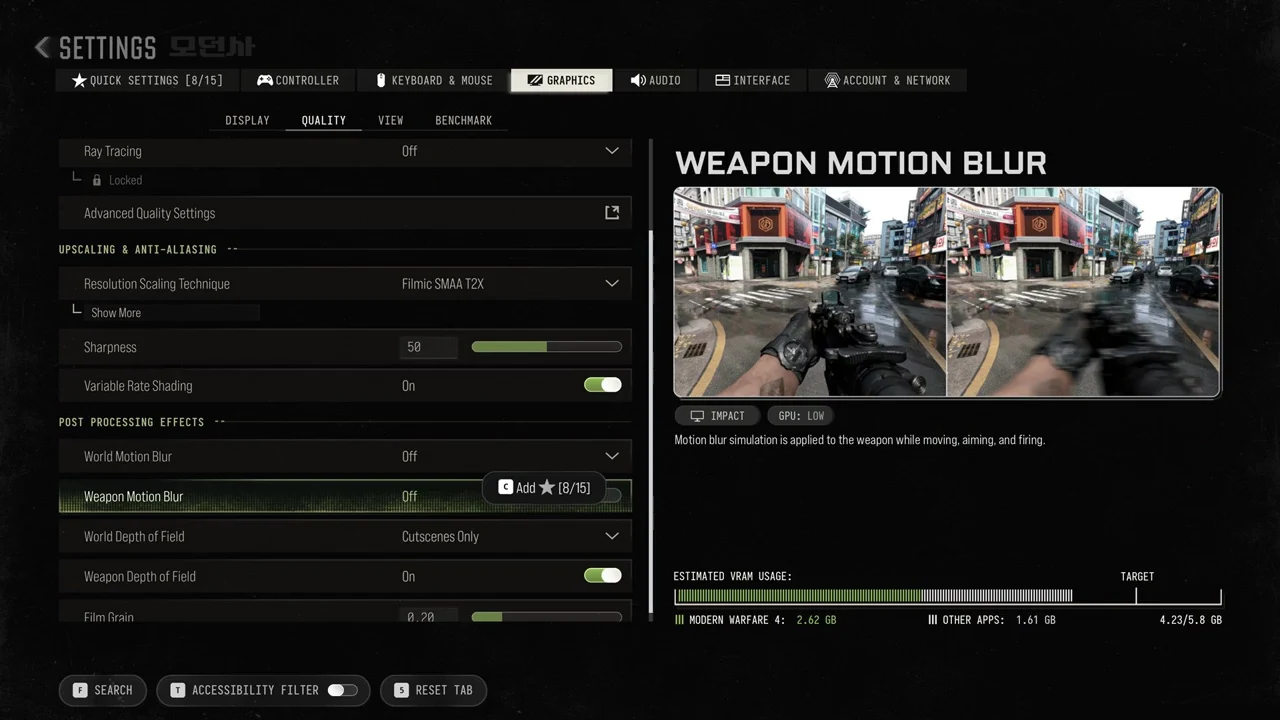
In Call of Duty: Modern Warfare 4 on PC, the field of view and the post-processing blur options are in two different tabs of the Graphics menu. FOV is under View. Motion blur, depth of field and film grain are under Quality. Several of the blur effects are already switched off at default values.
Quick answer: Go to Settings > Graphics > View to change Field of View (FOV). It defaults to 95, and horizontal FOV caps at 135. Blur options are in Settings > Graphics > Quality under Post Processing Effects.
The post-processing defaults are World Motion Blur Off, Weapon Motion Blur Off, World Depth of Field Cutscenes Only, Weapon Depth of Field On, and Film Grain 0.20. Every other graphics option is covered in our Modern Warfare 4 PC graphics settings guide.
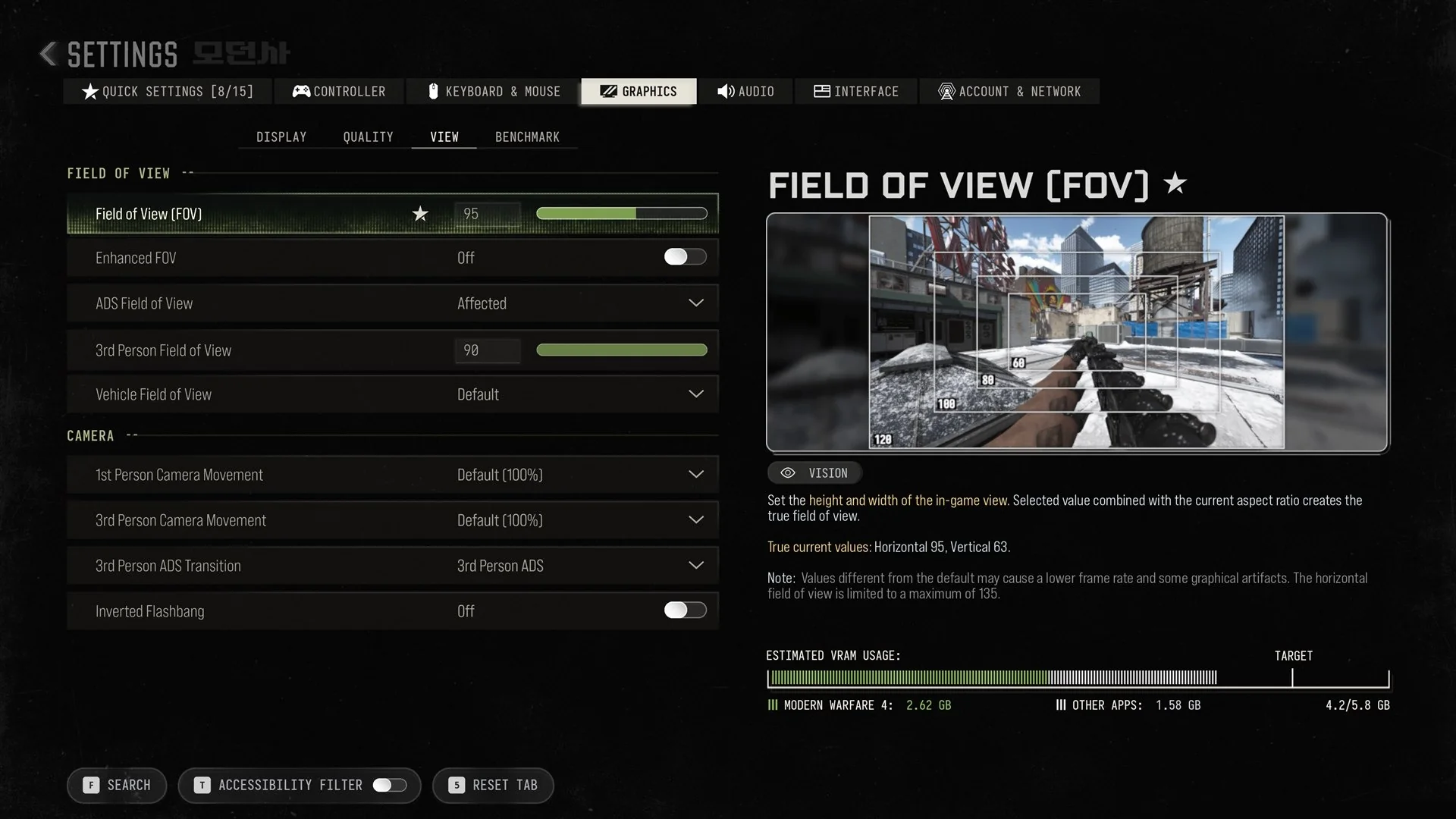
How to change FOV
The panel also says “Values different from the default may cause a lower frame rate and some graphical artifacts. The horizontal field of view is limited to a maximum of 135.”
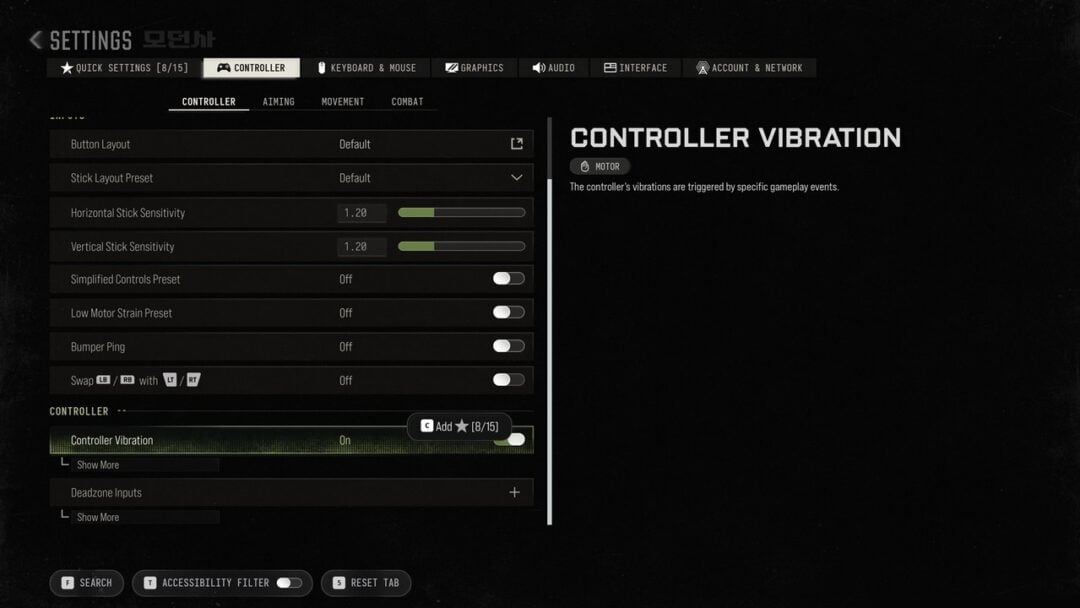
You can also change FOV from the Quick Settings tab. By default, Field of View (FOV) is one of the eight starred settings there and shows its value of 95.
The rest of the View sub-tab sits below the main FOV slider. These are the rows and their default values.
| Setting | Section | Default |
|---|---|---|
| Field of View (FOV) | Field of View | 95 |
| Enhanced FOV | Field of View | Off (toggle) |
| ADS Field of View | Field of View | Affected |
| 3rd Person Field of View | Field of View | 90 |
| Vehicle Field of View | Field of View | Default |
| 1st Person Camera Movement | Camera | Default (100%) |
| 3rd Person Camera Movement | Camera | Default (100%) |
| 3rd Person ADS Transition | Camera | 3rd Person ADS |
| Inverted Flashbang | Camera | Off |
ADS Field of View controls your view while aiming down sights. Its default is Affected. The third-person view has its own FOV setting, which defaults to 90.
How to turn off motion blur, depth of field and film grain
- Off: “Disabled in both gameplay and cutscenes.”
- Cutscenes Only: “Enabled only in cutscenes and scripted sequences.”
- On: “Enabled for both gameplay and cutscenes.”
Its performance impact tags are VRAM Low and GPU Low.
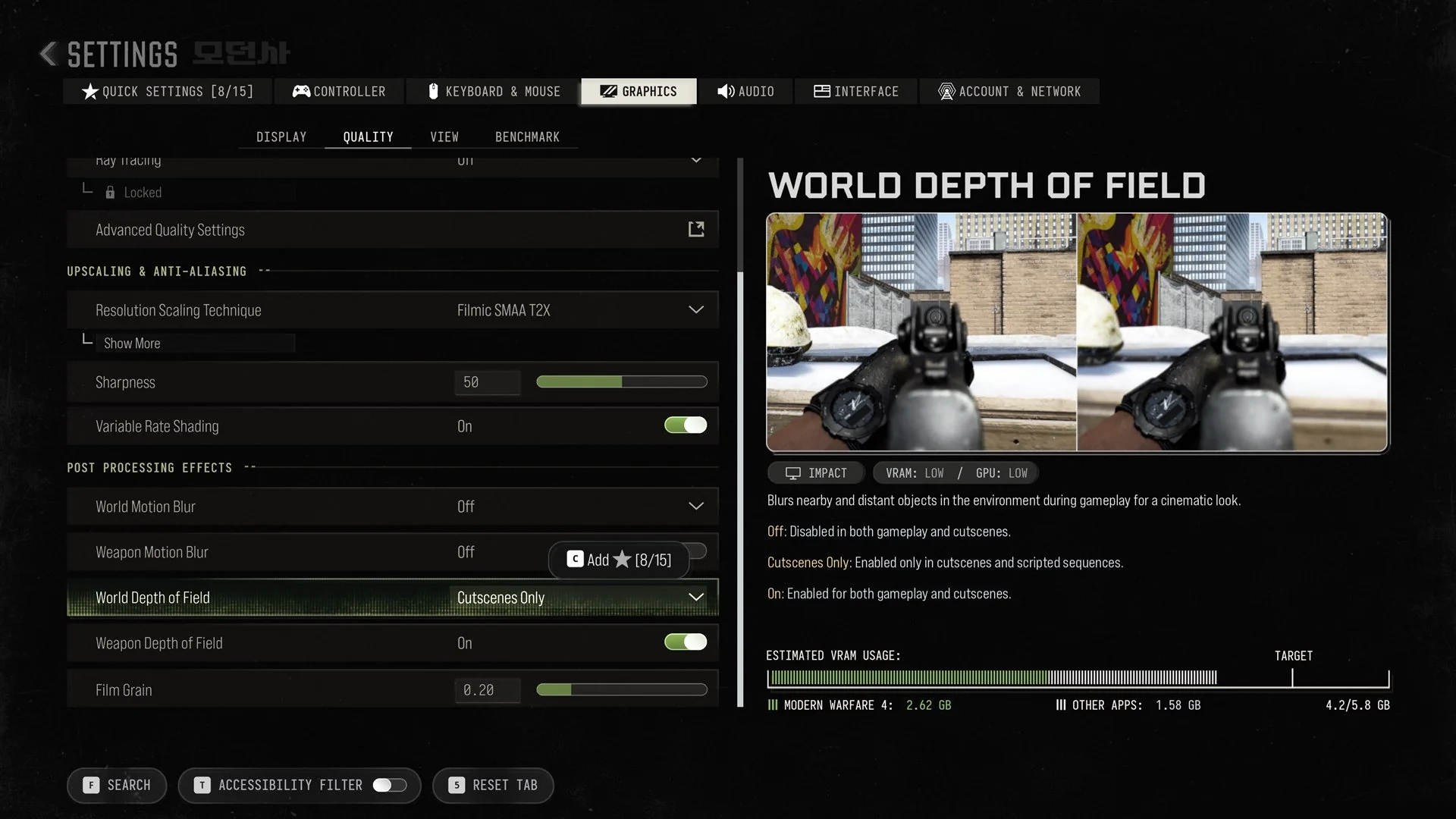
To confirm the changes, look at each row under POST PROCESSING EFFECTS. Both motion blur rows should read Off. World Depth of Field should show the option you picked, and Film Grain should read 0.
Recommended FOV and blur settings
These are recommended settings for a clearer, wider view:
- Field of View (FOV): As high as you can go while still aiming comfortably. Keep in mind the game’s warning that non-default values may lower your frame rate.
- World Motion Blur and Weapon Motion Blur: Off.
- World Depth of Field: Off, or Cutscenes Only.
- Film Grain: 0.