Voice chat and microphone settings are on the Audio tab of Settings. One toggle shuts voice chat off completely. A second, broader switch on the Account & Network tab locks down all public communication at once. For subtitles, presets and hearing options, see our Modern Warfare 4 subtitles and accessibility settings guide.
Quick answer: Go to Settings > Audio > VOICE CHAT and set Voice Chat to Off. To limit all public chat, turn on Settings > Account & Network > Privacy > Communication Preset.
How to turn off voice chat
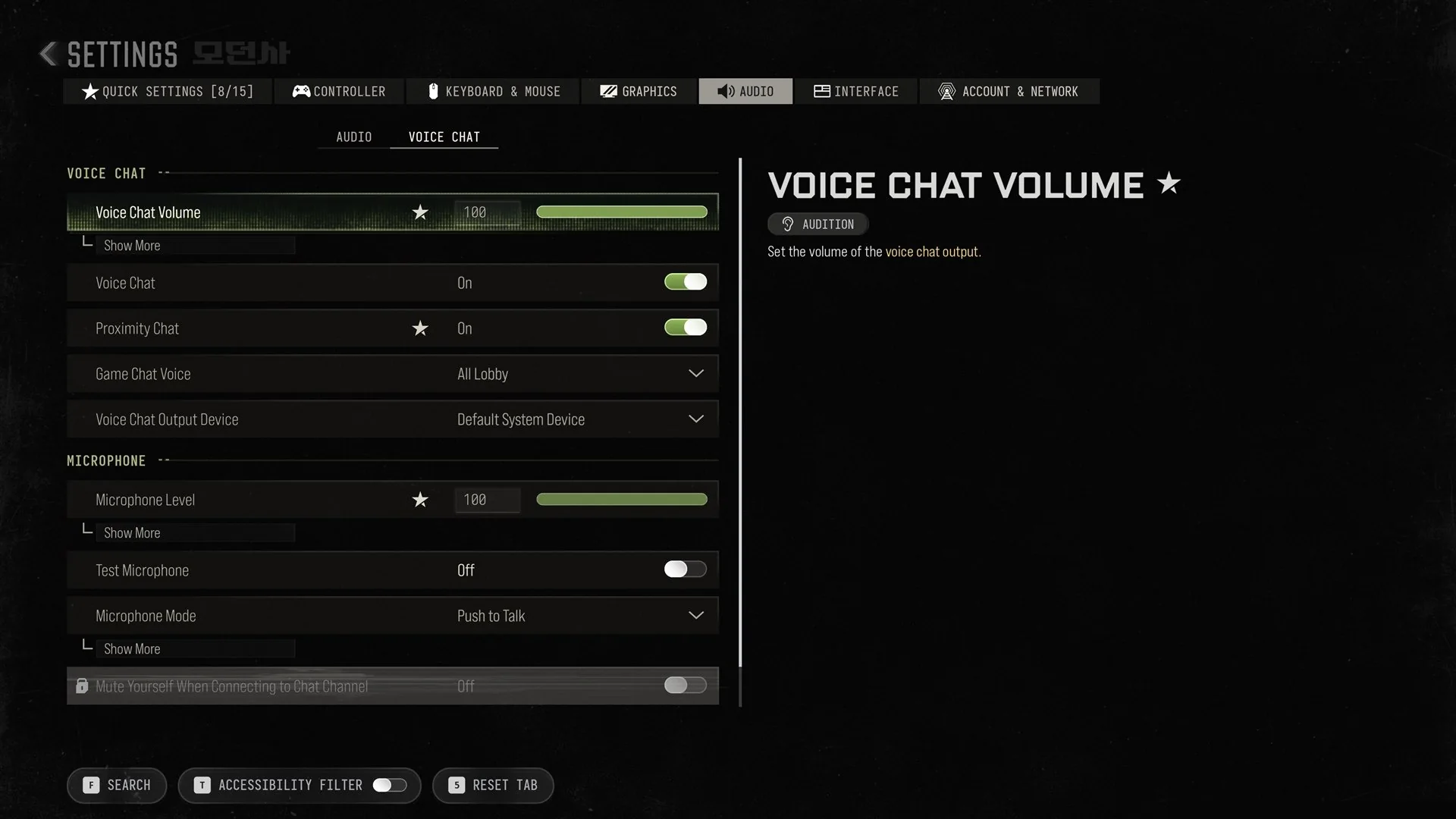
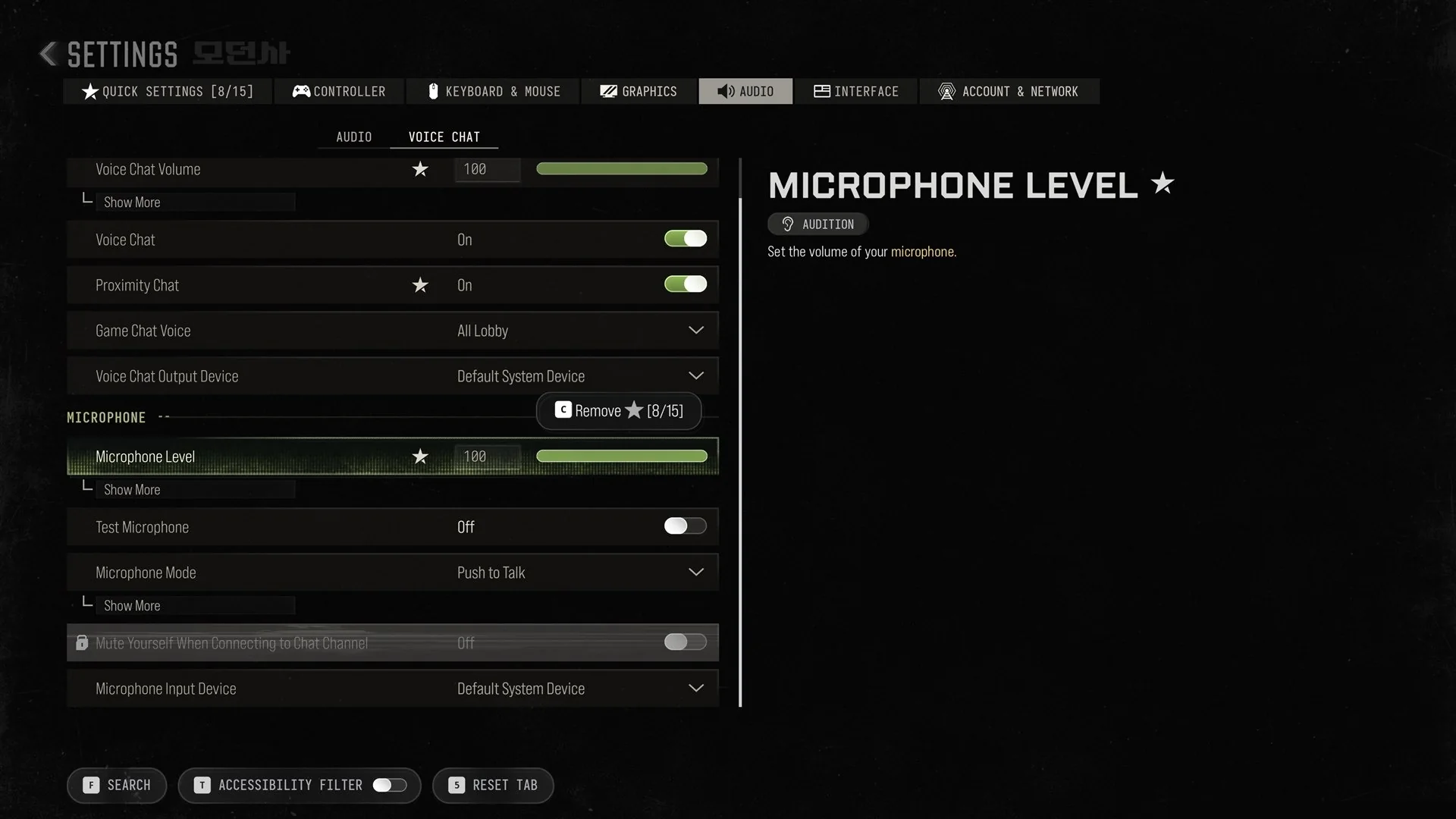
If you would rather keep voice chat on but control it, the other settings in that section handle volume and who you hear. Voice Chat Volume and Proximity Chat are both starred, which means they also appear on Quick Settings.
| VOICE CHAT setting | Default |
|---|---|
| Voice Chat | On |
| Voice Chat Volume | 100 |
| Proximity Chat | On |
| Game Chat Voice | All Lobby |
| Voice Chat Output Device | Default System Device |
Voice Chat Volume carries the description “Set the volume of the voice chat output.” Lowering it turns other players down without cutting them off. Proximity Chat and Game Chat Voice decide which players you hear.
| MICROPHONE setting | Default |
|---|---|
| Microphone Level | 100 |
| Test Microphone | Off |
| Microphone Mode | Push to Talk |
| Mute Yourself When Connecting to Chat Channel | Off (locked) |
| Microphone Input Device | Default System Device |
Microphone Level is described as “Set the volume of your microphone.” The Mute Yourself When Connecting to Chat Channel option is locked, so you can’t change it from this screen.
Communication Preset
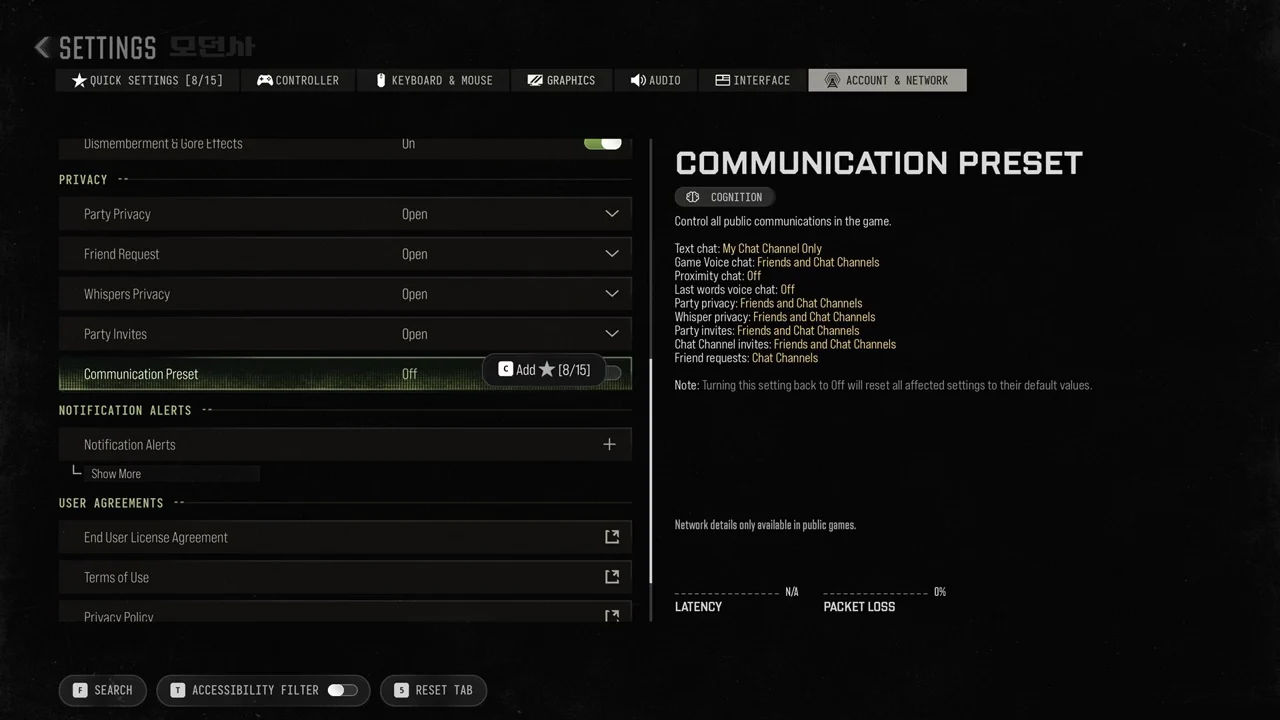
Communication Preset sits under Settings > Account & Network > PRIVACY, and it also appears on the Accessibility screen. It is Off by default. Its description reads “Control all public communications in the game.” Turning it on changes a whole group of settings at once.
| Setting | Value |
|---|---|
| Text chat | My Chat Channel Only |
| Game Voice chat | Friends and Chat Channels |
| Proximity chat | Off |
| Last words voice chat | Off |
| Party privacy | Friends and Chat Channels |
| Whisper privacy | Friends and Chat Channels |
| Party invites | Friends and Chat Channels |
| Chat Channel invites | Friends and Chat Channels |
| Friend requests | Chat Channels |
The game notes that “Turning this setting back to Off will reset all affected settings to their default values.” Any of those settings you changed by hand go back to their defaults when you switch the preset off.
The same tab holds a few related privacy controls:
- Blocked Players (0): “Manage your ATVI blocked players list.”
- Content Filters: Text Chat is On.
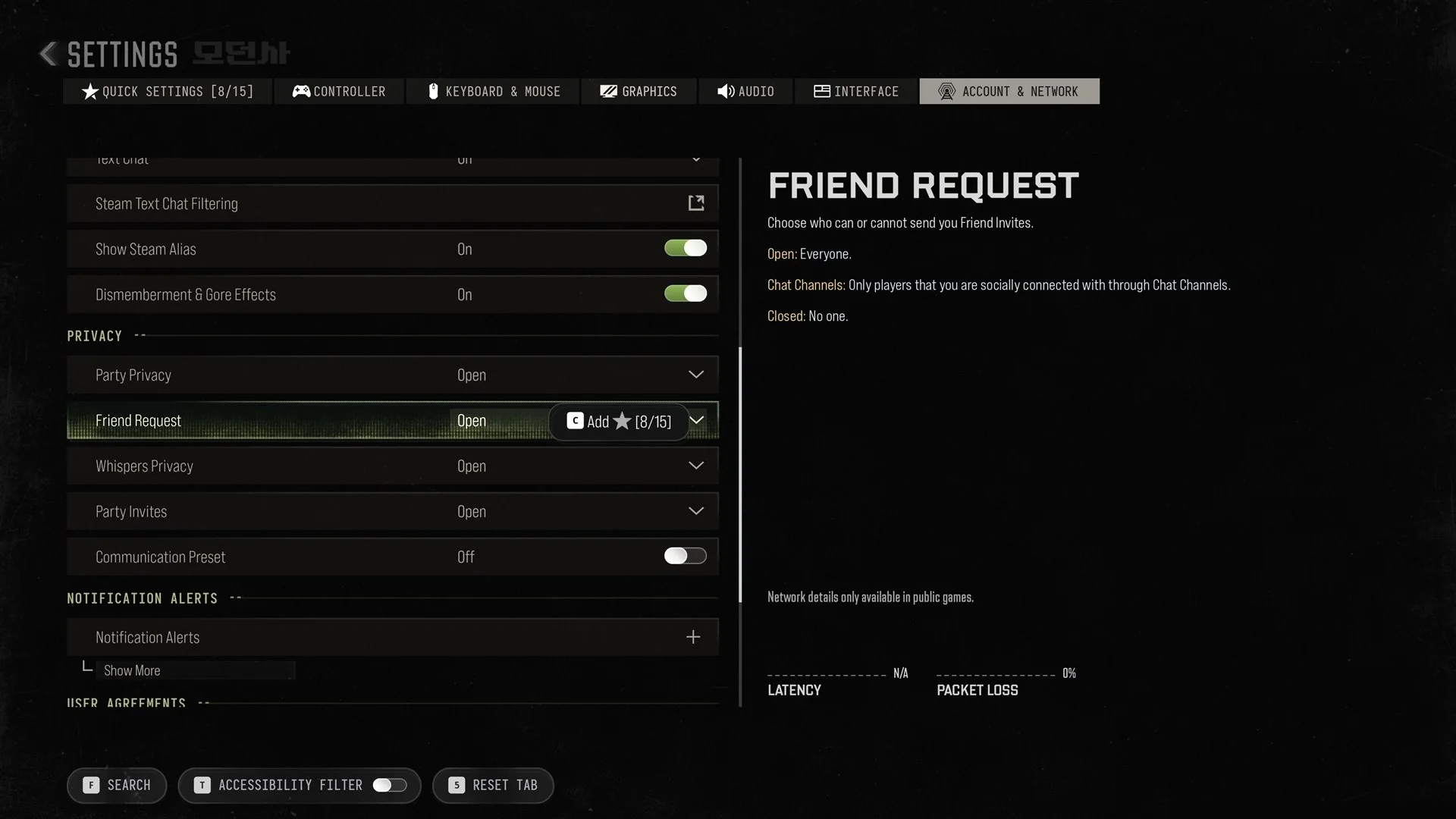
- Party Privacy, Friend Request, Whispers Privacy and Party Invites all default to Open.
Friend Request offers three levels. Open means “Everyone.” Chat Channels means “Only players that you are socially connected with through Chat Channels.” Closed means “No one.”
Audio mix and other audio settings
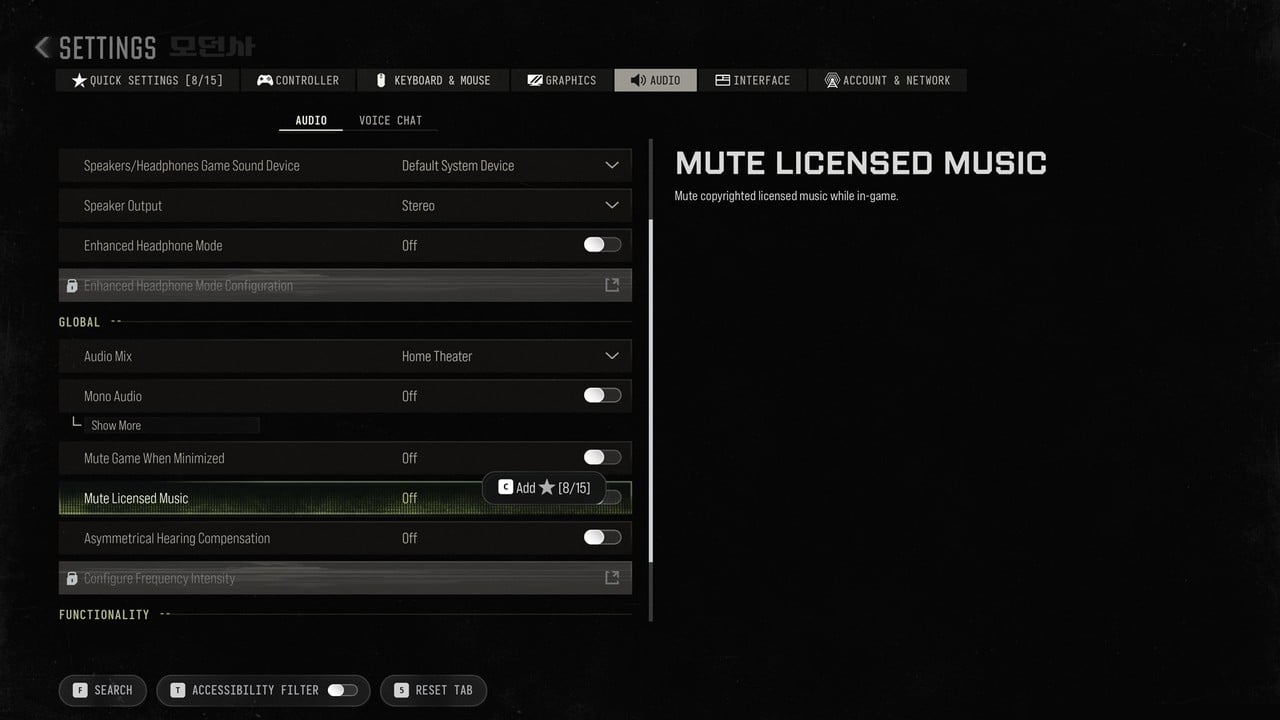
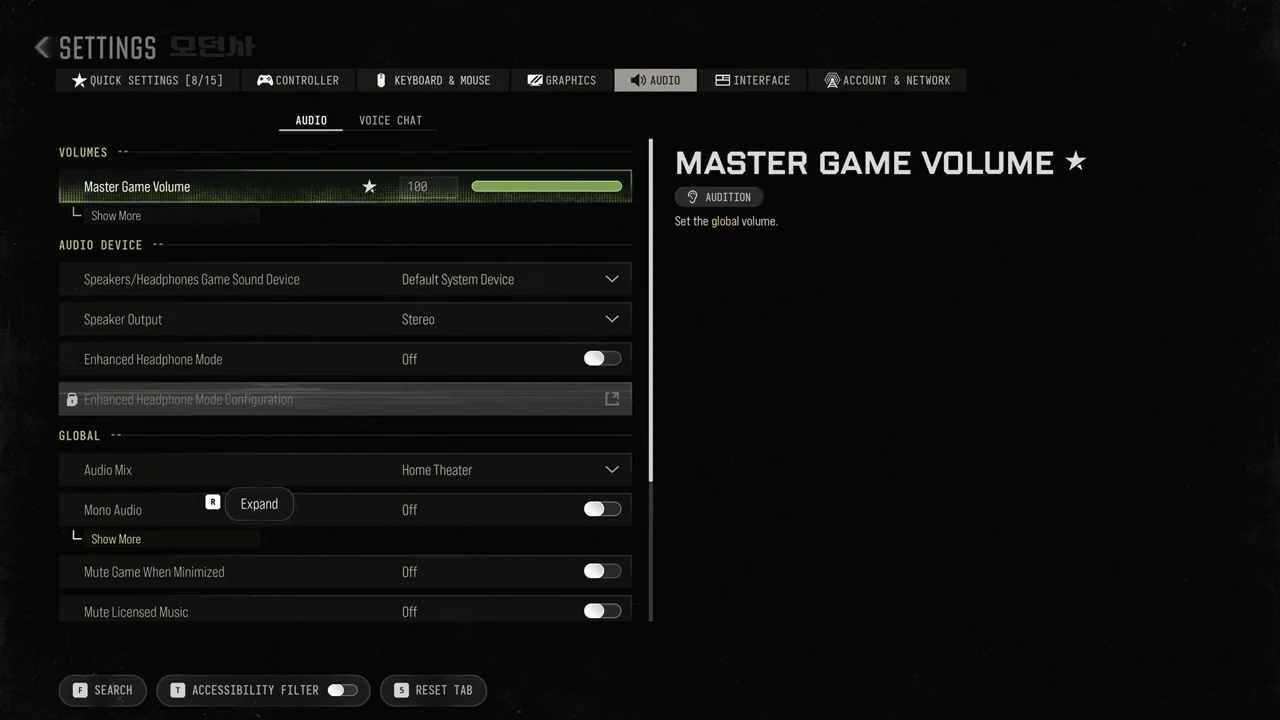
The rest of the sound options share the Audio tab with voice chat. At the top, Master Game Volume under VOLUMES sits at 100, with the description “Set the global volume.” The Audio Mix preset is further down, under GLOBAL, and defaults to Home Theater.
| Section | Setting | Default |
|---|---|---|
| VOLUMES | Master Game Volume | 100 |
| AUDIO DEVICE | Speakers/Headphones Game Sound Device | Default System Device |
| AUDIO DEVICE | Speaker Output | Stereo |
| AUDIO DEVICE | Enhanced Headphone Mode | Off |
| GLOBAL | Audio Mix | Home Theater |
| GLOBAL | Mono Audio | Off |
| GLOBAL | Mute Game When Minimized | Off |
| GLOBAL | Mute Licensed Music | Off |
| GLOBAL | Asymmetrical Hearing Compensation | Off |
| FUNCTIONALITY | Reduce Tinnitus Sound | Off |
| FUNCTIONALITY | Headshot & Kill Alerts | On |
Enhanced Headphone Mode has its own Configuration page, which stays locked while the mode is off. Mute Licensed Music is described as “Mute copyrighted licensed music while in-game.”
To select a different mix, use the Audio Mix dropdown and choose the preset for your speakers or headphones.