The Vending Machine is a storefront you build in your own territory in Once Human. It lets you sell spare ores, gear, facilities, and blueprints to other players, and buy what they have listed, without anyone needing to meet face to face. Payment is usually made in Energy Links. Once the machine is built and powered, the whole market runs through a single menu.
Quick answer: Build a Vending Machine in your territory and wire it to power. Press F to open Online Trading. Buy from the Purchase tab, or list items from the Sell tab with “Put up for Sale.”
Vending Machine unlock requirements and crafting costs
The Vending Machine is not available from the start. Where you unlock it depends on which progression system your scenario uses. Scenarios with the Tech system list it under the Build category of the Tech tree, where it sits at Tech Level 11. You can either spend Tech points on it or reverse-engineer a finished machine found in Blackfell Fallen Zone. Scenarios that use Memetics place it in the Logistics branch, where it costs 500 Ciphers (Meme Points) plus 700 Energy Links and has no prerequisite.
The Tech tree also lists a second model, the Solar Power Vending Machine. It is built for Harvesters’ Markets, which are the dedicated trading zones, and its in-game unlock note reads “Defeat all Harvesters’ Market.” The two models have different recipes, and the standard machine’s formula also changes between the two unlock systems.
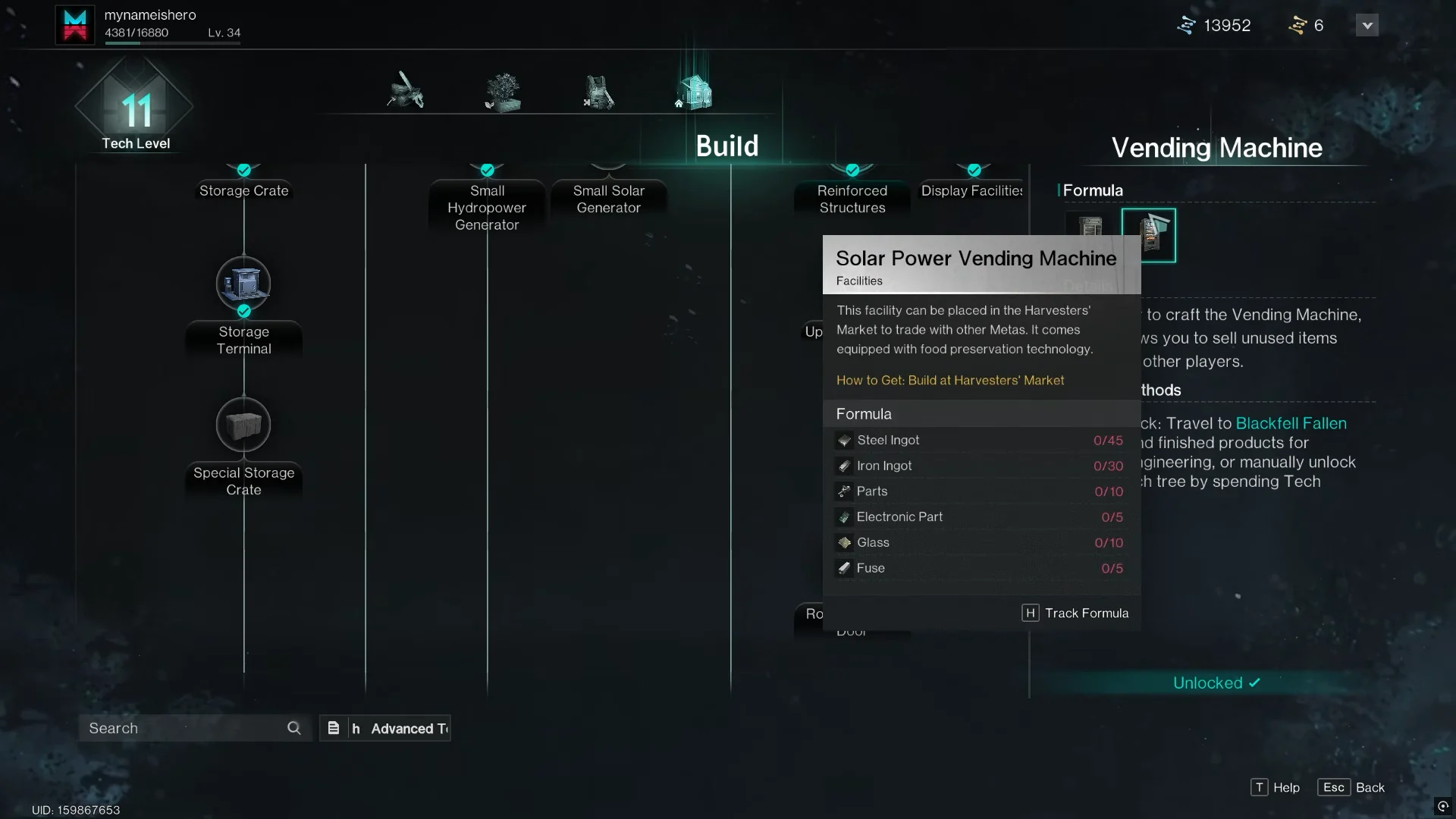
| Material | Vending Machine (Tech tree) | Solar Power Vending Machine | Vending Machine (Memetics) |
|---|---|---|---|
| Steel Ingot | 5 | 15 | 20 |
| Copper Ingot | 5 | — | 10 |
| Iron Ingot | — | 30 | — |
| Parts / Standard Part | 5 | — | 8 |
| Electronic Part | 3 | 10 | 3 |
| Glass | 3 | 10 | 6 |
| Power Cable | 1 | — | — |
| Fuse | — | 5 | — |
Ingots and Glass come from a Furnace. Parts and Electronic Parts mostly come from exploring or from breaking down scrap. To find the recipe, open build mode (B by default) and check the Facilities category, under Function Facility.
Placing and powering the Vending Machine
You can only build the standard Vending Machine inside your own territory, and it does nothing until it has electricity. It draws 2 watts, so run a wire from a power source such as a Solar Generator. When it is powered, it keeps trading whether you are online or offline. The Solar Power Vending Machine in a Harvesters’ Market needs no wiring at all. Harvesters’ Markets exist in Manibus, Evolution’s Call, and The Way of Winter, but not in Prismverse’s Clash.
Walk up to a powered machine and you will see three prompts.
- [F] Intra-Zone Trading opens the trading menu for players in your zone.
- [G] Cross-Trading opens the same menu for trades across zones.
- [X] Disconnect Wire cuts the machine’s power connection.
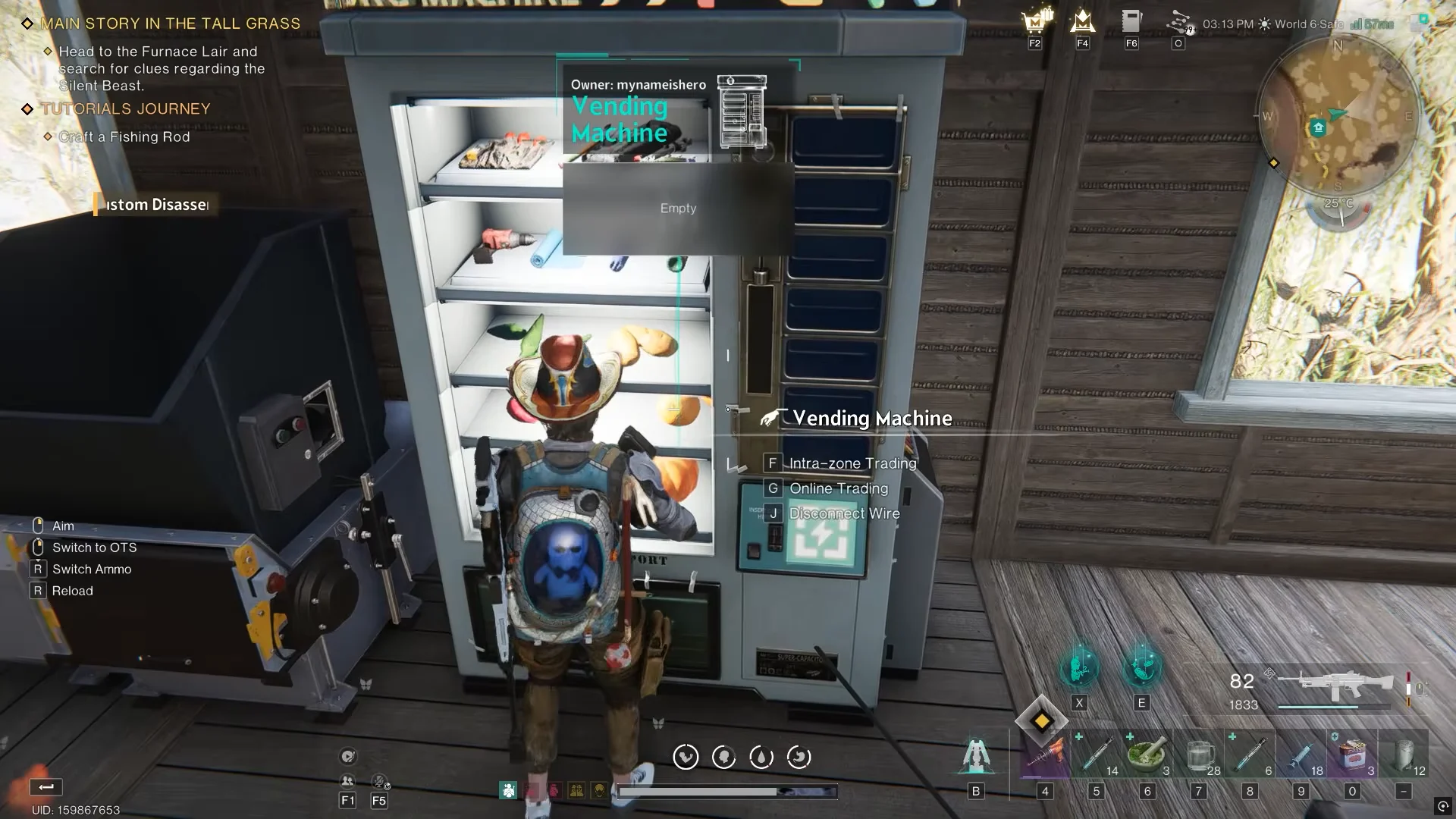
Pressing X removes the machine’s power. Until you wire it back up, its listings stop working and you cannot get anything out of it.
How to buy items with the Vending Machine
Buying happens in the Online Trading window. Open it with F or G, then stay on the Purchase tab. It lists what other players are selling, including gatherables, materials, and other categories, with the Energy Link price shown next to each item. Your current Energy Link balance appears at the top of the window. Next to it are filters for Friends, Team, Hive, Warband, and Island Roaming, which narrow down whose listings you see.
To place your own buy request instead of browsing, use the Purchase Order, Initiate a Purchase, and My Purchase Request tabs on the same top bar. Everything you buy is logged in the Record tab under Purchase History. Each entry shows the item, the quantity, and what it cost.
How to sell items with the Vending Machine
You can list almost anything: ores, crafted facilities, spare blueprints, and gear you no longer use. In the Online Trading menu, the process works like this.
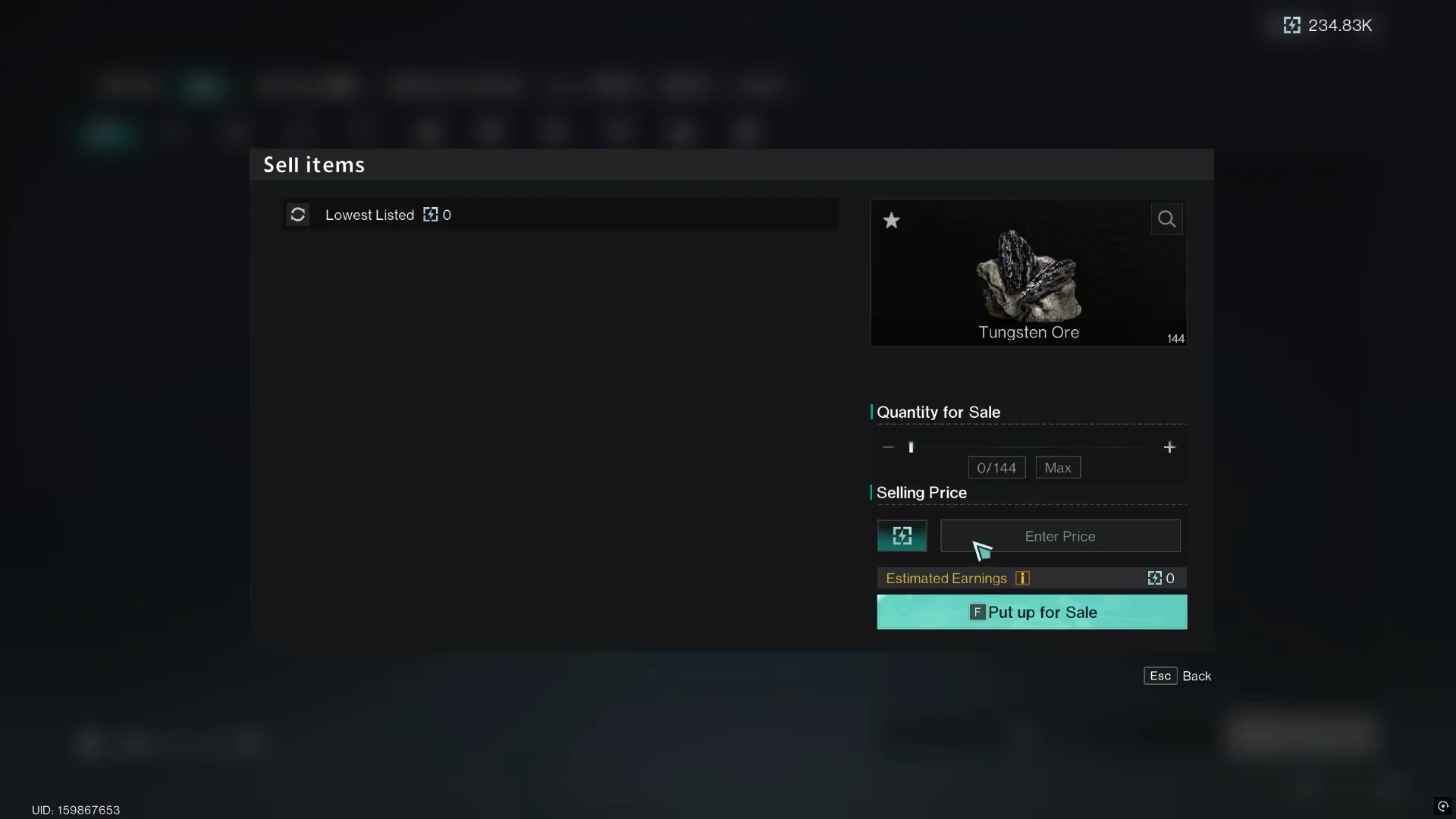
The listing counter reads Listing Quantity 0/10, which means you can have up to 10 items listed at once. A live listing shows its price, the status “Listing in progress,” and a sold counter such as “Sold 0/1.” If you change your mind, use “Remove from Sale” to take the item back.
Shelf-style interface: Item Exchange and Energy Links
Some versions of the machine use a different layout. Pressing F shows your inventory on the left and the machine’s shelves on the right, and only the shelves are visible to buyers. When you list an item here, you choose a settlement method. The two options handle pricing in different ways.
| Settlement method | How the price applies | Example |
|---|---|---|
| Energy Links | Per item, max 99,999 | 100 Pure Water at 1 = 100 Energy Links |
| Item Exchange | For the whole stack | 100 Pure Water for 1 Acid = 1 Acid total |
Confirm the listing with “Put Up For Sale” or press F.
The item search for Item Exchange is case-sensitive. Typing “rubber” returns nothing, but typing “Ru” brings up Rubber.
Checking sales and claiming Energy Links
To confirm that a sale went through, open the Record tab. Sales Record lists every sold item along with the quantity you put up and what you earned. Purchase History, next to it, covers what you bought. When a listing sells, its “Sold” counter fills up.
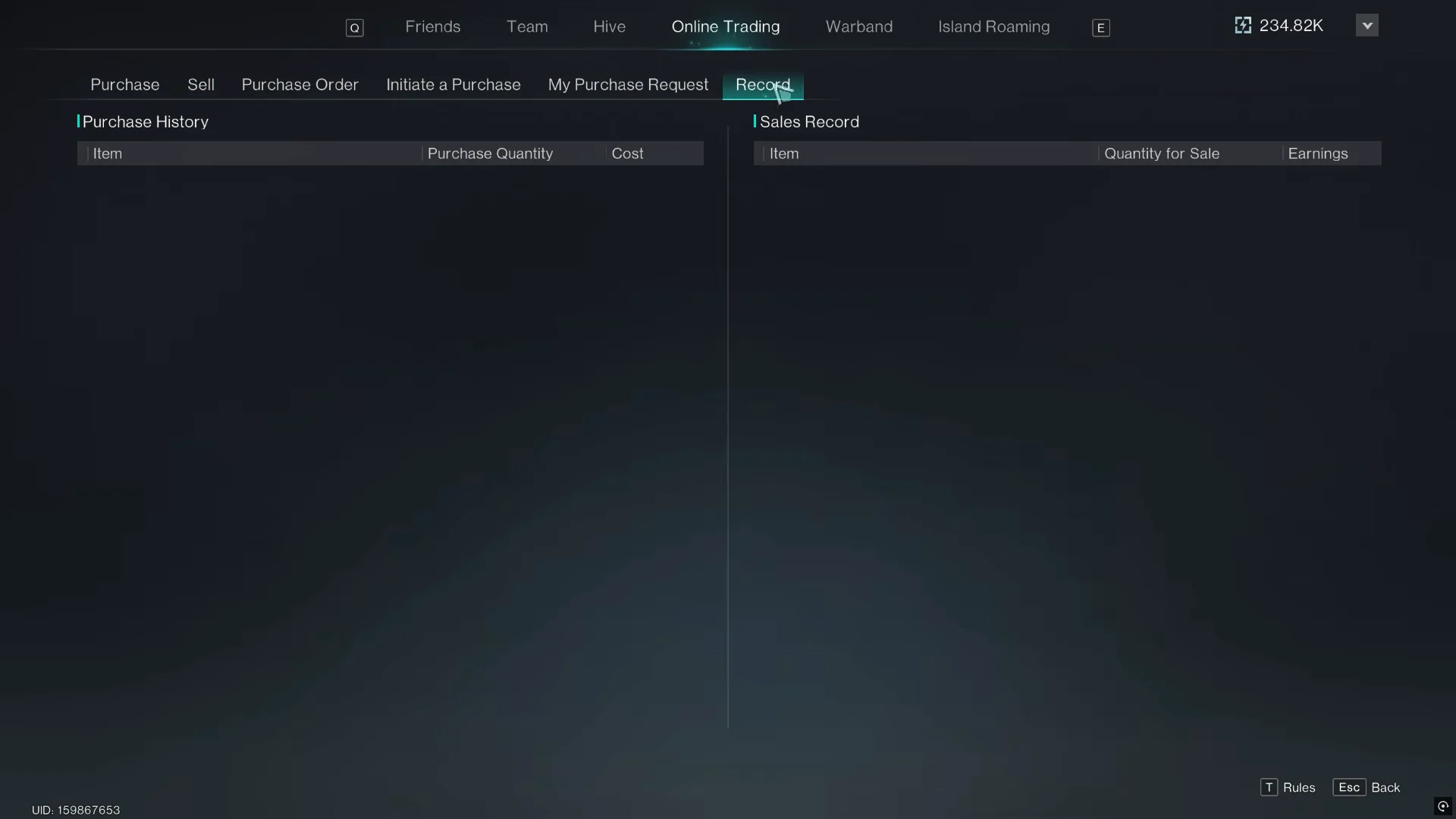
Collect your earnings with the “Claim Yields” button on the Sell tab. When the claim succeeds, your Energy Link balance at the top of the Online Trading window goes up by the amount listed in Sales Record. Keep the machine powered the whole time. A machine without power cannot sell, and it also will not let you claim what you have already earned.