Probably Stolen: Cyberpunk Shopkeeper Sim has its own mod support built in. That leaves a reasonable question for anyone holding mods made for MelonLoader, the common Unity mod loader: will it run on top of the game? On the current build, VERSION 100-REV3 (the version string shown on the main menu), the answer is no. Below is the install process, the error you will see, and how to remove MelonLoader and delete its leftover folders.
Quick answer: As of game version 100-REV3, MelonLoader 0.7.3 installs, but its console shows “Failed to initialize MelonLoader” while the game still runs. MelonLoader 0.6.6 closes the game before the menu. Use the game’s own Mods menu and Steam Workshop instead.
Does MelonLoader work with Probably Stolen?
Neither MelonLoader 0.7.3 nor 0.6.6 works with version 100-REV3. A library conflict is responsible: Probably Stolen bundles its own Harmony copy—the patching library used for its built-in mod support—at version 2.4.2. MelonLoader 0.7.3 requires Harmony 2.10.2, but the game loads its older build instead. As a result, MelonLoader cannot finish starting, and none of its mods load.
| MelonLoader version | Installer result | At launch | Reaches main menu |
|---|---|---|---|
| 0.7.3 | Installs | TypeLoadException, MelonLoader fails | Yes, game plays normally |
| 0.6.6 | Installs (downgrade) | MissingMethodException | No, game closes |
Neither result rules out a future fix. MelonLoader mods will stay blocked until either MelonLoader or the game changes, so the MelonLoader releases page is the place to watch for a newer build. For now, the in-game Mods menu and Steam Workshop are the working route for mods.
How to install MelonLoader 0.7.3 for Probably Stolen
This was tested with the Steam copy on Windows 11 and the MelonLoader installer app. The app shows v4.4.0 in its corner.
MelonLoader.Installer.exe from the official MelonLoader project on GitHub Releases page. The newest release is v0.7.3.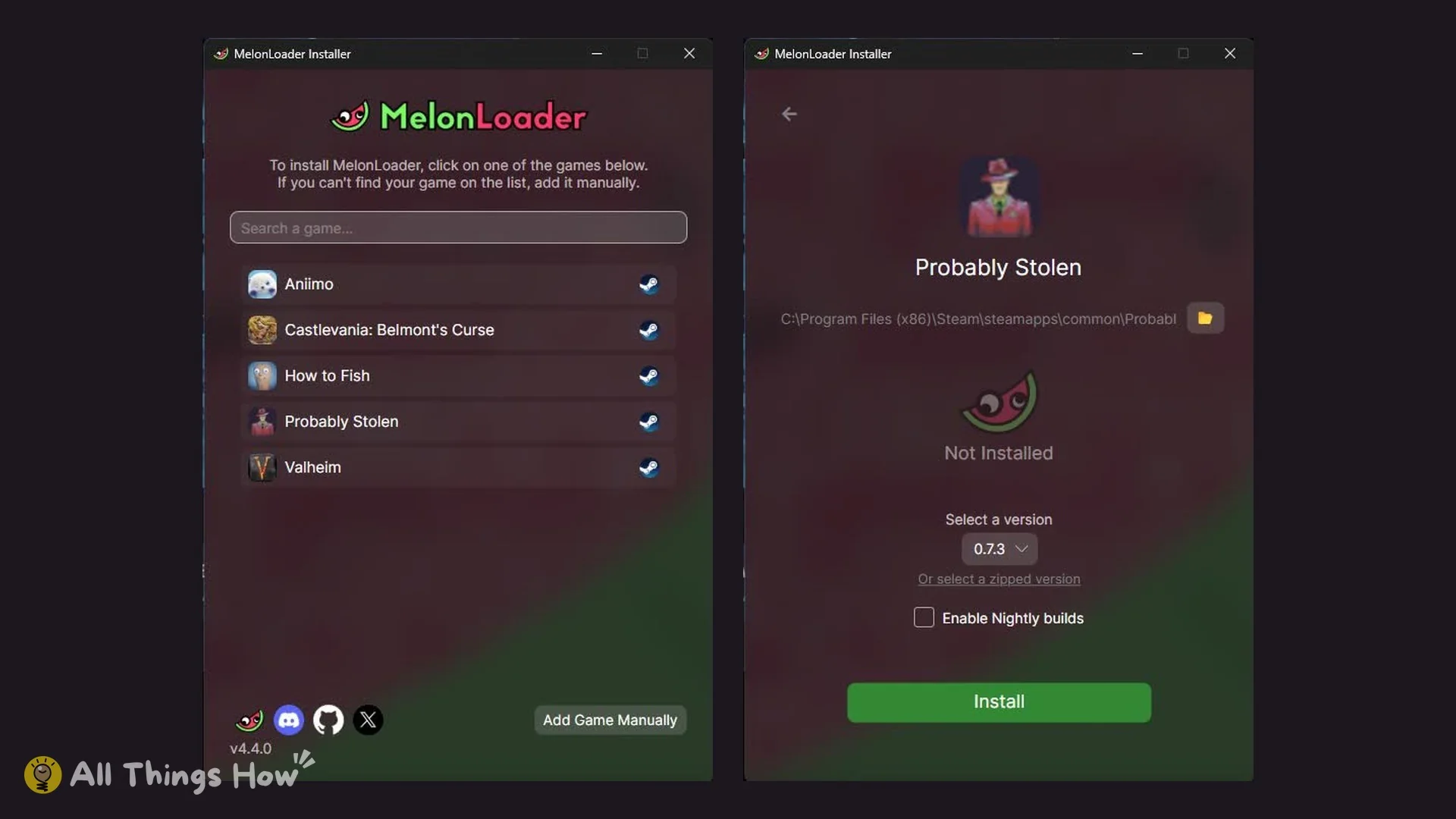
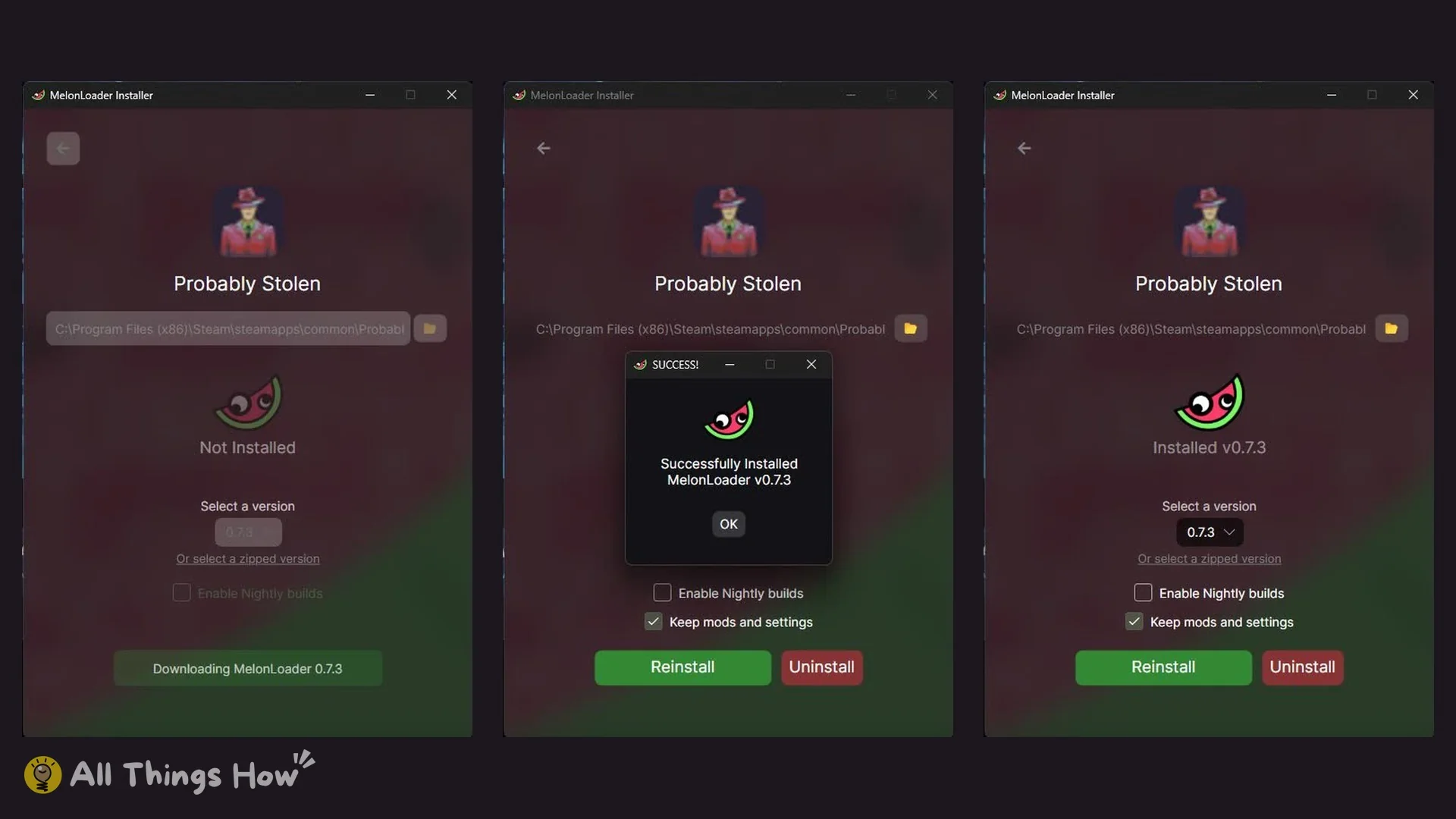
You know it worked when the page reads “Installed v0.7.3”, with a ticked “Keep mods and settings” checkbox and Reinstall and Uninstall buttons. The game folder now contains these new items:
Download, SUCCESS box and the installed page, left to right:
version.dll- A
MelonLoaderfolder - A
Pluginsfolder - A
UserDatafolder holdingLoader.cfg - A
UserLibsfolder
The Mods folder was already in the game folder before MelonLoader arrived. It is the game’s official mods folder, not MelonLoader’s.
The “Failed to initialize MelonLoader” error at launch
With 0.7.3 installed, start the game. A console appears alongside it with the title “MelonLoader v0.7.3”. The opening lines are:
[ERROR] Failed to initialize MelonLoader
[ERROR] [MelonLoader.Bootstrap] System.TypeLoadException: Could not load type of field 'MelonLoader.InternalUtils.HarmonyLogger:OrderedLogChannels' ... expected class 'HarmonyLib.Tools.Logger' in assembly '0Harmony, Version=2.10.2.0' ...![MelonLoader v0.7.3 console: [ERROR] Failed to initialize MelonLoader and a TypeLoadException about 0Harmony 2.10.2](https://static.allthings.how/wp-content/uploads/2026/10/probably-stolen-p13-melonloader-console-failed-to-initialize.webp)
That second line is the Harmony mismatch in action. MelonLoader is looking for parts of Harmony 2.10.2 that the game’s 2.4.2 copy does not have. The game itself is unaffected. It reaches the main menu (New Game, Load Game, Options, Credits, Mods, Exit Game) showing VERSION 100-REV3 and plays normally.
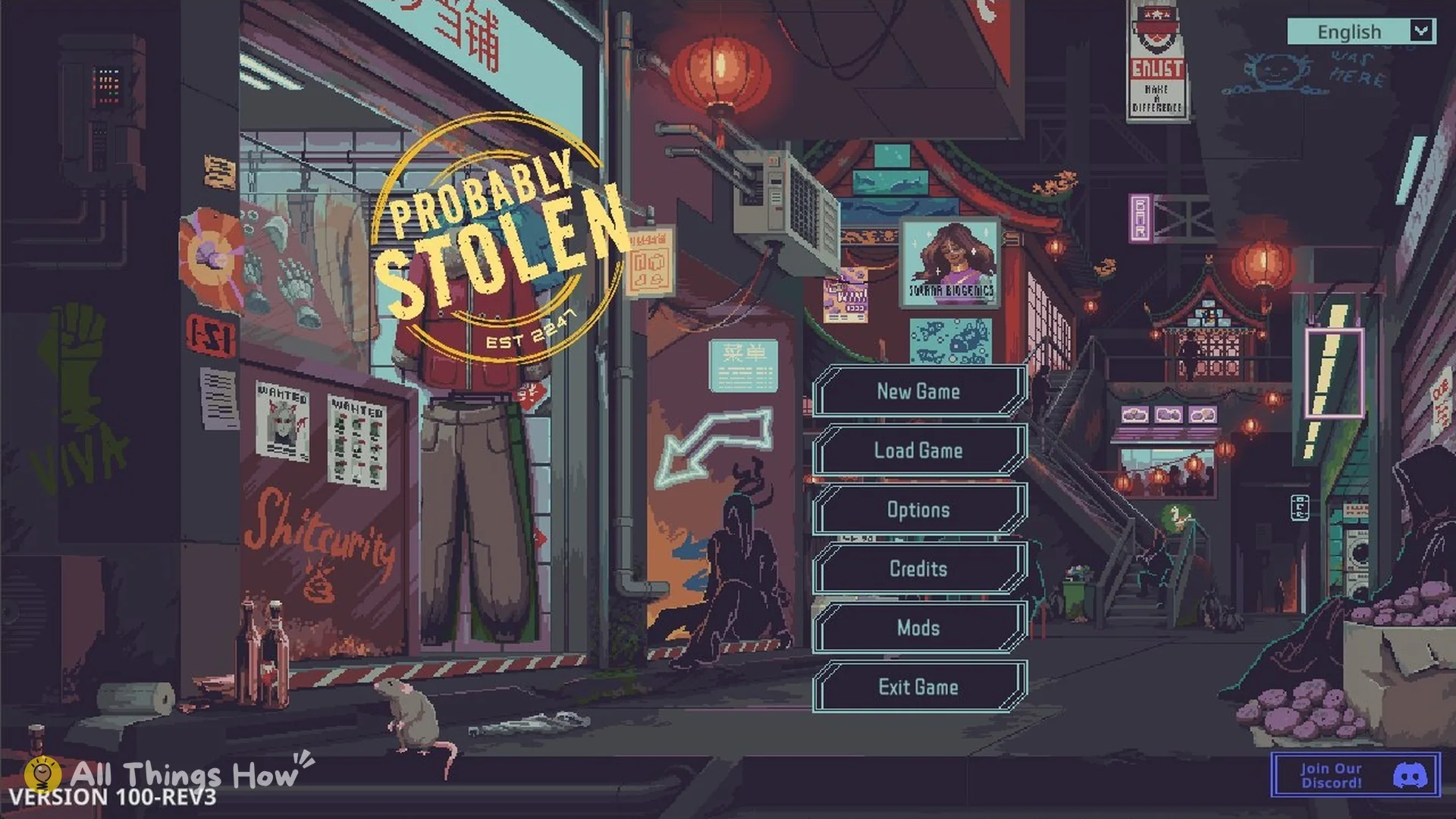
The game’s own mod support is not affected either; see the next section.
Does the official Mods menu still work with MelonLoader installed?
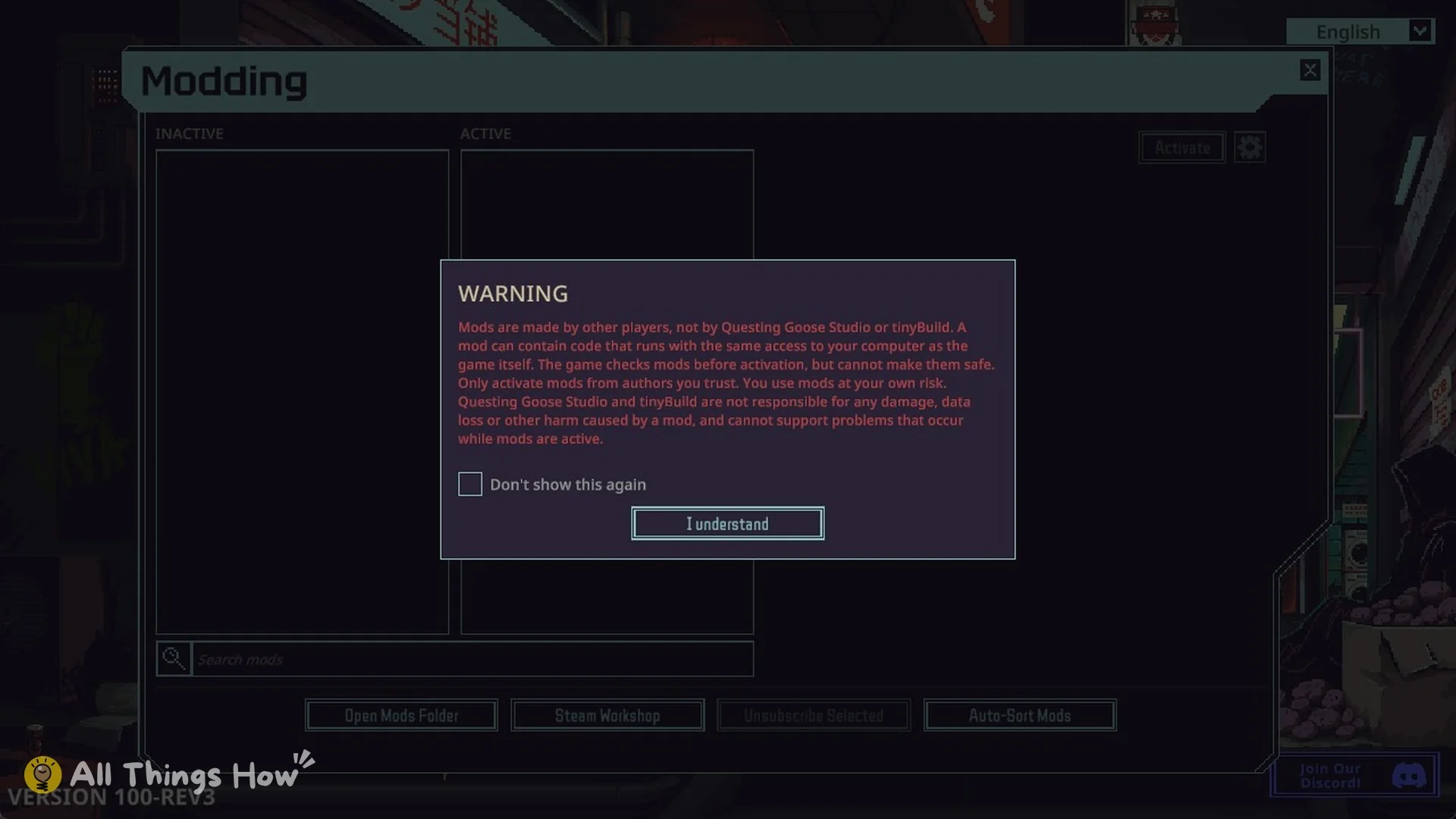
Yes. With MelonLoader 0.7.3 installed, Mods on the main menu still opened the game’s usual WARNING (“Mods are made by other players, not by Questing Goose Studio or tinyBuild…”) and then the Modding window with its INACTIVE and ACTIVE columns, Search mods, Open Mods Folder, Steam Workshop, Unsubscribe Selected and Auto-Sort Mods. No conflict message appeared.
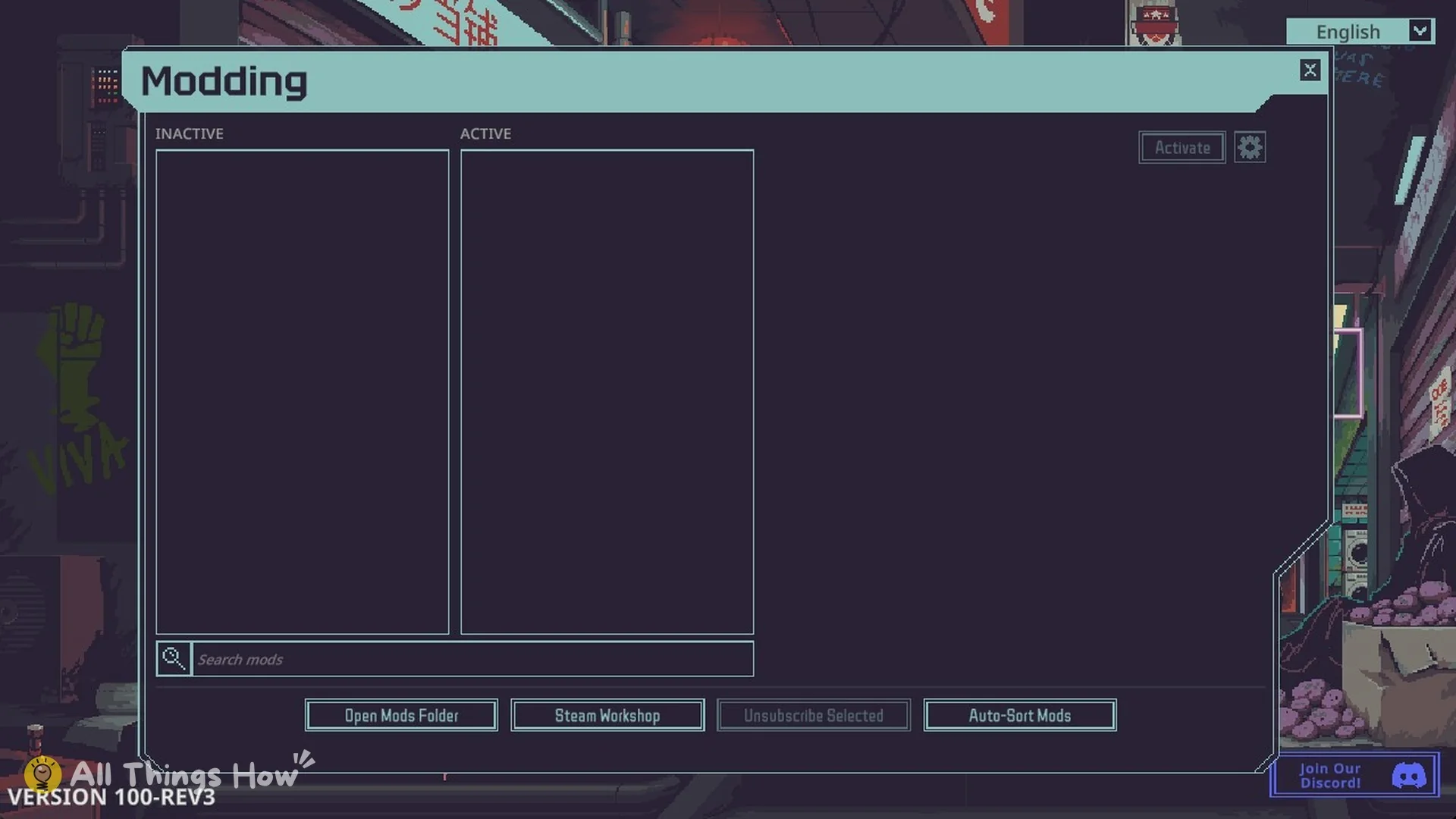
MelonLoader normally loads its own mods from a folder named Mods as well, and the game’s Modding window reads the game’s Mods folder. That shared name is why the Mods folder must survive any cleanup.
Downgrading to MelonLoader 0.6.6
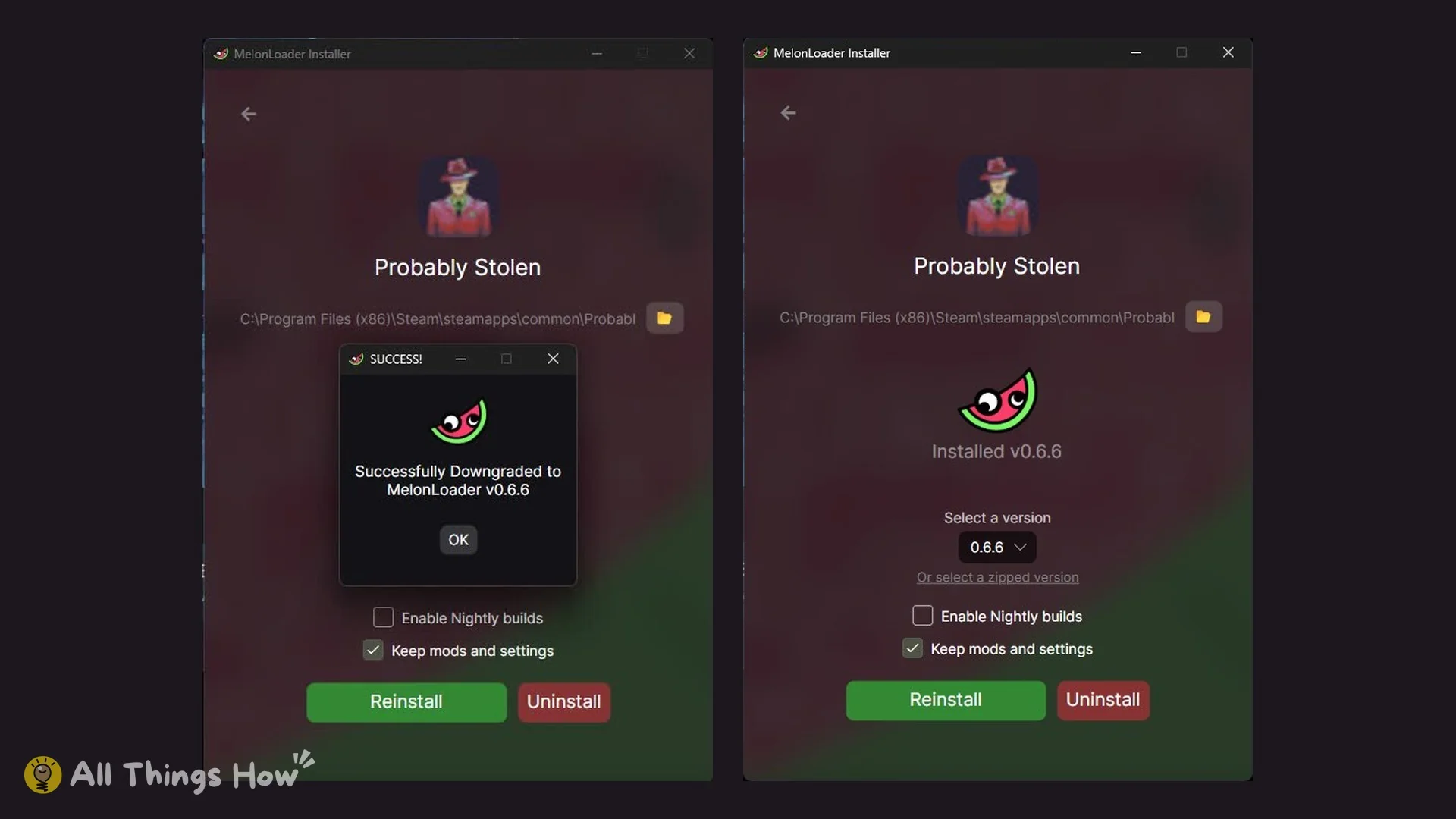
The installer’s version menu offers 0.7.3, 0.7.2, 0.7.1, 0.7.0, 0.6.6 and older releases. Select 0.6.6 and use Reinstall; the result is “Successfully Downgraded to MelonLoader v0.6.6”, and the page shows “Installed v0.6.6”. The downgrade does not fix the Harmony conflict. The log lists “MelonLoader v0.6.6 Open-Beta”, “Game Type: MonoBleedingEdge” and “Unity Version: 2021.3.45f2”, before reporting a System.MissingMethodException for Harmony’s patch method. Now the game exits before reaching the main menu. Harmony 2.4.2 is still the cause.
How to uninstall MelonLoader from Probably Stolen completely
The installer’s Uninstall button does most of the job, but not all of it. It removes version.dll and the MelonLoader folder and leaves three folders behind.
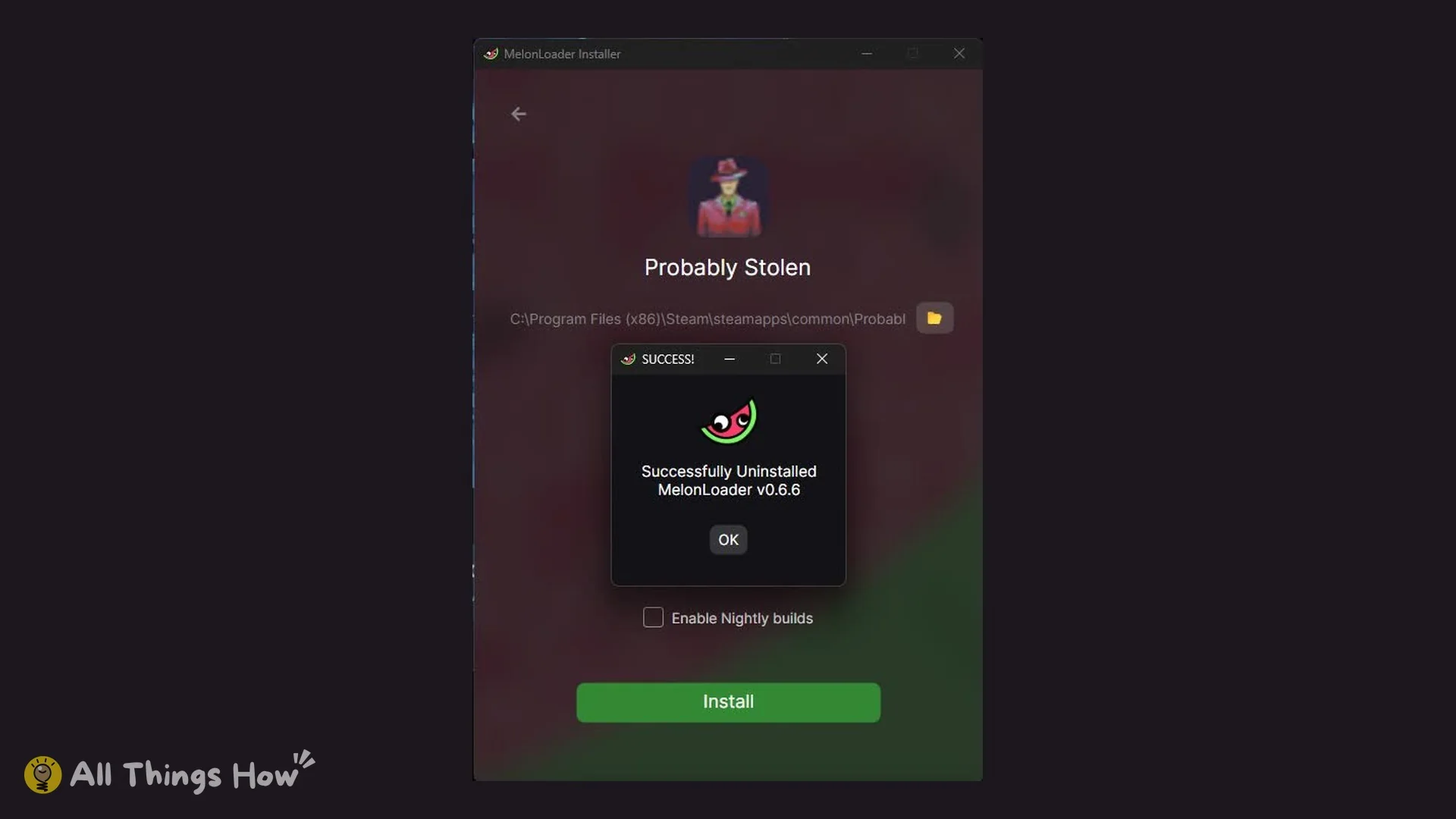
Plugins (empty), UserData (containing Loader.cfg), and UserLibs (empty).Do not delete the Mods folder. It belongs to the game, not to MelonLoader.
Use the official Mods menu instead
As of version 100-REV3 and MelonLoader 0.7.3, the working way to mod Probably Stolen is the game’s own Mods menu: subscribe through Steam Workshop or drop a mod into Open Mods Folder, restart, then Activate it in the Modding window. Every step is in how to install mods in Probably Stolen.
Tips
- Check the version on the main menu (bottom left) before trying MelonLoader again; these results are for VERSION 100-REV3.
- Watch the MelonLoader releases page for a version newer than 0.7.3.
- After any uninstall, delete Plugins, UserData and UserLibs by hand.
- Never delete the game’s own Mods folder while cleaning up.
Related guides: installing official mods, the Probably Stolen beginner guide and the complete Probably Stolen guide.