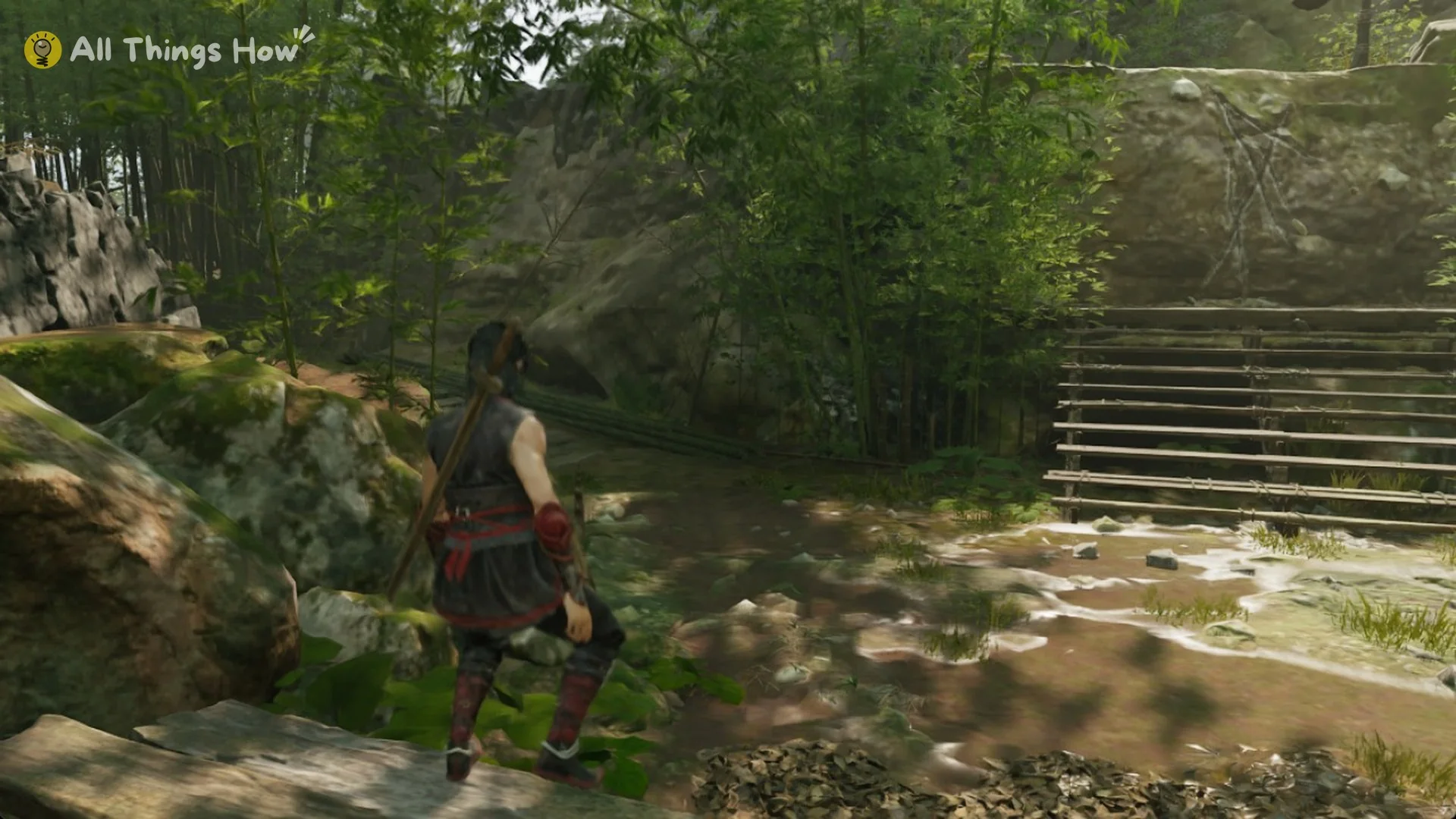
Phantom Blade Zero on PC spreads its options across six tabs. The upscaling and ray tracing choices come with conditions that are easy to miss. Some settings lock others, some only change from the title screen, and a few only take effect after a restart. Below is what each option does and a sensible place to start.
Quick answer: Apply the recommended preset, then use DLSS Balanced (or FSR/XeSS on AMD and Intel), keep Frame Generation and Ray Tracing off, leave Reflex automatic, and cap frames at your refresh rate.
| Setting | Options | Recommended |
|---|---|---|
| Window Mode | Display mode options are Fullscreen, Borderless Fullscreen, and Windowed. | Fullscreen or Windowed to pick a resolution |
| Frame Rate Limit | Off / On (30–360) | On, at refresh rate or 60 |
| V-Sync | Off / On | Off with DLSS Frame Generation |
| Motion Blur | Off to higher levels | Lower |
| Film Grain Intensity | 0–10 | Lower |
| Camera Shake | 0–100 | To taste |
| Super Resolution Method | DLSS / FSR / XeSS / TSR | DLSS on NVIDIA; FSR or XeSS otherwise |
| DLSS Super Resolution Mode | Ultra Performance to DLAA | Balanced (Quality at 1080p with headroom) |
| Frame Generation | Off / DLSS / FSR / XeSS | Off unless base frame rate is steady |
| NVIDIA Reflex | Off / Enable automatically | Enable automatically |
| Ray Tracing Quality | Off / RT levels / Path Tracing | Off |
| Quality Preset | Low to Ultra / Custom | Medium or High |
| High-Quality Hair | Off / On | Off |
First launch: shader compile before the Settings menu
You can’t reach the settings right away. On first launch, Phantom Blade Zero compiles shaders over the title art, and the job can run for around half an hour with the CPU fully loaded. It only happens once, so let it finish.
Help collects the tutorials you’ve already seen during play. There’s no separate accessibility tab.
Display tab: window mode, frame cap and image effects
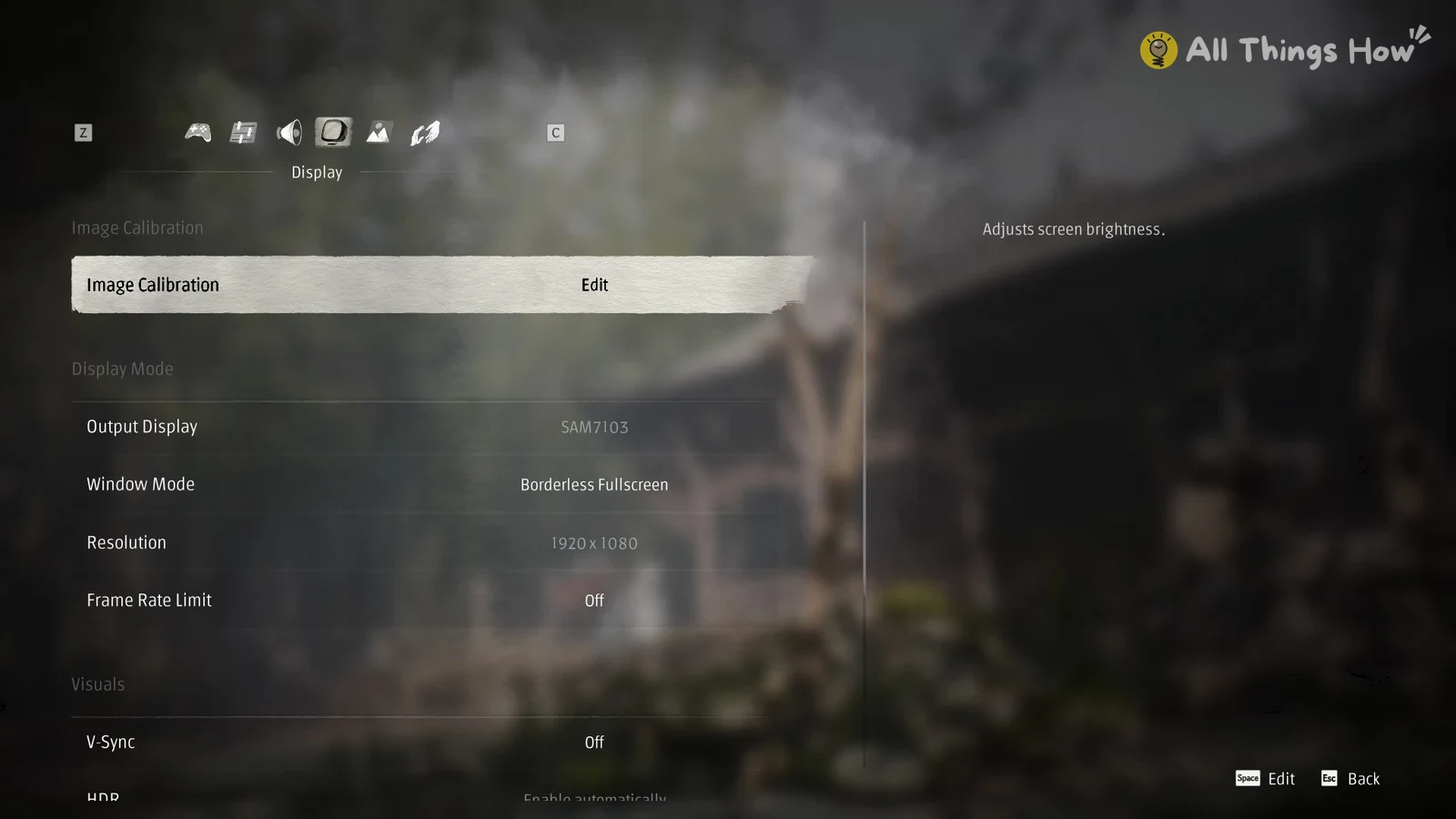
Window Mode defaults to Borderless Fullscreen, and that choice matters more than it looks. In Borderless, the resolution follows your desktop and the Resolution row is greyed out. If you want to run below desktop resolution, switch to Fullscreen or Windowed. The Resolution list only offers modes your monitor supports. On a 1080p screen, that means 1280×720, 1360×768, 1366×768 and 1920×1080.
You’ll know a window mode change has applied when the game asks “Keep these settings? (Changes will be reverted in 10 seconds.)” Confirm before the timer runs out, or the game reverts the change.
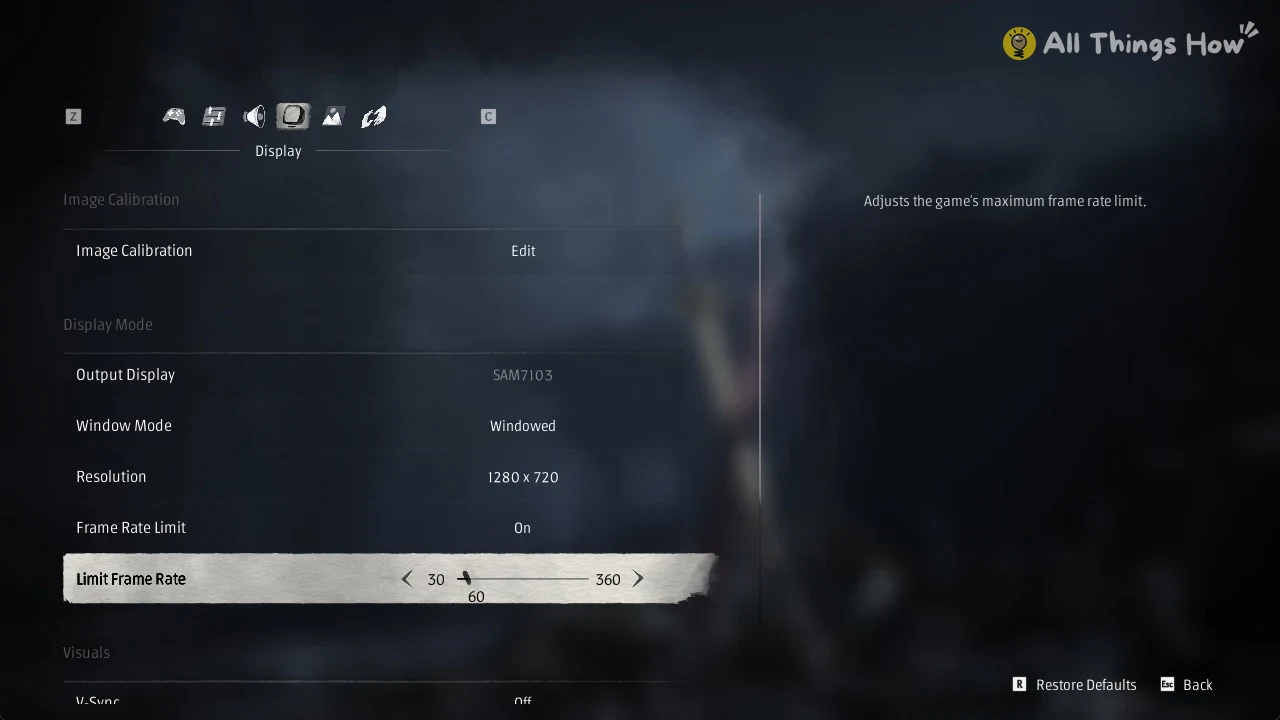
Frame Rate Limit is off by default, which leaves the frame rate uncapped. Turn it on to get a Limit Frame Rate slider from 30 to 360. Setting it to your monitor’s refresh rate, or to 60, gives steadier frame pacing. Output Display picks which screen the game uses, and Image Calibration reopens the brightness adjustment.
| Visuals option | Default | What it does |
|---|---|---|
| V-Sync | Off | Caps final frame rate, including generated frames, at refresh rate |
| HDR | Enable automatically | Needs an HDR display; has its own calibration |
| Motion Blur | Medium | Blur during movement |
| Sharpness | 5 (0–10) | Image sharpening |
| Camera Shake | 80 (0–100) | Strength of camera shake |
| Film Grain Intensity | 2 (0–10) | Strength of the grain effect |
HDR Calibration sets peak, mid and UI brightness. V-Sync isn’t available with FSR or XeSS Frame Generation, or with DLSS Frame Generation set to Auto/Dynamic. For a cleaner picture, turn down Motion Blur and Film Grain.
Graphics tab: DLSS, Frame Generation, Reflex and presets
Start with Recommended Settings and press “Apply Recommended Graphics Preset”. The game picks a Quality Preset that fits your hardware, Medium on the PC we played on. Tune from there.
Super Resolution (DLSS, FSR, XeSS, TSR)
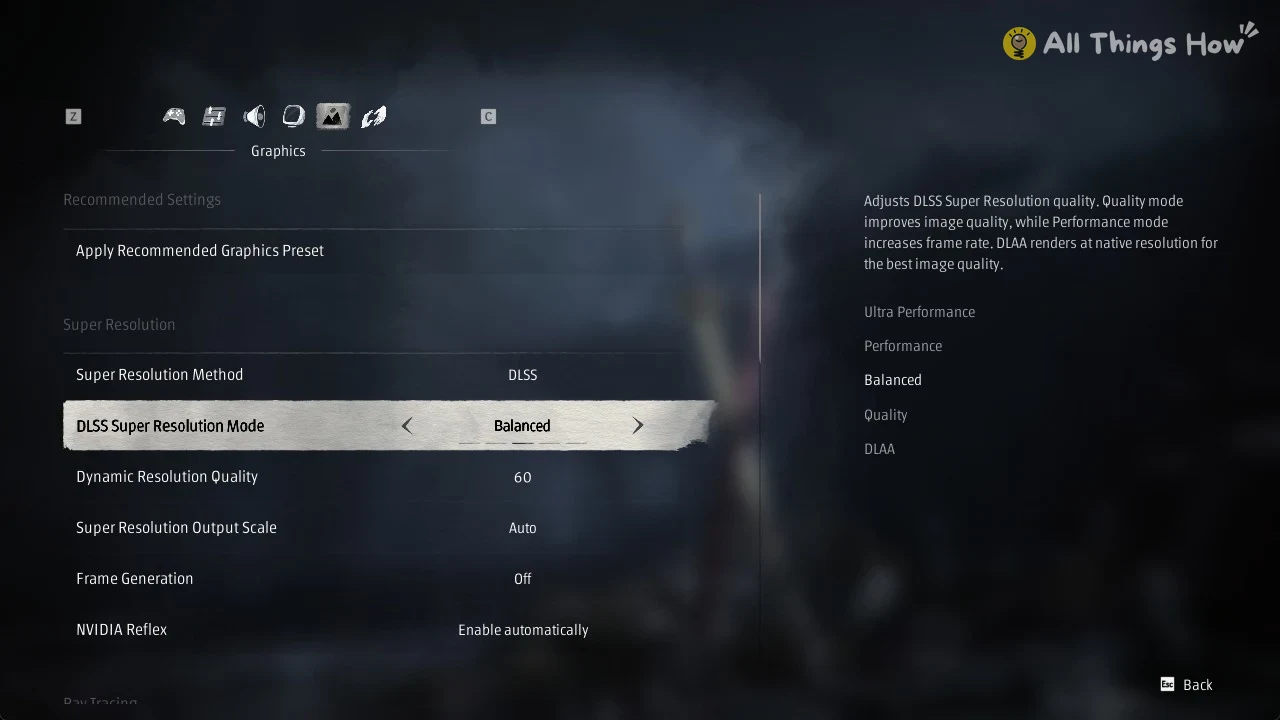
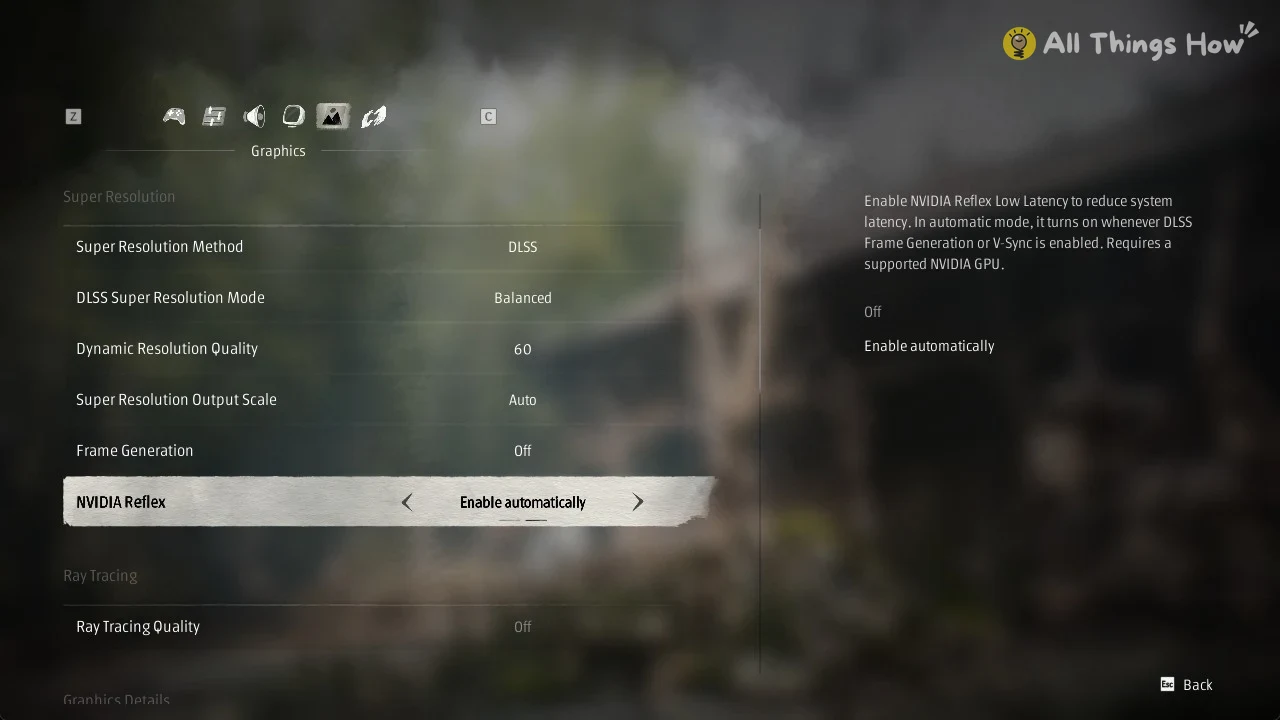
Super Resolution Method offers DLSS, FSR, XeSS and TSR. DLSS is the default on NVIDIA GPUs. DLSS Super Resolution Mode defaults to Balanced, and the modes work like this:
- Ultra Performance and Performance raise the frame rate.
- Balanced sits between frame rate and image quality.
- Quality improves image quality.
- DLAA uses native-resolution rendering to deliver the highest image quality.
Dynamic Resolution Quality starts at 60. When the base frame rate falls below the target, it reduces upscaling quality; it is incompatible with Ray Reconstruction. Super Resolution Output Scale starts at Auto. FSR and XeSS use a percentage of internal resolution instead, so on AMD and Intel GPUs, pick a percentage that favors quality. The Sharpness slider applies only to FSR.
Frame Generation and NVIDIA Reflex
Frame Generation is off by default and supports DLSS, FSR and XeSS. Keep it off unless your base frame rate is already steady. Before it will work, a few conditions have to be met:
- Hardware-accelerated GPU scheduling is turned on in Windows, followed by a restart.
- For DLSS Frame Generation, V-Sync is off.
- DLSS Frame Generation requires a compatible GeForce RTX card and a recent driver.
Turning on Frame Generation forces low latency on. NVIDIA Reflex has two choices, Off and Enable automatically. The game describes the automatic mode this way: “In automatic mode, it turns on whenever DLSS Frame Generation or V-Sync is enabled.” Leave it on automatic.
Ray Tracing
Ray Tracing Quality defaults to Off and can show up greyed out. You can only change ray tracing settings from the title screen, and they take effect after the game restarts.
For the GPU and CPU the game asks for, see the Phantom Blade Zero PC system requirements.
Graphics Details and Quality Preset
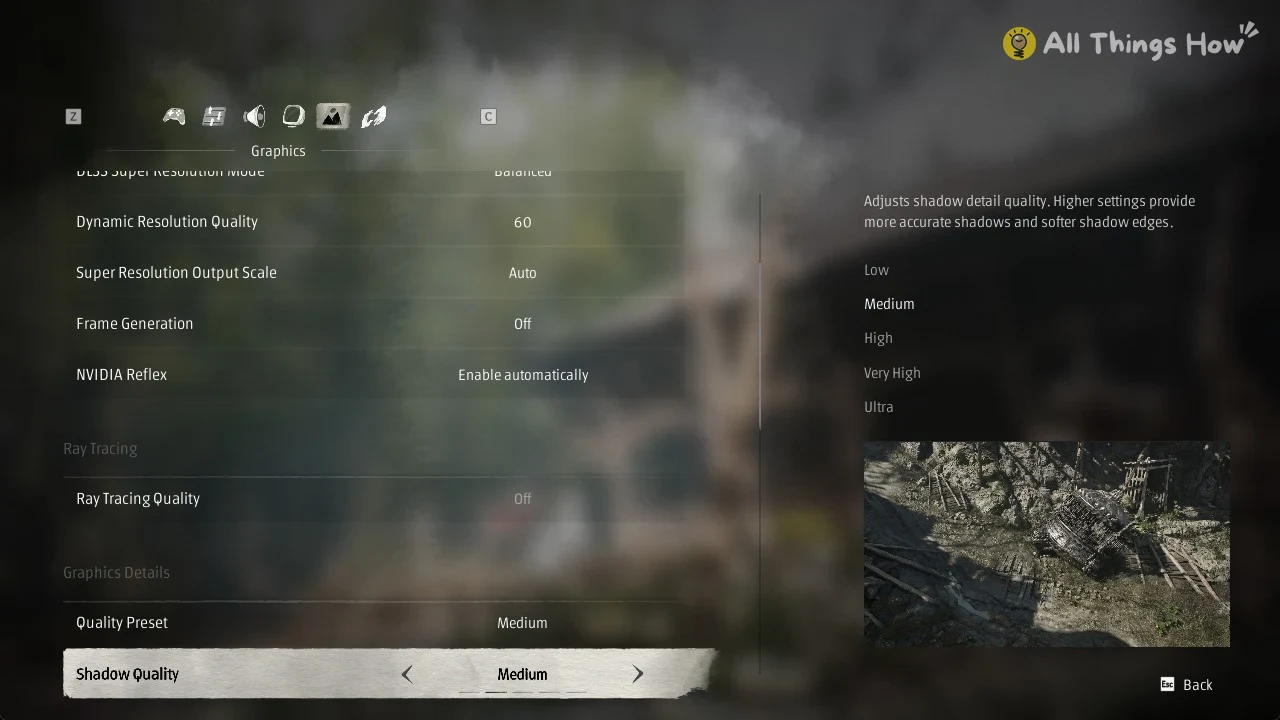
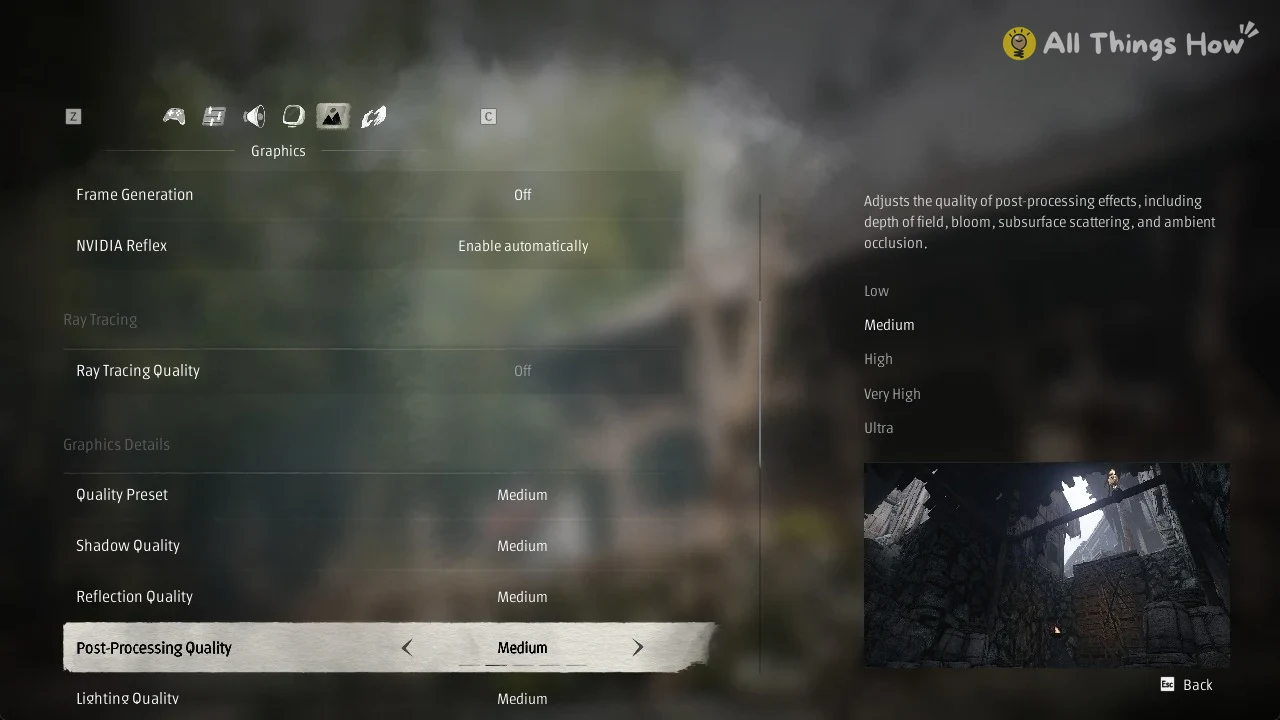
Quality Preset runs from Low through Medium, High, Very High and Ultra, with Custom applied once you edit a row. Medium or High is a good target. Each detail row offers Low to Ultra with a preview picture. Higher presets can cost a lot of performance, and the game shows an estimated VRAM usage as you change them.
| Detail setting | Controls | Guidance |
|---|---|---|
| Shadow Quality | Shadow accuracy and edge softness | Heavy |
| Reflection Quality | Reflections | Heavy |
| View Distance | Detail and density of distant objects | Heavy |
| Material Quality | Surface materials | Cheaper way to keep quality |
| Character Texture Quality | Character textures | Cheaper way to keep quality |
| Post-Processing Quality | Depth of field, bloom, SSS, AO | Adjust to taste |
| Effects Quality | Fog, clouds, particles | Adjust to taste |
| High-Quality Hair | Hair in cinematics only | Off |
Other rows include Lighting Quality, Ambient Occlusion Quality, Depth of Field Quality, Motion Blur Quality (Low on the Medium preset), Anti-Aliasing, Character Model Quality and Environment Texture Quality. High-Quality Hair is off by default. Because it only affects cinematics, leaving it off saves performance without changing how gameplay looks.
Audio tab: volume sliders and weapon clash sound
Audio Output Device picks your playback device, such as Speakers. Every volume slider runs from 0 to 100 and starts at 100.
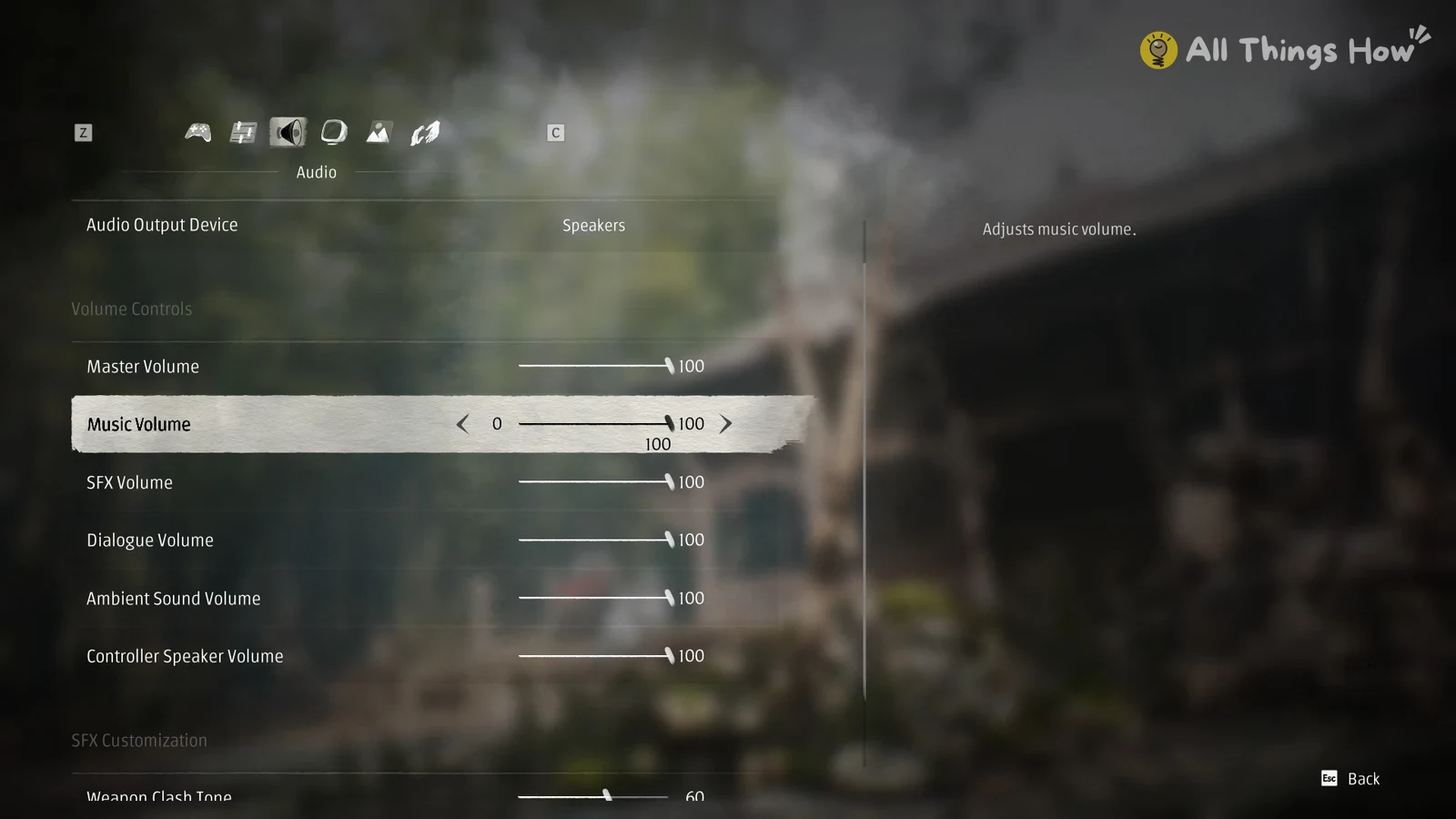
- Master, Music, SFX, Dialogue and Ambient Sound volume
- Controller Speaker volume
- SFX Customization: Weapon Clash Tone (default 60)
- SFX Customization: Weapon Clash Intensity (default 0)
Controls tab: camera sensitivity and keyboard layouts
- Invert Camera X-Axis and Y-Axis, both off by default
- Horizontal and Vertical Camera Sensitivity, 1–100, default 50
- Controller Vibration (Normal) and Movement Vibration (On)
- Control Scheme: Default Preset, plus editable Custom 1 and Custom 2 keyboard and mouse layouts
The sensitivity sliders cover both inputs. As the game puts it, the setting “Applies to both mouse and controller”.
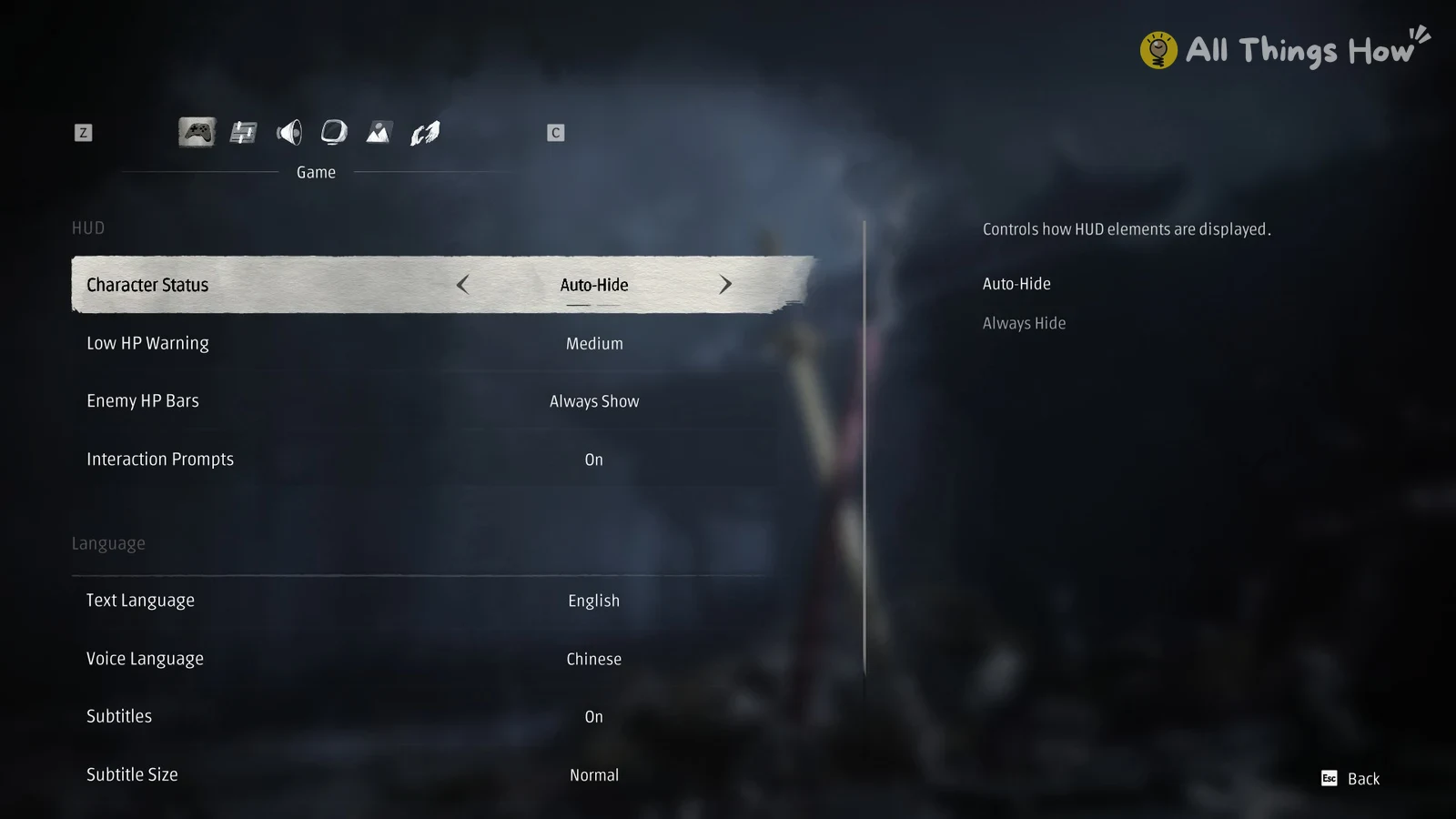
Game tab: HUD, voice language and Reduced Violence
- HUD Character Status: Auto-Hide or Always Hide
- Low HP Warning (Medium), Enemy HP Bars (Always Show), Interaction Prompts (On)
- Text Language and Voice Language, with Chinese or English voices and Chinese as the default
- Subtitles (On) and Subtitle Size (Normal)
- Reduced Violence (Off), changeable only from the title screen
On the title screen the Game tab has no difficulty row; you pick it when you start a New Game. During play, the Game tab adds a Difficulty section with a Select Difficulty row, so you can switch modes later; see Phantom Blade Zero difficulty modes explained. Every key binding is listed in our Phantom Blade Zero controls guide.