
The 0x80073D02 error appears when the Microsoft Store cannot finish installing or updating an app because the app you are trying to change is still running. It often shows up while updating Xbox Game Pass titles or other games through the Store, and it usually comes with a message like “Select Retry to close and update the app. The app can’t update when it’s open.” or “Unable to install because the following apps need to be closed.”
The same code shows up alongside close relatives such as 0x8D050002, 0x80073d0a, 0x87E10BD0, 0x80073D12, and 0x80004003. The fixes below apply to all of them because the root causes are the same: an open app, a damaged Store cache, or a broken Store installation.
Close the open app and retry
This error is almost always caused by the target app being open in the background. The Store cannot replace files that are currently in use, so it stops and reports 0x80073D02.
Ctrl + Shift + Esc, find any lingering process for that app, and select End task to force it shut.Check for Windows updates
A pending system update can leave the Store in a state where installs fail. Installing the latest update often clears the problem on its own.
Windows + I to open Settings, then open Windows Update from the left column.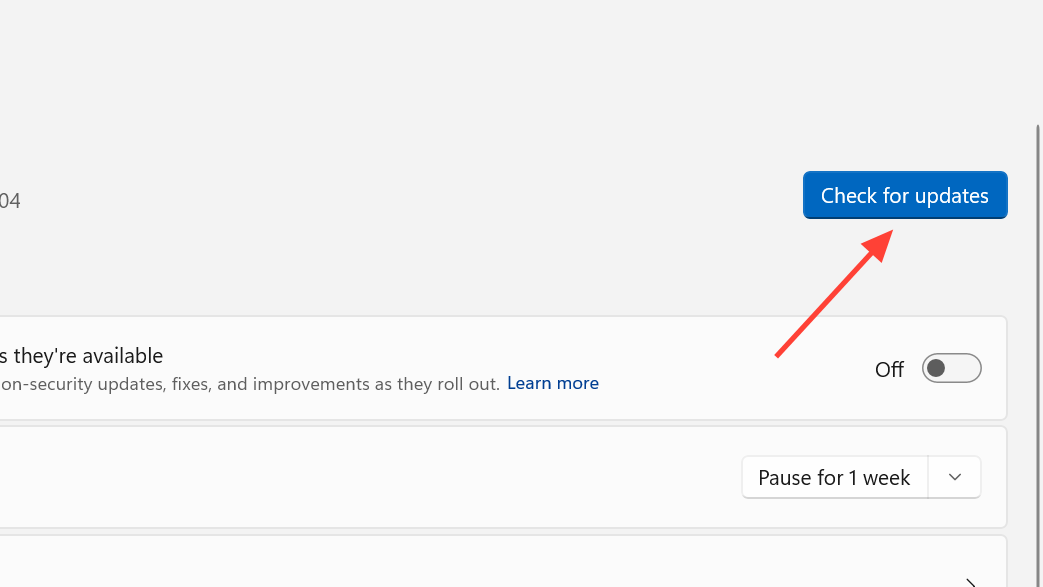
Reset the Microsoft Store cache with wsreset
A corrupted Store cache stops downloads from completing. Clearing it is fast and does not remove your installed apps.
wsreset.exe and press Enter. A blank window opens while the cache clears, then the Store launches on its own.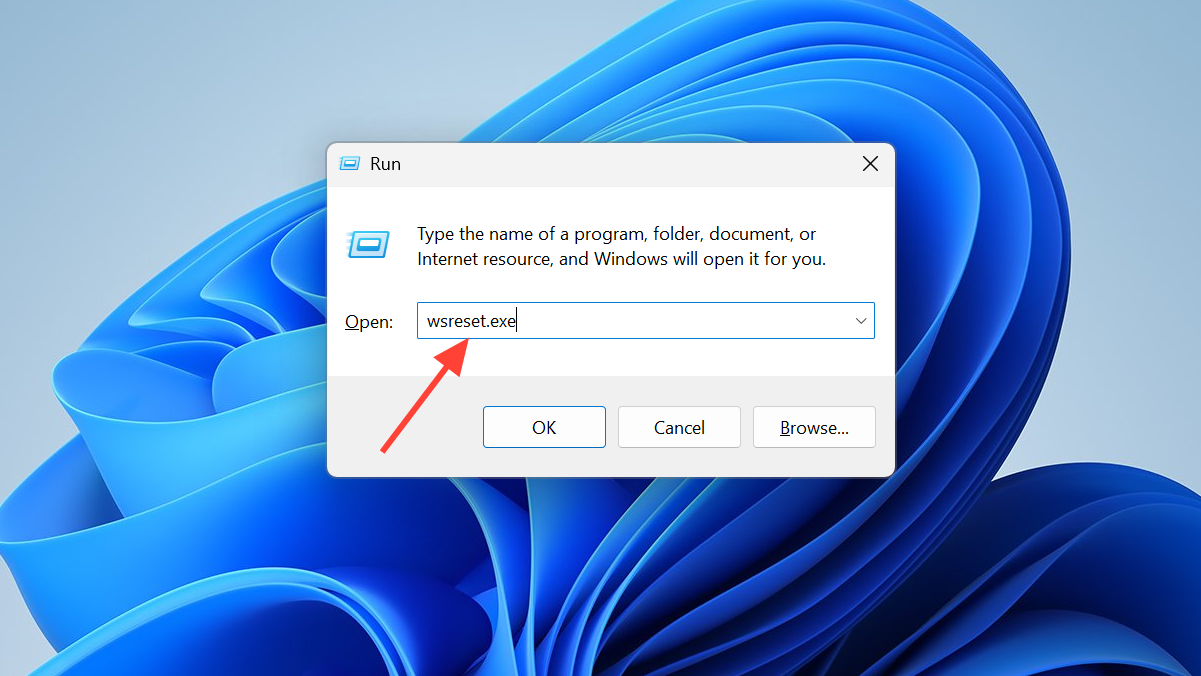
Run the Windows Store Apps troubleshooter
The built-in troubleshooter checks for common problems that block Store apps and applies fixes automatically. The path differs slightly between Windows versions.
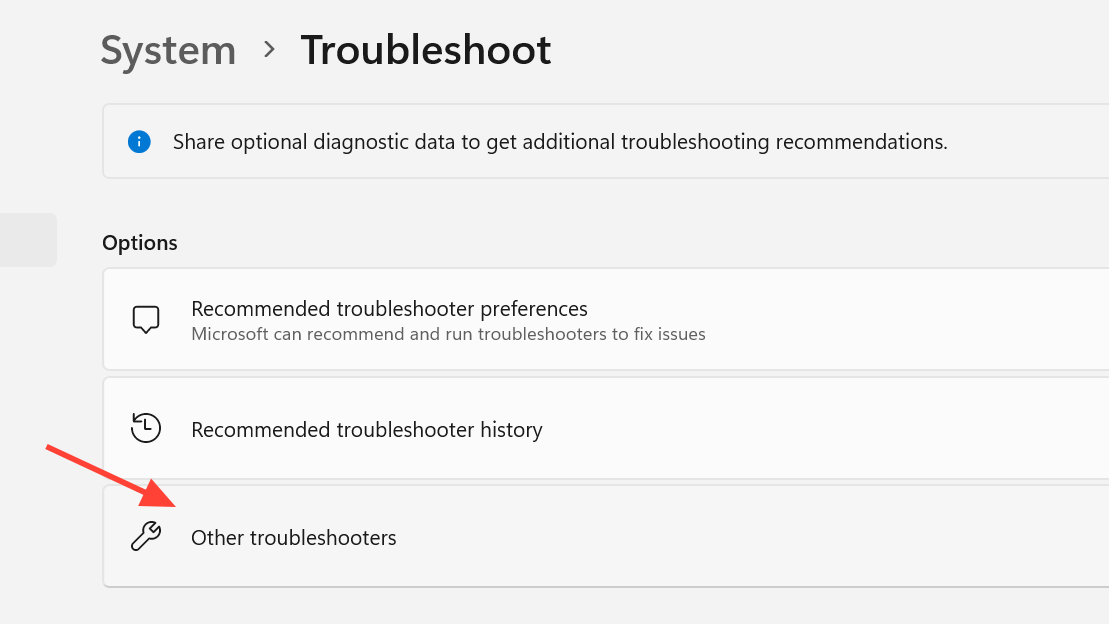
On Windows 11, open System > Troubleshoot > Other troubleshooters and click Run next to Windows Store Apps. Microsoft removed the dedicated troubleshooter from Windows 11 in 2024, so if you do not see it, type “Windows Store” in the Settings search bar and choose “Find and fix problems with Microsoft Store Apps,” then click Next.
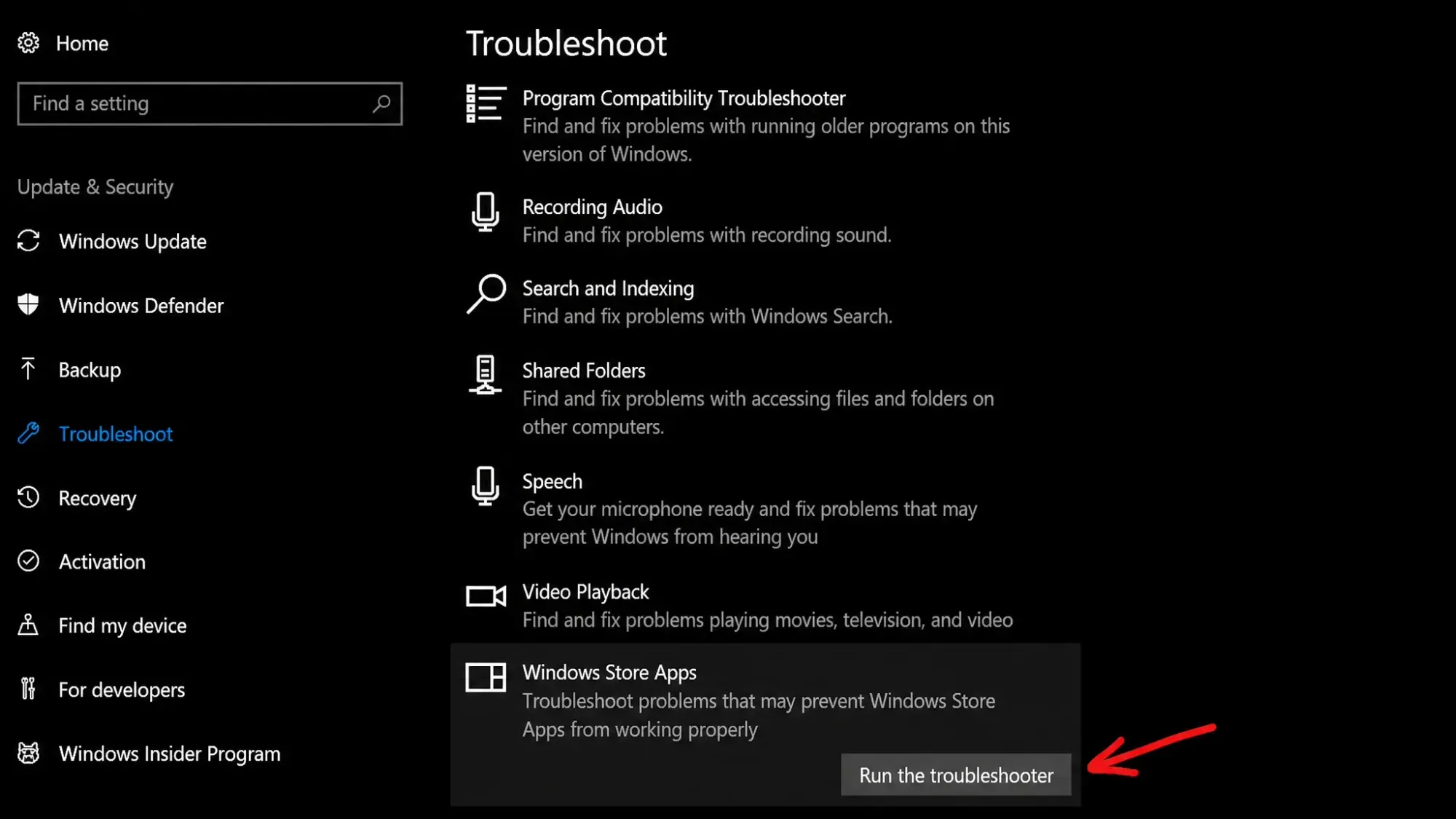
On Windows 10, go to Settings > Update & Security > Troubleshoot > Additional troubleshooters, find Windows Store Apps under the Other section, and click Run. Follow the on-screen prompts and apply any recommended fixes.
Repair or reset the Microsoft Store
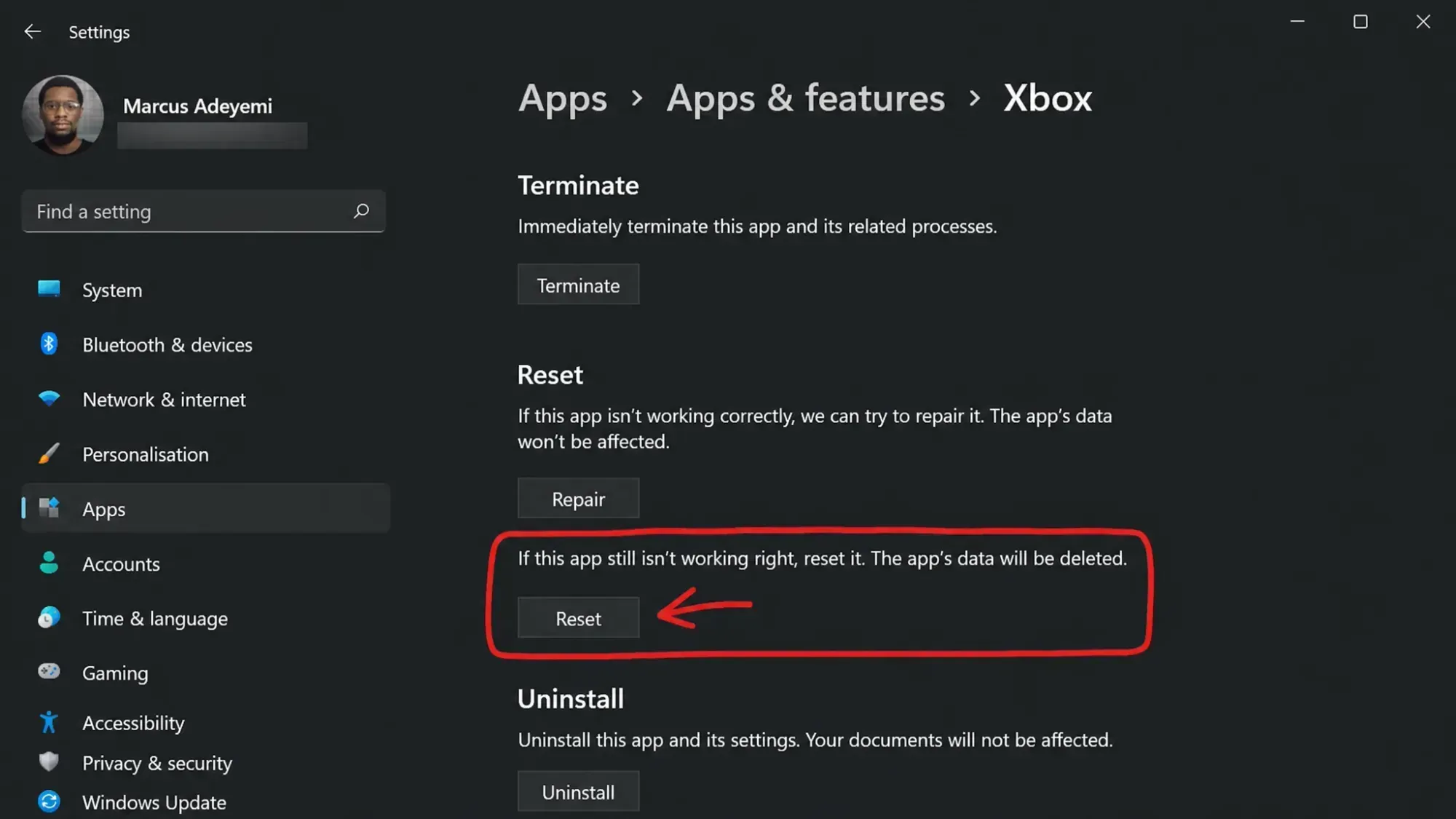
If the Store itself is damaged, repairing it keeps your data while reset clears its data and signs you out. Start with Repair, since it is non-destructive.
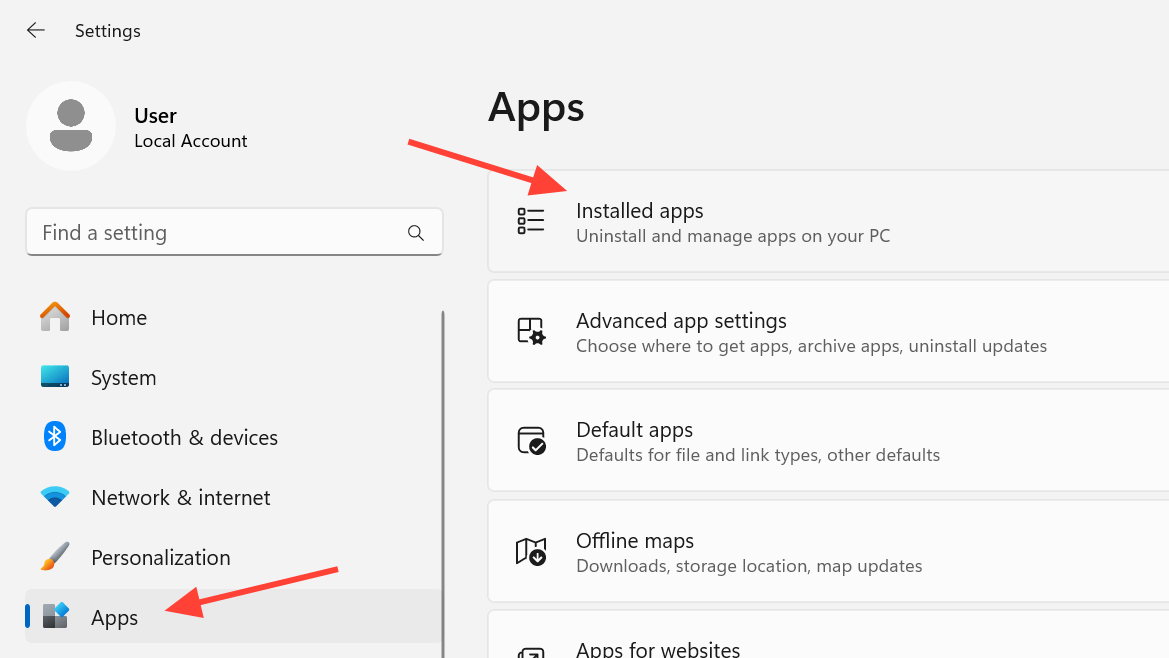
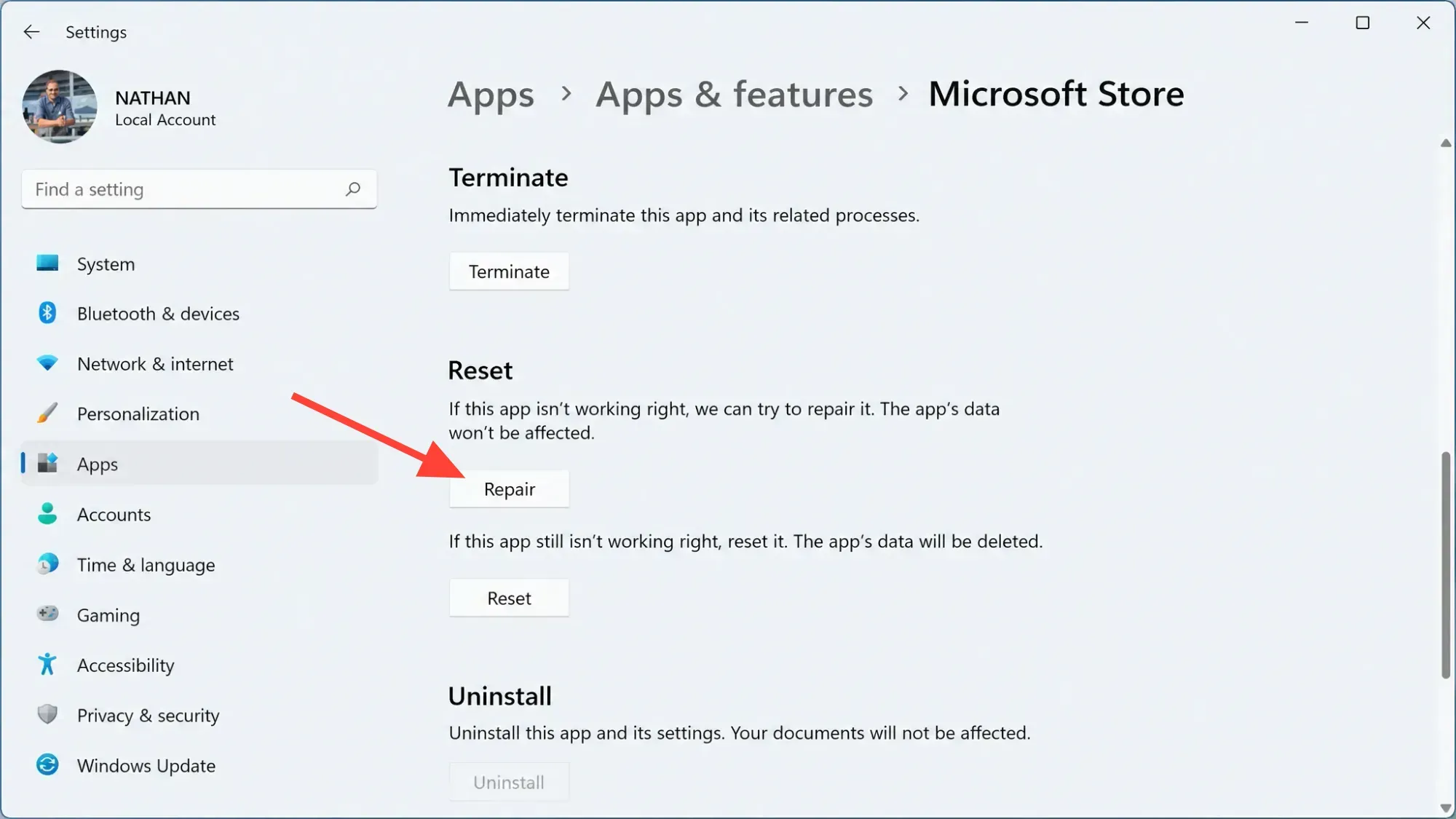
You can apply the same Repair and Reset steps to the specific app that throws the error, including the Xbox app, by opening its Advanced options the same way.
Re-register the Microsoft Store in PowerShell
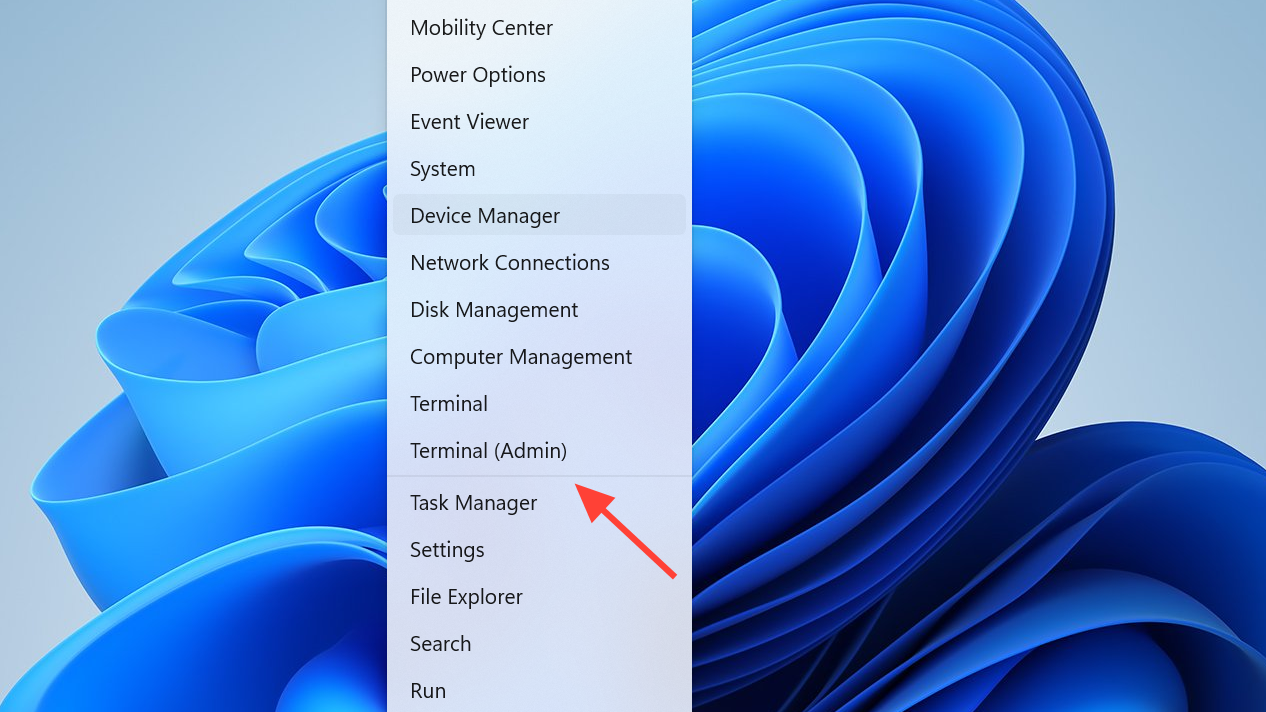
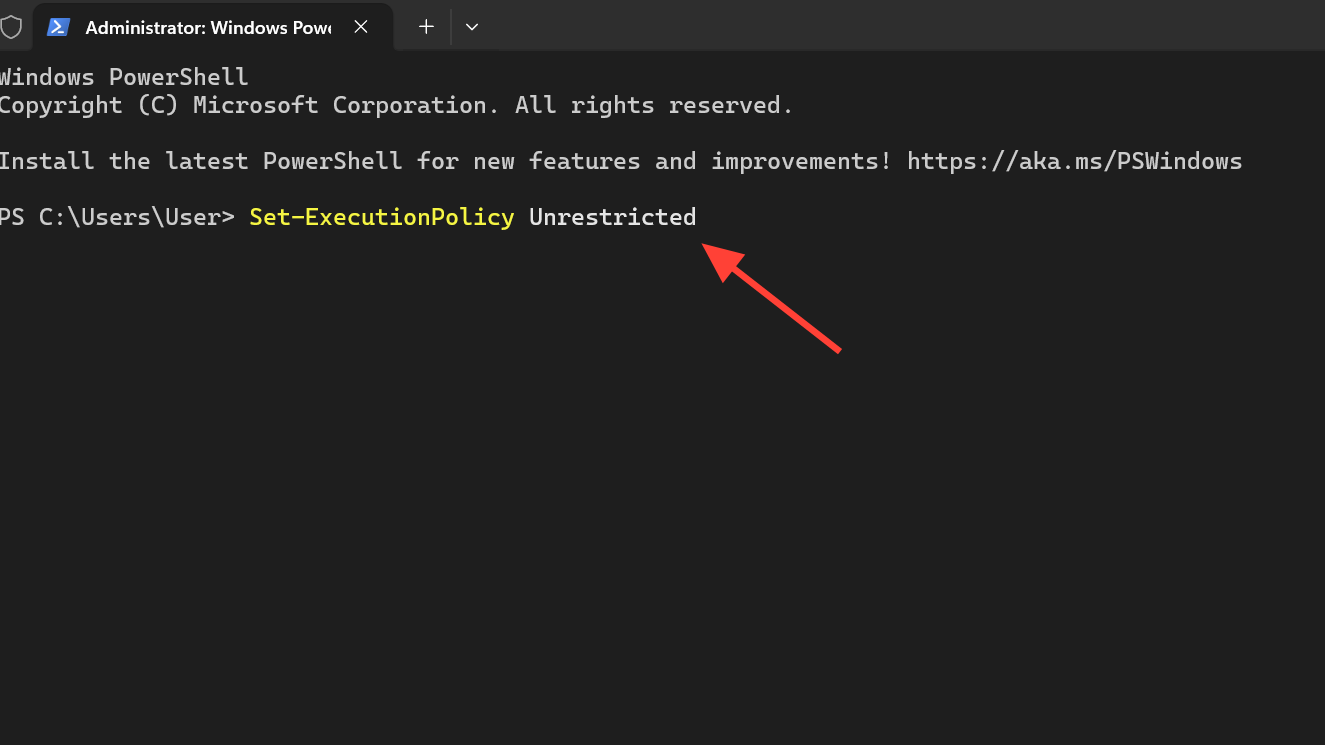
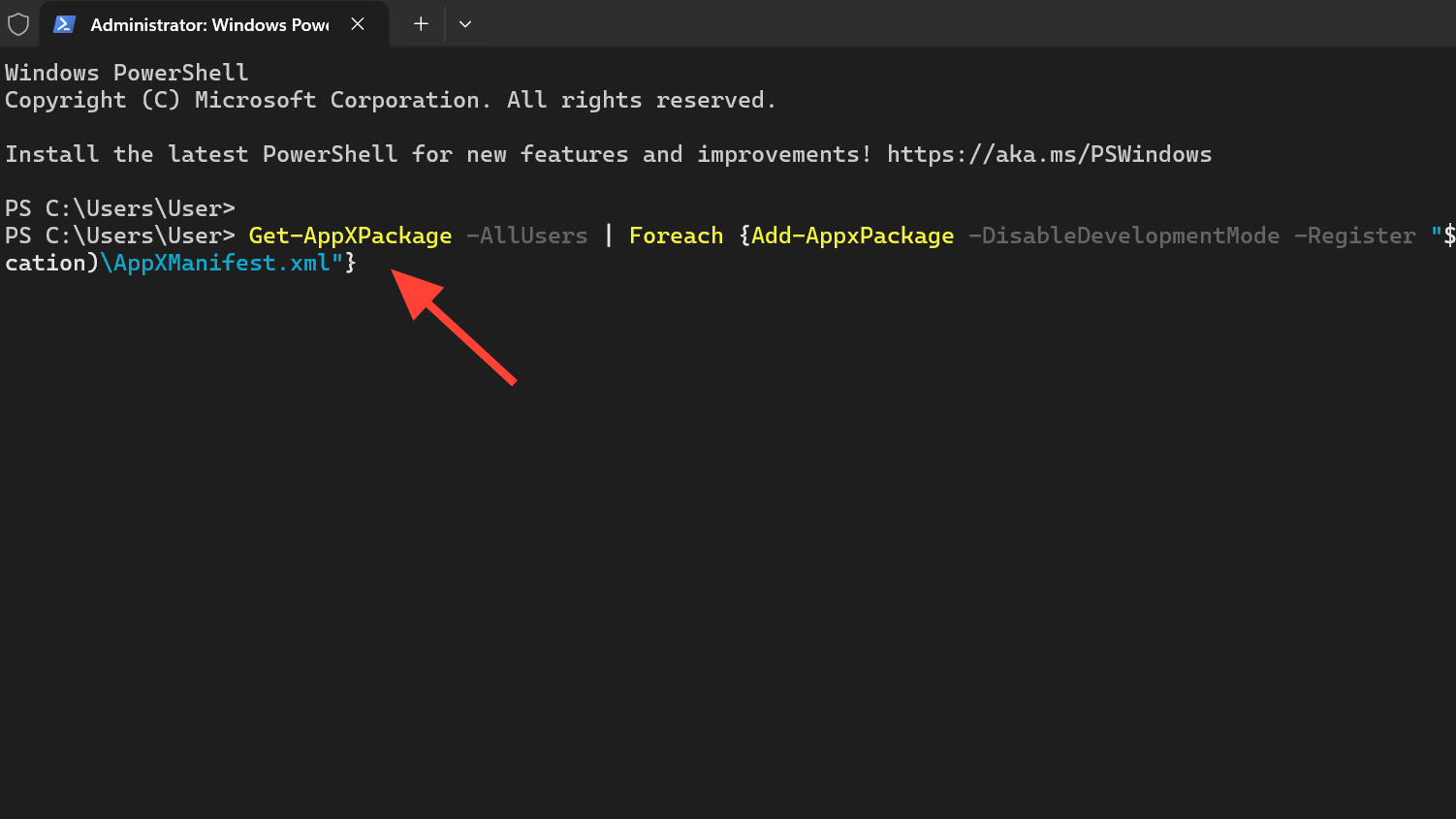
Re-registering rebuilds the Store package and is one of the most reliable fixes for this error. Run these commands from an elevated terminal.
Set-ExecutionPolicy Unrestricted
Get-AppXPackage -AllUsers | Foreach {Add-AppxPackage -DisableDevelopmentMode -Register "$($_.InstallLocation)AppXManifest.xml"}
When it completes, reopen the Store and retry the install or update.
Turn automatic app updates back on
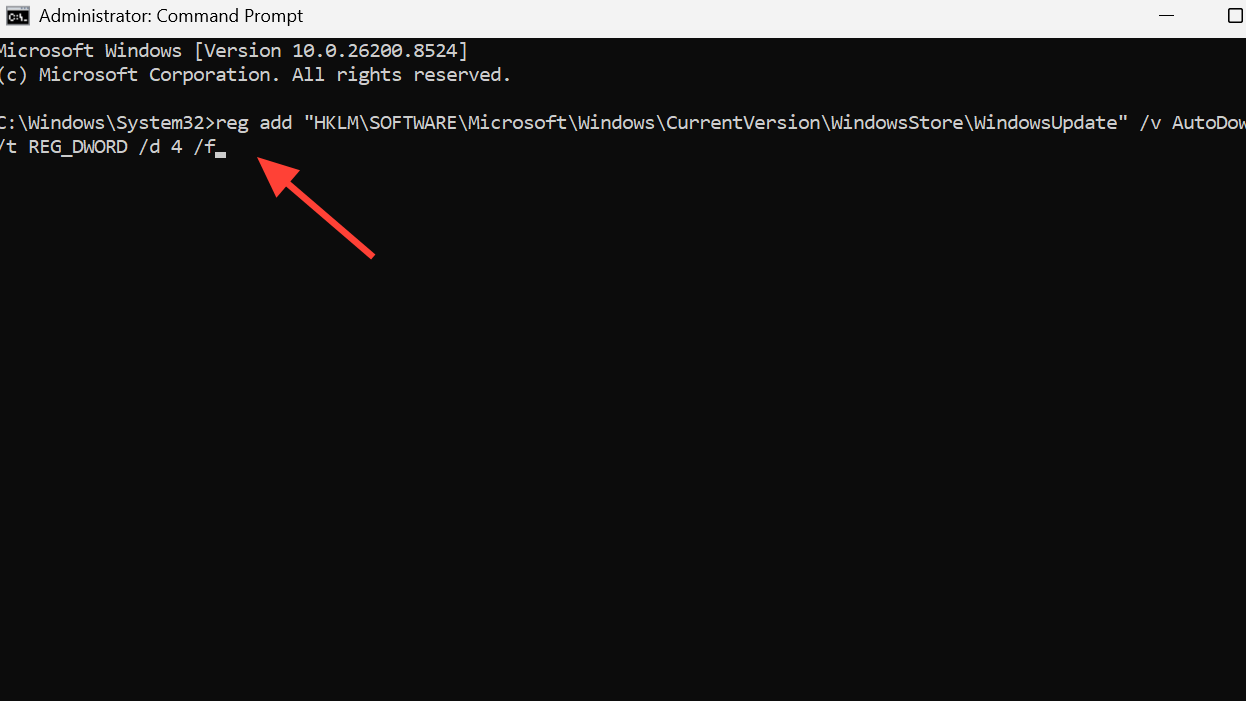
This error can occur when automatic app updates were switched off, sometimes from choices made during an earlier Windows setup. Re-enabling auto-download in the registry resolves that case.
Open Command Prompt and run the command below, then restart and test the Store.
reg add "HKLMSOFTWAREMicrosoftWindowsCurrentVersionWindowsStoreWindowsUpdate" /v AutoDownload /t REG_DWORD /d 4 /f
Reinstall the Store and repair Windows
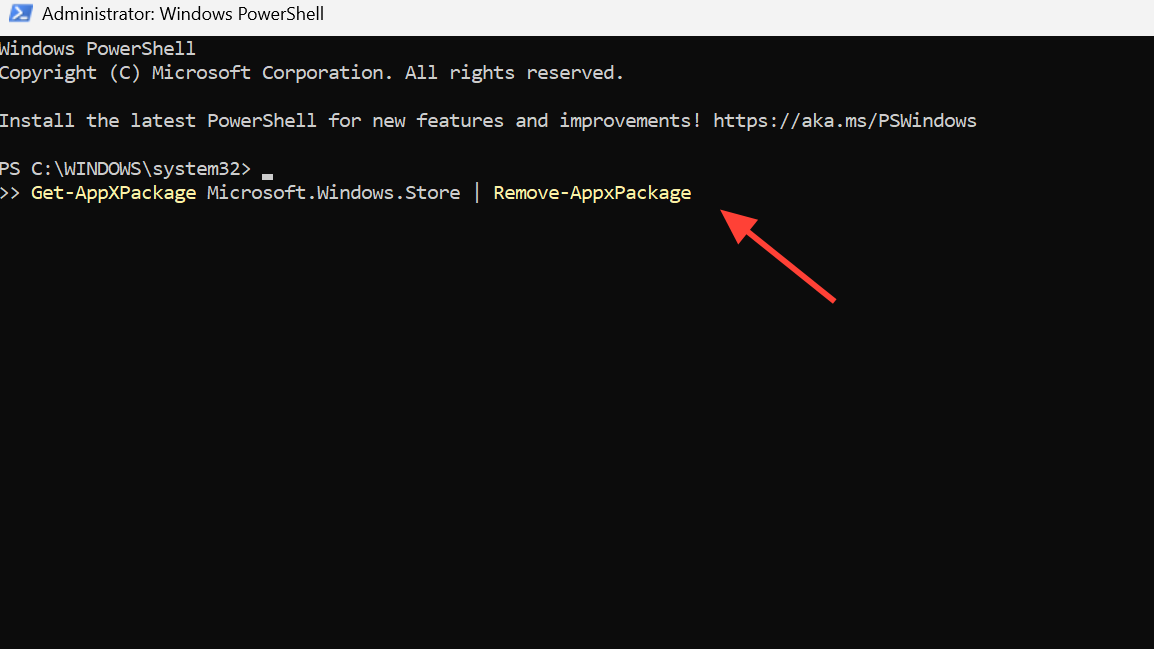
When nothing else clears the error, remove and reinstall the Store package, or repair the underlying system files.
Get-AppXPackage Microsoft.Windows.Store | Remove-AppxPackage
sfc /scannow in an elevated prompt to scan and repair Windows. As a last resort, a system restore to a point when updates worked, or a clean Windows reinstall, will clear the error.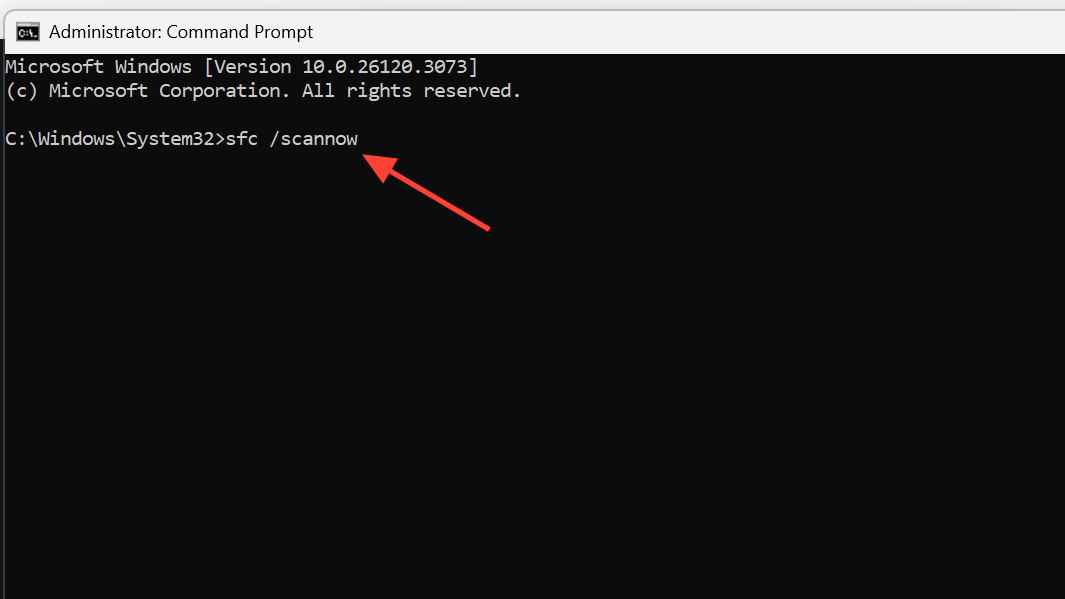
You know the fix worked when the Store completes the download, and the Get or Update button changes to Open, with no 0x80073D02 message. If it keeps failing, the most common reason is that the target app is still running in the background, so confirm it is fully closed before each retry. When every step fails, reinstalling the affected app or contacting Microsoft Support is the final option.



