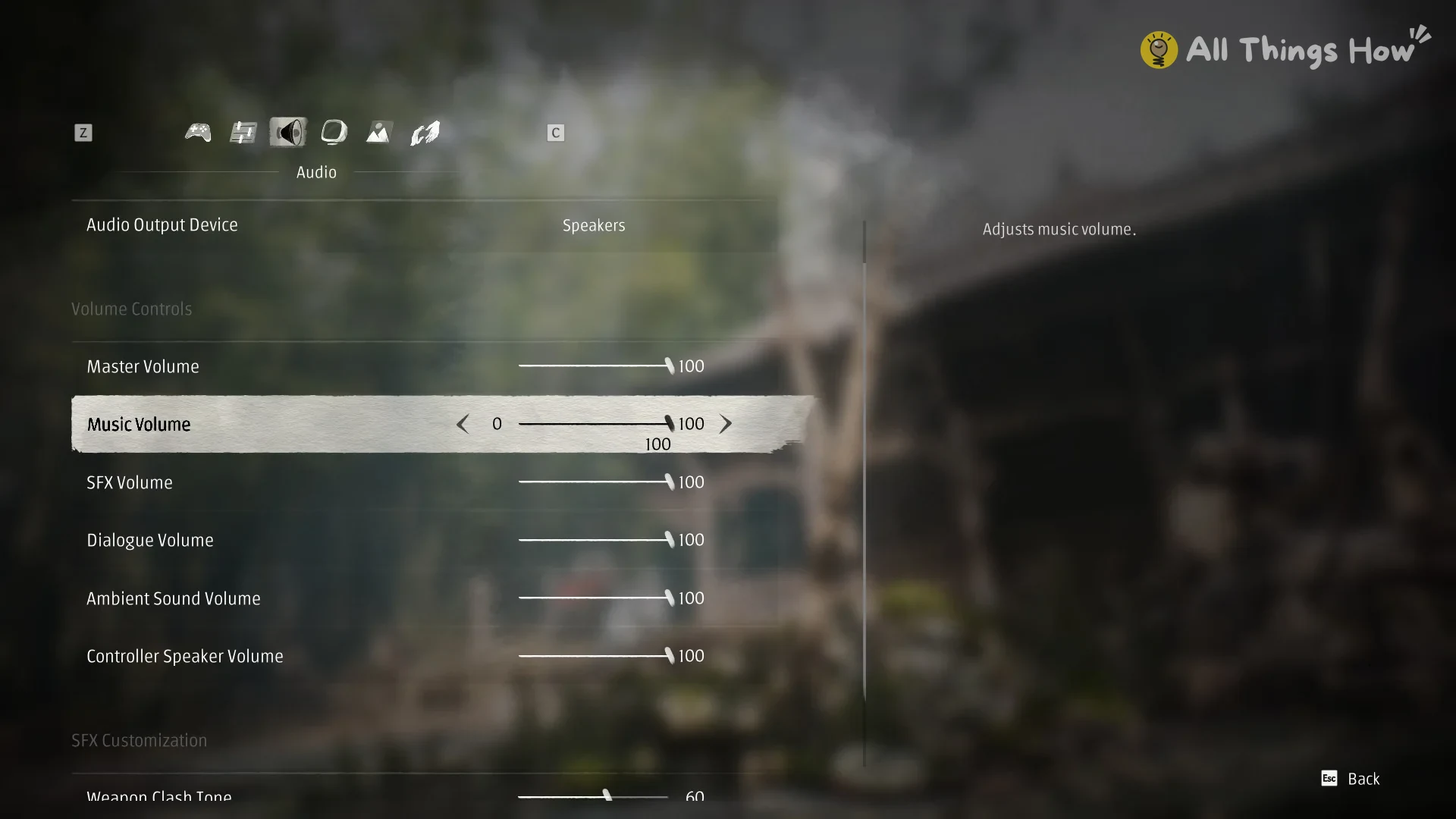
Quick answer: Open Settings, go to the Audio tab and scroll to SFX Customization. Weapon Clash Tone changes the character of the clash sound and Weapon Clash Intensity changes how loud it is.
Where the setting is
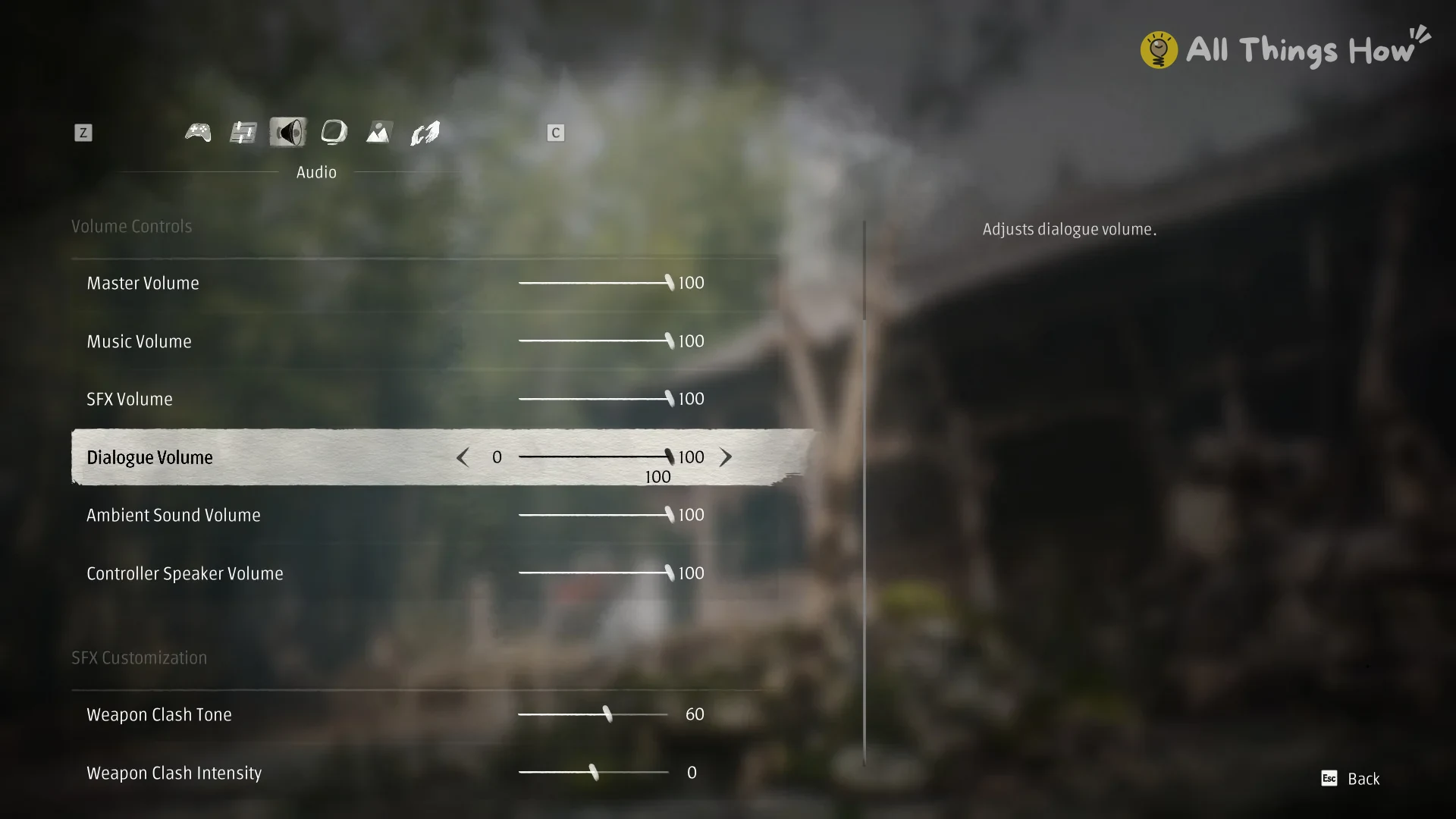
The Settings menu contains six tabs: Game, Controls, Audio, Display, Graphics and Help. In Audio, the clash sliders sit beneath the volume controls.
Weapon Clash Tone
Weapon Clash Tone starts at 60. It changes the character of the clash sound, not its volume. The game describes it this way:
Adjust the tone of weapon clash sounds. Toward “Deep,” clashes sound fuller and more powerful. Toward “Bright,” they sound crisper and sharper.
If hits sound thin and you want them heavier and fuller, move the slider toward Deep. If you want them crisper and sharper, move it toward Bright.
Weapon Clash Intensity
Weapon Clash Intensity starts at 0. The game describes it as follows:
Adjusts the loudness of weapon clash sound effects.
Raise it to make clashes louder. The best value for both sliders is a matter of taste. To check a change, move one slider, fight an enemy and listen to how the clashes sound, then adjust again if needed.