

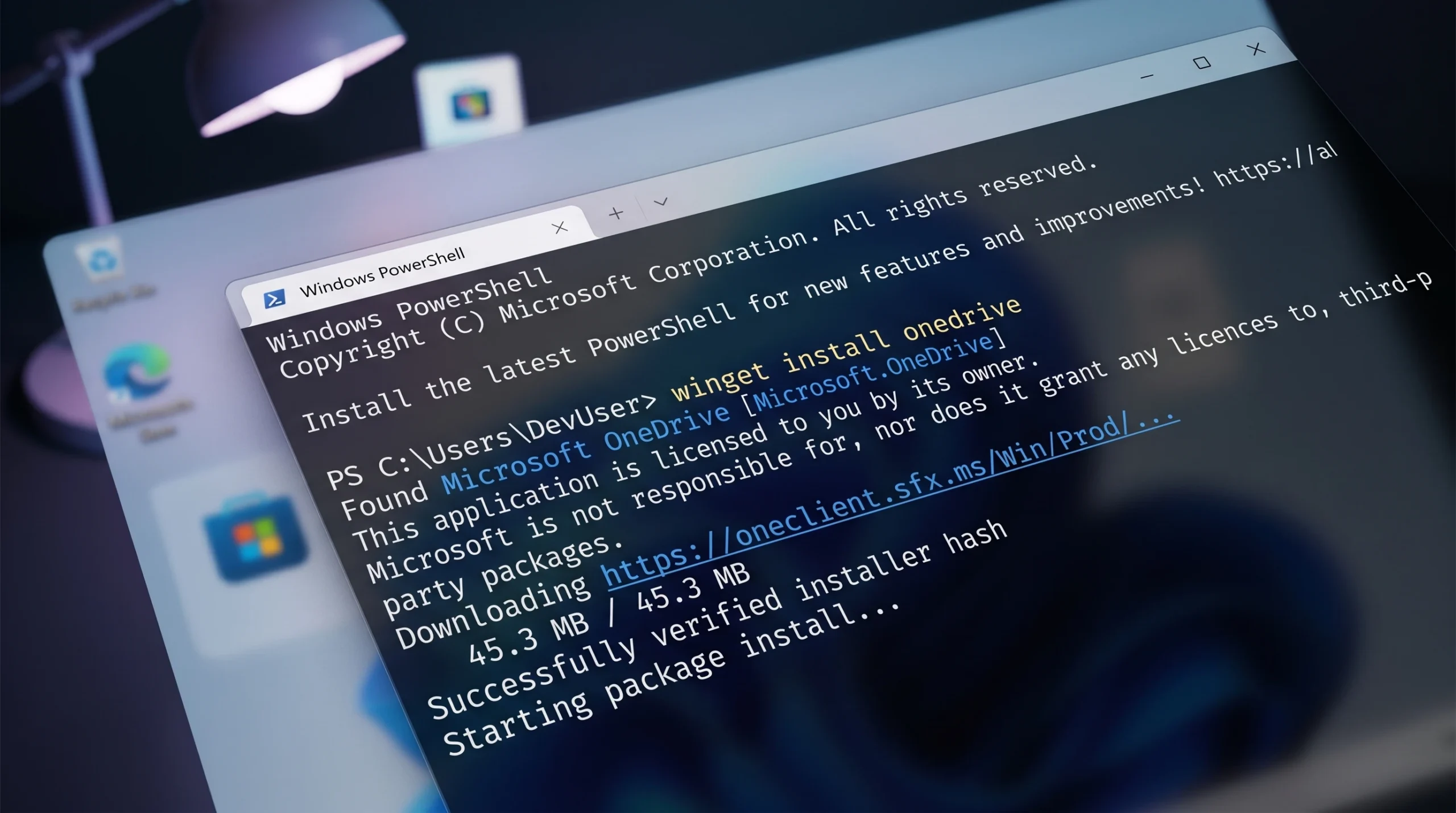
The 0x80d03002 error shows up when you try to download, update, or install Microsoft Store apps with Winget on Windows 11 or Windows 10. The command stops partway and returns a generic failure with the line 0x80d03002 : unknown error. The problem usually traces back to how Winget pulls packages through Windows Update Delivery Optimization, so changing the download mechanism is the most reliable fix.
Quick answer: Open the Winget settings.json file and set the network downloader to wininet, then run your command again. If it still fails, toggle Windows Update Delivery Optimization and reset the Microsoft Store.
Before you start: update Windows and Winget
Two quick checks clear a surprising number of cases. Install any pending Windows updates first. If the error began right after a recent update, rolling that update back or running System Restore can return things to a working state.
You also need a recent version of the Windows Package Manager. Make sure you are running Windows Package Manager (Winget) version 1.0.11692 or later, since the 0x80d03002 failure was addressed in that release. Check your version with this command.
winget --versionIf the number is older than 1.0.11692, update the App Installer package from the Microsoft Store, then try your Winget command again before moving on.
Fix 1: Change Winget’s download method to WinINet
This is the change that resolves the error for most people. By default, Winget can route downloads through Delivery Optimization, which is where 0x80d03002 tends to surface. Forcing Winget to use the WinINet method instead bypasses that path. WinINet is the Windows networking interface that handles standard HTTP and FTP requests.
settings.json file already exists, open it directly. If you do not have one yet, run winget.exe settings to create it.$env:LOCALAPPDATA\Packages\Microsoft.DesktopAppInstaller_8wekyb3d8bbwe\LocalState{
"$schema": "https://aka.ms/winget-settings.schema.json",
// For documentation on these settings, see: https://aka.ms/winget-settings
// "source": {
// "autoUpdateIntervalInMinutes": 5
// },
"network": {"downloader": "wininet"}
}Fix 2: Enable or disable Delivery Optimization
Delivery Optimization is a cloud-managed feature that lets your PC pull packages from other peers on your network alongside the usual internet servers. The 0x80d03002 error is tied to Windows Update Delivery Optimization (WUDO) and, in some cases, enterprise-managed settings. Flipping the WUDO setting to the opposite of its current state often clears the conflict.
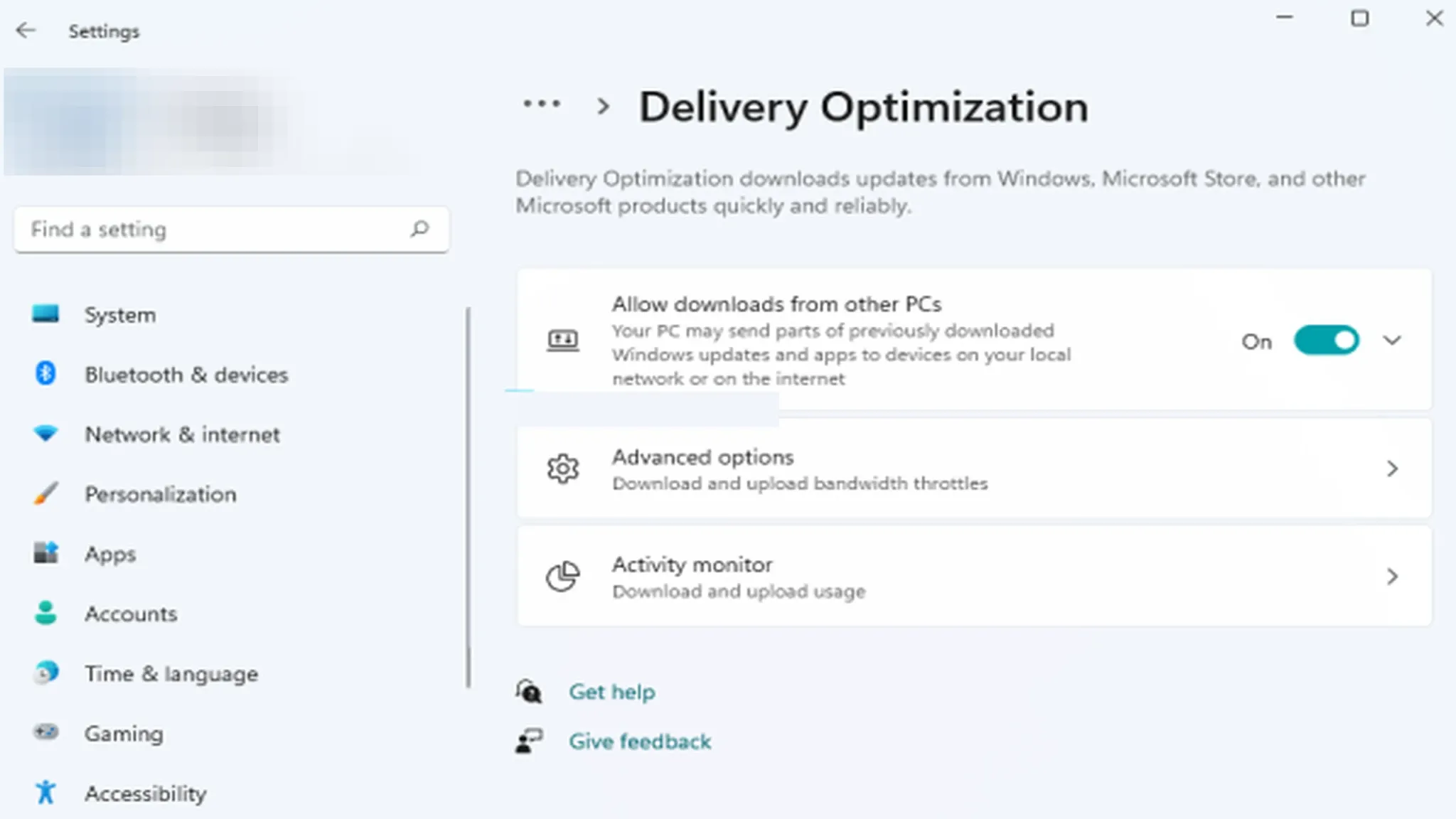
If WUDO is currently on, turn it off and retry your command. If it is already off, turn it on and retry. On a managed work device, this setting may be controlled by policy, so you may need an administrator to change it.
Fix 3: Reset the Microsoft Store
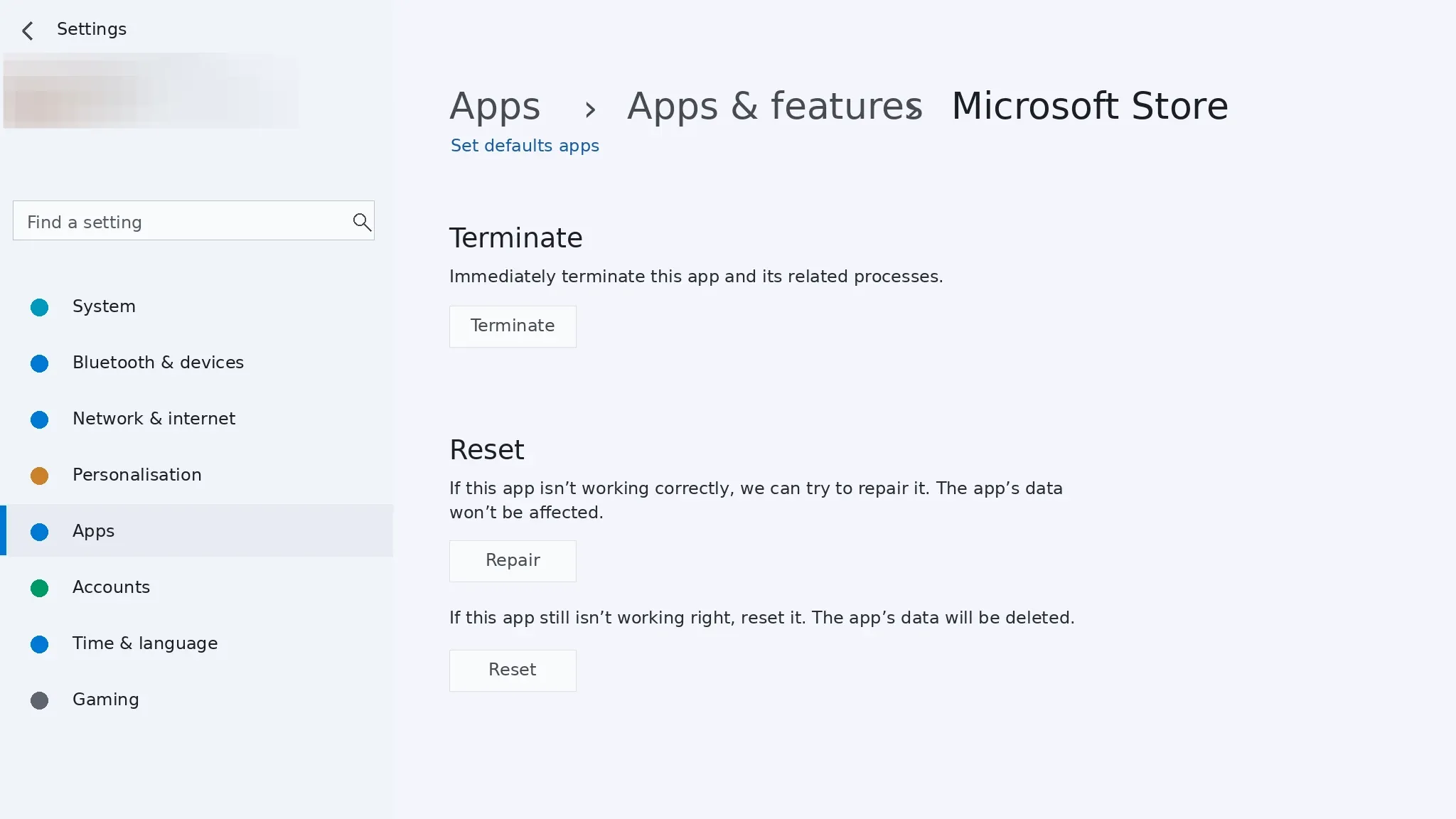
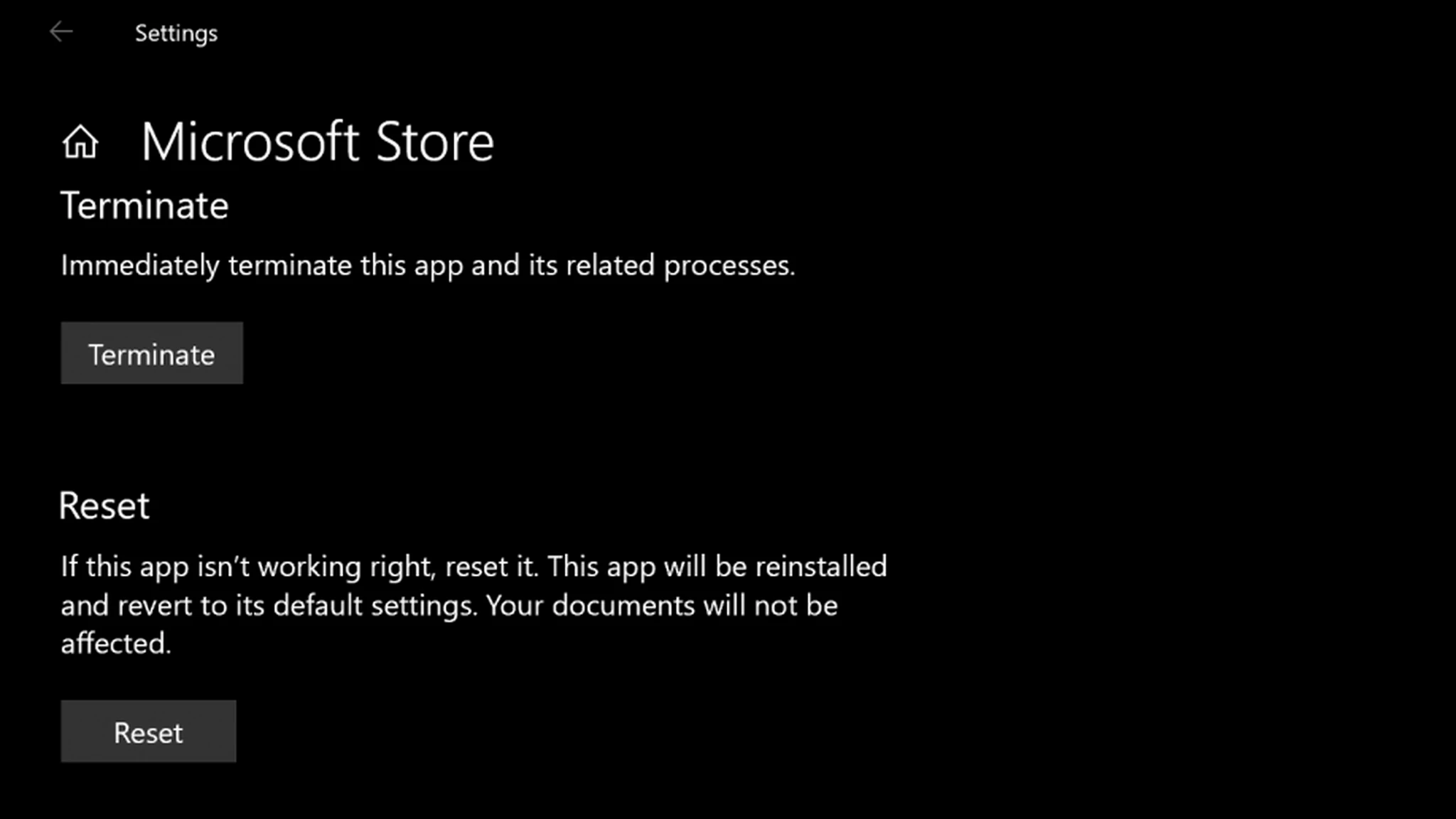
Winget leans on the Microsoft Store for some operations, so a corrupted Store cache can keep the error alive. Resetting the Store clears all of its cache files. Note that this also permanently removes the app’s data on your device, including your sign-in details, so you will need to sign back in afterward.
Reset on Windows 11
Reset on Windows 10
wsreset.exe.How to confirm the fix worked
You will know the error is gone when the command that previously failed runs to completion. A successful Winget install or update shows a download progress bar and finishes with a confirmation that the package installed. If the 0x80d03002 line no longer appears, the download is taking a working path.
| Fix | Best when |
|---|---|
| Set downloader to WinINet | The error appears on most or all Winget downloads |
| Toggle Delivery Optimization | WUDO or enterprise policy is involved |
| Reset Microsoft Store | Store-backed operations keep failing after other fixes |
Work through the fixes in order and retest after each one. The WinINet change handles the bulk of cases, with the Delivery Optimization toggle and Store reset covering the rest. Once your command completes cleanly, Winget will continue installing and updating apps without the 0x80d03002 interruption.



