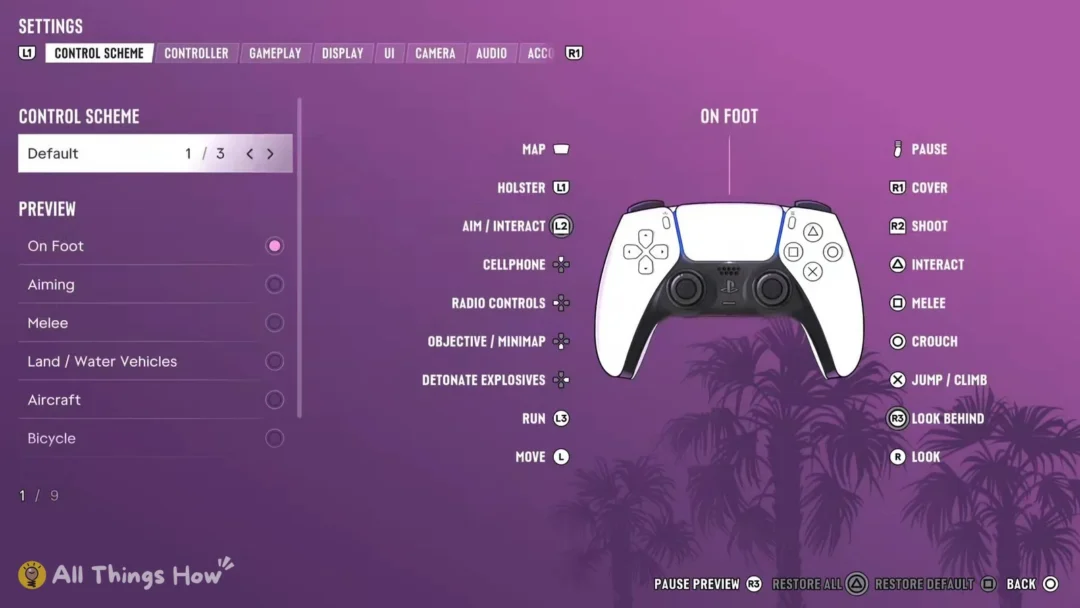

GTA 6 keeps all of its PS5 controller options on one tab in the Settings menu. That includes the look and aim sensitivity sliders, inverted camera options, stick deadzones, and the two adaptive trigger toggles for the DualSense. You don’t need to touch the PS5’s system settings to change any of them.
Quick answer: In the pause menu, go to Settings and press R1 once to open Controller. Scroll down to the last options, then turn Adaptive Triggers Resistance and Adaptive Triggers Vibration Off.
Where the Controller tab is in GTA 6 Settings
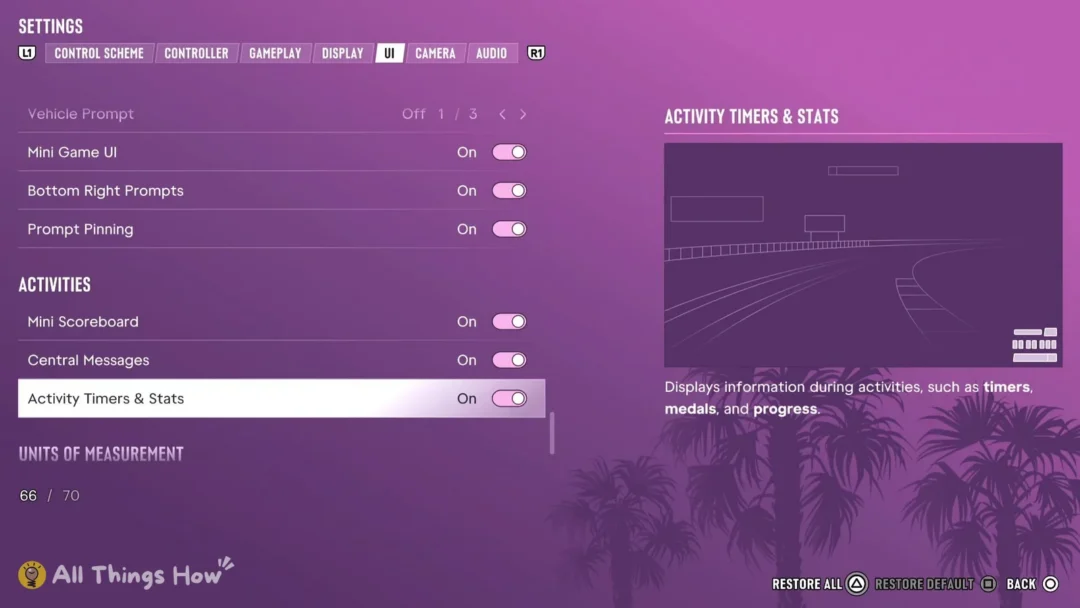
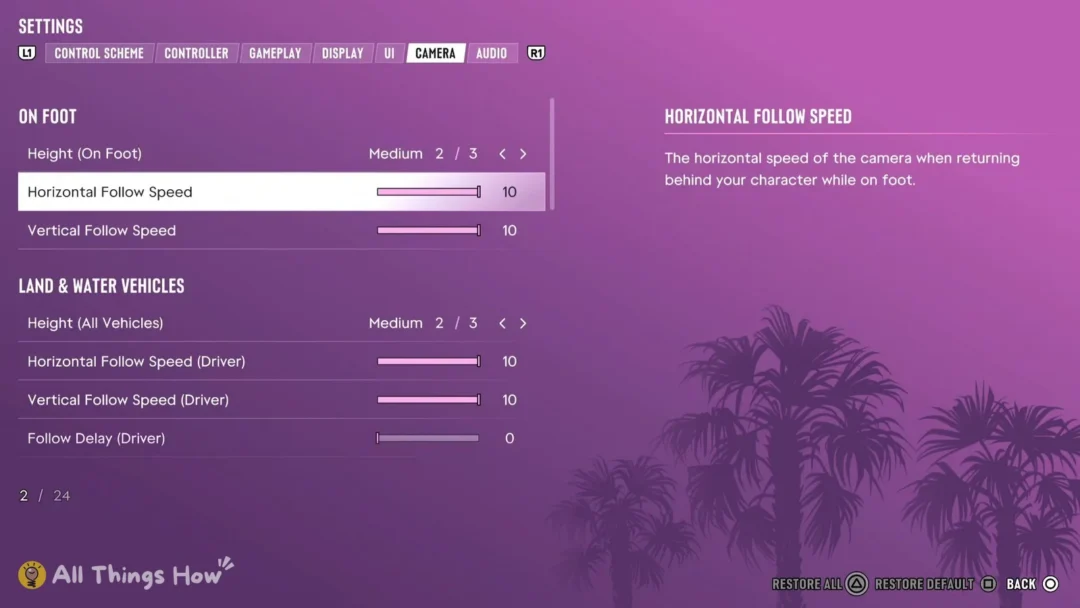
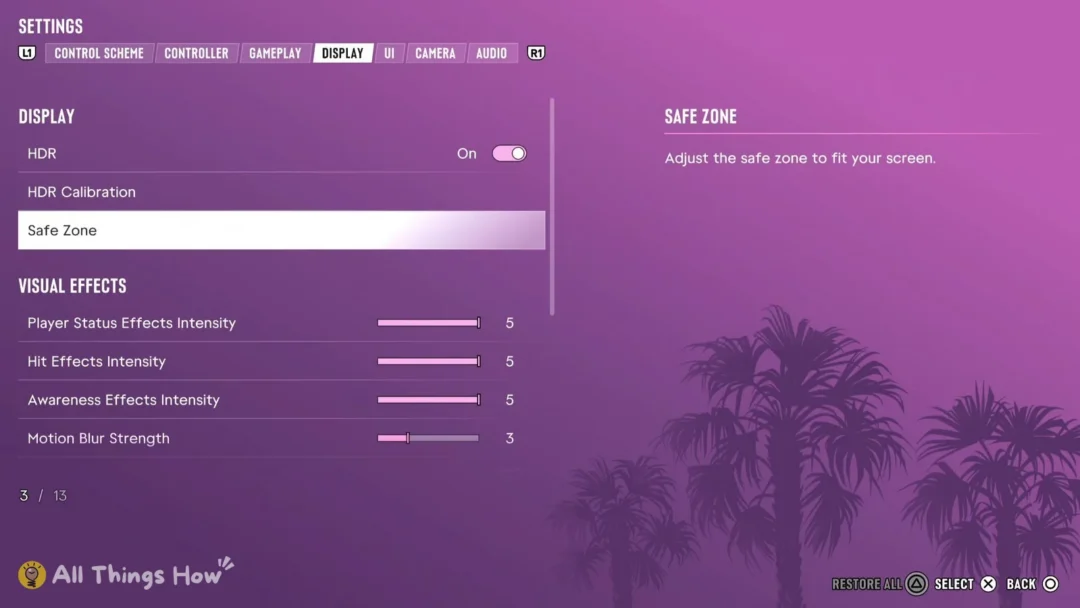
Open Settings from the pause menu. You’ll start on Control Scheme; press R1 once to switch to Controller, the next tab. The tabs along the top are Control Scheme, then Controller, followed by Gameplay, Display, UI, Camera and Audio.
The rows on that tab come in three groups from top to bottom: the look and aim sensitivity sliders, then Inverted Controls, then DualSense Wireless Controller Features. Two buttons help if you want to undo changes. Square sets the row you have selected back to its default (Restore Default), and Triangle resets every row on the tab at once (Restore All).
How to turn off adaptive triggers in GTA 6 on PS5
GTA 6 splits the DualSense trigger effects into two toggles, and both are on by default. If you want L2 and R2 to feel like plain buttons, turn off both of them.
You’ll know it worked when both rows read Off. If it’s the general rumble you want less of, rather than the triggers, lower the Vibration & Haptics Strength slider in the same group. It’s set to 10 by default, which puts it at the top of the bar.
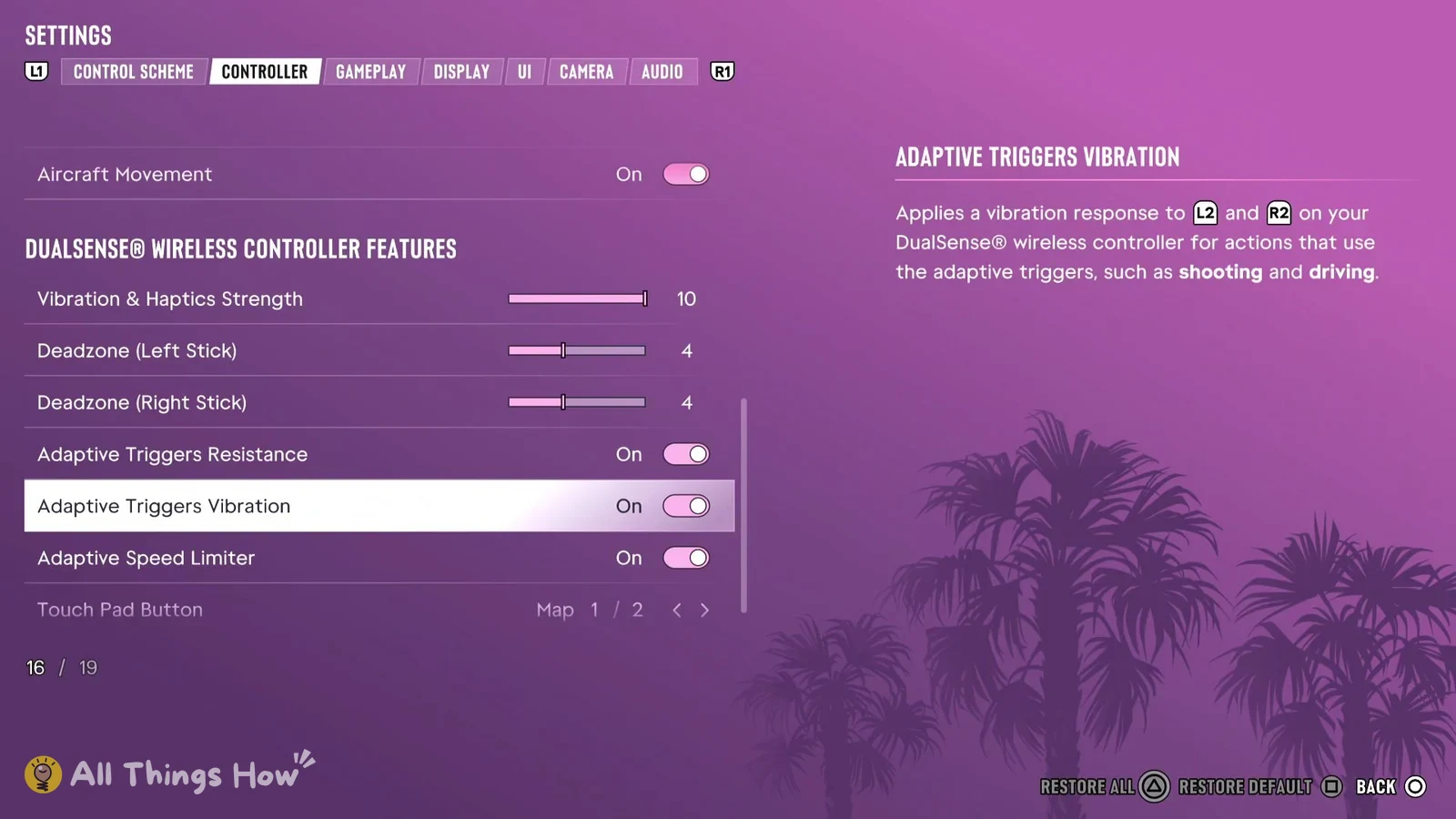
Adaptive Speed Limiter sits in the same group and is a separate toggle, so turning off the two trigger rows doesn’t change it. It’s On by default.
How to change look and aim sensitivity in GTA 6
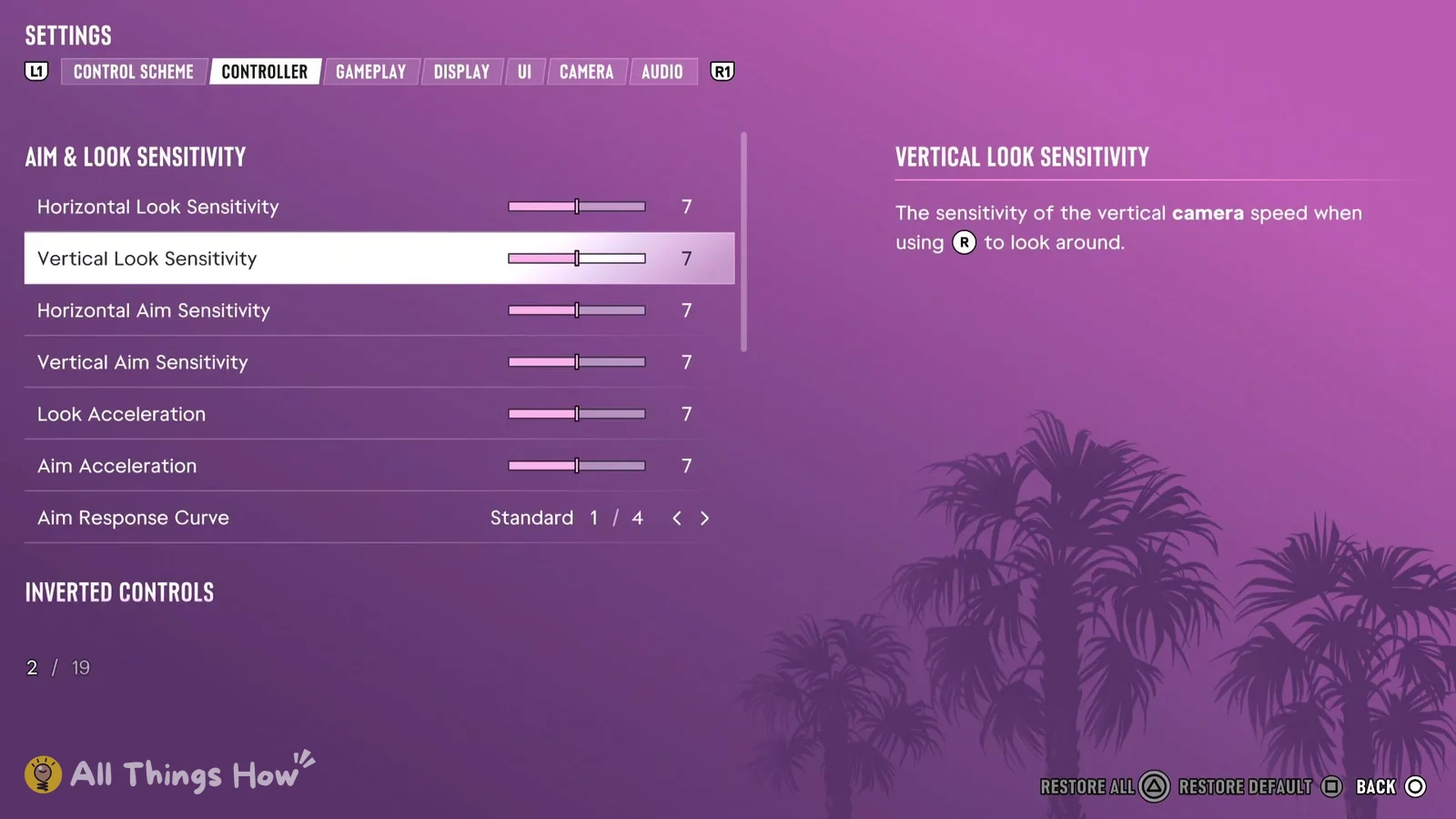
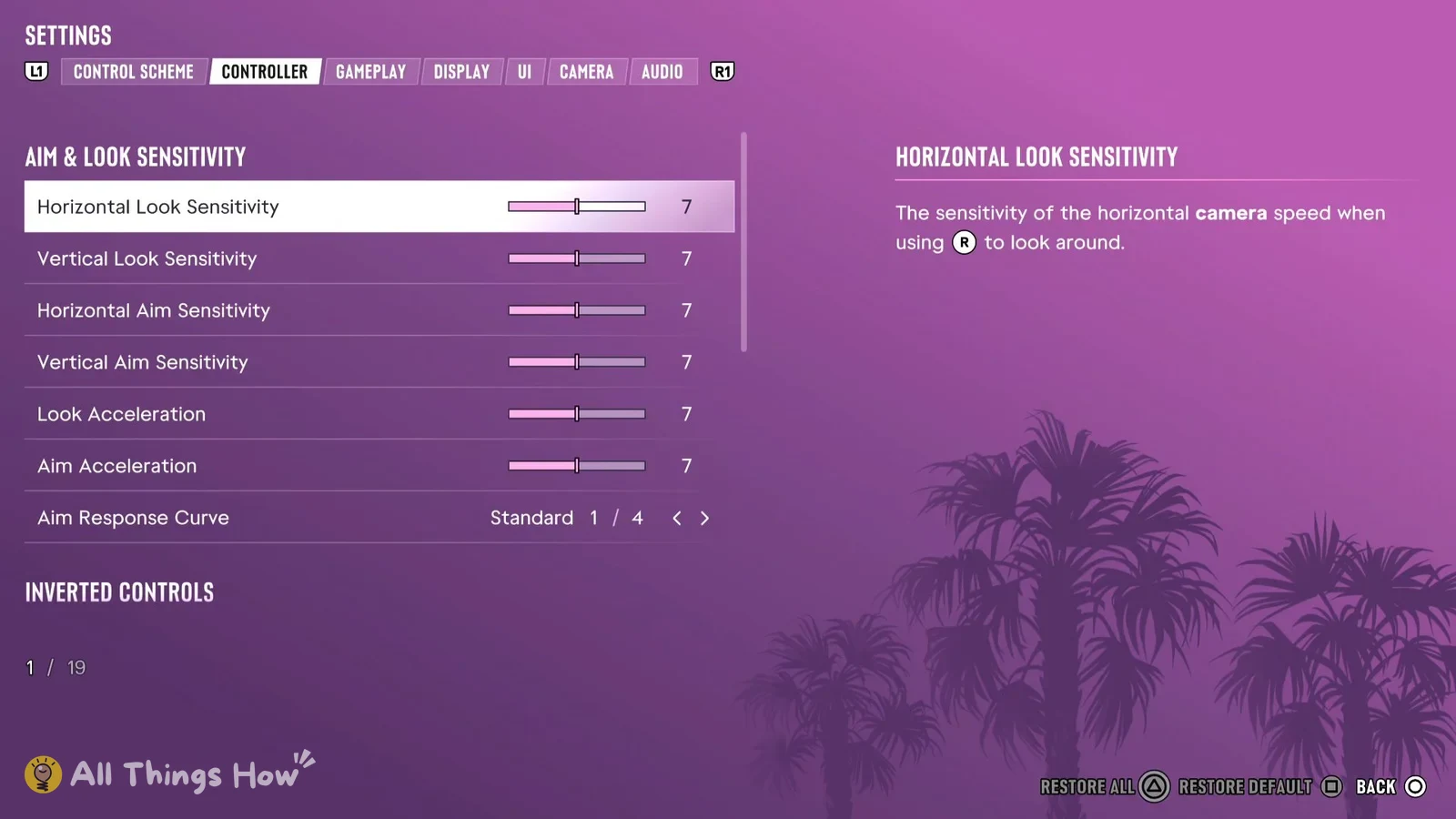
The sensitivity sliders are the first rows on the Controller tab. Six of them start at 7, which sits about halfway along each bar, so you can go faster or slower from there.
- Horizontal Look Sensitivity: “The sensitivity of the horizontal camera speed when using the right stick to look around.”
- Vertical Look Sensitivity: “The sensitivity of the vertical camera speed when using the right stick to look around.”
- Horizontal Aim Sensitivity and Vertical Aim Sensitivity: a separate pair from the Look sliders, so aiming speed can be set on its own.
- Aim Acceleration: “How quickly your camera reaches the highest speed when using the right stick while aiming.”
- Look Acceleration: its own slider, also at 7 by default.
- Aim Response Curve: a choice of four, set to Standard by default.
There’s no right number for any of these. It depends on how fast you like the camera to move, so change one slider at a time, try it in the game, and come back to adjust. If you end up somewhere you don’t like, highlight the row and press Square to put it back to 7.
The stick deadzones aren’t with the sensitivity sliders. They’re down in the DualSense Wireless Controller Features group as Deadzone (Left Stick) and Deadzone (Right Stick), and both are set to 4 by default.
How to invert the camera and aircraft controls in GTA 6
The Inverted Controls group sits in the middle of the Controller tab. To invert the camera, go to the Look row and change it from Default to one of the other choices. There are four options in total. Movement and 3D Map Rotation work the same way, with four choices each, and both start on Default.
Aircraft Movement is a plain On/Off toggle, and it’s On by default. The game describes it as a toggle that “Inverts the vertical movement of the left stick when controlling an aircraft.” That means pushing the left stick in a plane works inverted out of the box. If you’d rather it didn’t, switch this row to Off.
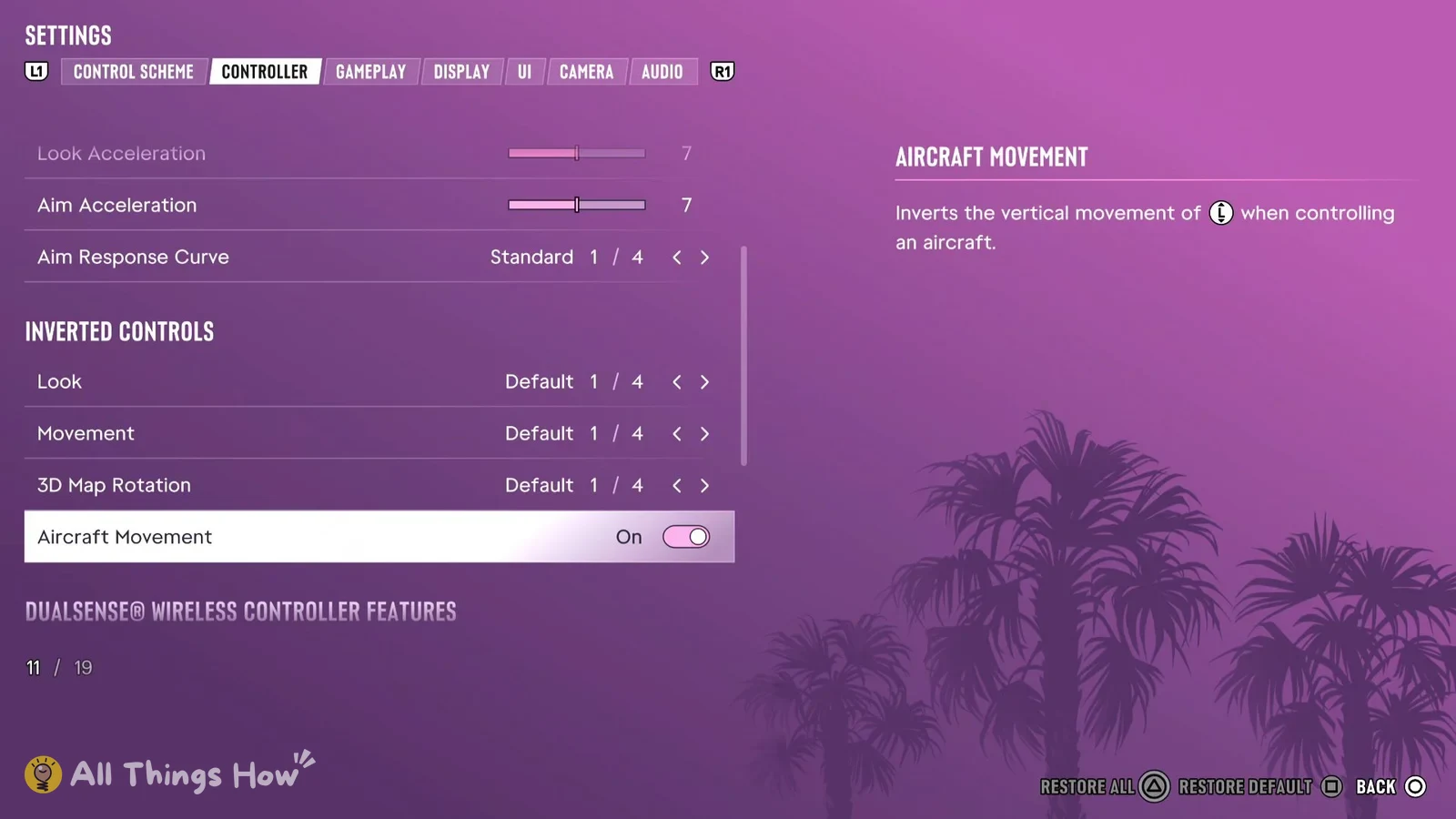
GTA 6 PS5 Controller tab defaults
These are the values the Controller tab shows on a fresh install, in the order the rows appear on screen.
Look and aim sensitivity
| Setting | Default |
|---|---|
| Horizontal Look Sensitivity | 7 |
| Vertical Look Sensitivity | 7 |
| Horizontal Aim Sensitivity | 7 |
| Vertical Aim Sensitivity | 7 |
| Look Acceleration | 7 |
| Aim Acceleration | 7 |
| Aim Response Curve | Standard (1 of 4) |
Inverted Controls
| Setting | Default |
|---|---|
| Look | Default (1 of 4) |
| Movement | Default (1 of 4) |
| 3D Map Rotation | Default (1 of 4) |
| Aircraft Movement | On |
DualSense Wireless Controller Features
| Setting | Default |
|---|---|
| Vibration & Haptics Strength | 10 |
| Deadzone (Left Stick) | 4 |
| Deadzone (Right Stick) | 4 |
| Adaptive Triggers Resistance | On |
| Adaptive Triggers Vibration | On |
| Adaptive Speed Limiter | On |
| Touch Pad Button | Map (1 of 2) |
Pressing Triangle on the Controller tab brings every one of these rows back to the values above in one go.