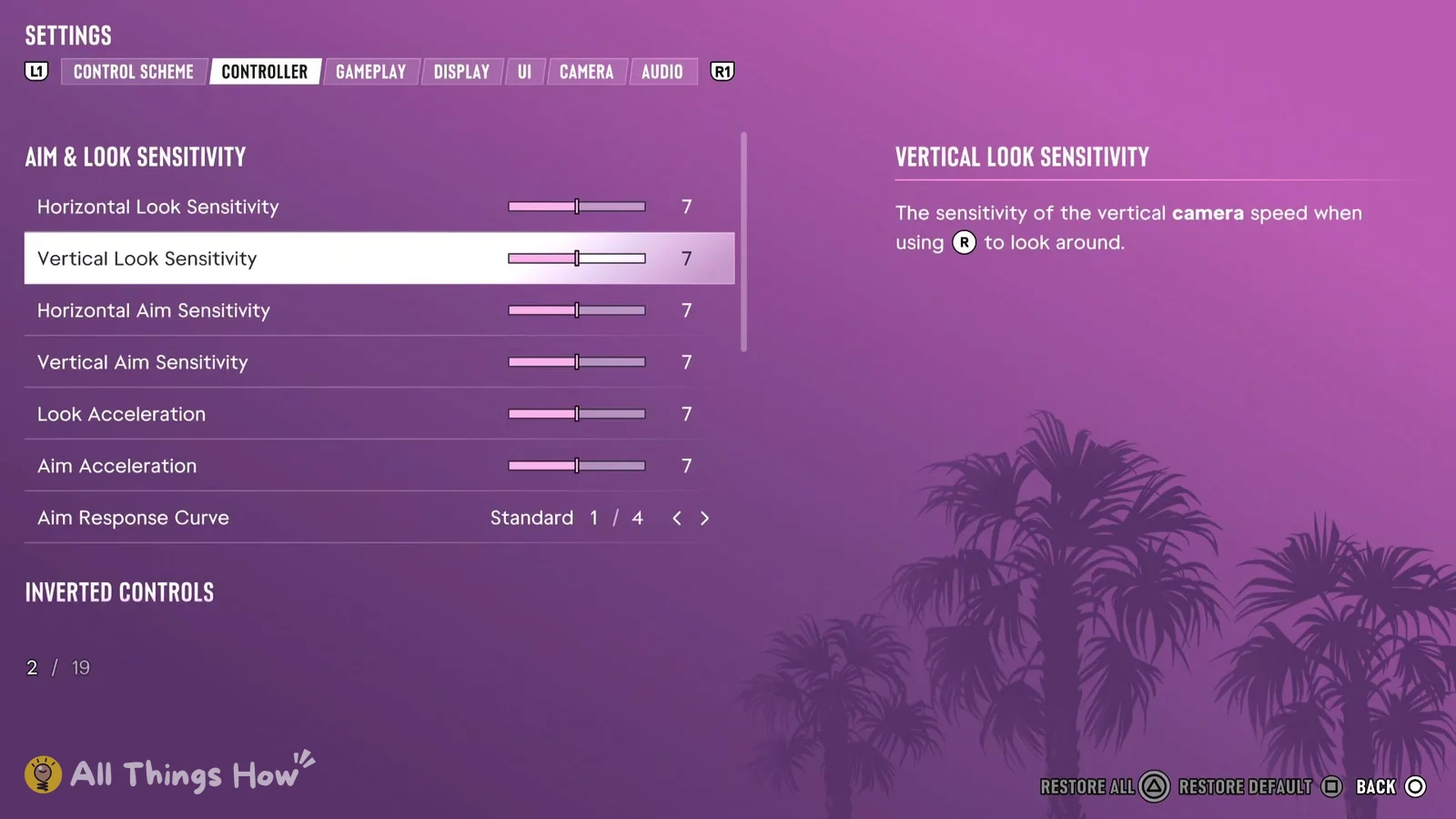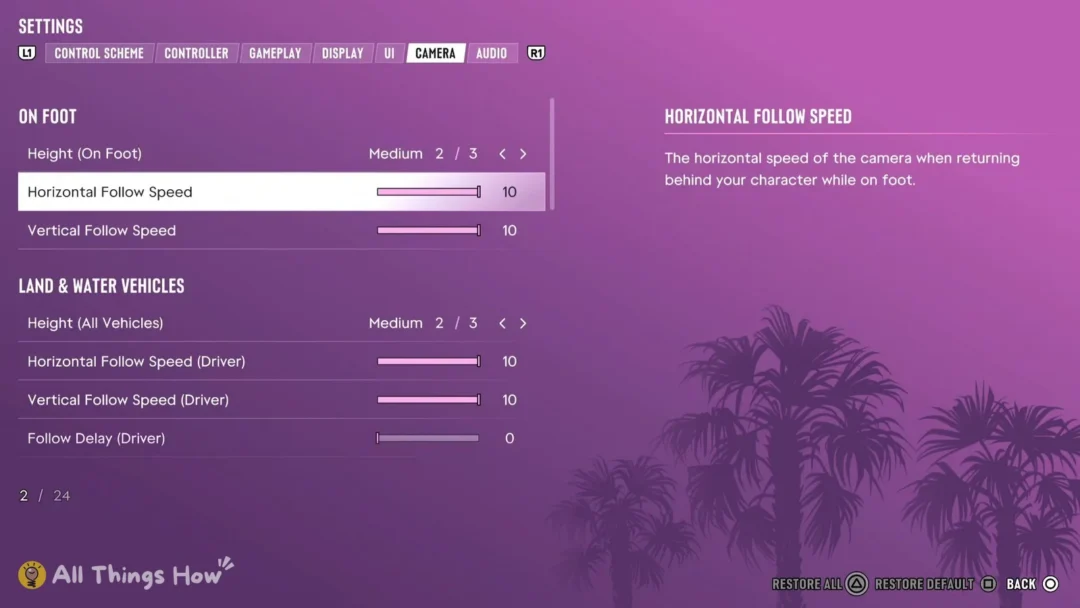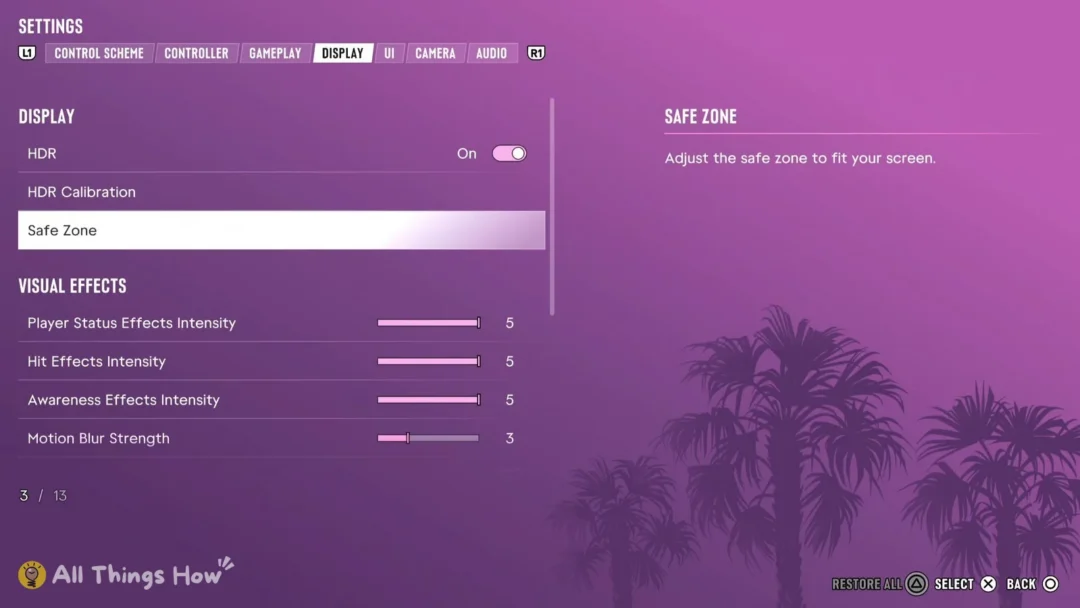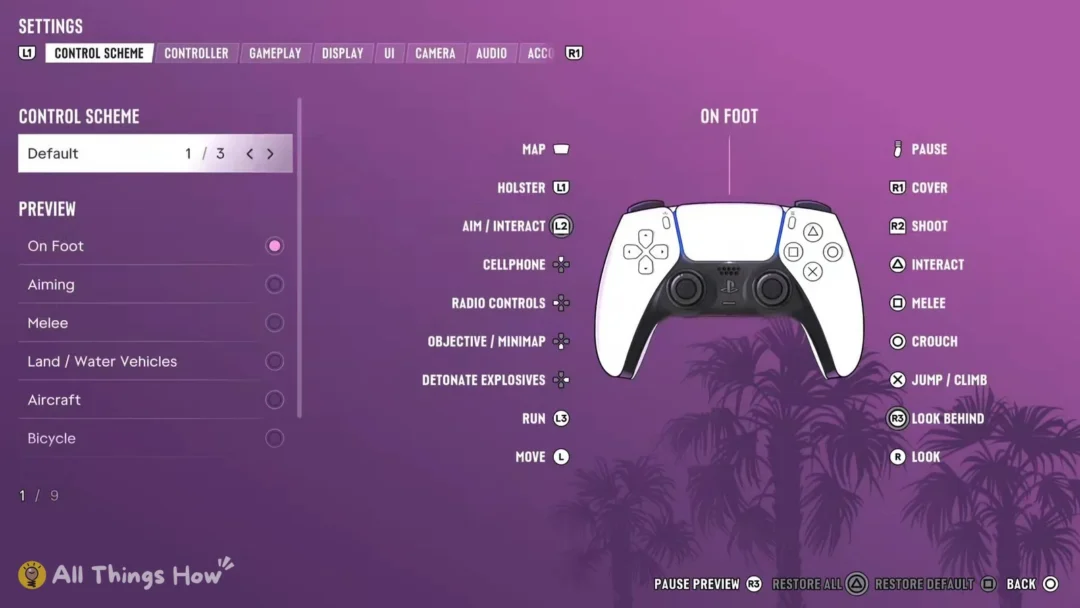

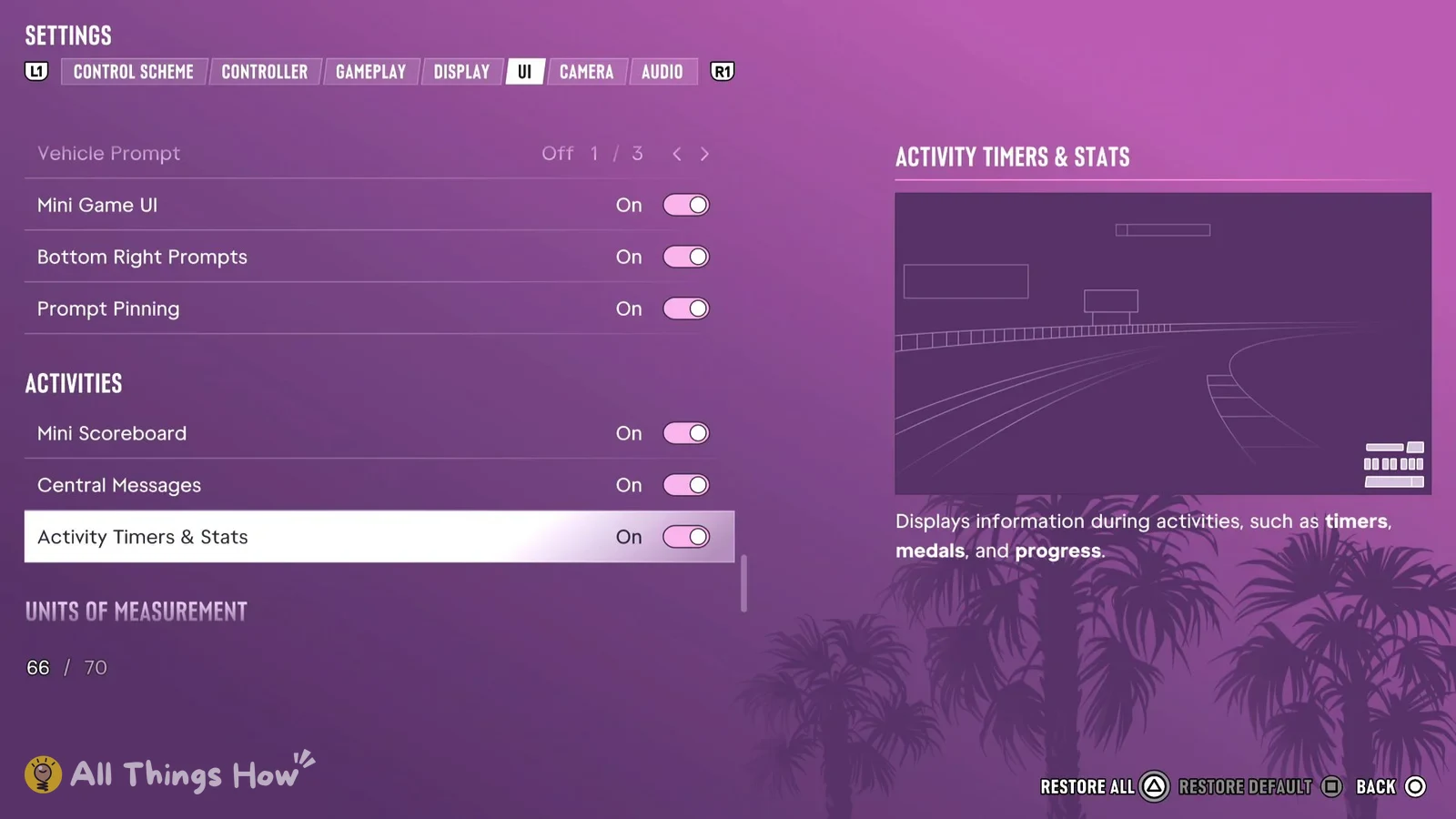
The minimap, the compass, street names, your money readout and most of the pop-ups each get their own row in the UI tab of the pause menu’s Settings, and that tab has 70 rows. Once you know which group a row lives in, any part of the HUD takes a couple of button presses to switch on or off.
Quick answer: Pause, open Settings, press L1 or R1 to reach the UI tab, then change the row. Minimap and Compass are under Navigation, Money is under Player & Vehicle Status, and Street Names is under HUD Notifications.
How to open the UI tab in GTA 6 settings
Press Square to put just the selected row back to its default, or press Triangle to Restore All if you’ve changed too much and want to start over.
Where to find the most-asked GTA 6 HUD toggles
- Street names: HUD Notifications > Street Names. It’s Off by default, so you have to turn it on yourself.
- Compass: Navigation > Compass. It has three choices and starts on Off.
- Minimap: Navigation > Minimap, with three choices, plus a separate Minimap Size row.
- Money and Wanted Stars: both are under Player & Vehicle Status.
- GPS line: Navigation > GPS Route.
- Fewer pop-ups: turn off Ticker Feed and Reminder Tips under HUD Notifications, and Progress Notifications in its own group.
How the minimap behaves at first depends on a choice you make the first time you start the game. The setup screen asks for a Navigation Experience, and you can pick “Minimap (Dynamic)”, where the minimap shows up dynamically or on demand, “Minimap & Compass (Dynamic)”, or “Minimap Always On”. If you picked “Minimap Always On”, the Minimap row in the UI tab reads On. You can change it later in the Minimap row whatever you picked at setup. In the Default control scheme, D-pad Down is labelled Objective / Minimap.
GTA 6 HUD settings and defaults, group by group
The defaults below are what a fresh install shows, apart from Minimap, which reads On because “Minimap Always On” was picked at first start. Where a row has more than two options, the count is given along with which one is selected by default.
Navigation: minimap, compass and GPS
| Setting | Default | Choices |
|---|---|---|
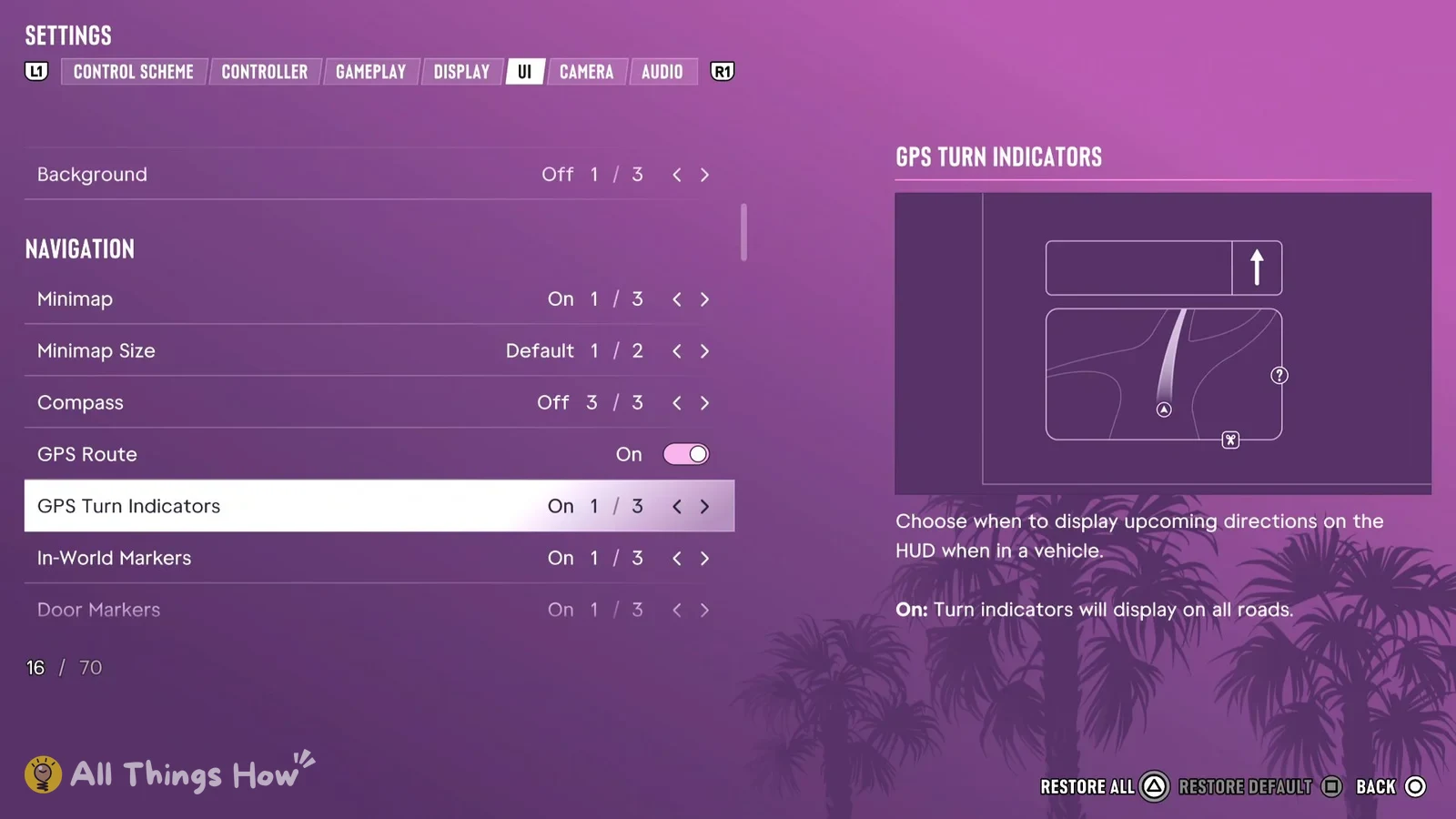
| Minimap | On | 1st of 3 |
| Minimap Size | Default | 1st of 2 |
| Compass | Off | 3rd of 3 |
| GPS Route | On | On / Off |
| GPS Turn Indicators | On | 1st of 3 |
| In-World Markers | On | 1st of 3 |
| Door Markers | On | 1st of 3 |
| Interaction Markers | On | On / Off |
| Altimeter | On | On / Off |
Compass is the last of its three choices by default, so turning it on means moving it off Off. GPS Turn Indicators only matters while you’re driving, and the game describes it as “Choose when to display upcoming directions on the HUD when in a vehicle. On: Turn indicators will display on all roads.”
Reticle
| Setting | Default | Choices |
|---|---|---|
| Persistent Center Dot | Off | On / Off |
| Reticle Hit Markers | On | On / Off |
| Reticle Size | Default | 1st of 2 |
| Reticle Shape | Complex | 1st of 4 |
| Equipped Reticle Visibility | 10 | Slider |
| Aiming Reticle Visibility | 10 | Slider |
| Reticle Messages | On | On / Off |
| Projectile Arc | Off (Toggle On) | 1st of 4 |
Aiming Reticle Visibility is described as “The visibility of the reticle when aiming.” Projectile Arc’s default reads “Off (Toggle On)” in the menu.
Combat
| Setting | Default |
|---|---|
| Weapon Preview | On |
| Ammo | On |
| Threat Indicators | On |
| Damage Region Highlights | On |
Threat Indicators “Displays on-screen indicators for threats nearby or when they’re in combat with you.”
HUD Notifications: street names and pop-ups
| Setting | Default |
|---|---|
| Ticker Feed | On |
| Criminal Profile | On |
| Relationship | On |
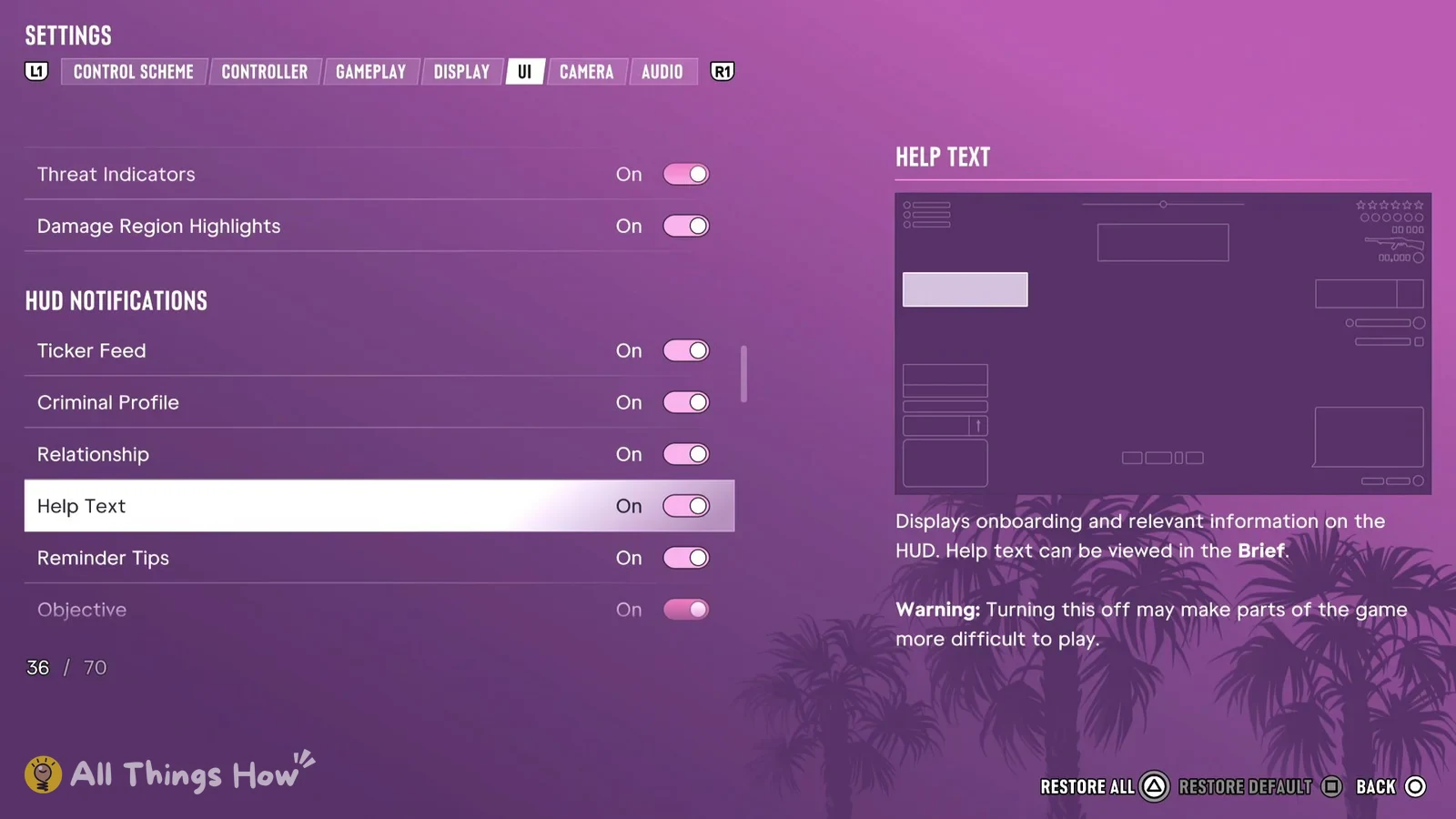
| Help Text | On |
| Reminder Tips | On |
| Objective | On |
| Mission Update | On |
| Phone Notifications | On |
| Area Discovery | On |
| Area Names | On |
| Street Names | Off |
Street Names is the last row in the group and the only one that starts off. Area Discovery “Displays a stylized area name on the HUD when you first discover it.” Area Names is its own row.
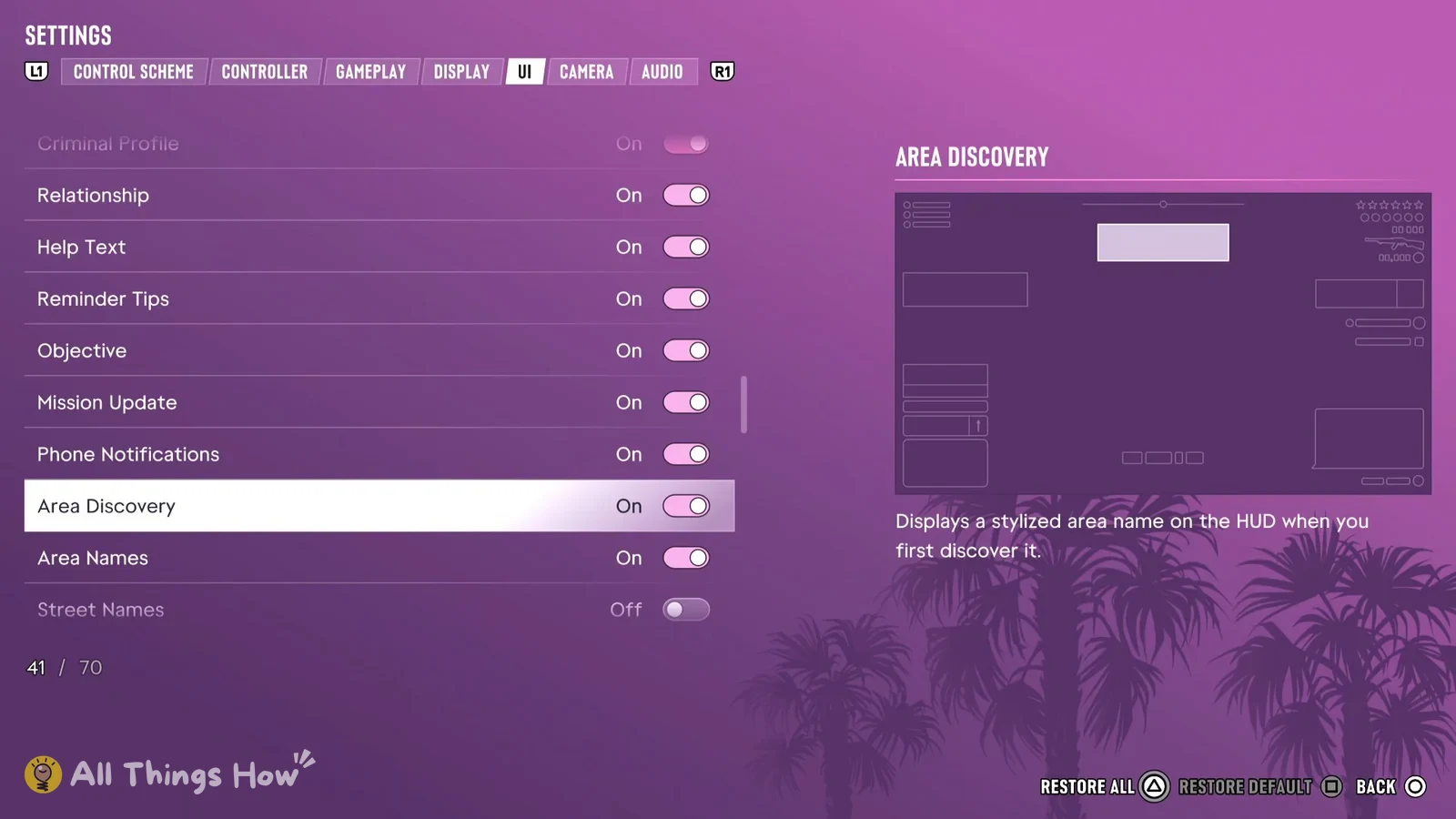
Help Text “Displays onboarding and relevant information on the HUD. Help text can be viewed in the Brief. Warning: Turning this off may make parts of the game more difficult to play.”
Progress Notifications
| Setting | Default |
|---|---|
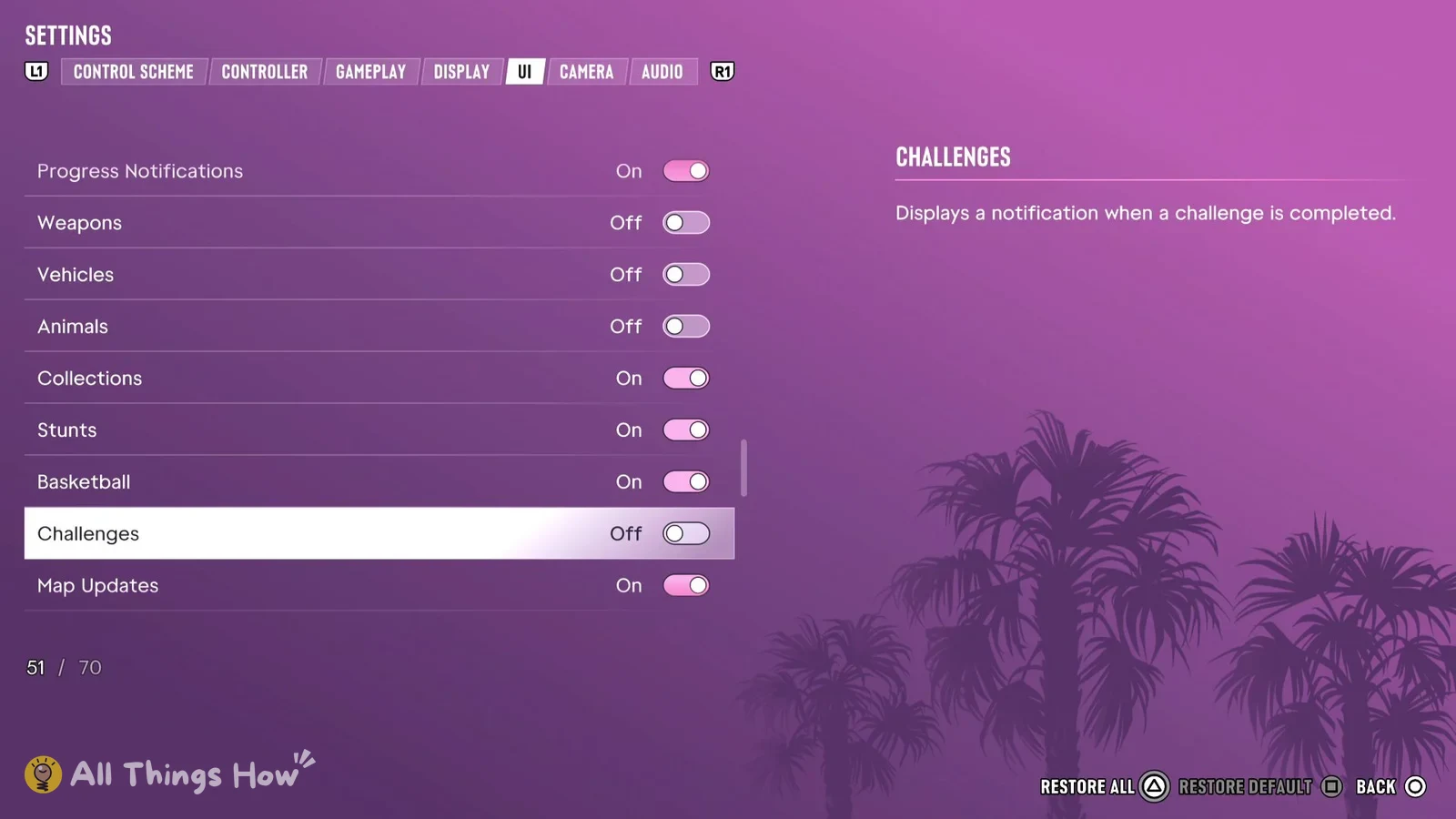
| Progress Notifications | On |
| Weapons | Off |
| Vehicles | Off |
| Animals | Off |
| Collections | On |
| Stunts | On |
| Basketball | On |
| Challenges | Off |
| Map Updates | On |
Vehicles “Displays a notification when a new vehicle is discovered.” and Challenges “Displays a notification when a challenge is completed.” Both start off, so turn them on if you want those alerts.
Player & Vehicle Status: money and Wanted Stars
| Setting | Default |
|---|---|
| Player Vitals | On |
| Wanted Stars | On |
| Heat Indicators | On |
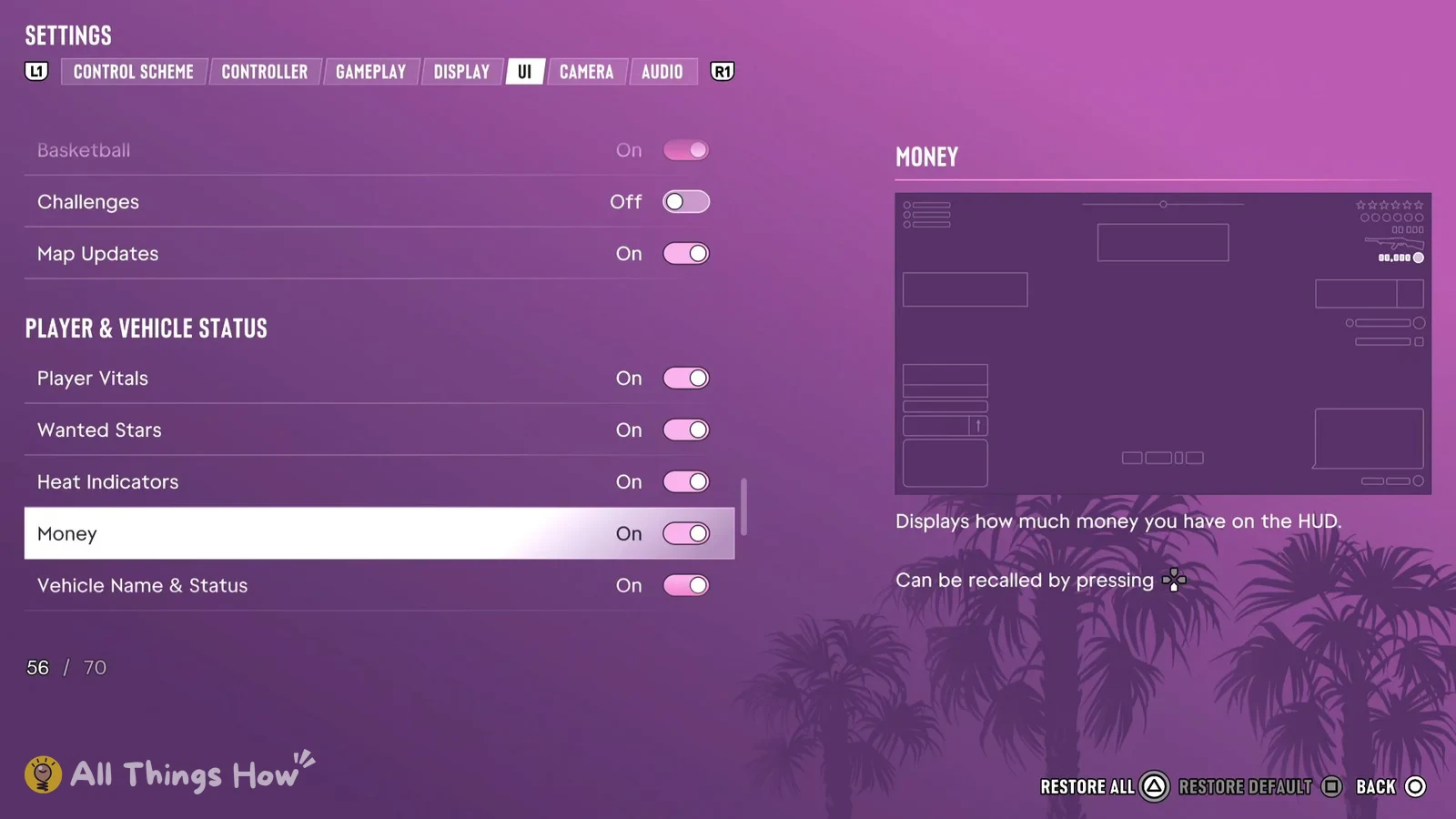
| Money | On |
| Vehicle Name & Status | On |
On the Money row, the description says: “Displays how much money you have on the HUD. Can be recalled by pressing” and then shows a D-pad icon.
Prompts
| Setting | Default | Choices |
|---|---|---|
| In-World Prompts | On | On / Off |
| Prompt Visibility | 7 | Slider |
| Vehicle Prompt | Off | 1st of 3 |
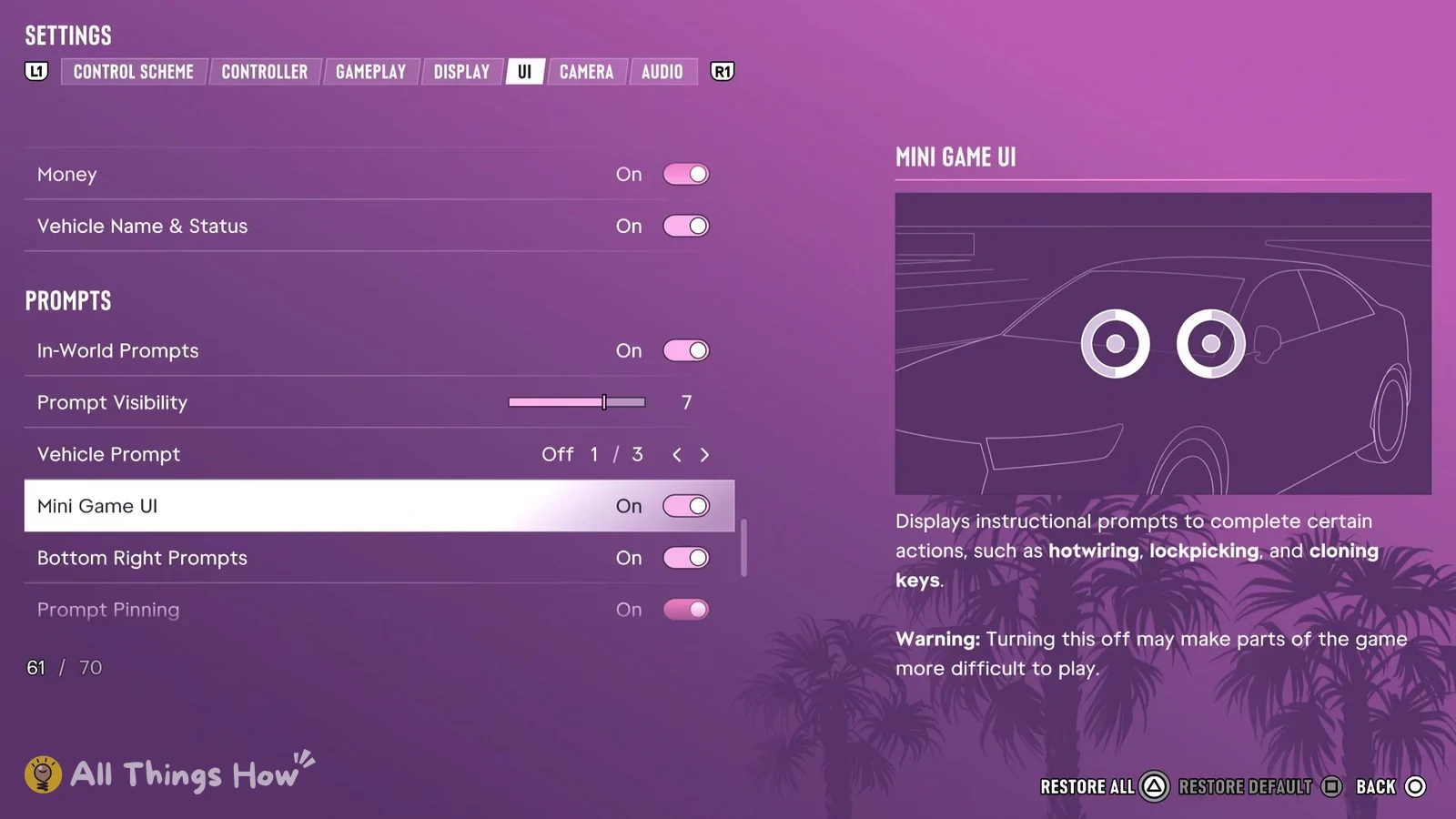
| Mini Game UI | On | On / Off |
| Bottom Right Prompts | On | On / Off |
| Prompt Pinning | On | On / Off |
Mini Game UI “Displays instructional prompts to complete certain actions, such as hotwiring, lockpicking, and cloning keys. Warning: Turning this off may make parts of the game more difficult to play.”
Activities
| Setting | Default |
|---|---|
| Mini Scoreboard | On |
| Central Messages | On |
| Activity Timers & Stats | On |
Activity Timers & Stats “Displays information during activities, such as timers, medals, and progress.” Units of Measurement is the last group in the UI tab, below Activities.