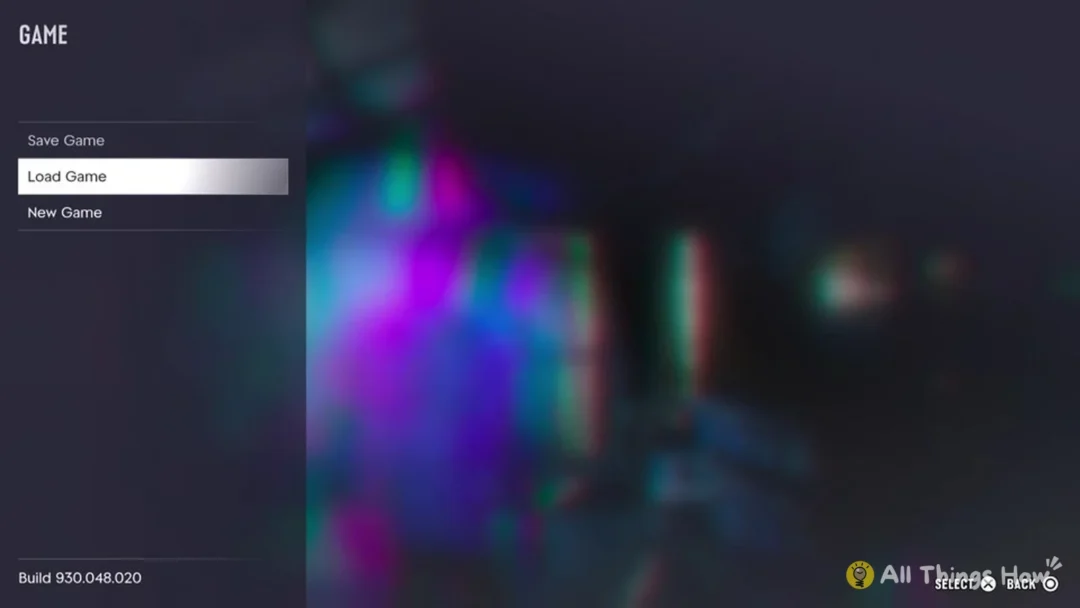

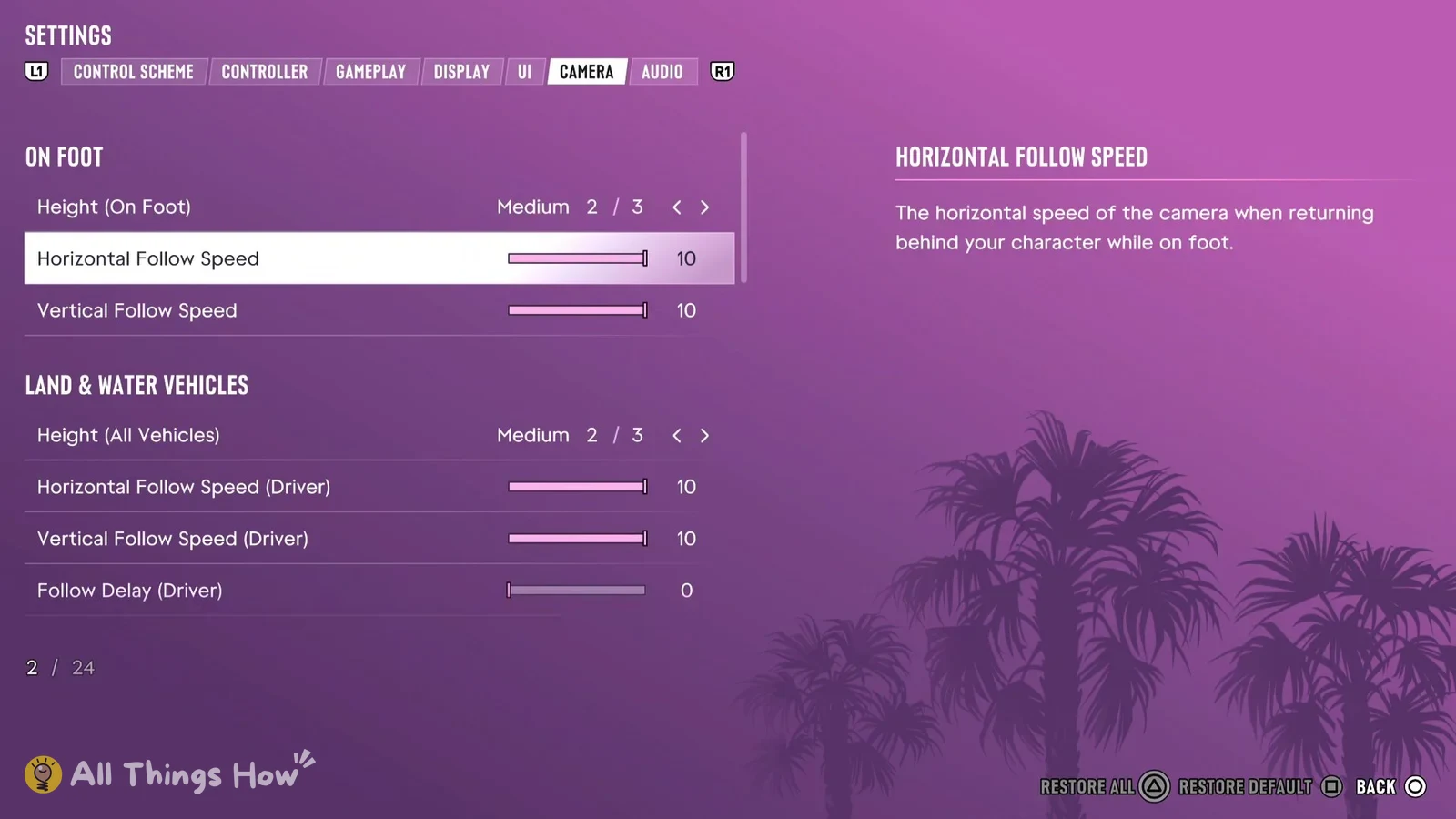
GTA 6 on PS5 puts nearly all of its camera controls in one place, a Camera tab inside the pause menu’s Settings. It’s where you turn off camera shake and weapon sway and set camera height. It also has the follow speed sliders for walking, driving, riding as a passenger, flying and swimming underwater.
Quick answer: Open the pause menu, pick Settings and press R1 five times to reach the Camera tab. Camera Shake and Weapon Sway switch Off in its Comfort group, and height and follow speed are set in the same tab.
How to open the Camera tab in GTA 6 on PS5
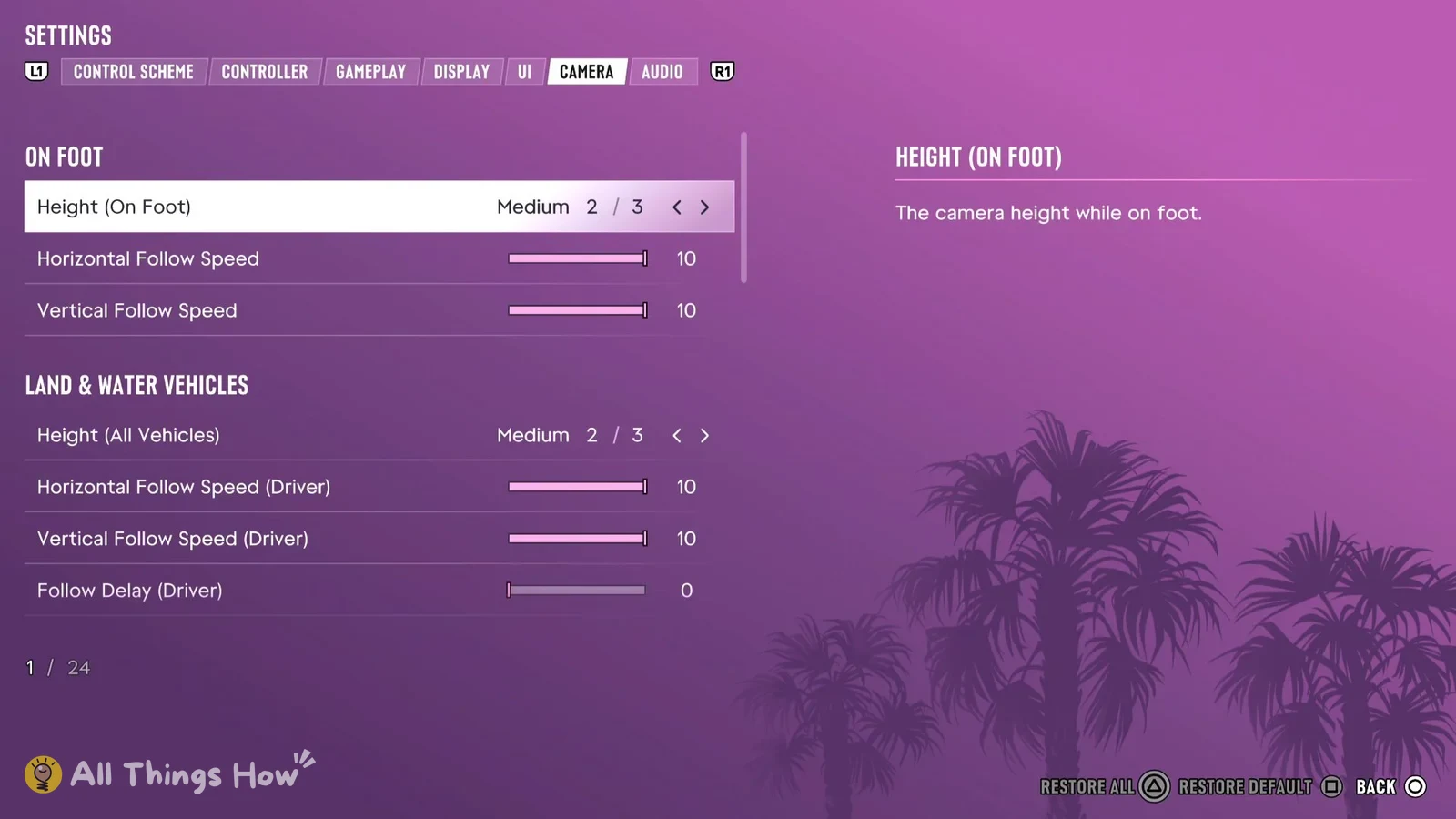
If you change something and want it back, press Square to put just the highlighted row back to its default. Triangle is Restore All, which resets the whole tab at once.
Turn off Camera Shake and Weapon Sway (motion sickness and comfort)
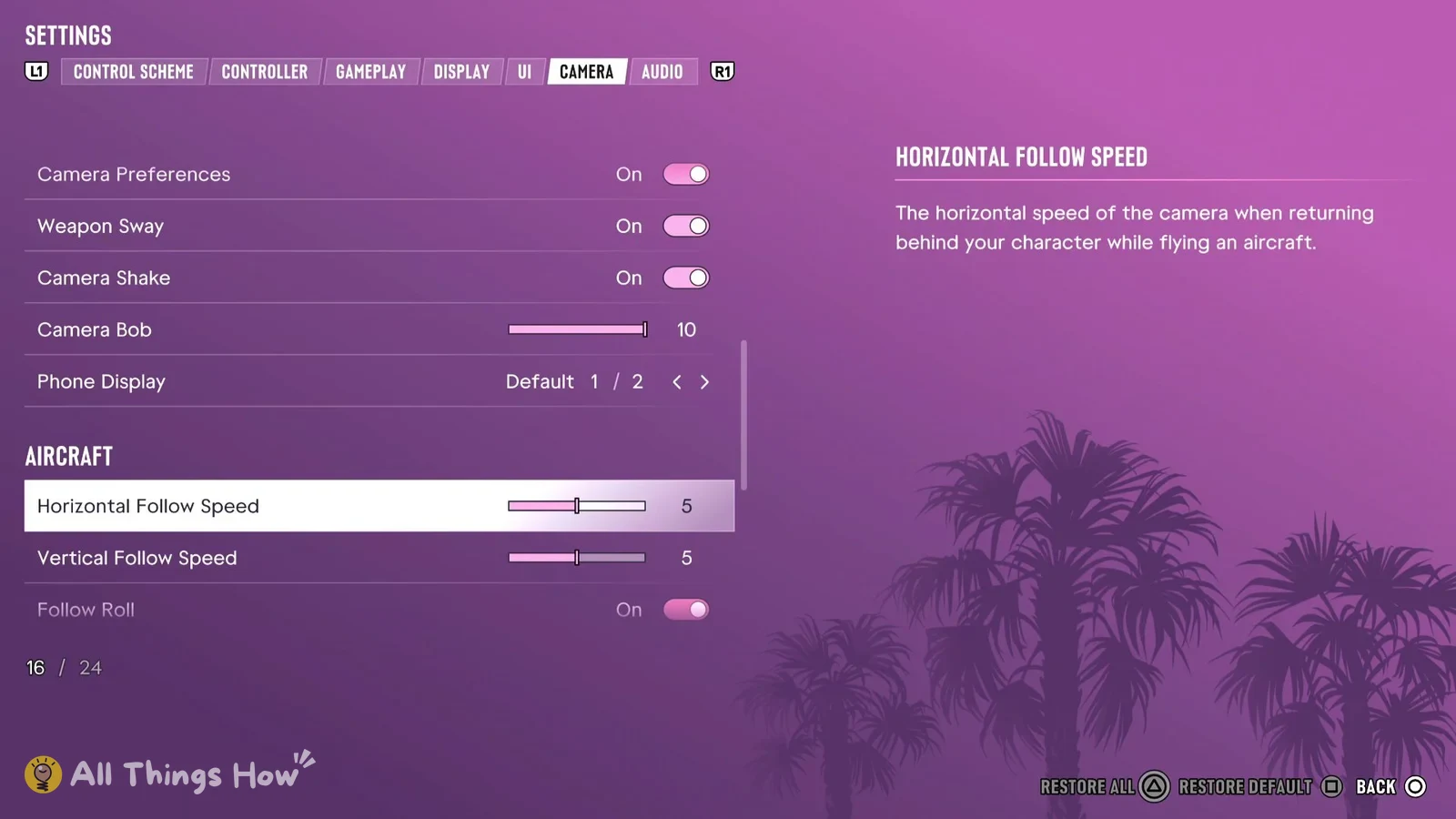
Camera Shake, Weapon Sway and Camera Bob all sit in the Comfort group, partway down the Camera tab. Camera Shake and Weapon Sway are simple On/Off toggles, and both start on. Highlight one and switch it to Off, and the effect is turned off.
Camera Bob works differently. It’s a slider, not a toggle, and it starts at 10, so you can lower it by steps instead of just switching it on or off.
Two more screen-motion options live in other tabs:
- Open Reticle in the UI tab to find Persistent Center Dot. The game says it “may aid with motion sickness”.
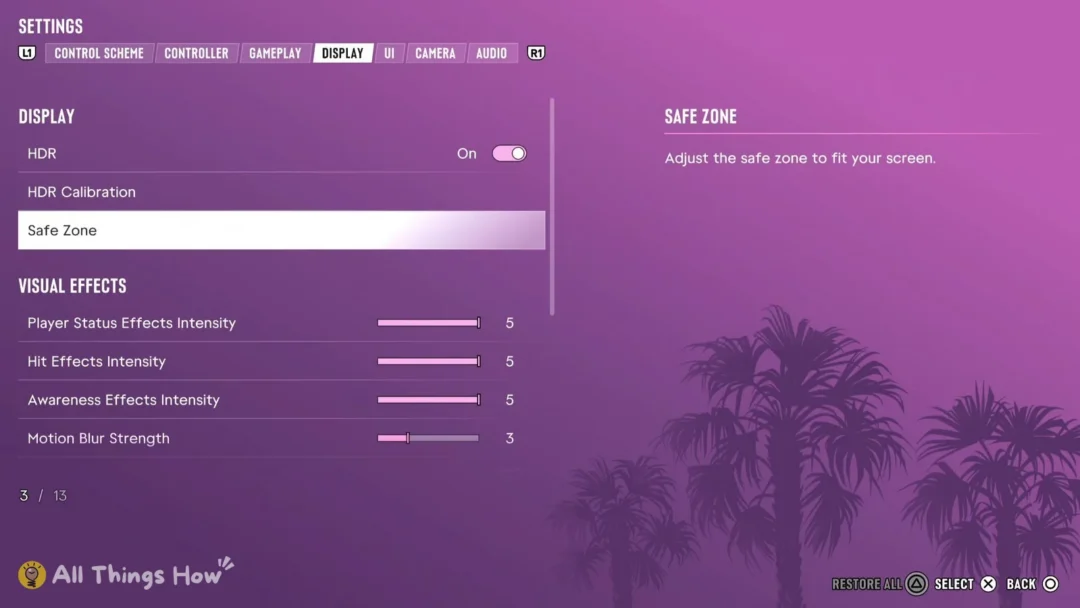
- Motion Blur Strength is in the Display tab and starts at 3.
If the camera makes you queasy, try turning Camera Shake off and Camera Bob down, then turning the Persistent Center Dot on. Those three cut down how much the screen jolts and bounces, and they give your eyes a fixed point in the middle of the screen. If you aim a lot and the gun drifting bothers you, turn Weapon Sway off as well.
The Comfort group also has Camera Preferences, which is on by default. The game says it “Remembers your camera preferences in different situations, such as for on foot, vehicles, bikes, boats, or aircraft.” Phone Display is in the same group and is set to Default, the first of two choices.
GTA 6 camera height and follow speed defaults
These are the values a fresh install starts with, in the order they show up in the Camera tab.
| Group | Setting | Default |
|---|---|---|
| On Foot | Height (On Foot) | Medium (2 of 3) |
| On Foot | Horizontal Follow Speed | 10 |
| On Foot | Vertical Follow Speed | 10 |
| Land & Water Vehicles | Height (All Vehicles) | Medium (2 of 3) |
| Land & Water Vehicles | Horizontal Follow Speed (Driver) | 10 |
| Land & Water Vehicles | Vertical Follow Speed (Driver) | 10 |
| Land & Water Vehicles | Follow Delay (Driver) | 0 |
| Land & Water Vehicles | Horizontal Follow Speed (Passenger) | 4 |
| Land & Water Vehicles | Vertical Follow Speed (Passenger) | 4 |
| Land & Water Vehicles | Follow Delay (Passenger) | 10 |
| Comfort | Camera Preferences | On |
| Comfort | Weapon Sway | On |
| Comfort | Camera Shake | On |
| Comfort | Camera Bob | 10 (slider) |
| Comfort | Phone Display | Default (1 of 2) |
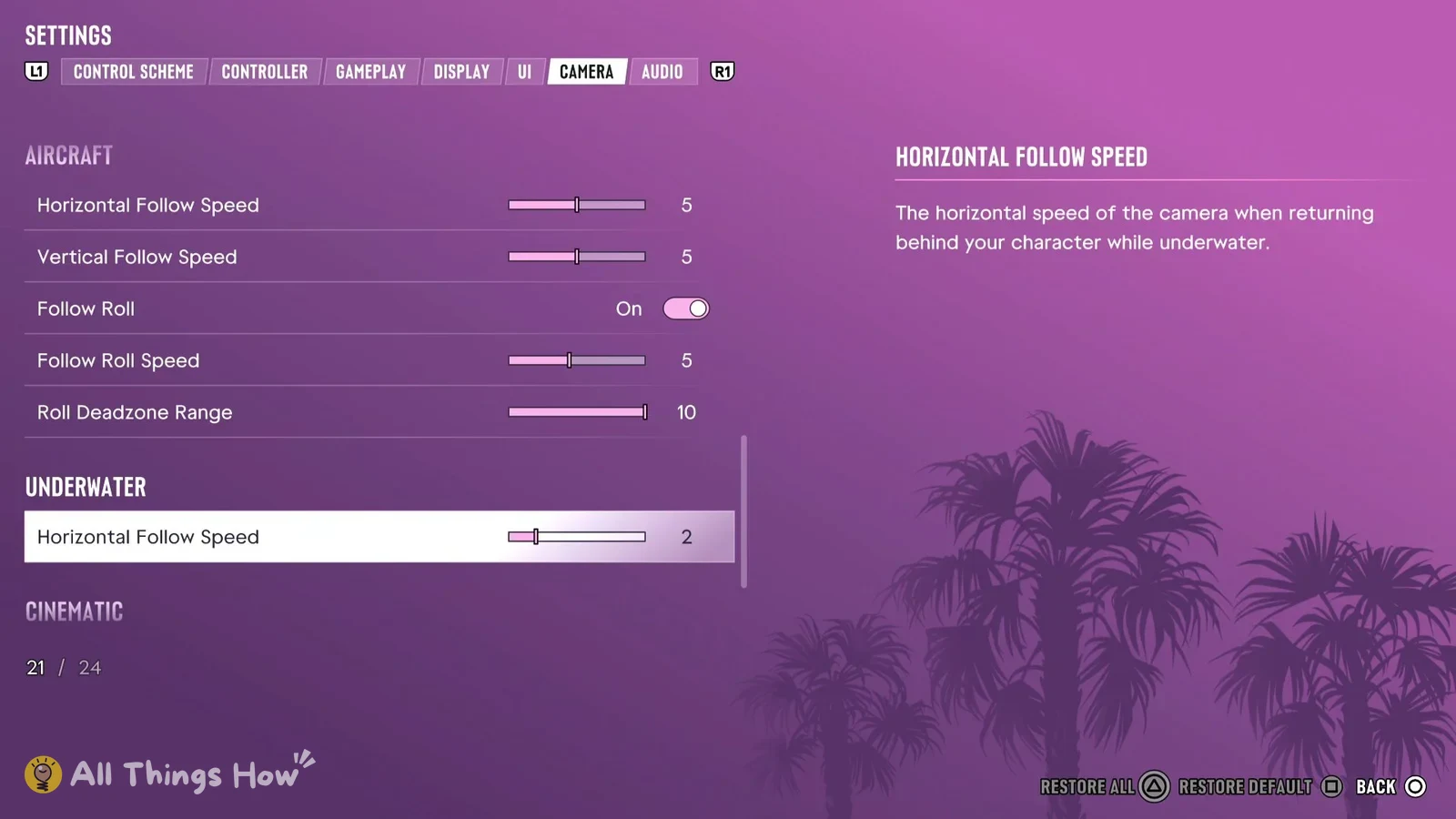
| Aircraft | Horizontal Follow Speed | 5 |
| Aircraft | Vertical Follow Speed | 5 |
| Aircraft | Follow Roll | On |
| Aircraft | Follow Roll Speed | 5 |
| Aircraft | Roll Deadzone Range | 10 |
| Underwater | Horizontal Follow Speed | 2 |
Height (On Foot) is “The camera height while on foot.” and Height (All Vehicles) sets the same thing for vehicles. Both start at Medium, the middle of three choices. The follow speed sliders set how quickly the camera swings back behind your character after you move it. On foot, the horizontal one is described as “The horizontal speed of the camera when returning behind your character while on foot.” For driving, the vertical slider is “The vertical speed of the camera when returning behind your character while driving a land or water vehicle.”
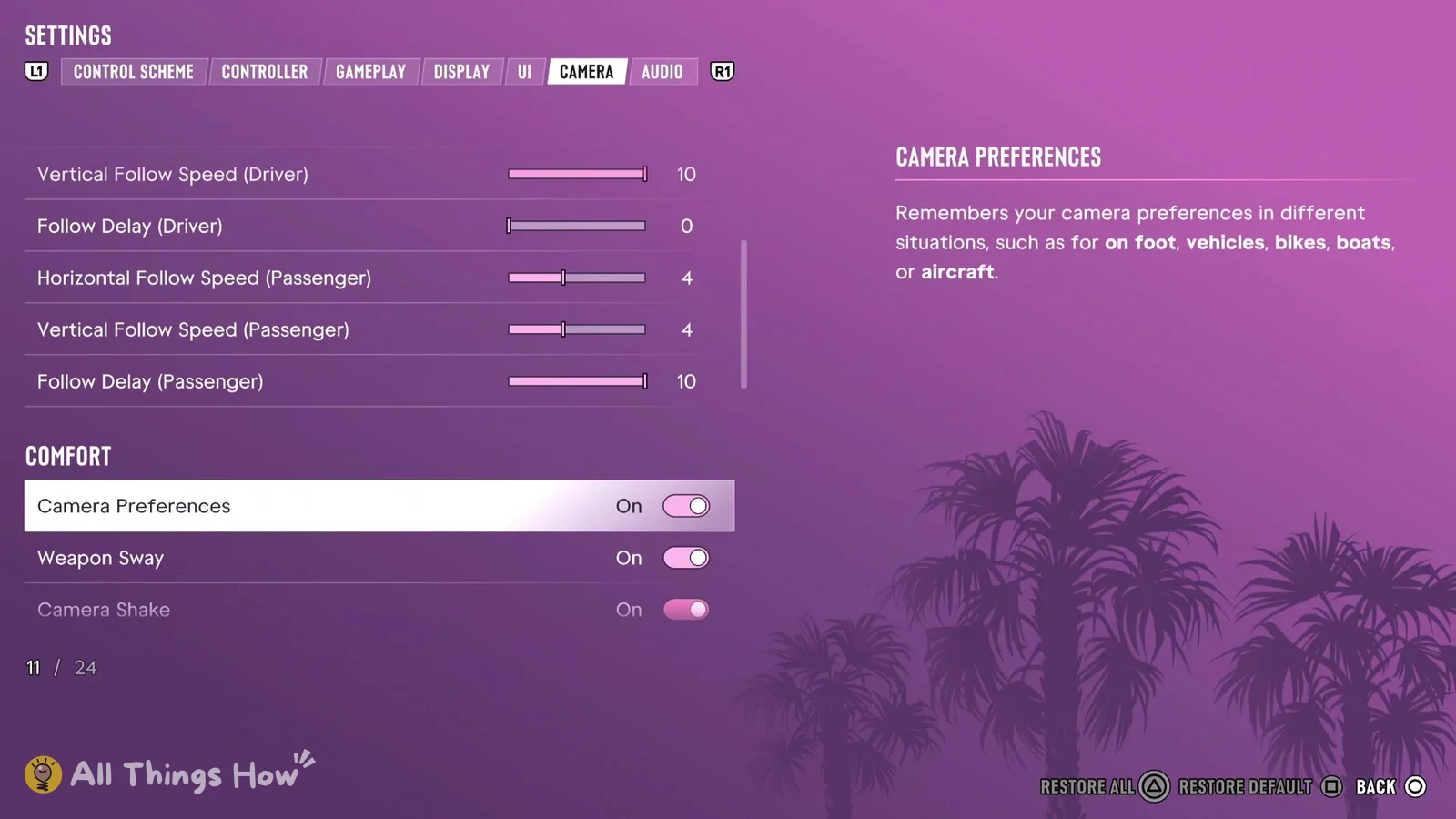
The on-foot and driver follow speeds start at 10, which is already the top of their range, so you can only slow them down from there. Passenger seats start much lower at 4, with a Follow Delay of 10 compared with the driver’s 0. In aircraft, the horizontal slider is “The horizontal speed of the camera when returning behind your character while flying an aircraft.” and both aircraft follow speeds start at 5. Underwater it’s “The horizontal speed of the camera when returning behind your character while underwater.” and it starts at 2.
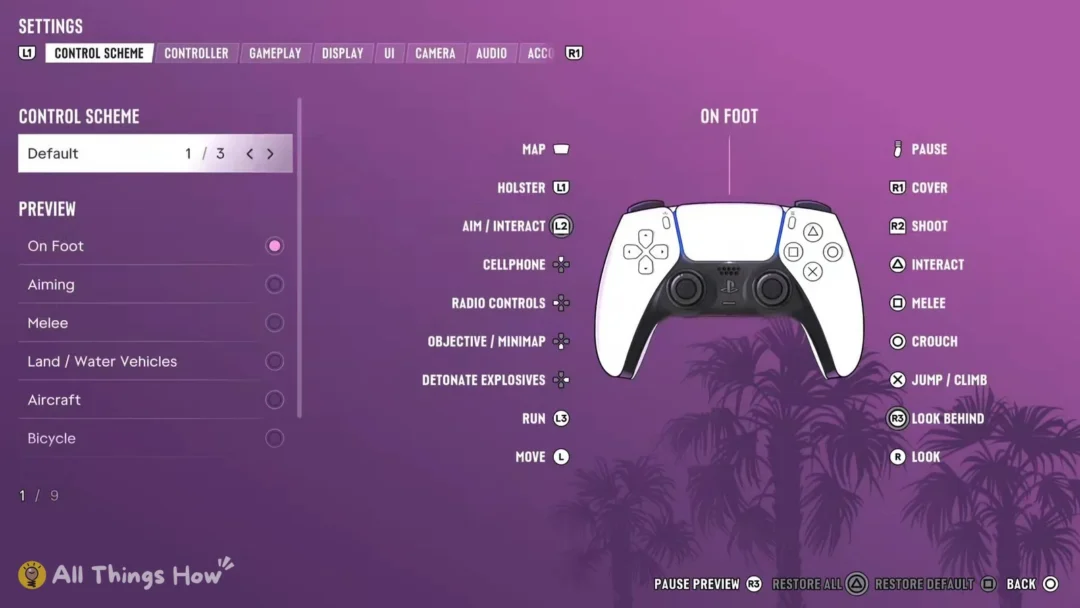
Look and aim sensitivity settings are under Controller rather than Camera. Horizontal and Vertical Look Sensitivity, Horizontal and Vertical Aim Sensitivity, Look Acceleration, and Aim Acceleration all begin at 7. Aim Response Curve starts on Standard, the first of four choices. There’s also an Inverted Controls group in Controller. Using the Default control scheme, pressing R3 makes you Look Behind while on foot.