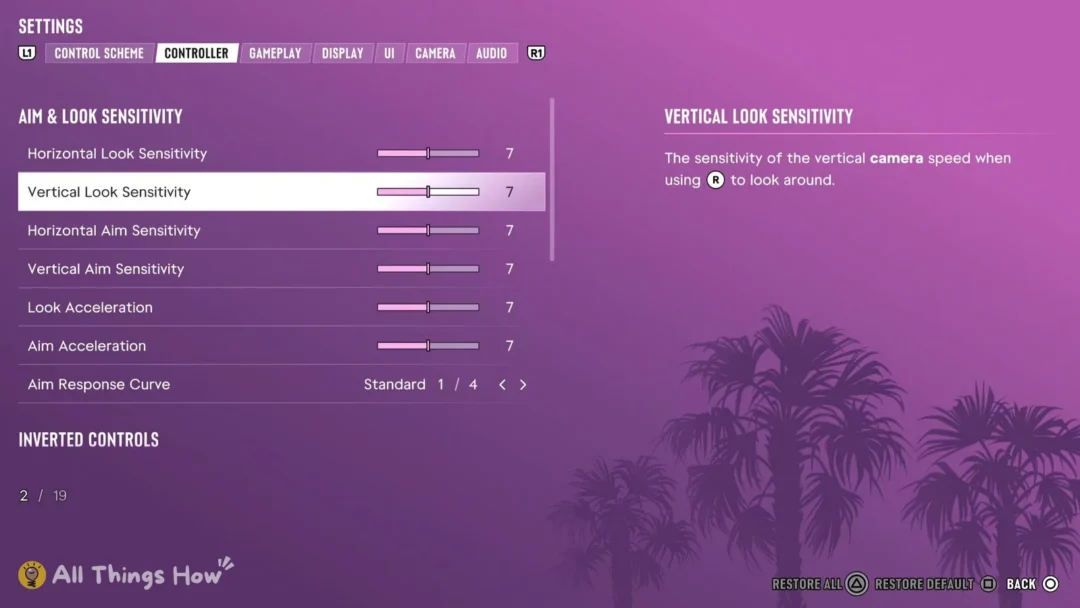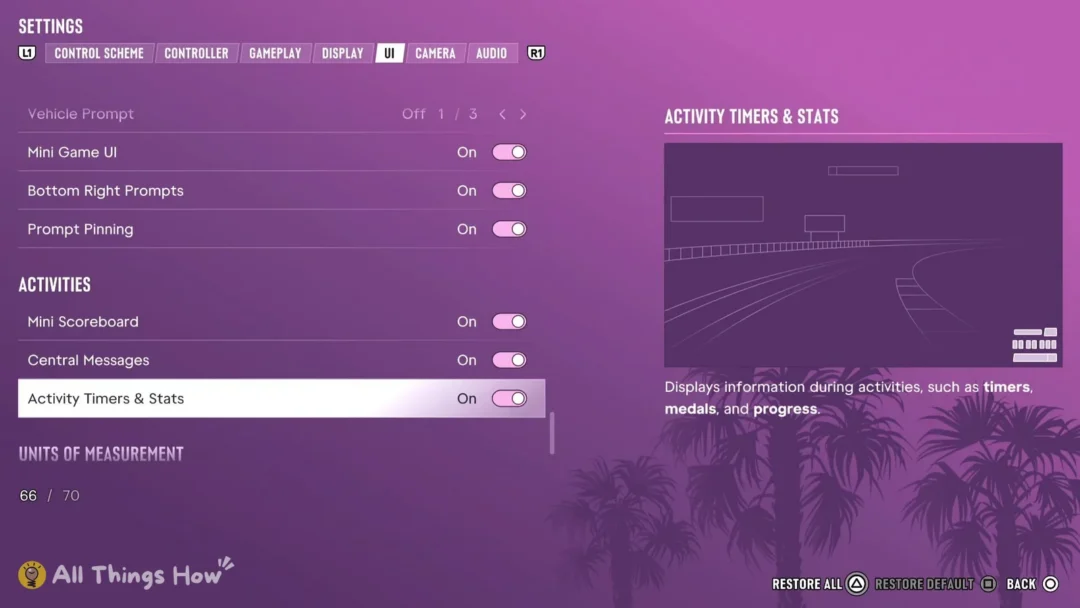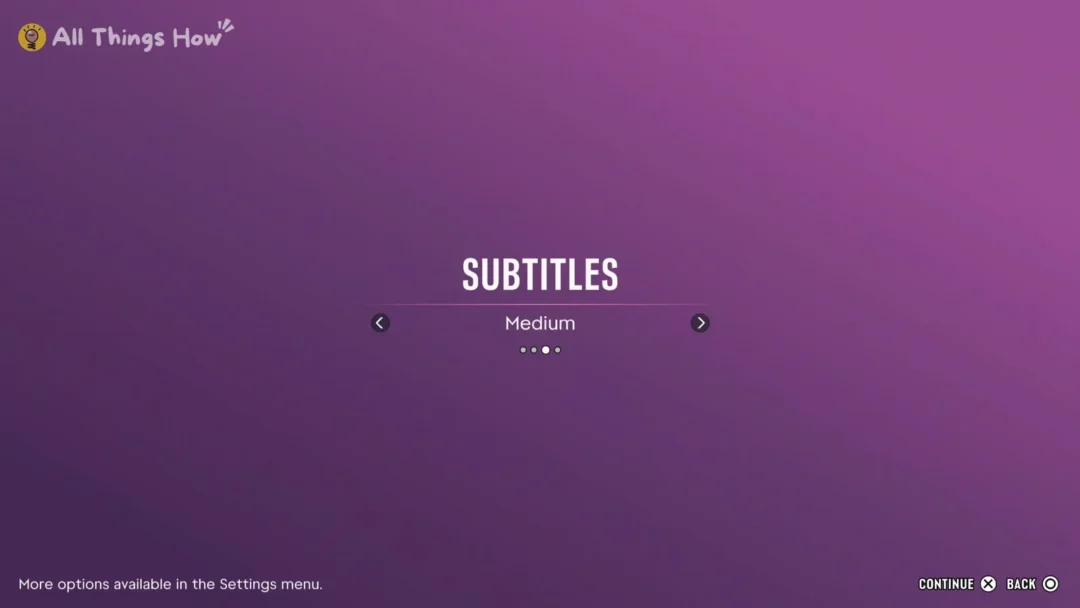

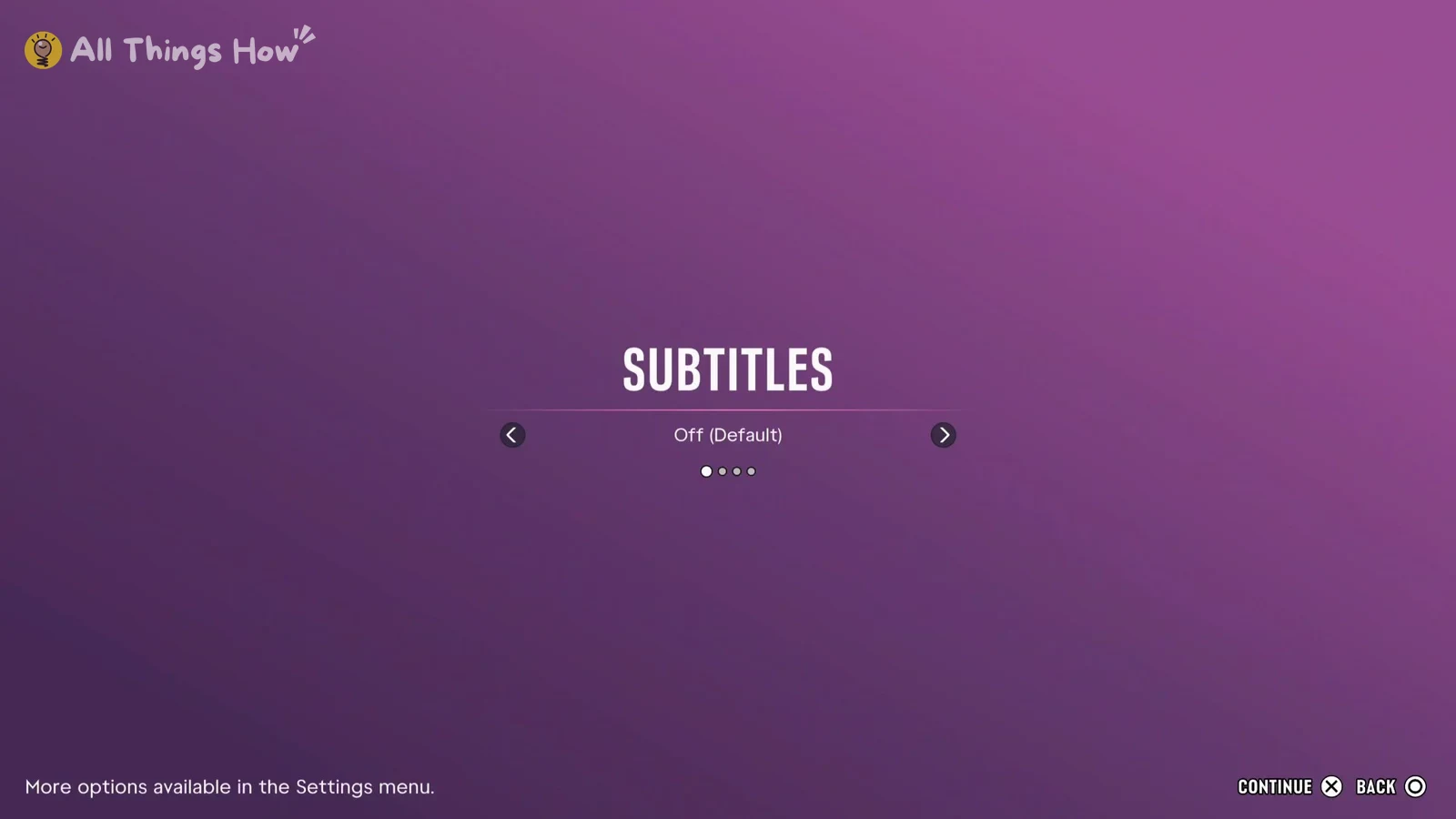
GTA 6 starts with subtitles set to Off. You can pick a subtitle size on a screen before the game starts. After that, every subtitle option is in the pause menu’s Settings, in the UI tab.
Quick answer: Pause, open Settings, press R1 to reach the UI tab, then go to Subtitles & Captions. Set Subtitles to the option you want and use Size to make the text bigger.
Picking a subtitle size on the first-start SUBTITLES screen
The first time you launch GTA 6 on PS5, a SUBTITLES screen comes up before the game begins. It has four choices: Off (Default), Small, Medium, and Large. Press left or right to change the choice, Cross to continue, or Circle to go back. The screen says “More options available in the Settings menu.” That’s where you go to change anything later, or to change things this screen doesn’t have, like speaker names and a background behind the text.
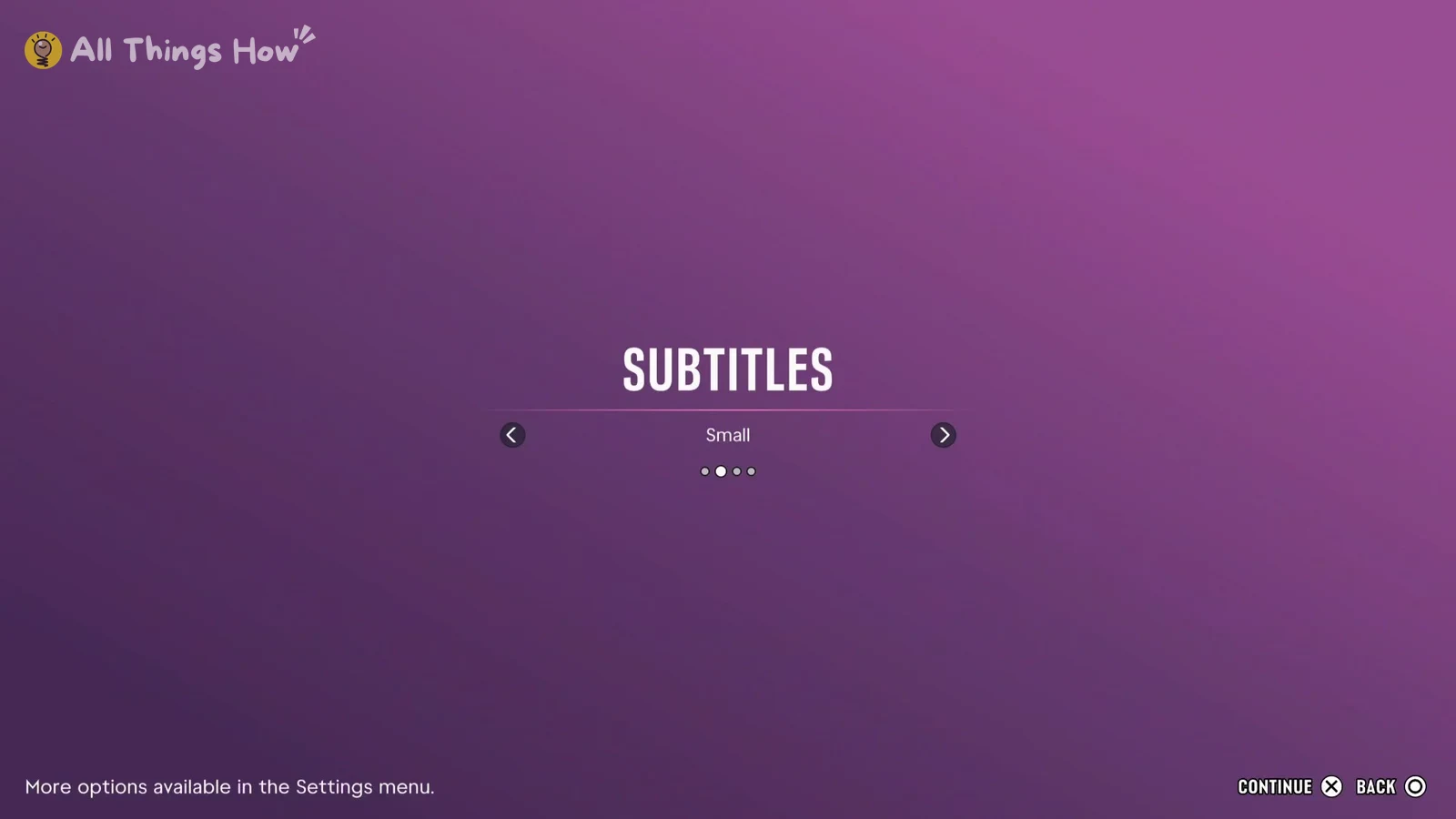
If you pick a size on this screen, the Subtitles row in Settings shows Mission Only afterward, which is the second of its three choices.
How to turn on GTA 6 subtitles and change their size in Settings
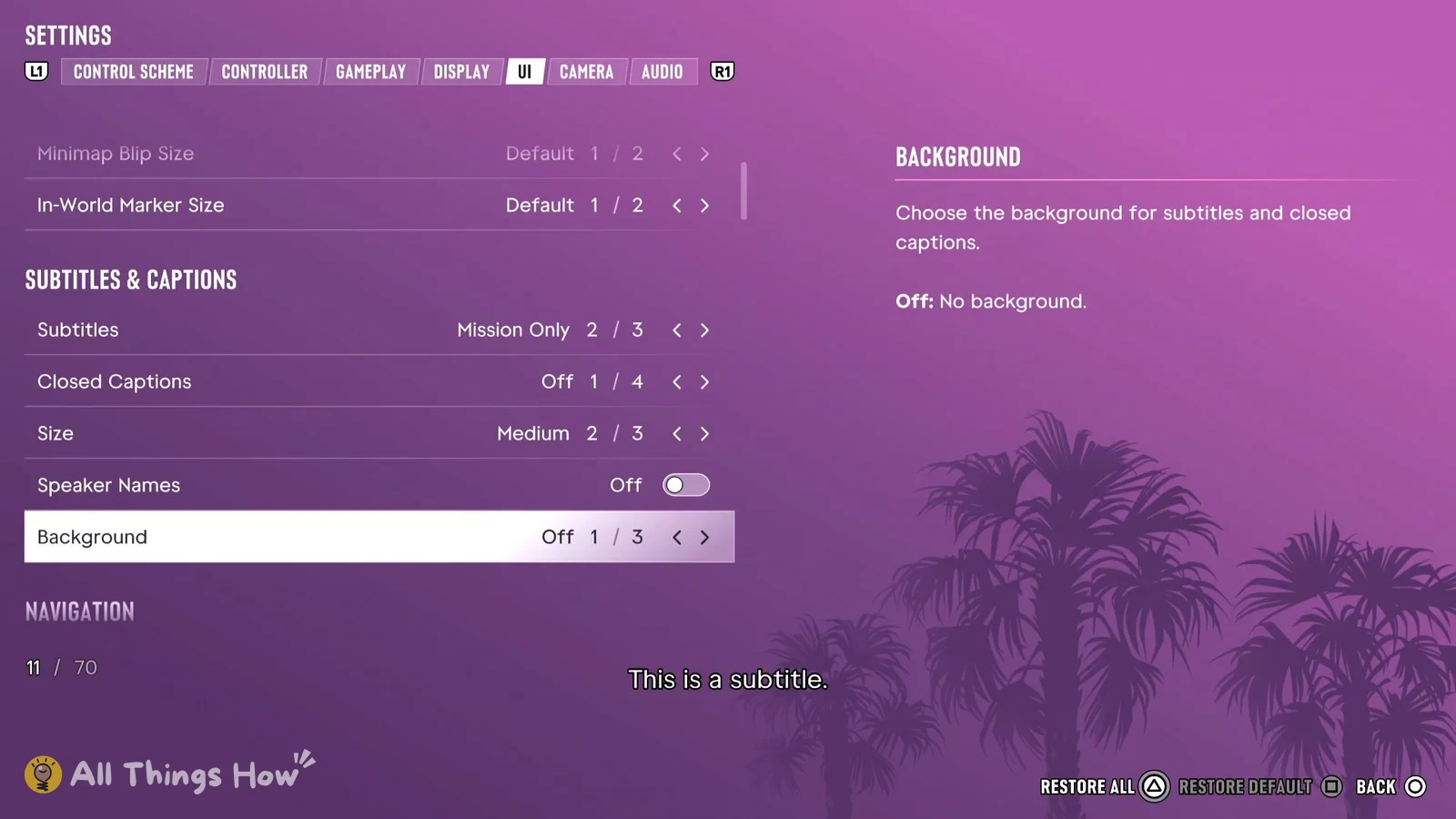
If you want to undo something, highlight the row and press Square to Restore Default. Press Triangle to Restore All.
Subtitles & Captions settings in GTA 6
These are the five rows in the group. The middle column shows what each row is set to after you pick Medium on the first-start screen.
| Setting | Value after first start | Choices |
|---|---|---|
| Subtitles | Mission Only (2 of 3) | 3 |
| Closed Captions | Off (1 of 4) | 4 |
| Size | Medium (2 of 3) | 3 |
| Speaker Names | Off | On/off toggle |
| Background | Off (1 of 3) | 3 |
Closed Captions is its own row, separate from Subtitles. The Background row’s description reads “Choose the background for subtitles and closed captions. Off: No background.” That means one Background setting covers both kinds of text.
UI Text Size, which sits in Scaling & Readability just above the subtitle group and starts at Small (1 of 4), is a separate setting. To make subtitles bigger, you have to use the Size row under Subtitles & Captions.
One related setting is in the Audio tab. If you turn on Mute Licensed Music, its description says “Captions will still display for music when turned on and licensed music is muted.” So muting licensed music doesn’t remove music captions if you have them turned on.