

A fingerprint reader on a Windows 11 laptop signs you in by scanning your finger and matching it against an enrolled template, so you skip the password or PIN. When that stops working, the most common signs are a greyed-out fingerprint option in Settings, the message “This option is currently unavailable,” or a scanner that simply never recognizes your finger. The good news is that the hardware is rarely the problem. Most cases trace back to a broken biometric driver, a stuck USB device, a stopped service, or a stale Windows Hello enrollment.
Quick answer: Open Device Manager, look under Universal Serial Bus controllers for any device with a yellow exclamation mark, right-click it and either disable then re-enable it or uninstall it and reboot. This usually restores the “Biometric devices” entry and makes the fingerprint options in Settings clickable again.

Quick checks before you change anything
A few small things mimic a hardware failure and take two minutes to rule out. Wipe the sensor with a clean, dry microfiber cloth, since oil, dust, or moisture on the pad or your fingertip can block a match. Try a different finger if your skin is dry or has changed. If you use an external USB reader, move it to another port and plug it straight into the laptop instead of an unpowered hub.
Then do a full restart rather than letting the machine sleep. A clean reboot clears stuck sensor threads and is the single most reliable reset. If you can still sign in with your PIN or password, you are in a safe spot to work through the fixes below in order.
Fix a stuck USB device that hides the fingerprint reader
On many Dell, HP, and similar laptops, the fingerprint options go grey and the “Biometric devices” heading disappears from Device Manager entirely. The cause is often a USB controller that failed to start, which drags the biometric reader down with it. Clearing that device brings everything back, frequently with your original fingerprint enrollment intact.
Windows + X and open Device Manager. Scroll to the bottom and expand Universal Serial Bus controllers.After the reboot, the “Biometric devices” heading should reappear, often listing a reader such as Goodix fingerprint. Open Settings and the fingerprint controls should no longer be greyed out.
Update, reinstall, or roll back the biometric driver
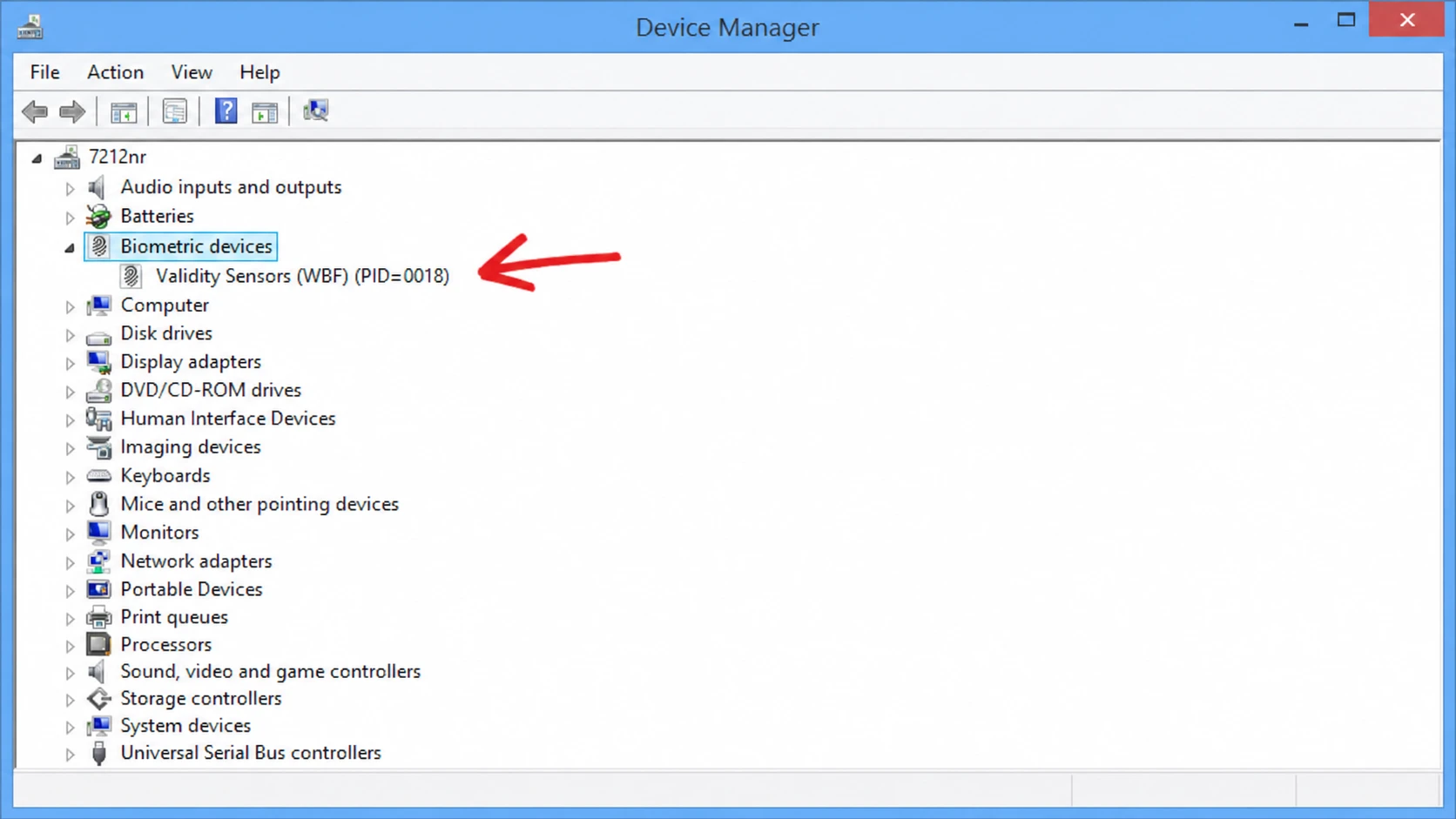
Fingerprint readers depend on vendor drivers from makers like Synaptics, Goodix, ELAN, Validity, or AuthenTec. A corrupted or wrong-version driver is one of the most frequent reasons the reader stops responding, and Device Manager is where you repair it.
When the generic driver installs but still fails, download the model-specific biometric driver from your laptop maker’s support page. Some systems split the reader across both Biometric devices and Human Interface Devices, so update both entries if they exist. A second restart often matters here, because Windows Hello, the driver, and the biometric service do not always sync on the first boot.
Re-enroll your fingerprint in Windows Hello
An update, a device reset, or a PIN change can leave Windows with a stale fingerprint template that no longer matches what the driver expects. Removing the old enrollment and adding it fresh forces Windows to rebuild the template, and it is often the fastest fix once the reader is visible again.
Watch the fingerprint glyph on screen as you press the sensor. If it fills up and setup completes, the reader is healthy. If the glyph never fills no matter how long you hold your finger down, the scanner likely has a physical fault that only the manufacturer can address.
Set the Windows Biometric Service to Automatic
Windows Hello relies on the Windows Biometric Service to store enrollment data and broker authentication. If that service is stopped or set to manual, the hardware can be present while Windows behaves as if no usable reader exists. Debloat scripts, privacy tools, and aggressive optimizers sometimes disable it without you noticing.
Check Windows updates and BIOS settings
Some fingerprint breakages arrive with a Windows update, and some are fixed by one. Open Settings, go to Windows Update and select Check for updates, then install anything pending and reboot. Laptop makers also ship biometric fixes through these cumulative updates.
If the reader never shows up in Device Manager even after scanning for hardware changes, the biometric device may be turned off in firmware. This is common on business laptops, where IT or a previous owner disabled it. Restart, press the BIOS key for your model (often F10), and under System Configuration or Security look for a Biometric Device option and enable it. Save and exit, then boot back into Windows. If no biometric option exists in your BIOS, the reader is always enabled and the problem lies elsewhere.
If a corrupted account profile is to blame
A damaged user profile can block Windows Hello even when the driver and service are fine. To test for this, switch to a local account or create a new account and see whether the fingerprint option becomes available there.
To switch accounts, open Settings, go to Accounts and Your info, then choose Sign in with a local account instead and follow the prompts. To create a fresh account, go to Accounts and Other users, click Add account, and pick “I don’t have this person’s sign-in information” if you want a new account. If fingerprint setup works under the new profile, the original profile is the fault, and you can move your files across using Microsoft’s guidance for a corrupted user profile in Windows.
Extra fixes when the basics fail
These steps cover the less common causes. Work through them only if the fixes above did not restore sign-in.
| Problem | What to do |
|---|---|
| Power saving turns the reader off | In the reader’s Device Manager Properties, open the Power Management tab and uncheck “Allow the computer to turn off this device to save power.” Under System and Power & battery, set Power mode to Best performance. |
| Corrupted system files | Open Command Prompt as administrator and run sfc /scannow, then dism /online /cleanup-image /restorehealth, then restart. |
| Software conflict | Boot into Safe Mode and test. If the reader works there, remove antivirus, system optimizer, or monitor tools one by one. |
| Hardware not detected at all | Run the troubleshooter with msdt.exe -id DeviceDiagnostic and apply any recommended fixes. |
| Biometrics blocked by policy (Pro, Education, Enterprise) | Open gpedit.msc, go to Computer Configuration, Administrative Templates, Windows Components, Biometrics, and set each policy to Enabled. |
| Domain PIN sign-in blocked | In regedit, at HKEY_LOCAL_MACHINE\SOFTWARE\Policies\Microsoft\Windows\System, create a DWORD named AllowDomainPINLogon and set it to 1, then restart. |
How to confirm it worked
You know the fix landed when the Fingerprint recognition section in Sign-in options is fully clickable, the “This option is currently unavailable” message is gone, and Add a finger lets the glyph fill as you scan. The real test is the lock screen. Sign out, place your finger on the sensor, and you should be let straight in without typing your PIN.
If the glyph never fills during enrollment, or the reader vanishes from Device Manager again after every sleep cycle, the issue points to the physical sensor, a USB power transition, or firmware rather than Windows settings. At that point, contact your laptop maker’s support so they can check the hardware directly.



