
The PFN_LIST_CORRUPT blue screen hits when the page frame number list, one of the internal structures Windows uses to track physical memory, gets damaged. The bug check code is 0x4E. It often shows up under load, and many people see it specifically while gaming, including Unreal Engine 4 and 5 titles and Baldur’s Gate 3. The cause is almost always one of three things: faulty or failing RAM, a bad driver, or corrupted system files.
Quick answer: Run Windows Memory Diagnostic to rule out bad RAM, update your graphics card driver, then run sfc /scannow followed by the DISM RestoreHealth command. If crashes started after installing something, uninstall that app or driver. The error is gone when your PC runs under load without throwing the 0x4E stop code again.
What PFN_LIST_CORRUPT means
The page frame number (PFN) list is a database Windows relies on to map and manage physical memory pages. When entries in that list get corrupted, Windows can no longer trust where data lives in memory, so it halts with a blue screen and forces a restart to protect itself. If the underlying problem stays, you can get caught in a loop where the crash returns on every restart.
Because the damage starts in memory management, the most common triggers are physical RAM faults, drivers that mishandle memory (graphics drivers are frequent offenders), and corrupted Windows system files. Some security software and cracked applications can also delete or interfere with system files and produce the same error.
Common causes of the 0x4E stop code
| Cause | Typical sign |
|---|---|
| Faulty or failing RAM | Crashes under heavy memory use, especially in games |
| Corrupt or outdated drivers | Crashes tied to graphics-heavy apps or after a driver update |
| Corrupt system files | Repeated BSODs even after other fixes; other Windows errors appear |
| Recently installed software | Crashes began right after installing an app or antivirus |
| Disk errors or bad sectors | Crashes alongside slow reads, file corruption, or boot issues |
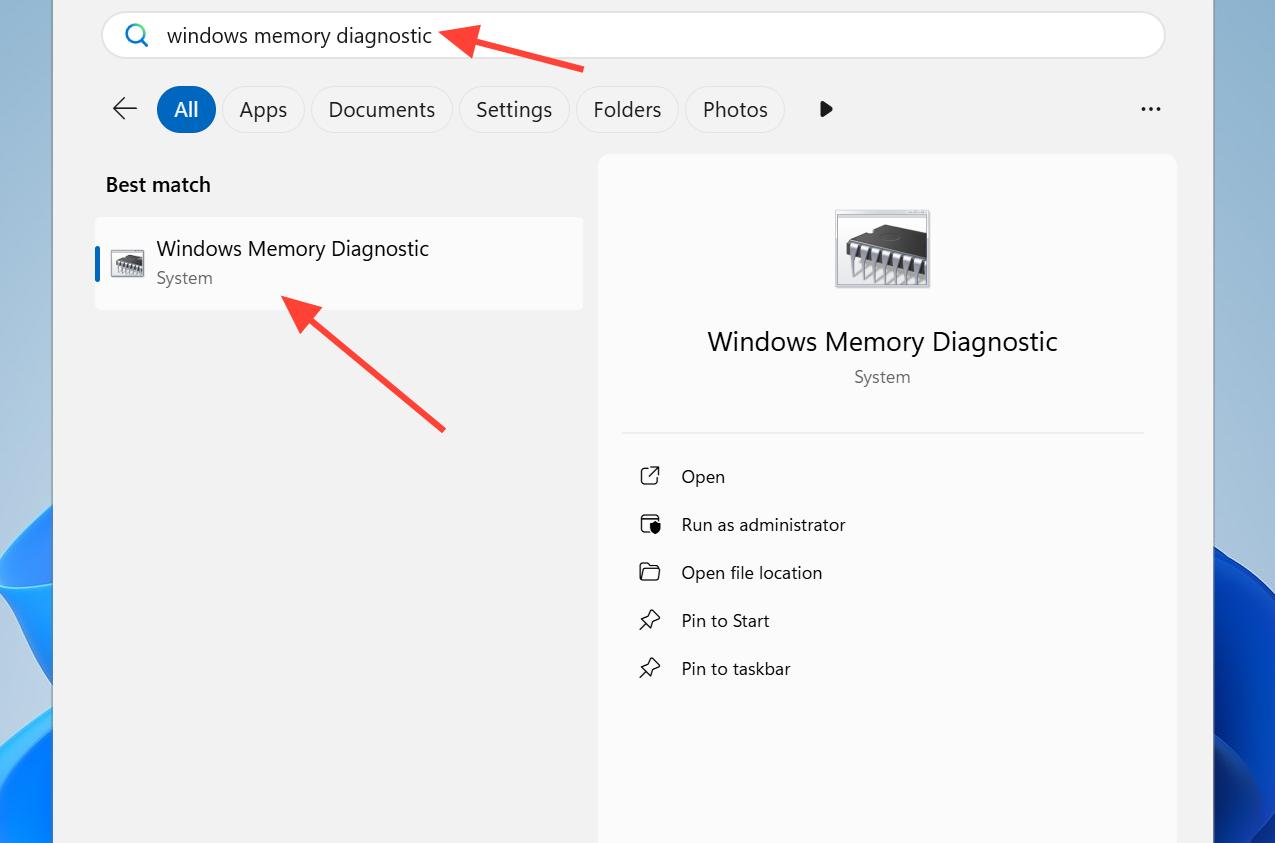
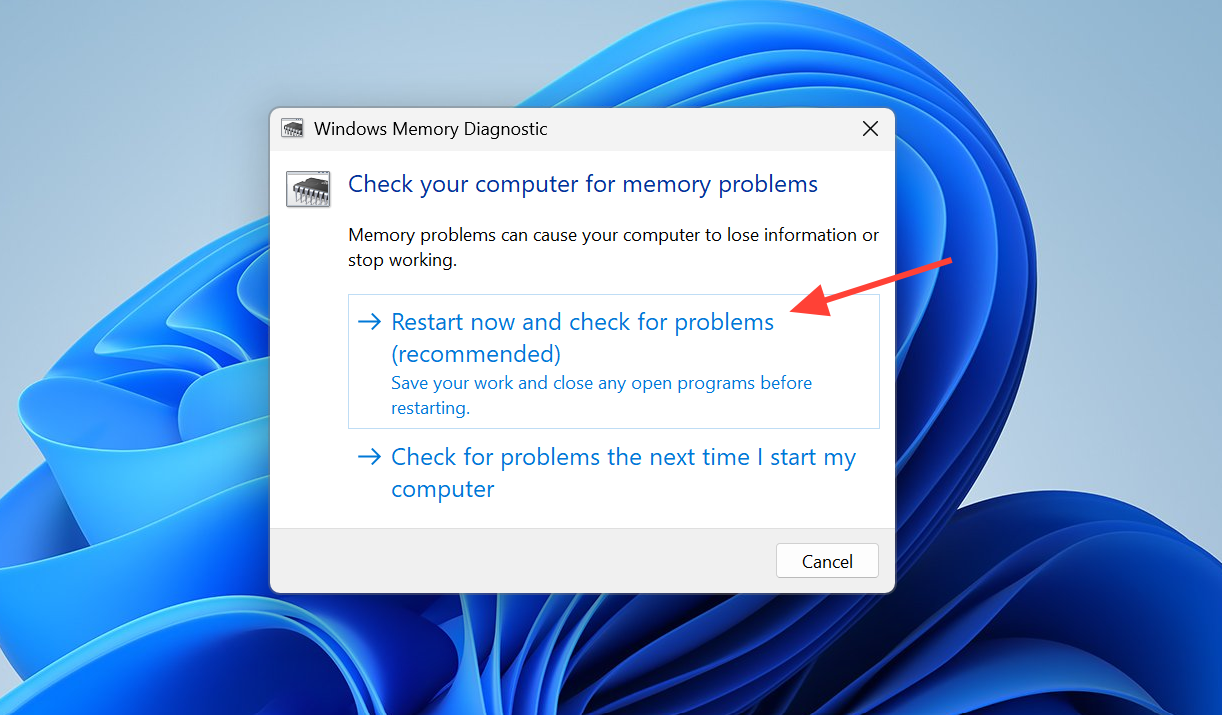
Test your RAM with Windows Memory Diagnostic
Memory is the first thing to check because the error lives in memory management, and a bad stick will keep crashing no matter what else you fix.
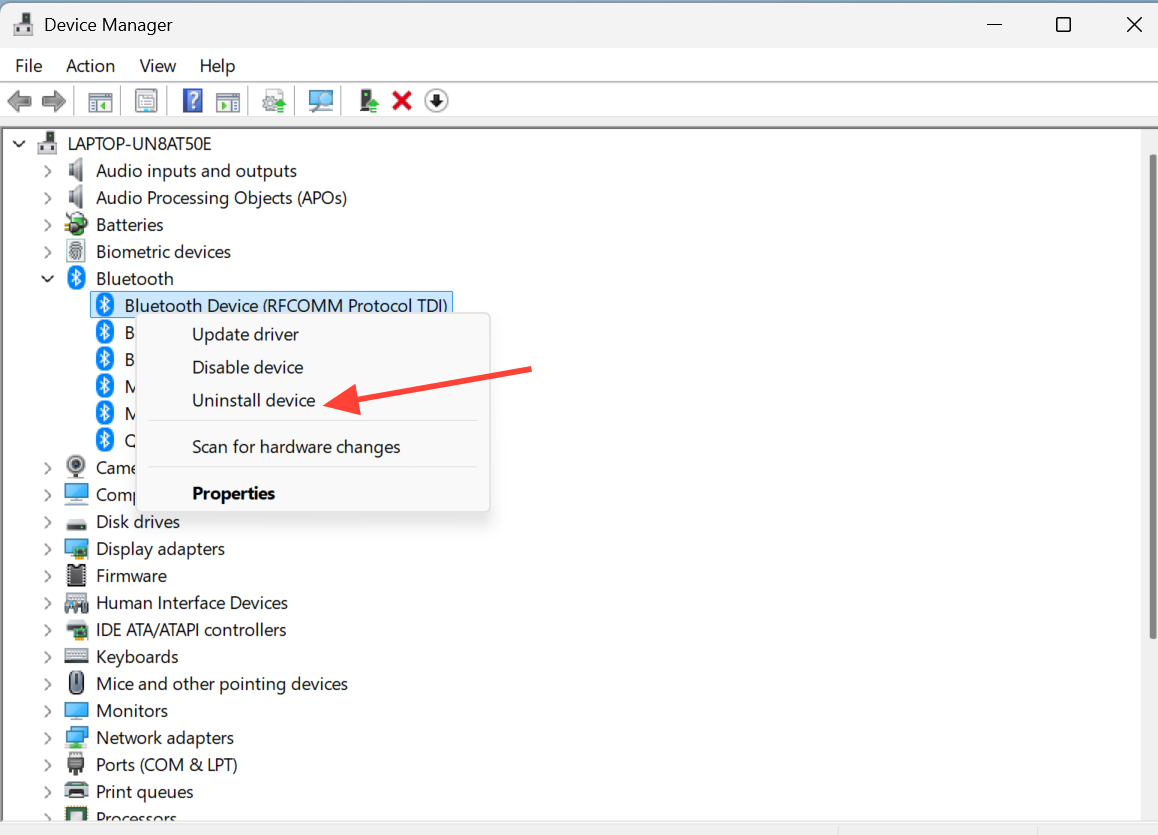
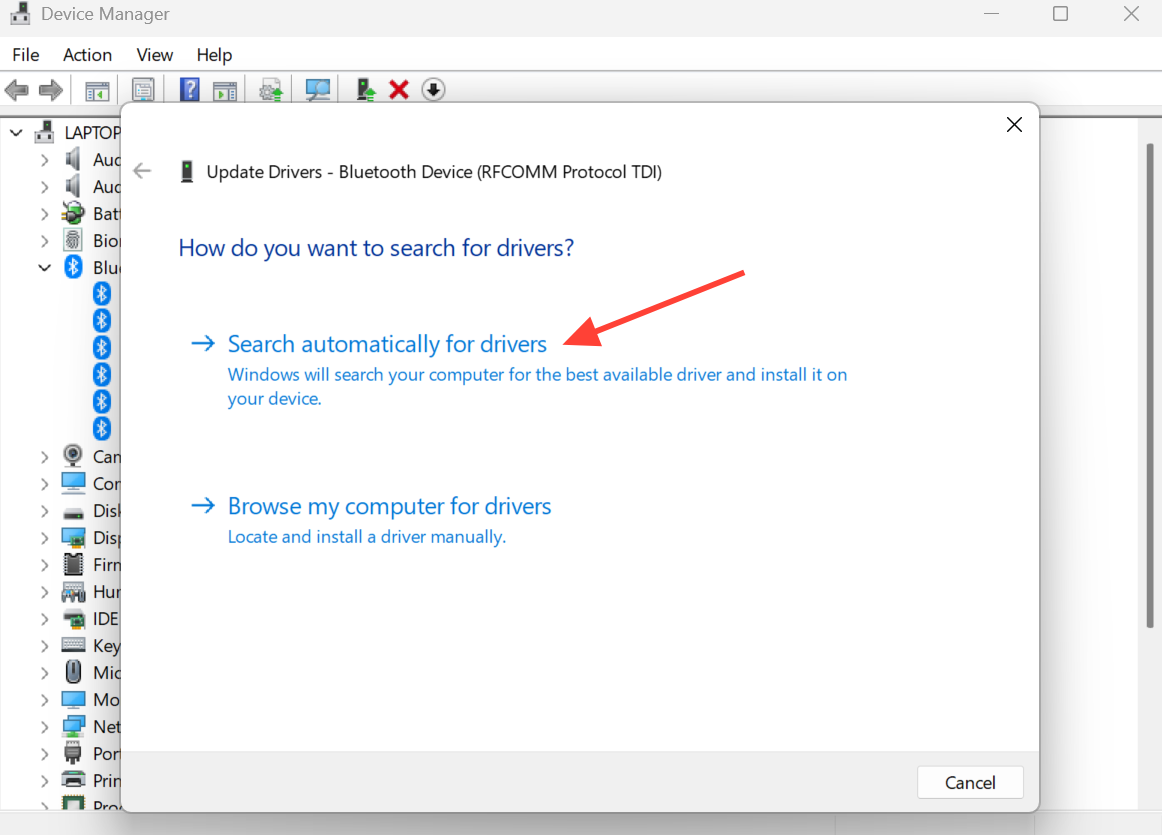
Update or remove the graphics driver
Since the crash frequently appears in games, the graphics driver is a prime suspect. Install the latest driver straight from your card maker’s website rather than relying on the generic one.
Repair system files with SFC and DISM
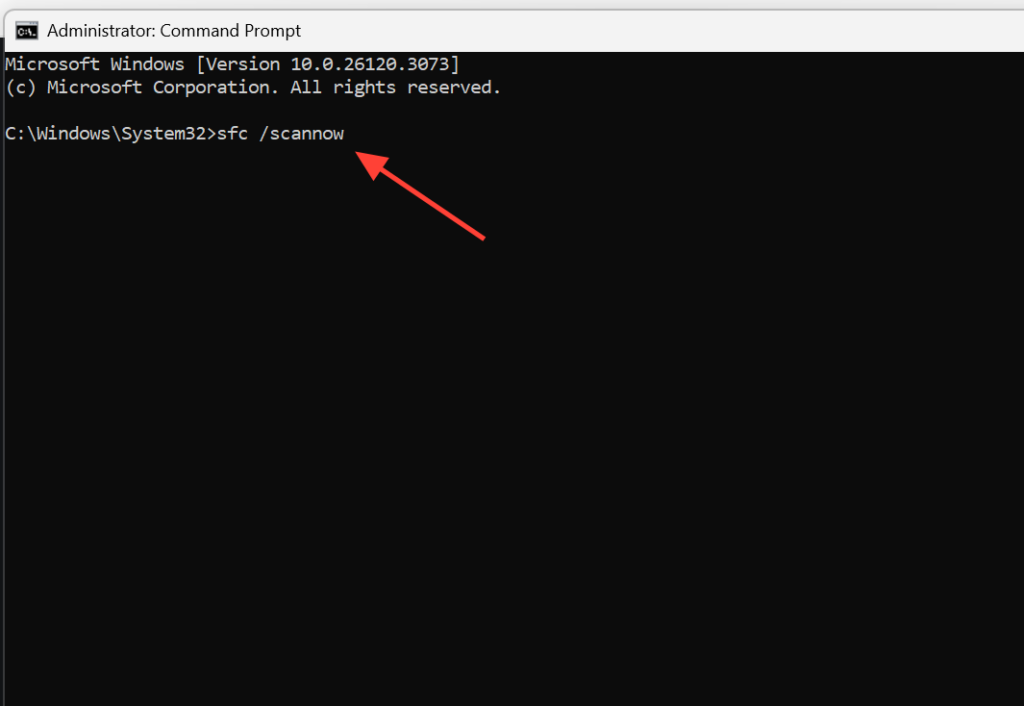
Corrupted system files can break memory management directly. Two built-in tools repair them. Run System File Checker first, then DISM to fix the underlying Windows image.
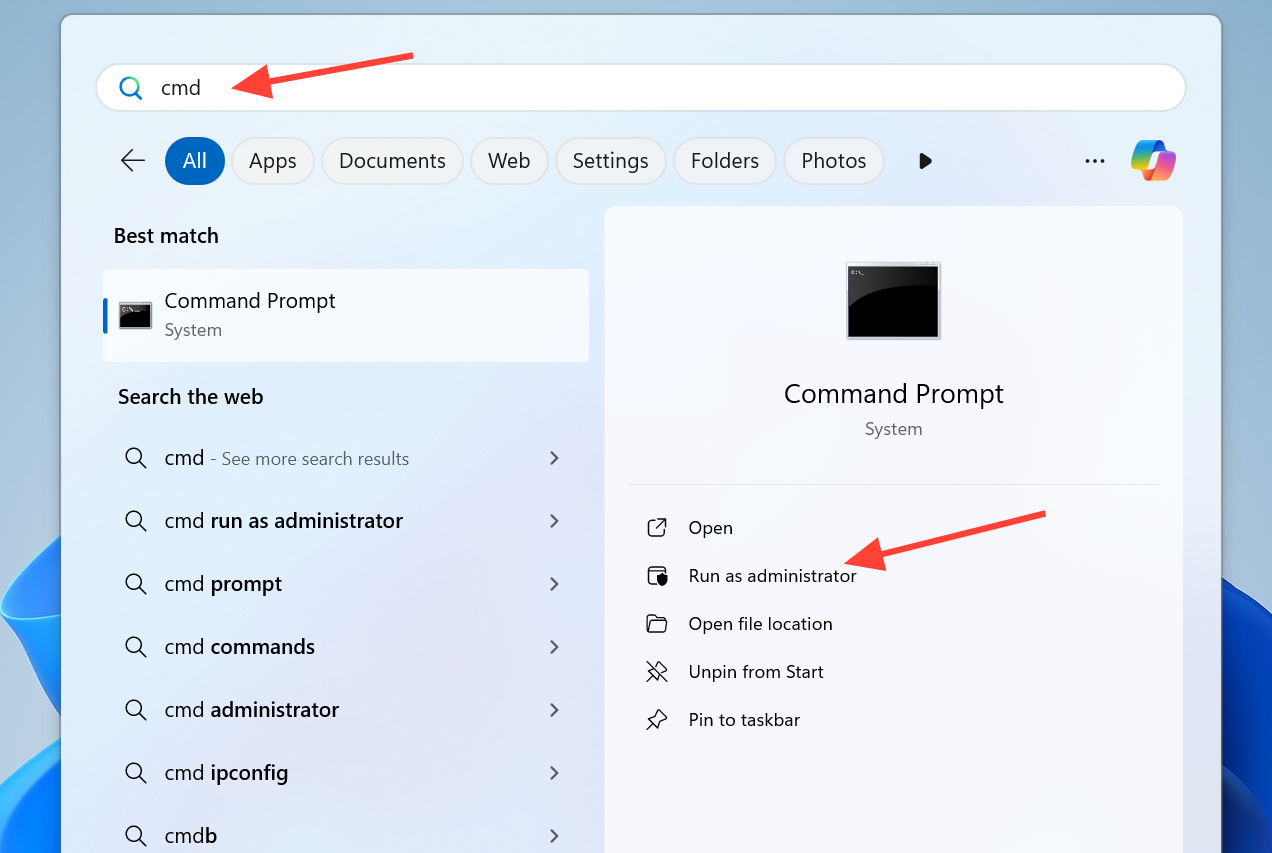
sfc /scannow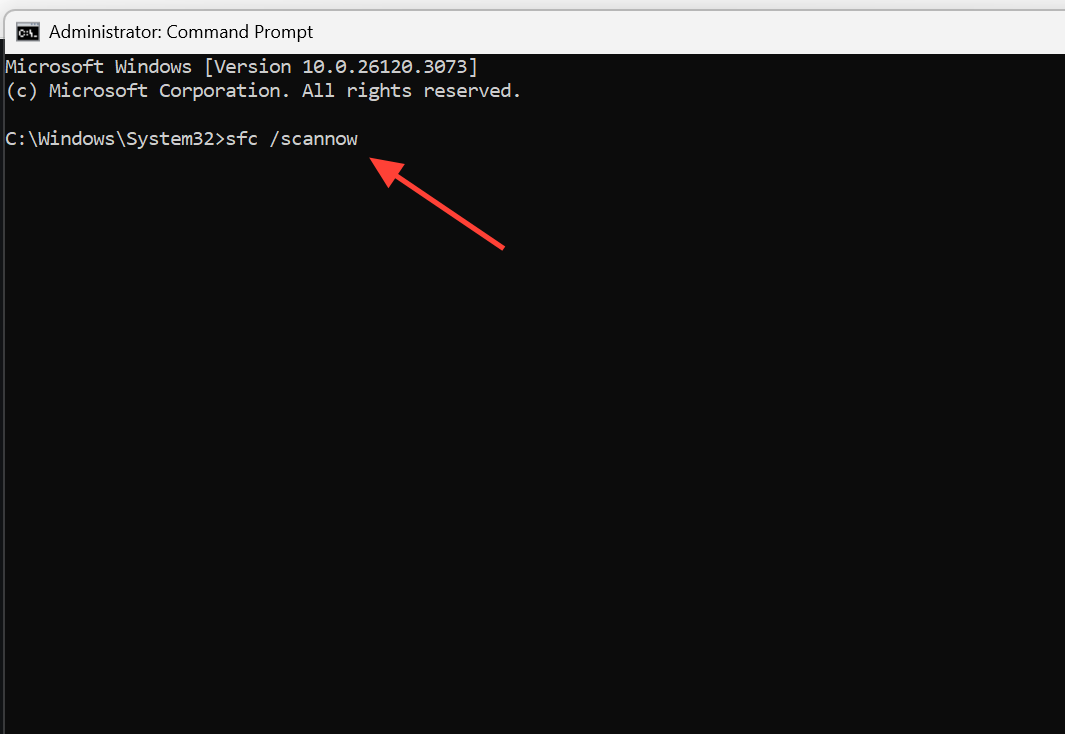
DISM.exe /Online /Cleanup-image /Restorehealth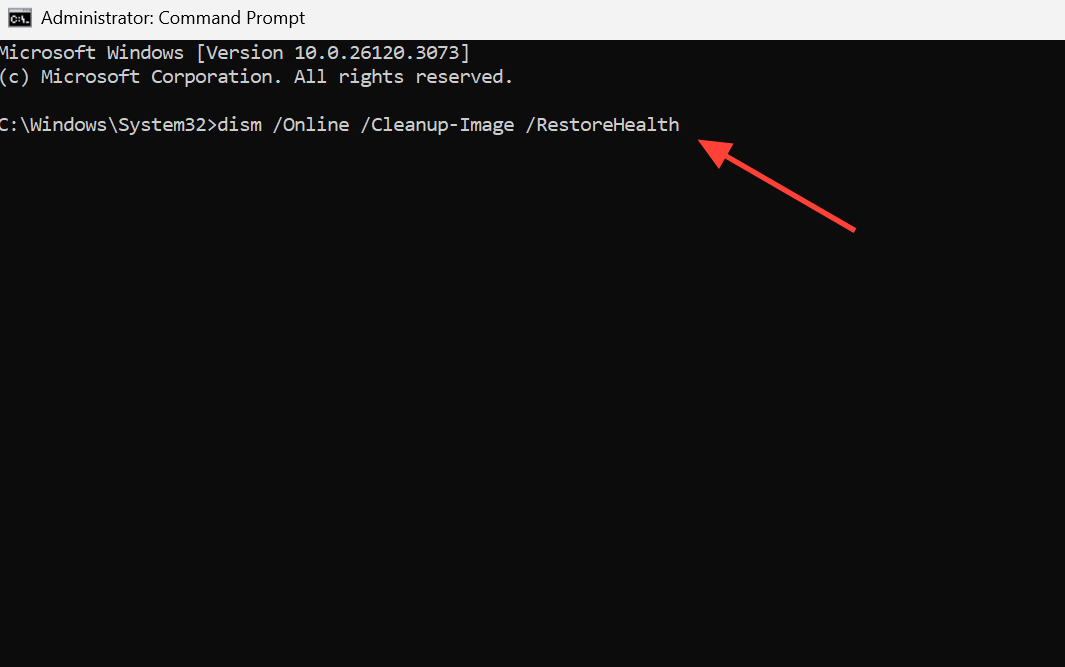
Check the drive for errors with CHKDSK
Bad sectors and file system errors on the disk can also trigger the stop code. CHKDSK scans the drive and repairs what it can.
chkdsk C: /f /r /x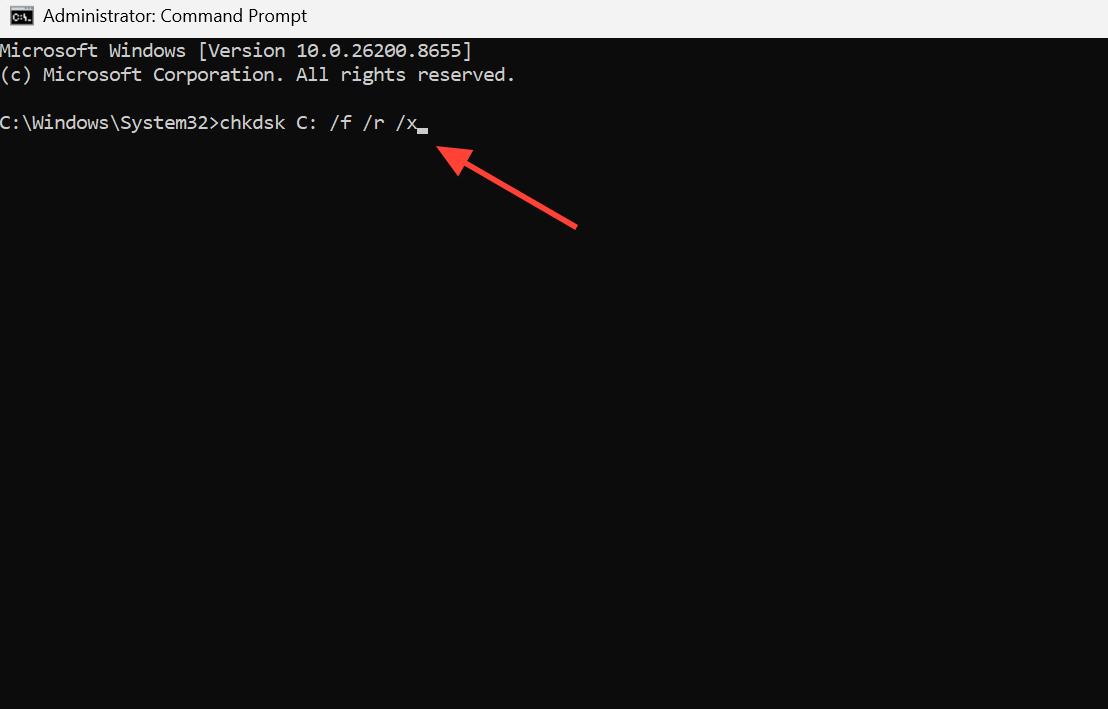
Remove recent software and update Windows
If the crashes started right after you installed an app, that software is the likely culprit. Antivirus tools are common offenders because they can quarantine or remove files Windows needs. Cracked or untrusted software is another frequent cause.
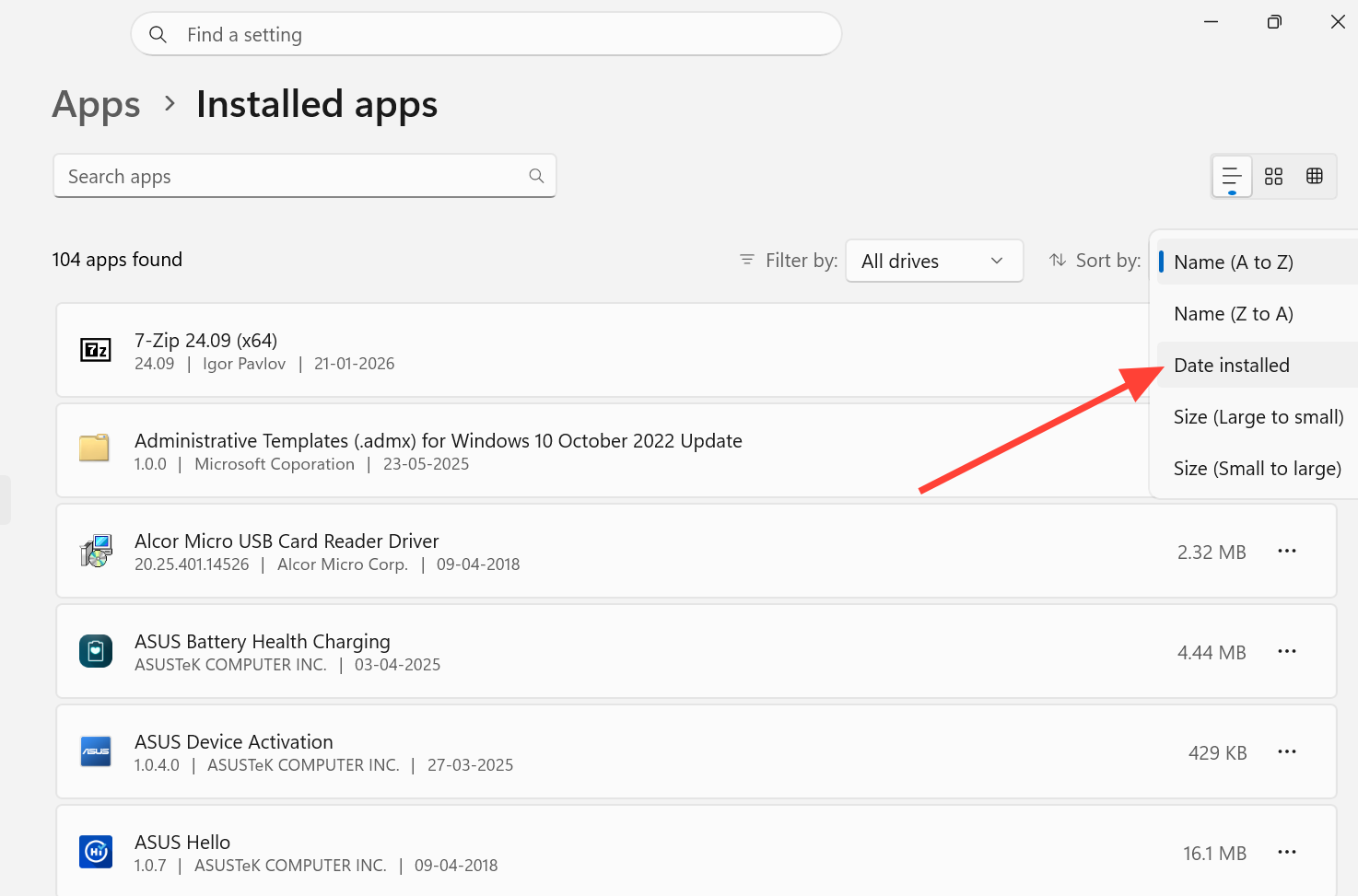
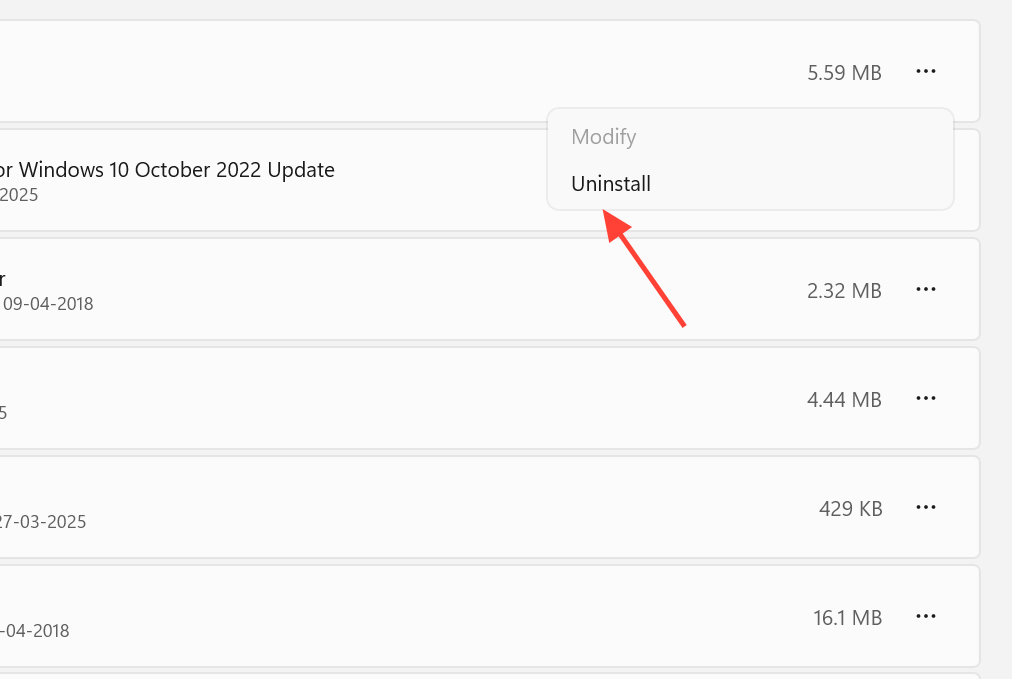
Note: A full malware scan with a trusted security product is worth running too, since viruses can corrupt system files and produce the same blue screen.
How to confirm the fix worked
You know the problem is solved when your PC runs through the same workload that used to crash it, such as a demanding game session, without the PFN_LIST_CORRUPT blue screen returning. A clean Windows Memory Diagnostic result plus SFC and DISM reporting no remaining corruption are strong signs the cause is cleared.
If the crash keeps coming back after all of this, the most likely remaining cause is failing hardware, usually a bad RAM module that needs replacing. As a last resort, a clean install of Windows 11 rules out deep software corruption, but back up your important files first.



