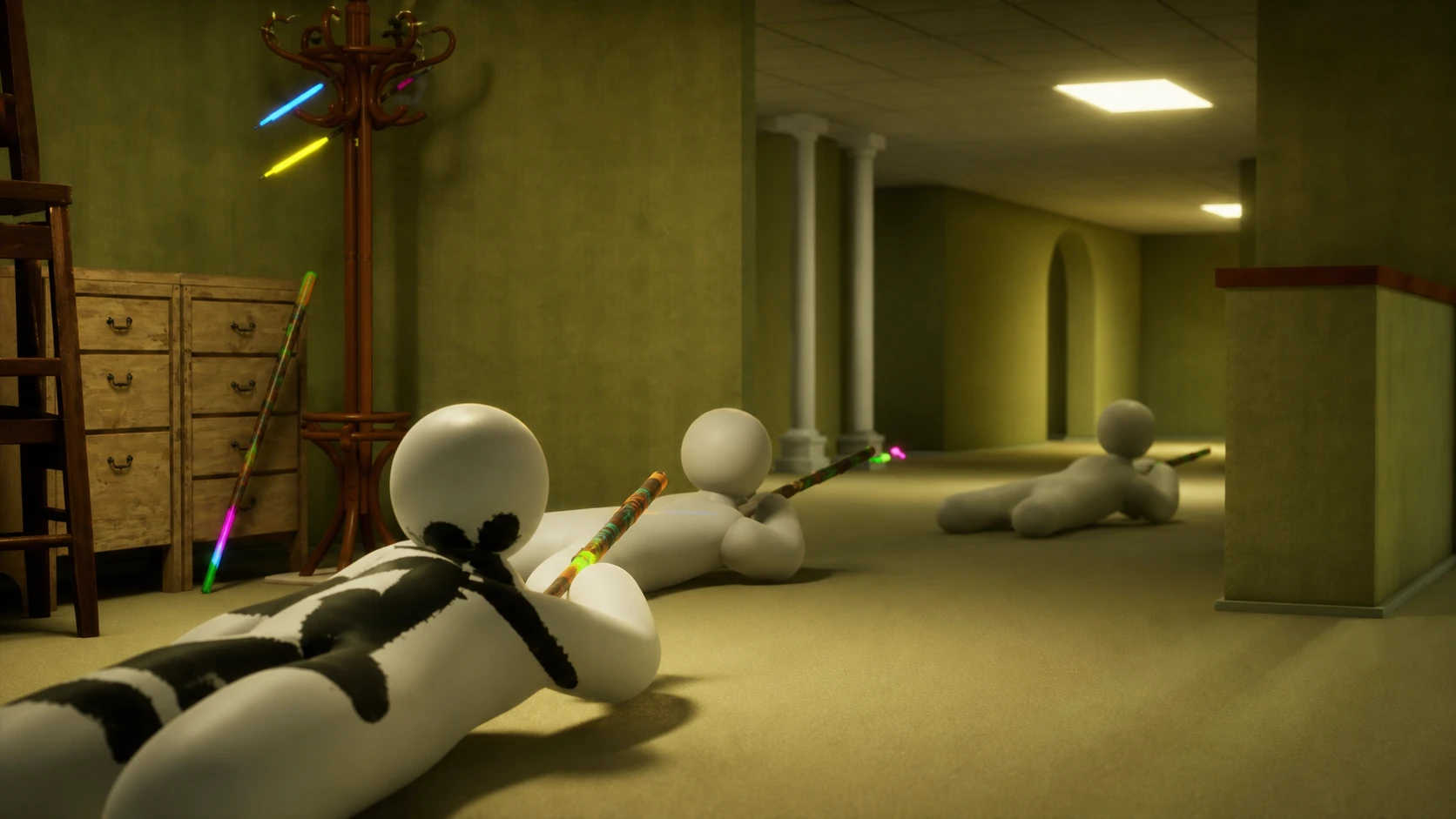
MECCHA CHAMELEON is a paint-and-hide party game built for groups of 2 to 10 players, and the whole experience lives or dies on getting everyone into the same room. The hard part isn’t the hide-and-seek. It’s the lobby. Invites that don’t land, rooms that refuse to appear in search, and mismatched settings are the reasons friends end up in three different empty lobbies wondering where everyone went.
Quick answer: Pick one host, have them open a private or passworded room and stay in the lobby, then have them paste a single message with the exact region, room name, password, tag, and player limit. Everyone else searches manually using those exact details before the host starts the match.
What you need before you start
MECCHA CHAMELEON is a paid PC game on Steam, and multiplayer only works between Steam users on supported PC platforms. It’s Windows-only for now, so every person in your group needs the game installed on a Windows machine. You can grab it from the official store page if someone in your group hasn’t bought it yet.
The single most important requirement is that everyone runs the same game version. Multiplayer depends on it. If one person updated and another didn’t, joining will fail no matter how perfect the room settings are. Check the version on the title screen before you troubleshoot anything else.
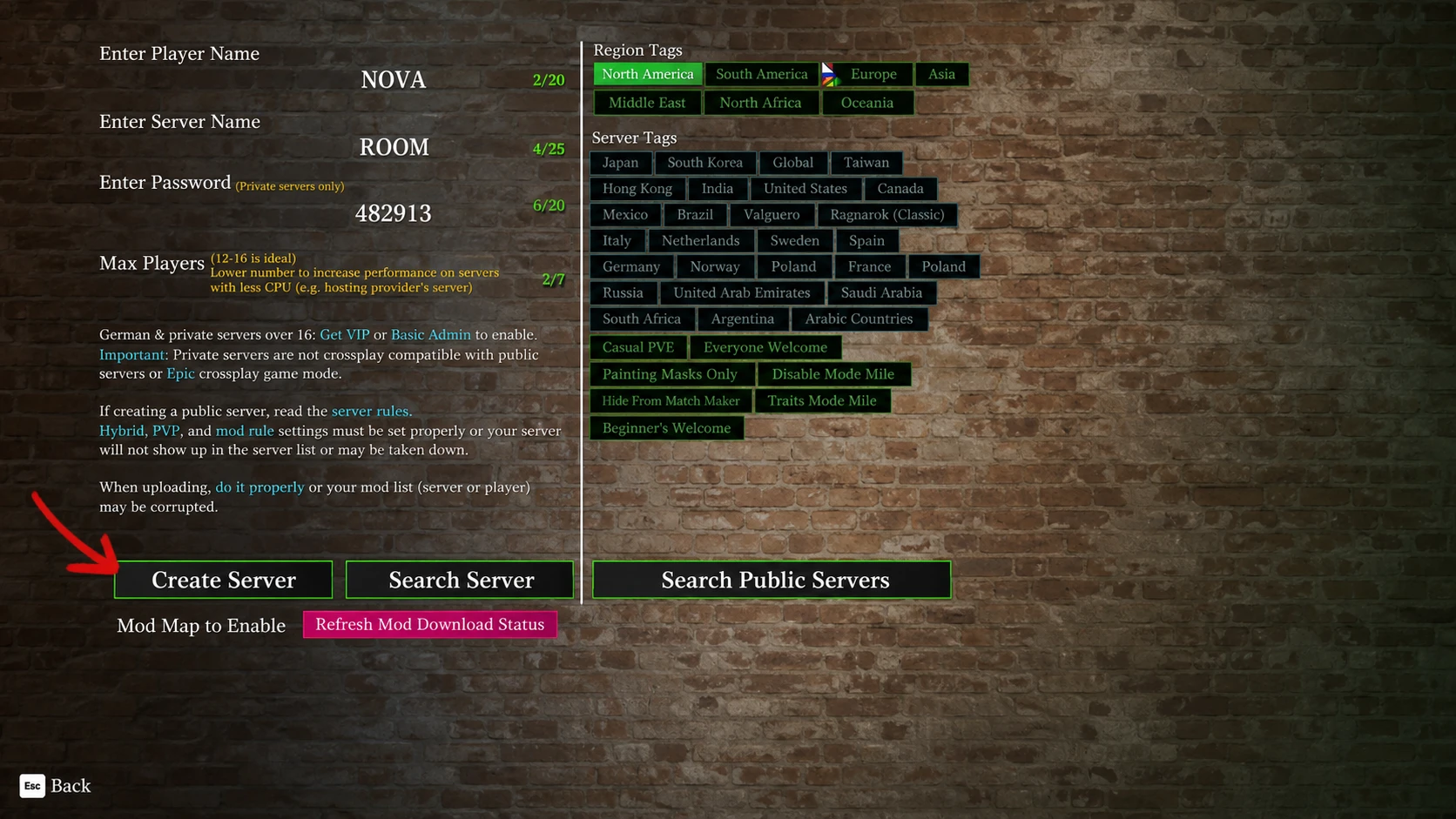
How to host a private room for friends
Only one person should host. The host controls the map, the mode, and the privacy settings, and they need to stay put in the lobby until everyone has arrived. Run the setup in this order.
Tip: send the whole message again any time a single field changes. Re-pasting everything is faster than asking each person to remember which detail you tweaked.
The room info message to copy
Most failed joins are just small communication errors. The fix is to share the same set of fields with the whole group so nobody is guessing. Fill in this template and paste it before anyone presses search.
Region: ________
Room name: ________
Password: ________
Tag: ________
Max players: ________
Host status: waiting in lobby
After update: everyone restarted
How friends should join the room
Use a platform or in-game invite as a shortcut if your group likes it, but never rely on it as the only plan. If an invite doesn’t drop everyone into the same lobby, switch straight to manual search with the shared details instead of asking the host to rebuild the room.
You know it worked when you reach the host’s lobby instead of staring at the search list. If the room shows up but the join fails, that’s almost always a password mismatch or a full room, not a server problem.
Fix a friend’s room that won’t show up
Work from the easiest mismatch to the most disruptive fix, and stop the moment the room appears. The biggest mistake is changing five settings at once, because then you never learn what actually helped. Change one thing, search again, and only move down the list if it’s still missing.
| What your group sees | Check this first | Safe fix |
|---|---|---|
| Nobody can see the room | Host status, region, tag, and game version | Host stays in the lobby, re-sends the room info, and everyone refreshes search |
| One friend joins, another can’t | The missing player’s region, tag, spelling, and update state | Keep the joined player in place and have only the missing player compare the message line by line |
| Room appears, but entry fails | Password, open slots, and whether the match already started | Retype the password slowly and confirm a slot is still free |
| Room was visible, then vanished | Room capacity, lobby state, and whether a patch landed | Return to the lobby, reopen slots, or restart after an update |
If the room is missing, the reliable retry order is to compare region and tag, retype the room name, check open slots, restart after any update, and only then rebuild the room as a last resort. The host should rebuild only after everyone has checked the shared details, confirmed open slots, restarted post-update, and tried one clean search.
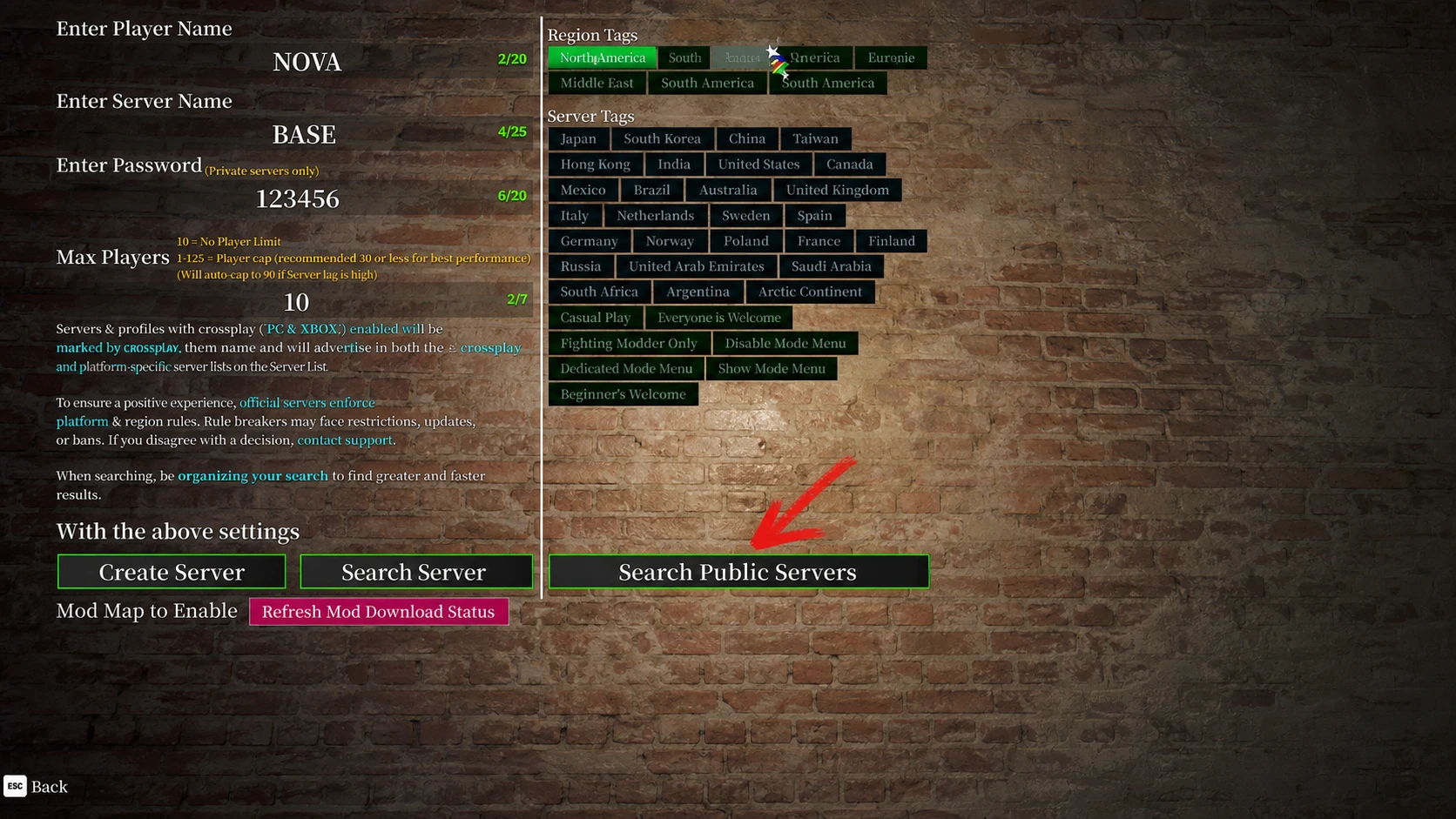
What to do after a game update
Matchmaking gets flaky right after a patch or hotfix, and the cause is almost always a version mismatch. The cure is simple. Restart before you touch any room settings.
What not to do when the lobby fails
When joining breaks, stick to in-game room search and official platform features. A few shortcuts will only make things worse or put your account at risk.
- Don’t download a third-party matchmaker tool. Unknown tools can endanger your account or device.
- Don’t disable your security software for a random fix. If you suspect a network block, change only settings you understand and can reverse.
- Don’t chase old workarounds after a patch. Restart and rebuild the room before trying anything older.
- If the trouble is account access, purchase status, installation, or a platform outage, use official support instead of editing game files.
Pick the right mode for your group size
Once everyone is in, the host chooses the mode in the lobby. All three use the same paint-and-hide core, but they change what happens when a Hider gets caught and how long a round feels.
| Mode | How it works | Best for |
|---|---|---|
| Normal | Standard Hiders vs Seekers. Seekers win by finding everyone, Hiders win by surviving the timer. | 2–4 players, new groups, party nights |
| Increasing Oni | Caught Hiders join the hunting side, so the Seeker team grows as the round goes on. | 6–10 players, chaotic sessions |
| Double | Everyone hides first, then everyone hunts. The fastest full clear wins. | Competitive friends who want equal time in both roles |
If your group is new, start with a smaller room on Normal mode so the maps stay readable. Teach one Hider habit and one Seeker habit per match. Hiders should use the eyedropper to sample the exact surface they’re leaning on and lock a believable pose before prep ends. Seekers should sweep the room in sections rather than sprinting at random, watching for white gaps between limbs and silhouettes that don’t match the objects around them. Get everyone into the same lobby cleanly, and the rest of the fun takes care of itself.