

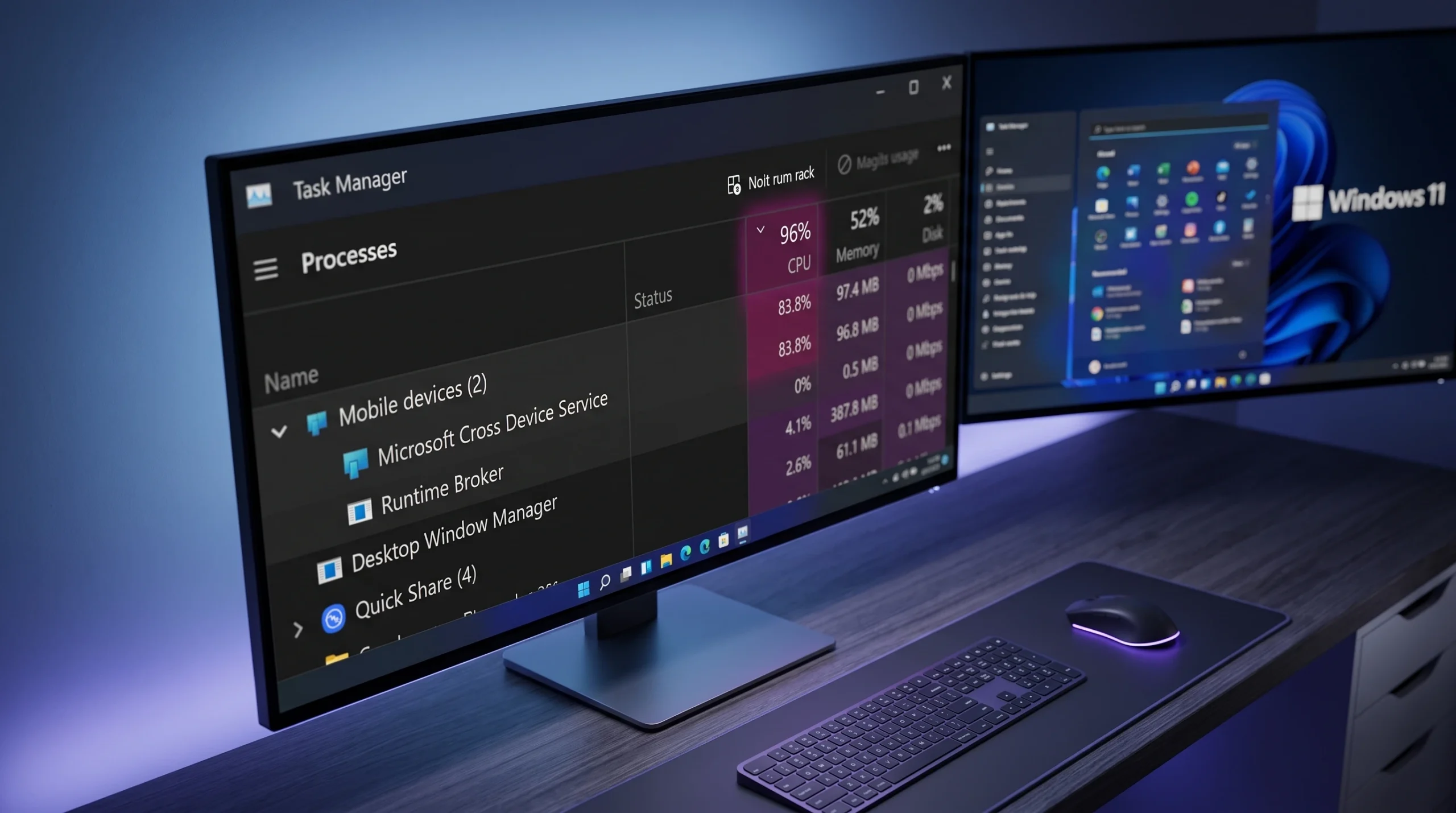
The Microsoft Cross Device Service is the background process that links your phone to your Windows 11 PC, powering features like Phone Link, content sharing, and letting a connected phone show up in File Explorer. On some machines, it stops behaving. The process, crossdeviceservice.exe, starts pinning the CPU and swallowing RAM, and it restarts itself even after you kill it. People have watched it climb past 30GB, and in extreme cases tens of gigabytes, until the whole system stutters or the fans spin up.
Quick answer: Open Settings > Bluetooth & devices > Mobile Devices, select your phone, and turn off Show mobile device in File Explorer. This stops the service from endlessly enumerating files on your phone, which is the most common cause of the runaway CPU usage, and it does not require removing Phone Link.
Why crossdeviceservice.exe spikes CPU and memory
The service is meant to run quietly in the background. The problem is that it keeps working even when you are not actively using any cross-device feature. The heaviest driver of high CPU is continuous background synchronization of a connected phone. When File Explorer is set to show your mobile device, the service repeatedly indexes and re-enumerates the phone’s file system so those files stay browsable.
Traced with Process Monitor, crossdeviceservice.exe loops over files on the phone using the FASTIO_NETWORK_QUERY_OPEN operation and never settles down. That loop is what keeps a CPU core busy indefinitely. It also has a side effect people notice on the phone itself: the constant syncing raises power draw, so the phone runs warm and the battery drains faster than normal.
Two other symptoms come from the same service. It automatically restarts after you end its process tree, because Windows treats it as a component of the cross-device stack. And resource-heavy tasks like screen sharing or video capture stack extra load on top, which is why some machines overheat and drop a screen share on their own.
Fix 1: Turn off phone file browsing in File Explorer
This targets the exact behavior that causes the endless indexing loop, and it is the fix most people report working on the first try. Use it if your CPU is the problem and you still want Phone Link.
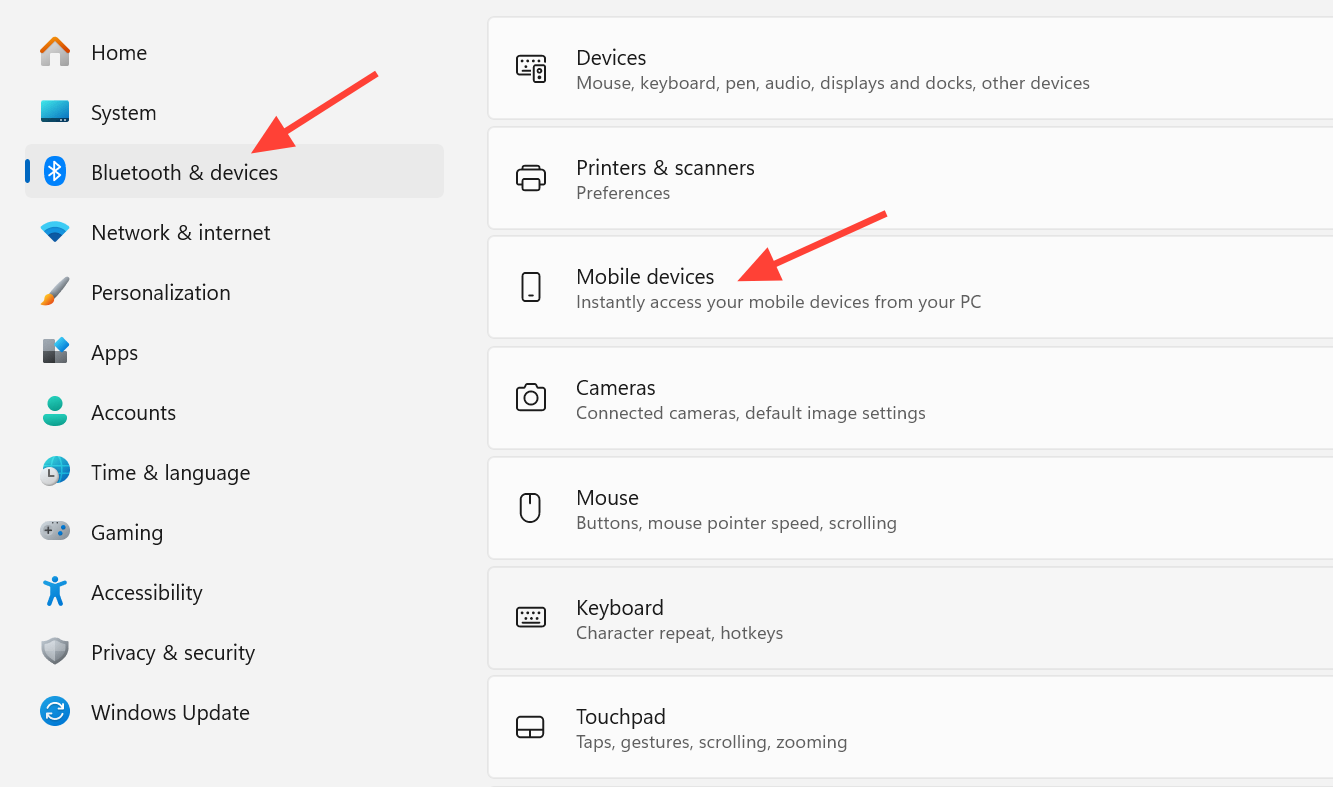
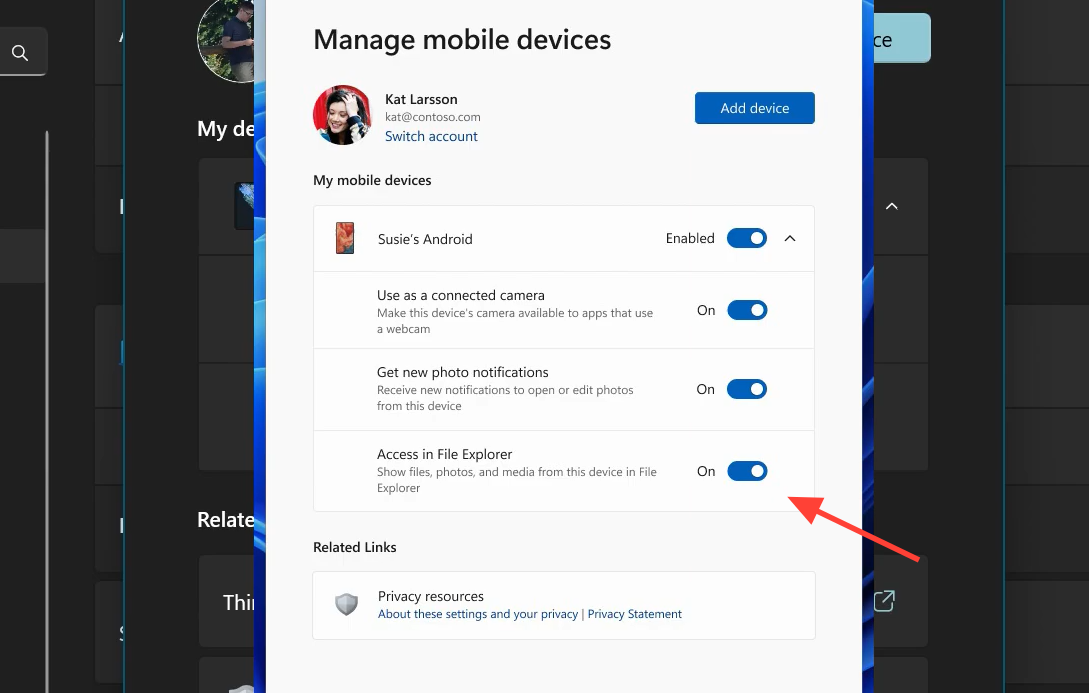
There is currently no confirmed way to keep File Explorer phone access while stopping the indexing. The endless enumeration appears to be a bug in the feature, so turning it off is the reliable route.
Fix 2: Disable cross-device sharing and the startup entry
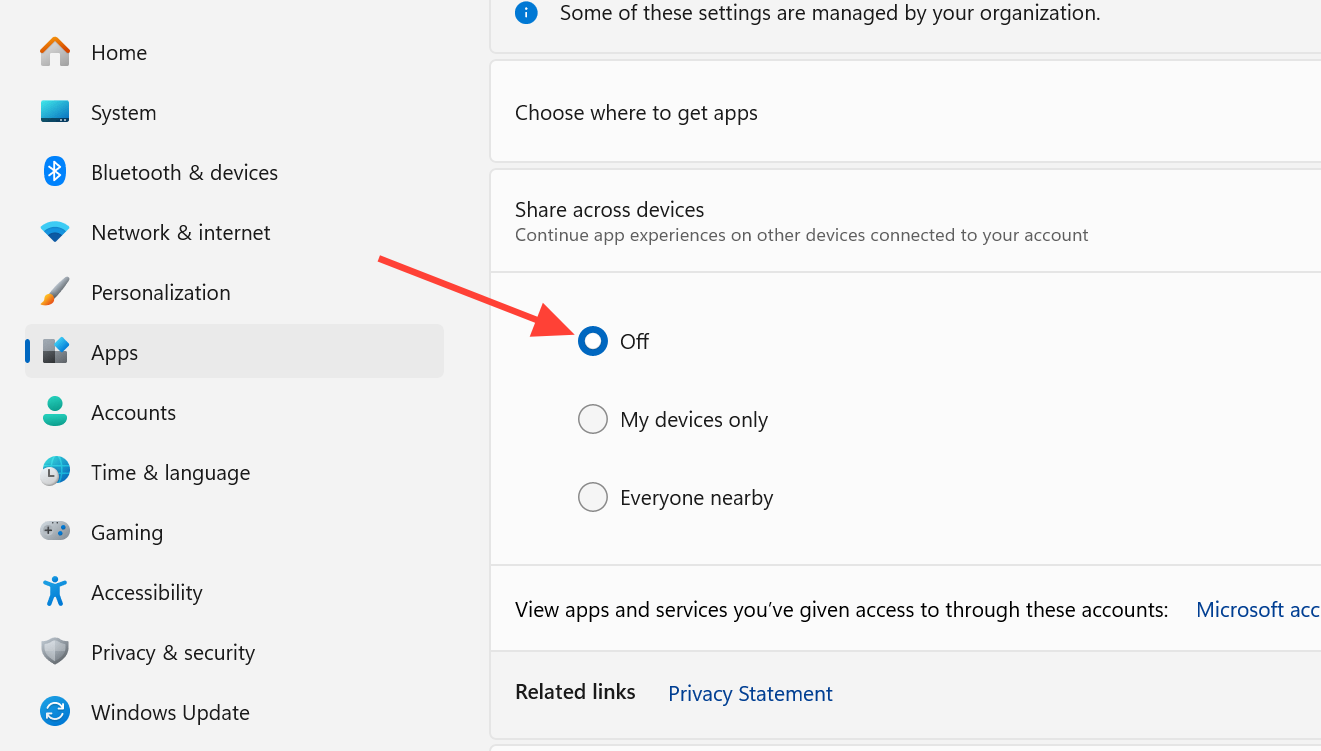
If the first fix did not fully calm the service, cut its background sharing and stop it launching at boot. This keeps Phone Link installed but removes the syncing that runs while you are idle.
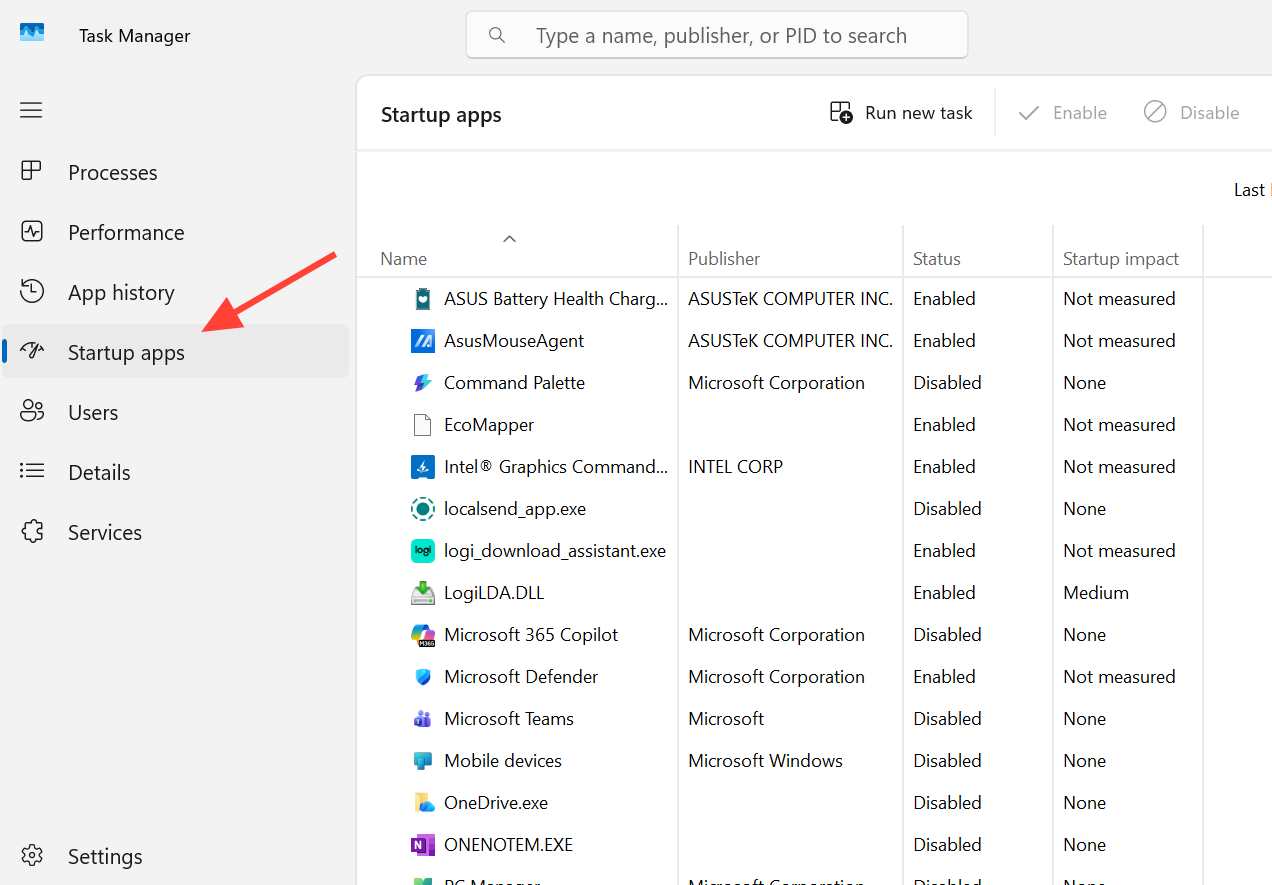
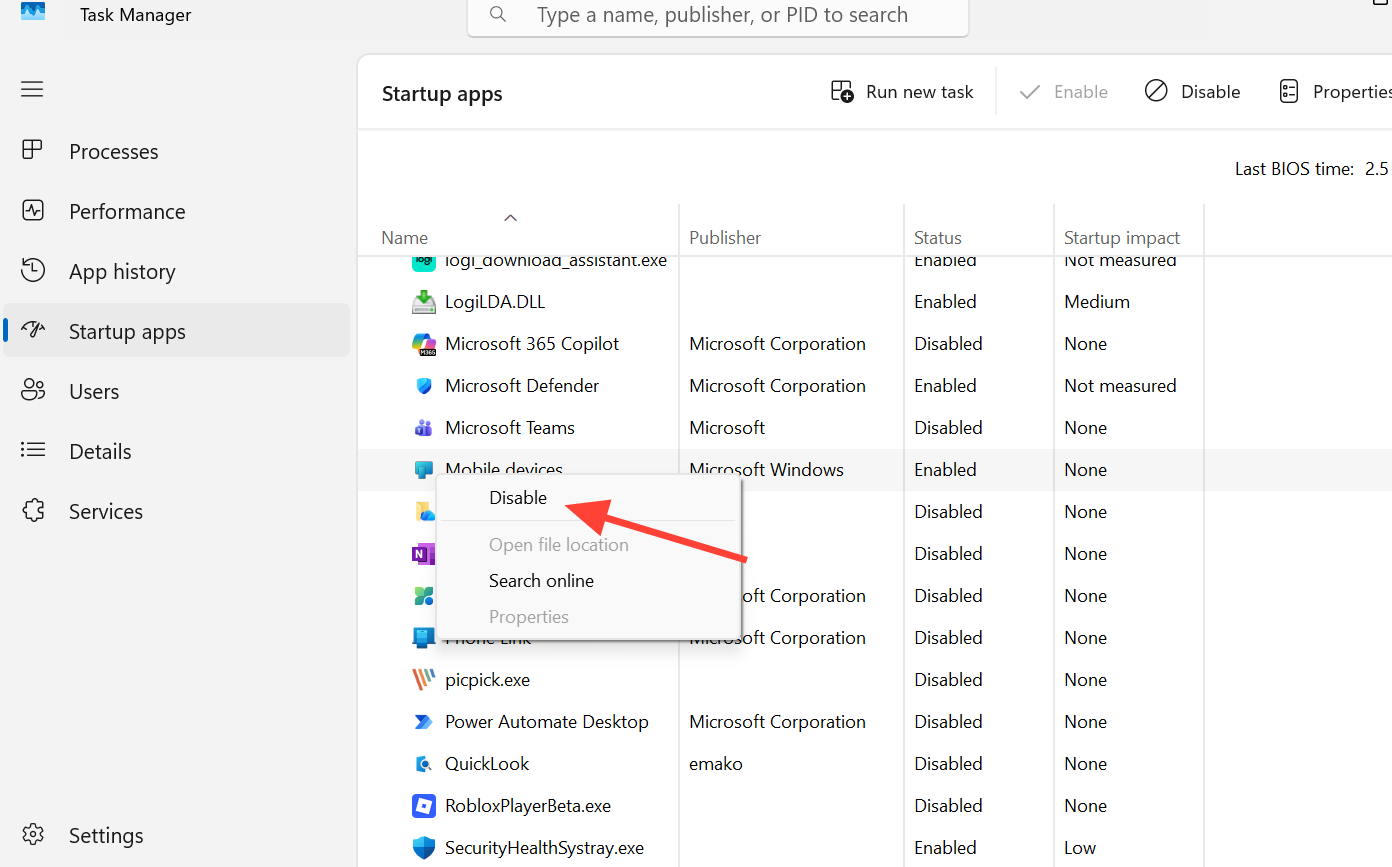
Fix 3: Keep Phone Link but limit its background activity
Want Phone Link available when you open it, without it burning CPU while idle? Restrict its background permissions and trim the scheduled tasks that wake it up.
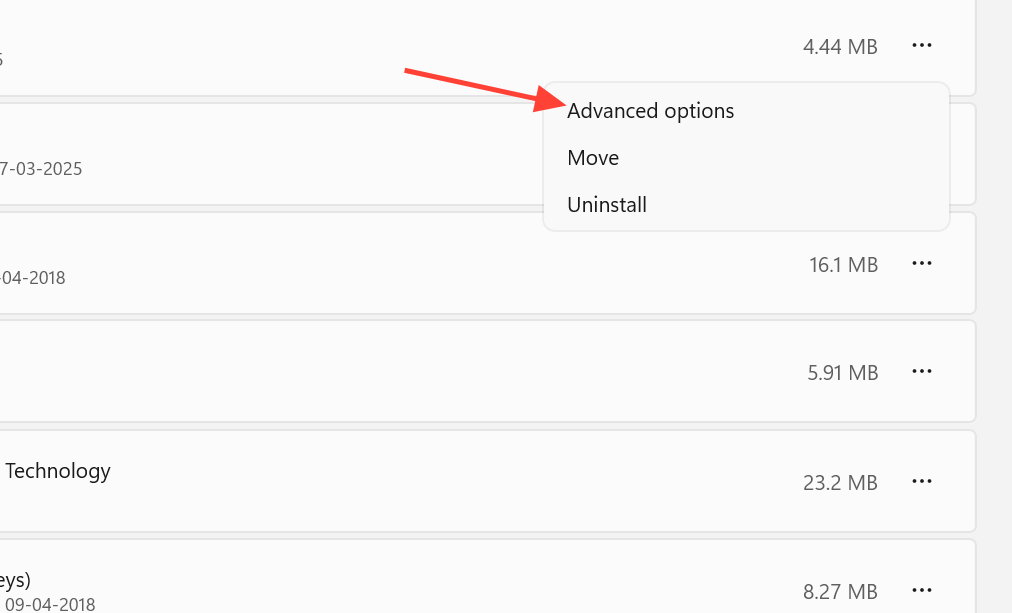
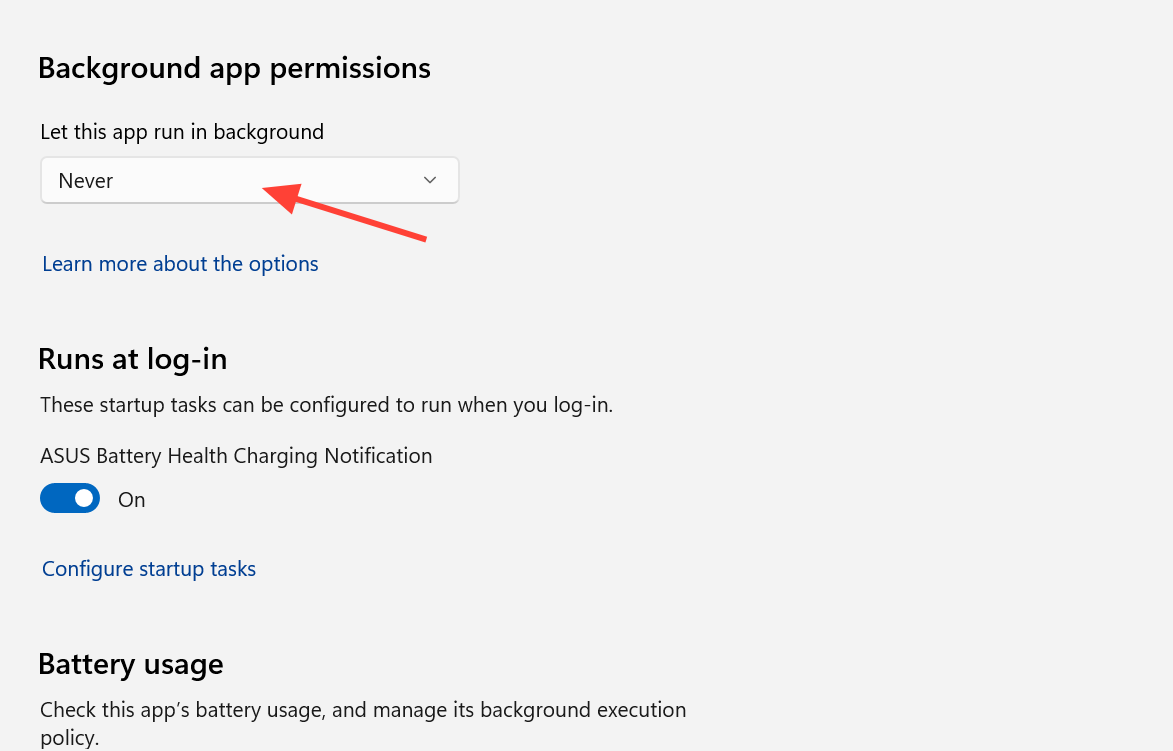
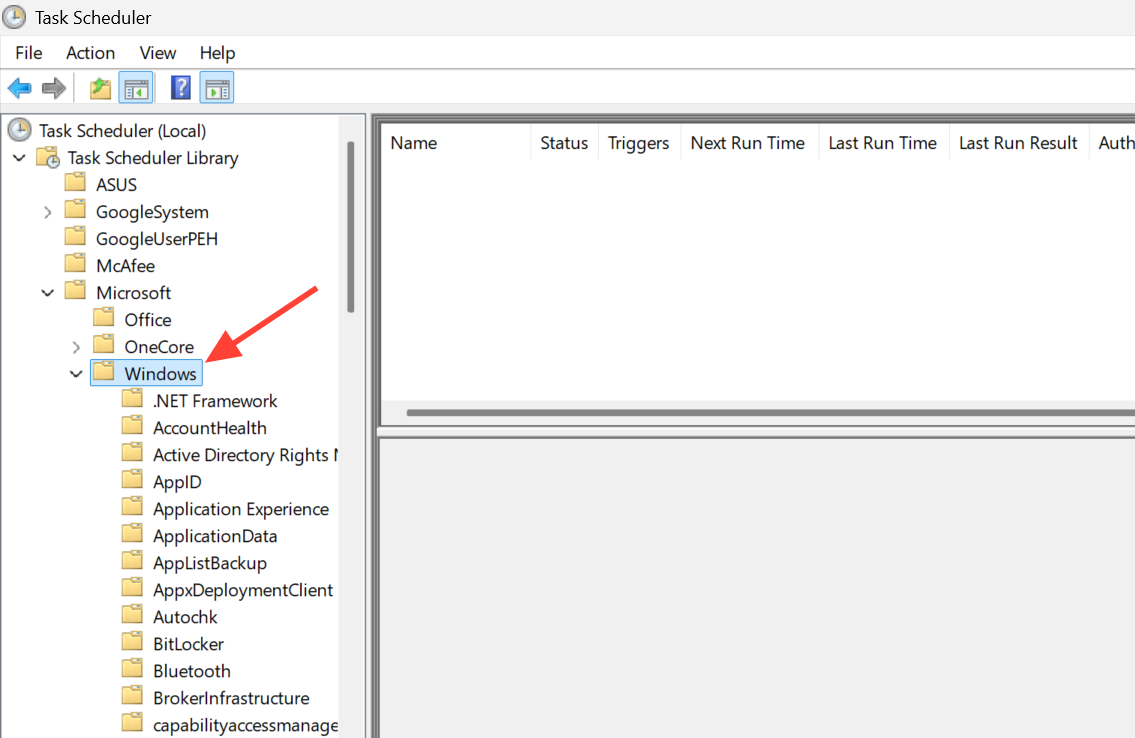
Step 3 (optional): Press Win + R, type taskschd.msc, and open Task Scheduler Library > Microsoft > Windows > ConnectedDevicesPlatform. Disable the non-essential tasks there to reduce periodic background refresh, then restart the PC.
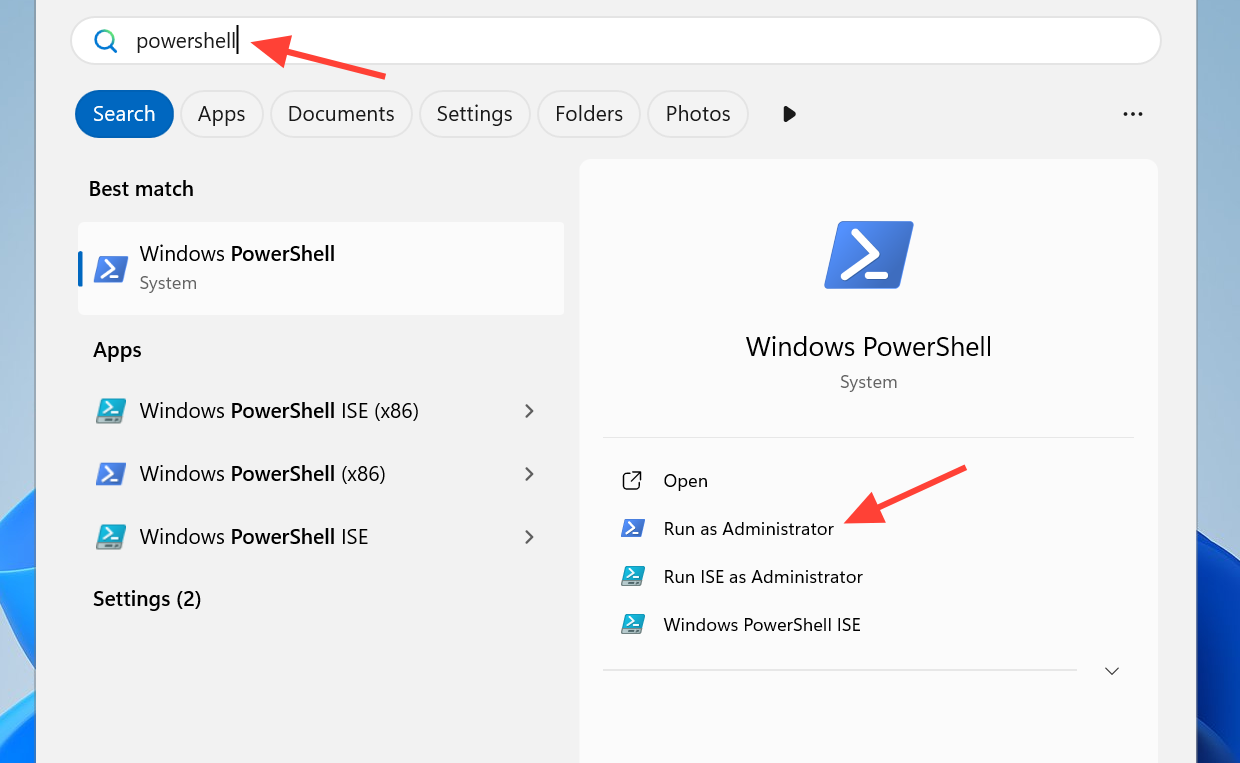
Fix 4: Remove the Cross Device Service with PowerShell
If you do not use phone-to-PC features at all, you can uninstall the component. This is the most aggressive option and it disables cross-device features, including Phone Link. Windows updates may reinstall the component later, so you may need to repeat it.
Get-AppxPackage *CrossDevice* -AllUsers | Remove-AppxPackage -AllUsers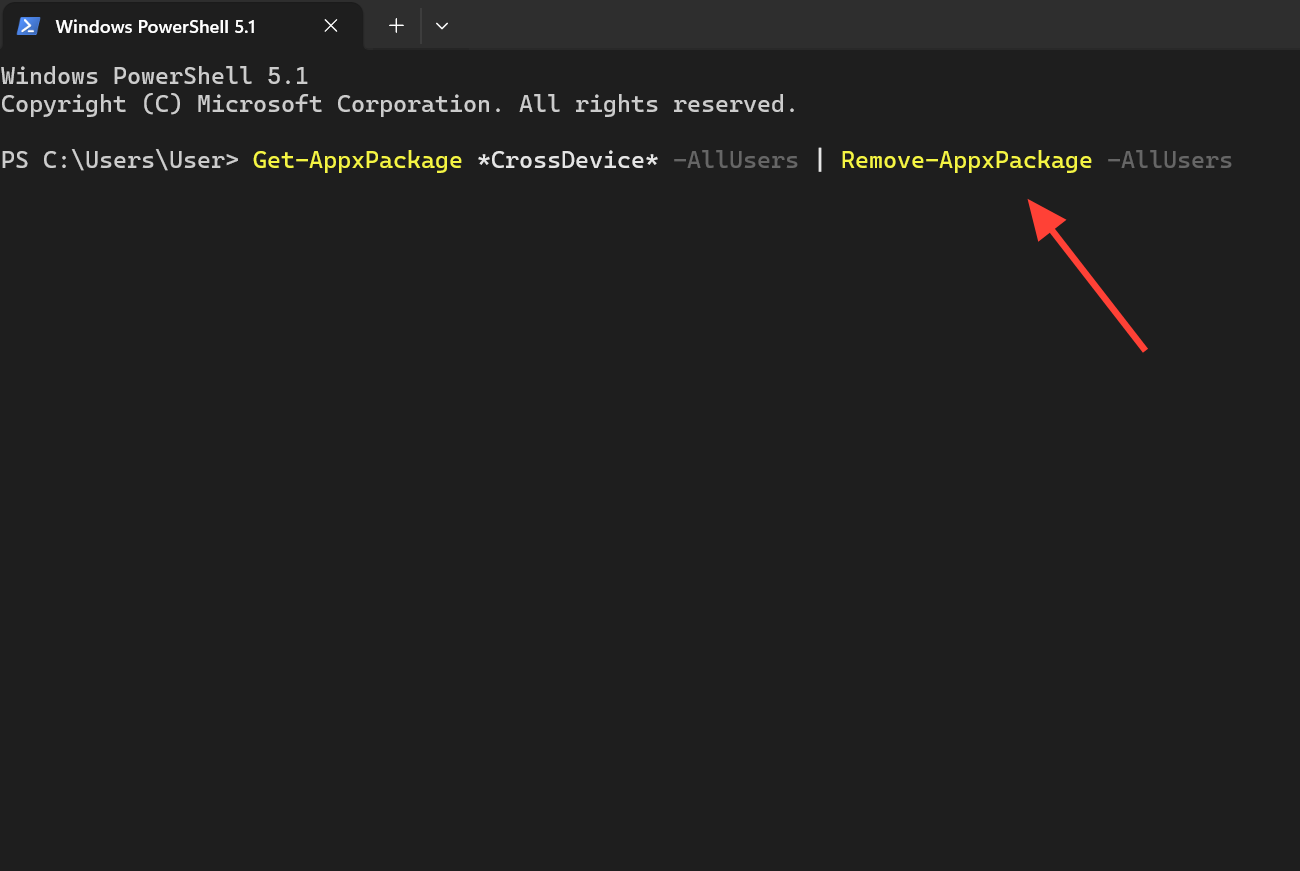
Get-AppxPackage -AllUsers *YourPhone* | Remove-AppxPackage -AllUsers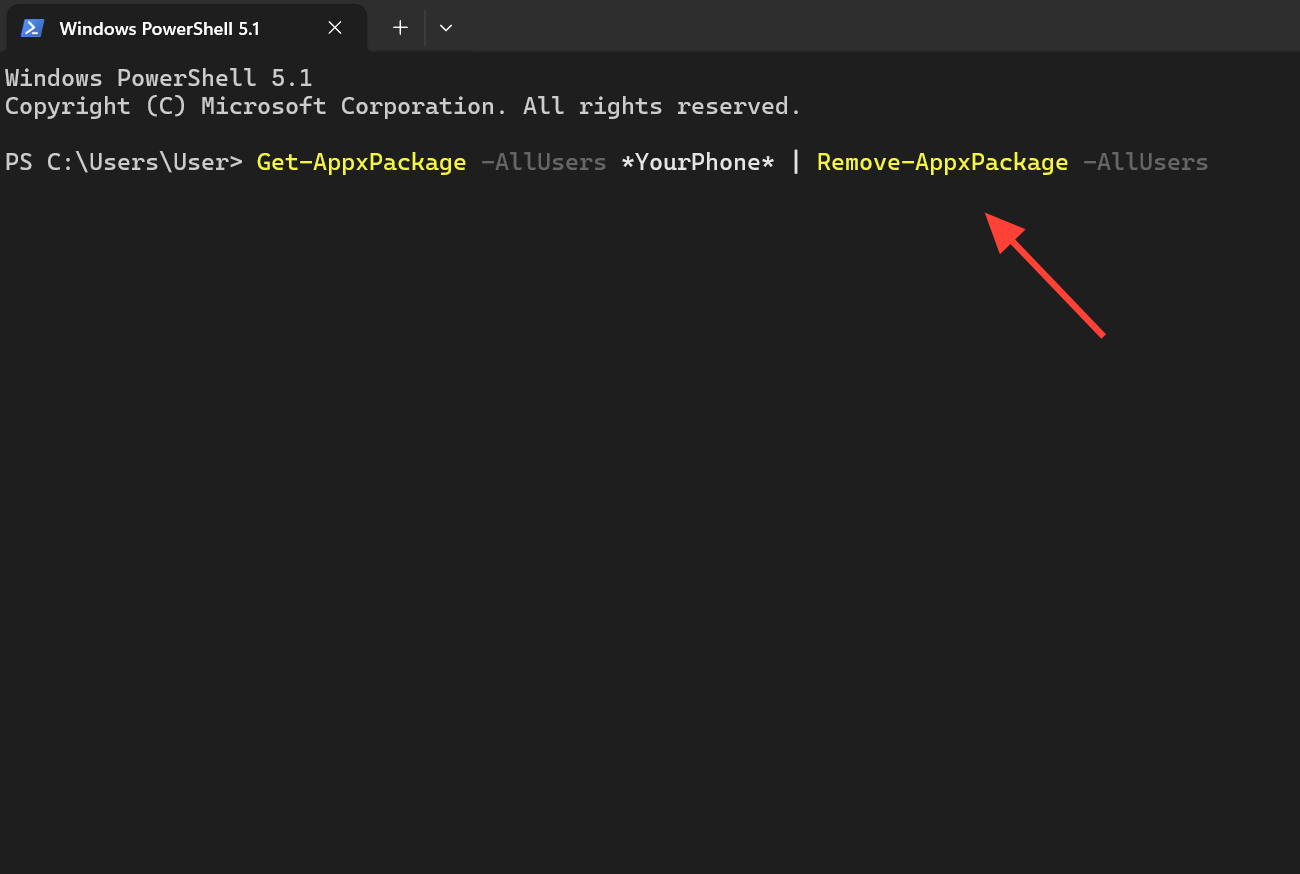
Some users also report that reinstalling the package through PowerShell, rather than removing it permanently, cleared the high usage on its own. That is worth trying if you want the feature back but need a clean reset.
How to confirm it worked
Open Task Manager and watch the Cross Device Service or crossdeviceservice.exe under the Processes tab. Success looks like its CPU dropping to near zero and memory holding steady instead of climbing over time. If you disabled the File Explorer option, the change is usually immediate.
On the phone side, a fixed setup means the device stops running warm and the battery lasts closer to normal, since the constant sync no longer keeps the connection busy. If you removed the packages, the process should no longer appear in Task Manager at all after a restart.
Why the fix sometimes fails to stick
A few things trip people up when the service keeps coming back:
| Situation | What to do |
|---|---|
| Process restarts after you end its tree | Ending the task is only temporary. Disable the startup entry and the sharing options, or remove the package, so it does not relaunch. |
| Stopping it from services.msc or Startup Apps does nothing | Those toggles alone do not always hold. Turn off the File Explorer option and Share across devices, then restart. |
| RAM still high after removing CrossDevice | A separate YourPhone package can keep using memory. Run the second PowerShell command to remove it as well. |
| Service returns after a Windows update | Updates can reinstall the component. Re-apply your chosen fix after major updates. |
Start with the least destructive option that matches your needs. Turning off phone browsing in File Explorer solves the most common cause while keeping Phone Link intact, and the PowerShell removal is there for when you simply do not want the feature on your machine.



