

WSL (Windows Subsystem for Linux) installations and updates can fail with the error message Error: 0x80370114 The operation could not be started because a required feature is not installed. This error typically appears when launching or installing a Linux distribution, and is often caused by missing or improperly configured Windows features that WSL 2 depends on. Systems affected may include Windows 10 and Windows 11, including Home editions, especially after system resets or updates.
Enable Required Windows Features
Windows + R, typing optionalfeatures, and pressing Enter.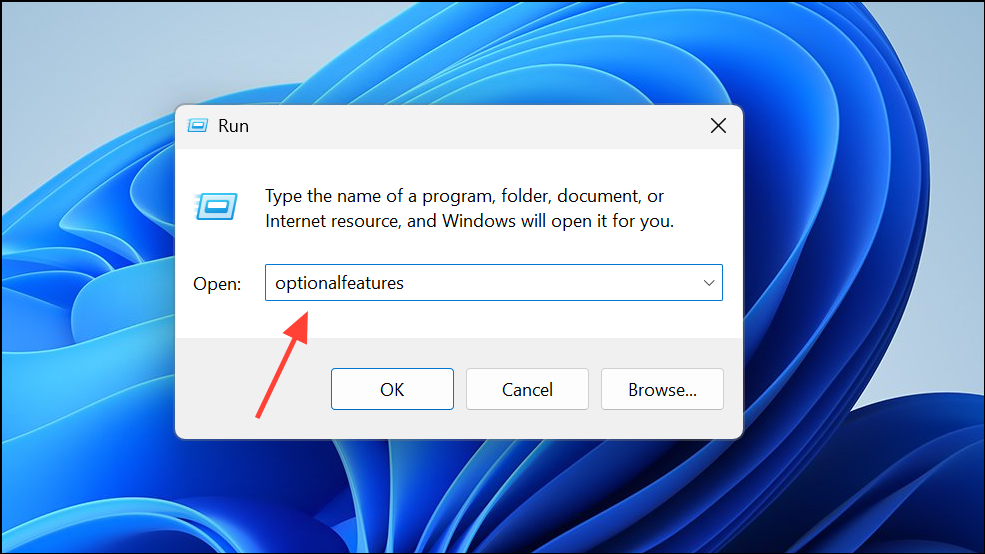
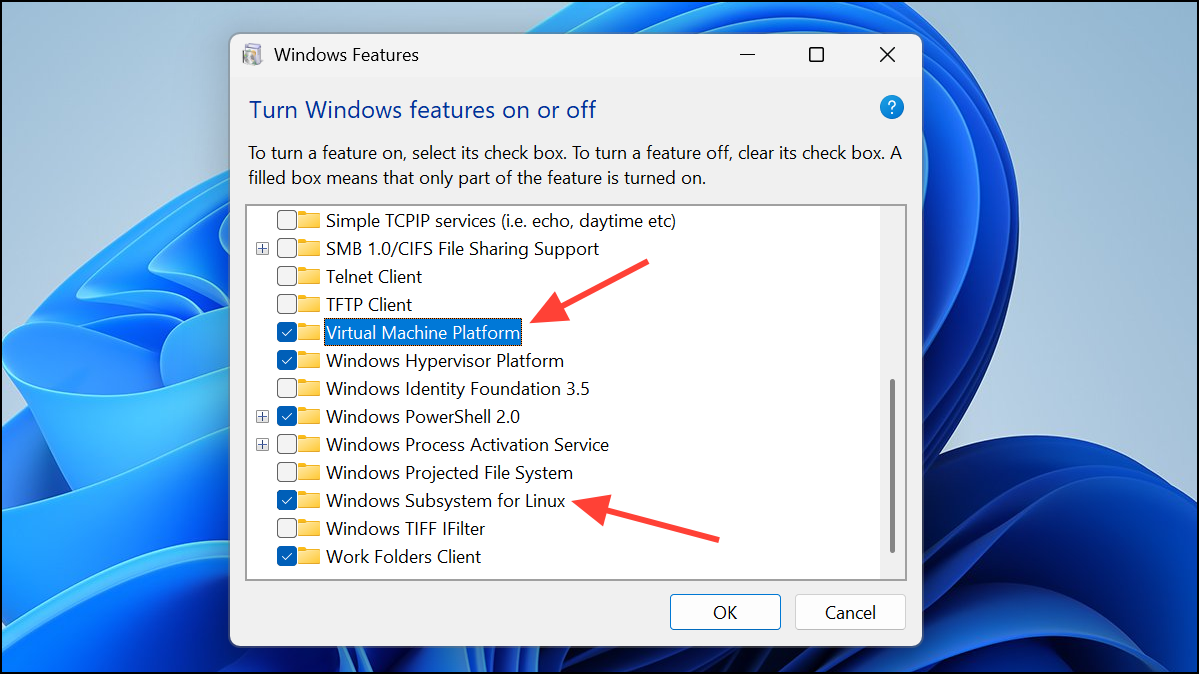
- Virtual Machine Platform
- Windows Subsystem for Linux
- Hyper-V (if available, especially on Windows Pro or Enterprise)
- Windows Hypervisor Platform (optional, but sometimes required for Docker or advanced virtualization)
Click OK to apply changes. If prompted, restart your computer. These features provide the virtualization support and Linux integration required for WSL 2 to function.
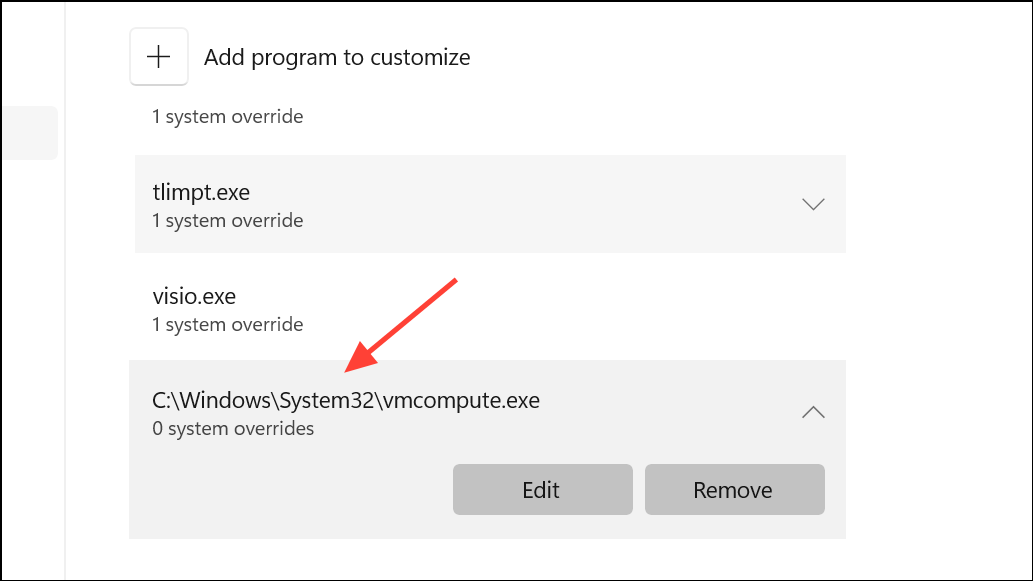
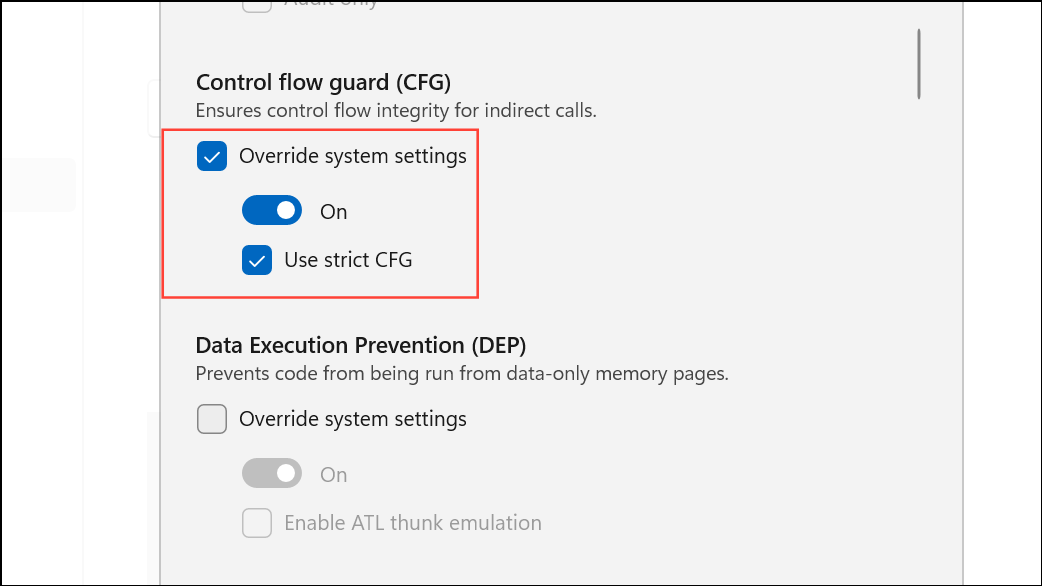
Check and Adjust Exploit Protection Settings
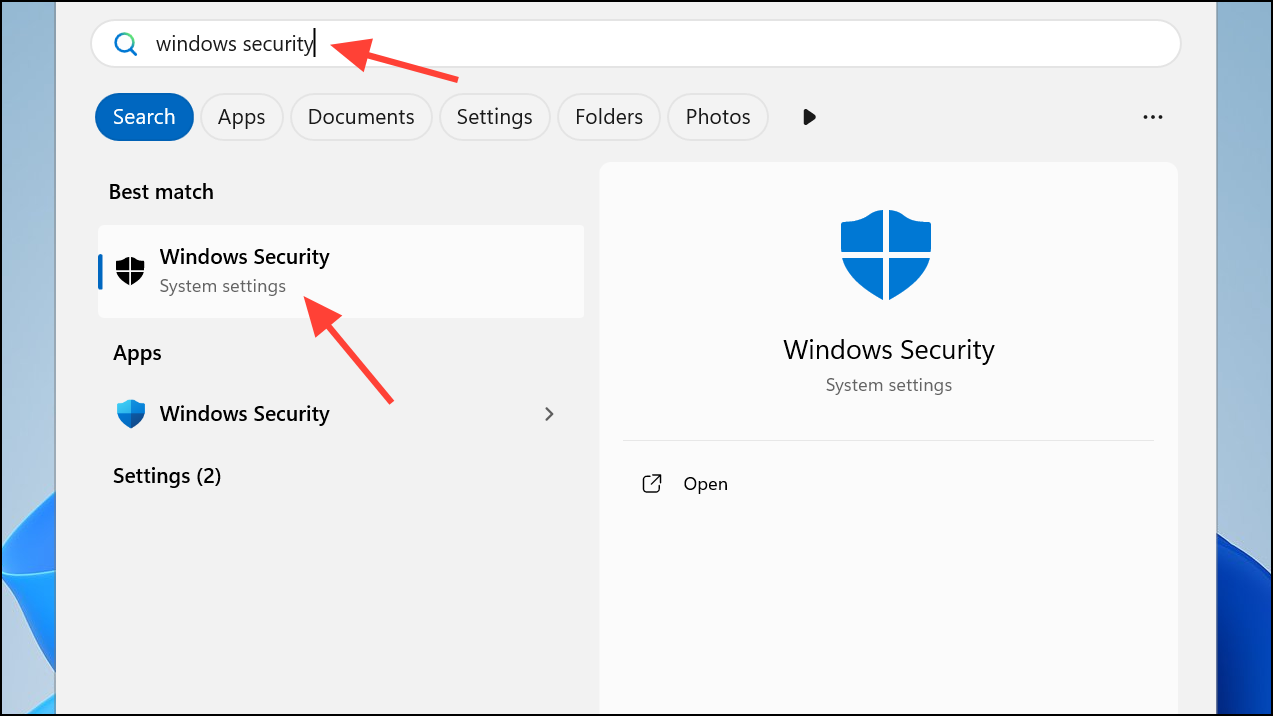
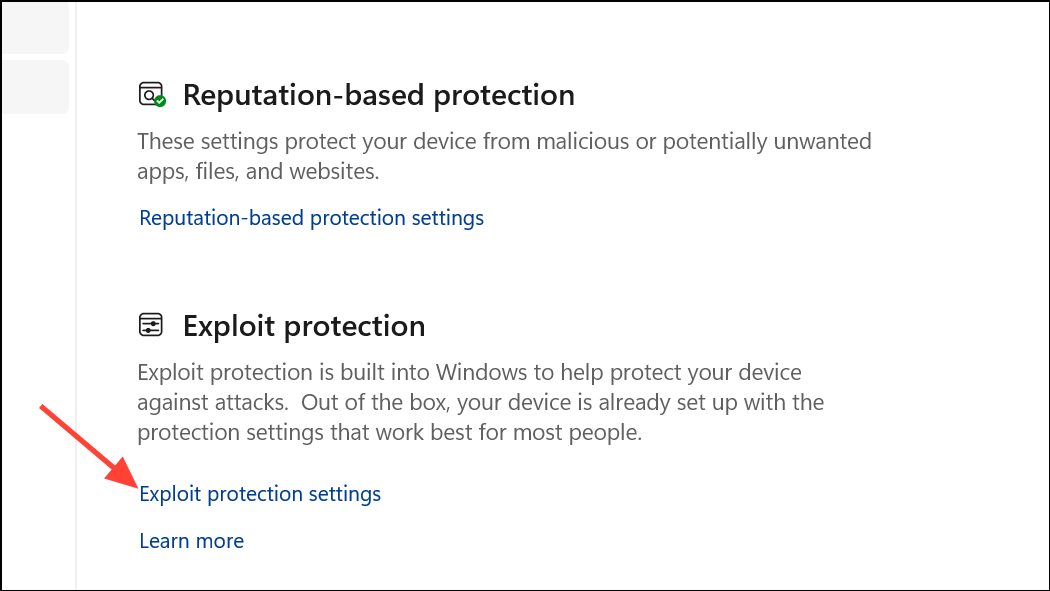
C:\Windows\System32\vmcompute.exeC:\Windows\System32\vmwp.exe
Verify Virtualization in BIOS
F2, Del, or Esc during startup).Update Windows and WSL Components
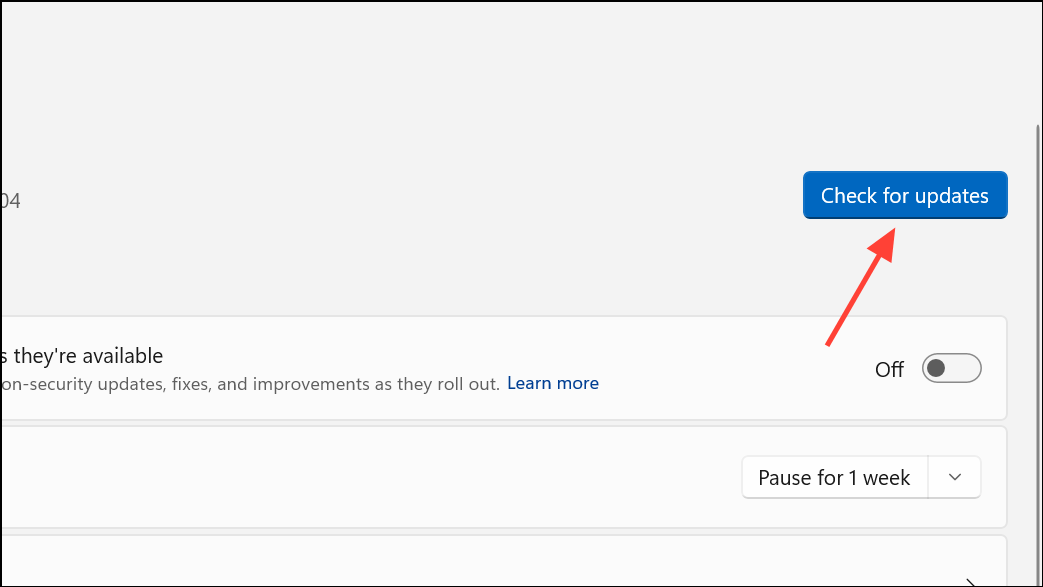
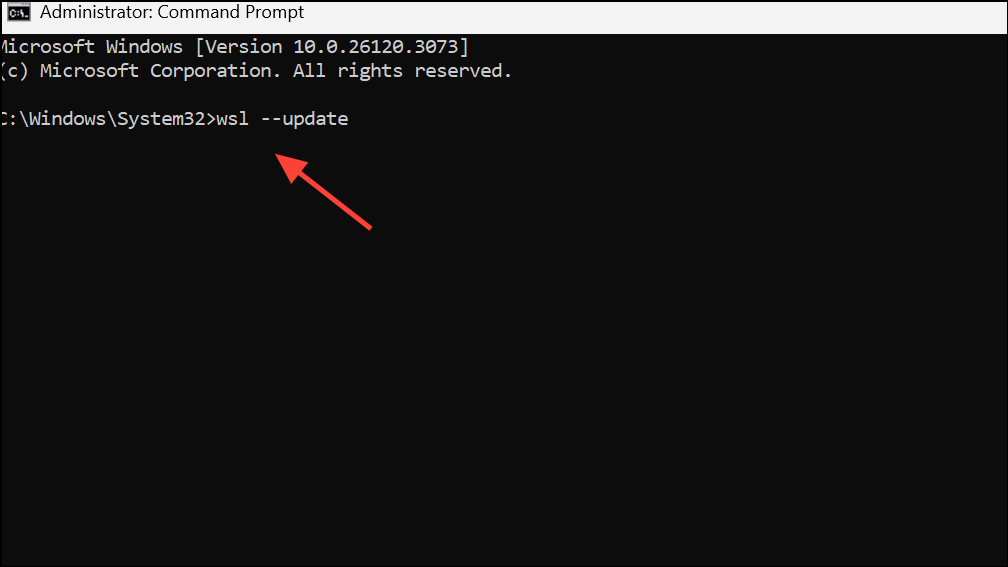
wsl --updateThis command updates the WSL kernel and related components to the latest version, which may resolve compatibility issues.
Reset and Reinstall WSL Features
If previous steps did not resolve the error, resetting the WSL-related features can address installation or configuration problems caused by failed updates or partial installations.
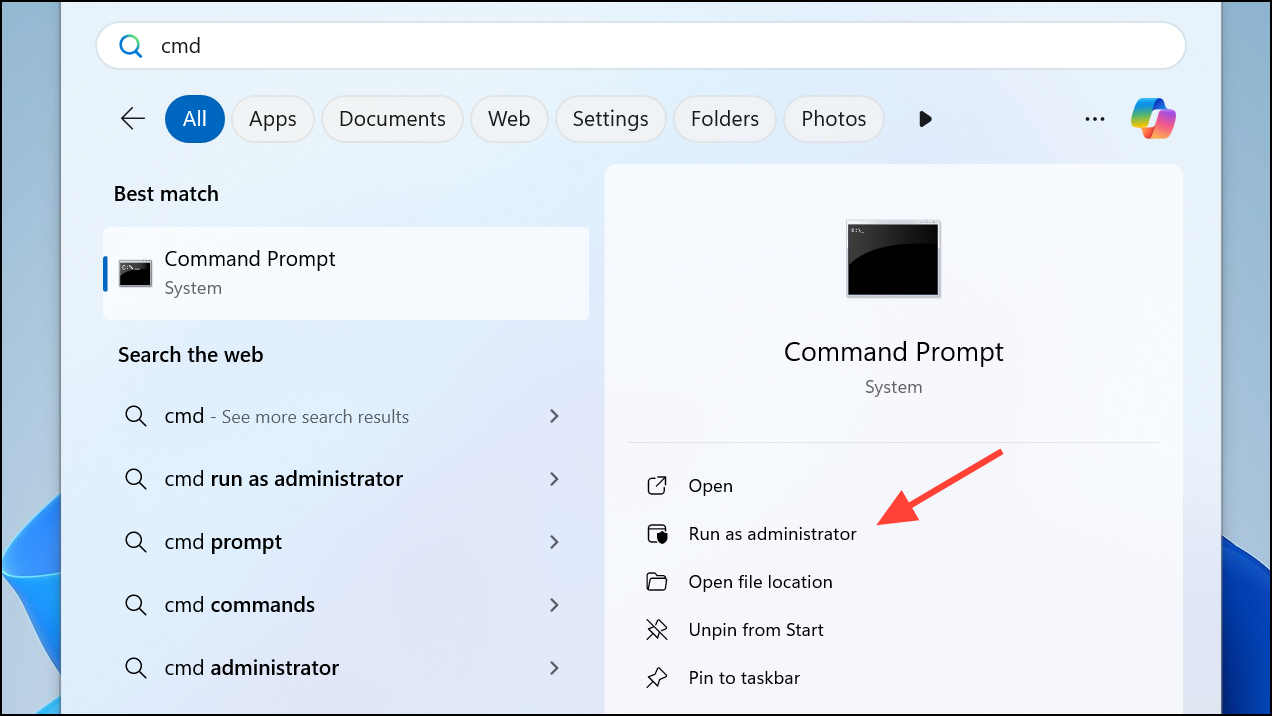
optionalfeatures). Uncheck Virtual Machine Platform, Windows Subsystem for Linux, and Windows Hypervisor Platform (if present). Click OK, but skip the restart when prompted.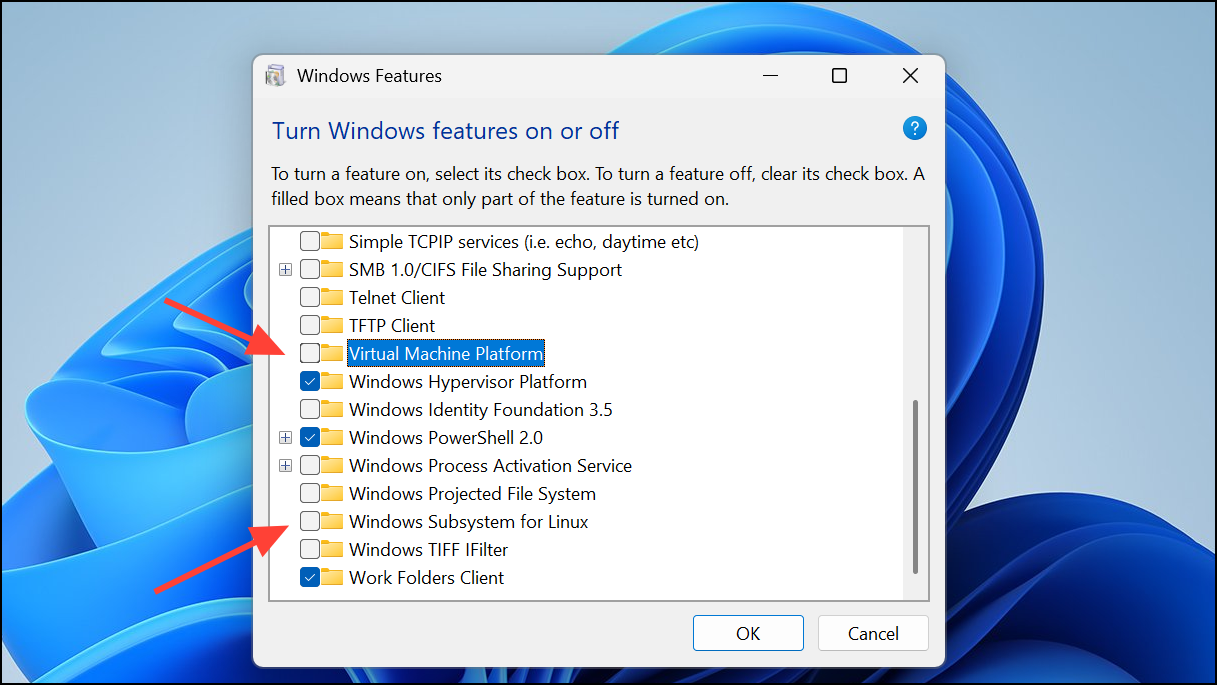
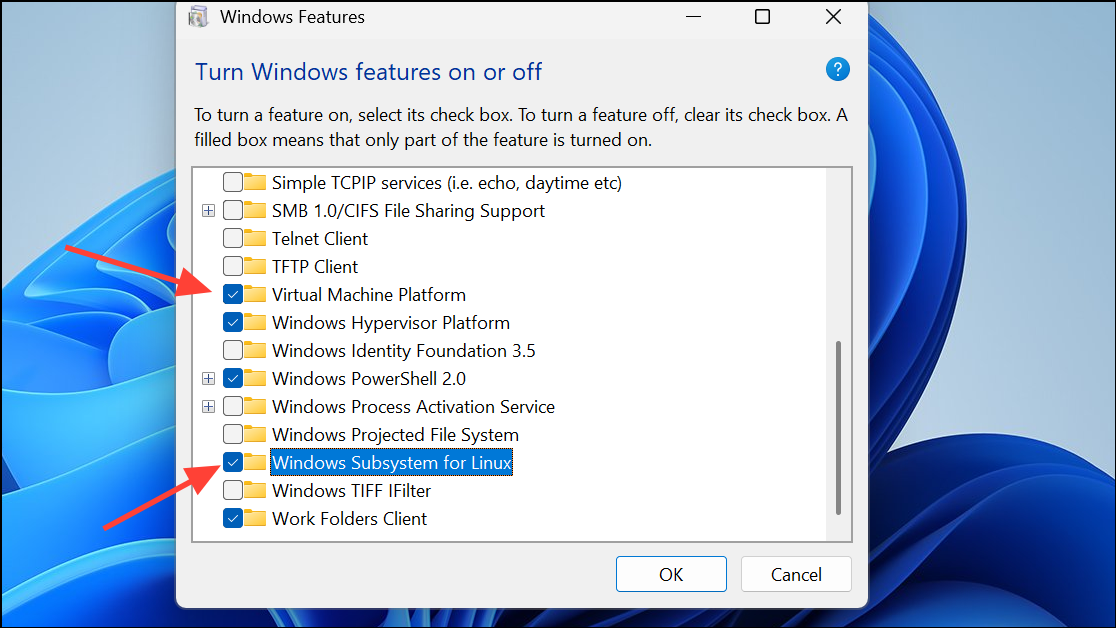
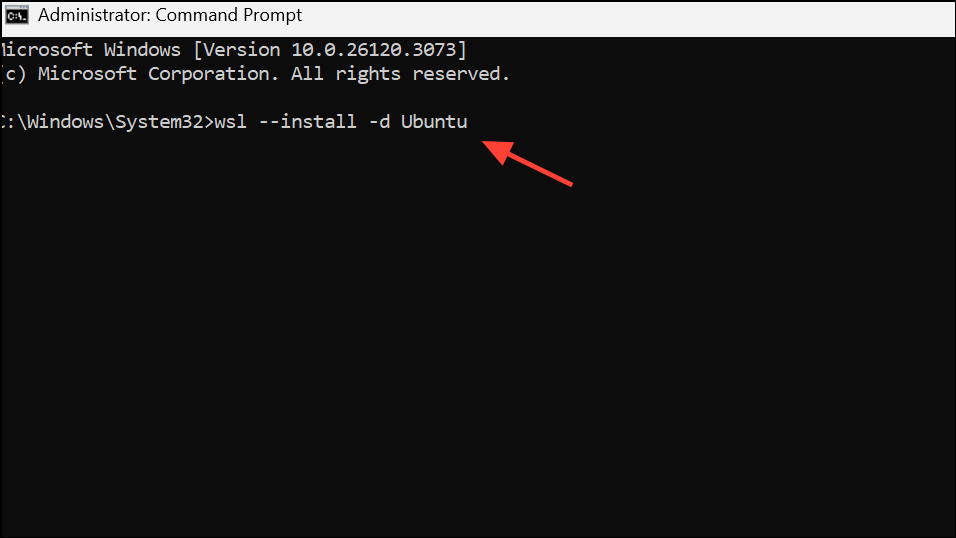
wsl --install -d UbuntuOr replace Ubuntu with your preferred distribution. Follow prompts to complete installation.
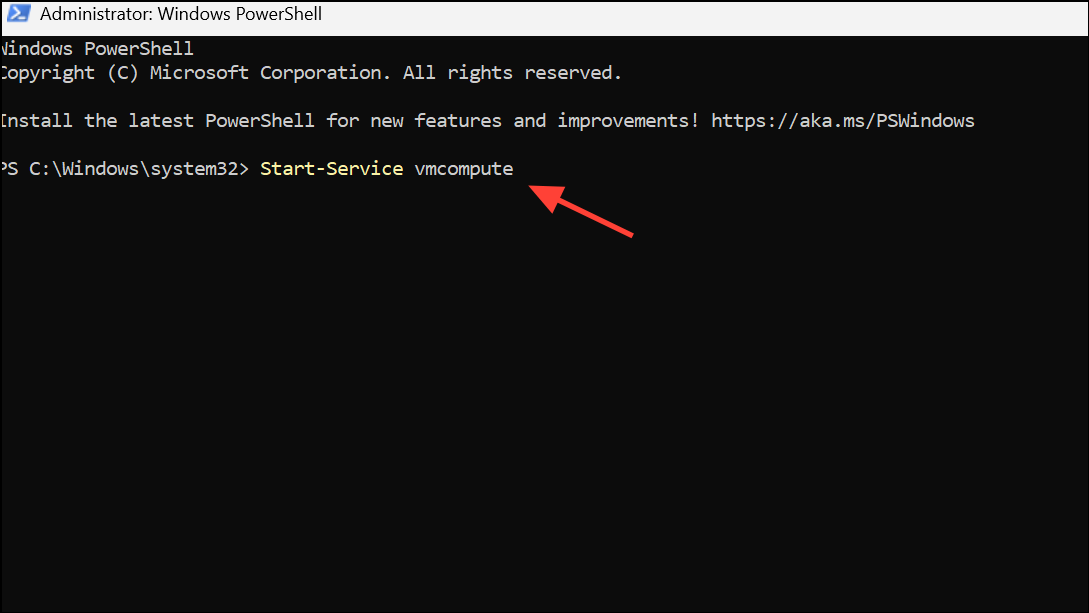
Check and Start Required Services
WSL 2 relies on certain Windows services, such as the Hyper-V Host Compute Service (vmcompute), to manage Linux containers.
Get-Service vmcompute,vmms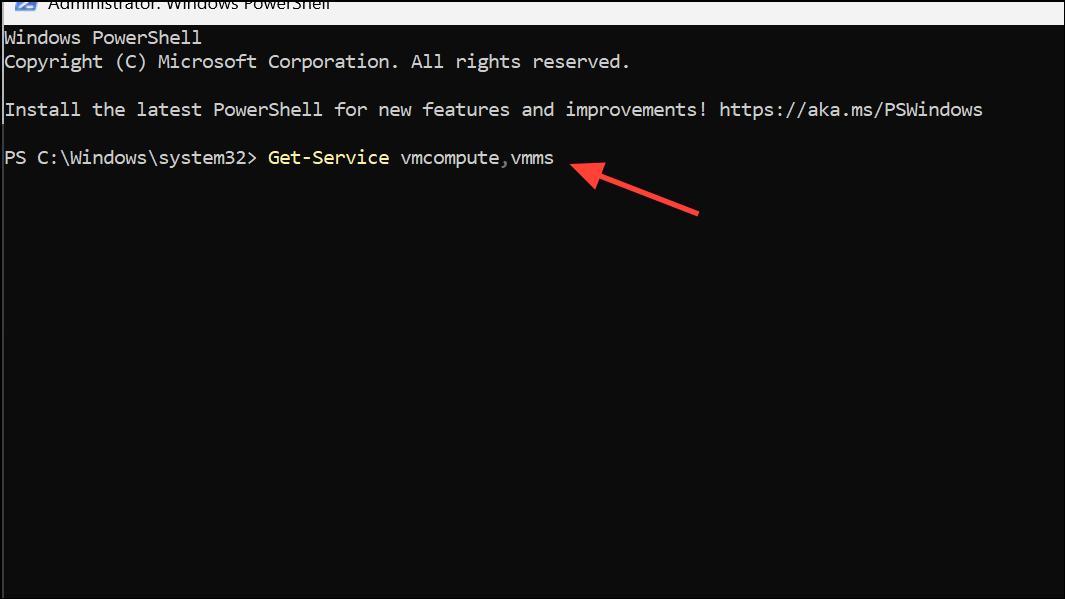
Start-Service vmcompute
Start-Service vmms
These services must be running for WSL 2 to launch Linux distributions successfully.
Alternative Fixes and Additional Tips
Some users have reported the following additional solutions:
- Run
bcdedit /set hypervisorlaunchtype autoin an elevated Command Prompt to ensure the hypervisor is enabled at boot. Restart after running this command. - If you have third-party virtualization software (such as VMware or VirtualBox), ensure it is updated to the latest version and is compatible with Hyper-V and WSL 2.
- On Windows Home editions, enabling Hyper-V may require unofficial scripts or workarounds. Proceed with caution and refer to reputable sources or Microsoft documentation for guidance.
- If you continue to encounter issues, uninstall all WSL distributions and features, reboot, and perform a clean installation following the steps above.
By enabling the correct Windows features, confirming security and virtualization settings, and updating system components, WSL 2 error 0x80370114 can be resolved and Linux distributions will launch as expected. If problems persist, reviewing Windows Update status and service configurations often provides the final fix.





