Detailed instructions to resolve Microsoft Teams error code 6, restore desktop app access, and prevent future sign-in failures.
Detailed instructions to resolve Microsoft Teams error code 6, restore desktop app access, and prevent future sign-in failures.
by Pallav Pathak
Microsoft Teams error code 6 appears when the desktop app cannot authenticate your account, often blocking access while the web version continues to work. This issue typically results from corrupted cache files, outdated credentials, or authentication conflicts on your device. Addressing these root causes can restore Teams functionality and prevent repeated sign-in failures.
Clear Microsoft Teams Cache Files
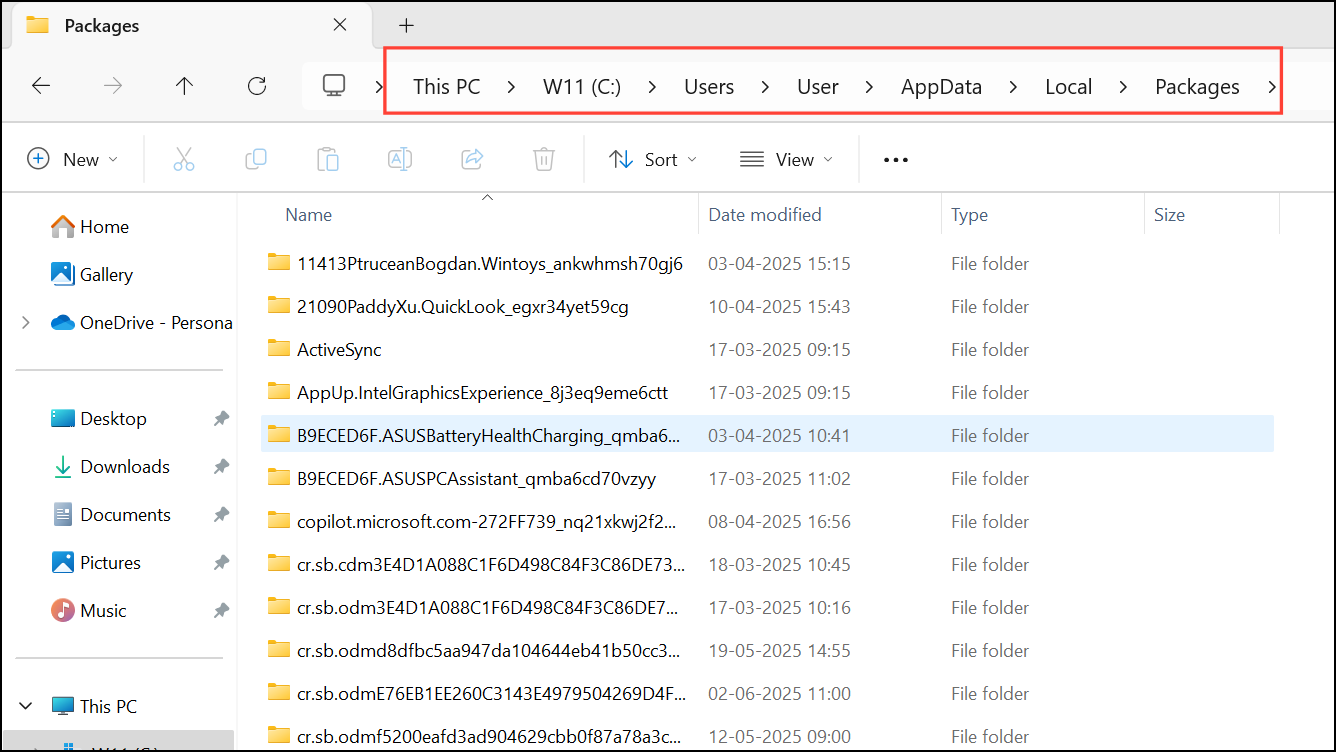
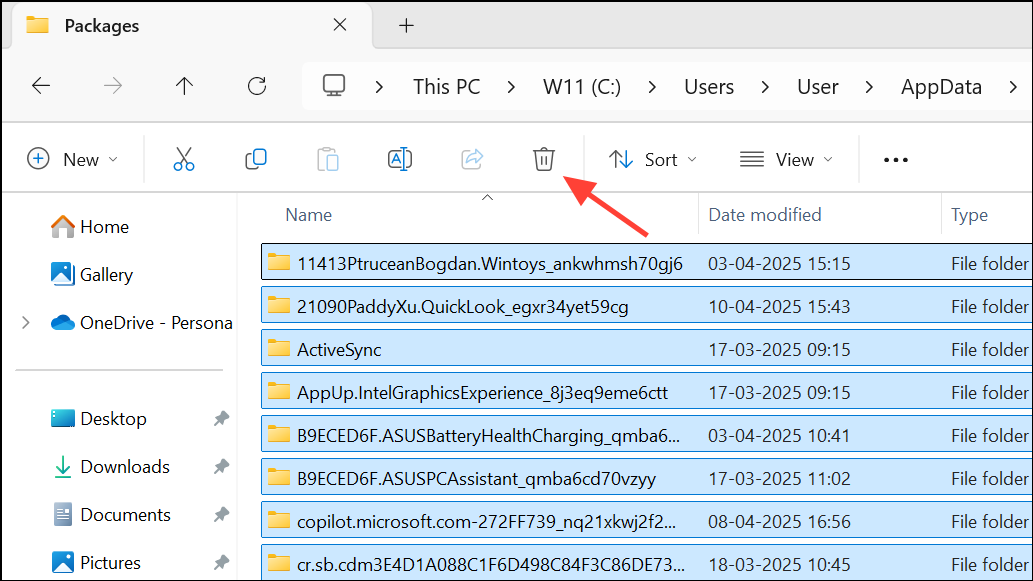
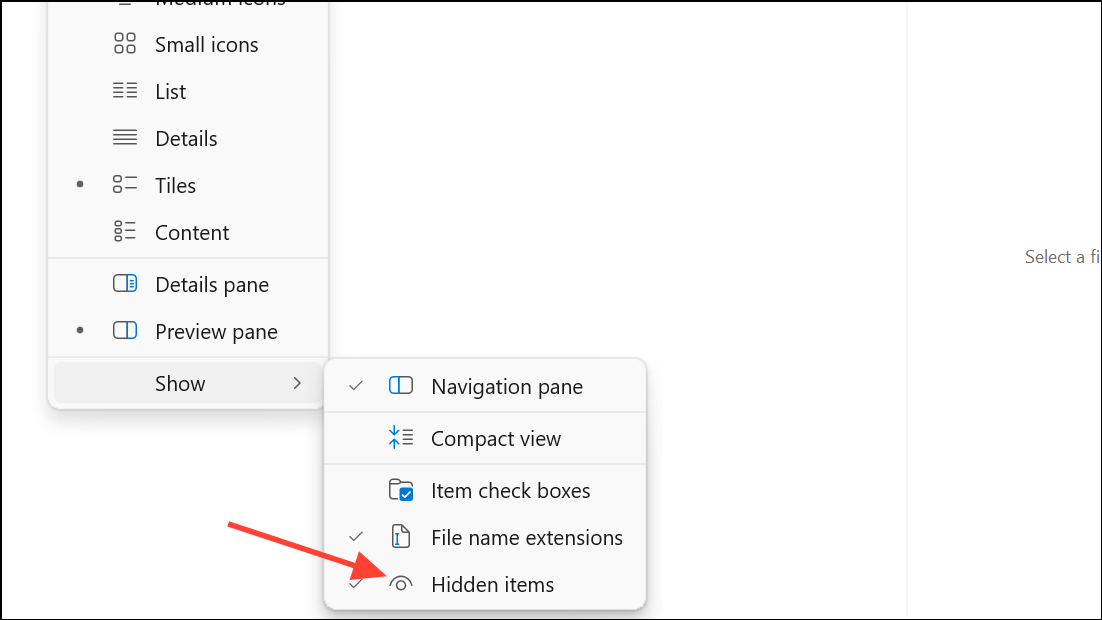
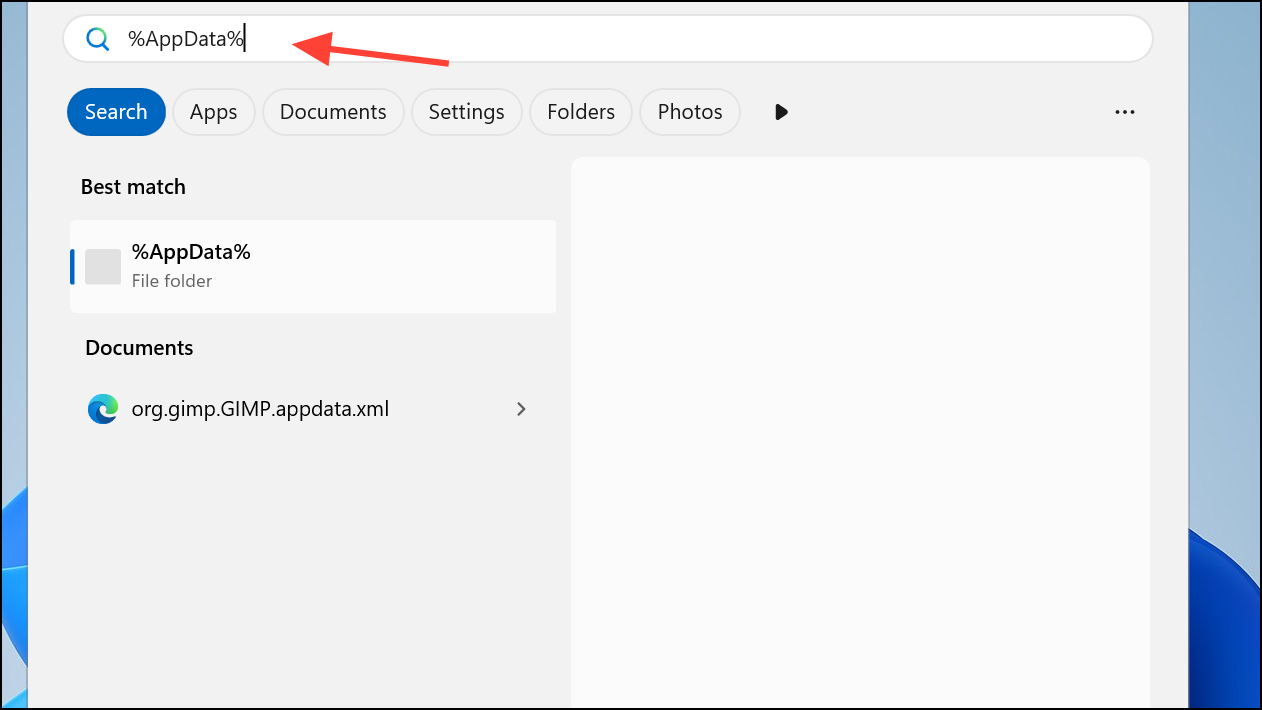
Deleting cached data removes corrupted or outdated files that may interfere with Teams sign-in. This process refreshes the app’s connection to your account and frequently resolves error code 6.
Restart Microsoft Teams and attempt to sign in again. This step forces the app to rebuild its cache with fresh data.
Remove Stored Teams Credentials
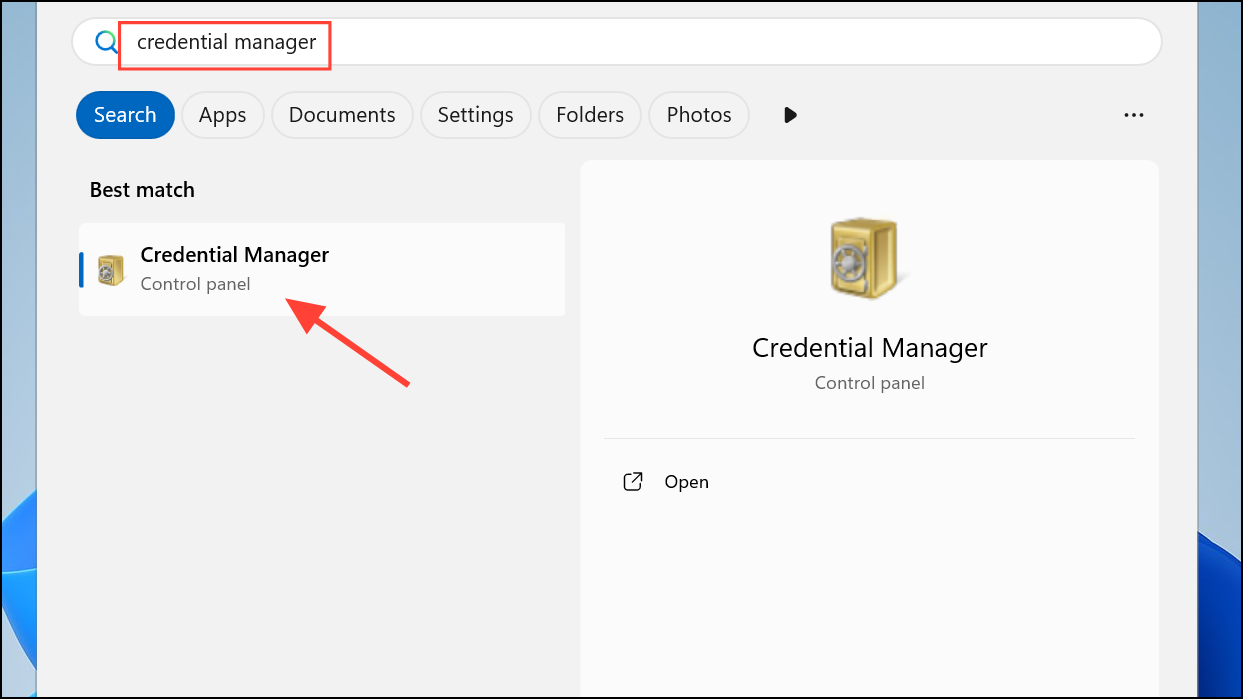
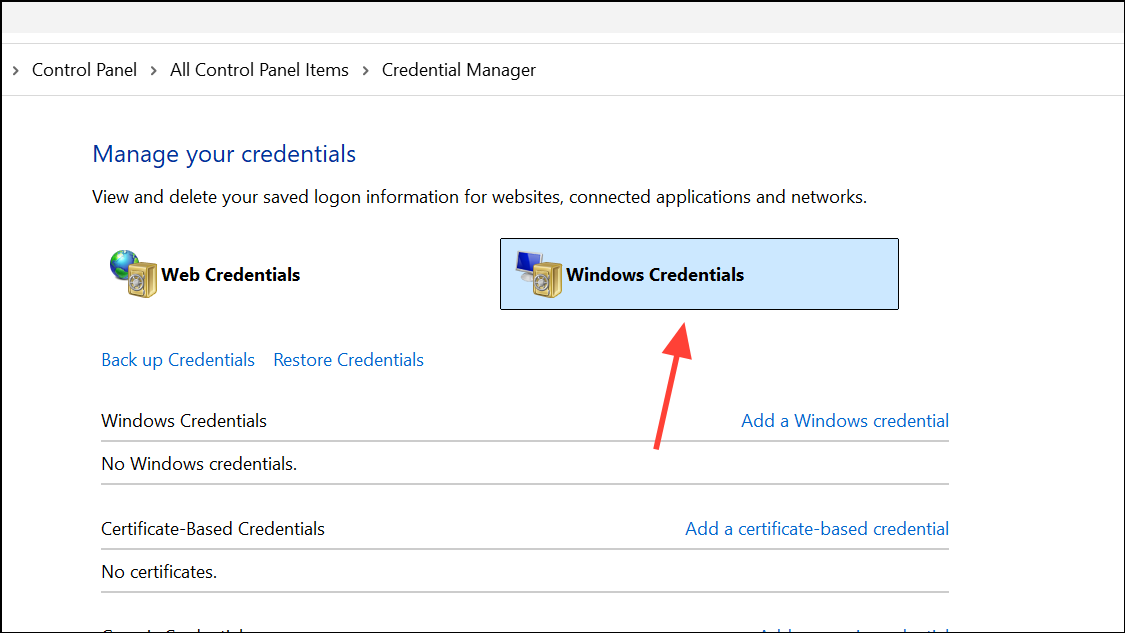
Teams may store outdated or conflicting login information in Windows Credential Manager, which can disrupt authentication. Clearing these credentials prompts Teams to request updated login details and can resolve persistent errors.
Restart Microsoft Teams and sign in with your credentials. This process ensures Teams uses the latest authentication tokens.
Reconnect Your Work or School Account
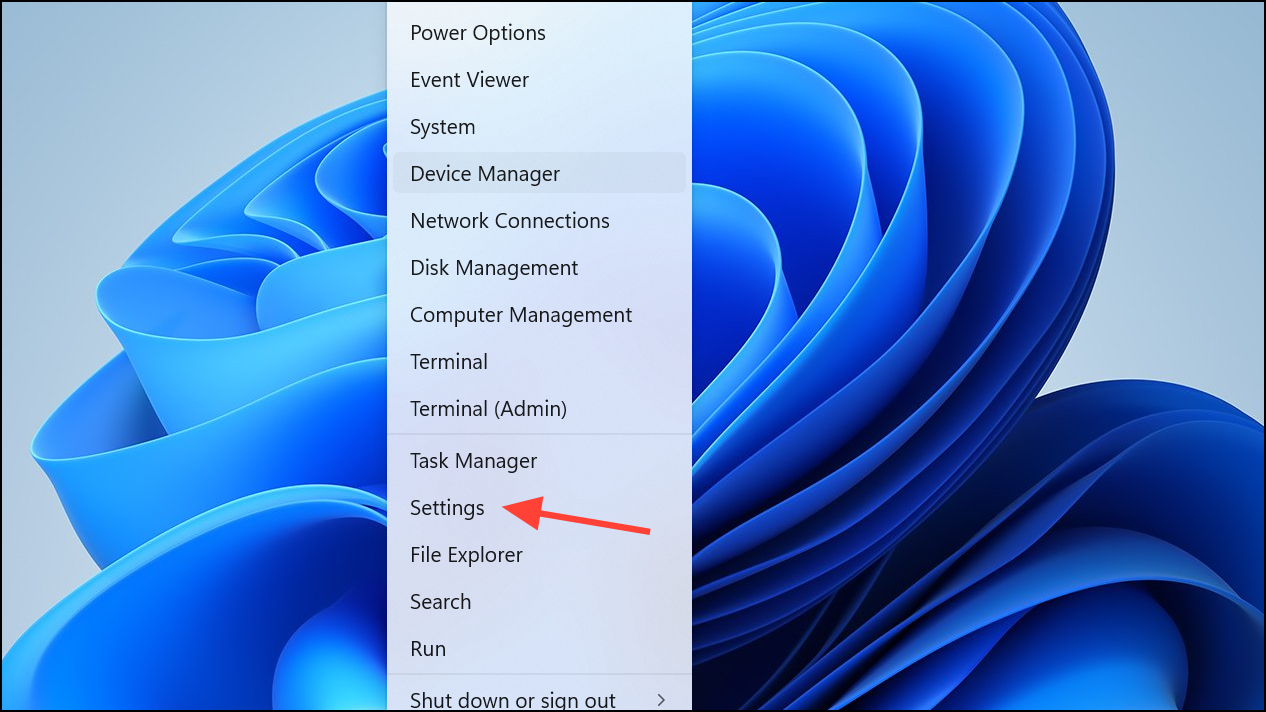
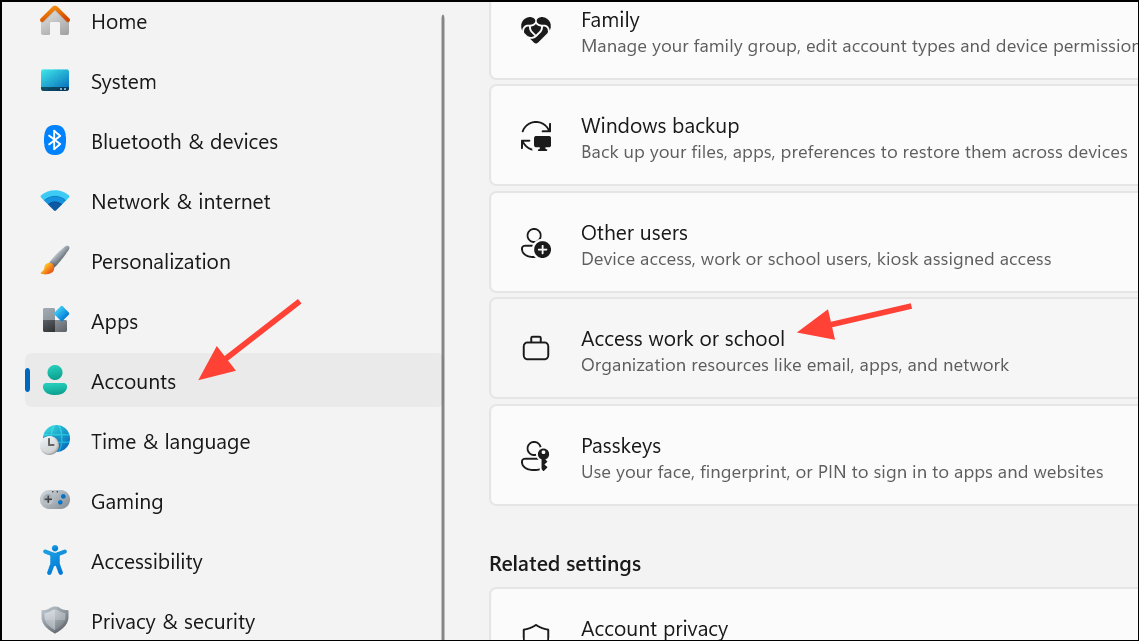
Account synchronization problems can cause error code 6, especially if your work or school account is not properly linked in Windows settings. Reconnecting the account refreshes permissions and updates authentication data.
Launch Microsoft Teams and verify if the error is resolved.
Repair or Reset the Teams App
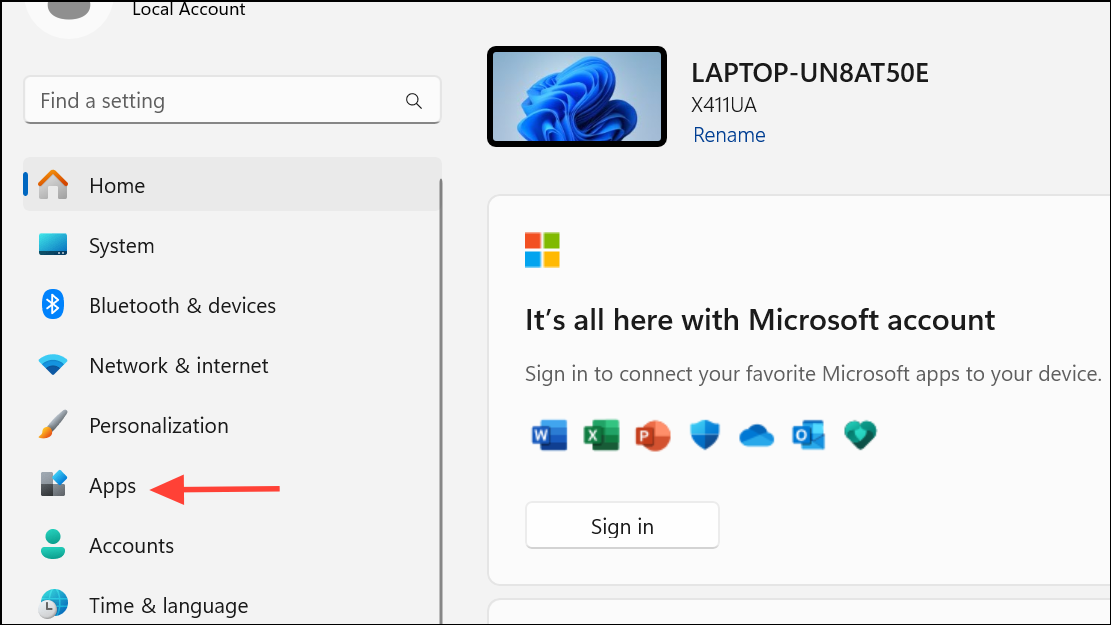
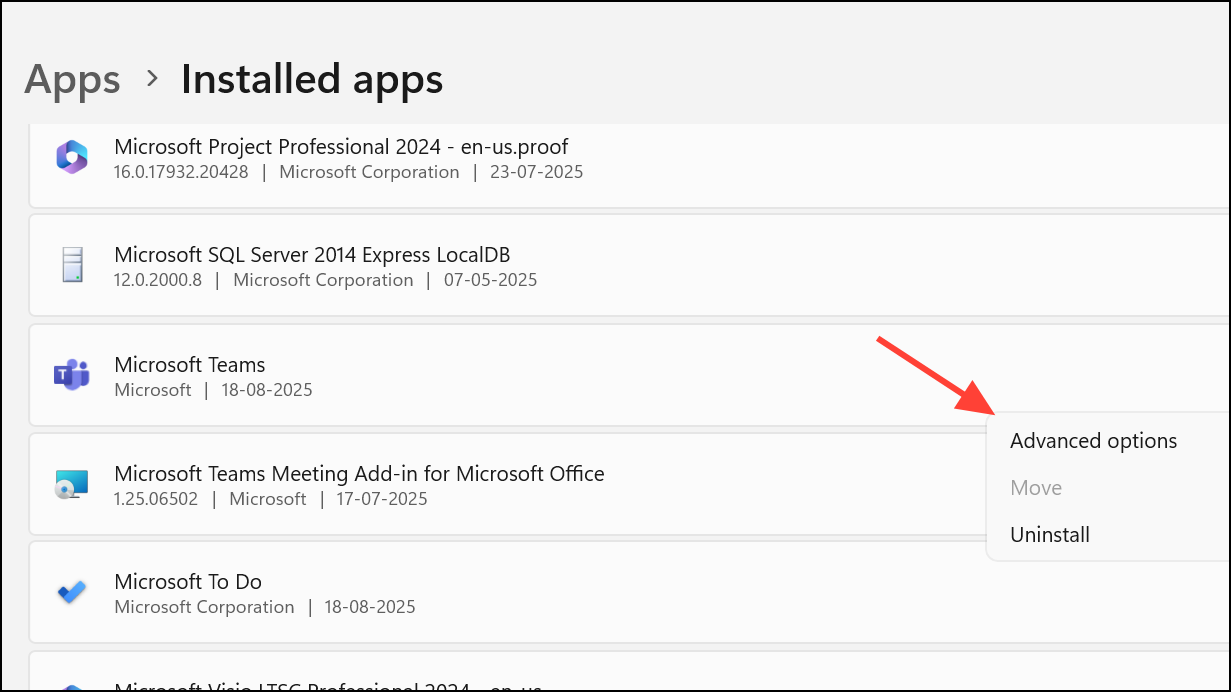
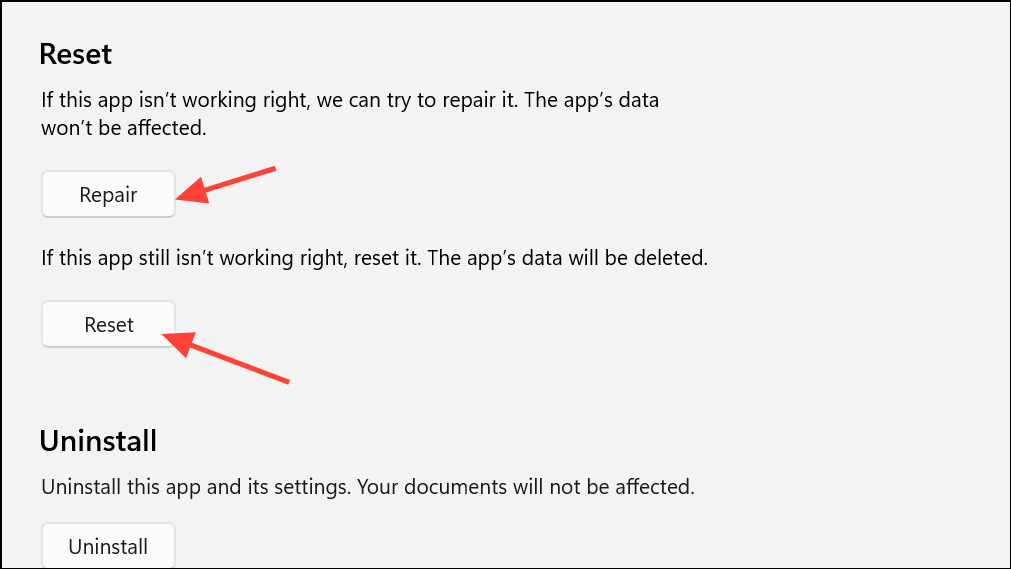
Repairing or resetting Teams through Windows settings can resolve application-level issues without affecting your files. This method restores the app to its default state and fixes problems caused by corrupted installations.
Open Teams and sign in again to check if the issue is fixed.
Run the Windows Store Apps Troubleshooter
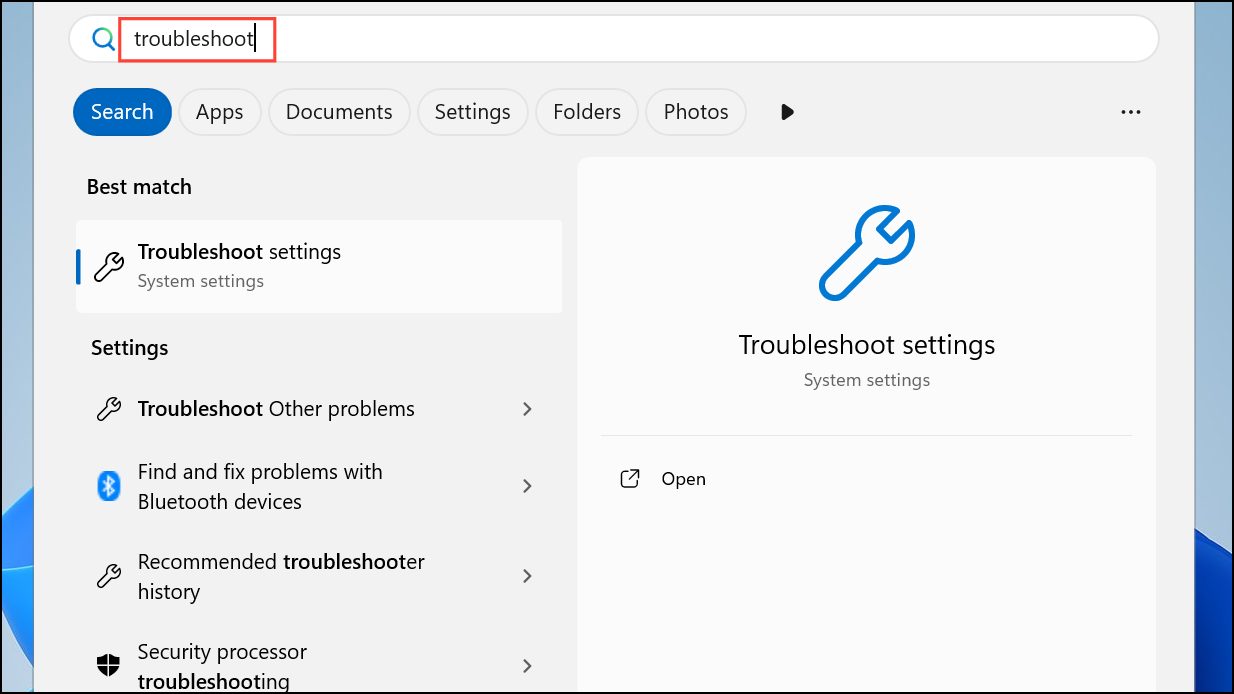
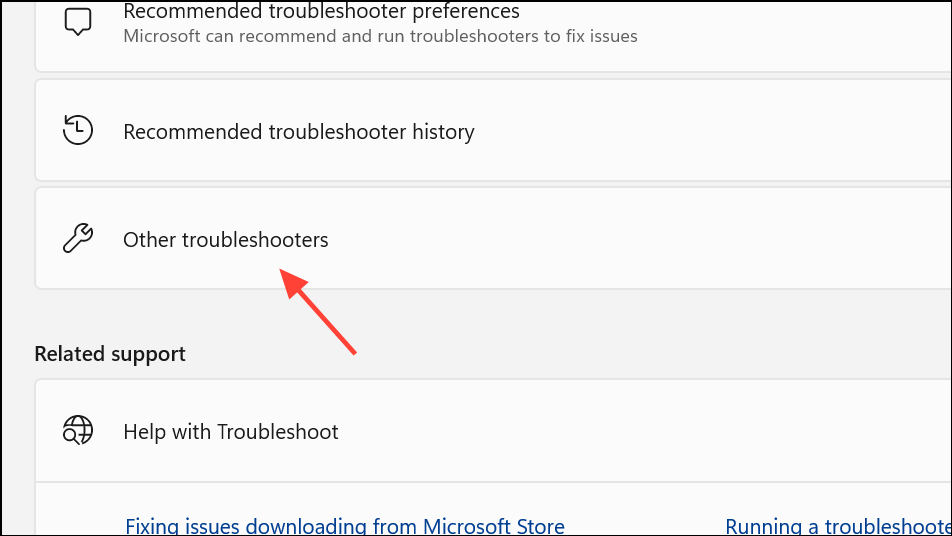
For Teams installations from the Microsoft Store, the built-in troubleshooter can detect and resolve common app problems, including configuration errors and conflicts with Windows components.
After the troubleshooter finishes, open Teams to see if you can sign in successfully.
Reinstall Microsoft Teams
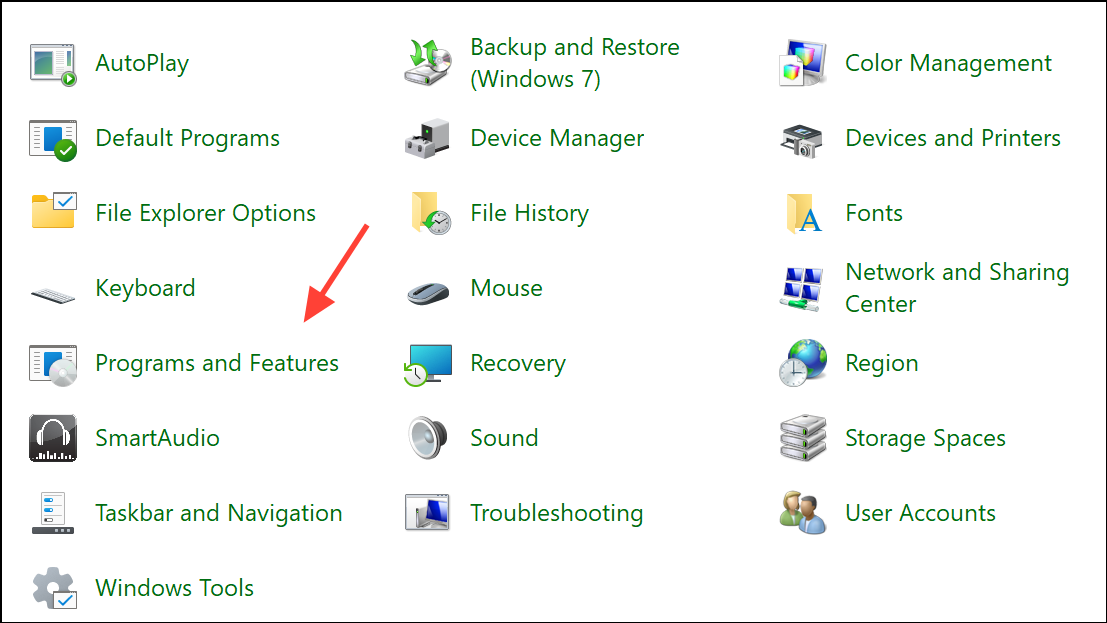
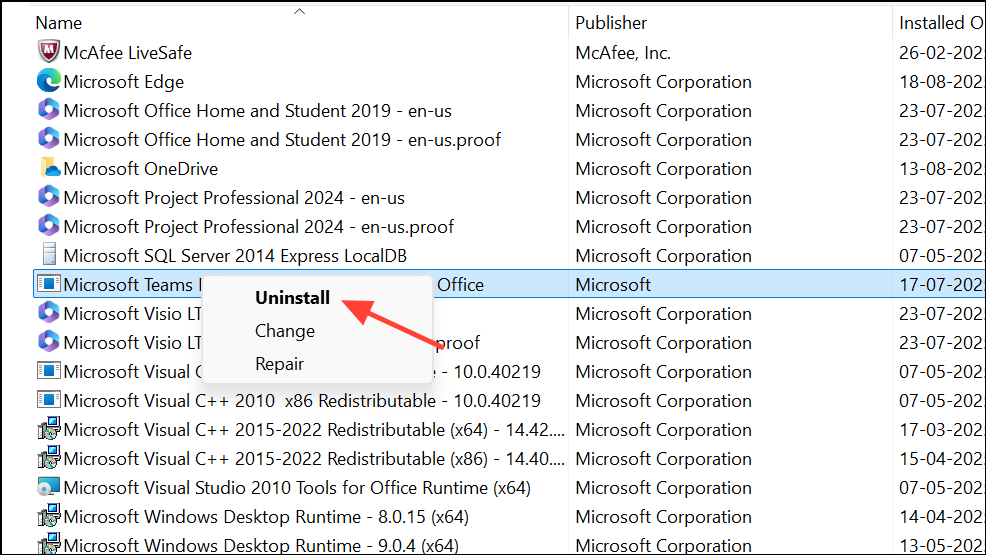
If other methods fail, a clean reinstall of Teams removes all program files and user data, eliminating persistent issues caused by corrupted installations or conflicting app versions.
Open the app and sign in to verify that error code 6 no longer appears.
Resolving error code 6 in Microsoft Teams often requires clearing cache files, updating credentials, or reconnecting your account. Following these steps restores access to your Teams desktop app and keeps your workflow running smoothly.