
The “Error! Bookmark Not Defined.” message appears in Microsoft Word when a field, such as a table of contents or cross-reference, points to a bookmark that no longer exists in the document. This issue disrupts navigation and can replace page numbers or section references with error text, especially after deleting or moving content. Addressing this error promptly restores document accuracy and ensures reliable navigation for readers.
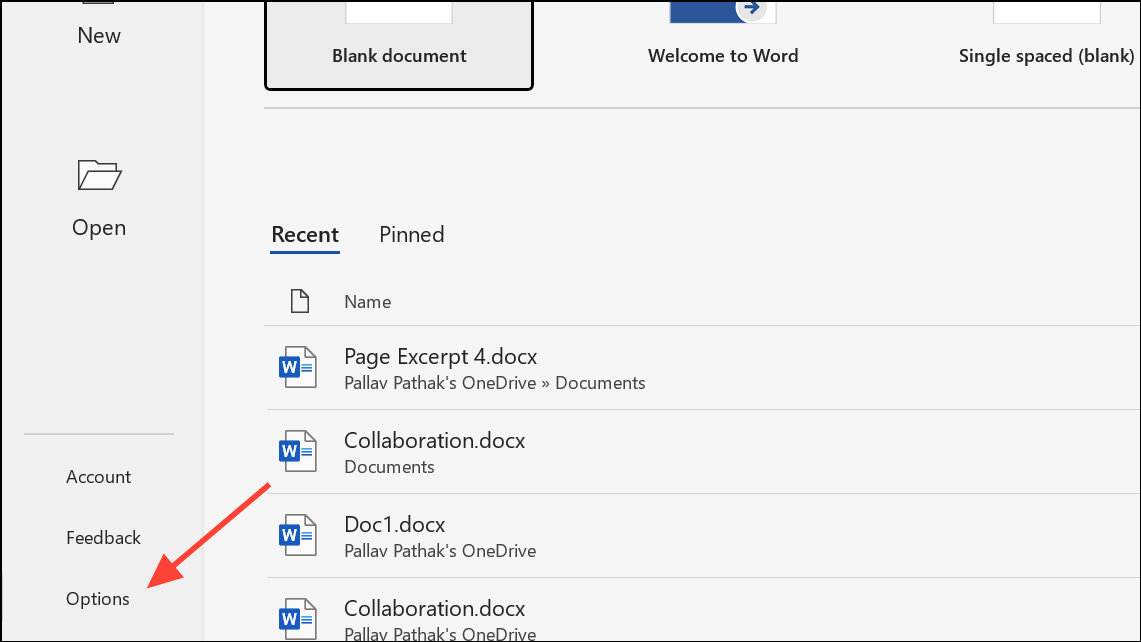
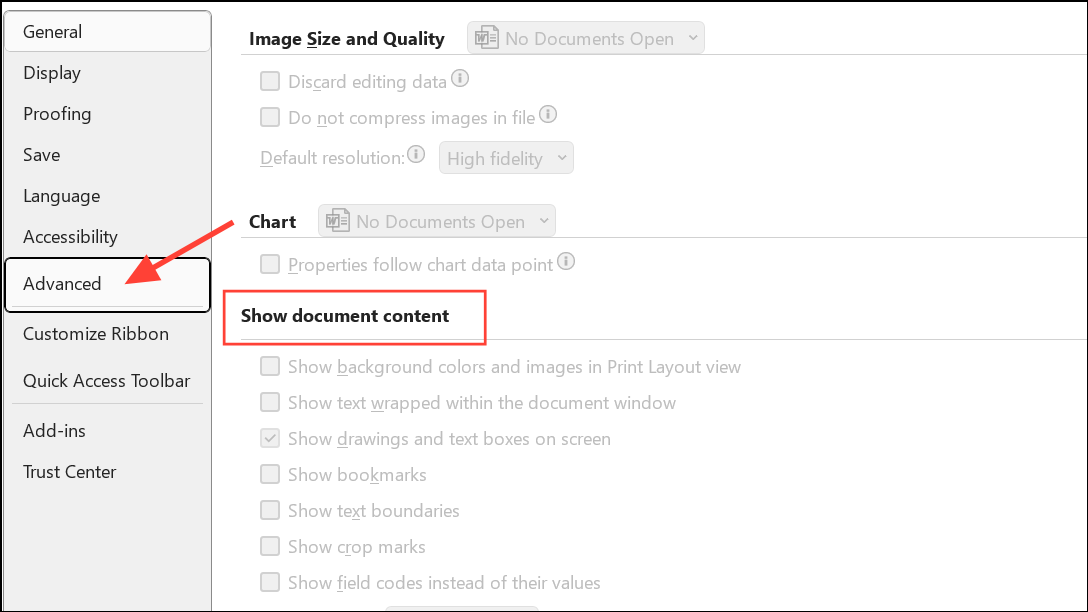
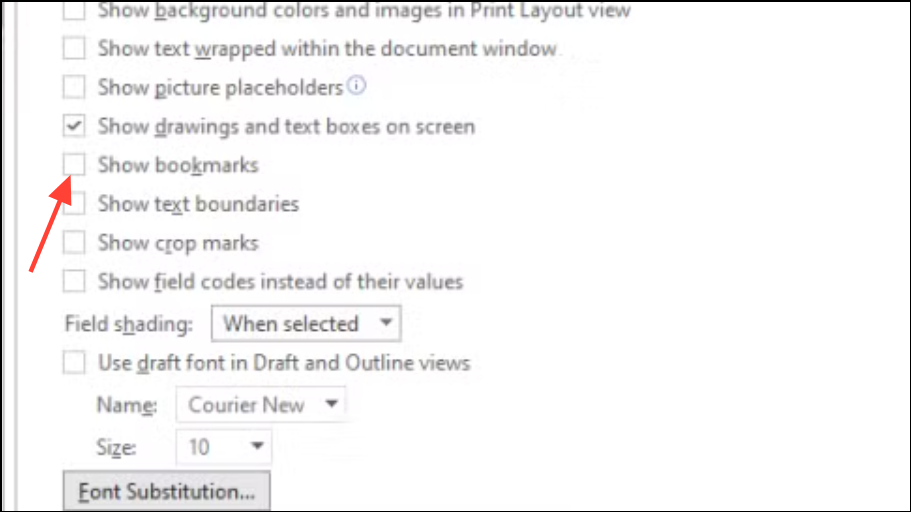
Show Bookmarks in Your Document
Word hides bookmarks by default, making it difficult to identify which ones are missing or broken. Displaying bookmarks helps you locate and repair issues directly.
Method 1: Restore or Replace Missing Bookmarks
Broken or deleted bookmarks are the primary cause of this error. When a field references a bookmark that’s been removed, the error message replaces the expected content. Restoring or recreating these bookmarks resolves the issue at its source.
{ PAGEREF BookmarkName } or { HYPERLINK BookmarkName }. The “BookmarkName” is the missing reference.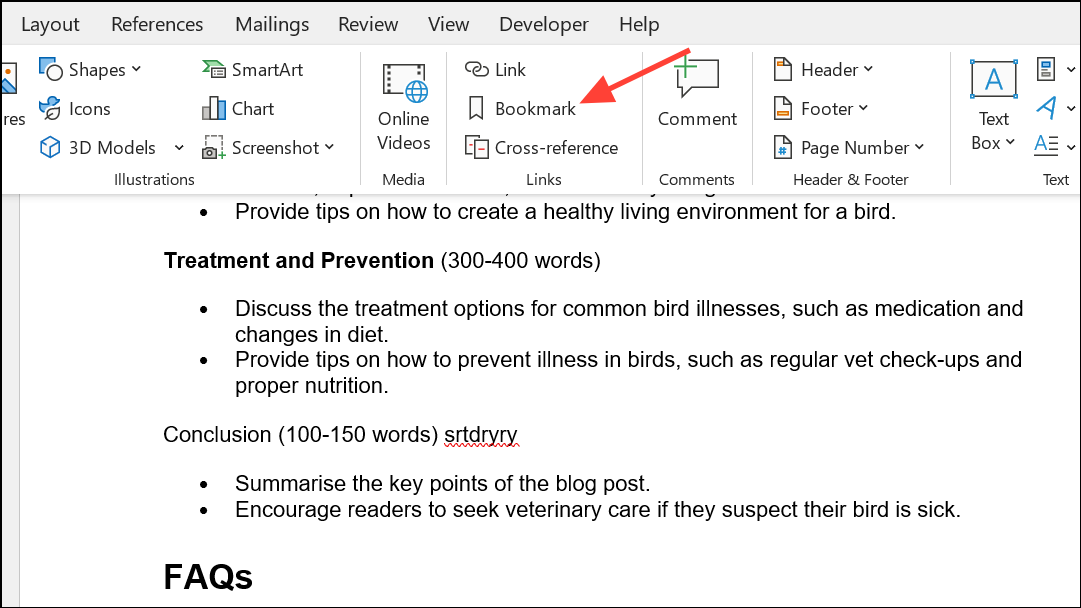
If recreating bookmarks isn’t practical, you can delete the problematic field and insert a new cross-reference to the correct section using References > Cross-reference.
Method 2: Use the Undo Command Immediately
If the error appears right after updating a table of contents or cross-reference, you can quickly revert the change using the Undo command. This is most effective if you haven’t made further edits since the error appeared.
Ctrl + Z on your keyboard, or click the Undo icon in the Quick Access Toolbar. This restores the document to its state before the error was triggered.Method 3: Update the Table of Contents or Fields
Sometimes the error persists due to outdated or unsynchronized fields. Updating fields forces Word to re-scan bookmarks and refresh references, often resolving minor inconsistencies.
F9 on your keyboard, or right-click and select Update Field. For a table of contents, choose Update entire table when prompted. This refreshes all entries and page numbers.If errors persist, double-check for missing bookmarks as described in Method 1.
Method 4: Convert Automated Fields to Static Text
When a document contains multiple broken references and immediate repair isn’t feasible, converting fields to static text removes dynamic links and error messages. This is useful for finalized documents where further updates are unnecessary.
Ctrl + Shift + F9. This command converts fields to regular text, eliminating the error message and locking the current content in place.Additional Tips for Persistent Errors
- When using tracked changes, updating the table of contents may display “Error! Bookmark Not Defined.” in deleted or revised sections. Accept all changes in a copy of your document to check if this resolves display issues.
- If you rely on tracked changes for document review, consider updating the table of contents via the References tab rather than right-clicking, as some users report more stable results.
- Always use built-in heading styles for sections referenced in your table of contents. Custom or manual formatting can lead to missing bookmarks and broken links.
- Before converting documents to PDF, ensure all bookmarks and cross-references are valid and updated to prevent errors in the exported file.
Restoring missing bookmarks, updating your table of contents, or converting fields to static text quickly resolves the “Error! Bookmark Not Defined.” message in Word. Regularly reviewing bookmarks and references keeps your documents organized and error-free.





