
Chrome.exe failing to launch with a “Bad Image” error and status code 0xc000012f signals that a required file is either corrupted or incompatible with your Windows installation. This error can prevent Chrome and other programs from running, often after a recent Windows update, system interruption, or file corruption. Addressing the root cause restores normal application function and prevents repeated interruptions.
Reset Chrome to Default Settings
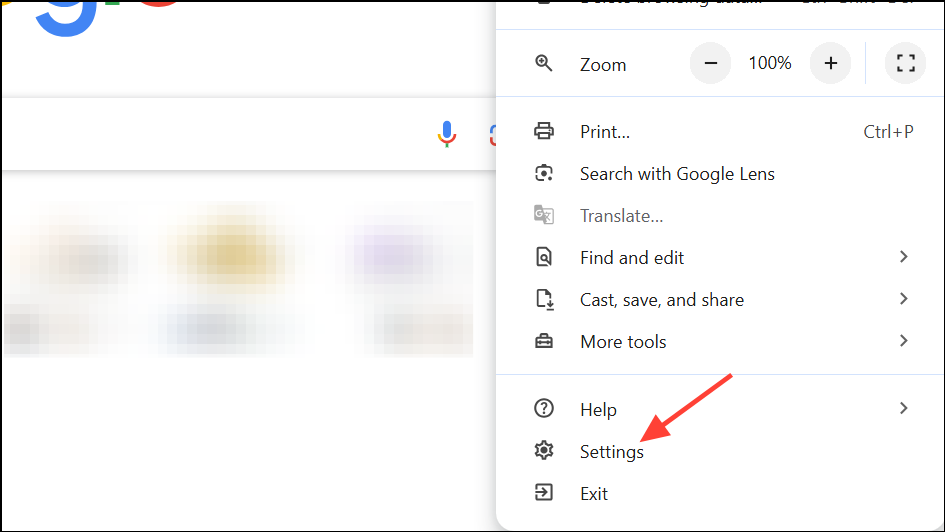
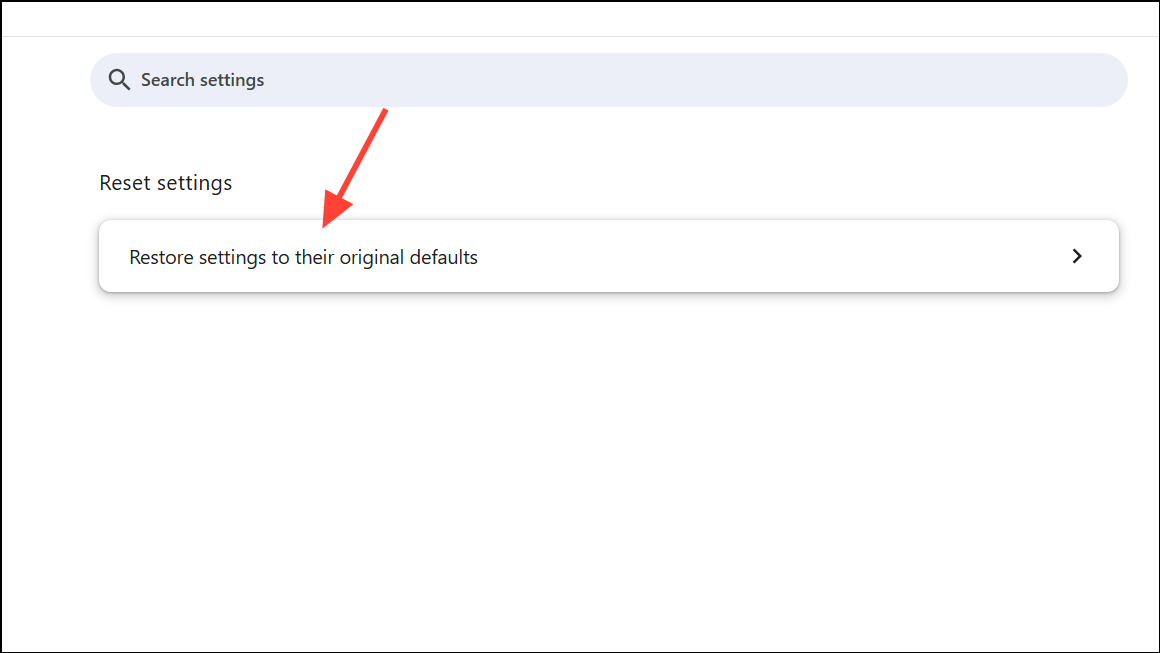
If Chrome will not open at all, proceed to the next method.
Replace or Rename Corrupted Chrome Executable
C:\Users\YourUsername\AppData\Local\Google\Chrome\Application. Replace YourUsername with your actual Windows username.chrome.exe and old_chrome.exe. Delete chrome.exe (the potentially corrupted file).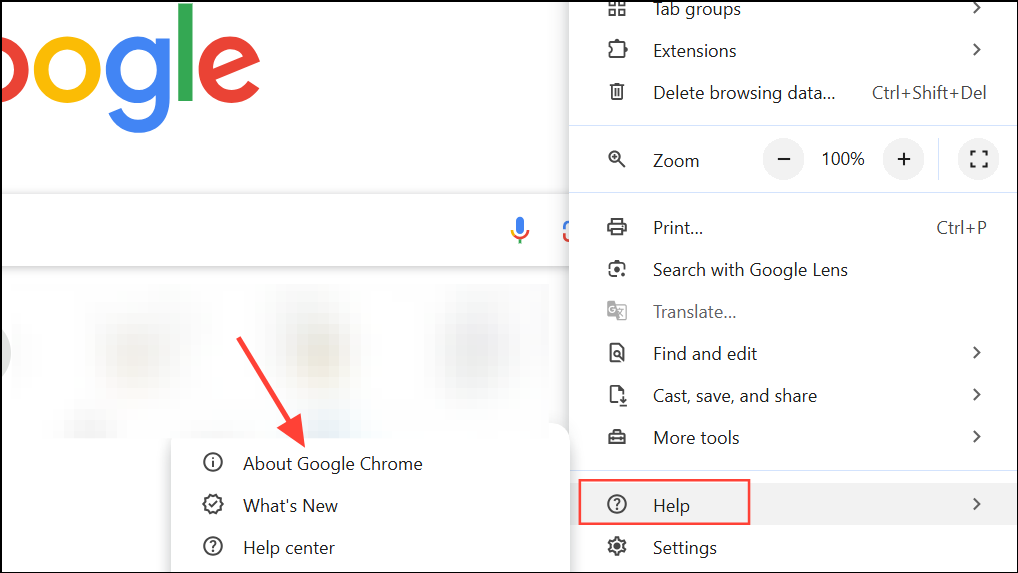
Update or Reinstall Google Chrome
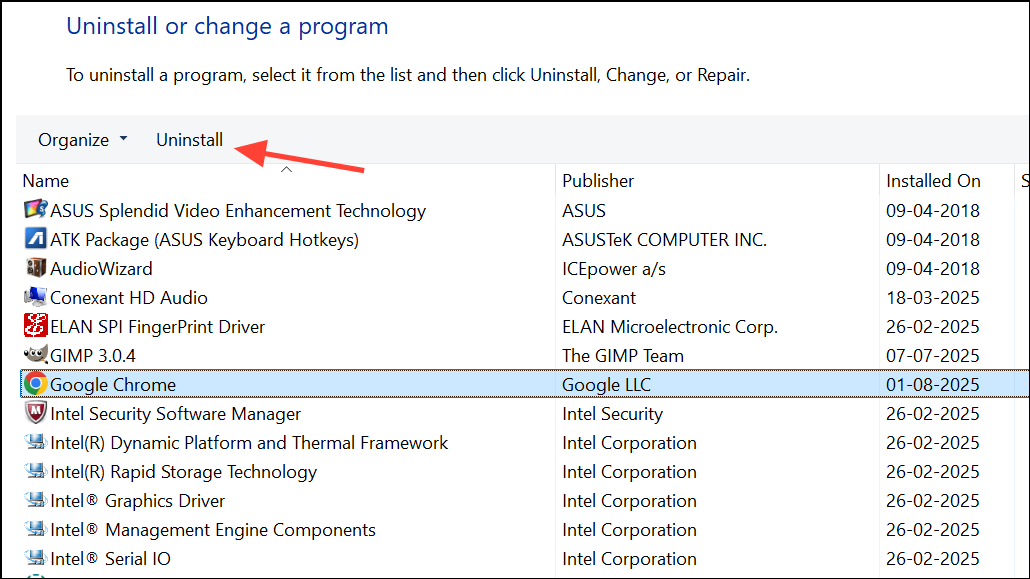
Repair System Files with SFC and DISM
System file corruption can trigger Bad Image errors across multiple applications, not just Chrome. Using built-in Windows utilities helps repair these core files.
Windows + R to open the Run dialog. Type cmd and press Ctrl + Shift + Enter to launch Command Prompt as administrator.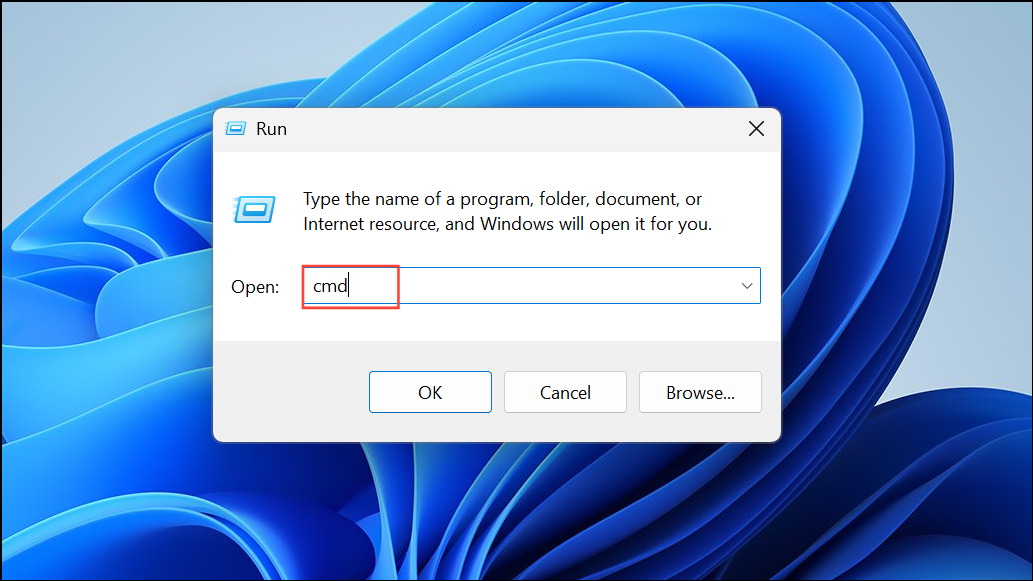
sfc /scannow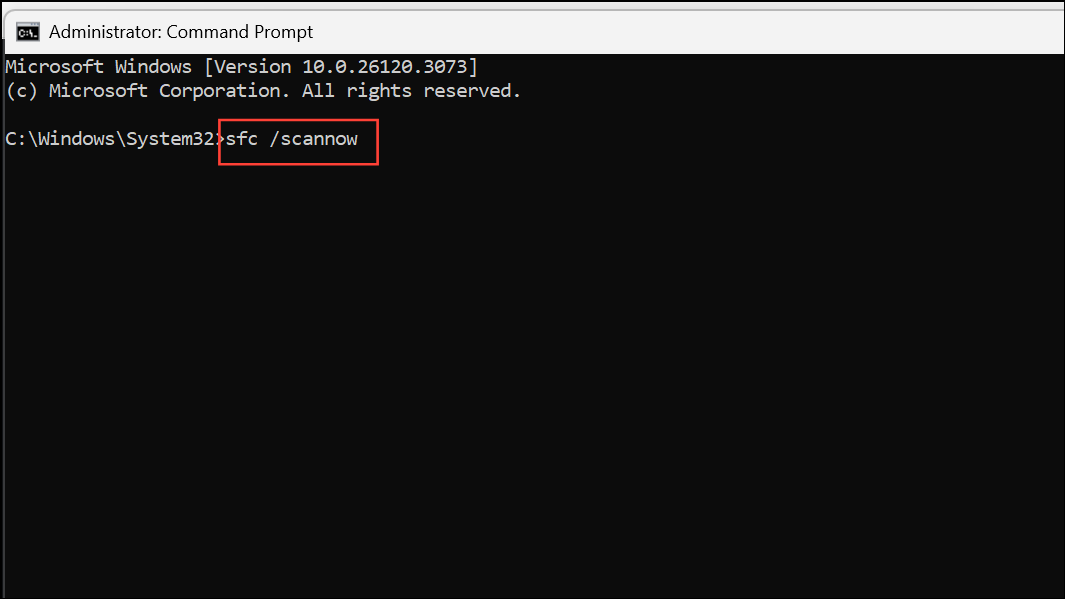
This command scans and attempts to repair corrupted system files. Wait for the scan to complete. If you receive a message stating that some files could not be repaired, proceed to the next step.
DISM.exe /Online /Cleanup-Image /RestoreHealth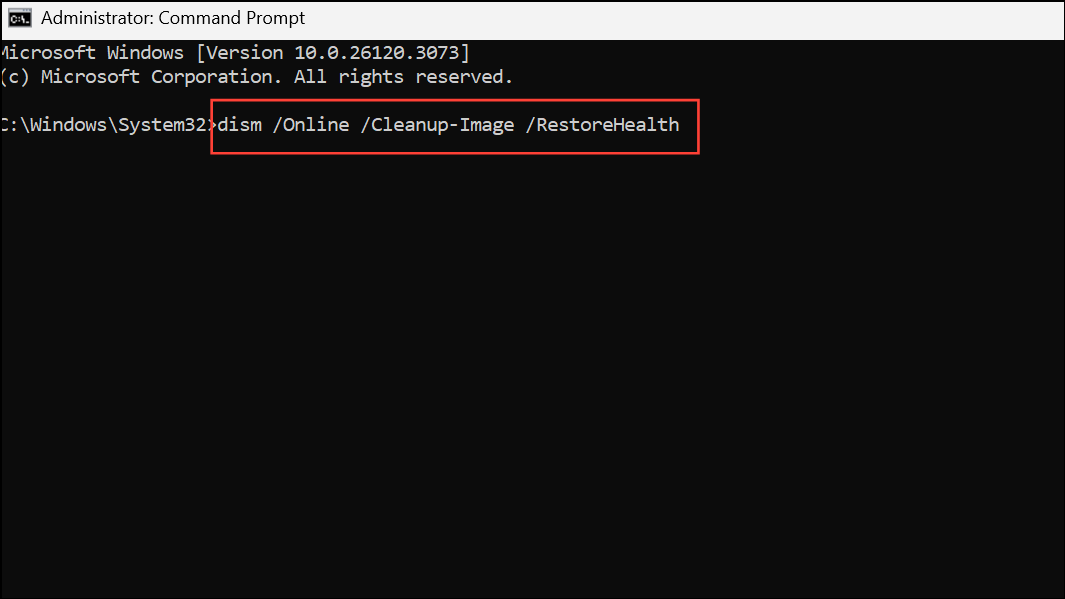
Allow the process to finish. Once completed, run sfc /scannow again to verify all issues are resolved. Restart your computer after these repairs.
Uninstall Recent Windows Updates
Bad Image errors sometimes follow problematic Windows updates. Removing a recent update can resolve compatibility or corruption issues.
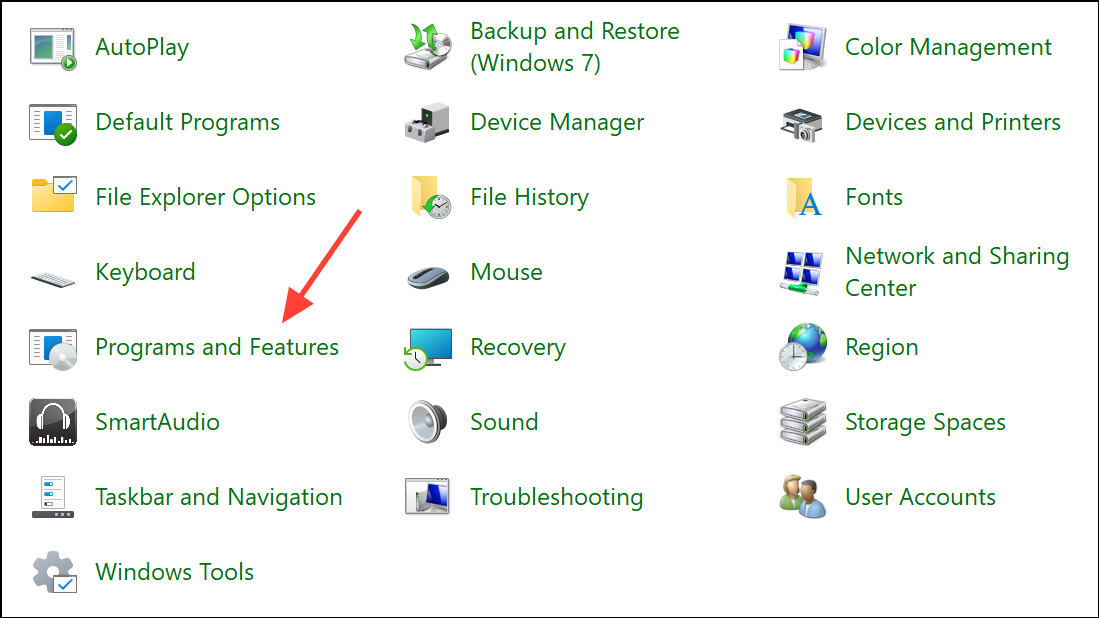
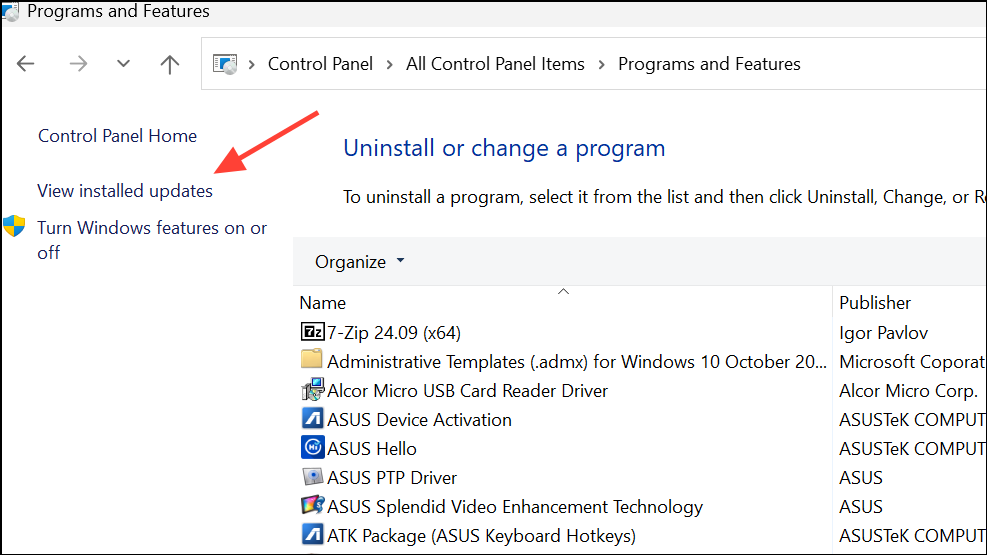
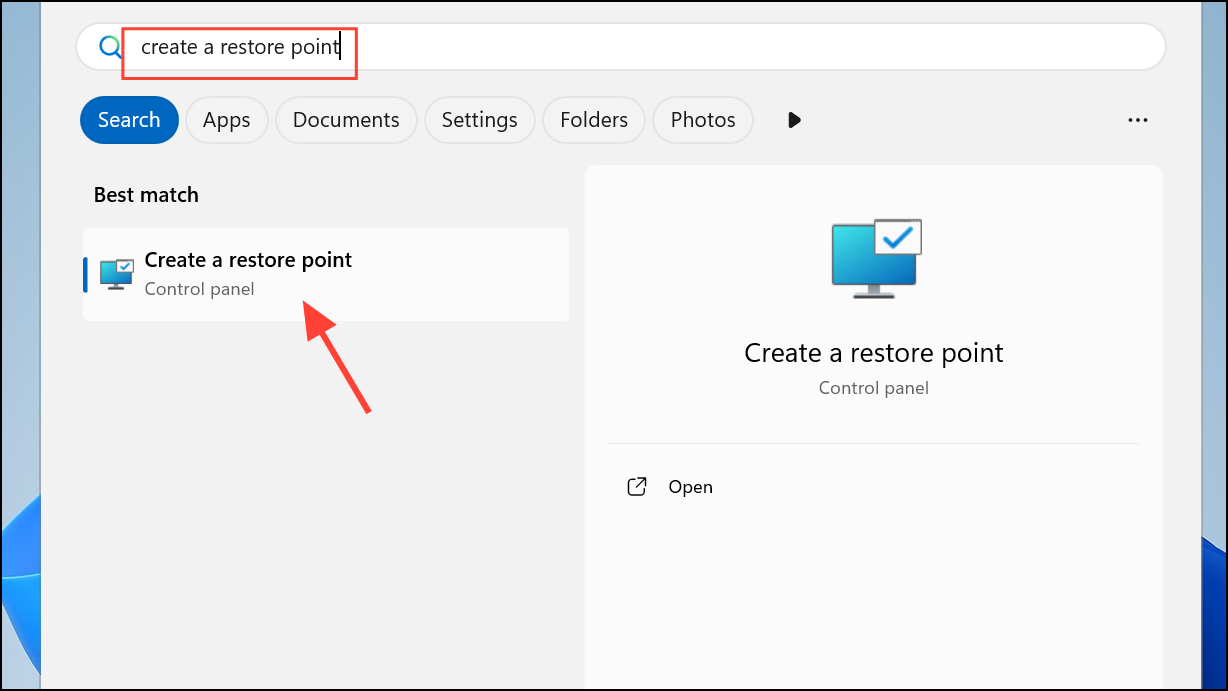
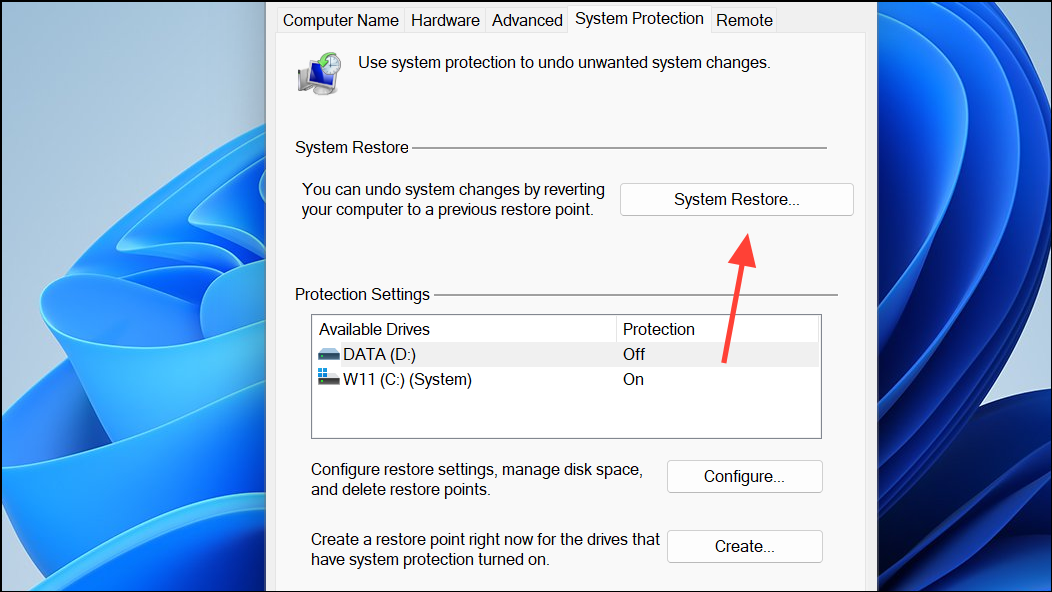
Restore Windows to a Previous State
If other methods fail, using System Restore can revert your system to a point before the Bad Image error appeared. This process keeps your files intact but removes recent changes that may have caused the issue.
Resolving the Chrome.exe Bad Image error status 0xc000012f restores Chrome’s functionality and prevents further disruption. Regularly updating Windows and Chrome, running system scans, and backing up important data help maintain a stable system in the future.





