Repeated prompts to save passwords in Firefox can interrupt workflow and pose privacy concerns, especially on shared devices or when managing sensitive logins. Adjusting Firefox’s settings prevents these prompts, giving you more control over your browser’s behavior and helping you avoid accidental password storage.
Disable All Password Saving Prompts in Firefox (Desktop)
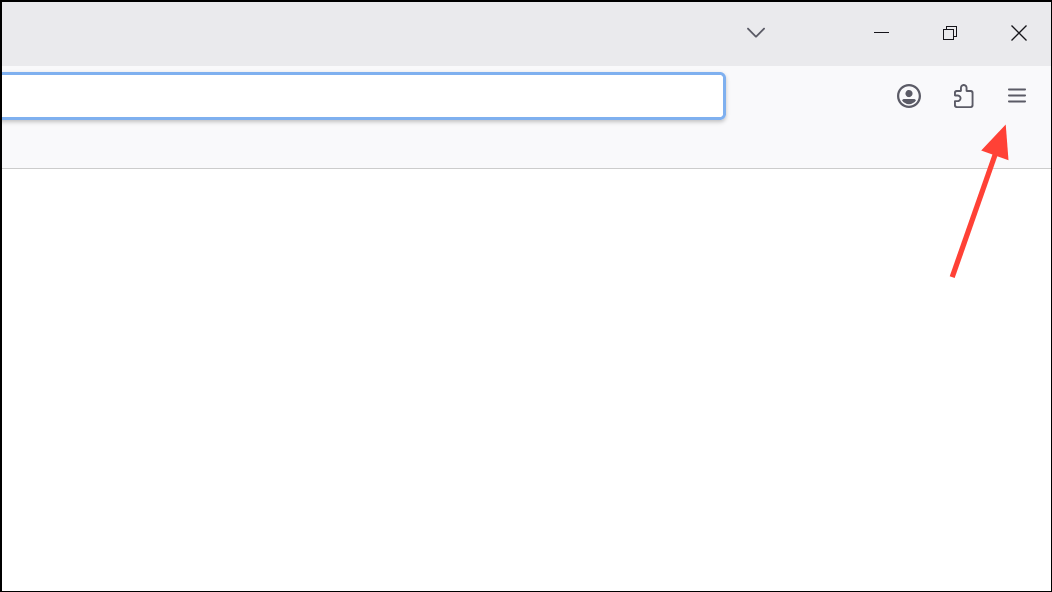
Settings (or Preferences on macOS) from the menu list. This opens the browser’s main settings page.
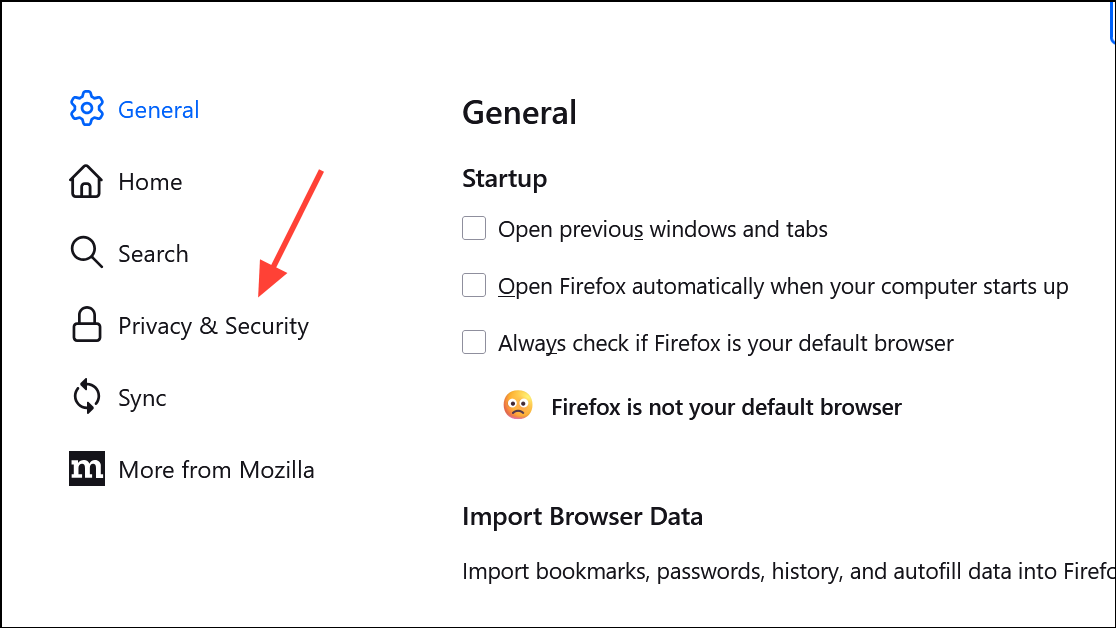
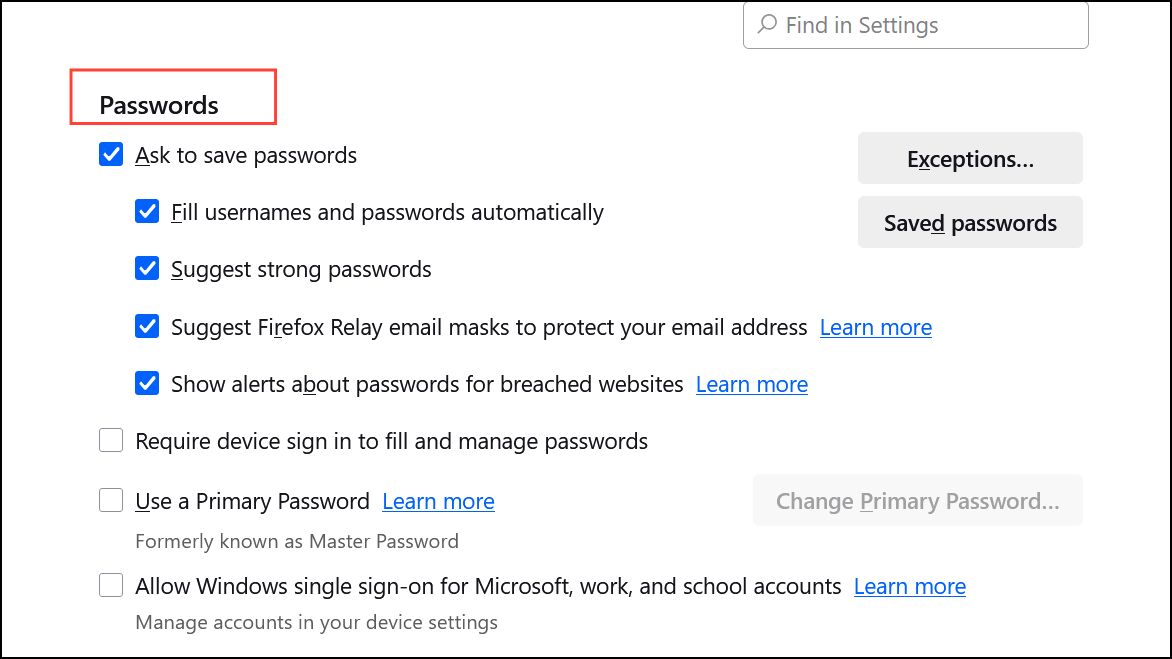
Ask to save passwords. This stops Firefox from prompting you to save passwords on any website going forward.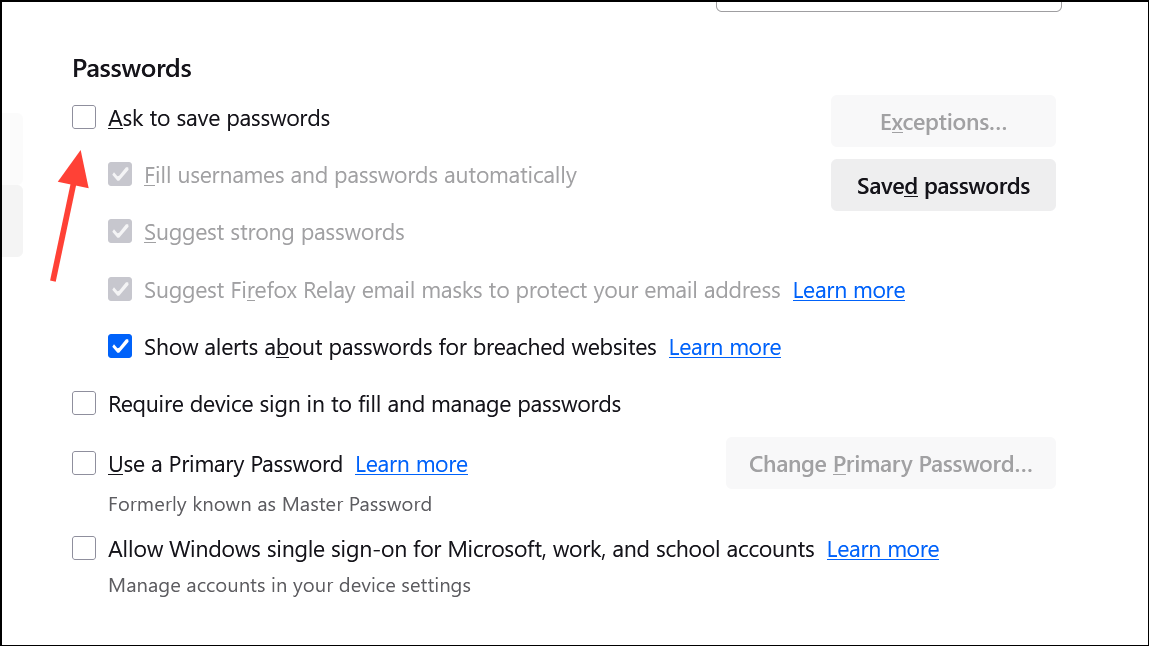
If you also want to prevent auto-filling of saved credentials, uncheck additional options such as Autofill logins and passwords if available.
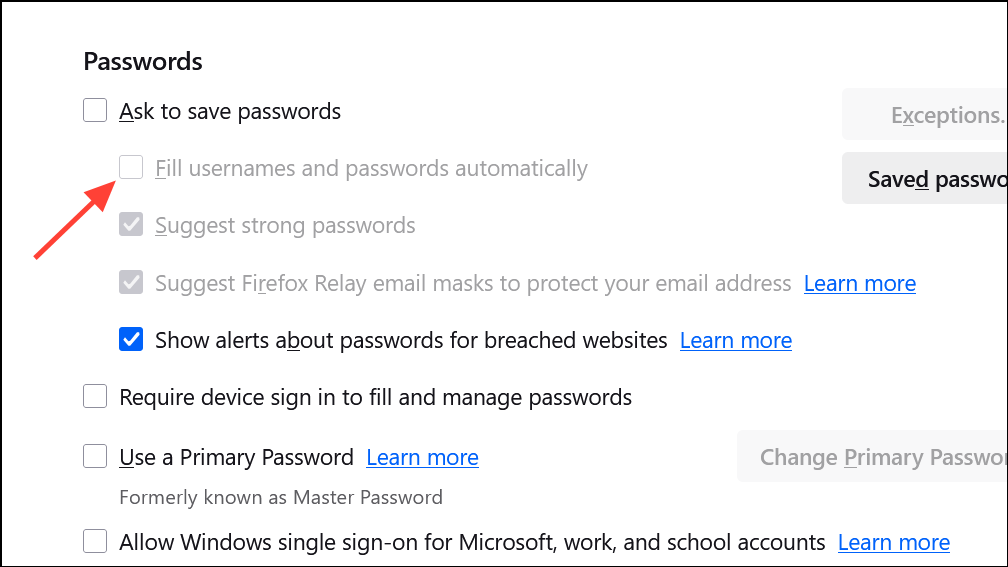
Any previously saved passwords will remain stored until you remove them manually. To delete stored credentials, click Saved Logins… or visit about:logins, then select and remove the entries you no longer want.
Disable Password Saving for Specific Websites Only
When you want Firefox to stop prompting to save passwords only on certain sites, you can set up exceptions instead of disabling the feature entirely.
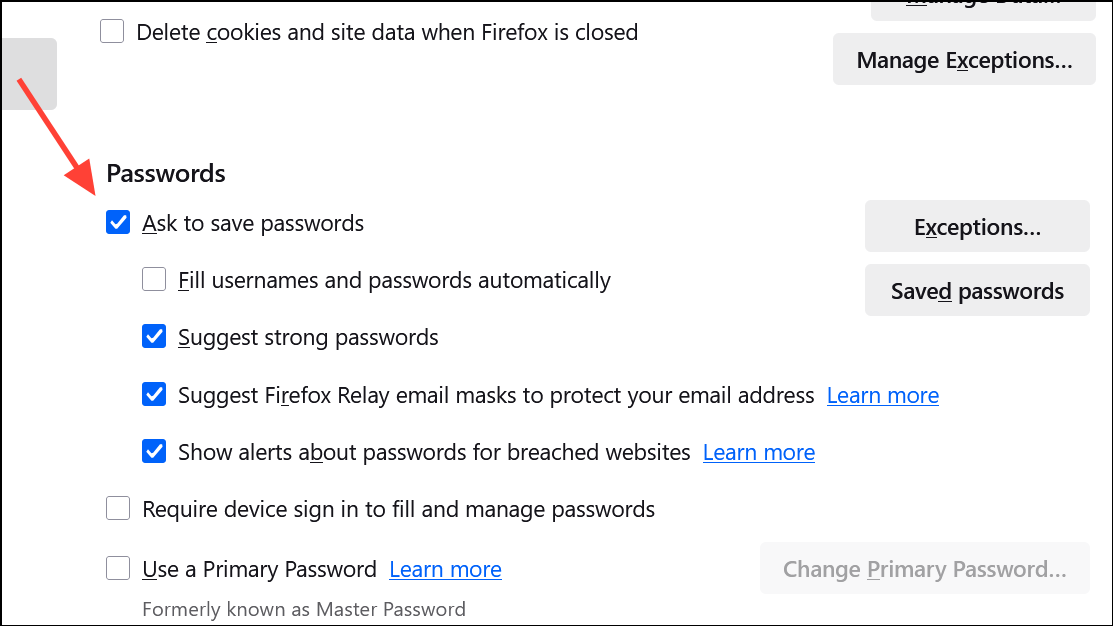
Exceptions… button next to the password-saving prompt option. A new window will appear for managing exceptions.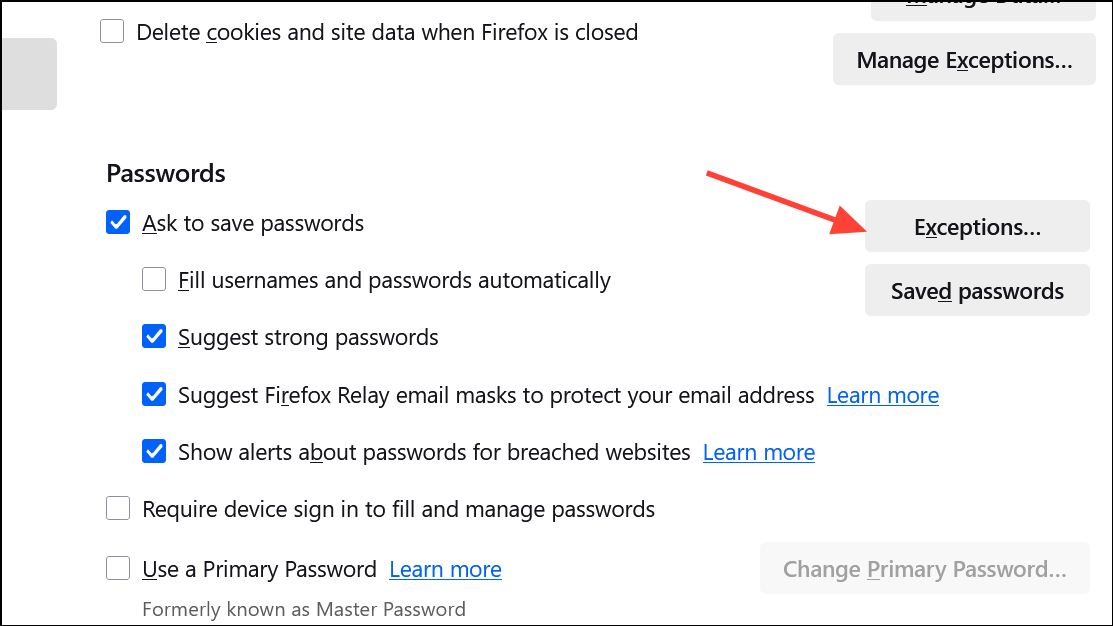
Block after each entry. Both http:// and https:// versions are included automatically.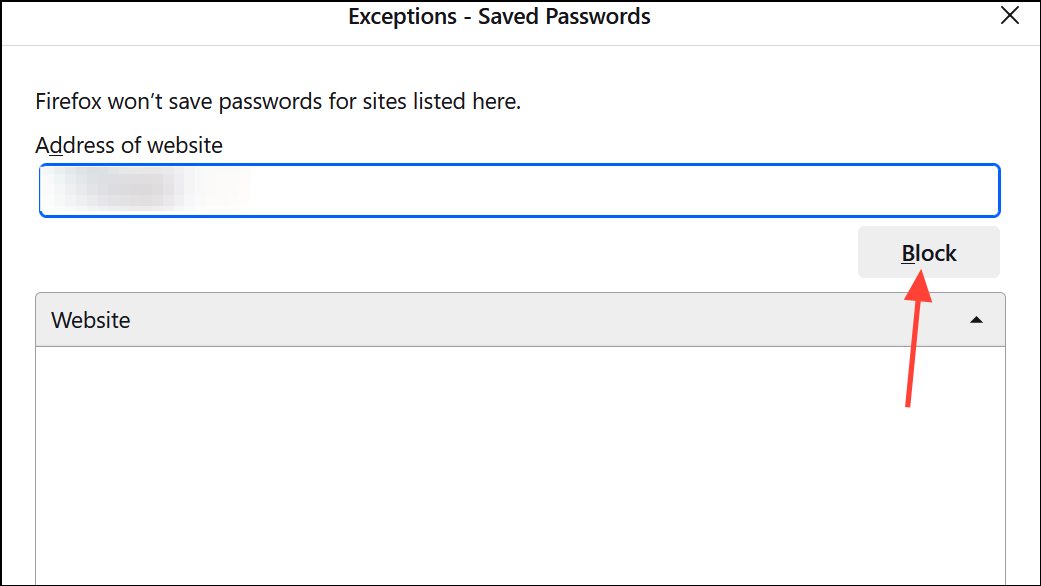
Remove Website. To clear all exceptions, click Remove All Websites. Click Save Changes to confirm.Turn Off Password Saving in Firefox for Android
Firefox for Android also allows you to control password-saving prompts.
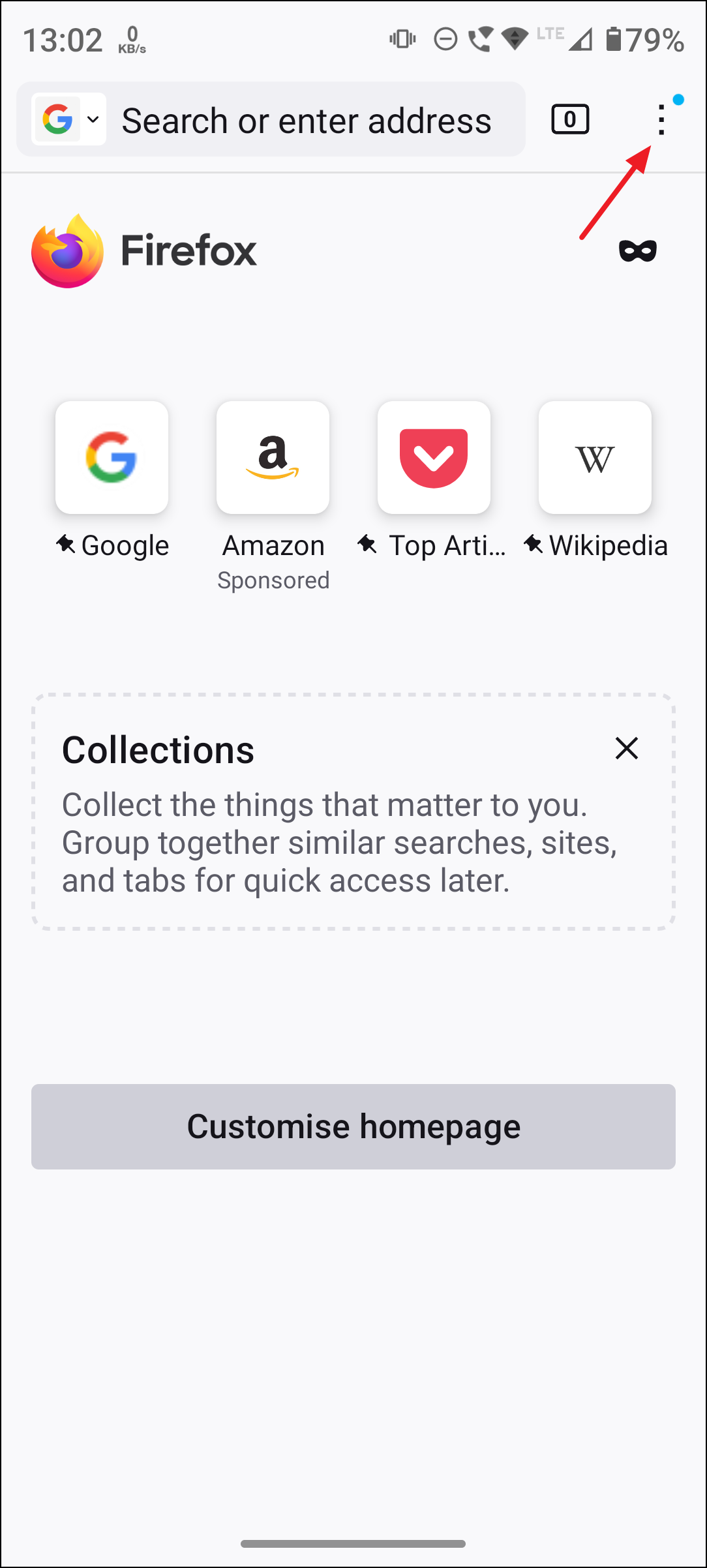
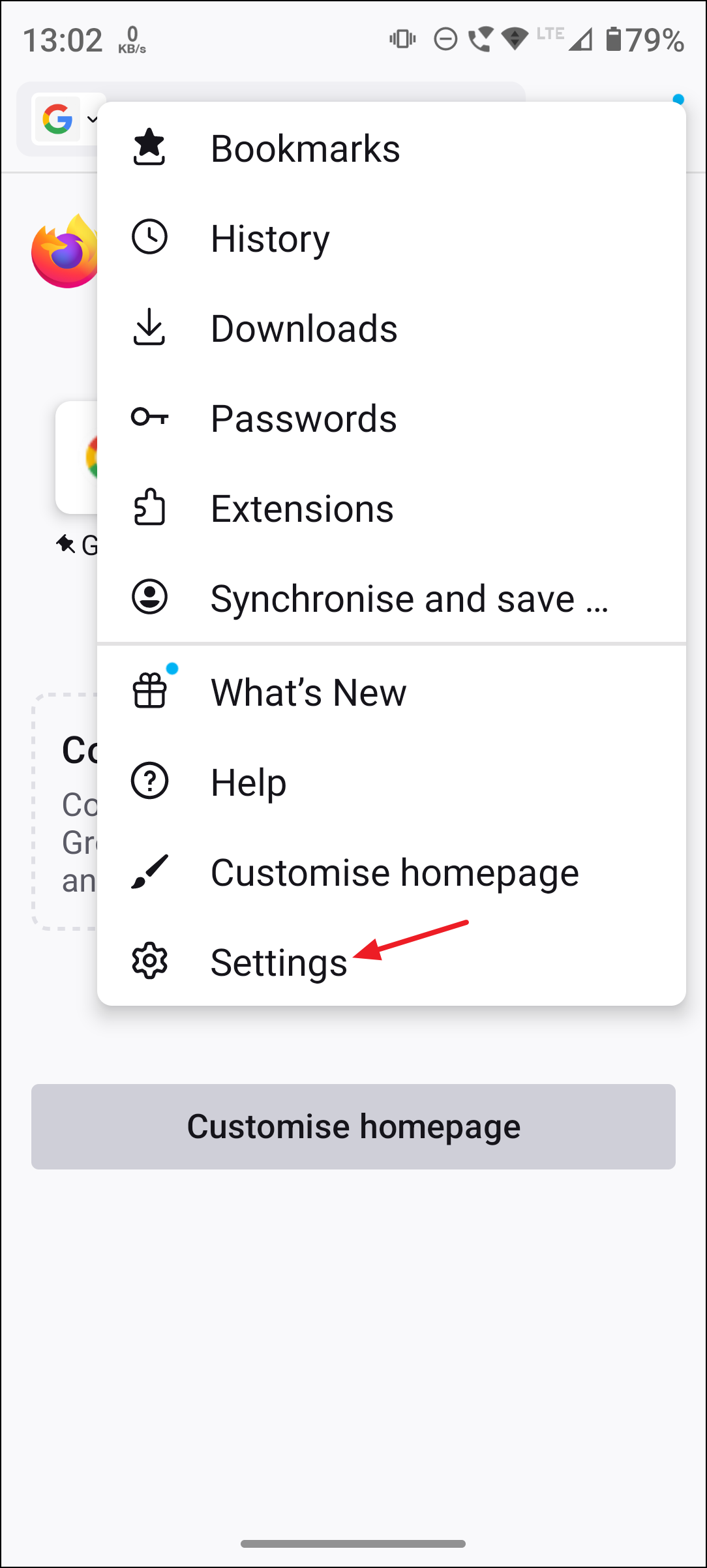
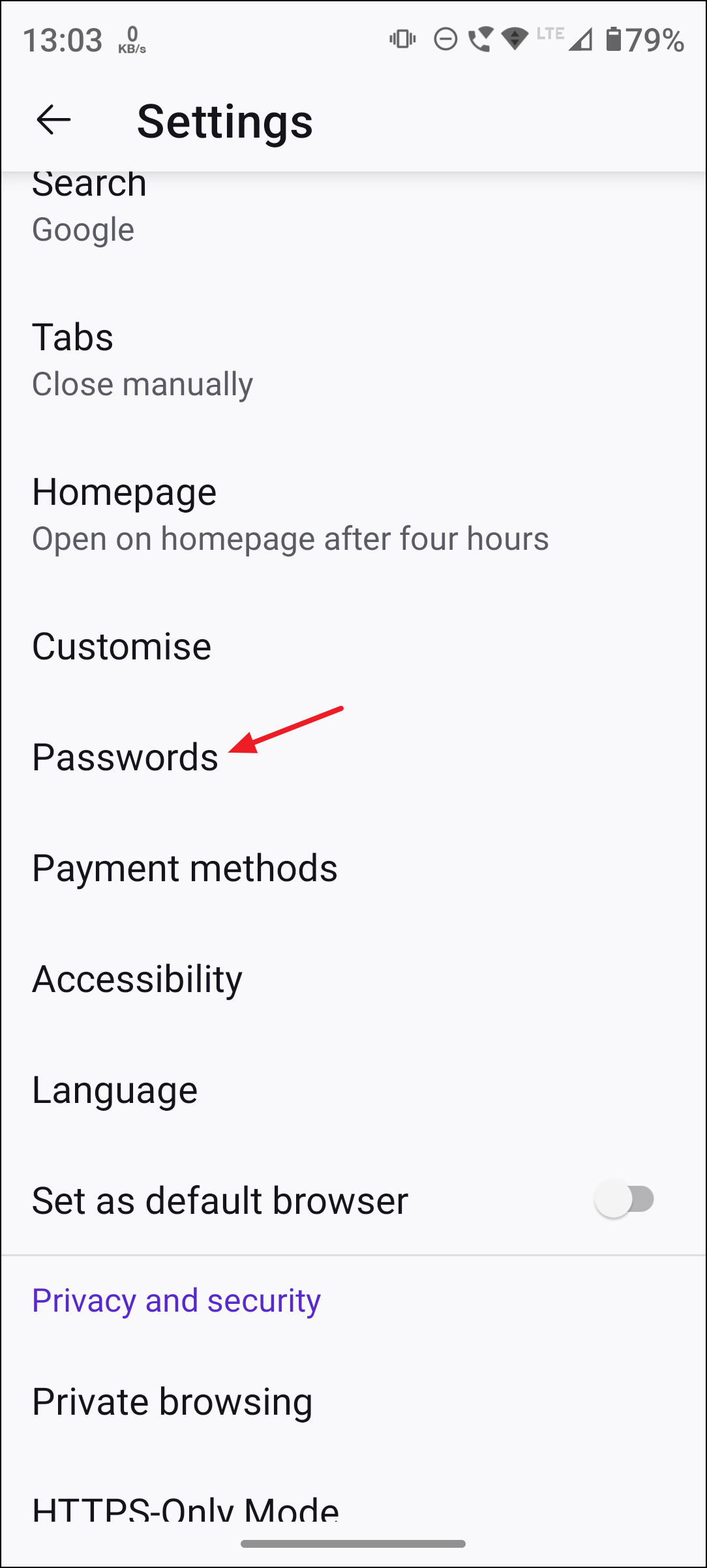
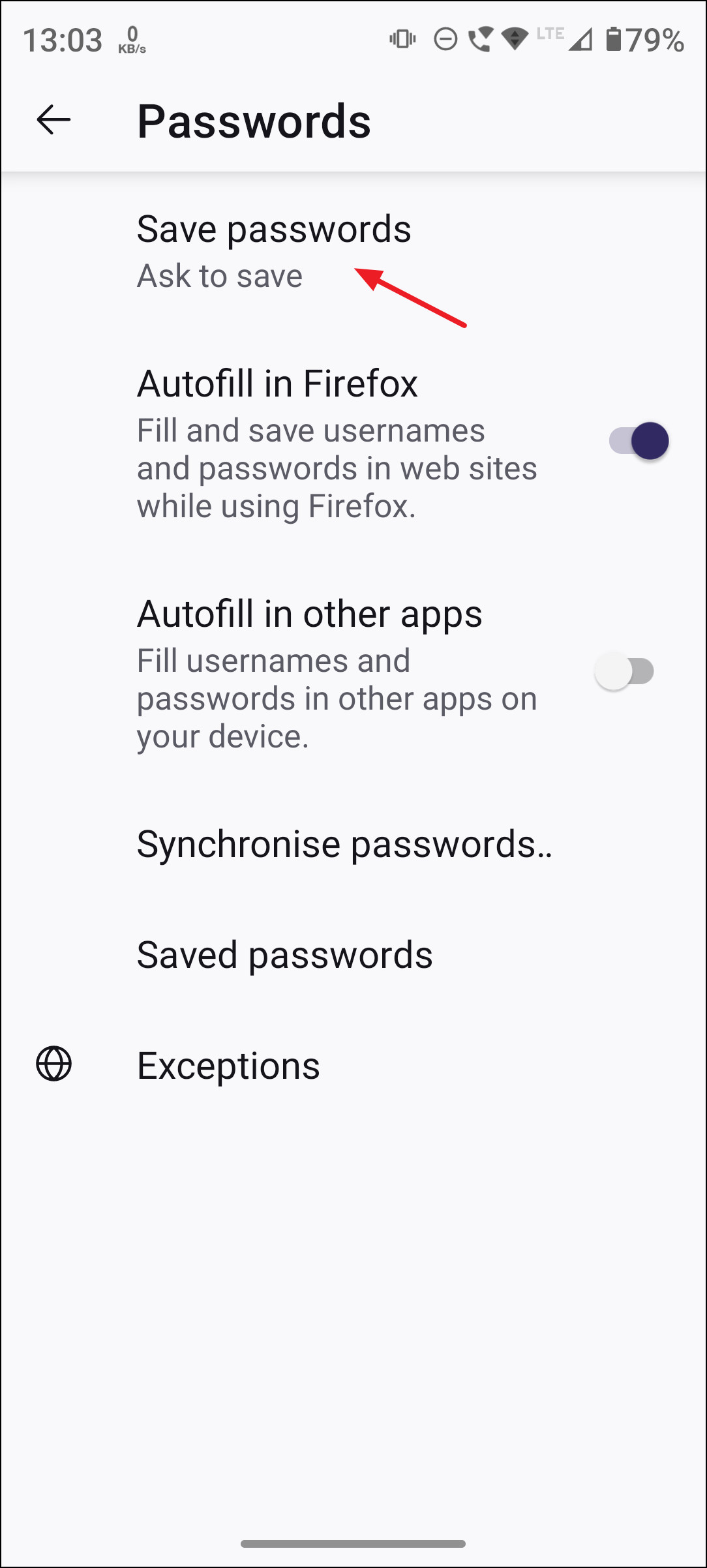
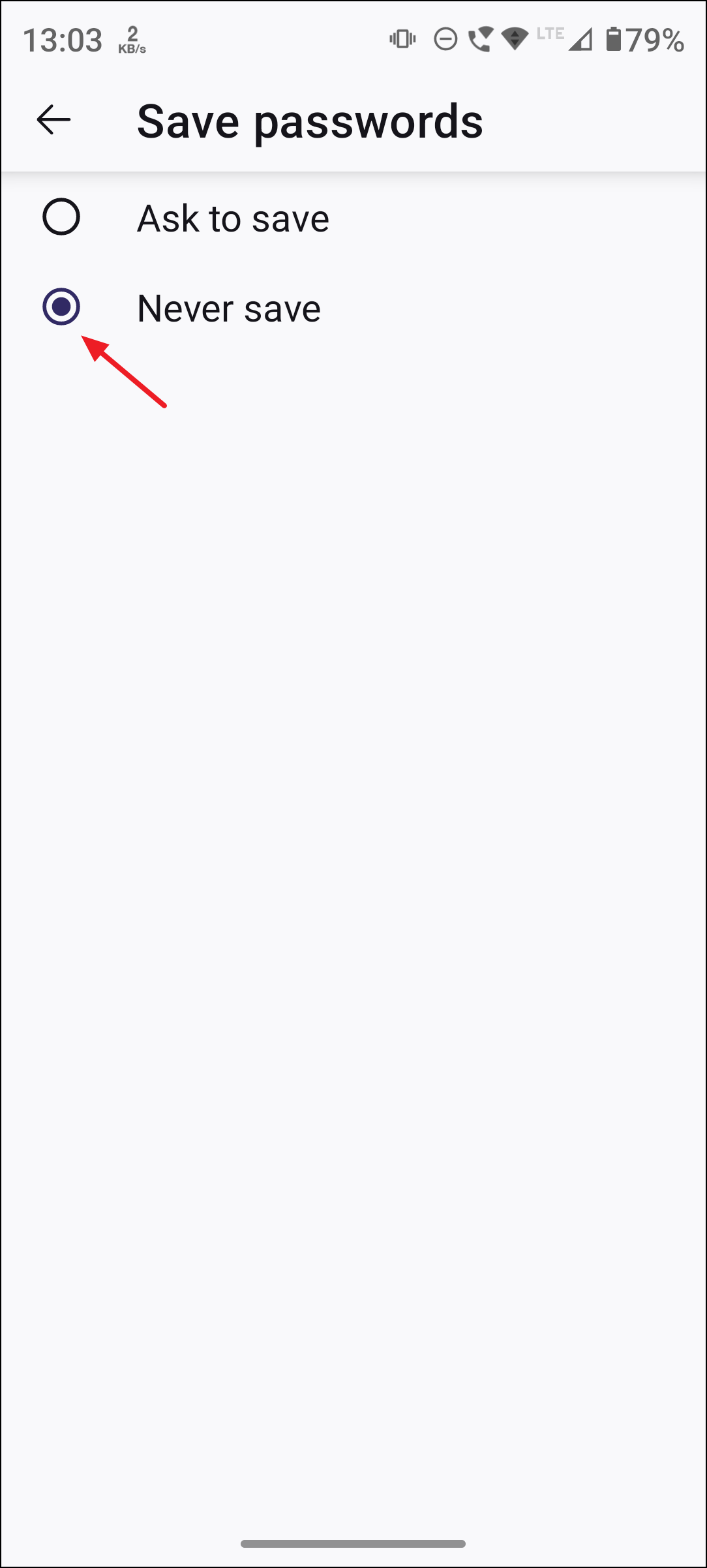
You can also manage autofill settings and clear stored logins from this menu if needed.
Additional Tips for Managing Login Prompts and Data
- To stop Firefox from storing login form entries and email addresses, change history settings: in
Privacy & Security, set history toUse custom settings for historyand uncheckRemember search and form history. - For shared computers, consider creating separate user profiles or Mozilla accounts to keep login information private.
- Using a primary password adds a layer of protection to any stored logins, but does not affect the prompt behavior for saving new passwords.
- If a password prompt appears for a specific site, you can choose
Never SaveorNot Nowin the popup to block future prompts for that site. - Deleting all saved passwords can be done by visiting
about:loginsin the address bar and removing entries.
Disabling or customizing Firefox’s password-saving prompts streamlines your browsing and strengthens privacy, especially on shared or public computers. Adjust these settings any time your security needs change or your workflow shifts.