
Excel formulas may stop updating or calculating automatically when calculation settings are changed, cell formatting is incorrect, or formulas contain errors. These issues can disrupt data analysis, lead to outdated results, and slow down workflows, especially in large or collaborative workbooks. Addressing the root causes restores accurate, real-time calculations and prevents future disruptions.
Switch Calculation Mode to Automatic
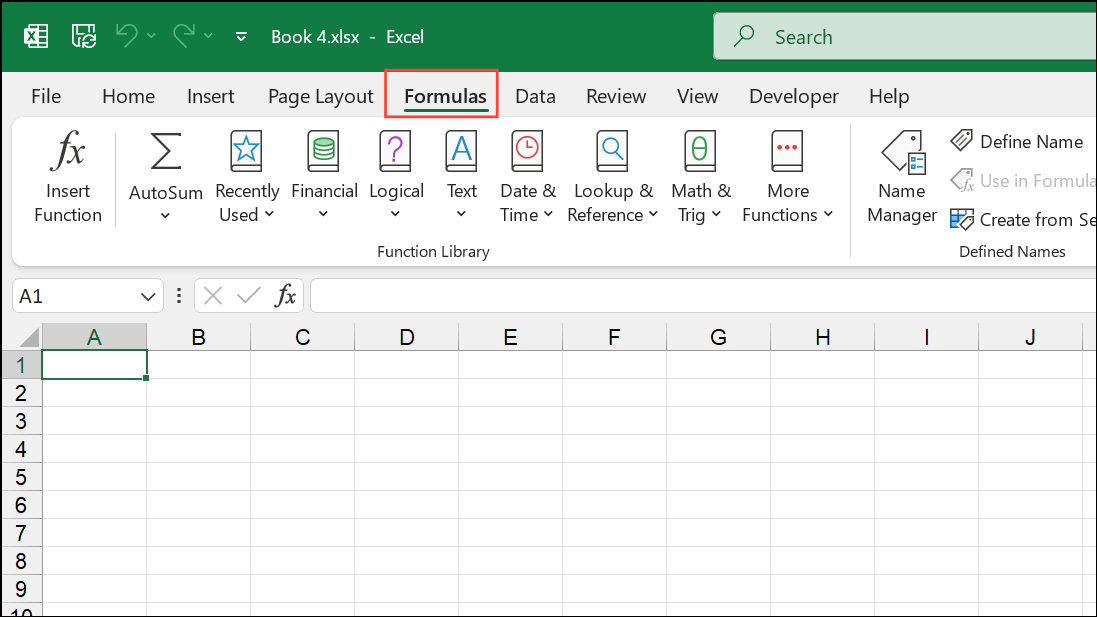
In the
Calculation group, select Calculation Options, then choose Automatic. This ensures Excel recalculates formulas whenever dependent values change.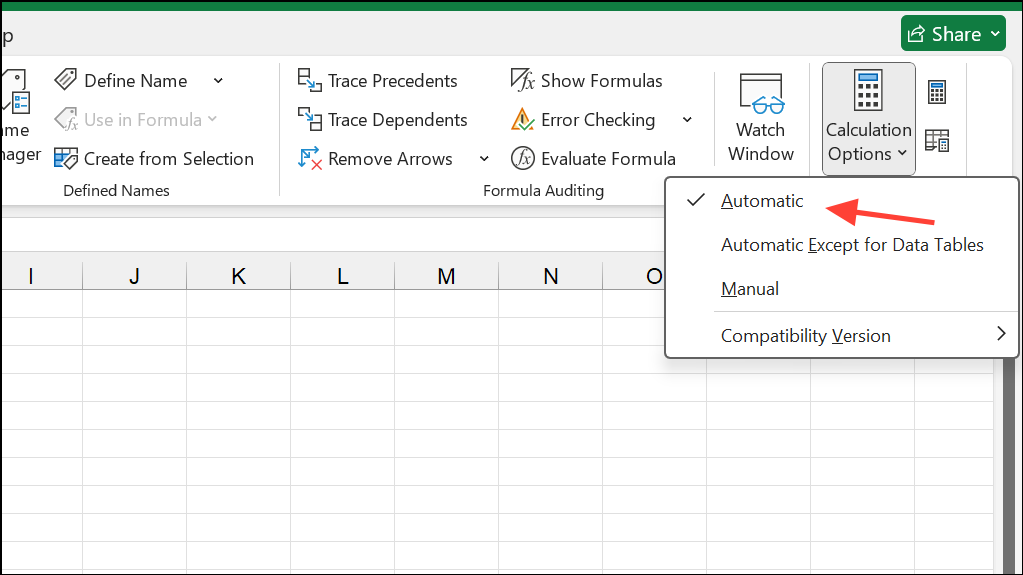
If formulas still do not update, press
F9 to trigger a manual recalculation of the entire workbook. For recalculating only the active sheet, use Shift + F9. To recalculate all open workbooks, use Ctrl + Alt + F9.Correct Cell Formatting Issues
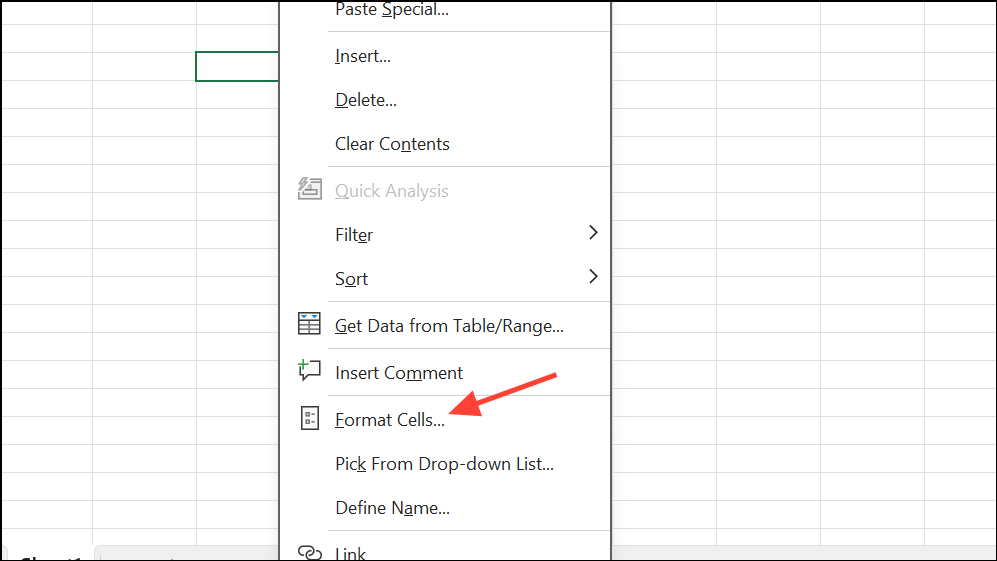
If the cell is set to
Text, change it to General or Number. Cells formatted as text will not evaluate formulas and will display the formula string instead of a result.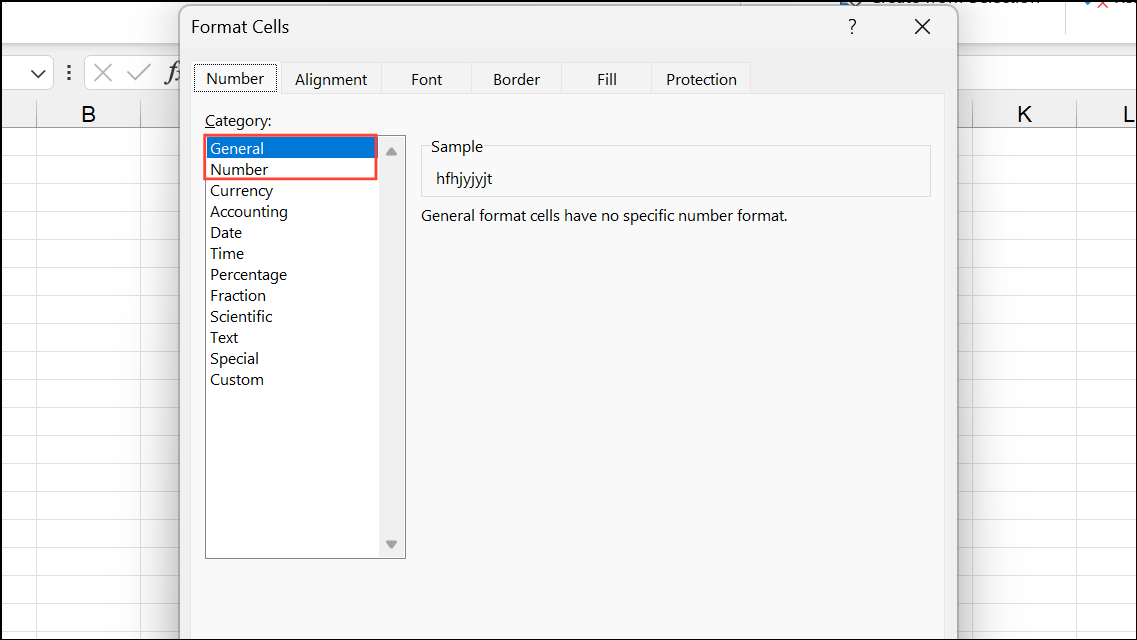
After changing the format, re-enter the formula. Double-click the cell, remove any leading apostrophe or space before the equal sign, and press
Enter. This prompts Excel to recognize and calculate the formula.Remove Leading Apostrophes and Spaces
Inspect the formula bar for a leading apostrophe (
') or space before the = sign. If present, Excel treats the entry as text and does not calculate it.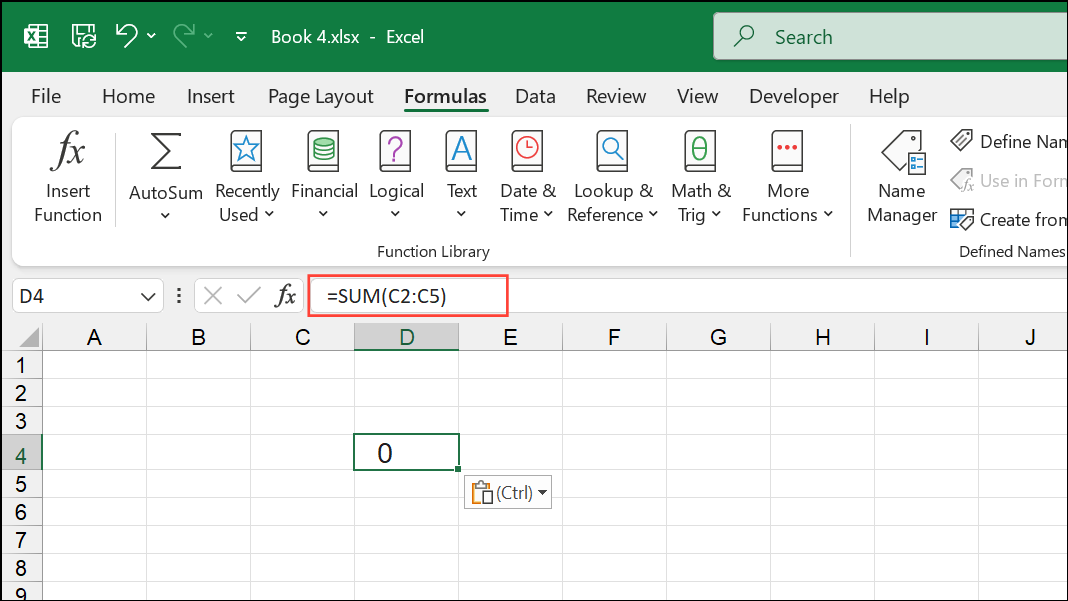
For multiple cells, use
Ctrl + H to open Find and Replace. Enter ' in the Find box and leave the Replace box empty, then click Replace All.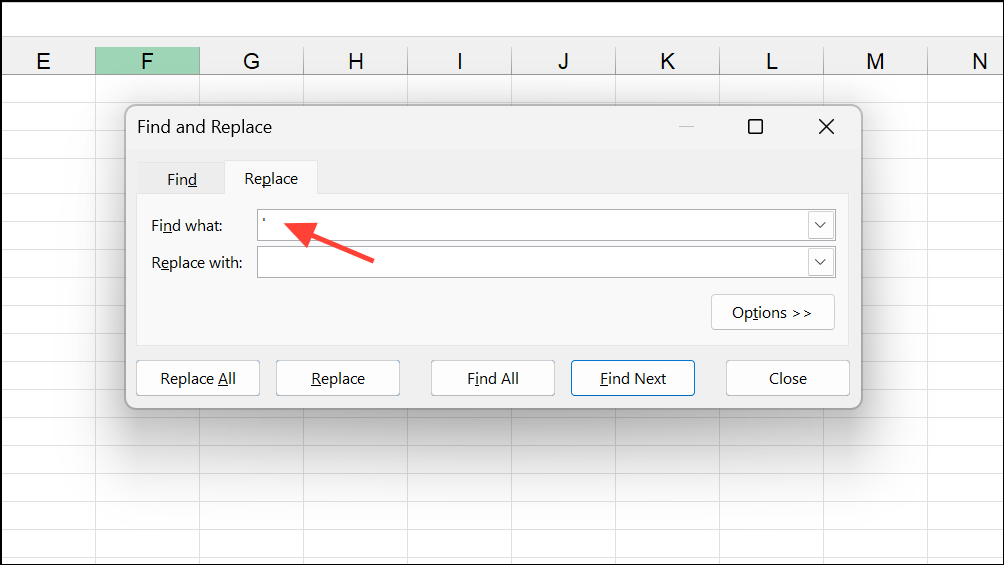
Check for Formula Syntax and Reference Errors
Review formulas for missing or mismatched parentheses, incorrect function names, or improper argument separators. For example, Excel in North America uses commas (
,) while some European locales use semicolons (;) to separate arguments.Use the
Formulas tab and select Evaluate Formula in the Formula Auditing group to step through and debug problematic formulas.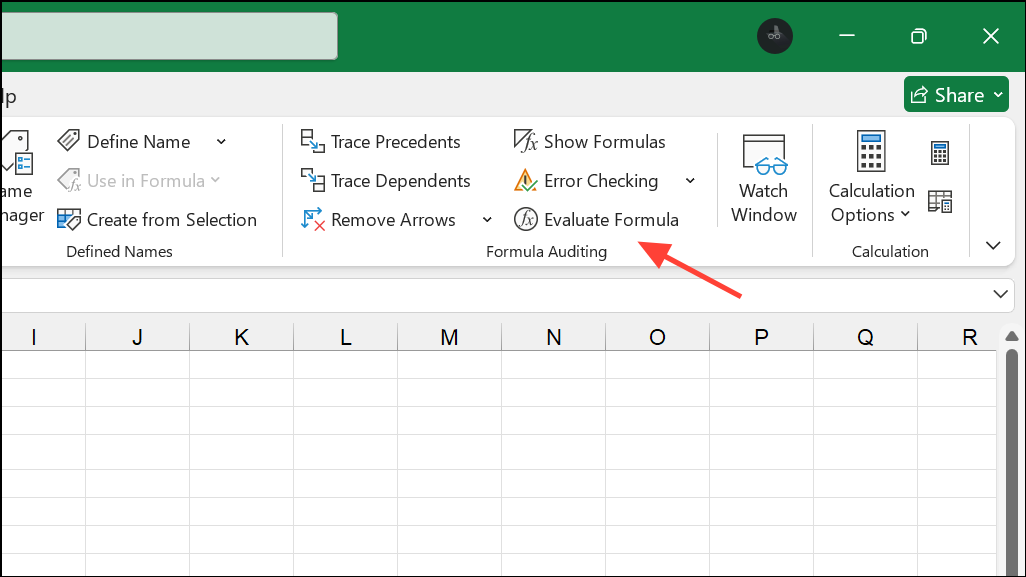
Ensure all referenced cells and ranges exist and contain valid data. If a formula references a missing sheet or workbook, or if a range contains errors like
#DIV/0! or #N/A, update the references or correct the errors.Resolve Data Type and Formatting Conflicts
Confirm that all cells used in calculations contain the correct data type. Numbers formatted as text will not be included in calculations. Indicators include left-aligned numbers, the “Text” format in the Number group, or green triangles in the cell corner.
To convert text to numbers, select the affected cells, click the warning icon, and choose
Convert to Number. Alternatively, use a helper column with =A1*1 or =VALUE(A1), then copy and paste values back to the original cells.Address Circular References and External Links
Circular references occur when a formula refers to its own cell, directly or indirectly. This prevents proper calculation. Go to
Formulas > Error Checking > Circular References to locate and resolve these issues by adjusting the formula logic or using helper cells.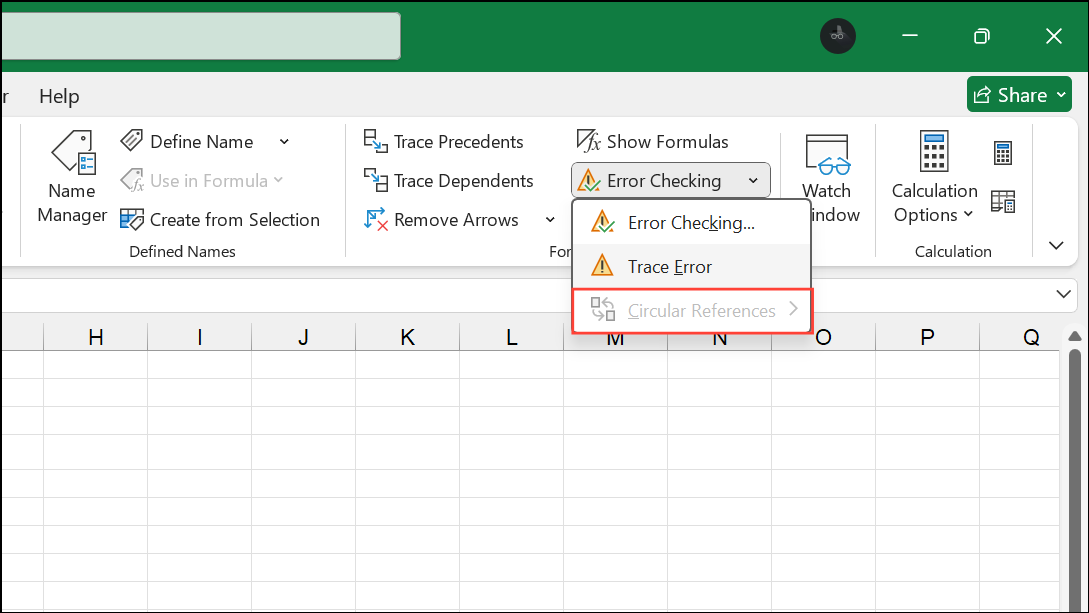
If formulas reference external workbooks or files, ensure those sources are available and accessible. Use
Data > Edit Links to update or reconnect external sources.Disable Conflicting Add-ins and Check Compatibility
Some add-ins can interfere with formula calculation. Go to
File > Options > Add-ins and disable non-essential add-ins. Restart Excel to see if formulas update correctly.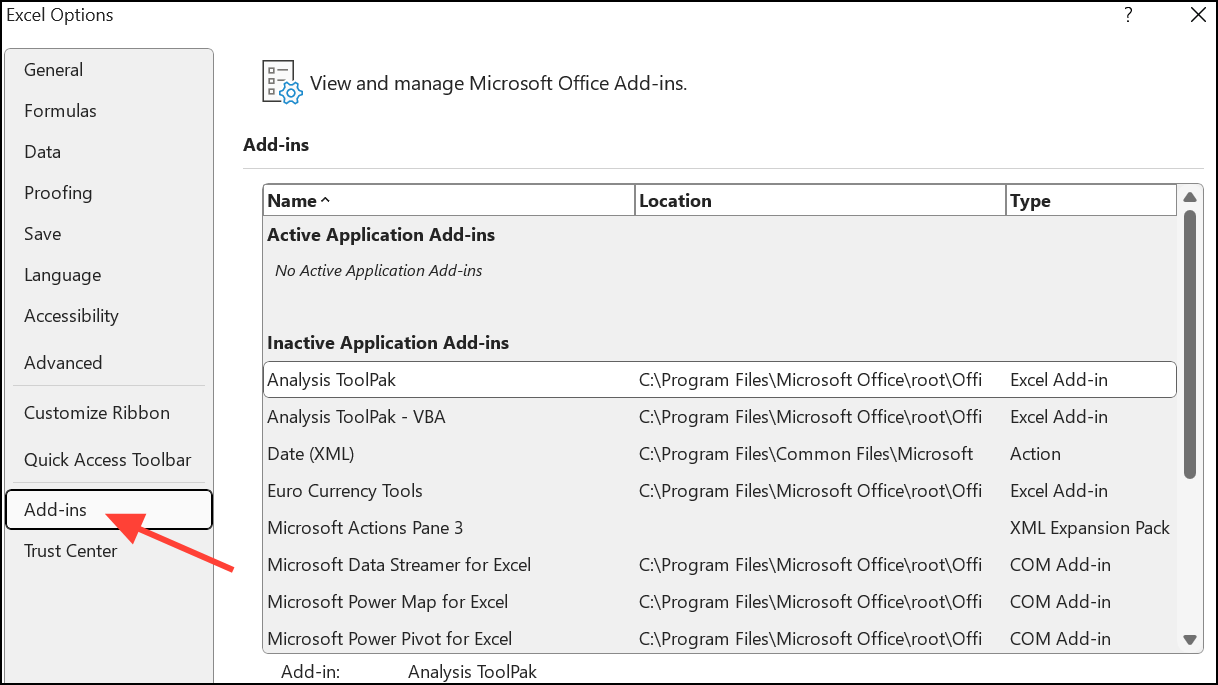
If a formula uses functions only available in newer Excel versions (such as
XLOOKUP), replace them with alternatives like INDEX and MATCH for compatibility with older versions.Force Recalculation and Restart Excel
If formulas remain stuck, force Excel to recalculate all formulas by pressing
Ctrl + Alt + F9. This recalculates every formula in every open workbook, including those that Excel thinks are up to date.Save your work, close Excel completely, and reopen the file. Temporary glitches can sometimes prevent formulas from updating, and restarting Excel resets the calculation engine.
Following these steps restores real-time formula updates in Excel, streamlining your workflow and keeping your data accurate as you work.





