
Repeated restarts during Windows 11 installation often signal a boot sequence misconfiguration or issues with installation media and disk partitions. Instead of progressing to the desktop, the system returns to the setup screen after every reboot, preventing the installation from finishing. This cycle blocks access to standard troubleshooting tools and leaves users stuck at the beginning of the setup process. Addressing the root causes—such as BIOS boot order, USB drive removal timing, disk formatting, and BIOS settings—restores normal installation flow and allows Windows 11 to load successfully.
Remove Installation Media After Setup Begins
Timing is critical. Removing the installation media too late or too early may cause the system to miss the internal drive boot, so monitor the restart closely. If the loop persists, proceed to the next method.
Change Boot Order in BIOS
F2, F11, F12, Delete, or Esc.Some motherboards offer a “Boot Override” feature, letting you boot from the USB drive once and automatically revert to the internal drive for subsequent restarts. If available, use this for a smoother installation process.
Use DiskPart to Clean and Format the Drive
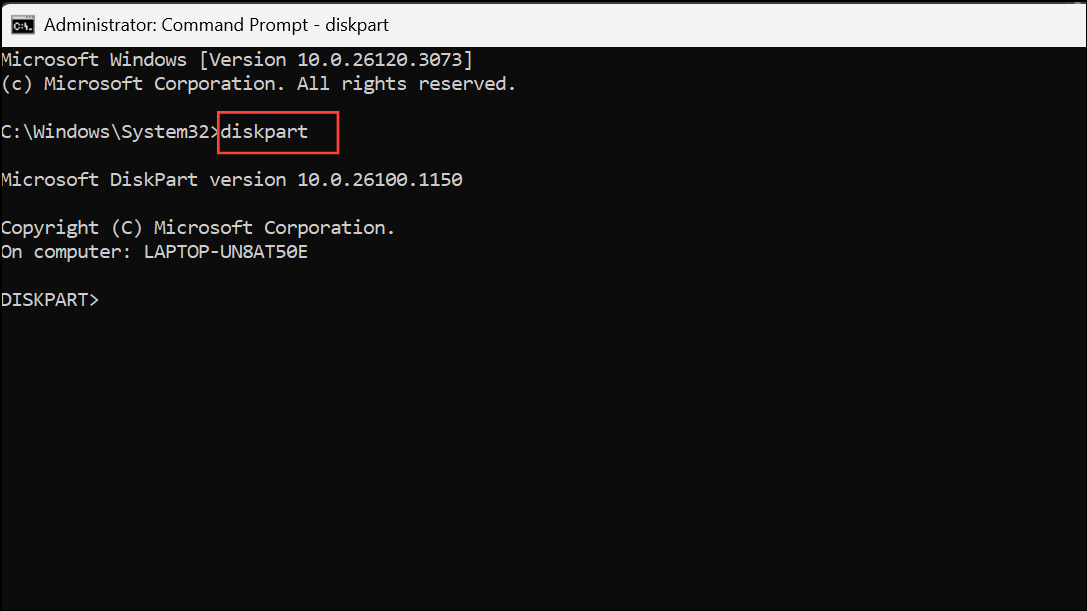
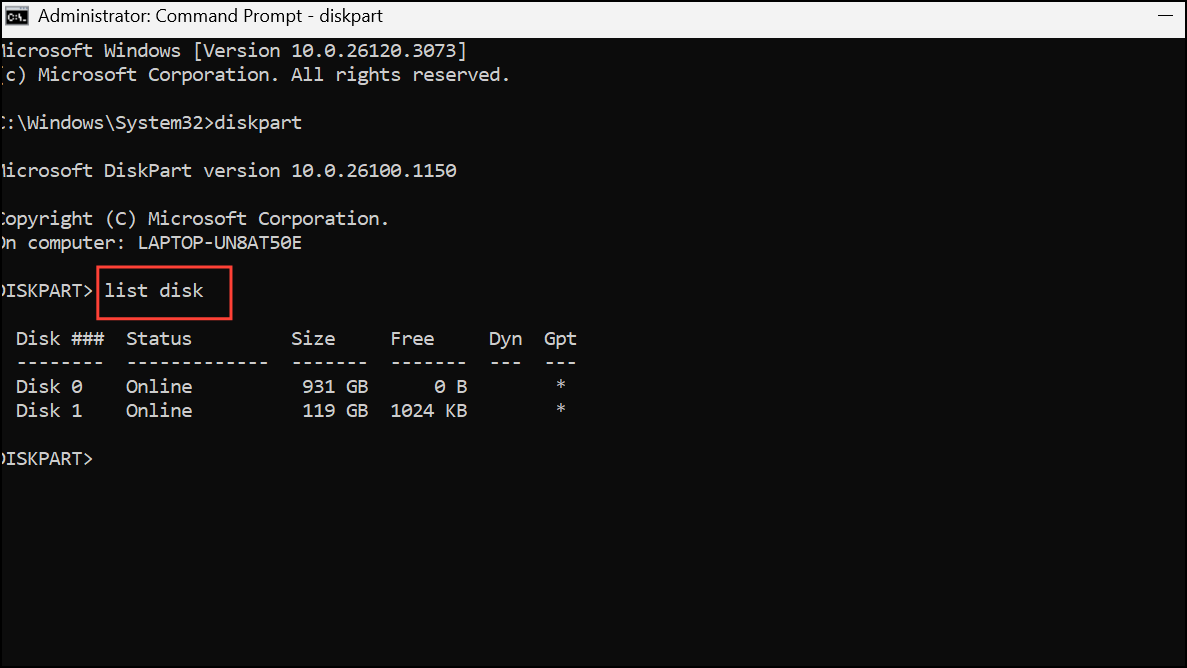
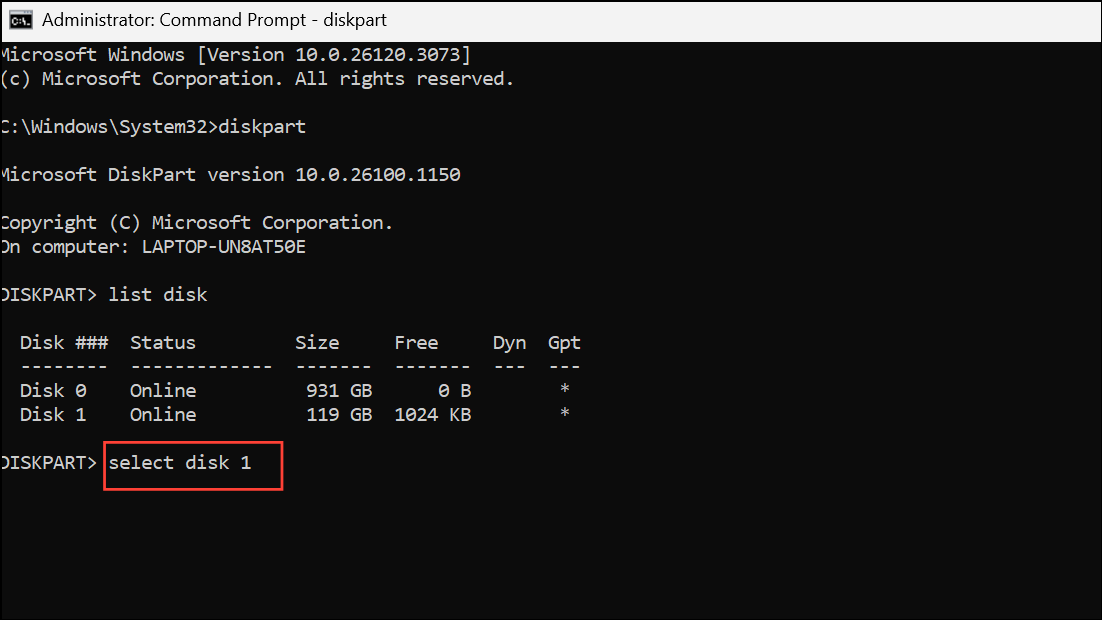
clean and pressing Enter. This erases all partitions and data, so ensure you have backups.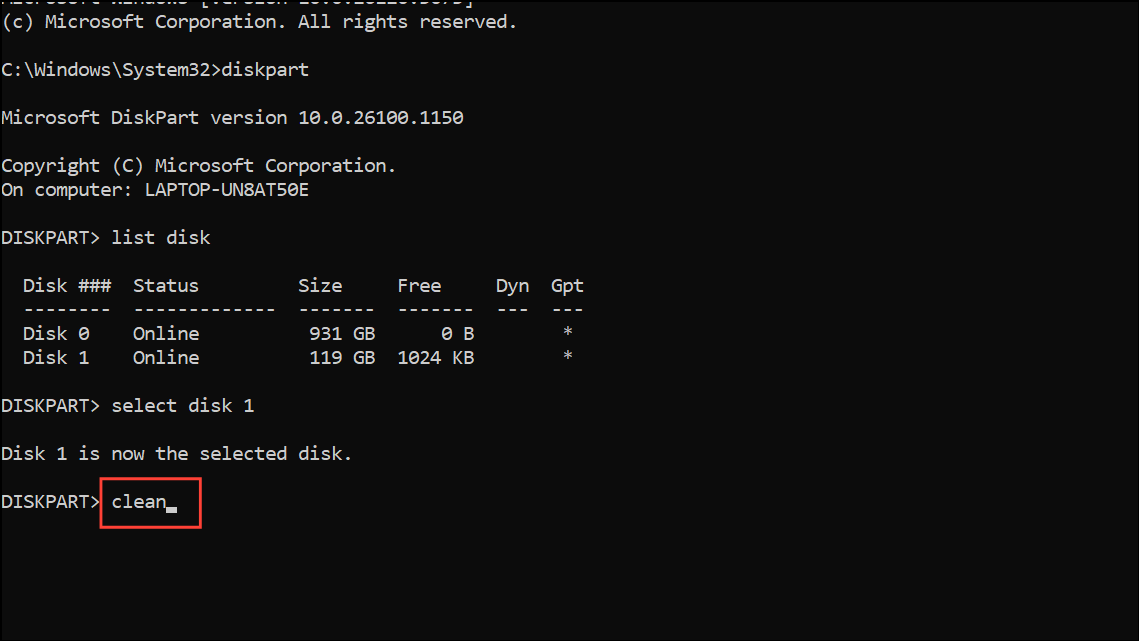
convert gpt. GPT is required for UEFI-based Windows 11 installations.This method removes any conflicting or corrupted partition structures that could prevent installation from proceeding. Only use this if you are prepared to lose all data on the selected disk.
Disable Secure Boot and Enable UEFI Mode
Windows 11 requires UEFI mode and does not support installation in Legacy BIOS mode. Disabling Secure Boot is sometimes necessary to allow installation to proceed, but you should re-enable it after setup for improved system security.
Delete Existing Partitions and Start Fresh
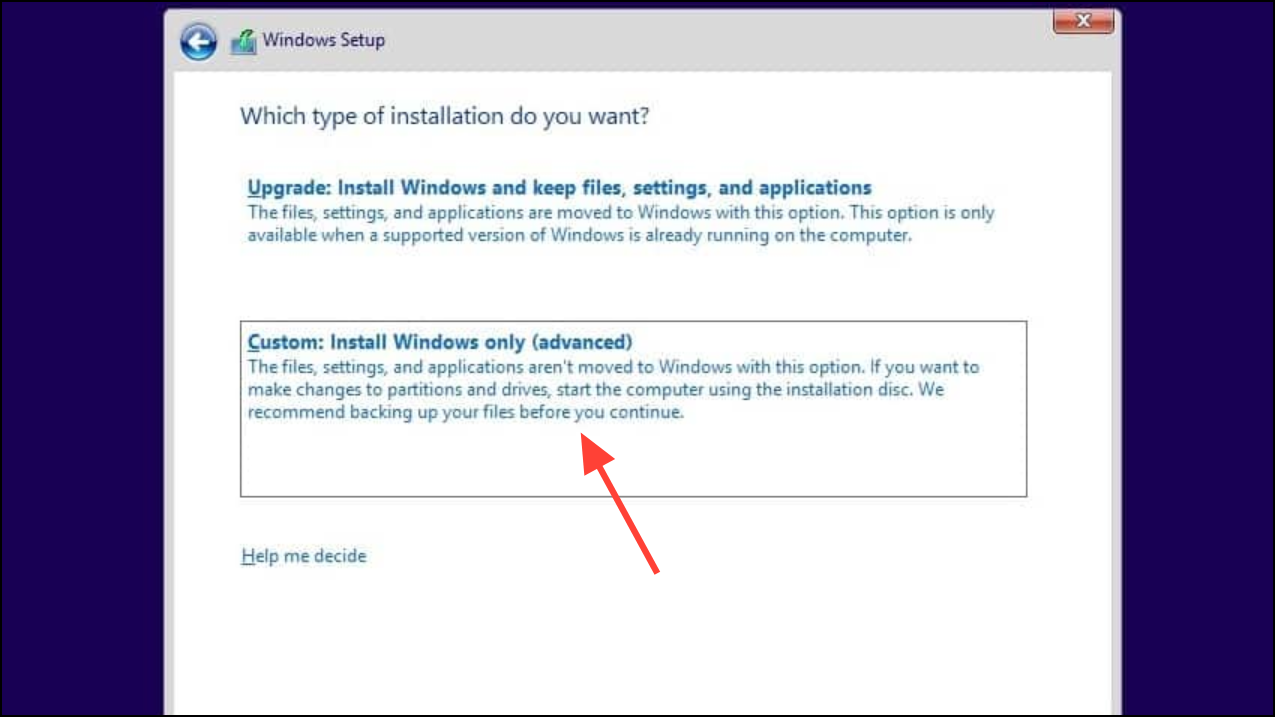
This process removes any remnants of previous installations or misconfigured partitions that can cause endless reboot cycles during setup. Data loss is permanent, so confirm all important files are backed up before proceeding.
Run Startup Repair
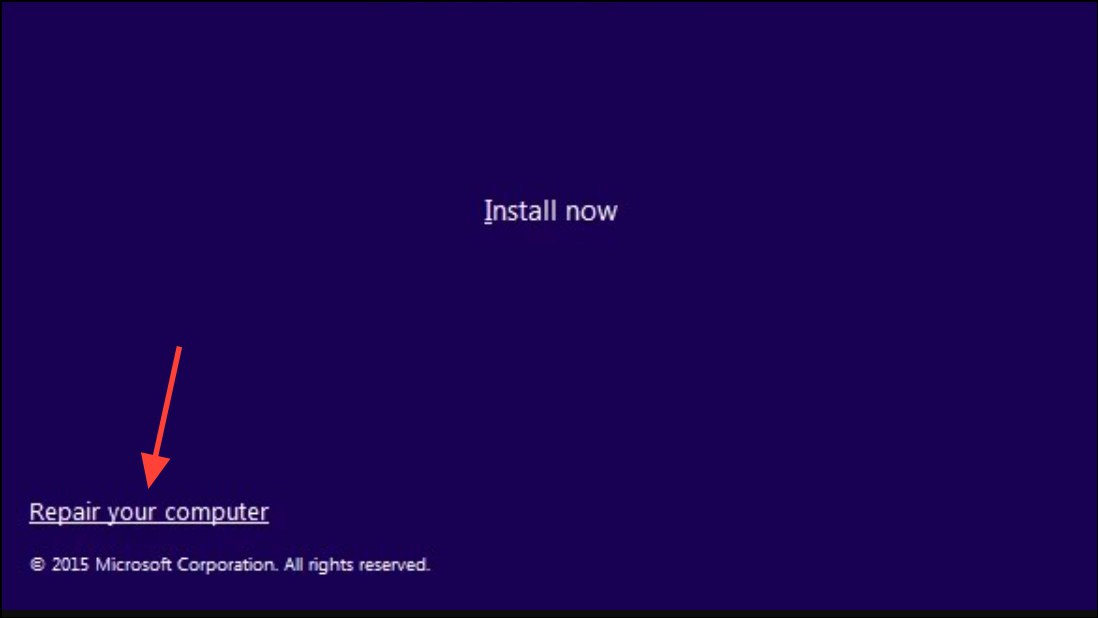
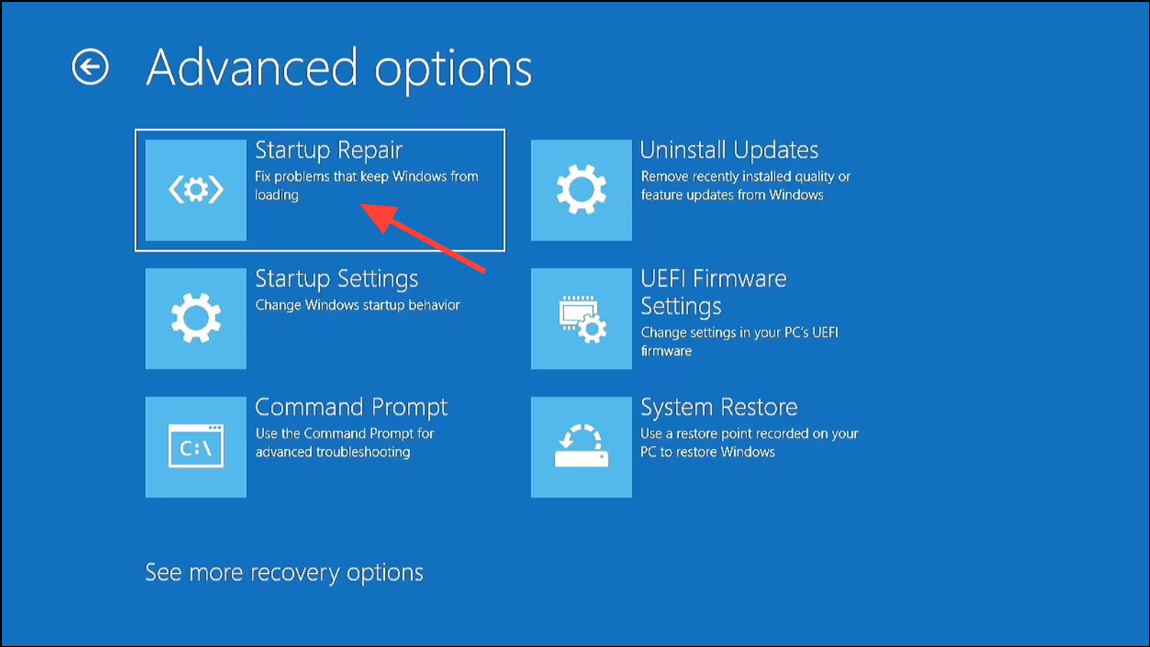
Startup Repair is a non-destructive method that can repair bootloader issues if enough system files are present on the drive. It’s a good option if the installation process was interrupted after copying files.
Create Fresh Installation Media
Corrupted or incomplete installation media is a common cause of persistent installation loops. Recreating the media ensures all necessary files are present and valid.
Additional Troubleshooting: Hardware and Firmware Issues
Persistent installation loops after trying the above steps may indicate deeper problems. Faulty RAM, SSDs, or power supplies can disrupt installation. Run hardware diagnostics, check for firmware or BIOS updates from your motherboard manufacturer, and disconnect unnecessary peripherals during setup. Unsupported hardware—such as missing TPM 2.0 or incompatible CPUs—can also prevent successful installation. Address these issues before attempting installation again.
Breaking the Windows 11 installation loop is possible by methodically addressing boot order, disk formatting, BIOS settings, and installation media integrity. Careful attention to each step restores normal setup flow and gets your system running with Windows 11.



