
Excel displays a persistent “Processing” message when saving files if cloud synchronization, add-ins, or system resource limits interfere with normal operations. This issue can delay saves for even small workbooks, cause Excel to become unresponsive, and sometimes require force-quitting the application. Addressing the root causes—especially OneDrive integration and problematic add-ins—restores normal save performance and prevents workflow disruptions.
Address OneDrive and Cloud Sync Conflicts
Identify if the affected files are stored in folders synchronized with OneDrive, SharePoint, or other cloud platforms. Saving to these folders can trigger Excel to communicate with cloud services, which may introduce delays or display the “Processing” dialog, especially if network connectivity is slow or the sync client is overloaded.
Test saving the same Excel file to a local folder that is not synchronized with OneDrive or any cloud service. For example, save to
C:\Temp or another unsynced directory. If the file saves instantly, the issue is likely caused by cloud sync interactions.Adjust OneDrive settings to reduce interference. Open the OneDrive app from your system tray, click the gear icon, and choose Settings. Under the Sync and backup tab, turn off syncing for Desktop, Documents, or Downloads folders if possible. Alternatively, deselect “Use Office applications to sync Office files that I open” under the Office tab in OneDrive settings. This stops Office from attempting real-time co-authoring and reduces save delays, but also disables some collaboration features.
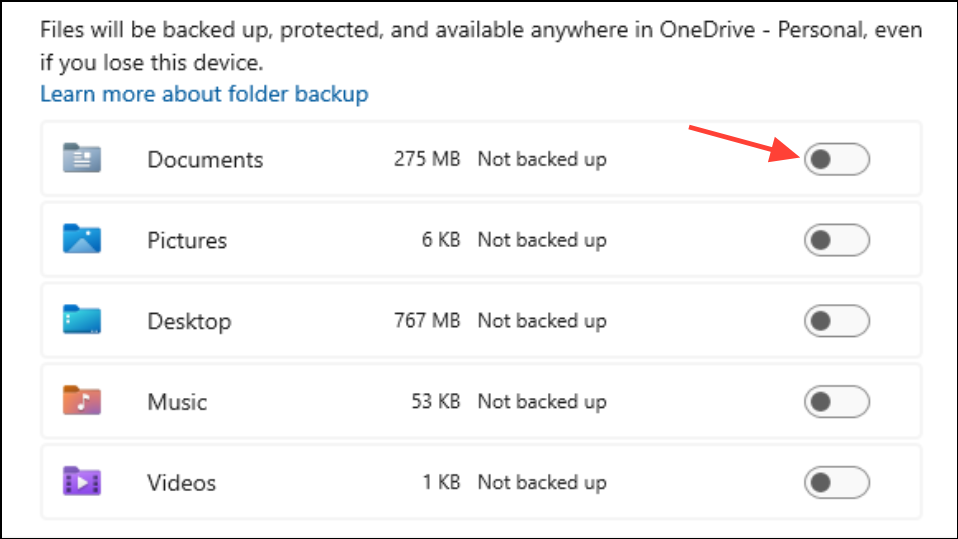
If disabling sync is not an option due to organizational policies, consider working from a non-synced folder and moving files to OneDrive only after editing is complete. This avoids delays and still preserves cloud backups.
Disable Problematic Excel Add-ins
Faulty or outdated add-ins often cause Excel to freeze during save operations. In Excel, go to File > Options.

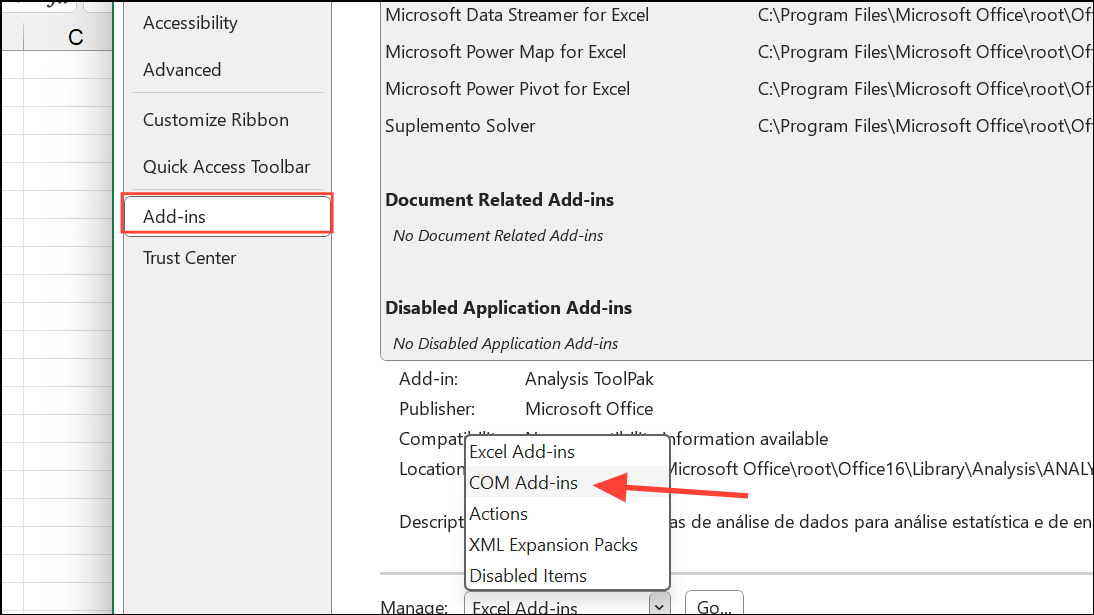
Deselect all add-ins, especially third-party ones or those you do not recognize (e.g., SmartInk, custom analytics tools). Click OK to disable them. Restart Excel and test saving a file again. If the problem is resolved, re-enable add-ins one at a time to identify the culprit.
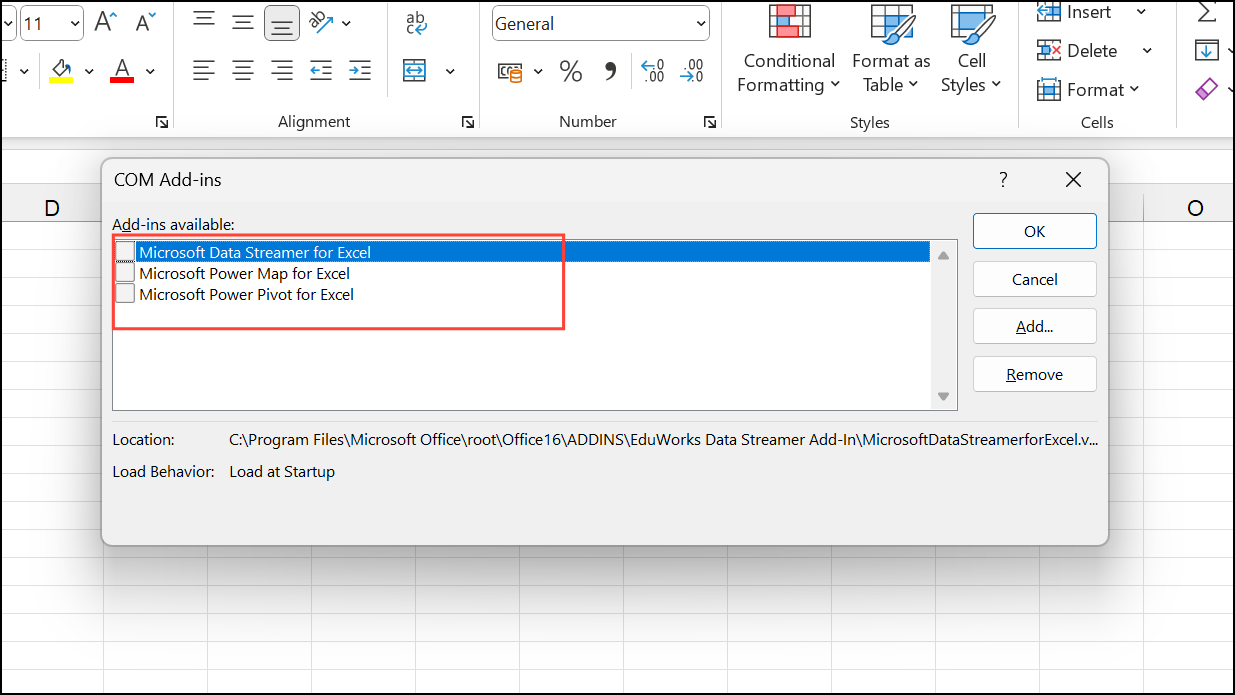
For persistent issues, repeat the process for Excel Add-ins (not just COM Add-ins) and disable any you do not actively use.
Update or Repair Microsoft Office
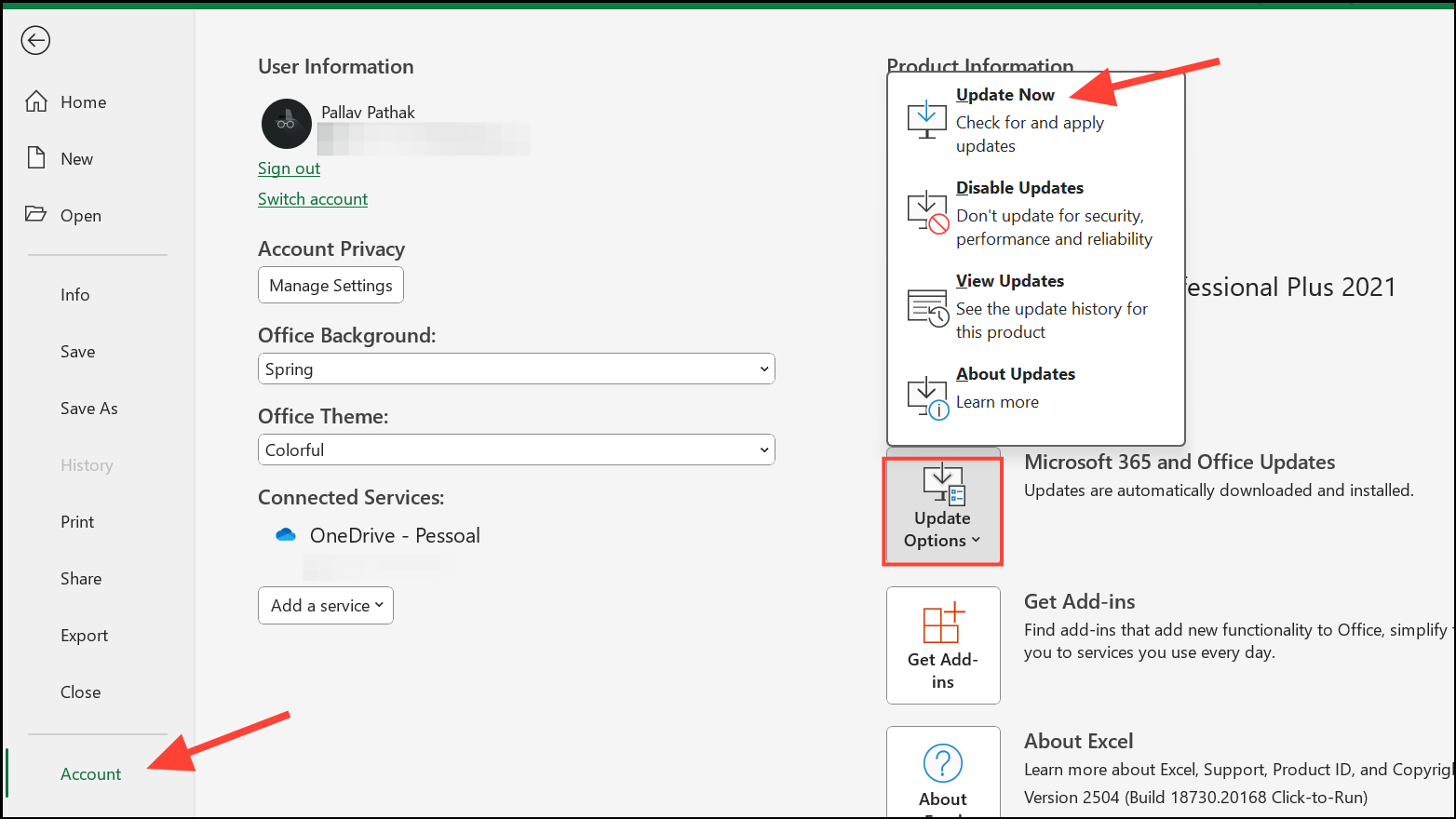
Outdated Office builds or corrupted installations can introduce save-time bugs. Open any Office app, go to File > Account, and click Update Options > Update Now to ensure you have the latest version.
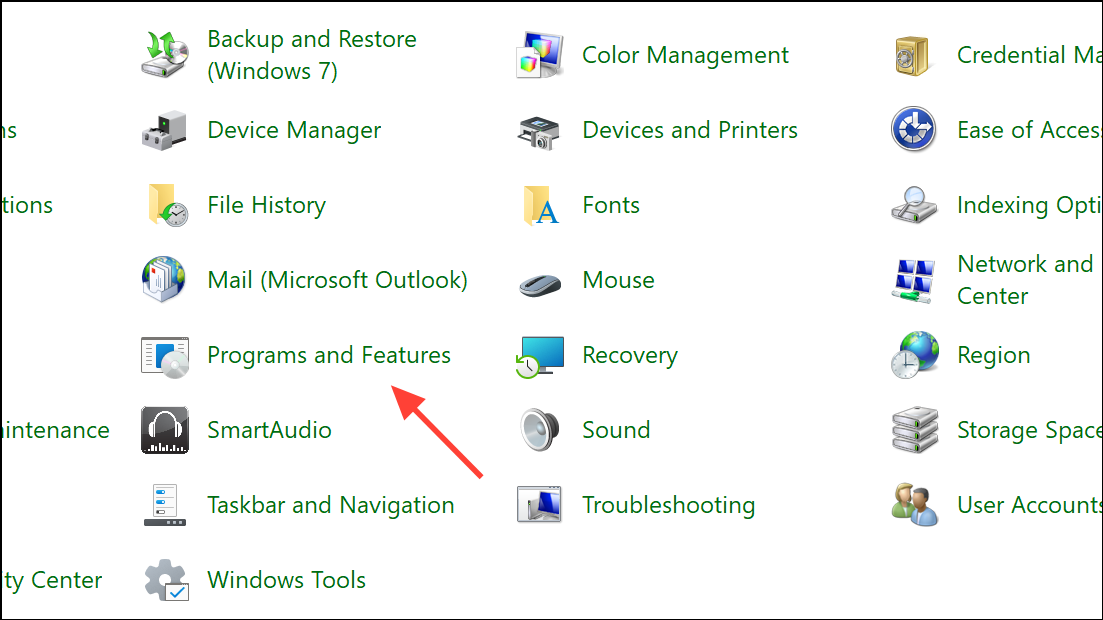
If updating does not resolve the issue, perform an Office repair. On Windows, open Control Panel > Programs > Programs and Features.
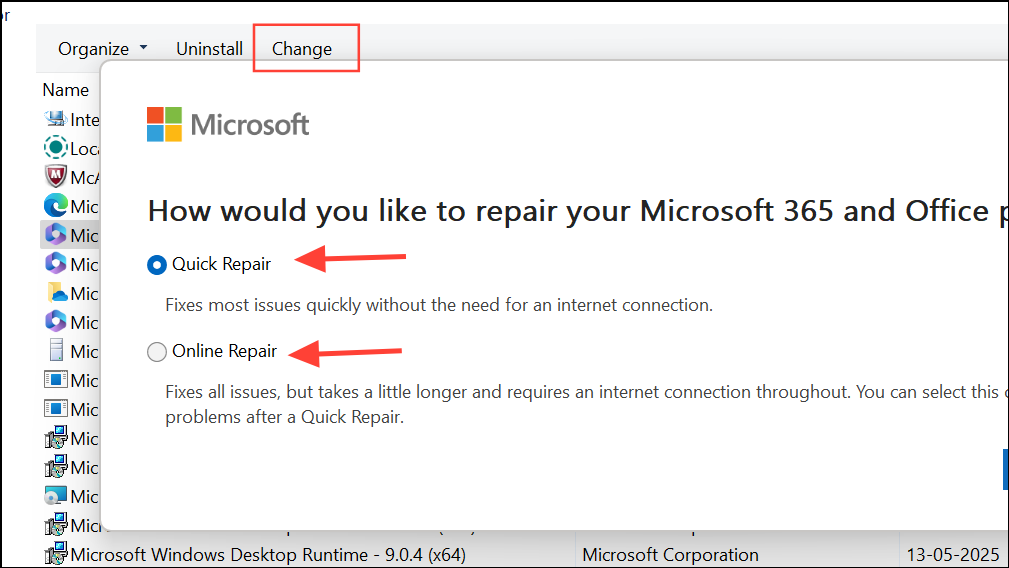
Select Microsoft Office, click Change, then select Quick Repair or Online Repair. Follow the prompts and restart your computer before retesting Excel.
Optimize File Save Locations and File Names
Long or complex file paths, special characters, or duplicate file names can block or slow down saves. In Excel, use File > Save As to save the workbook with a new, simple name (e.g.,
Test.xlsx) in a short, local path (such as C:\Temp).If the file saves quickly with a new name and location, the original save path or file name may be causing the issue. Avoid using special characters and keep paths under 218 characters for best compatibility.
Free Up System Resources and Address Hardware Limits
Excel performance drops sharply if your computer is low on RAM or CPU power, especially with large files or multiple applications running. Close unnecessary programs and browser tabs to free up memory.
Check your system specs. For reliable Excel performance, use at least 8 GB of RAM (16 GB is preferable for large files), a solid-state drive (SSD), and a recent multi-core processor. The 64-bit version of Excel can use more memory than the 32-bit version and is recommended for large datasets.
Use Task Manager (
Ctrl + Shift + Esc on Windows) to monitor memory and CPU usage while saving Excel files. If Excel consistently consumes high resources, consider upgrading your hardware or working with smaller files.Switch Calculation Mode and Clean Up Workbook
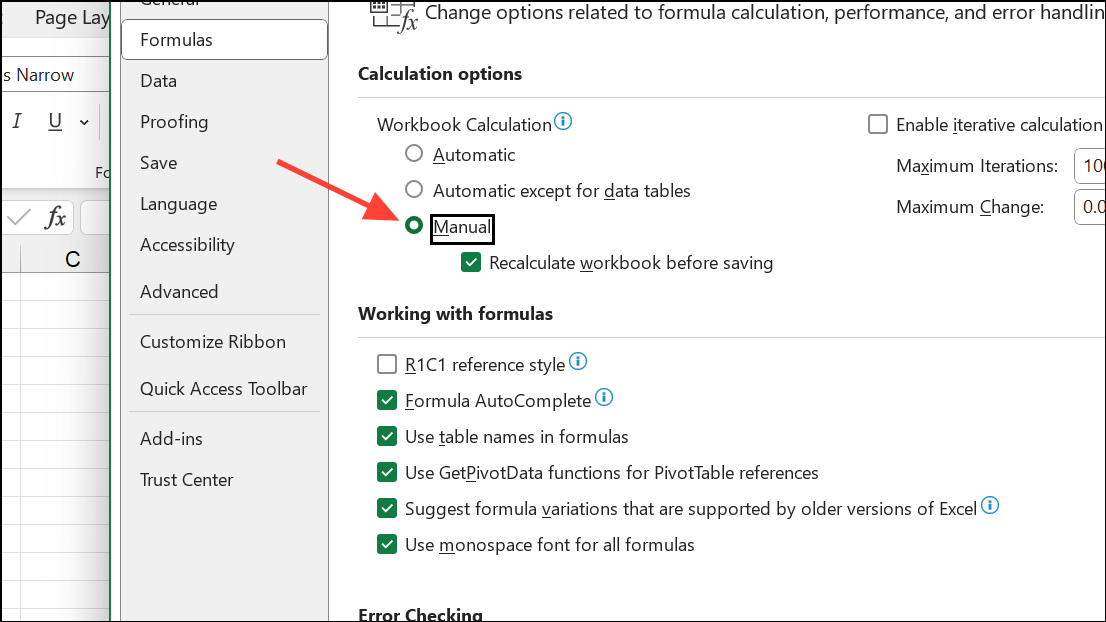
Large or complex workbooks with many formulas, volatile functions, or excessive formatting can slow down saves. Switch Excel to manual calculation mode by navigating to Formulas > Calculation Options > Manual. This prevents Excel from recalculating formulas every time you save.
Press
F9 to recalculate manually when needed. Remove unnecessary formulas, volatile functions (such as NOW(), OFFSET()), and conditional formatting to streamline the workbook.Delete unused rows, columns, and worksheets to reduce file size. Replace formulas with static values where possible to further speed up saves.
Advanced Troubleshooting and Recovery
If Excel becomes completely unresponsive, force-quit the application using
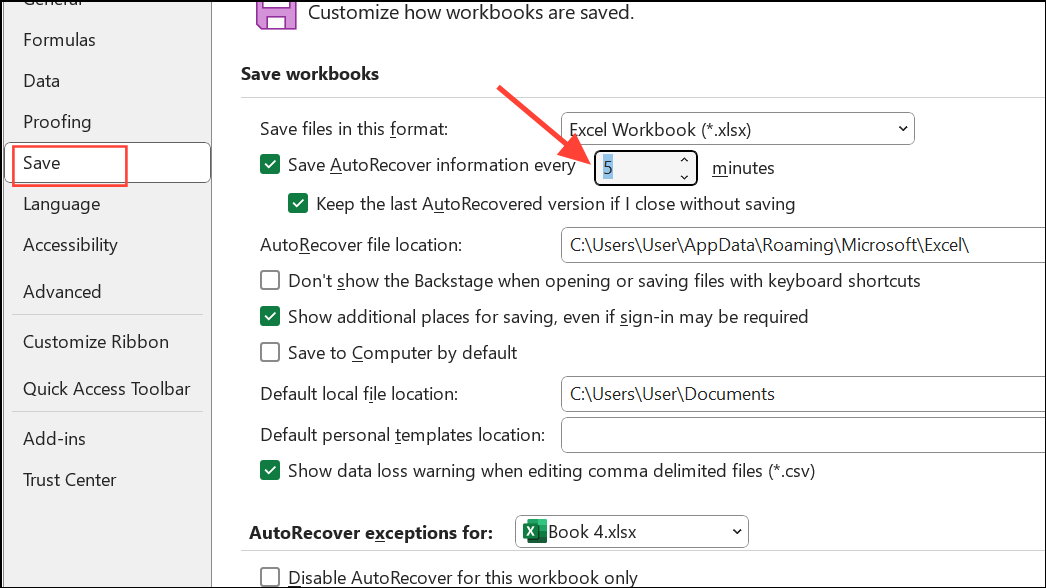
Ctrl + Alt + Delete and open Task Manager to end the Excel process. Reopen Excel and check for recovered files in the Document Recovery pane.To avoid future data loss, enable AutoRecover under File > Options > Save and set the save interval to 5 minutes or less.
If none of the above methods resolve the issue, copy the affected worksheet(s) into a new, blank workbook and attempt to save. This can bypass hidden corruption or problematic workbook elements.
Targeting OneDrive sync settings and disabling add-ins restores normal Excel save speeds in most cases. Keeping Office updated and minimizing unnecessary formulas or formatting further reduces the risk of save-time freezes.





