
Automating the installation of essential software on Windows PCs reduces manual work and eliminates repetitive tasks during system setups or resets. Windows Package Manager, known as winget, offers a streamlined way to batch install applications, ensuring you have your preferred tools ready in less time. This guide details the most effective approaches for bulk app installations using winget, including both graphical and command-line methods.
Bulk Installing Applications Using Online App Script Generators
Web-based tools such as winstall.app and winget.run simplify the process of creating bulk installation scripts for winget. These platforms let you visually select multiple applications and generate a ready-to-use command or script, eliminating guesswork and manual typing.
winget install command with all app IDs or a batch/PowerShell script.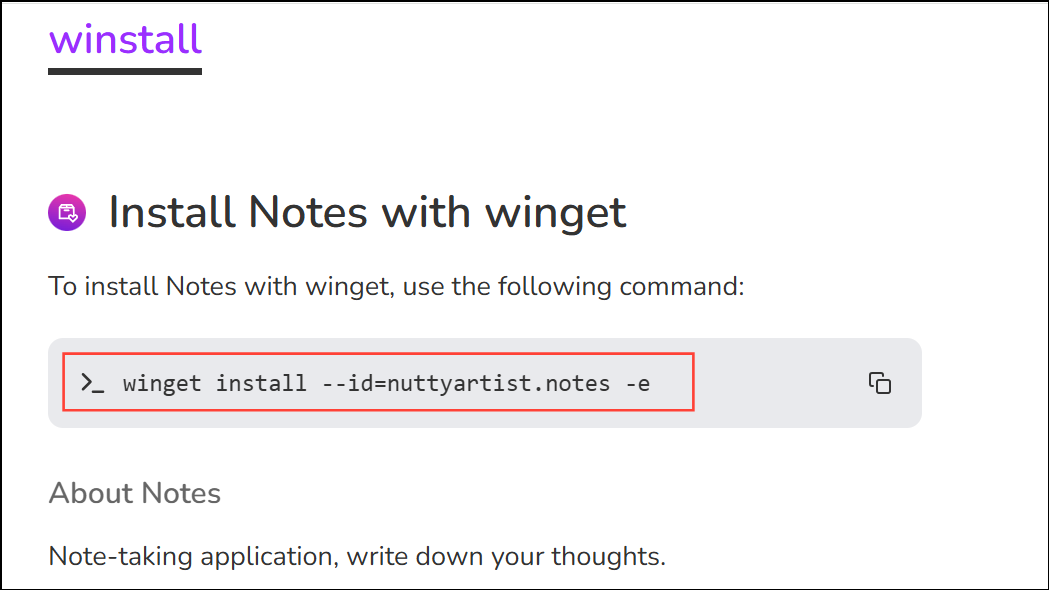
winget will process each application in sequence, requiring minimal interaction.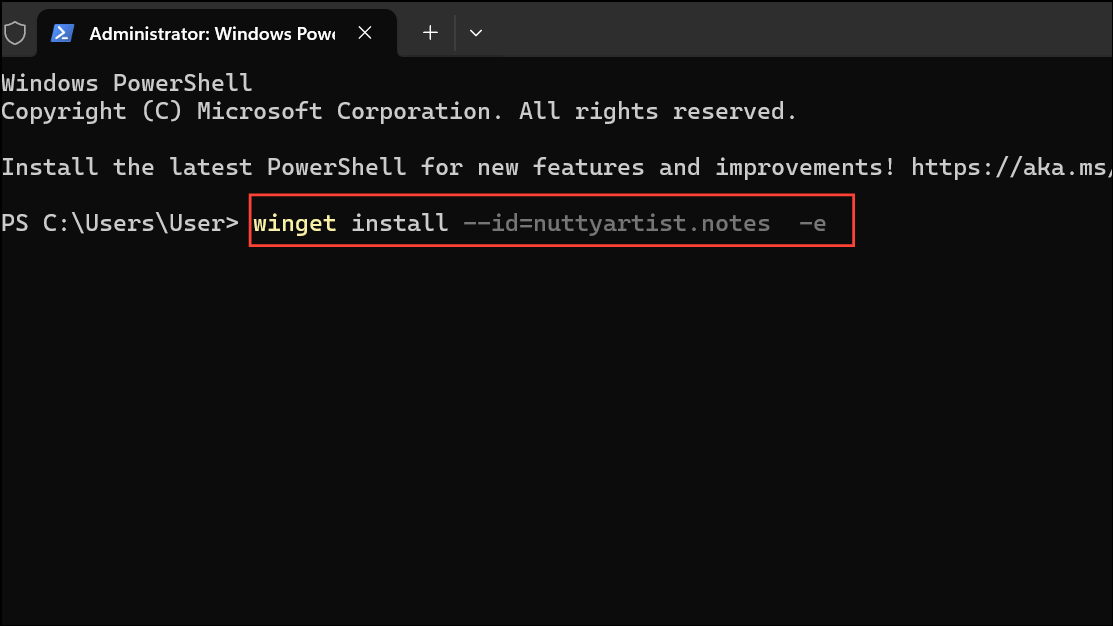
Using these online tools significantly reduces setup time, especially when configuring multiple devices or restoring a clean system image. If you encounter errors with a particular app, check its exact package ID or try generating a new script.
Batch Installing Apps Directly with winget Commands
For users comfortable with the command line, winget allows you to specify multiple applications in a single command, or to script a series of installations. This method offers flexibility and can be tailored for advanced scenarios.
winget search <appname> in Terminal to find the correct identifier. Prefer using --id and -e (exact match) for reliability, such as winget install --id=Git.Git -e.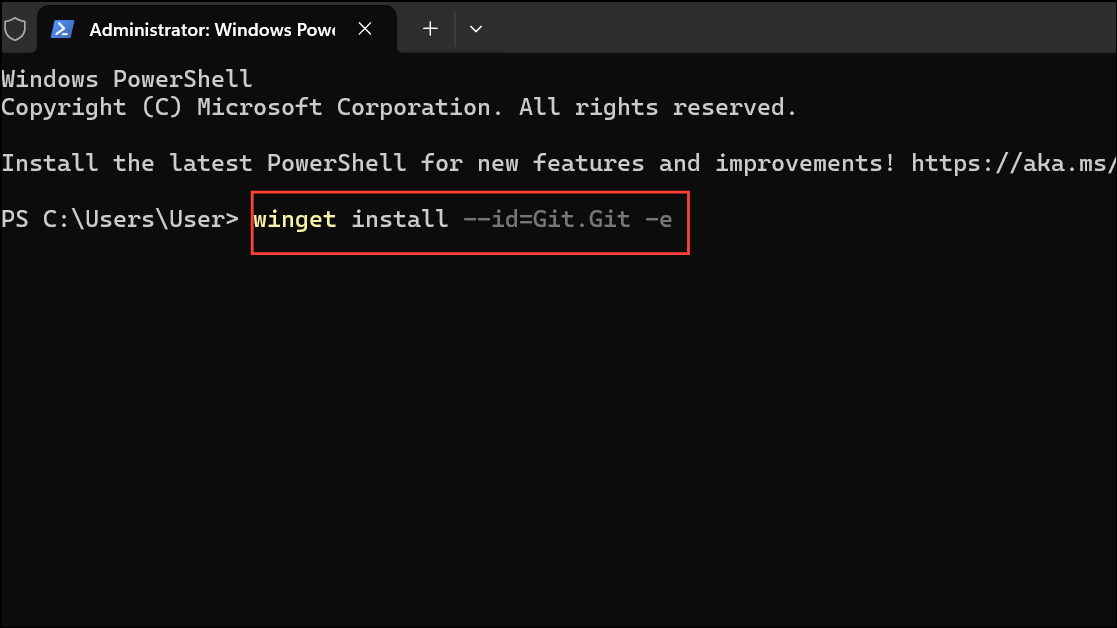
winget install Microsoft.WindowsTerminal Microsoft.PowerToys Microsoft.VisualStudioCode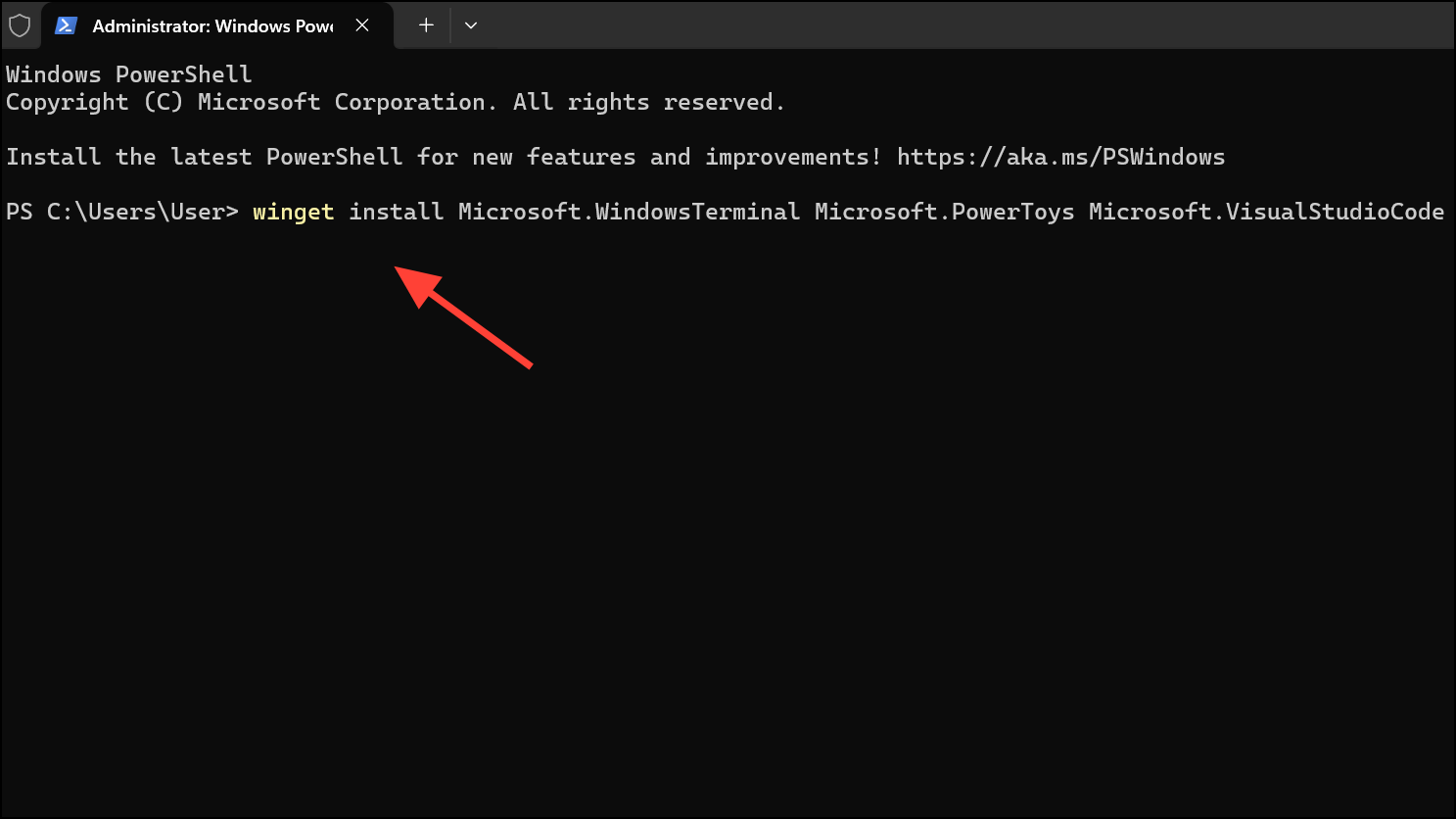
Alternatively, use a batch script or PowerShell script with each winget install command on its own line for more control or to add custom logic.
winget moving to the next app once the previous one completes.For silent installations, append --silent and --accept-package-agreements where supported to suppress prompts.
This direct approach is ideal for repeatable setups and can be version-controlled or shared within teams.
Exporting and Importing App Lists with winget
When you want to replicate the installed software from an existing system onto another, winget supports exporting and importing package lists in JSON format. This method is especially useful for maintaining consistency across multiple devices.
winget export -o .\winget-export.json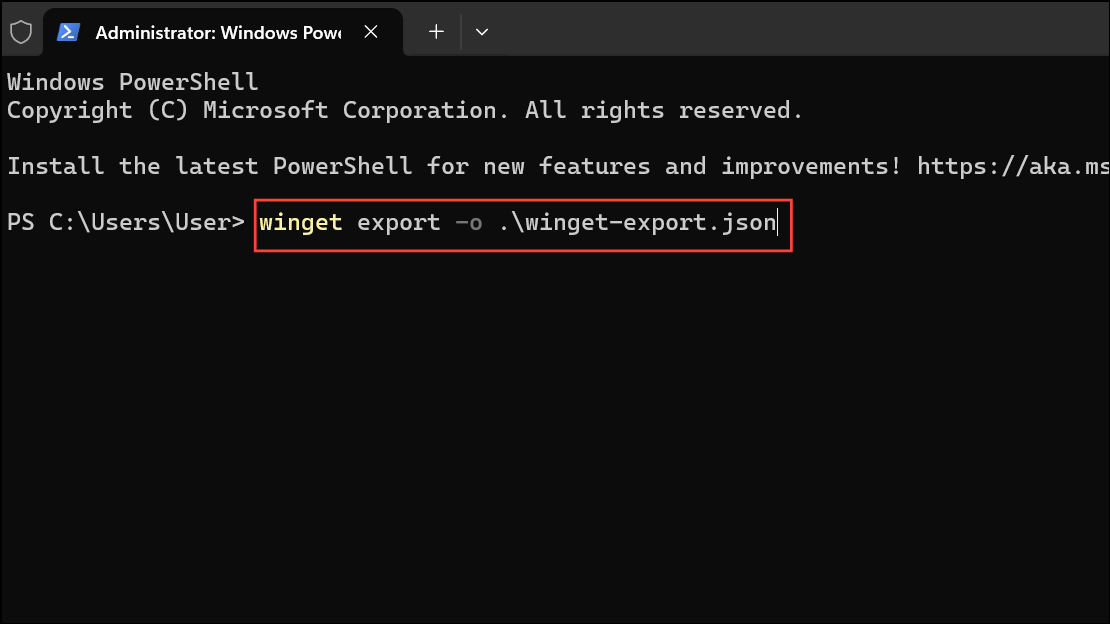
This creates a JSON file listing all installed applications that winget recognizes.
winget import -i .\winget-export.json --accept-package-agreements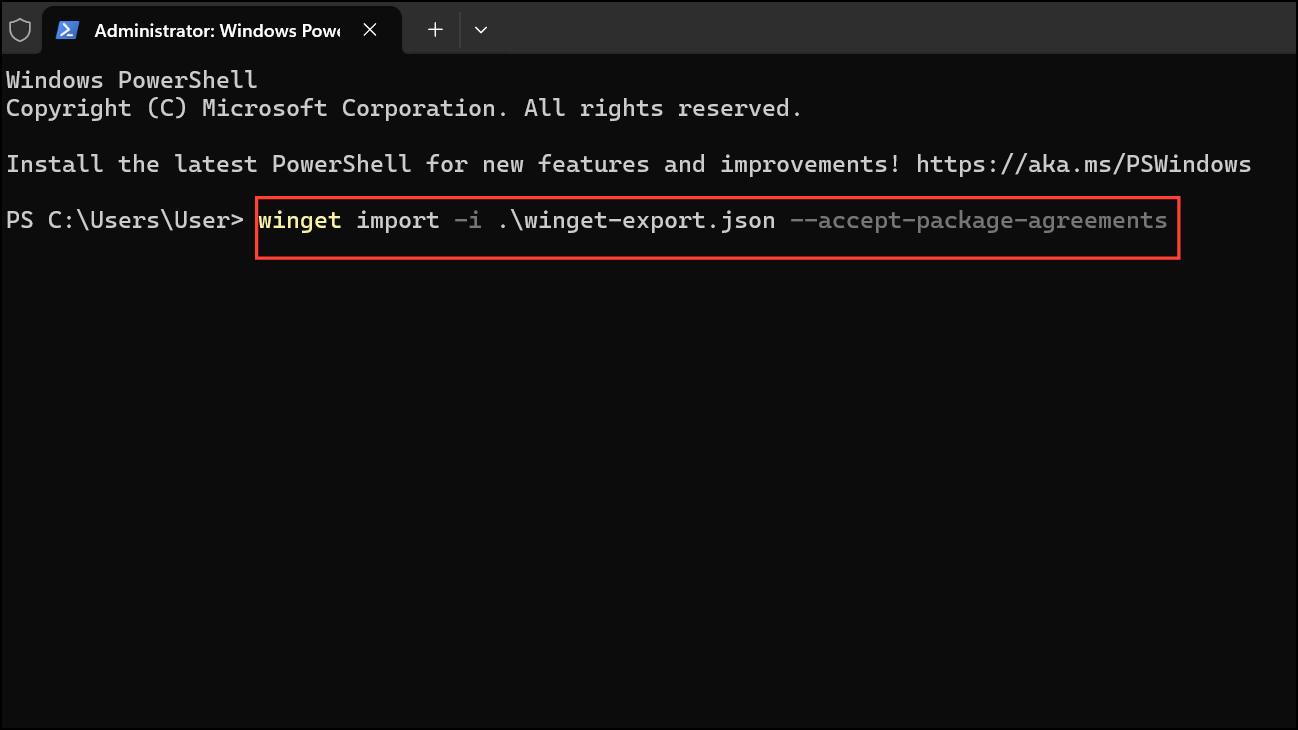
This command processes the list and installs each application in turn. Any missing packages in the repository will be reported, but skipped.
Using winget configure for Automated Setups
The winget configure command enables advanced users to define a configuration file that specifies which applications to install and additional setup actions, such as applying settings or copying files. This approach is suited for IT professionals or anyone managing standardized environments.
winget configure --file .\your-config.yamlwinget will process the configuration, installing specified apps and applying any additional actions.
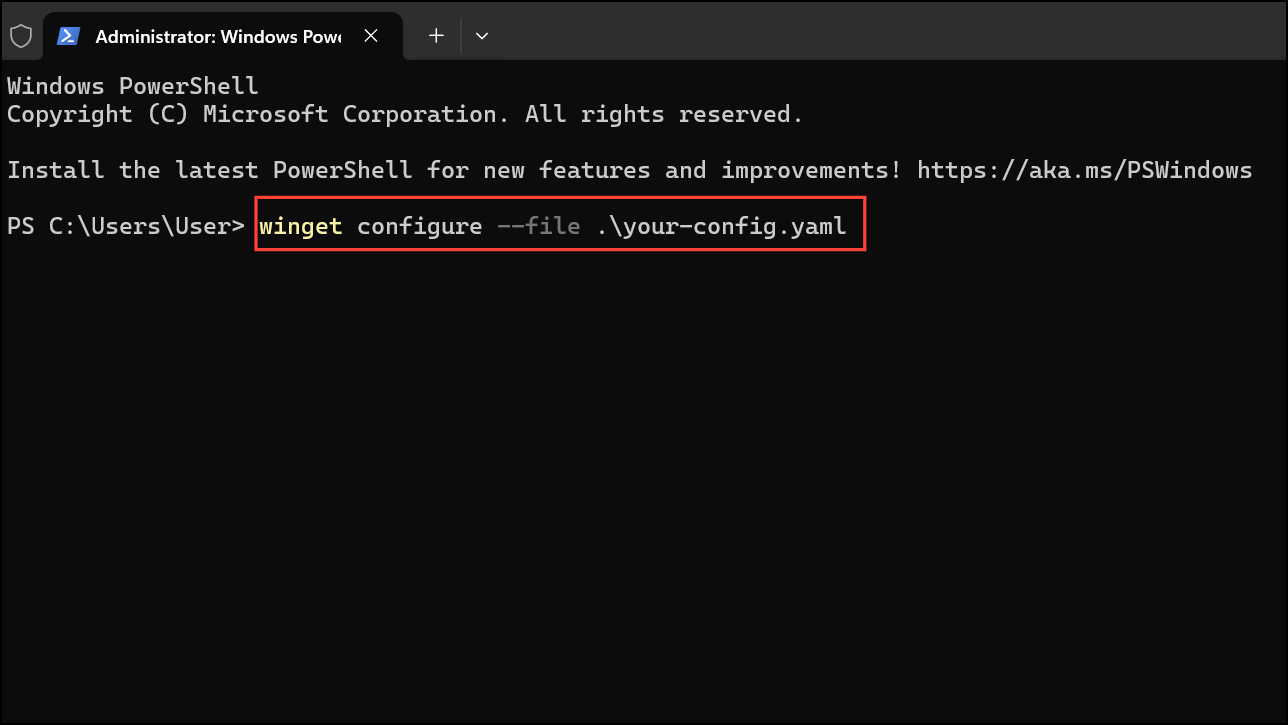
This method is powerful for automated deployments but requires careful preparation of the configuration file.
Bulk installing applications with Windows Package Manager streamlines PC setup, letting you focus on productive work instead of manual installs. Choose the method that best fits your workflow and enjoy faster, more reliable deployments.





