Resolve webcam issues in Windows 11 apps with targeted troubleshooting steps for drivers, permissions, connections, and privacy settings.
Resolve webcam issues in Windows 11 apps with targeted troubleshooting steps for drivers, permissions, connections, and privacy settings.
by Pallav Pathak
Video calls, online meetings, and streaming all depend on a functional webcam, but a non-responsive camera in Windows 11 apps often points to driver conflicts, privacy restrictions, or hardware problems. Addressing these issues directly restores camera access and ensures smooth operation across all applications.
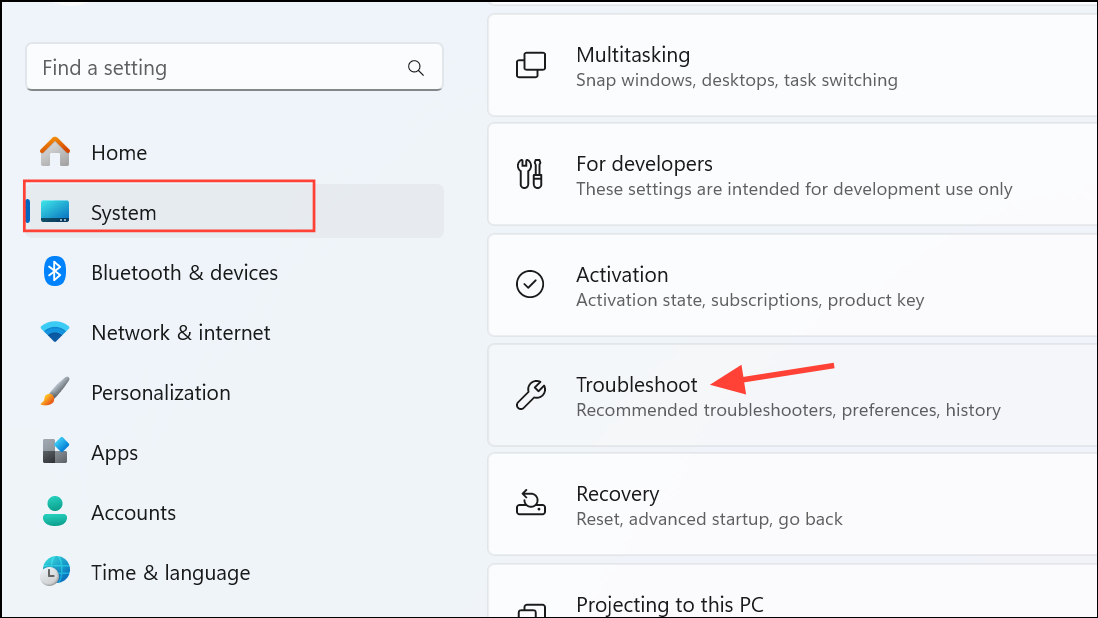
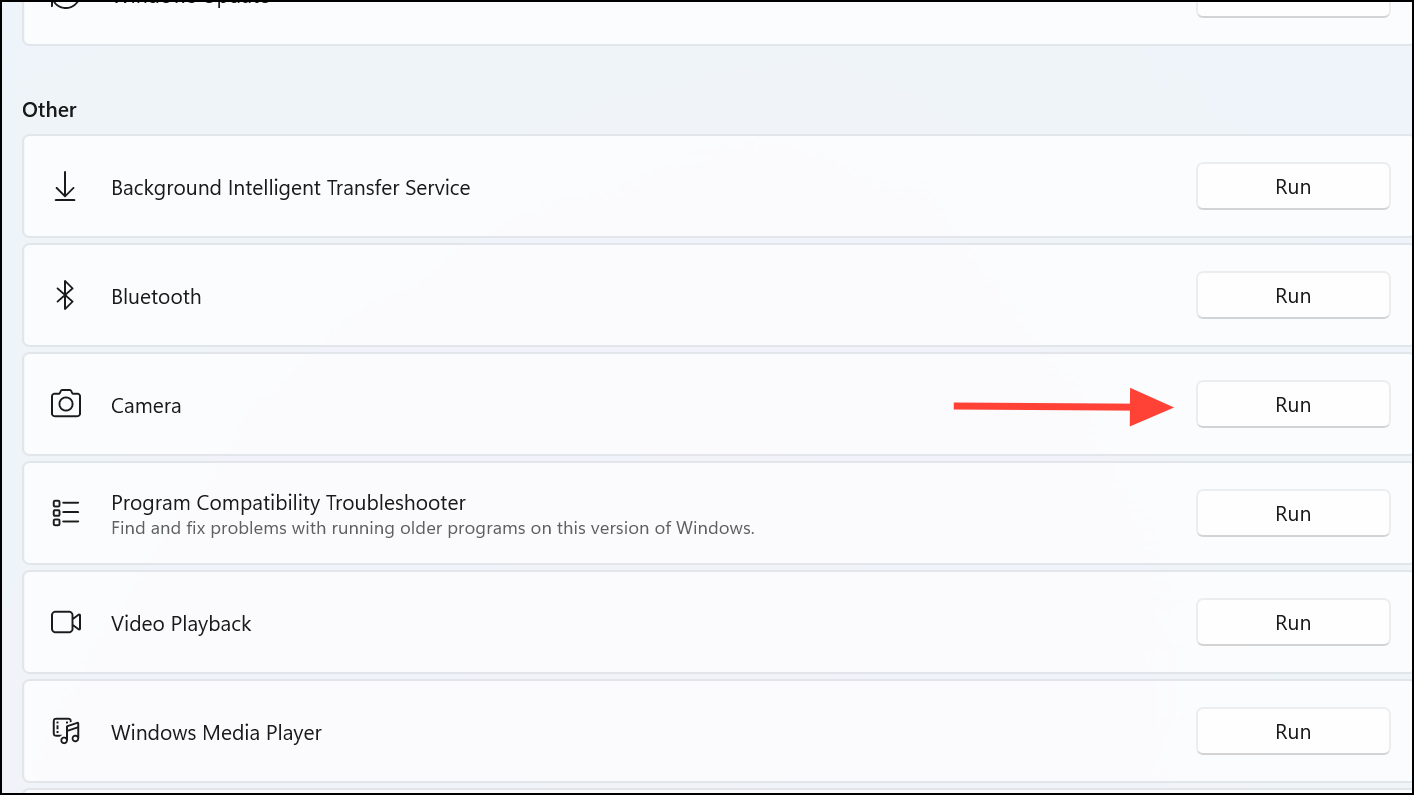
Click on Other troubleshooters. Locate the Camera section and click Run. The troubleshooter will automatically detect and attempt to fix camera-related issues, including misconfigured services and registry conflicts.
This automated process resets camera configurations and resolves common software problems without manual intervention.
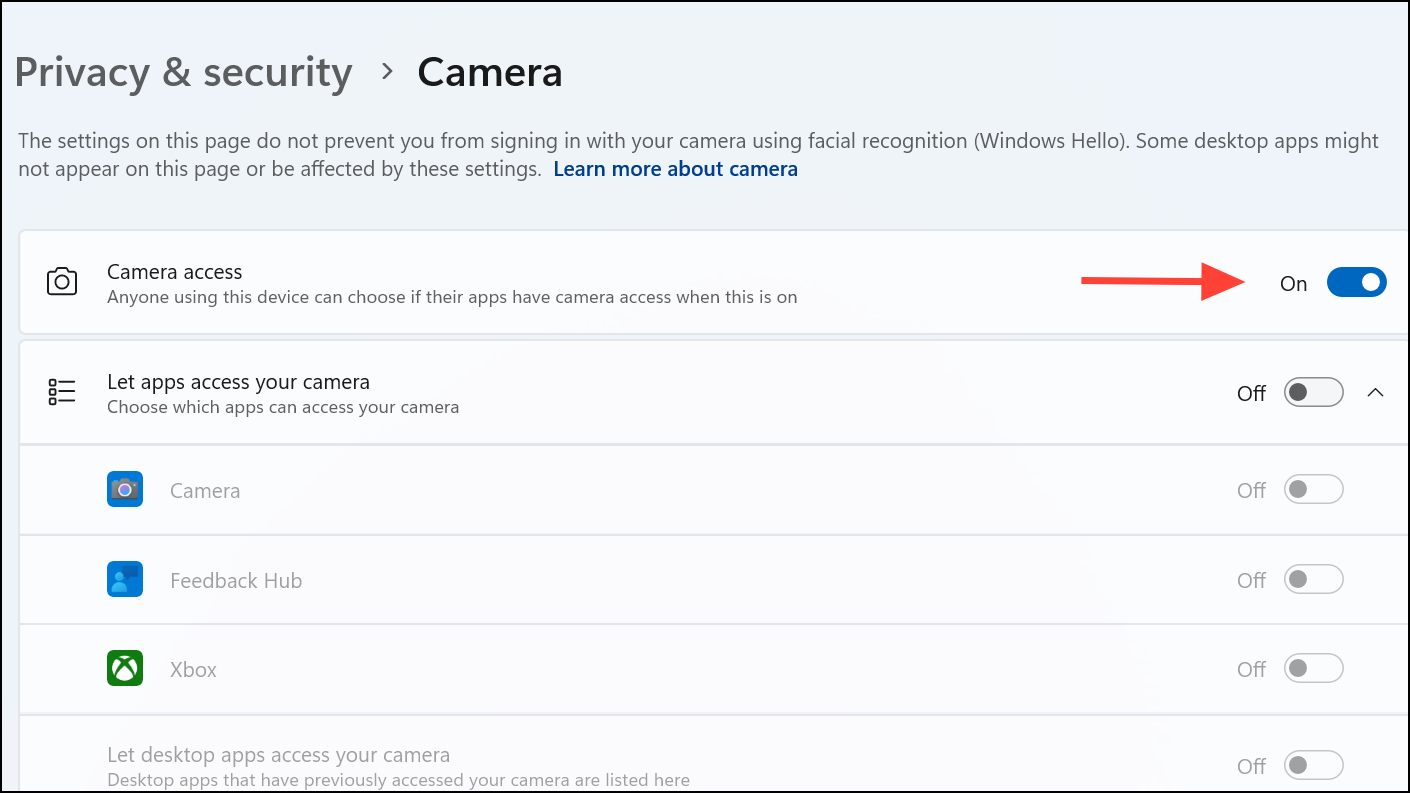
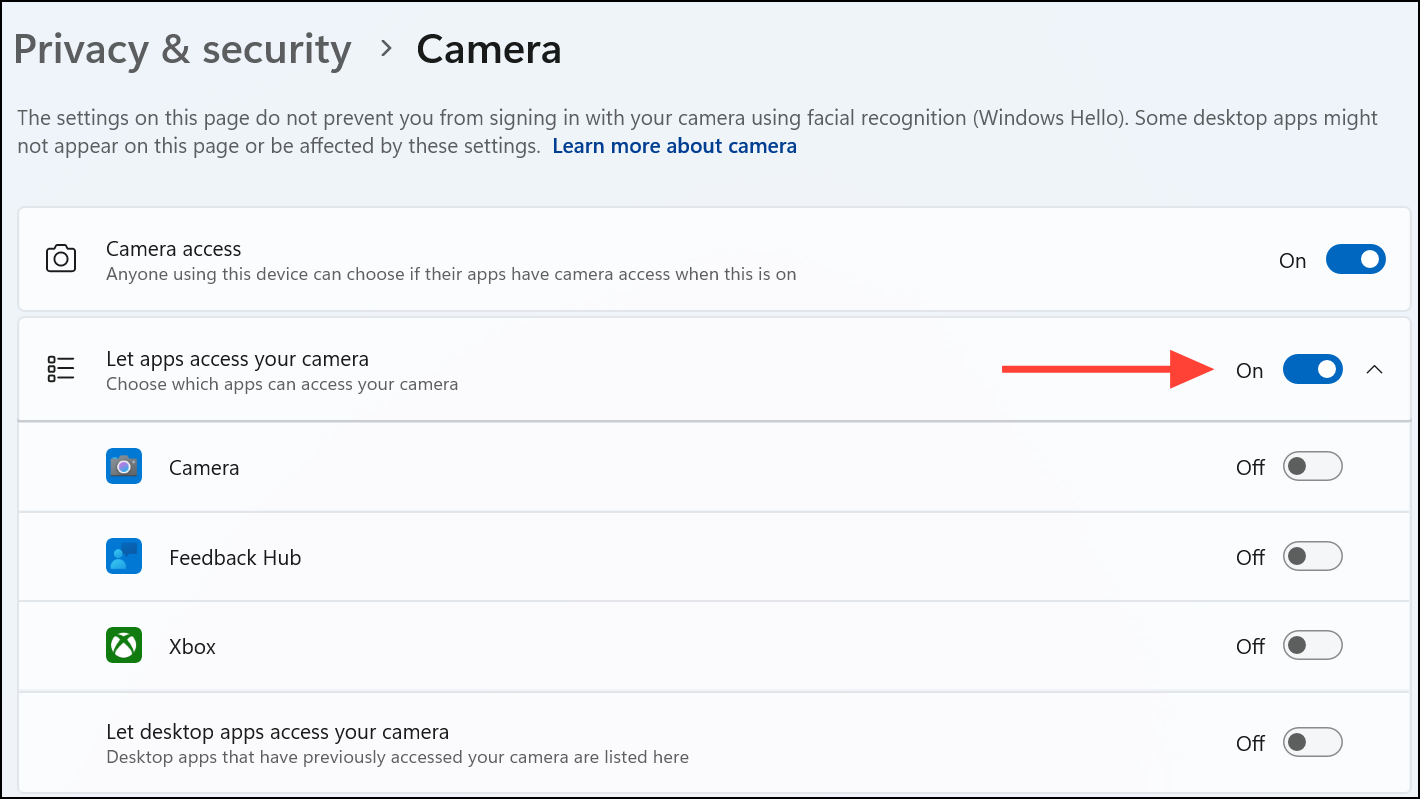
Review the list of installed apps. Turn on camera access for each app you want to use. For desktop applications (like browsers or video conferencing tools), make sure Let desktop apps access your camera is also enabled.
These permissions prevent unauthorized apps from using the camera, but incorrect settings can block legitimate access and result in blank screens or errors.
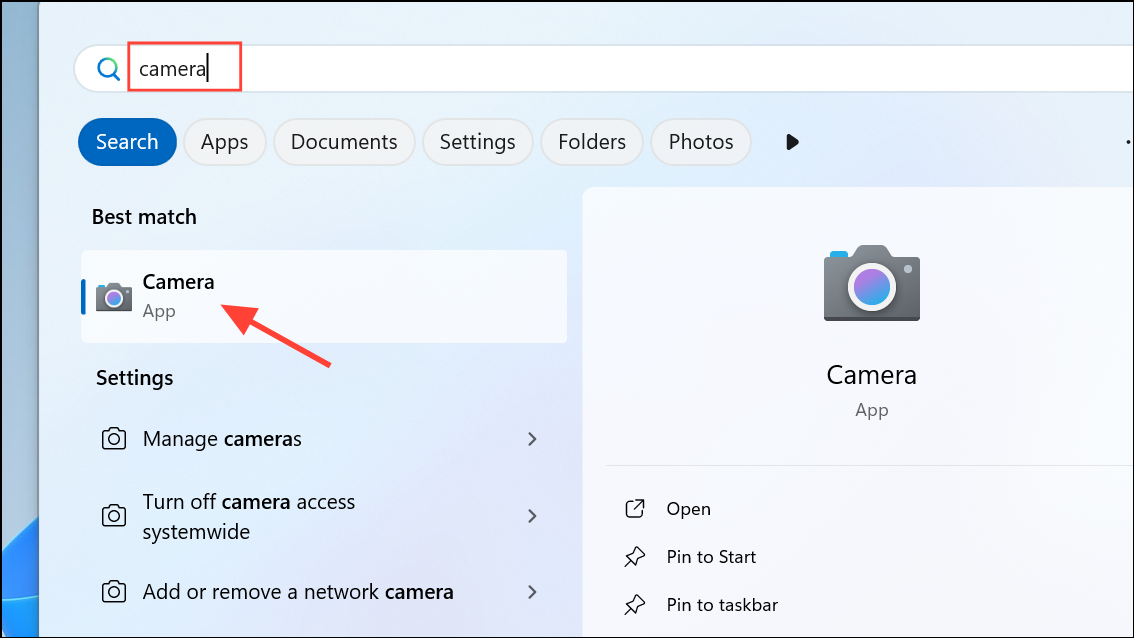
If prompted, allow camera access. Observe whether the preview works. If the camera functions here but not in other apps, the problem is isolated to those specific applications.
This step confirms whether the hardware and drivers are operational, narrowing down the issue to either system-wide or app-specific causes.
If using a laptop, check for a physical camera switch, keyboard function key, or privacy shutter. Ensure these are set to the “on” position and that the lens is not obstructed.
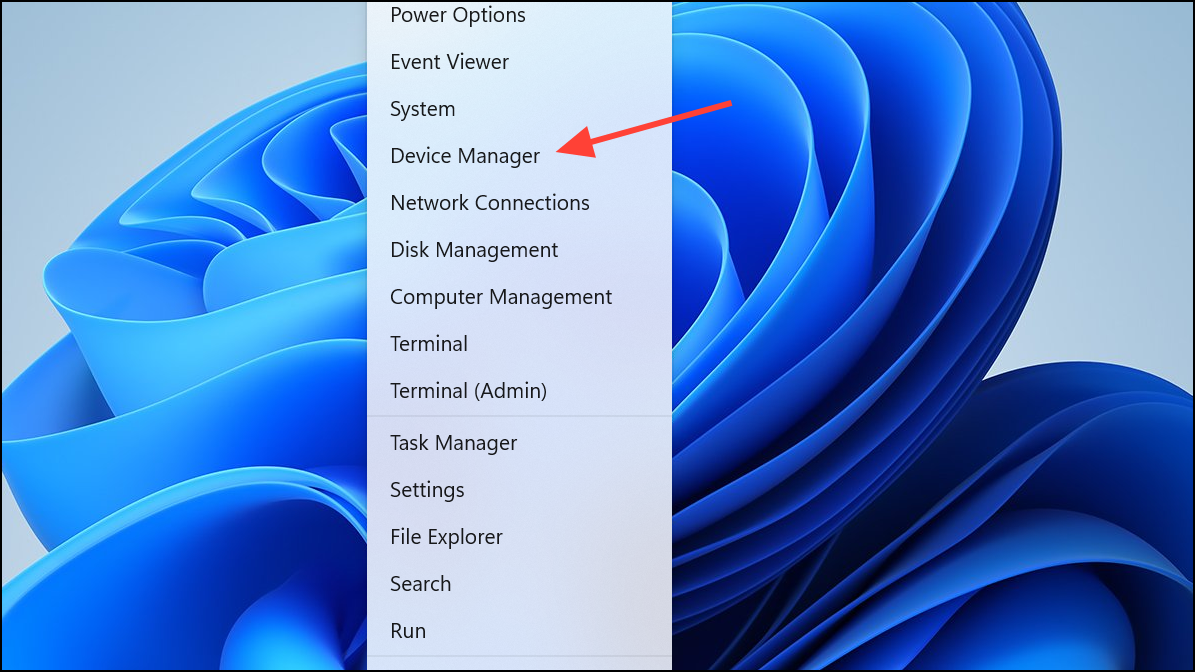
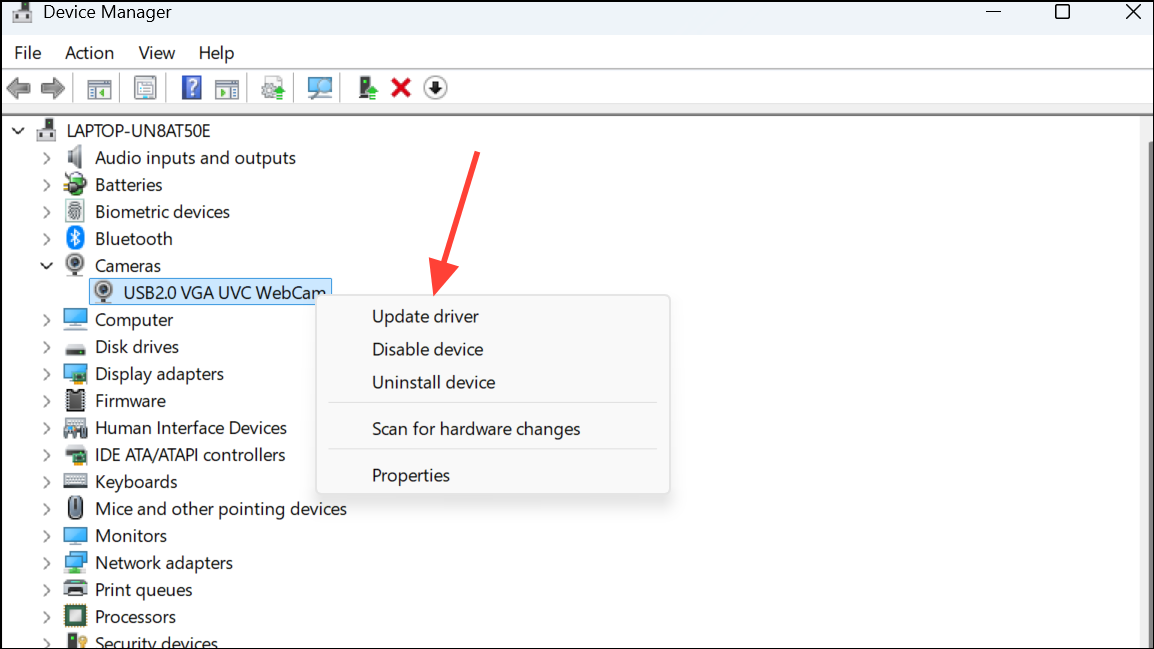
Expand the Cameras section. Right-click your webcam and choose Update driver. Select Search automatically for drivers to let Windows find and install the latest version.
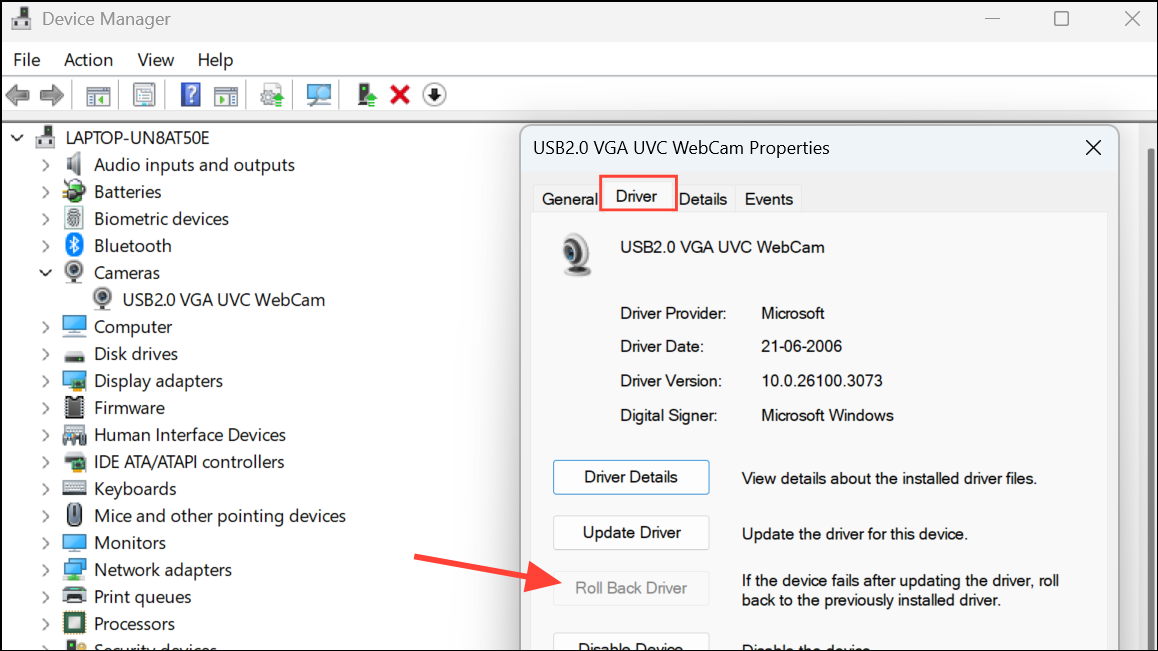
If the camera stopped working after a recent update, right-click the camera device, select Properties, go to the Driver tab, and click Roll Back Driver if available. This returns the driver to its previous, working version.
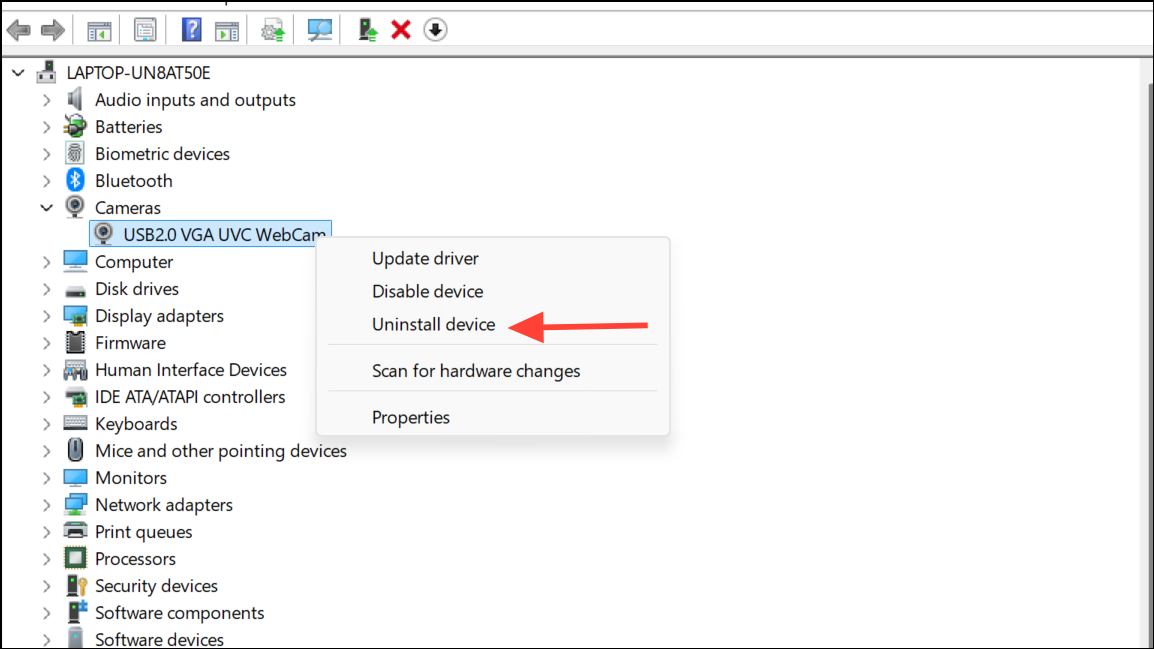
For persistent issues, right-click the camera and choose Uninstall device. Confirm the removal, then restart your PC. Windows will attempt to reinstall the default driver during reboot.
Driver conflicts or corruption often cause cameras to disappear from apps or fail with error codes. Updating or reinstalling drivers restores compatibility and functionality.
Check for Windows Updates and Optional Driver Updates
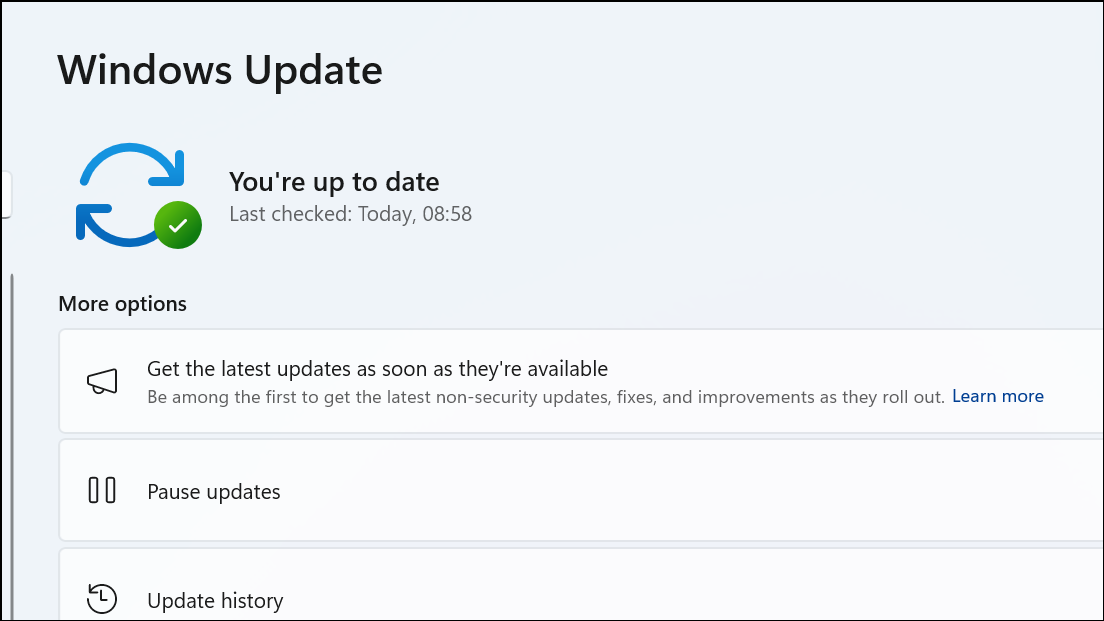
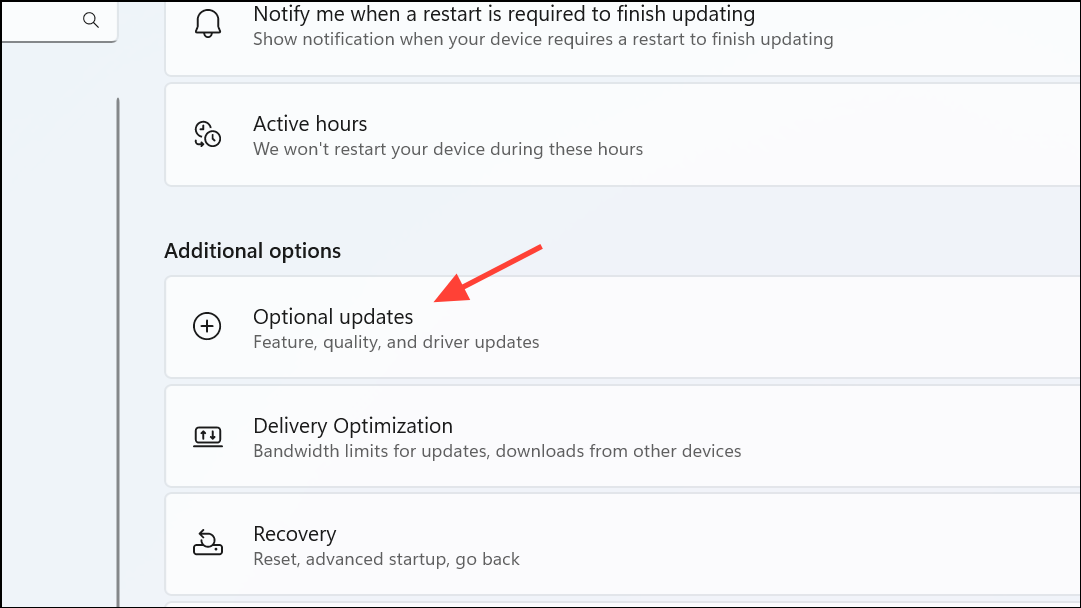
Click Check for updates. Install any pending updates, including those listed under Advanced options > Optional updates, which may include camera drivers.
Restart your computer after updates are installed to apply changes.
Outdated system files or missing driver patches can prevent new hardware from working correctly, and optional updates often include device-specific fixes.
Disable Antivirus or Security Software Blocking Camera Access
Test the camera in your desired app. If it works, adjust antivirus settings to whitelist the camera or add an exception before re-enabling protection.
Security software sometimes blocks camera access to prevent unauthorized surveillance, but this can inadvertently stop legitimate apps from using the webcam.
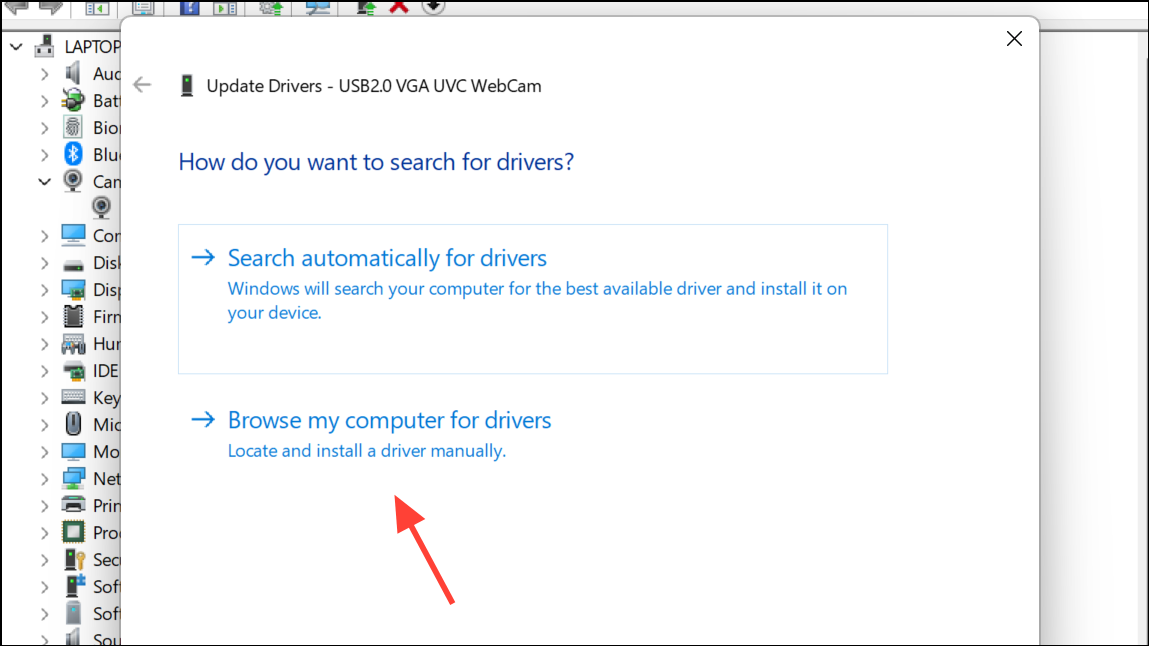
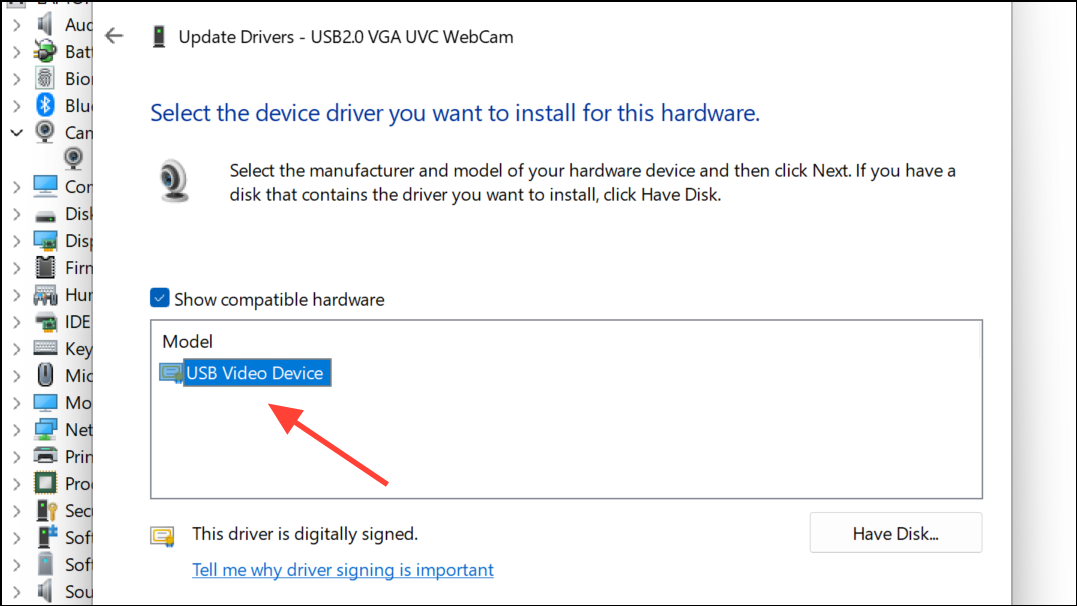
Switch External Webcam to the USB Video Class (UVC) Driver
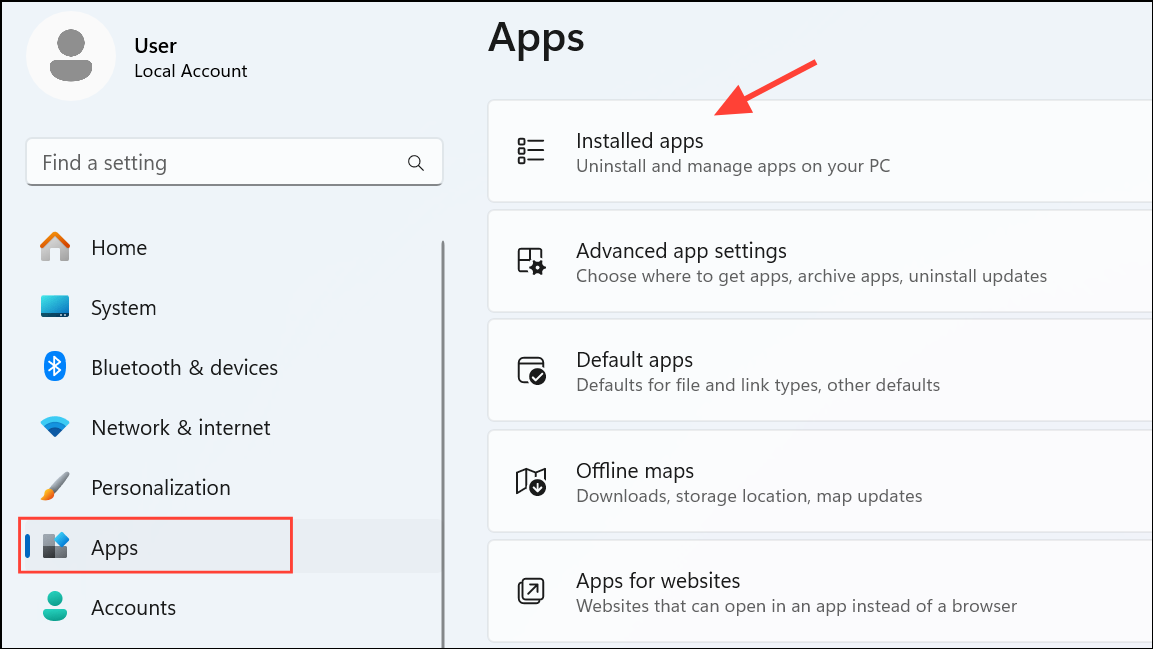
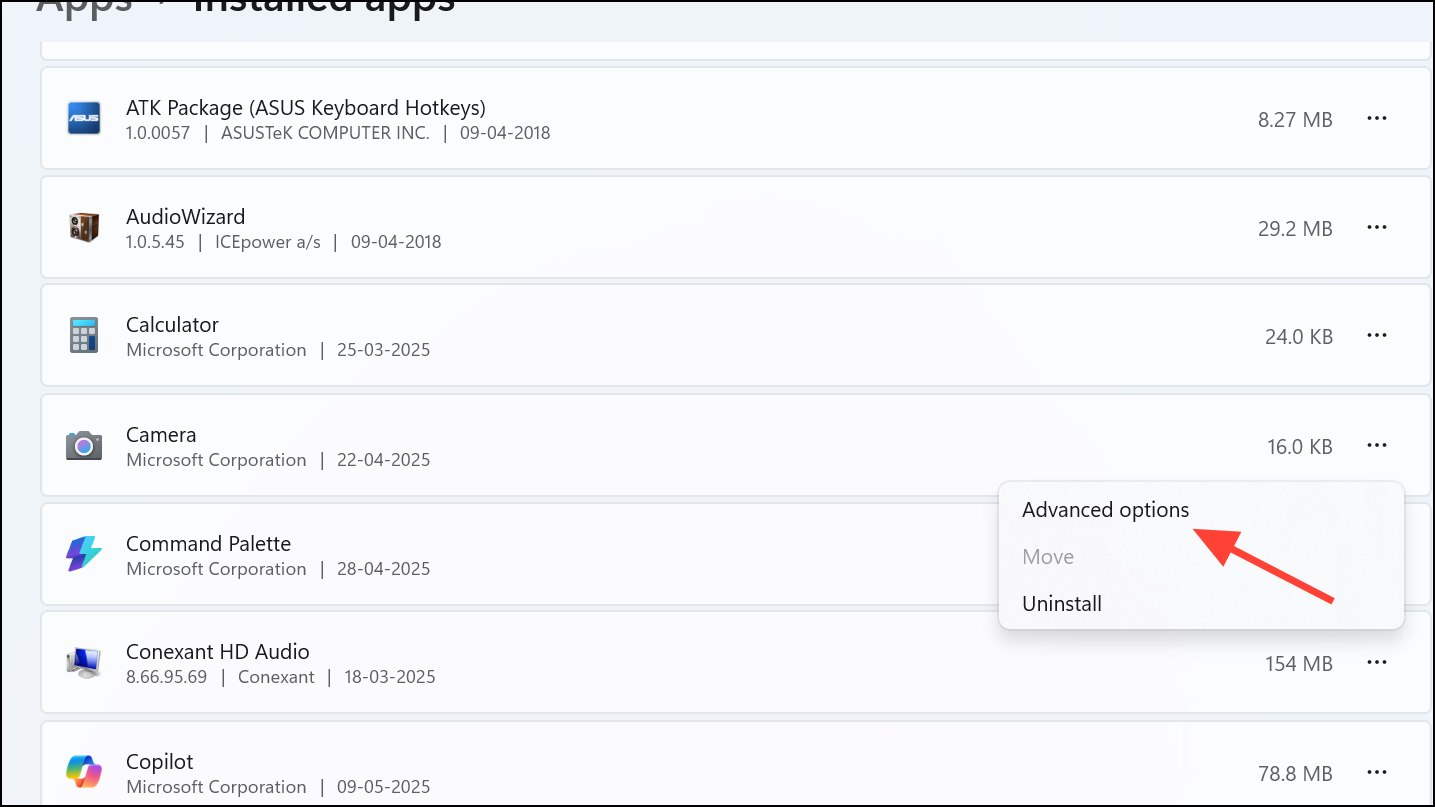
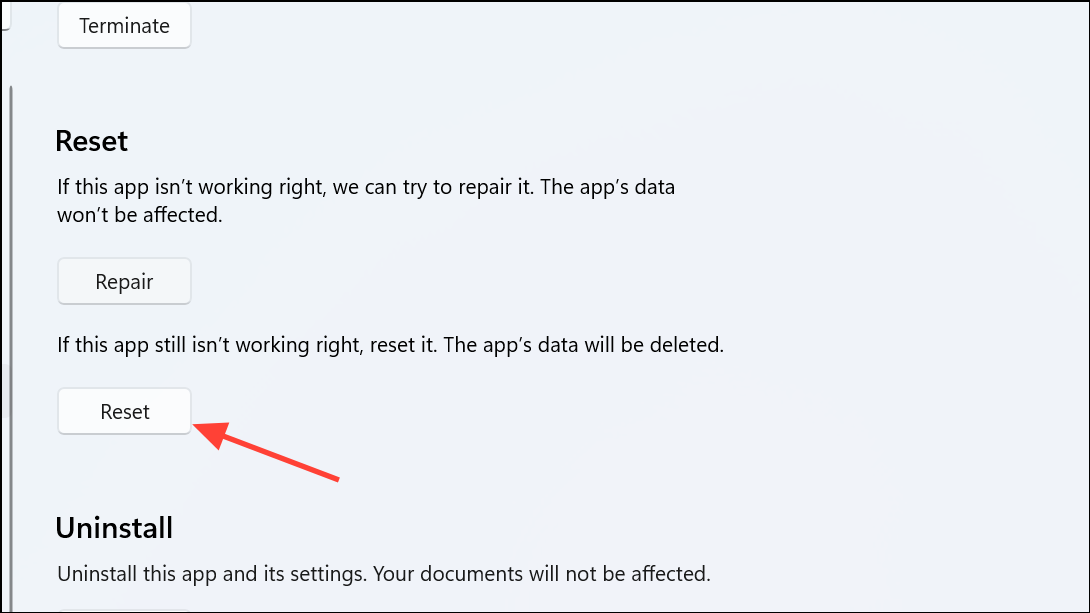
Restart your PC and try launching the Camera app again.
Resetting the app clears corrupted settings or temporary glitches that prevent the camera from initializing correctly.
Additional Checks for Persistent Issues
Disconnect unnecessary USB devices to avoid power or resource conflicts.
Clean the camera lens to remove dust or smudges that affect video quality.
Check your BIOS/UEFI settings to ensure the built-in camera is enabled (refer to your device manual).
Test the webcam using an online webcam tester to confirm hardware functionality.
If the camera remains undetected after all steps, hardware failure or deep system errors may be responsible. Consider professional repair or using an external webcam as a workaround.
Restoring webcam functionality in Windows 11 apps usually comes down to permissions, drivers, or hardware checks. Following these steps methodically brings most cameras back online for reliable video calls and meetings.