

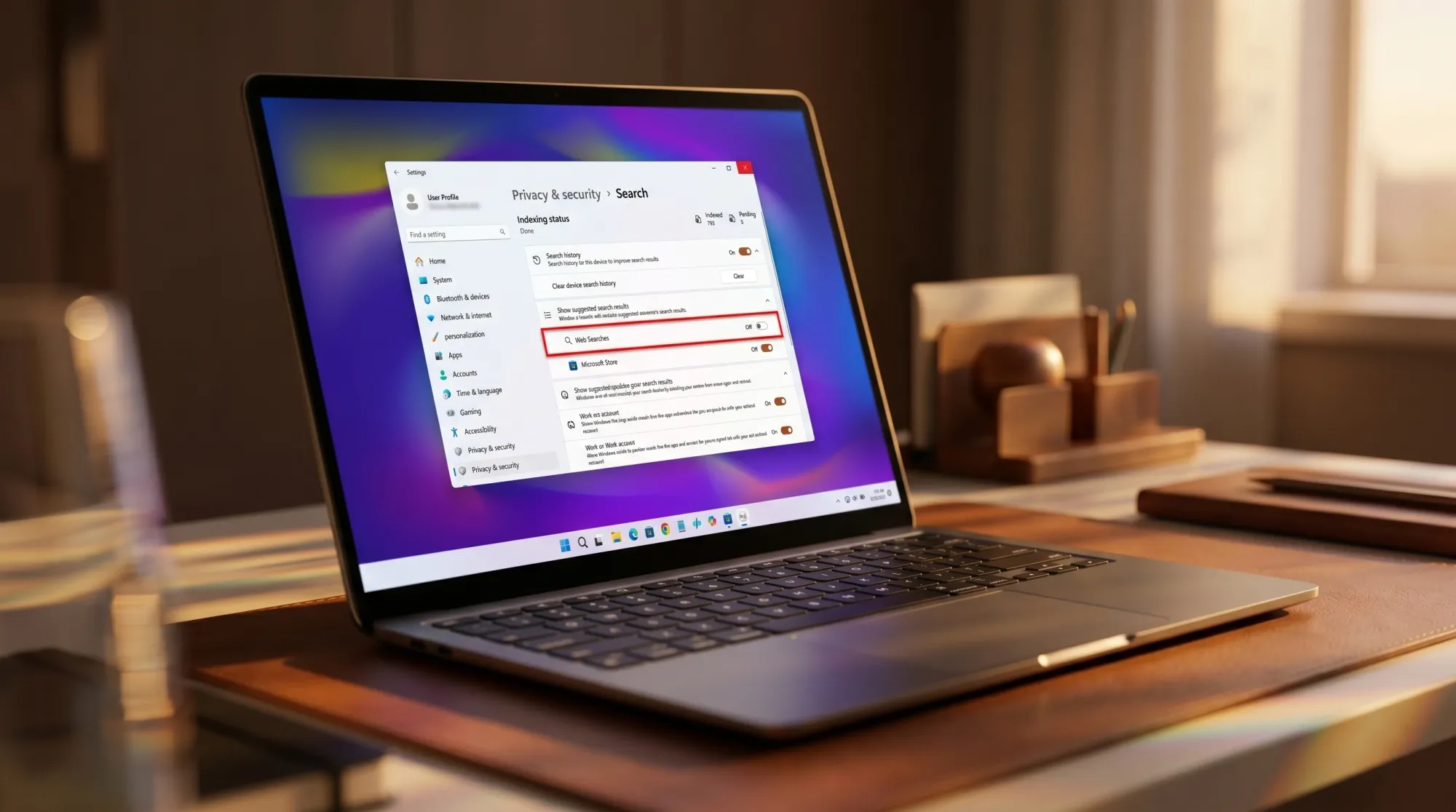
Windows 11 is getting a built-in switch to remove Bing-powered web results from its Search experience. The control will sit in Settings, so you no longer need to dig through the Registry or Group Policy to clean up cluttered search results. Microsoft showed the change during a Windows Insider meetup in San Francisco on June 2, tied to Build 2026.
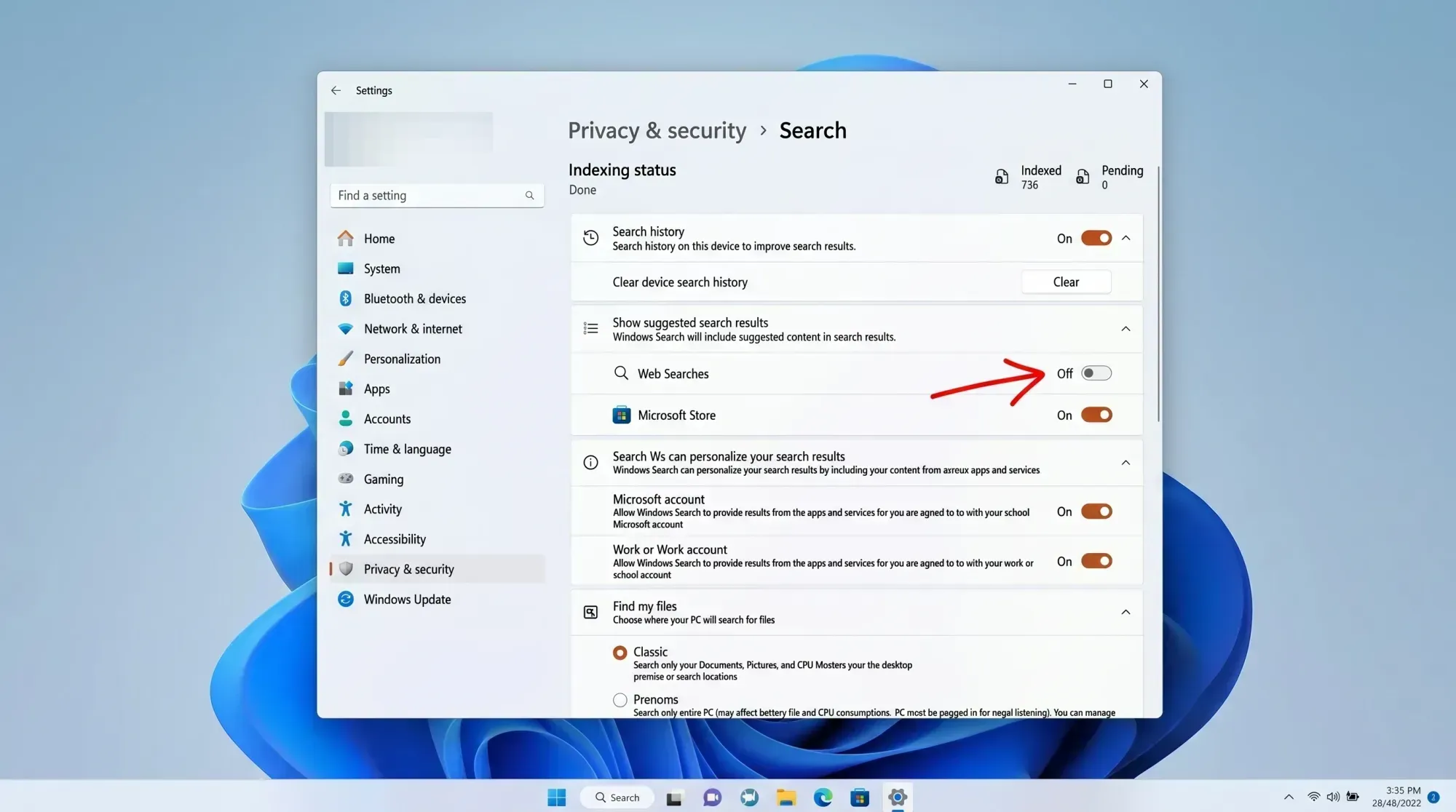
What the new Windows 11 Search toggle does
When you open Windows Search to find an installed app, a document, or a setting, results from the web currently appear alongside what is actually on your PC. The upcoming option lets you switch off those suggested web results so Search focuses on local content.
Screens shown during the presentation also point to a second toggle that would remove Microsoft Store results from Search. That would give you more control over which result types show up beyond just web links.
This kind of control is not brand new. Users in the European Union already gained the ability to disable web results through changes Microsoft made to comply with the Digital Markets Act. The shift now is that the option is heading to people outside the EU as well.
When the Windows 11 Search change rolls out
Microsoft has not announced a release date. The feature is expected to show up first in Windows Insider preview builds before reaching all Windows 11 users, so no official rollout date is currently confirmed.
The Search cleanup is part of Microsoft’s broader Windows K2 effort, which focuses on improving the core Windows experience and rebuilding user confidence in the platform. Alongside it, the company highlighted that File Explorer launches faster and that bulk file deletion is roughly 30 percent quicker in internal builds. Recent Insider releases have also brought a cleaner Widgets panel, more Taskbar customization, Start menu refinements, and faster Search.
Remove Bing web results in Windows 11 right now
Until the Settings toggle ships outside the EU, there are a few reliable ways to stop Bing results from appearing in Search. The fastest is a single Registry value, with Group Policy as an alternative on Pro and Enterprise editions.
Disable Cloud content search in Settings
This reduces web content in Search but does not fully remove web results. Use the Registry method below for that.
Remove Bing results using the Registry Editor
Computer\HKEY_CURRENT_USER\Software\Policies\Microsoft\Windows\Explorer
If the Explorer key does not exist, right-click Windows, choose New > Key, and name it Explorer.
DisableSearchBoxSuggestions.After the restart, Windows Search should show only local results with no Bing web links in the search box.
reg add "HKCU\Software\Microsoft\Windows\CurrentVersion\Search" /v BingSearchEnabled /t REG_DWORD /d 0 /f
Remove Bing results using Group Policy
Win + R, type gpedit.msc, and press Enter. This is available on Windows 11 Pro and Enterprise.How to confirm Bing results are gone
Open Windows Search and type a query that would normally trigger web suggestions, such as a generic phrase rather than an app name. If the change worked, you will see only local matches like apps, files, and settings, with no web links or Bing icon in the search box. If web results still appear, sign out and back in or restart again, since the Registry and Group Policy changes apply after a reboot.
One common reason the Registry change does not stick is that the Explorer key or the DisableSearchBoxSuggestions value was created in the wrong location. Confirm the value sits under HKEY_CURRENT_USER\Software\Policies\Microsoft\Windows\Explorer and is set to 1.
For most people, the upcoming Settings toggle will make all of this unnecessary. Moving the control into Privacy & security > Search turns a hidden Registry tweak into a single click, and it fits the wider push to make Windows 11 feel faster, cleaner, and less crowded with online suggestions in places meant for finding what is already on your PC.



