

Out-of-date network drivers are a common cause of dropped connections, sluggish speeds, and Wi-Fi that refuses to reconnect after sleep. On Windows 11, refreshing the driver for your wireless or Ethernet adapter takes a few minutes and often clears these problems without touching any router settings. There are four practical ways to do it, and the right one depends on whether you can still get online.
Which method to use
Each approach lands the same result, an updated driver, but they differ in how new the driver is and whether you need an internet connection to start. Pick based on your situation.
| Method | Best for | Needs internet on the PC? |
|---|---|---|
| Device Manager auto-search | Fastest fix, general use | Yes |
| Windows Update optional updates | Stable, tested drivers | Yes |
| Manufacturer download | The newest available version | Yes (or another PC) |
| Manual install in Device Manager | No working connection | No (use a saved file) |
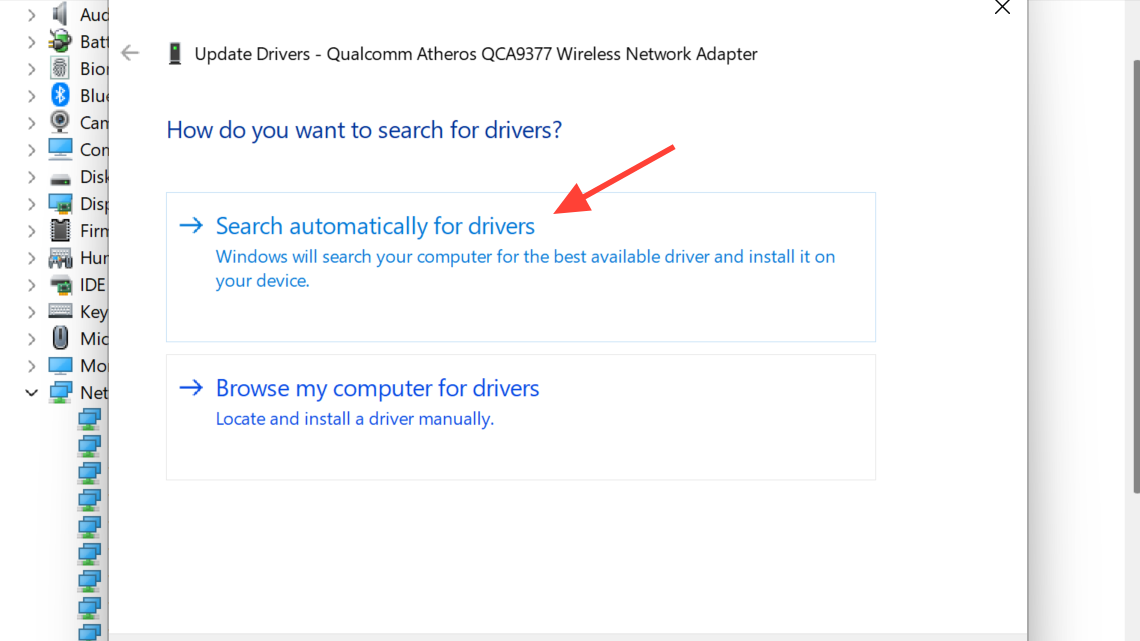
Method 1: Update the network driver in Device Manager
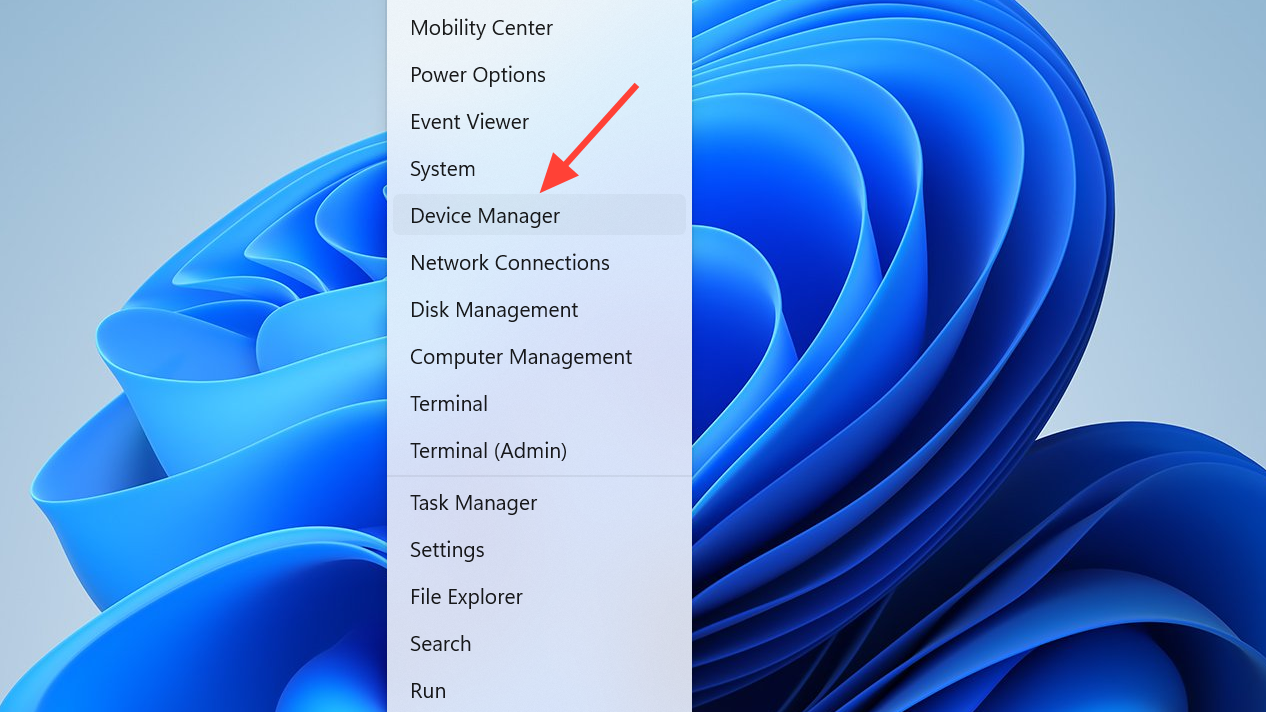
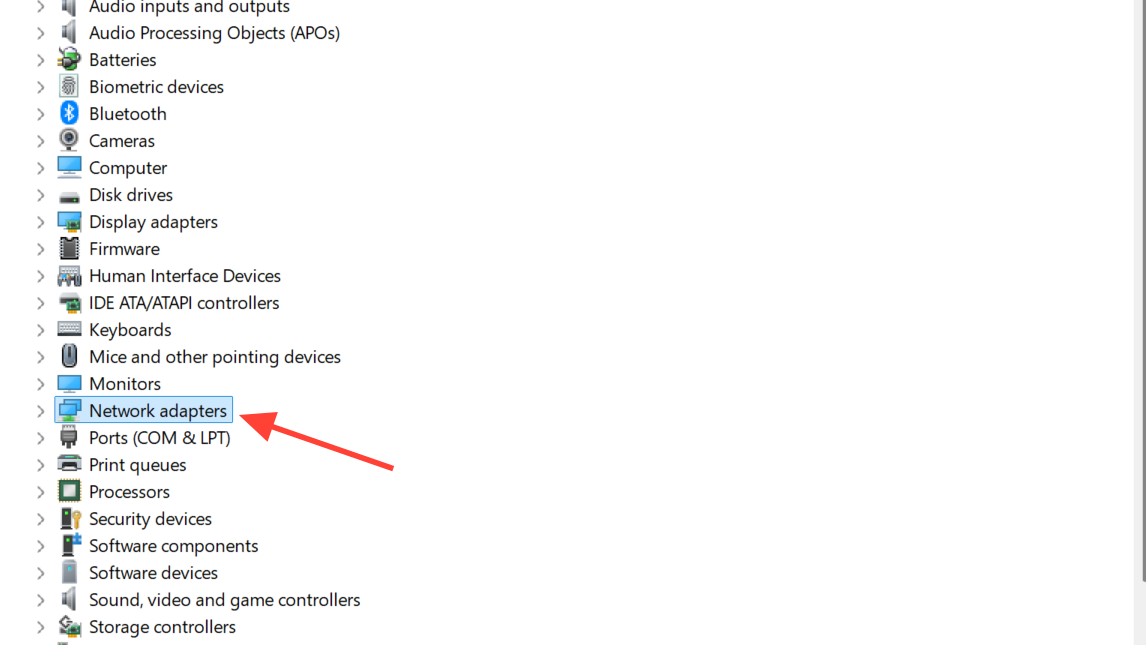
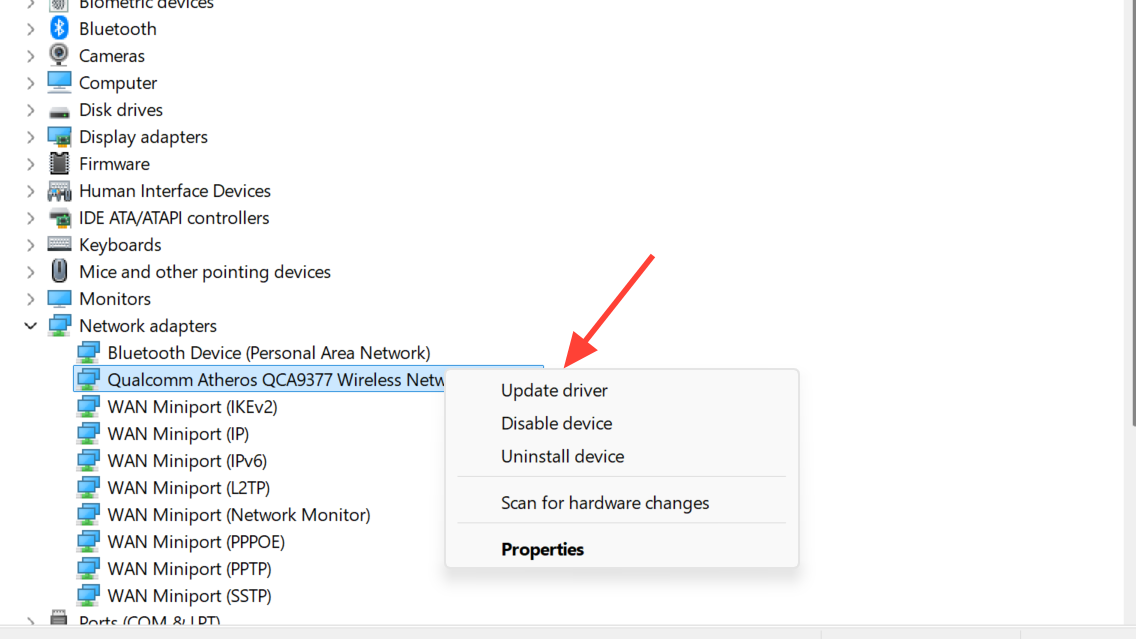
This is the quickest route and works for both Wi-Fi and wired adapters. Windows checks its own driver store and Windows Update, then installs a newer driver if one exists.
Method 2: Install network drivers through Windows Update
Drivers delivered through Windows Update are tested for stability, which makes this a safe choice if you want fewer surprises. Network adapter drivers often appear under optional updates rather than the main update list.
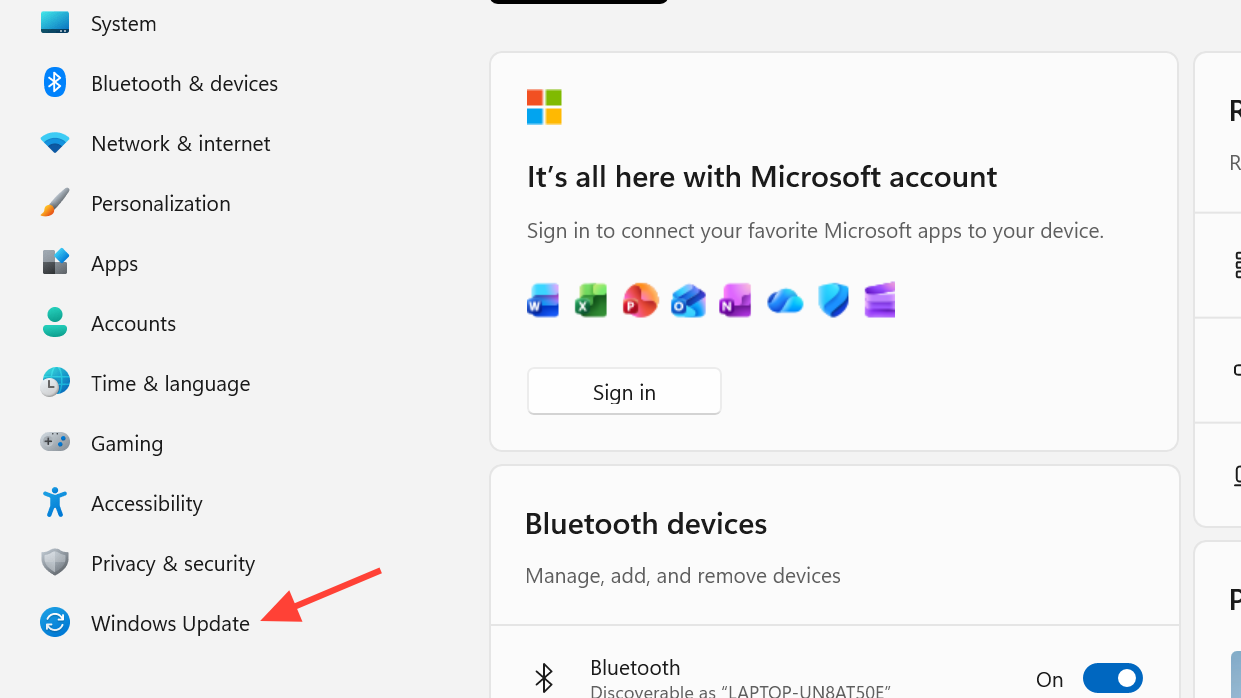
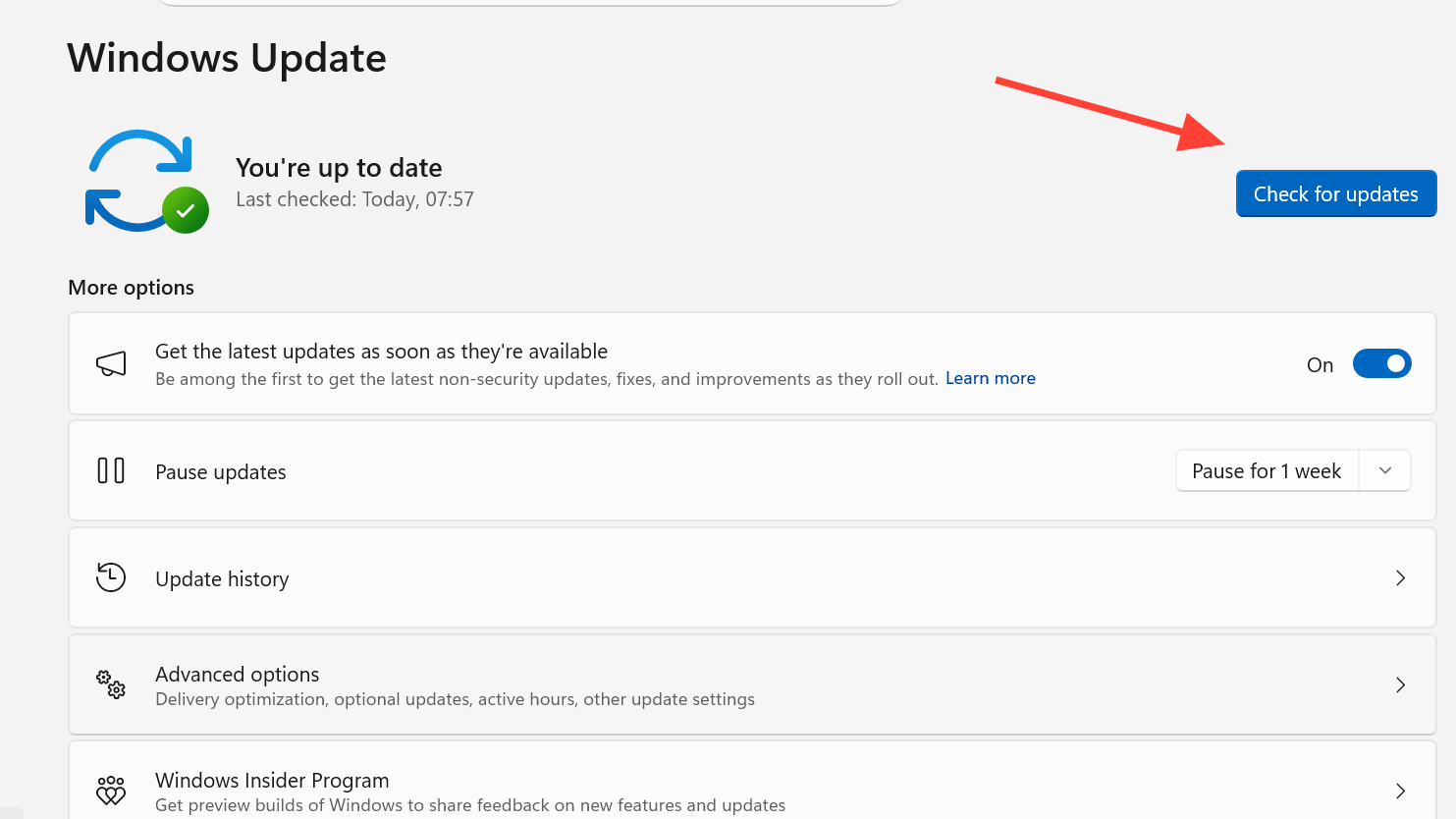
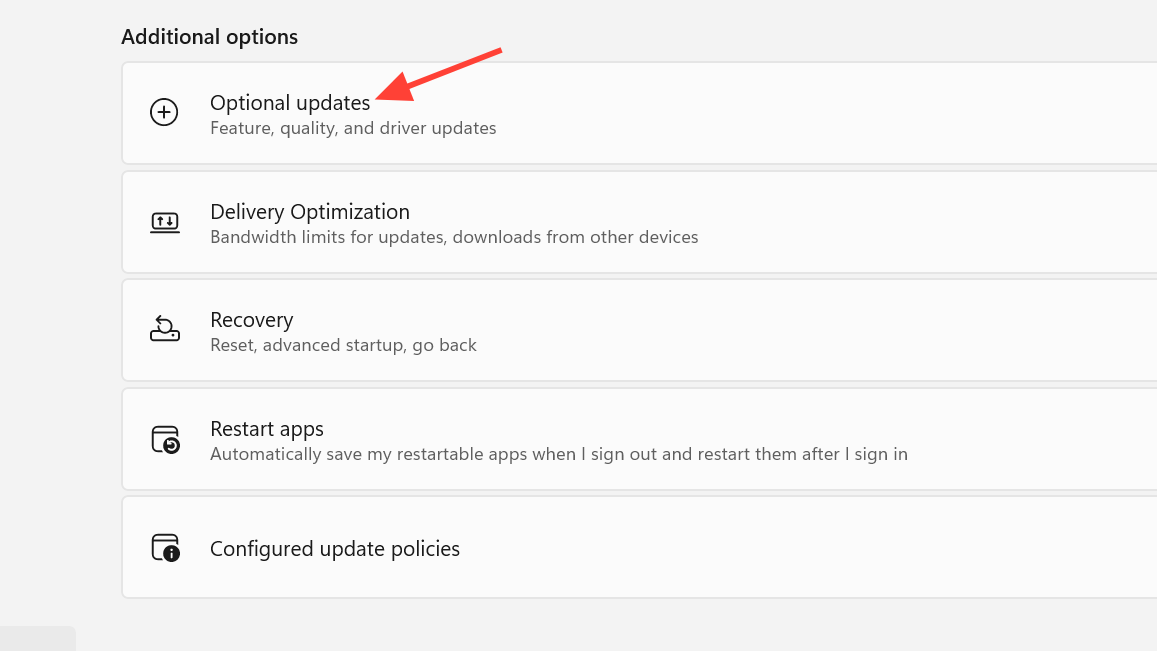
You can read Microsoft’s full walkthrough for driver delivery on the update drivers through Device Manager support page.
Method 3: Download the driver from the manufacturer
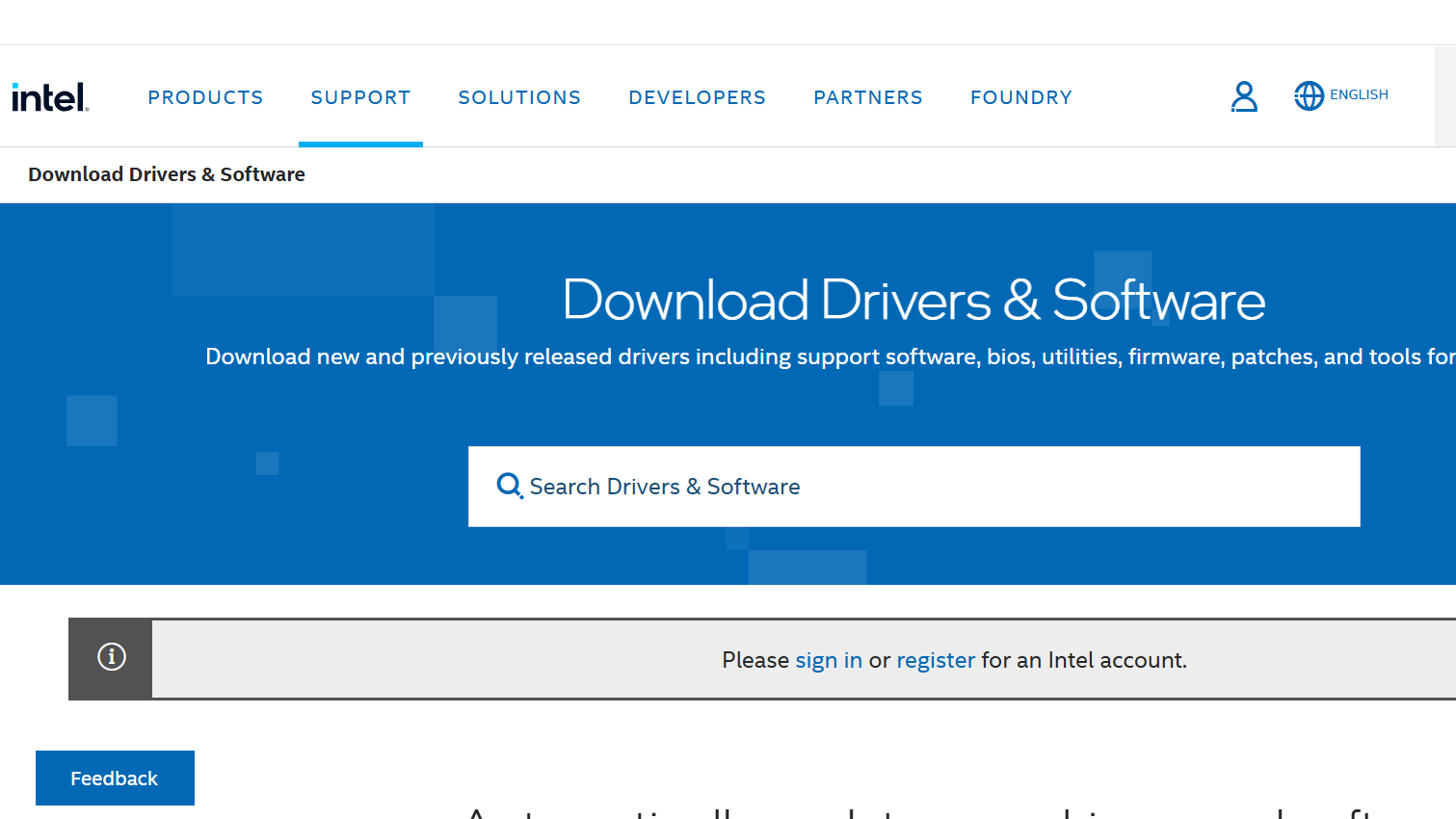
When you need the absolute newest version, perhaps to fix a recent bug or add support for a feature, go straight to the company that made the adapter. First identify the exact model by checking its name under Network adapters in Device Manager, then grab the matching Windows 11 driver.
Common chipset and system makers publish their own downloads:
| Vendor | Typically covers | Download page |
|---|---|---|
| Intel | Wi-Fi adapters | Intel Download Center |
| Dell | Dell laptops and desktops | Dell Support |
| HP | HP systems | HP Support |
| Lenovo | Lenovo systems | Lenovo Support |
Realtek and Qualcomm chips are common for Ethernet and combined Wi-Fi/Bluetooth modules, and their drivers are usually also offered through your PC maker’s support page. After downloading, run the installer and let it complete, then restart.
Method 4: Manually install a driver when you have no connection
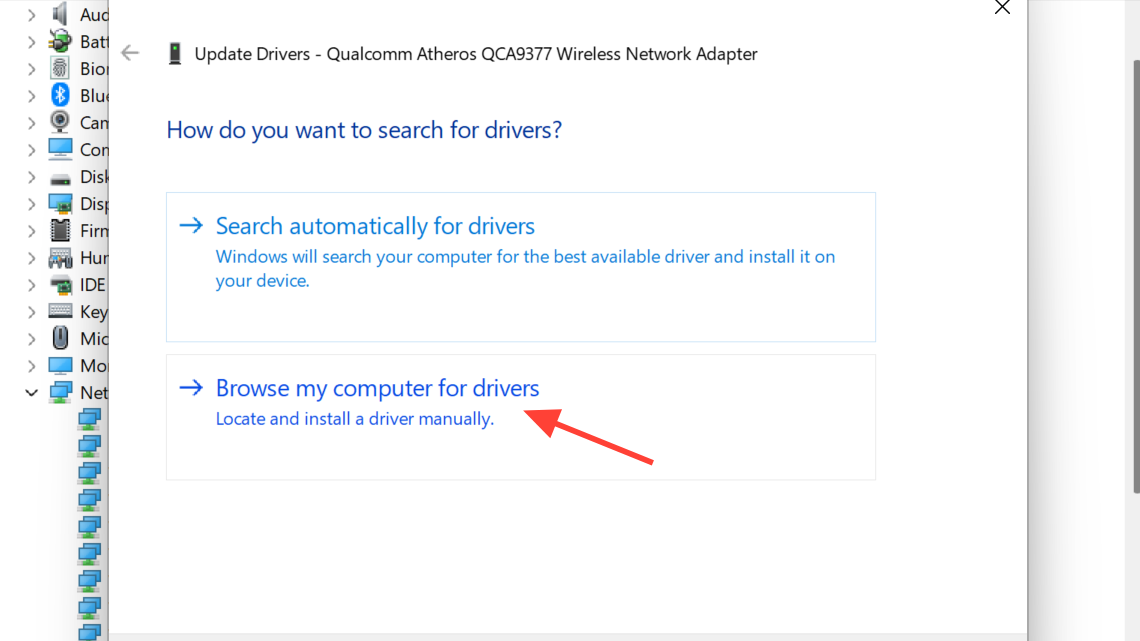
If the adapter has no working internet, download the correct driver on another device, copy it to a USB drive, and point Windows at the folder. Device Manager no longer searches the web on its own in this flow, so you supply the file.
How to confirm the update worked
After installing, restart the PC so the new driver loads cleanly. Then open a web browser and load any page to confirm the connection is stable. You can also reopen Device Manager, right-click the adapter, choose Properties, and check the Driver tab to verify the version or date has changed.
If your internet stops working right after an update, roll back to the previous driver from that same Driver tab, or use another device to download the correct driver and install it manually. Ethernet is a useful fallback while you sort out a Wi-Fi driver.
Common questions
| Question | Answer |
|---|---|
| Why update network drivers? | To fix connection drops, slow speeds, and compatibility problems with newer software or hardware. |
| Do drivers update on their own? | Sometimes, through Windows Update, but not always. A manual check is the reliable way to stay current. |
| What if the internet breaks after updating? | Roll back the driver, or download the right one on another device and install it manually. |
A quick driver refresh is one of the lowest-effort fixes for unstable Wi-Fi and random disconnects on Windows 11. Start with the Device Manager auto-search, fall back to Windows Update’s optional updates for tested builds, and reach for the manufacturer download only when you need the very latest version.



