


Type almost anything into the Windows 11 Start menu and Bing shows up. Alongside your apps, files, and settings, the search box throws in web results that open in Microsoft Edge whenever it can’t find an exact local match. If you only want the Start menu to surface things that live on your PC, you can switch the web results off. The cleanest fix lives in the Windows registry, and there are Group Policy and Settings options too.
This applies to Windows 11 and to Windows 10 version 2004 and later. The older Cortana-era tricks no longer work, so the methods below are the ones that take effect on current builds. Your account needs to be in the Administrator group to make registry and policy changes.
What Start menu search shows by default
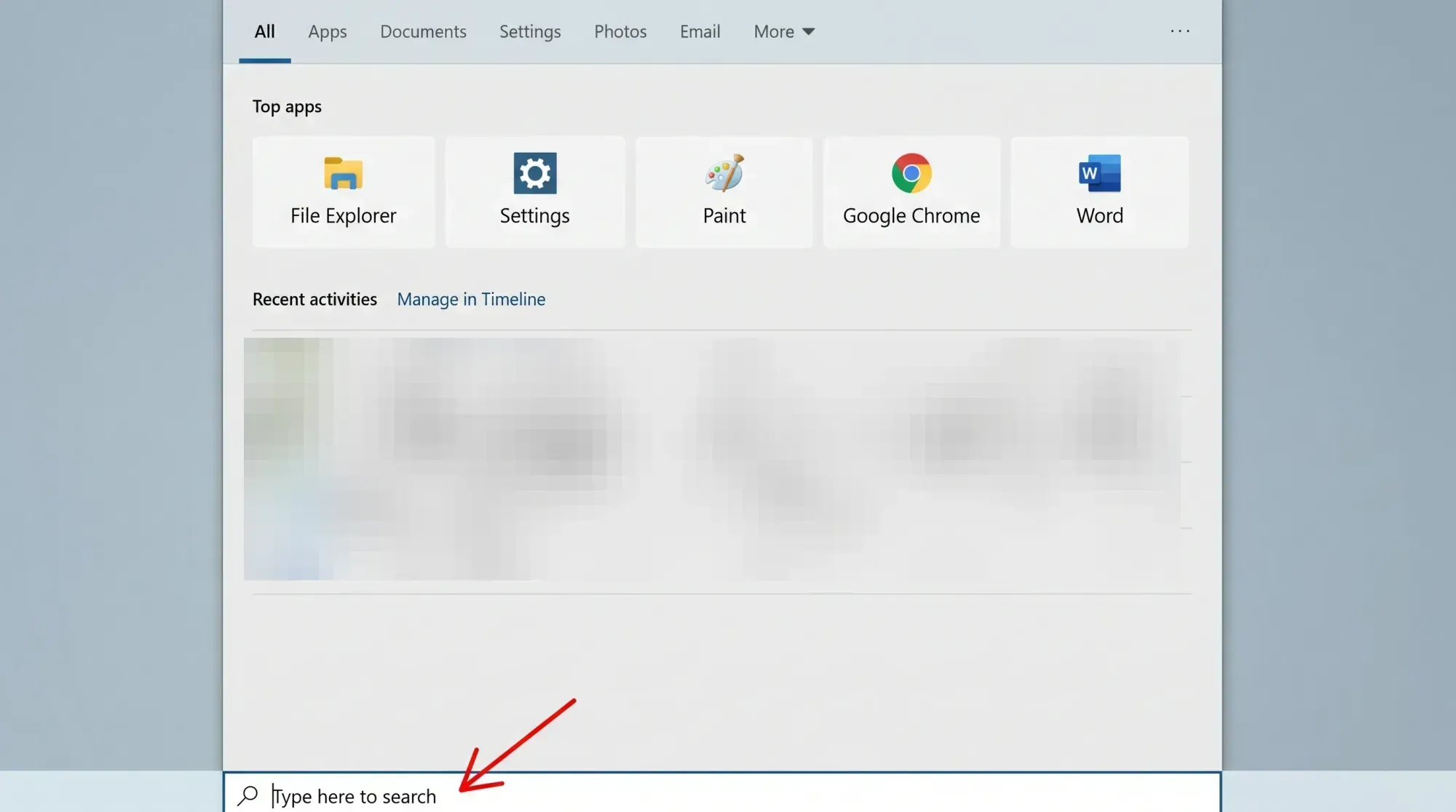
Click the search box or press Win+S and you get the enhanced search box. It puts your top apps and quick searches up front, including things like weather, news, and market info. When the system can’t match what you typed to a local document, app, or setting, it fills the gap with Bing web suggestions. Click one and the page opens in Microsoft Edge.
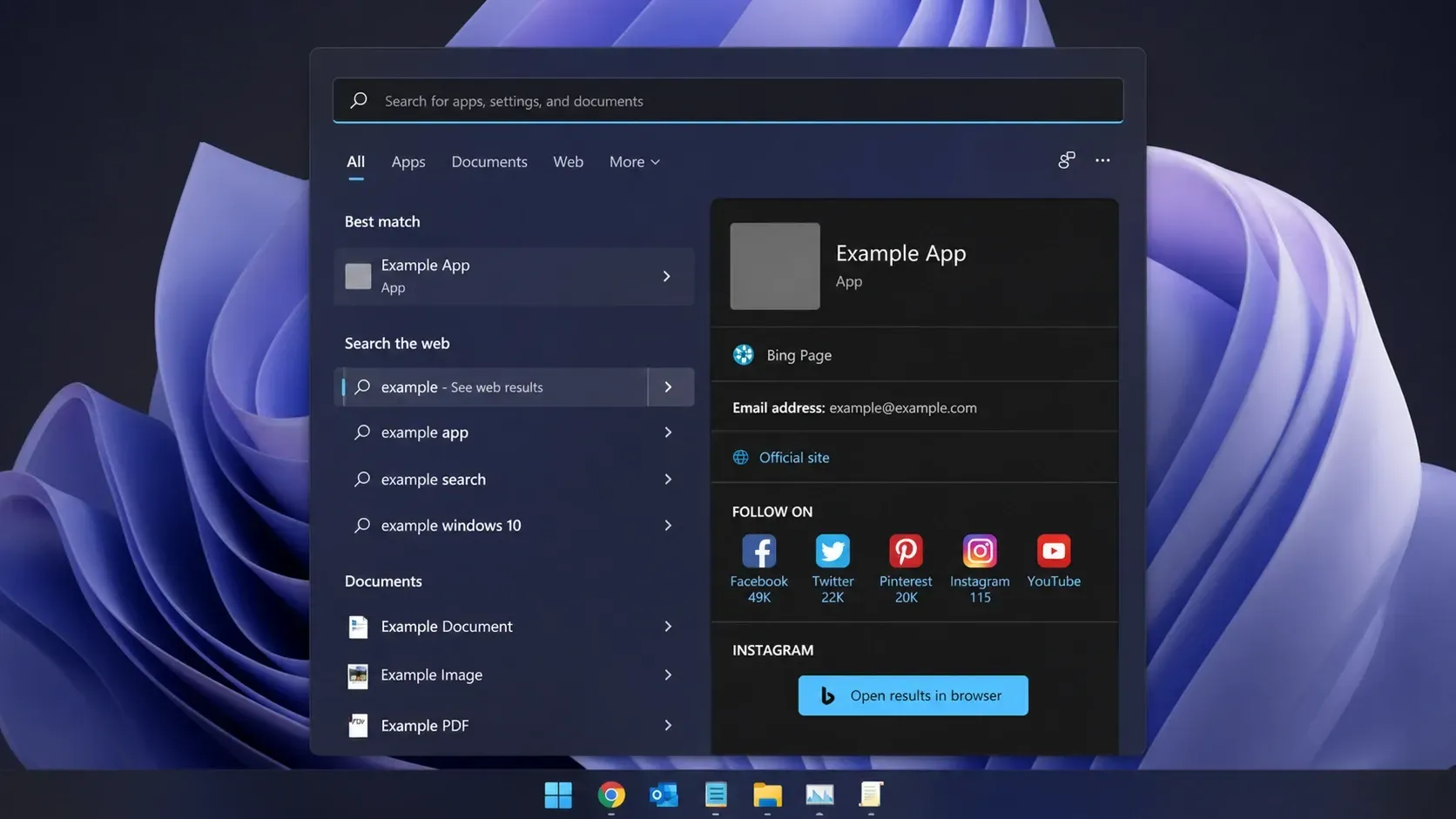
There’s no single button in the interface that hides this. Removing web results means editing the registry or changing a Group Policy setting. The table below maps each approach to where it works.
| Method | Where it lives | Works on |
|---|---|---|
| DisableSearchBoxSuggestions | Registry (Policies\Explorer) | Windows 10 & 11 |
| BingSearchEnabled | Registry (CurrentVersion\Search) | Windows 10 & 11 |
| Group Policy switches | gpedit.msc (Search) | Pro, Education, Enterprise |
| Settings toggle | Privacy & security → Search | Windows 11 (where rolled out) |
Disable web results with the registry (DisableSearchBoxSuggestions)
This is the most reliable way to clear Bing out of the Start menu, and it works across both Windows 11 and Windows 10. Back up the registry or create a restore point first, since a wrong edit elsewhere can cause problems.
regedit, and open Registry Editor. Accept the prompt that asks for permission. Don’t click any Bing results that pop up while you type.Computer\HKEY_CURRENT_USER\SOFTWARE\Policies\Microsoft\Windows\Explorer. Then select it.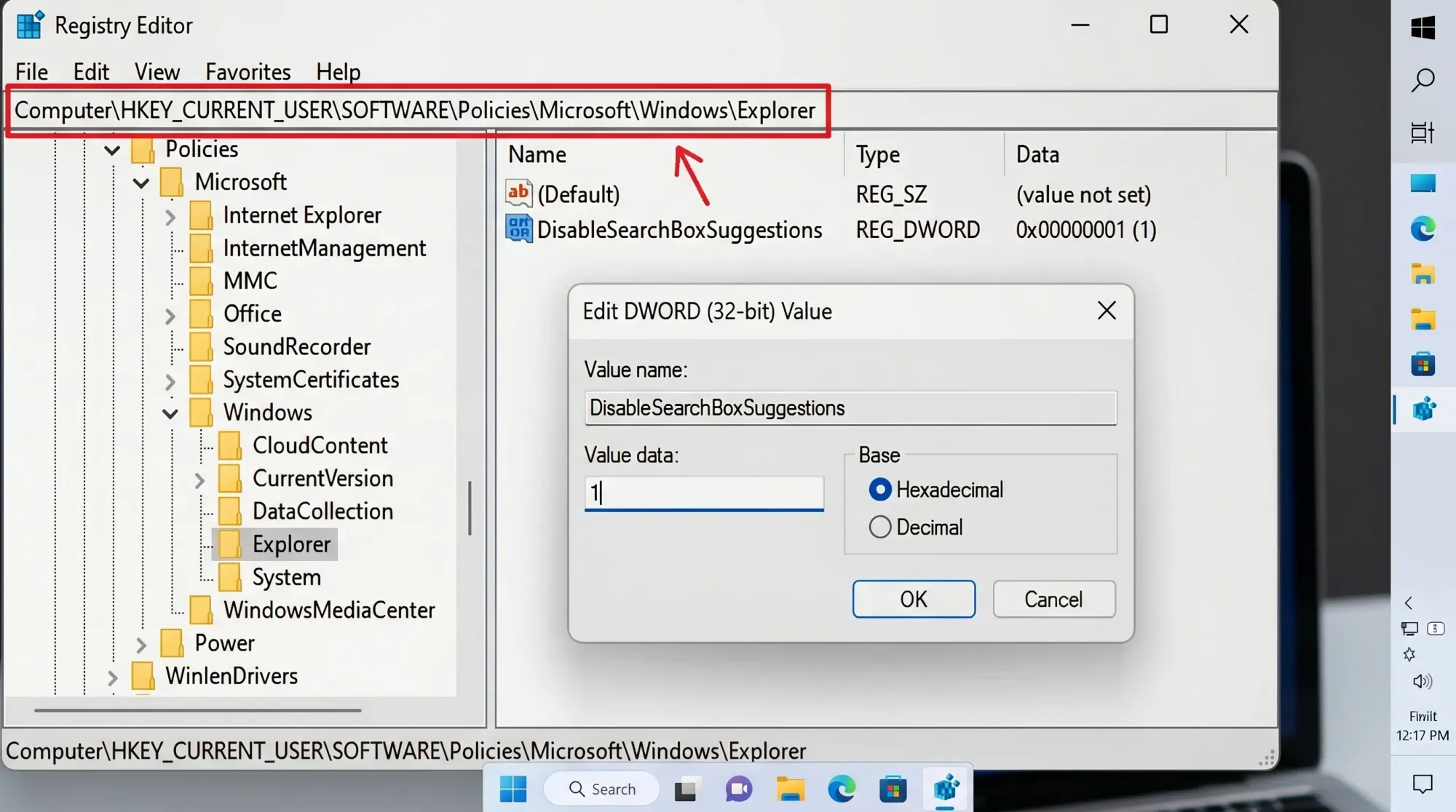
DisableSearchBoxSuggestions.To restart Explorer without rebooting, press Ctrl+Shift+Esc to open Task Manager, find Windows Explorer in the Processes list, right-click it, and choose Restart.
You’ll know it worked when a search that would normally pull in web links no longer shows a Web section in the results. There are a few trade-offs with this method.
- Bing extras such as weather, stock prices, and currency conversion stop appearing.
- File Explorer no longer shows suggestion pop-ups as you type in its search box.
- Recent searches are no longer stored or shown.
Disable Bing with the BingSearchEnabled value
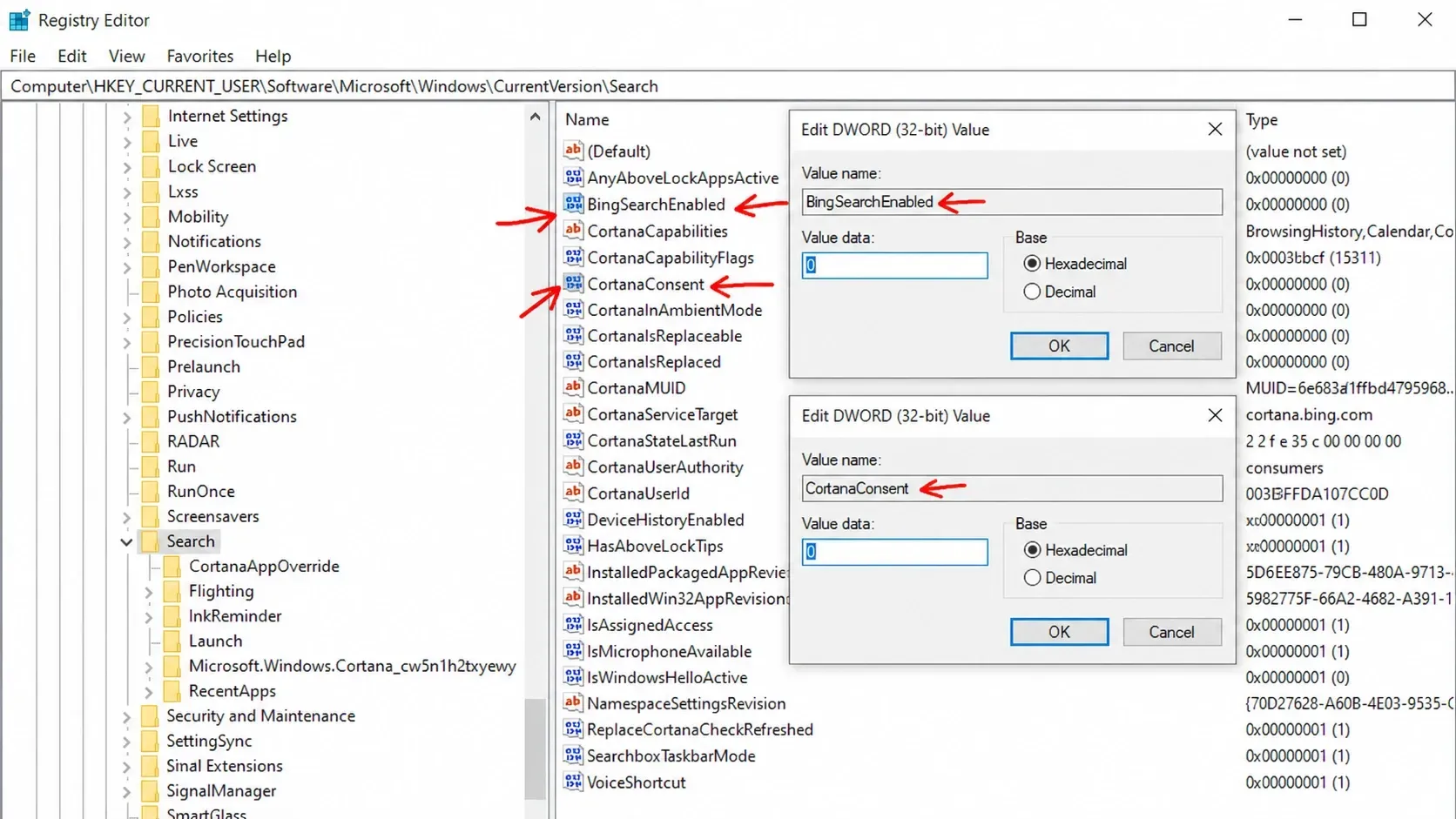
There’s a second registry value that targets Bing directly. It’s a good fallback if web results still show up after the first method, and it’s quick to apply or remove.
HKEY_CURRENT_USER\Software\Microsoft\Windows\CurrentVersion\SearchIf you ever want Bing back, delete the value or set it to 1. You can apply the same change from an elevated Command Prompt with one line.
reg add "HKCU\Software\Microsoft\Windows\CurrentVersion\Search" /v BingSearchEnabled /t REG_DWORD /d 0 /f
Disable Bing in Start menu search from Command Prompt

Turn off web results with Group Policy (Pro and Enterprise)
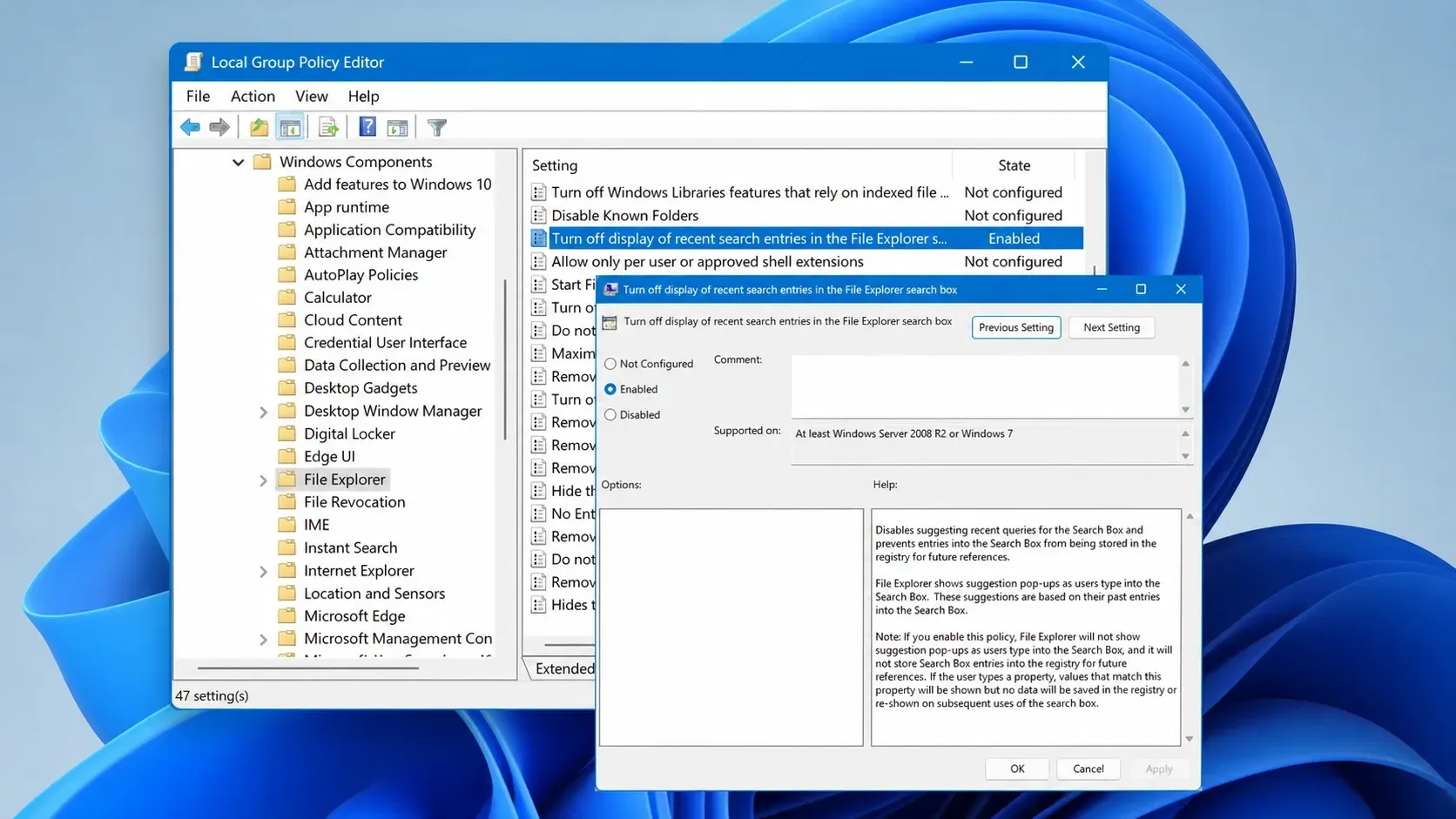
If you run Windows 11 Pro, Education, or Enterprise, the Local Group Policy Editor has dedicated switches for this. Home editions don’t include gpedit, so Home users should stick to the registry methods above.
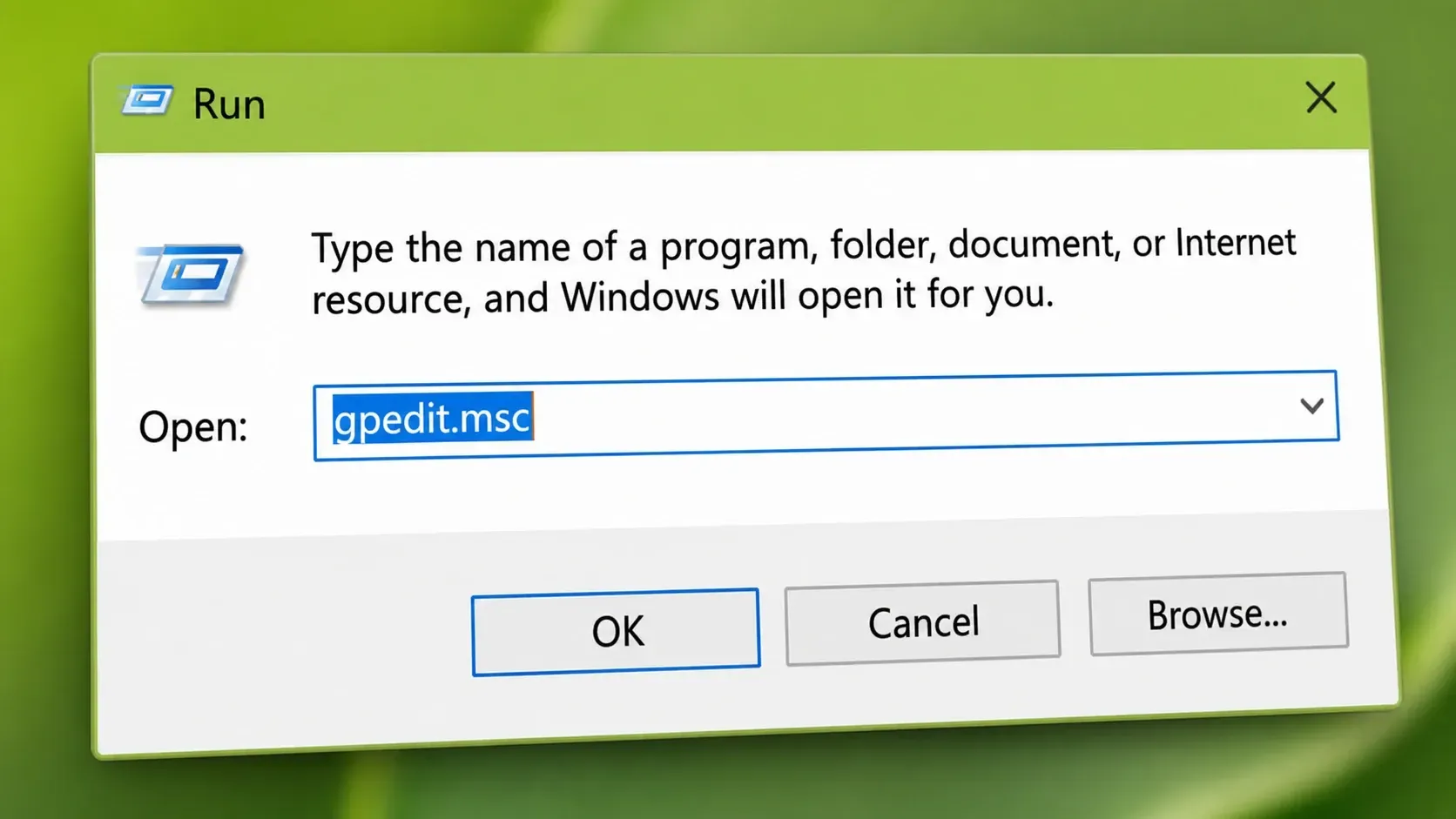
gpedit.msc, and press Enter to open the Local Group Policy Editor with elevated rights.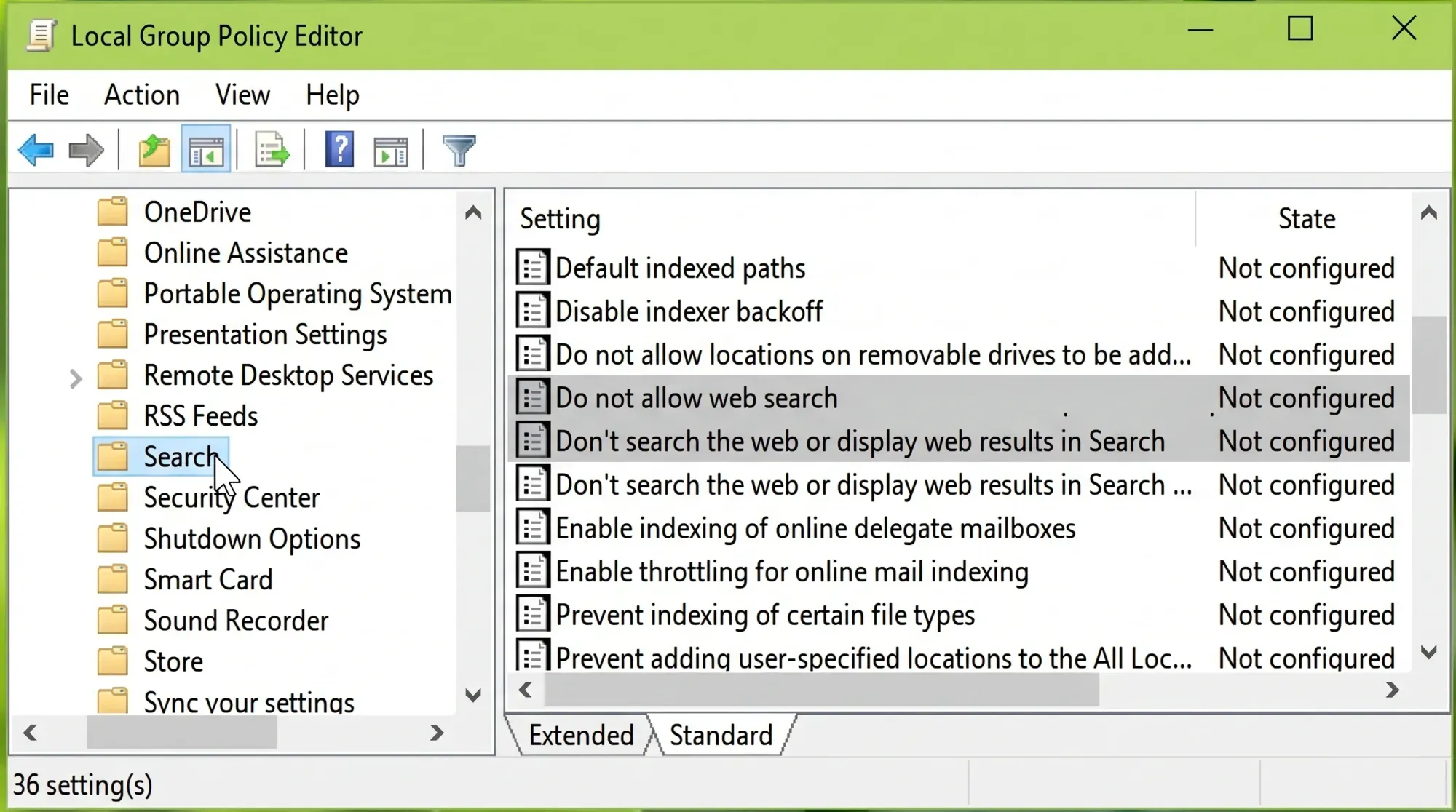
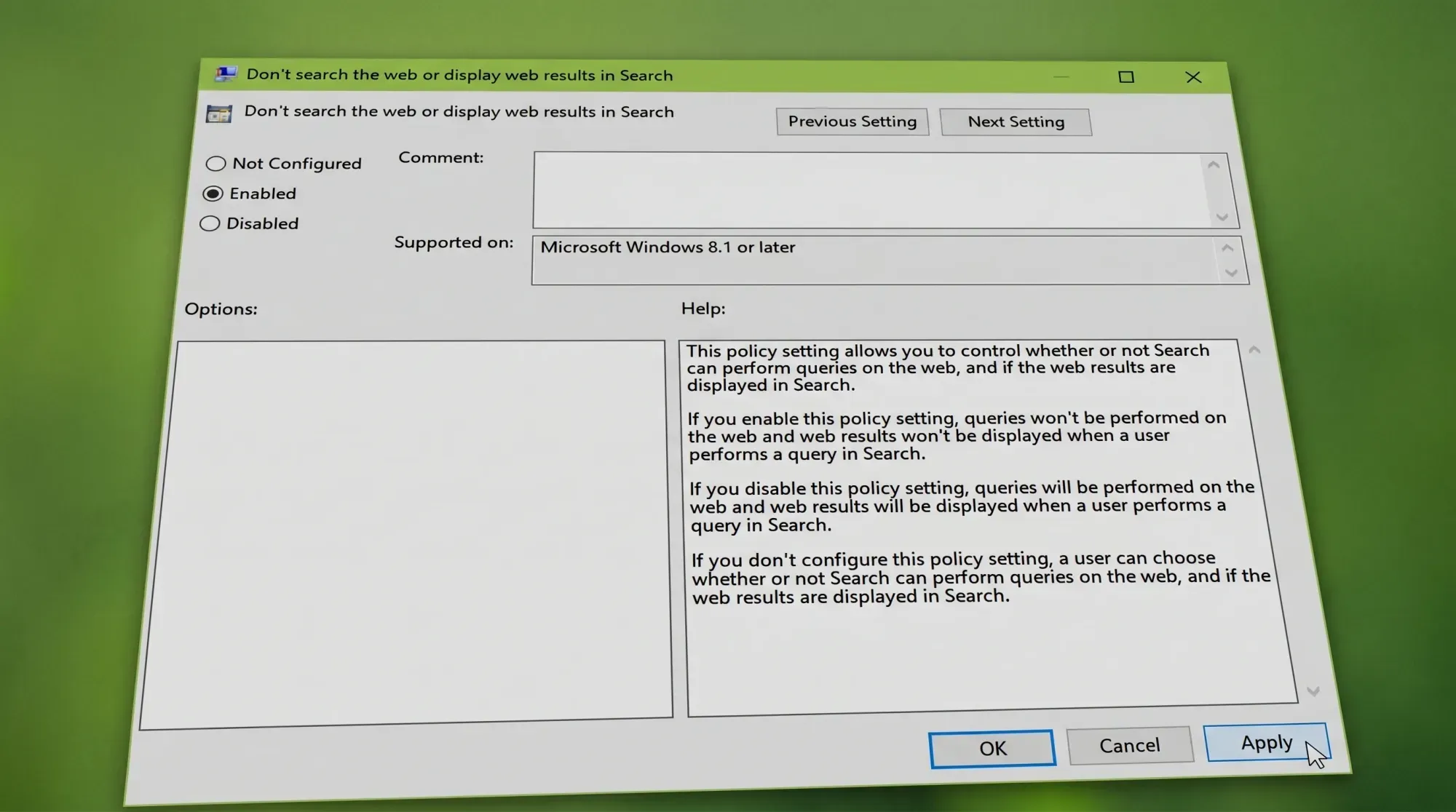
Some systems still show web results after only the policy change. If that happens, apply the BingSearchEnabled registry value as well, which clears it. To revert, set both policies back to Not Configured.

Settings toggle for web suggestions in Windows 11
Newer Windows 11 builds add a switch inside Settings. Go to Privacy & security, then Search, and look under Show suggested search results. From there you can turn off web searches as well as Microsoft Store results. This option is rolling out gradually, so it may not be present on every machine yet.
If the toggle isn’t there, or it doesn’t fully remove web links, the registry route remains the dependable choice on both Windows 10 and Windows 11.
If web results come back after a Windows update
Feature updates sometimes reset these tweaks and switch web search back on. The usual fix is to delete the registry value you created, restart the PC, then re-add it. Keeping a small .reg file or a batch script with your preferred values makes reapplying it after an update painless.
A few other things to check if results persist. Restart Windows Explorer or reboot to force the change to register. Clear the search history under Settings, then Privacy & security, then Searching Windows. And if Microsoft account syncing is pushing the setting back, turn off sync for the relevant categories under Accounts.
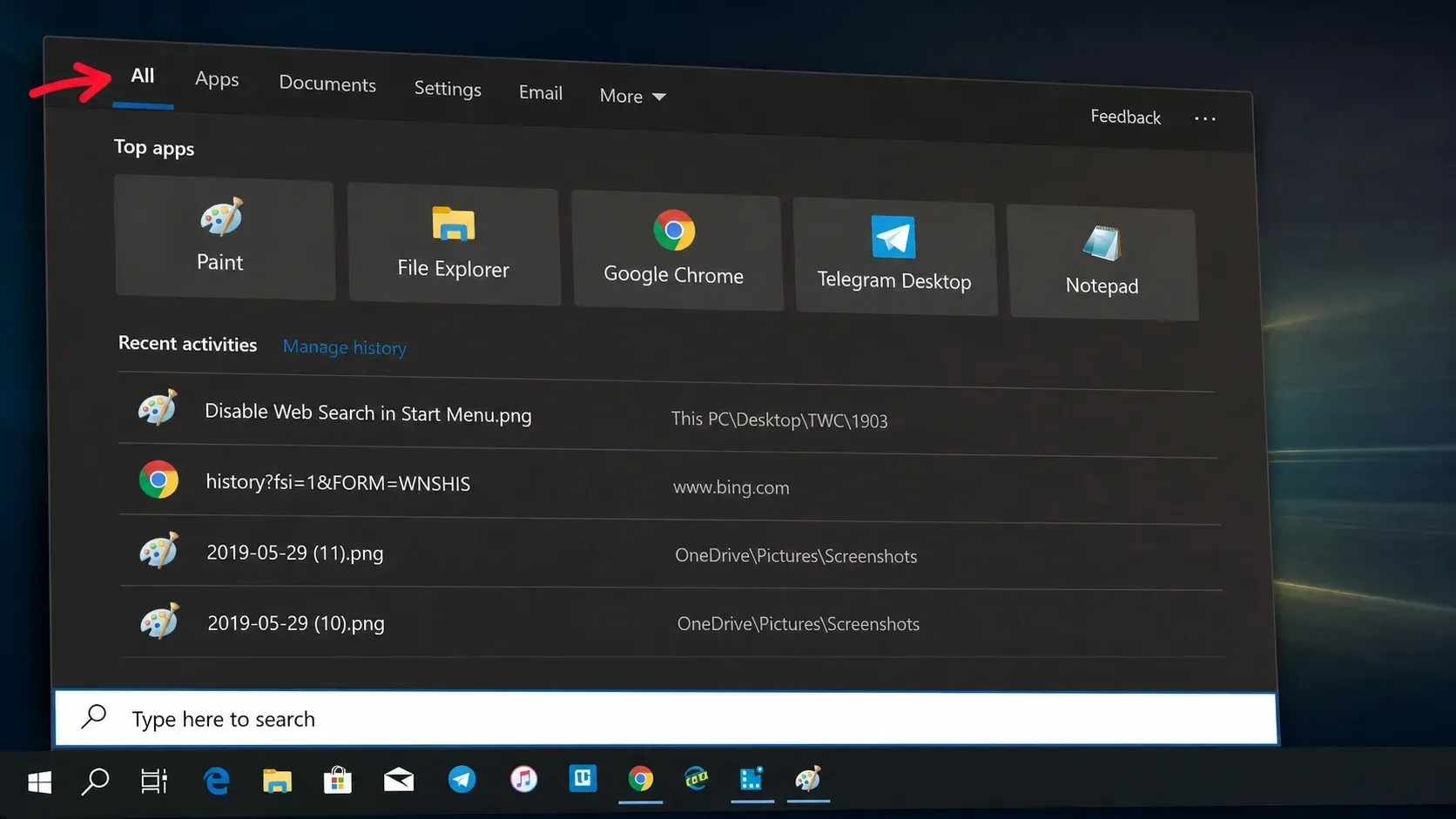
Once the change holds, the Start menu search box does what most people actually want it to do. It points you to your apps, files, and settings, and stops handing your typing off to Bing and Edge.



