

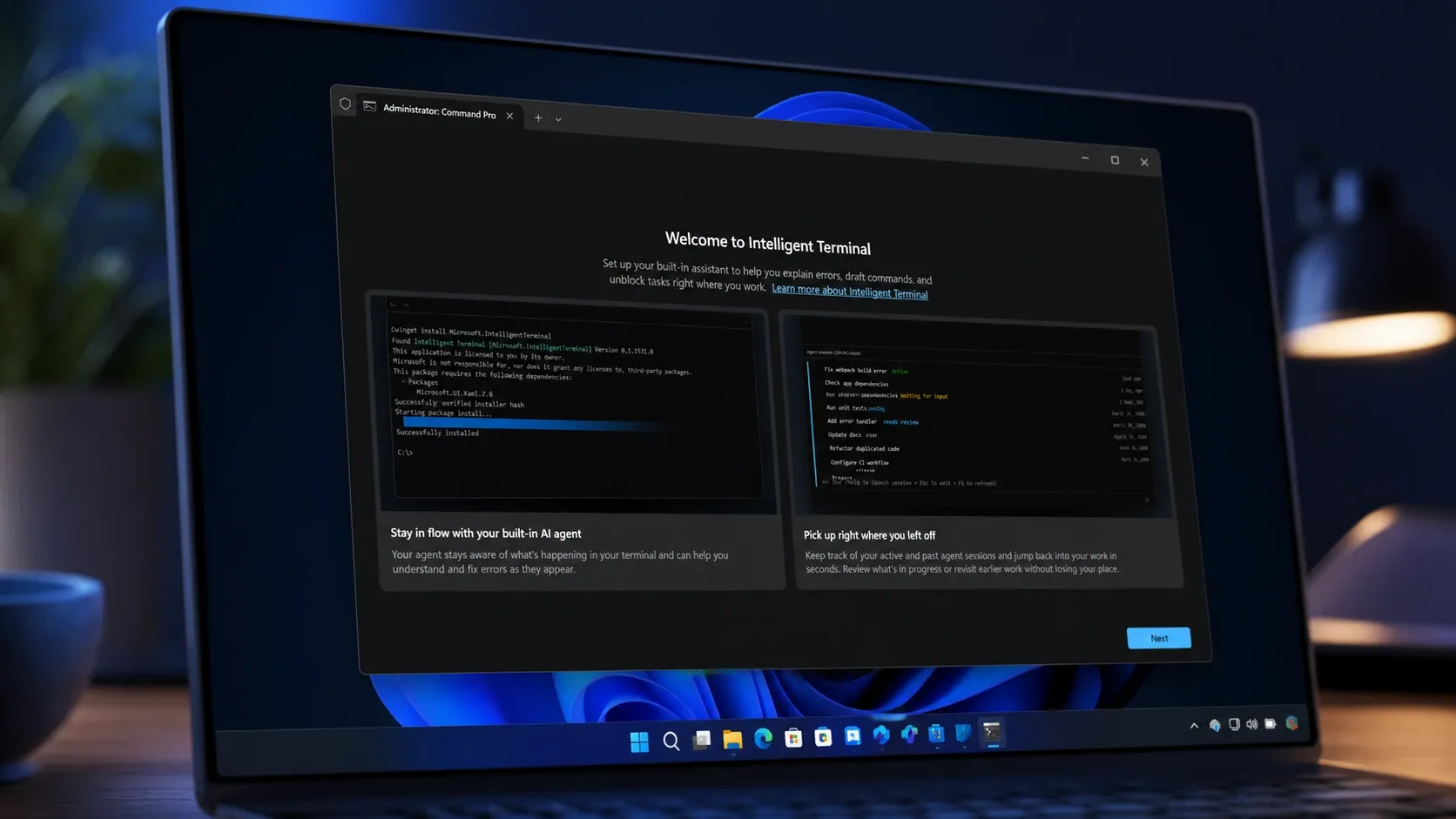
Intelligent Terminal is an experimental Windows 11 app that puts AI agents directly inside the command-line workflow. Microsoft introduced it at Build 2026 as version 0.1, an open-source fork of Windows Terminal that keeps the shell you already use while adding an agent that can read command output, explain errors, and suggest fixes in real time.
What Intelligent Terminal does
The command line is fast but fragmented. When a build breaks or a command fails, you usually leave the terminal for a browser, documentation, or forums to figure out what went wrong. Intelligent Terminal closes that gap by embedding an agent that understands terminal context, command output, and failures as they happen.
The app adds three core pieces. An agent pane sits beside your shell, a status bar surfaces agent activity, and command palette integration lets you trigger AI tasks using the live terminal context. When a command fails, Intelligent Terminal detects it automatically and can pass the error output straight to the agent for an explanation or a proposed fix.
Because it is a fork of Windows Terminal, it inherits the full feature set you already rely on. That includes tabs, profiles, themes, settings, and multiple shells, with native agent integration layered on top.
How the AI layer works
The agent runs alongside the shell rather than inside it. Your commands keep executing normally while the agent operates in a separate context window or background session. That separation means you can debug in parallel without the AI blocking your terminal work.
GitHub Copilot CLI is the default agent, but the design is built around the Agent Client Protocol (ACP). Through ACP, the terminal provides context to compatible agents, so you can swap in other agents or even local models instead of Copilot. Microsoft frames this as a modular platform where agents can be added, extended, or removed depending on how you want to work.
Install Intelligent Terminal on Windows 11
winget install Microsoft.IntelligentTerminal
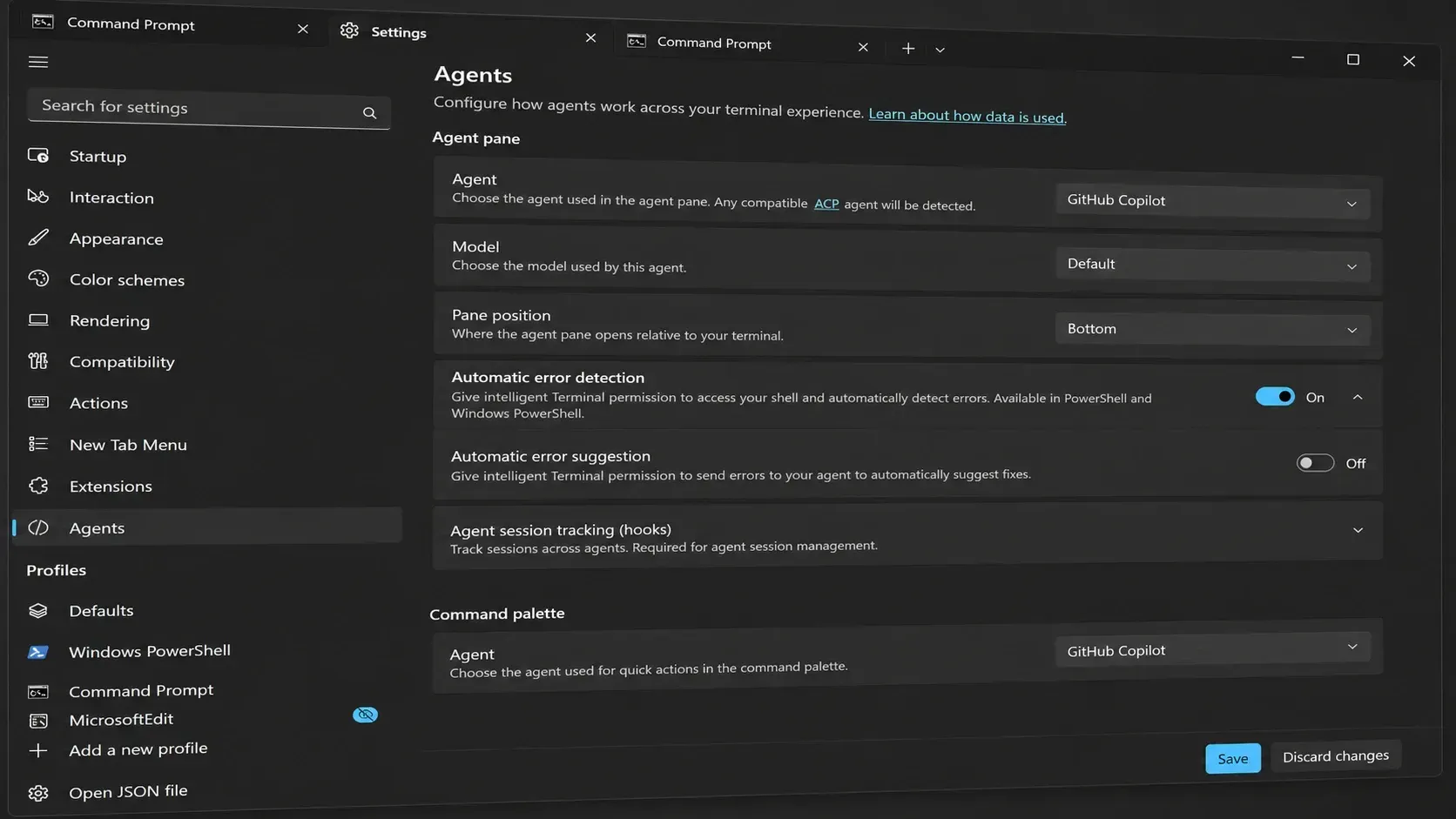
Change the default agent and model
The agent configuration lives in the app’s settings. Open Intelligent Terminal > Settings > Agents to manage which agent responds and which model it uses. GitHub Copilot is the default, and from this screen you can switch to another model you have already configured on your device.
Keyboard shortcuts
The agent panel and focus controls are mapped to keyboard shortcuts so you can move between the shell and the agent without reaching for the mouse.
| Shortcut | Action |
|---|---|
| Ctrl + Shift + . | Show or hide the agent panel |
| Ctrl + Shift + / | Show or hide the agent panel |
| Ctrl + Shift + I | Move input focus between the terminal and agent |
| Alt + Shift + / | Open the agent command palette |
How to confirm it installed and works
After installation, Intelligent Terminal appears as its own app in the Start menu, separate from Windows Terminal. Launch it and you should see the familiar Windows Terminal layout with the added agent pane and status bar. Pressing Ctrl + Shift + . toggles the agent panel, which confirms the AI layer is active.
To test the failure-detection behavior, run a command that errors out. The agent should pick up the failed output and offer an explanation or a suggested fix without you switching apps. If the agent does not respond, open the Agents settings and verify that GitHub Copilot or your chosen model is selected.
Intelligent Terminal arrived as part of Microsoft’s wider Build 2026 push to position Windows 11 as a development platform, sitting next to releases like Coreutils for Windows and Windows Development Skills. As an experimental 0.1 build, it is meant for developers who want to keep their debugging loop inside the terminal, and since it installs separately, you can try the agent workflow without giving up the Windows Terminal you already have.



